How to Bulk Delete SKUs
Last updated: September 7, 2026
Managing product catalogs one SKU at a time isn't practical when you need to remove multiple items at once. This article shows you how to select and permanently delete multiple SKUs at once in RetailReady, rather than removing them individually.
Deleting SKUs in Bulk
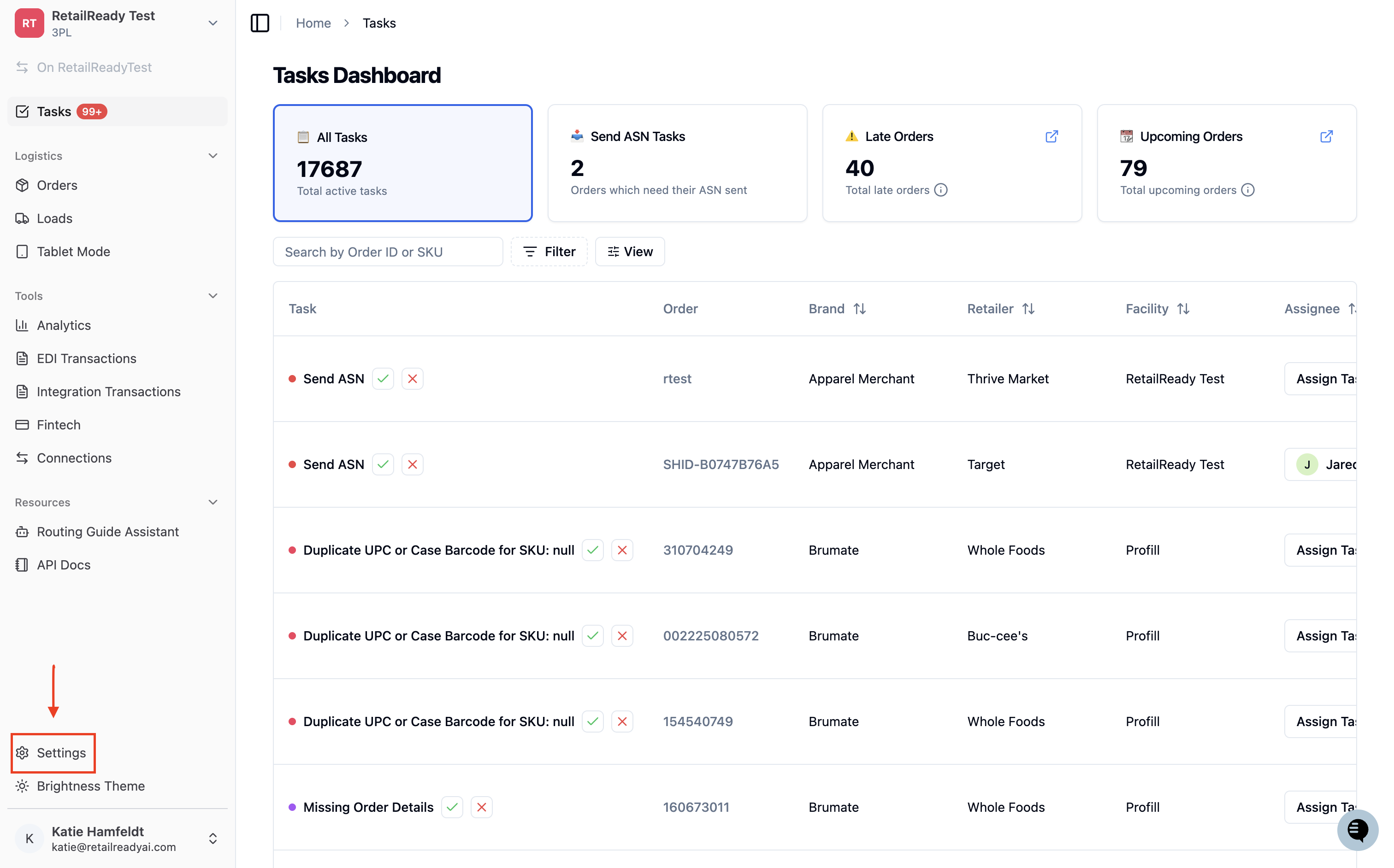
Open up your RetailReady Dashboard, and navigate to 'Settings' tab on the Left Hand Side.
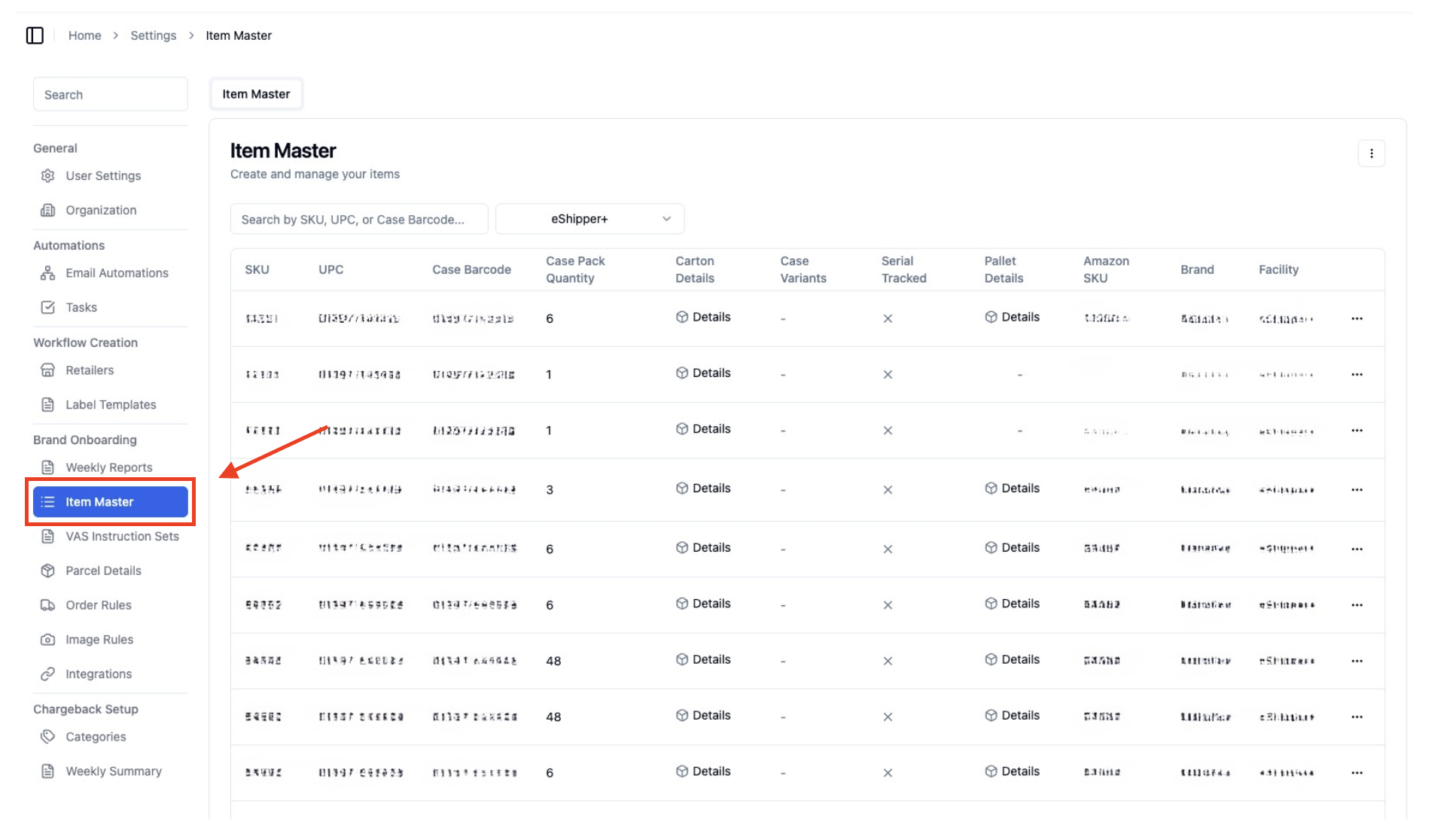
Navigate to and click on 'Item Master'
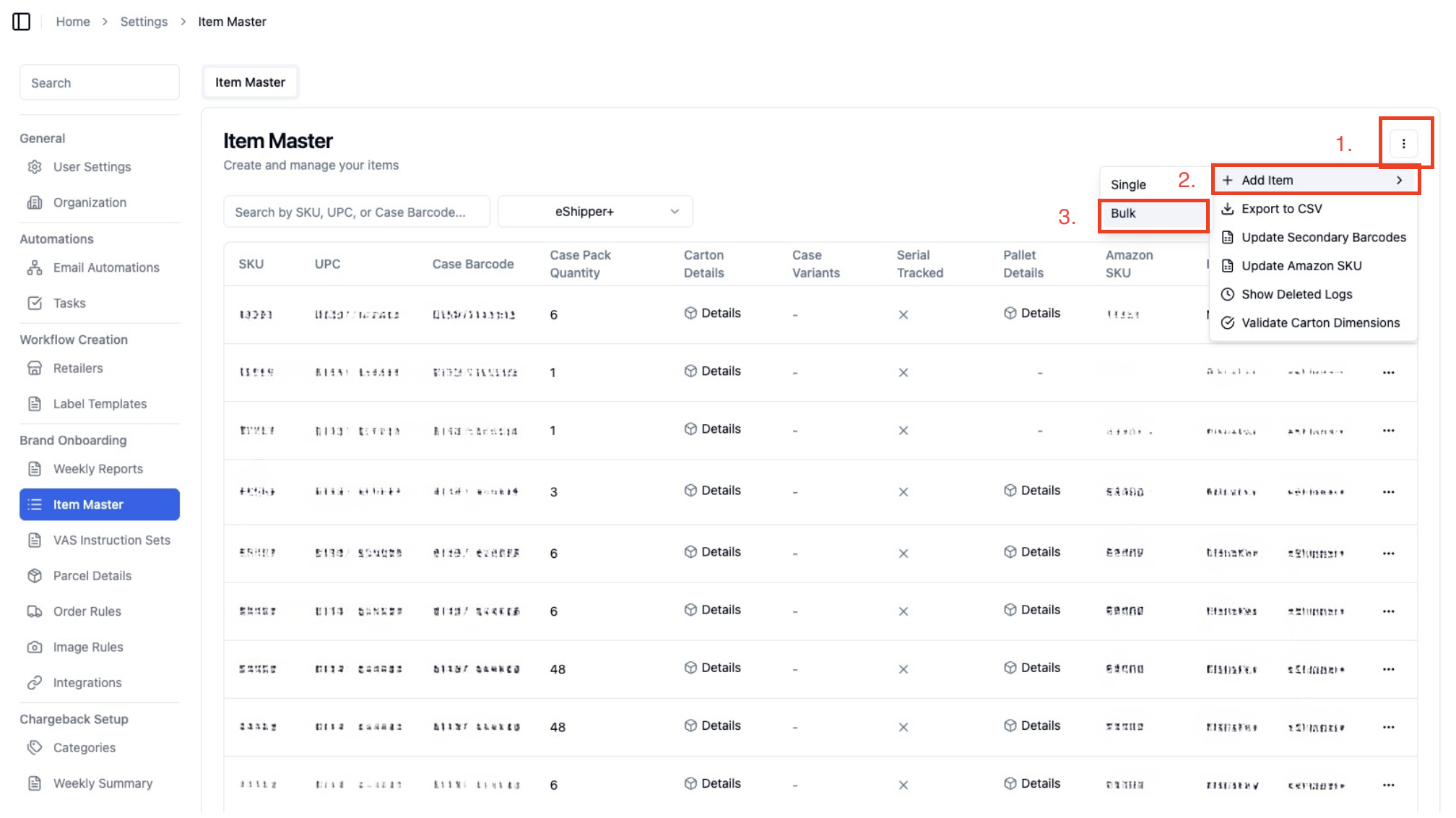
Navigate to and click the three dots in the top right corner, select '+ Add Item', then select 'Bulk'. (Note: it might take a few seconds to load)
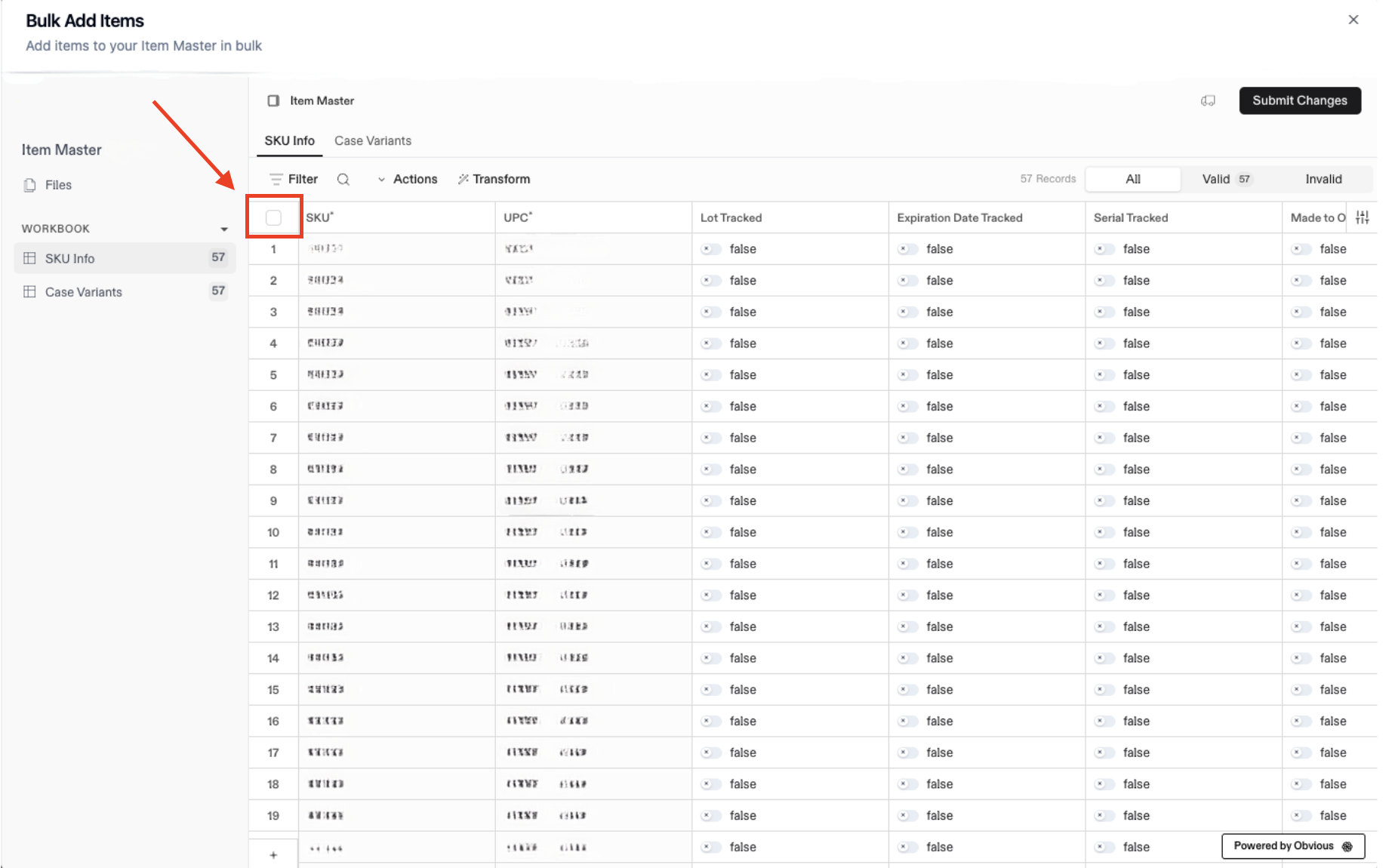
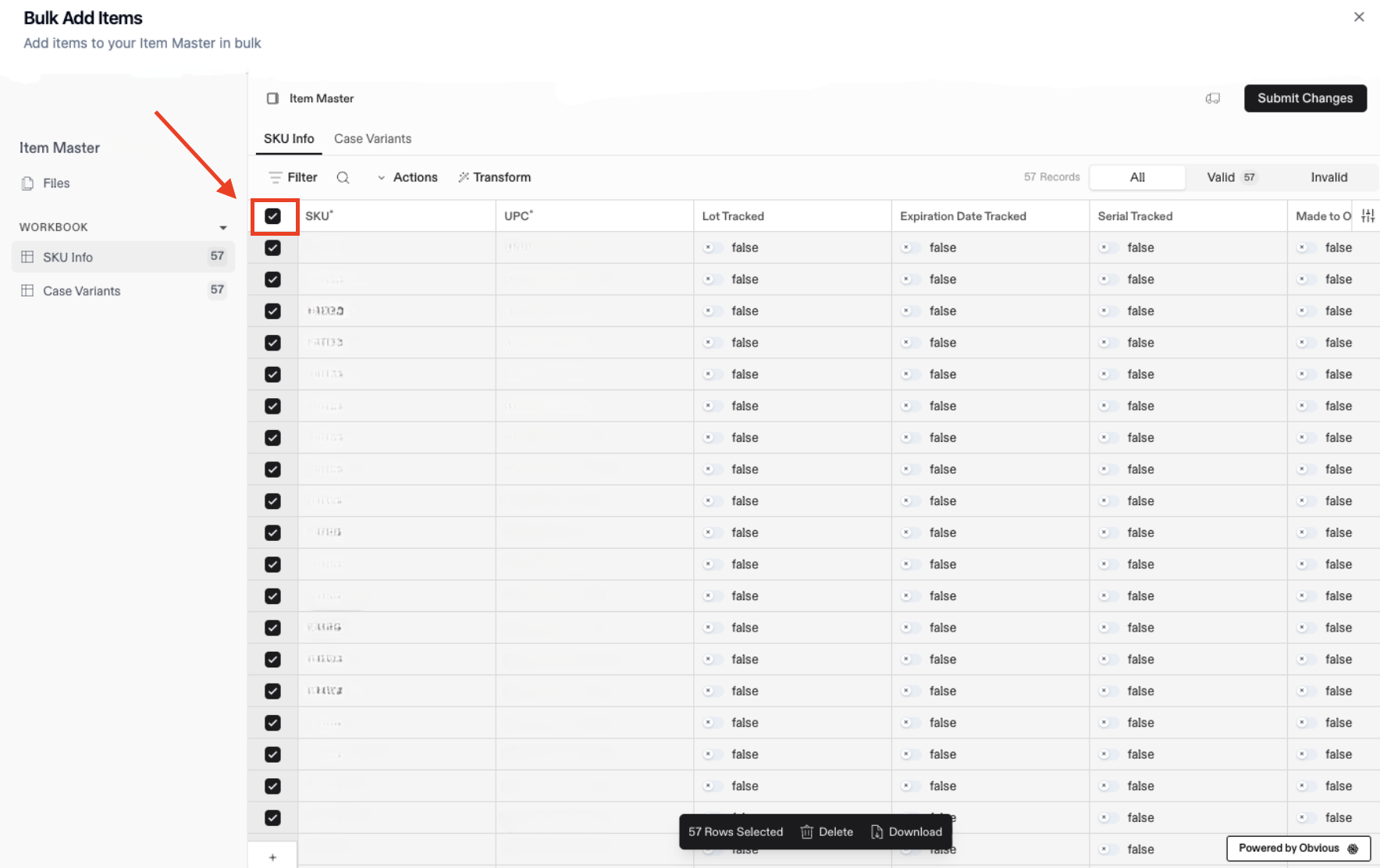
Once the Bulk Add Items page has popped up, click on the square to the left of the SKU* column to select all Items.
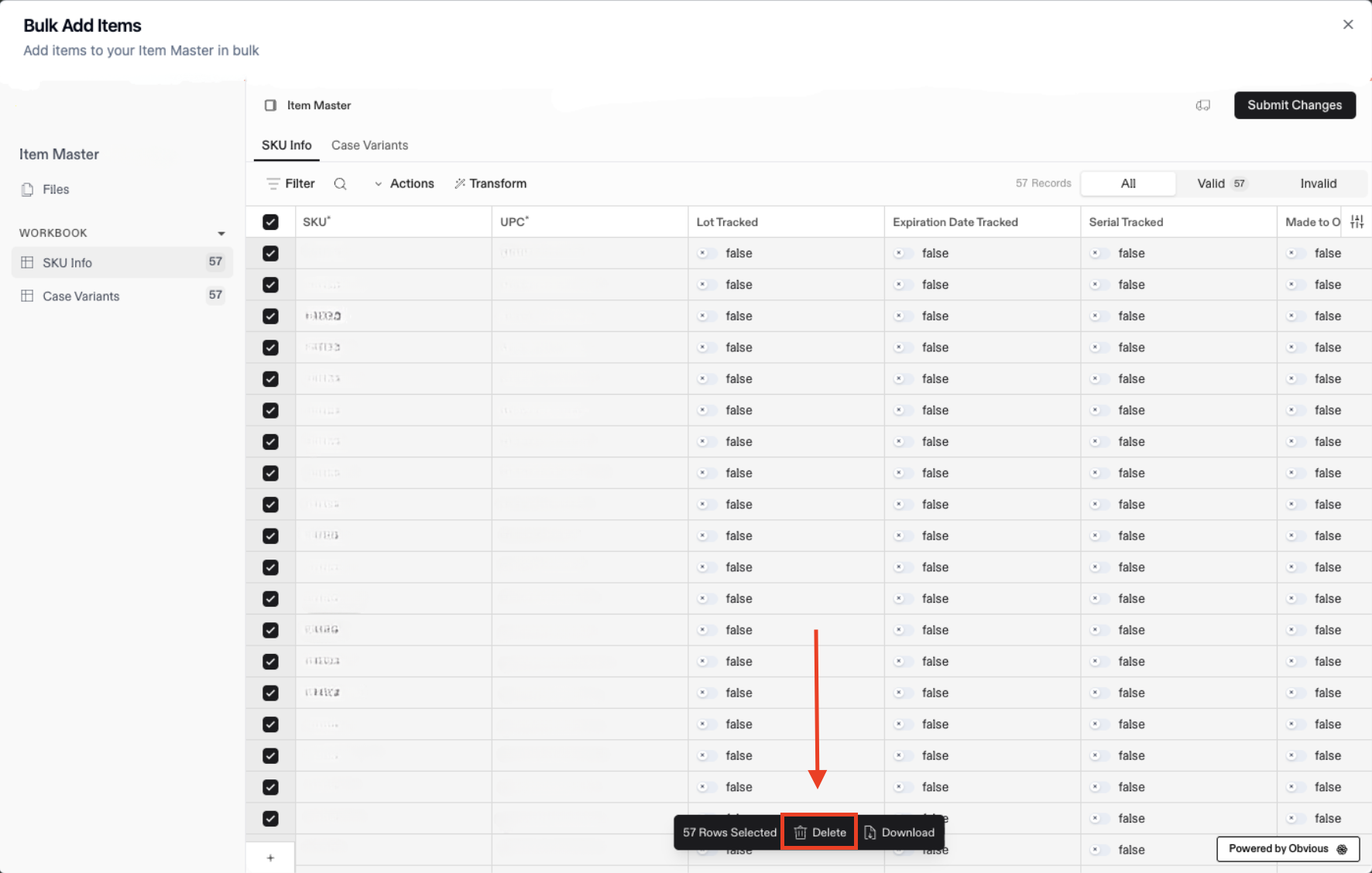
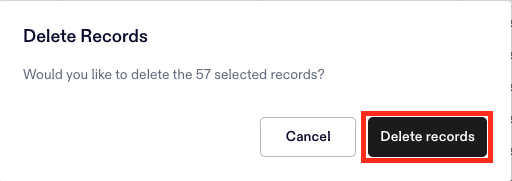
Navigate to the bottom of the screen and hit 'Delete' and then click 'Delete records'
FAQs:
Can I edit the SKU name instead of deleting?
No.
Can I change the UPC without deleting?
No.