When are ASNs Sent?
Last updated: March 9, 2026
What is an ASN?
An Advanced Shipping Notice (ASN) is the EDI 856 transaction sent by you to retailers when goods are packed and shipped, as a response to to the Purchase Order (EDI 850). It provides detailed information about a pending delivery, including tracking numbers, carrier details, and item-level packaging.
What types of orders will ASNs send for?
If enabled, ASNs will send for both parcel and freight orders, but there are a few crucial steps to follow for each to make sure ASNs are sent correctly (see 'When does an ASN send? below).
If an order is created manually in RetailReady, an ASN will not be sent for the order when it moves to 'Done' status because there is no associated PO to respond to. Please be sure to let the retailer know that the order was shipped.
When does an ASN send?
For Parcel Orders (using RetailReady parcel):
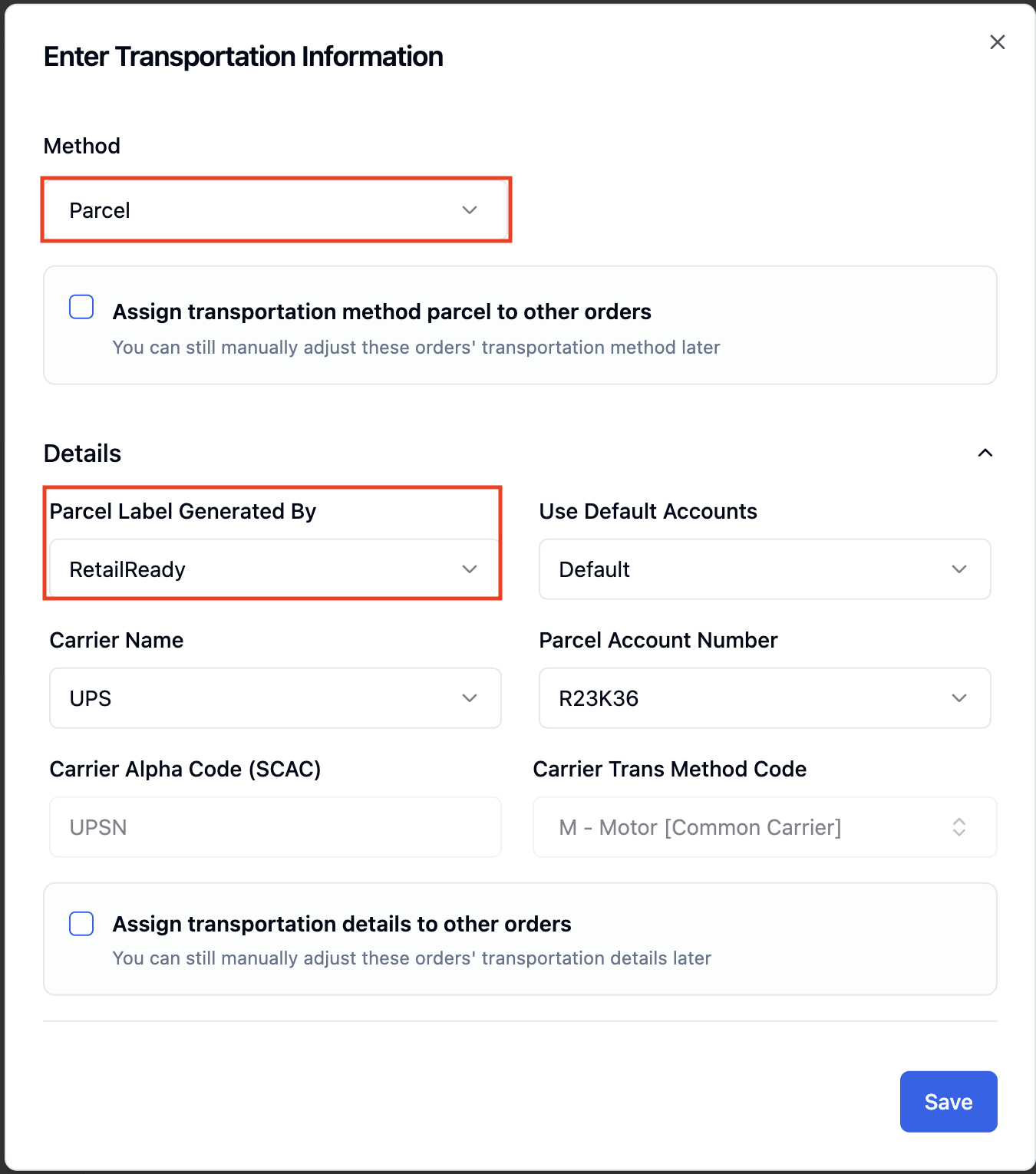
First, ensure that the Transportation Details for the order are set to 'Parcel' method and that RetailReady is generating the parcel label. You can view these details by clicking '...' and 'Enter Transportation Information' from the top right of the Orders page.
Then pack out the order. After completing the carton labels, proceed to parcel labels and please be sure to generate all parcel labels from RetailReady.
Once you confirm on the table that all parcel labels have been printed and applied, the order will be moved to 'Done' status and an ASN will automatically be sent to the retailer.
For Parcel Orders (not using RetailReady parcel):
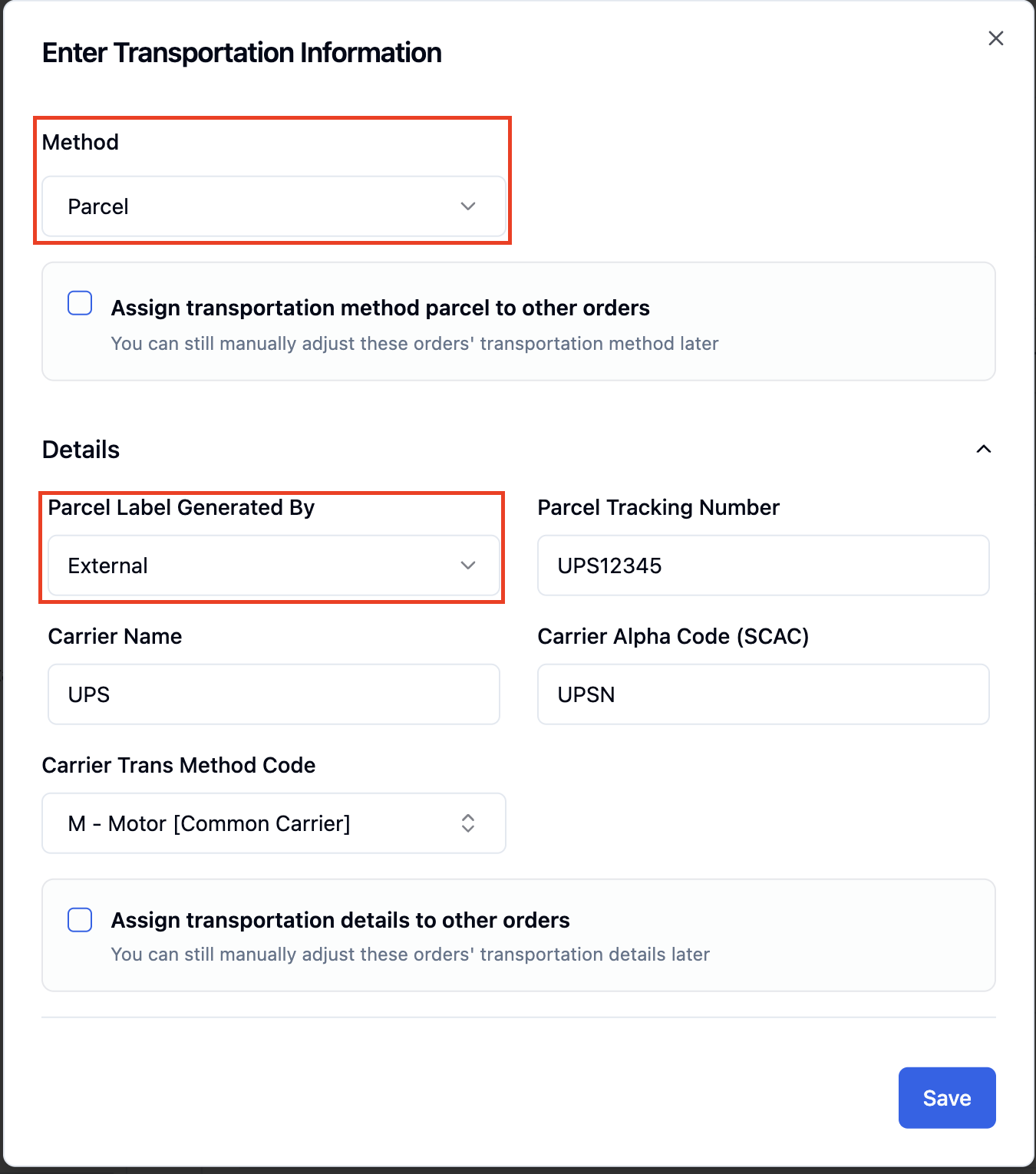
If you do not use RetailReady to generate your parcel labels, please make sure that transportation details are entered correctly. To view the transportation details, open the order from the orders dashboard, click '...' and click 'Enter Transportation Information'.
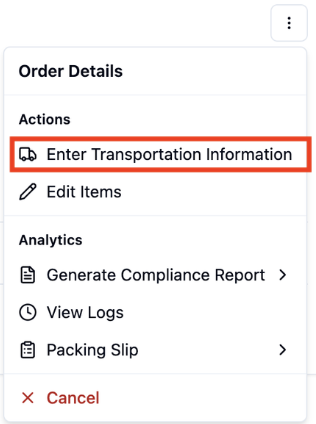
To enter external parcel details, select 'Parcel' for the method, 'External' for how the parcel label is generated, enter the parcel details, and then click 'Save'.
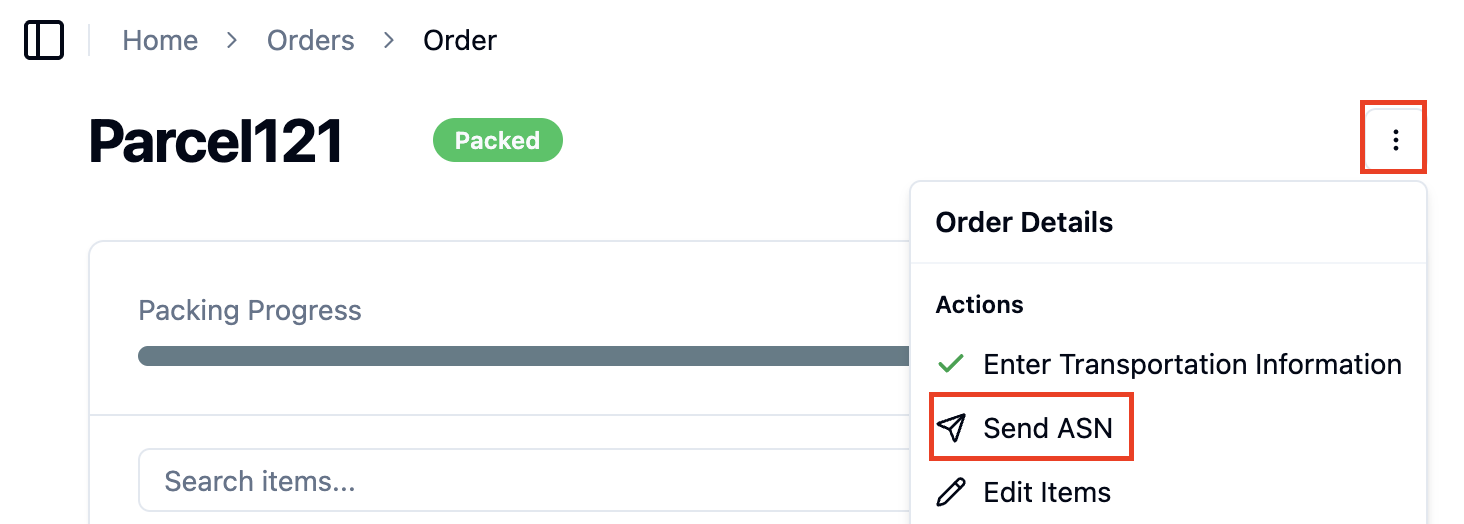
Once the order is packed and the transportation details are completed, you can manually send the ASN by clicking 'Send ASN' from '...' on the Order.
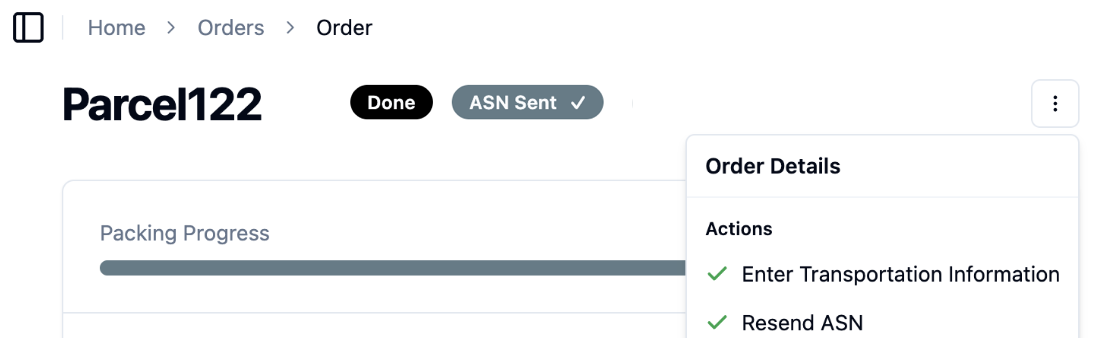
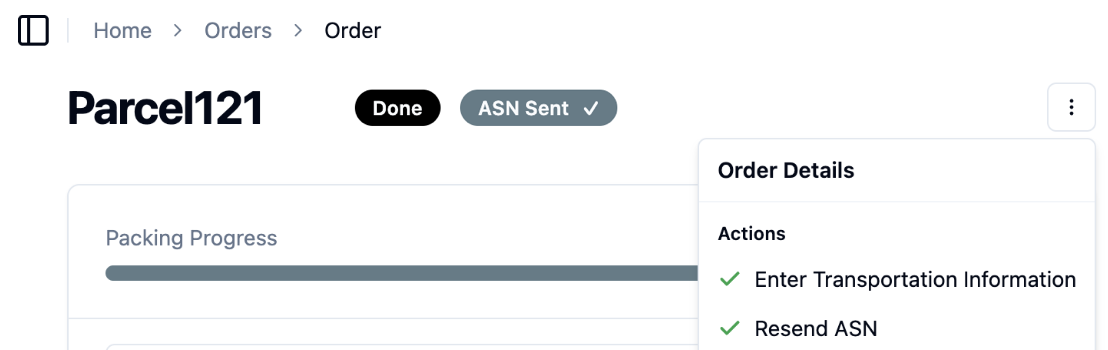
Now the order will show as 'Done' with the ASN sent.
For Freight Orders (Transportation Information is incomplete):
Once a freight order is packed and staged, RetailReady will create tasks to ensure that a load is created for the order and transportation details are entered (if they are missing).
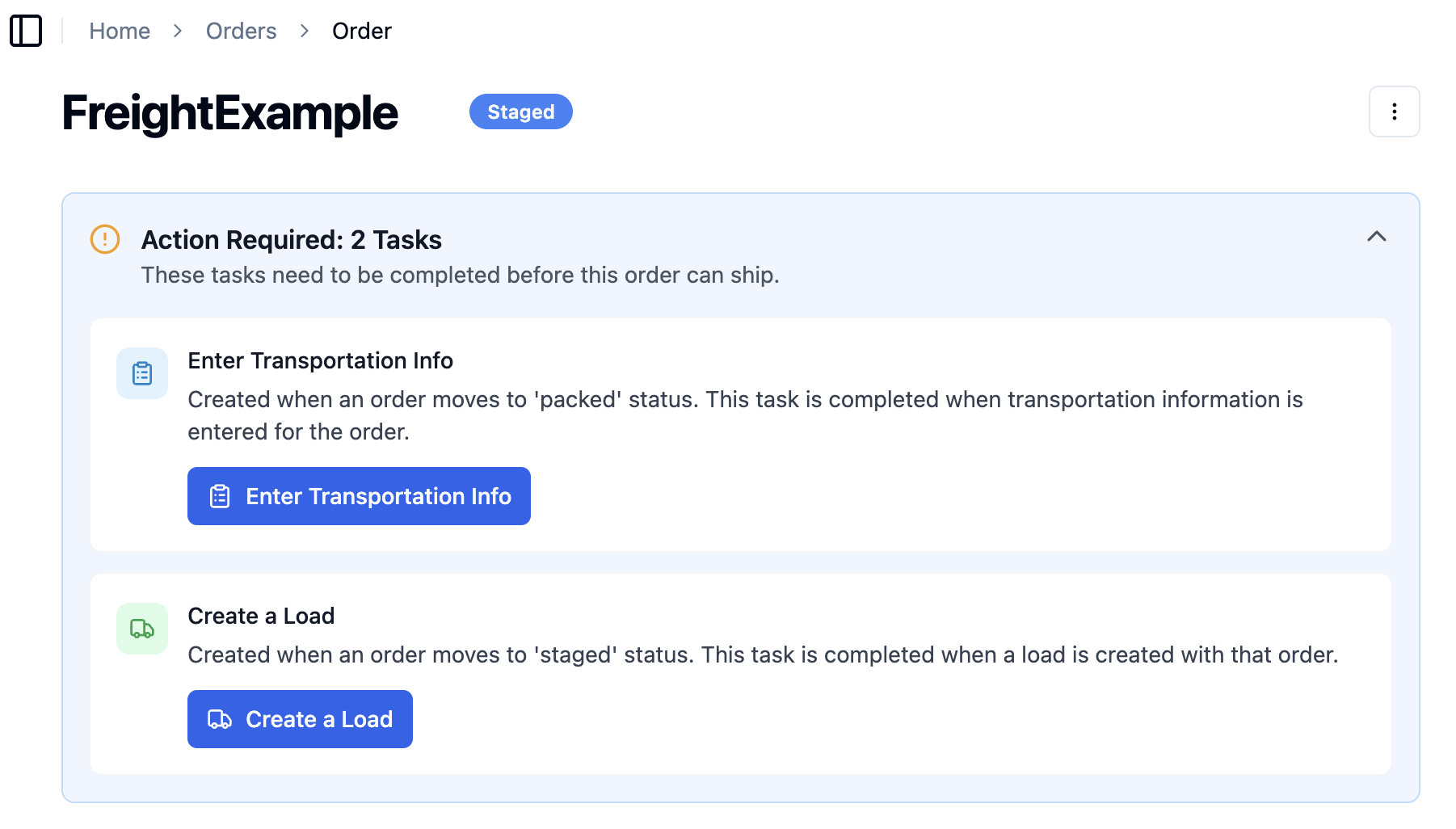
First, click the 'Enter the Transportation Info' task. Select the 'Freight' method and populate the transportation details for the order. Click 'Save' when complete.
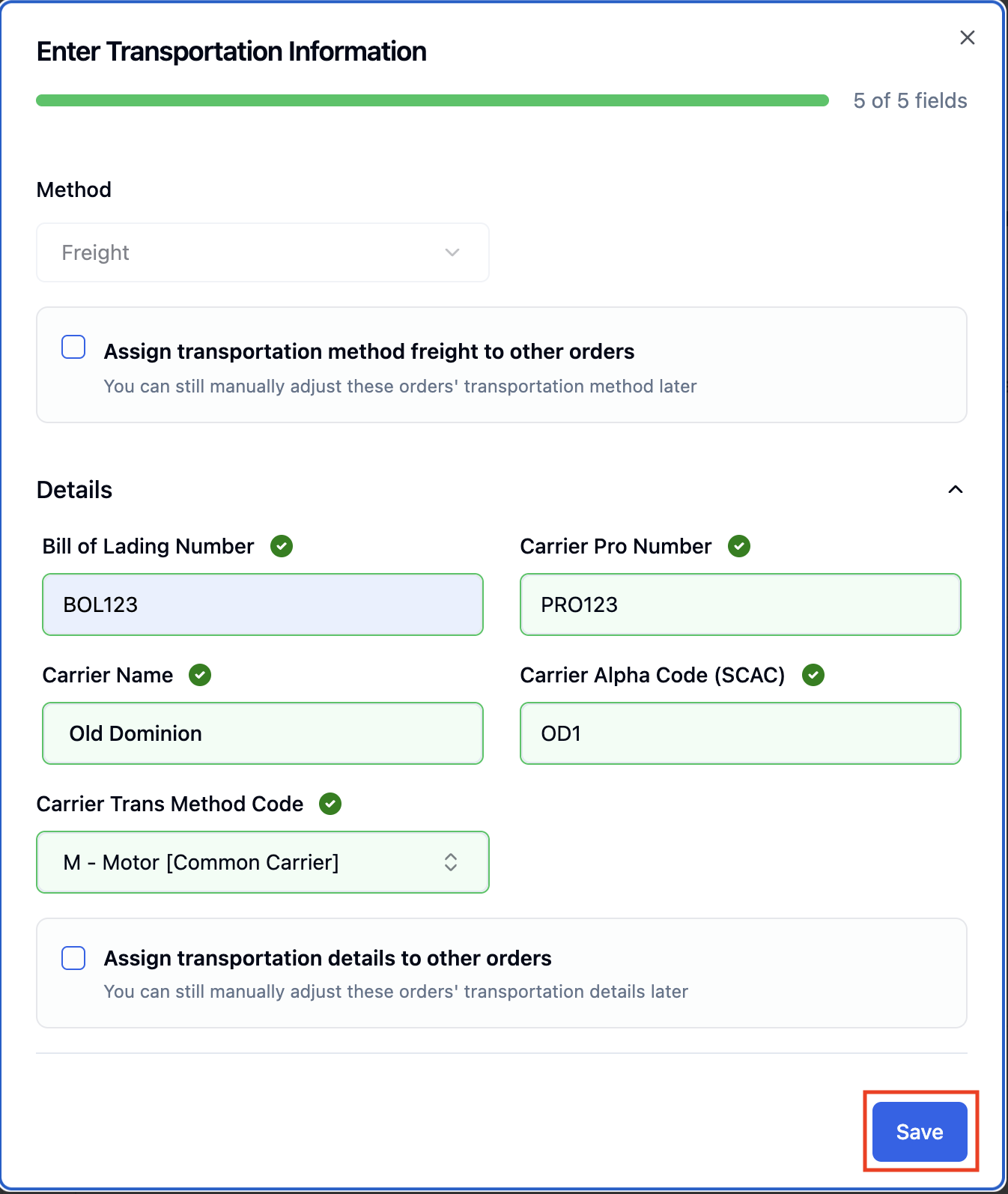
Then proceed with creating the load for the order and shipping the order.
Once all tasks are completed, the ASN will send.
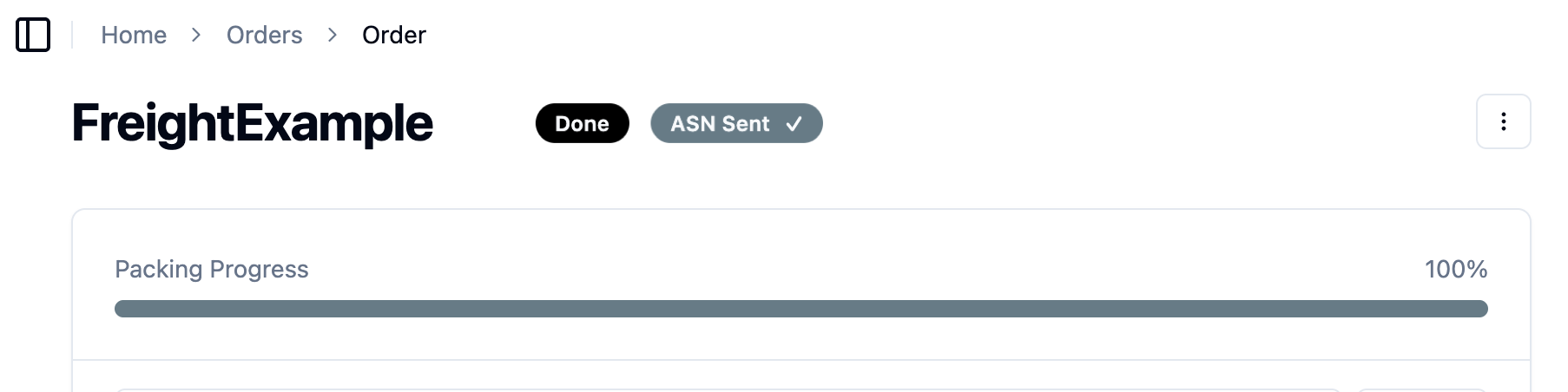
For Freight Orders (Transportation Information is Complete):
For freight orders, if the transportation details are pre-filled out, the ASN will auto-send after the order is loaded and no other action is required.
FAQs:
What happens if I do not have ASNs enabled to send?
If ASNs are not enabled for a retailer, you should still provide a confirmation to the Retailer that the order has been shipped. The retailer's routing guide should include instructions for how to provide confirmation (for example, via email), and the RetailReady team can help provide clarification if you have any questions.
Can I resend an ASN?
You may need to resend an ASN if you needed to make a change to the physical shipment, or if you received a transmission error from your EDI provider after the original ASN was sent.
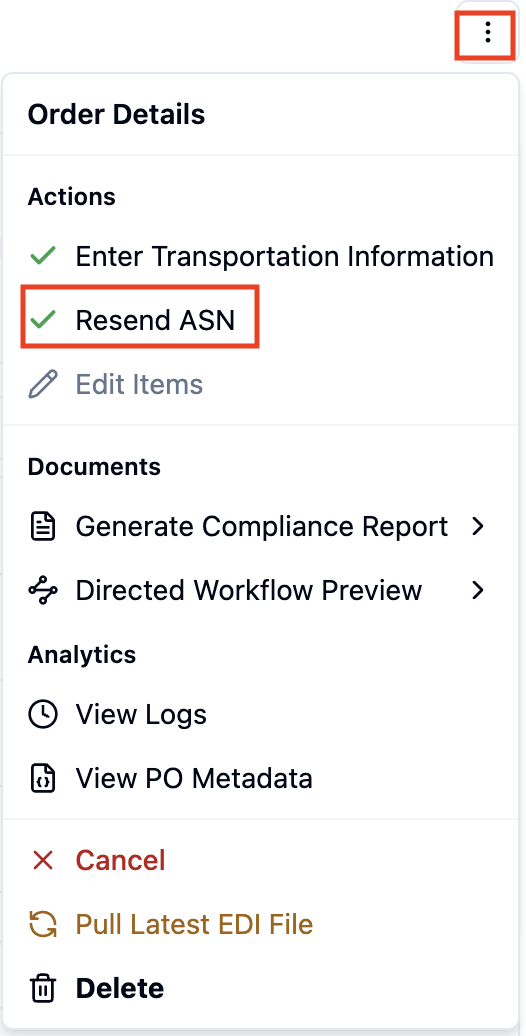
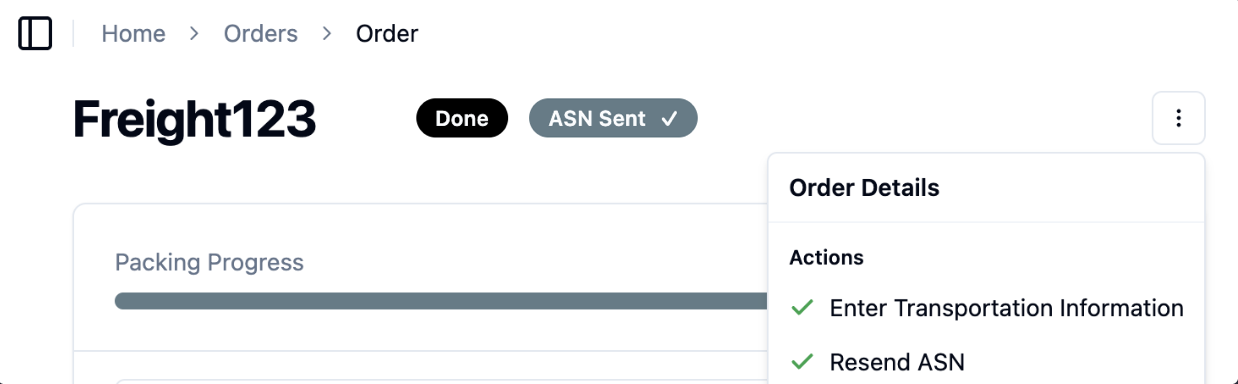
If you need to resent an ASN, you can do so by opening the order from the order dashboard page, clicking the '...' on the top right of the order, and clicking 'Resend ASN'.