How to Export Shipping Addresses for Multiple Orders
Last updated: March 5, 2026
What is Order Export?
The order export feature allows you to download shipping addresses and other order details for multiple orders into a spreadsheet format. This is useful when you need to analyze shipping data or work with addresses outside of the platform.
How to Export Shipping Addresses
Navigate to your Orders page and locate the orders you want to export.
Use the filter dropdown to add shipping address fields to your view. Look for options like 'Ship To Address 1', 'Ship To Address 2', and other relevant shipping fields.
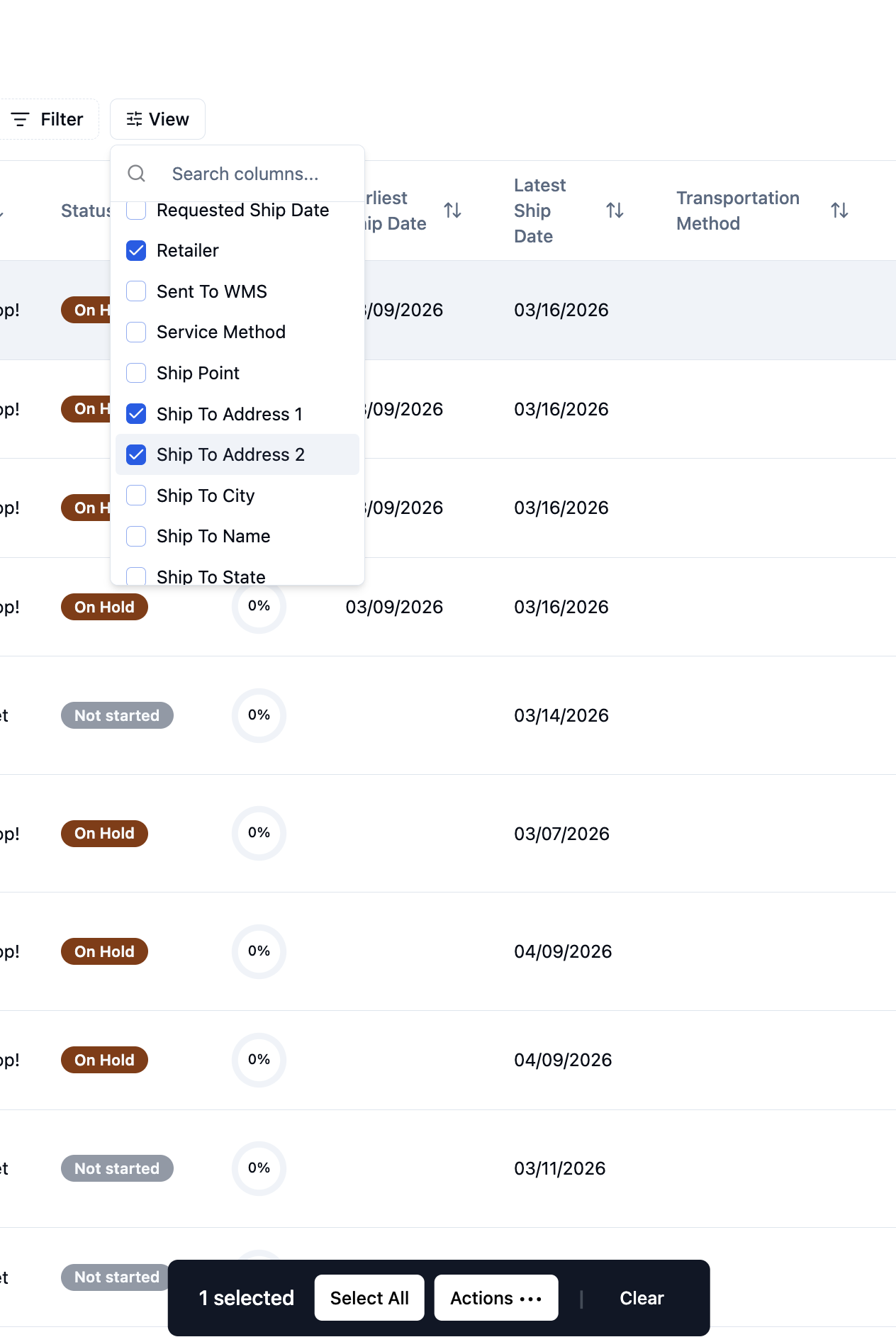
Select the orders you want to export by checking the boxes next to each order, or click 'Select All' to choose all visible orders.
Click the 'Actions' button in the bottom toolbar.
Choose 'Export' from the actions menu.
The selected shipping address fields and order data will be downloaded as a spreadsheet file.
Alternative Method: Copy and Paste
For quick data extraction, you can also:
Switch to the list view of your orders.
Select and copy the shipping address information directly from the screen.
Paste the data into your preferred spreadsheet application.
FAQs
Can I export addresses for orders from different POs at once?
Yes, you can select orders from multiple purchase orders and export them together using the bulk export feature.
What shipping address fields are available for export?
Common fields include Ship To Address 1, Ship To Address 2, City, State, ZIP code, and Retailer information. Use the filter dropdown to see all available shipping-related columns.
What file format will the export be in?
The export typically downloads as a CSV or Excel file that can be opened in spreadsheet applications like Microsoft Excel or Google Sheets.