How to Create a Load for Freight Orders
Last updated: September 7, 2026
Before a freight order can be completed, it needs to be tied to a load. For most freight orders, you'll create that load yourself. For orders shipping to Target or Walmart, RetailReady can generate the load automatically using a CSV upload. This article walks through both scenarios so you know how to get a load in place before completing an order.
Standard Freight Orders
Single Entry
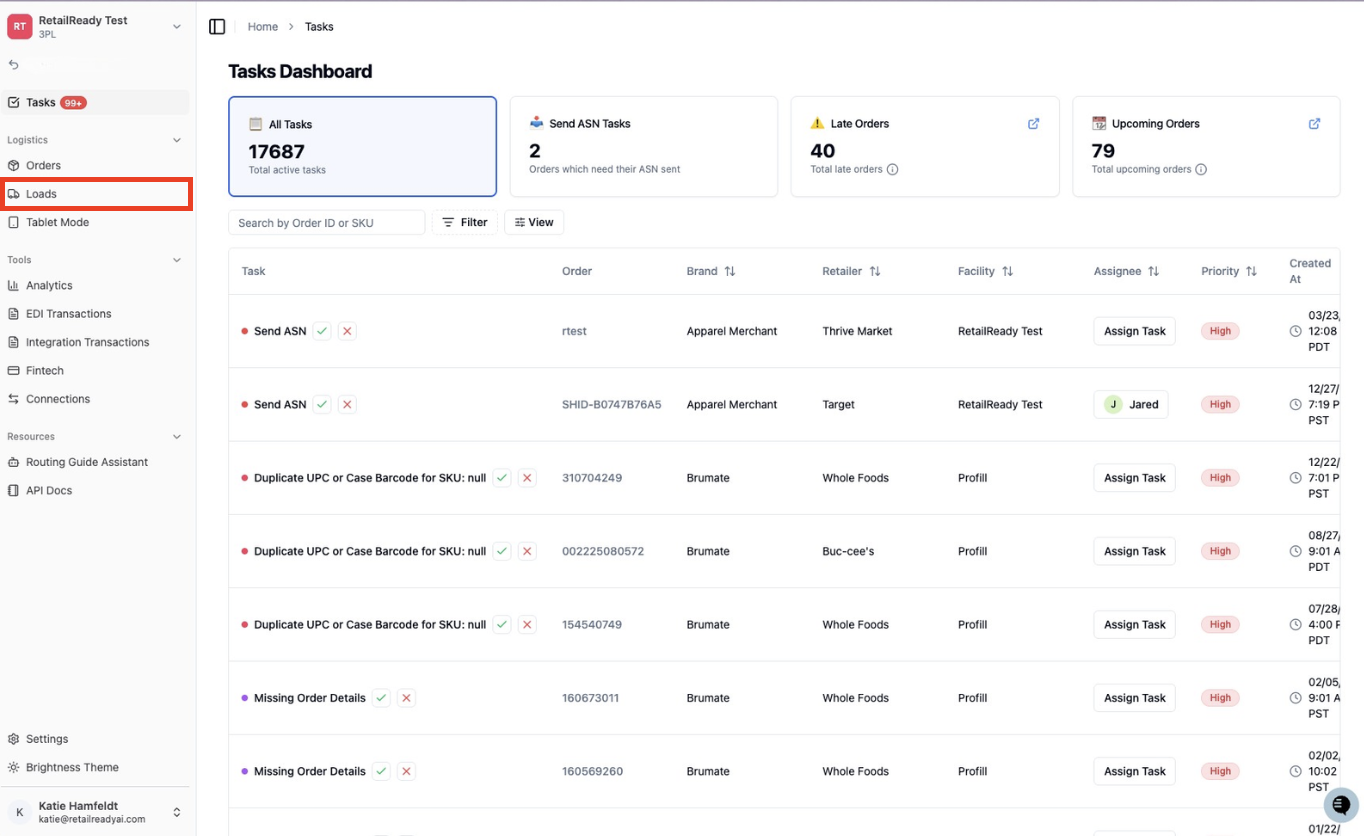
Open up your RetailReady Dashboard, and navigate to 'Loads' tab on the Left Hand Side.
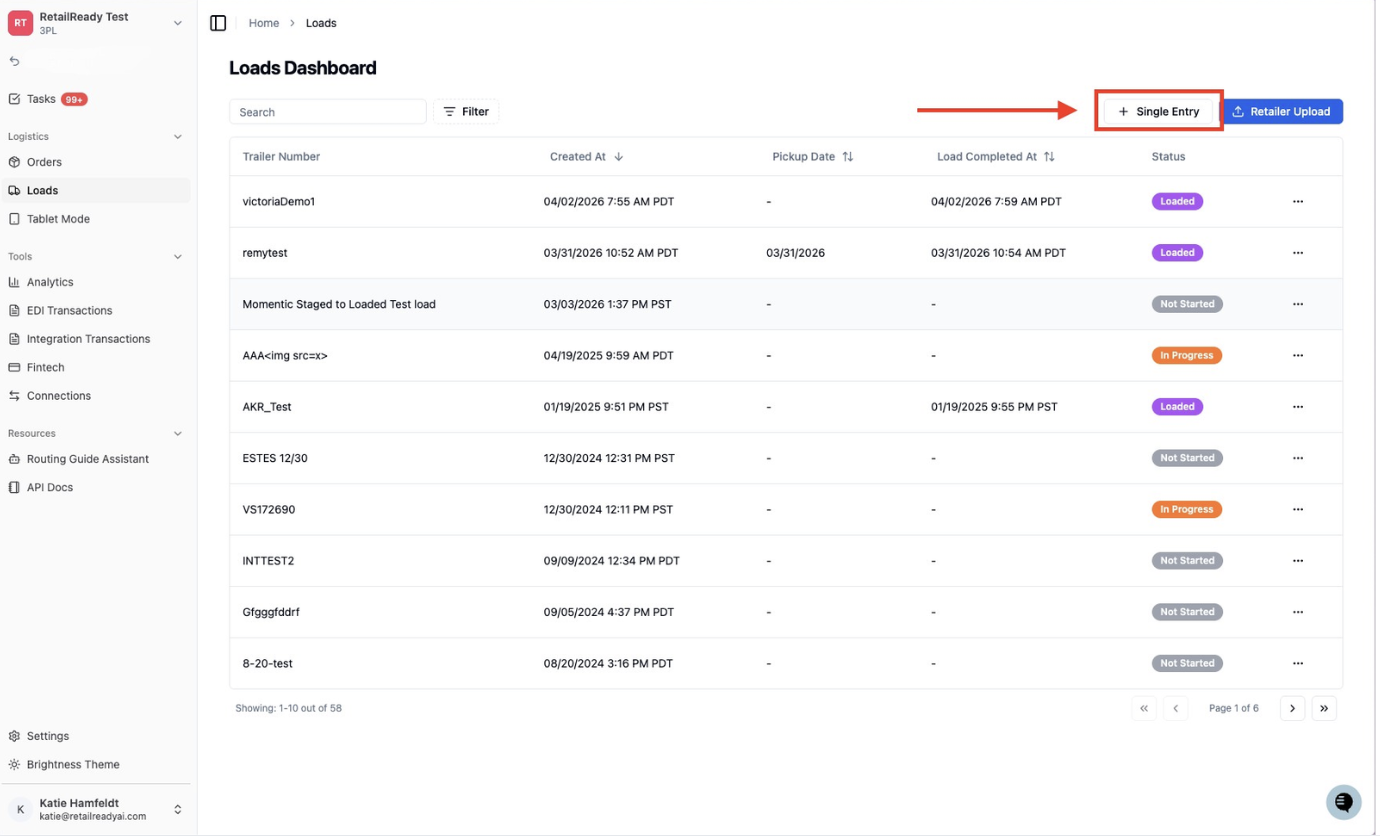
Navigate to the top left of the screen and click 'Single Entry'
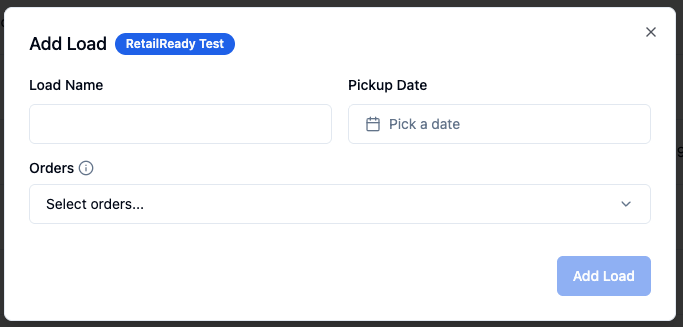
Fill in the Add Load pop-up. Select any orders going out on this truckload. Lastly click 'Add Load'
In Bulk
Open up your RetailReady Dashboard, and navigate to 'Orders' tab on the Left Hand Side.
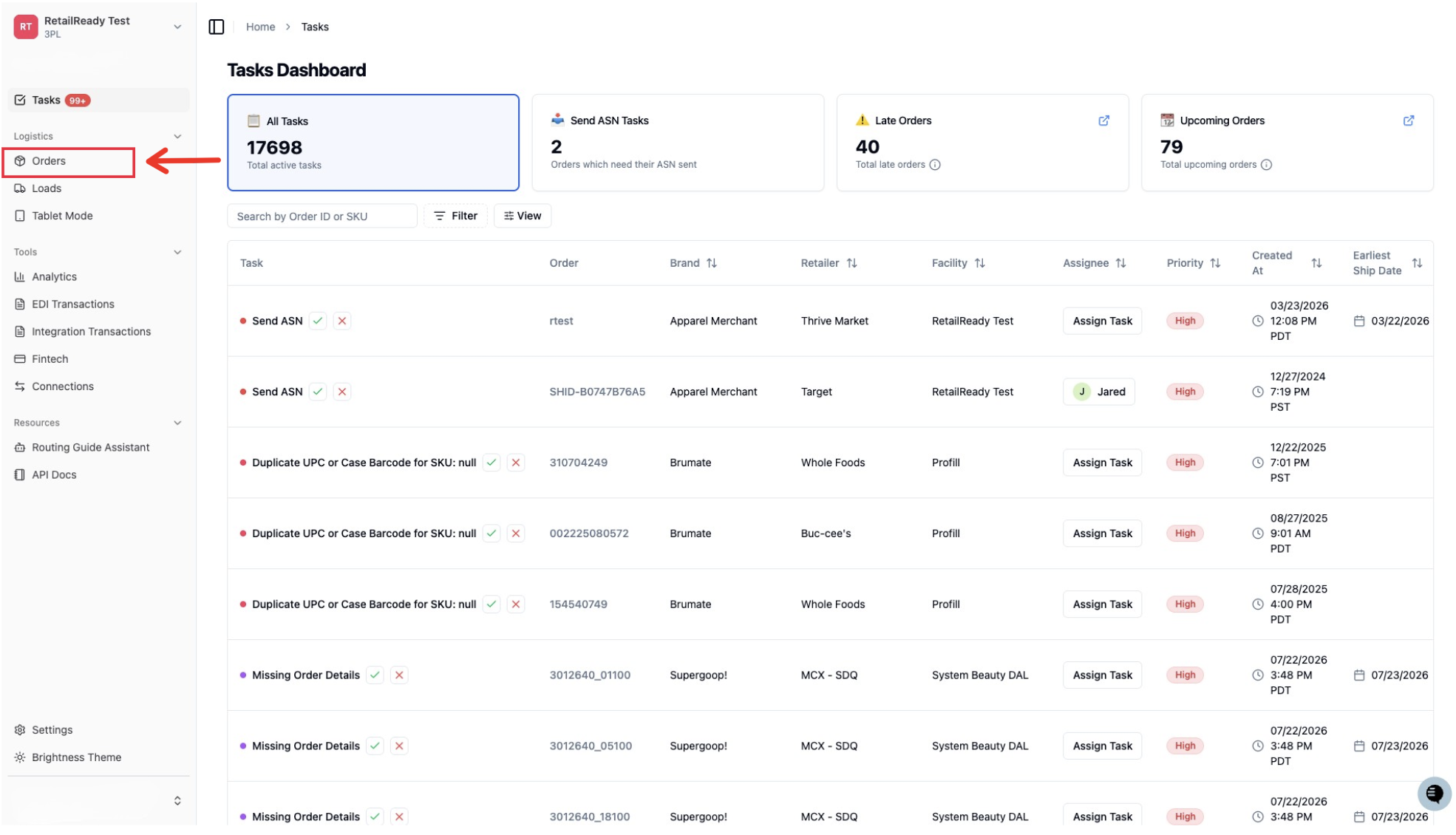
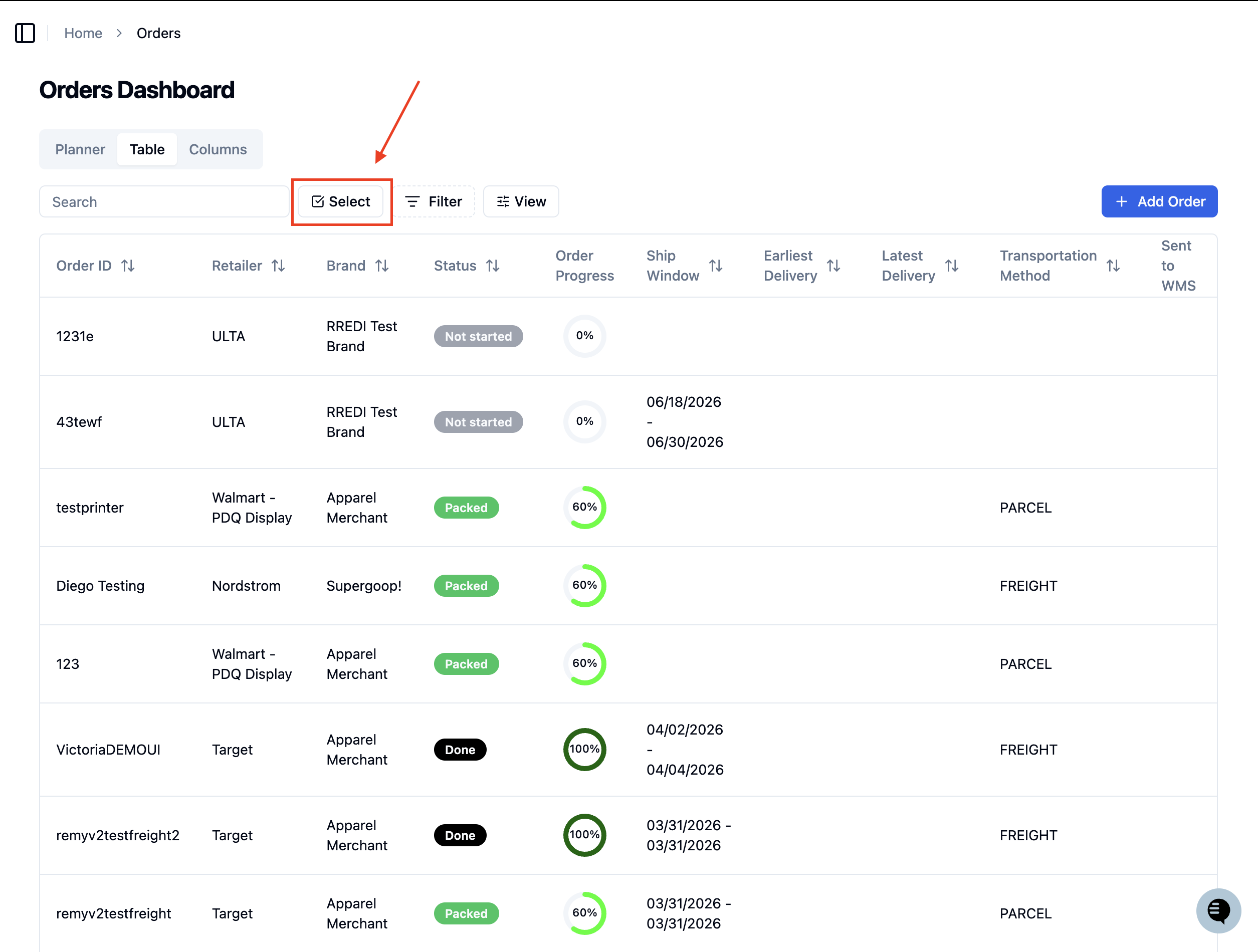
Click 'Select'
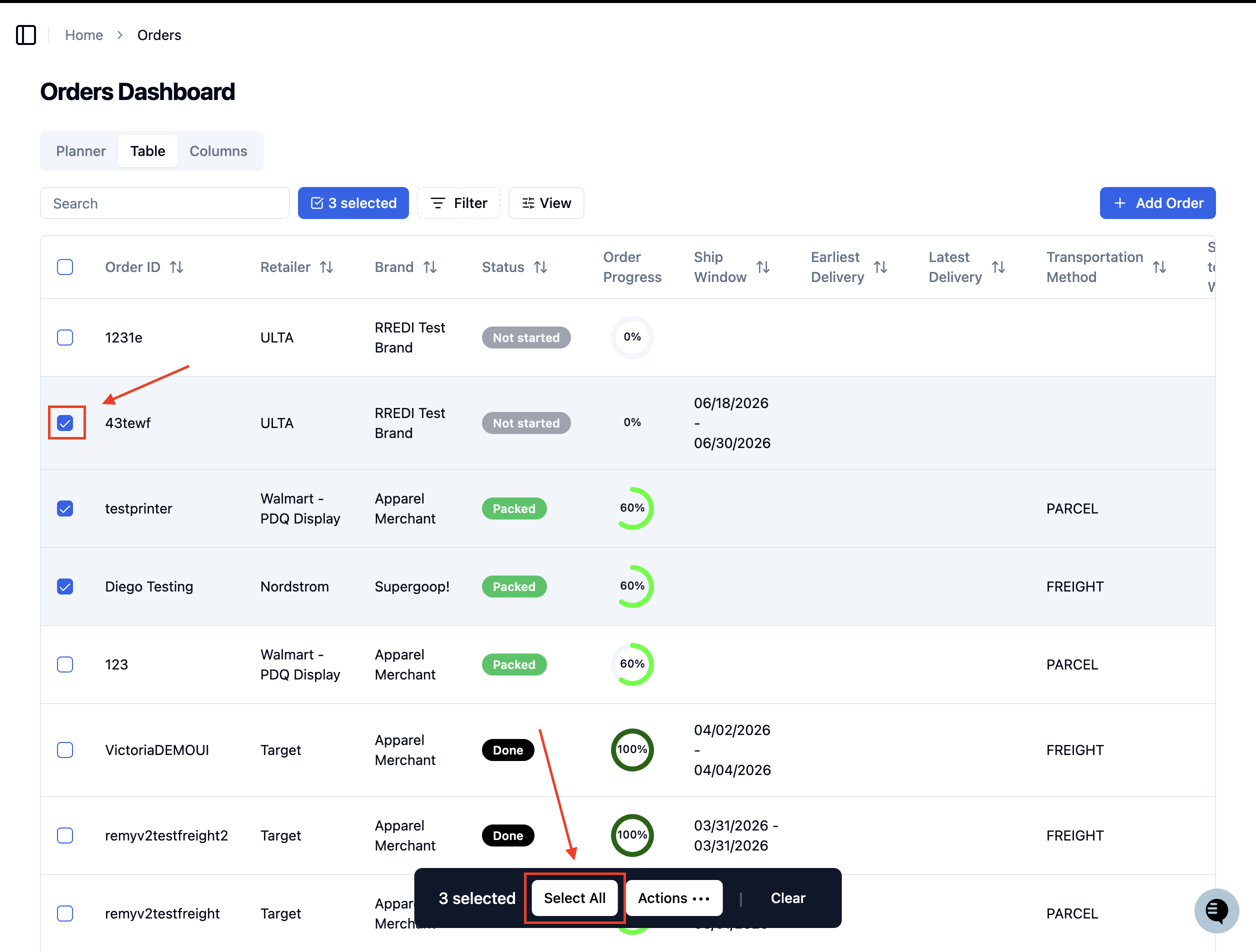
Click your desired orders you would like to create a load for or click 'Select All' to select all orders
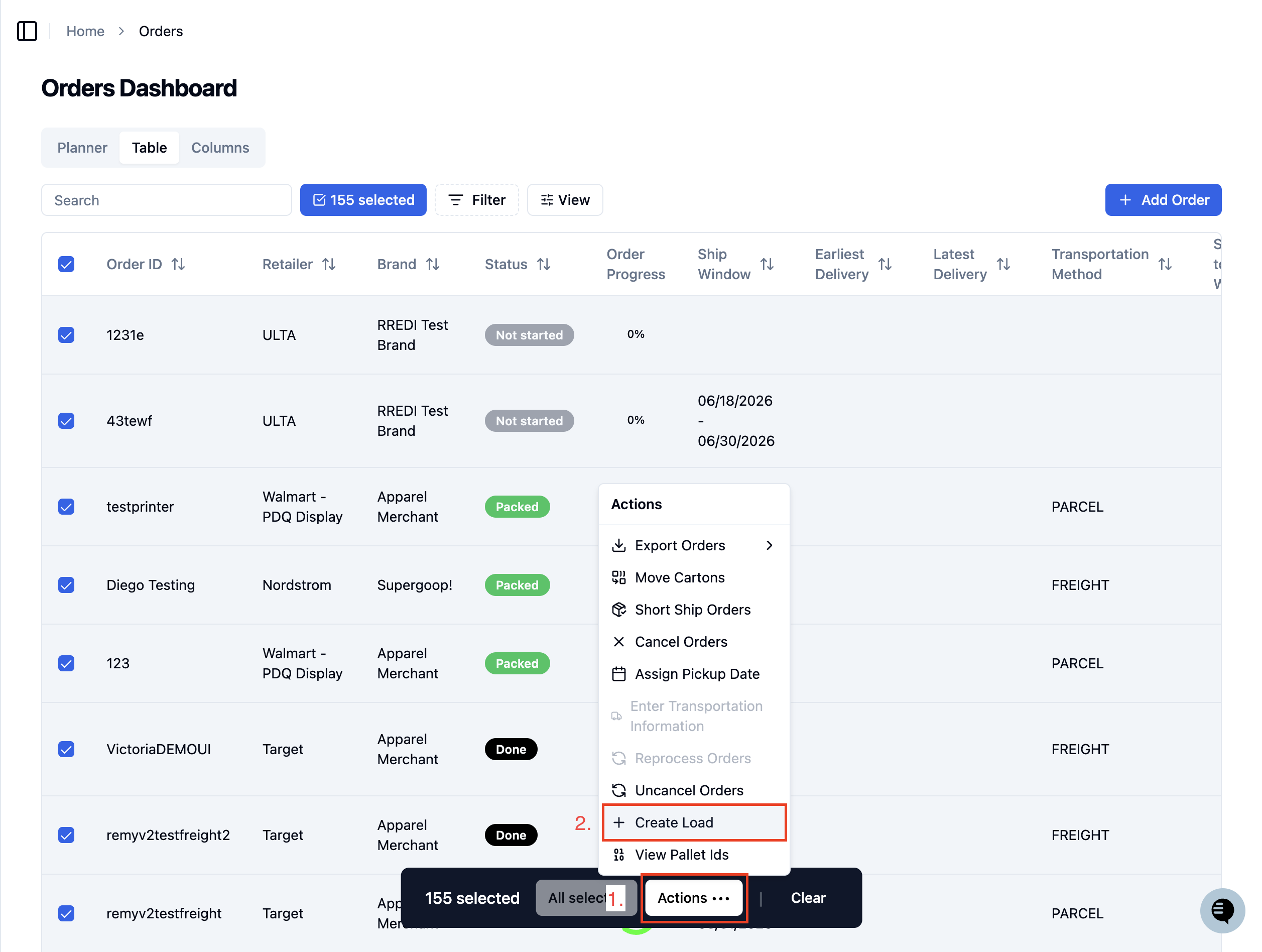
Navigate to the bottom of the screen and click 'Actions ...' , on the pop-up click 'Create Load'
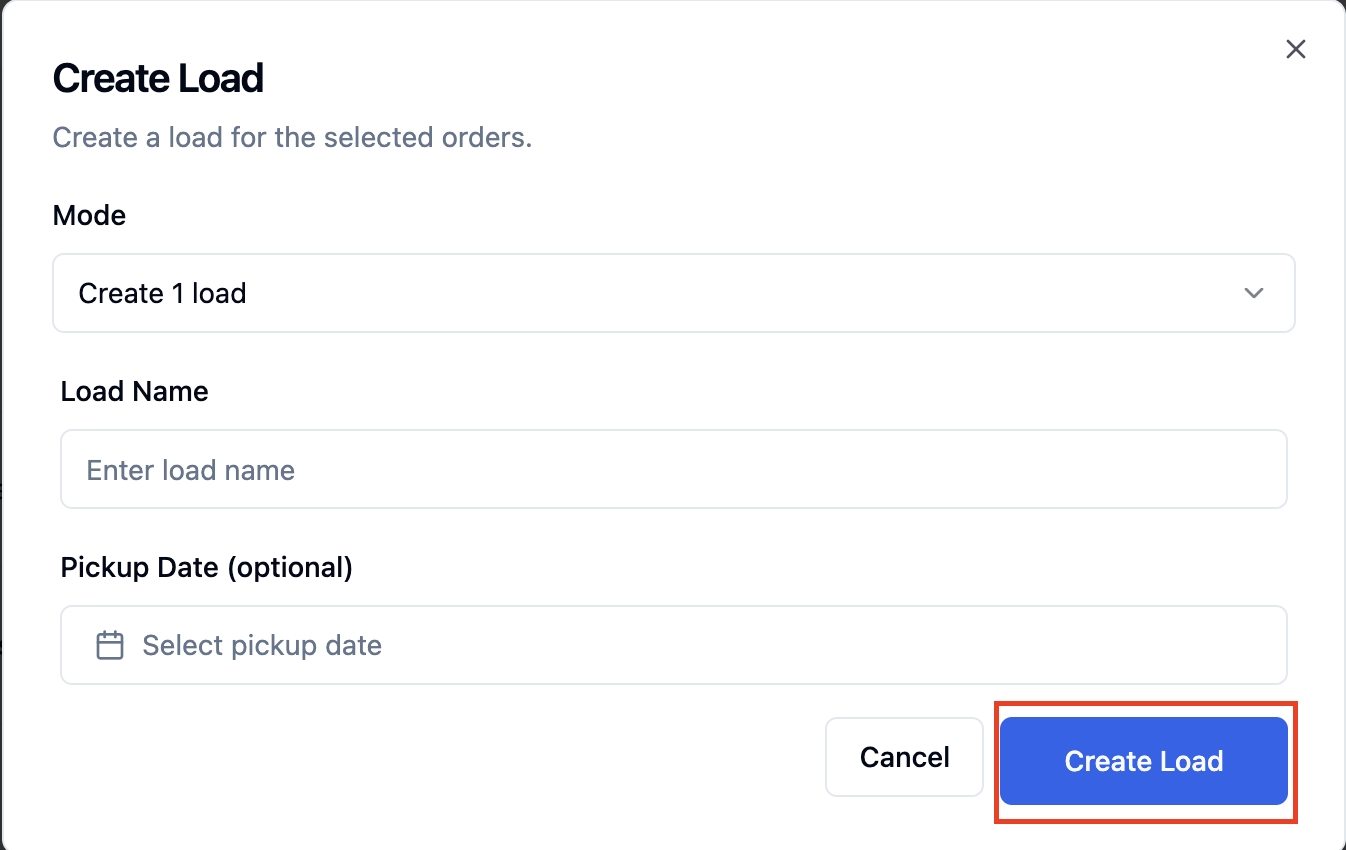
Select in Mode if you would like to create 1 load for all orders, or create 1 load for each order
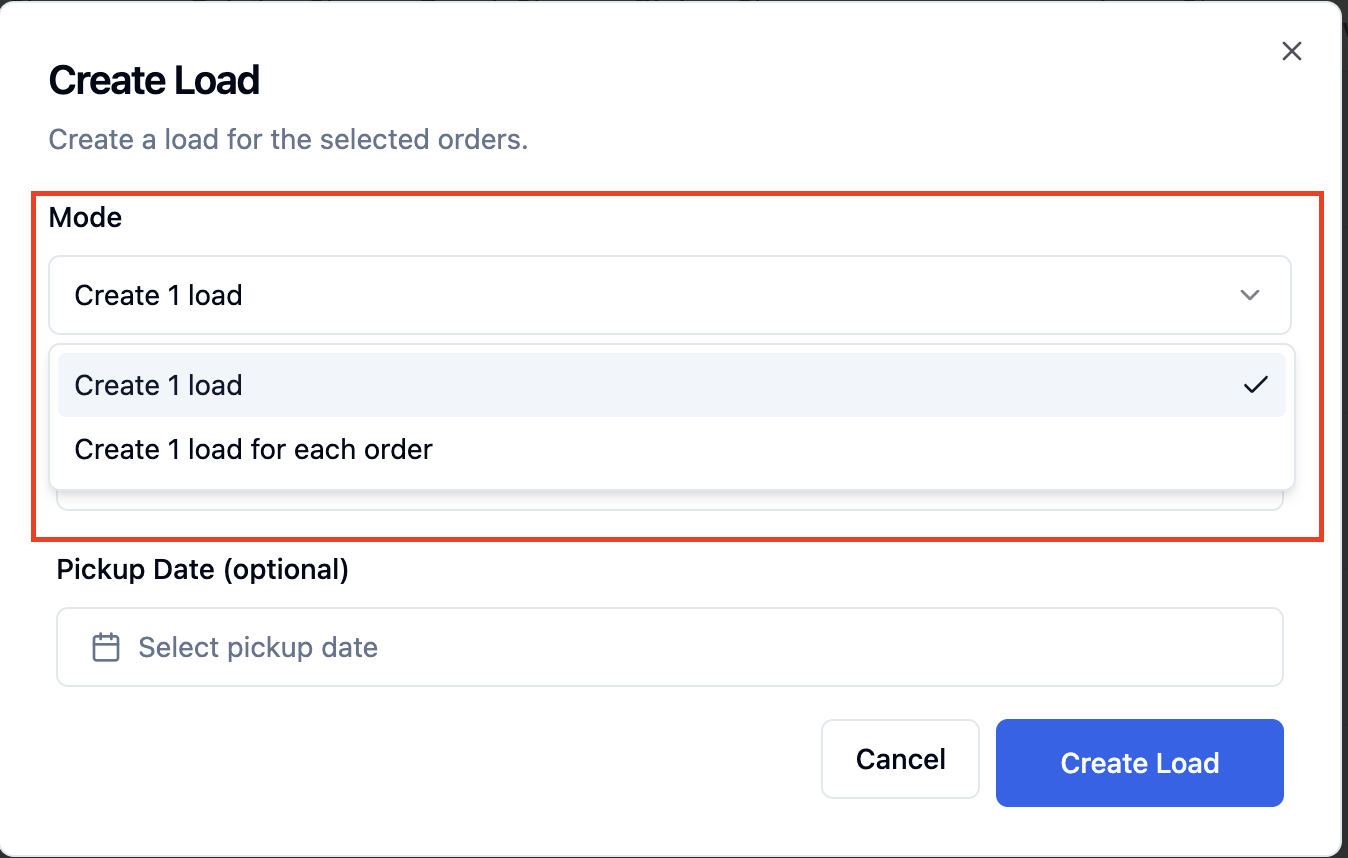
Fill out the Load Name and the Pickup Date (optional). Lastly click 'Create Load'
Target/Walmart
If you are shipping to Target or Walmart you do not need to create the Load yourself, just follow these simple steps!
Download a CVS from your TMS routing portal.
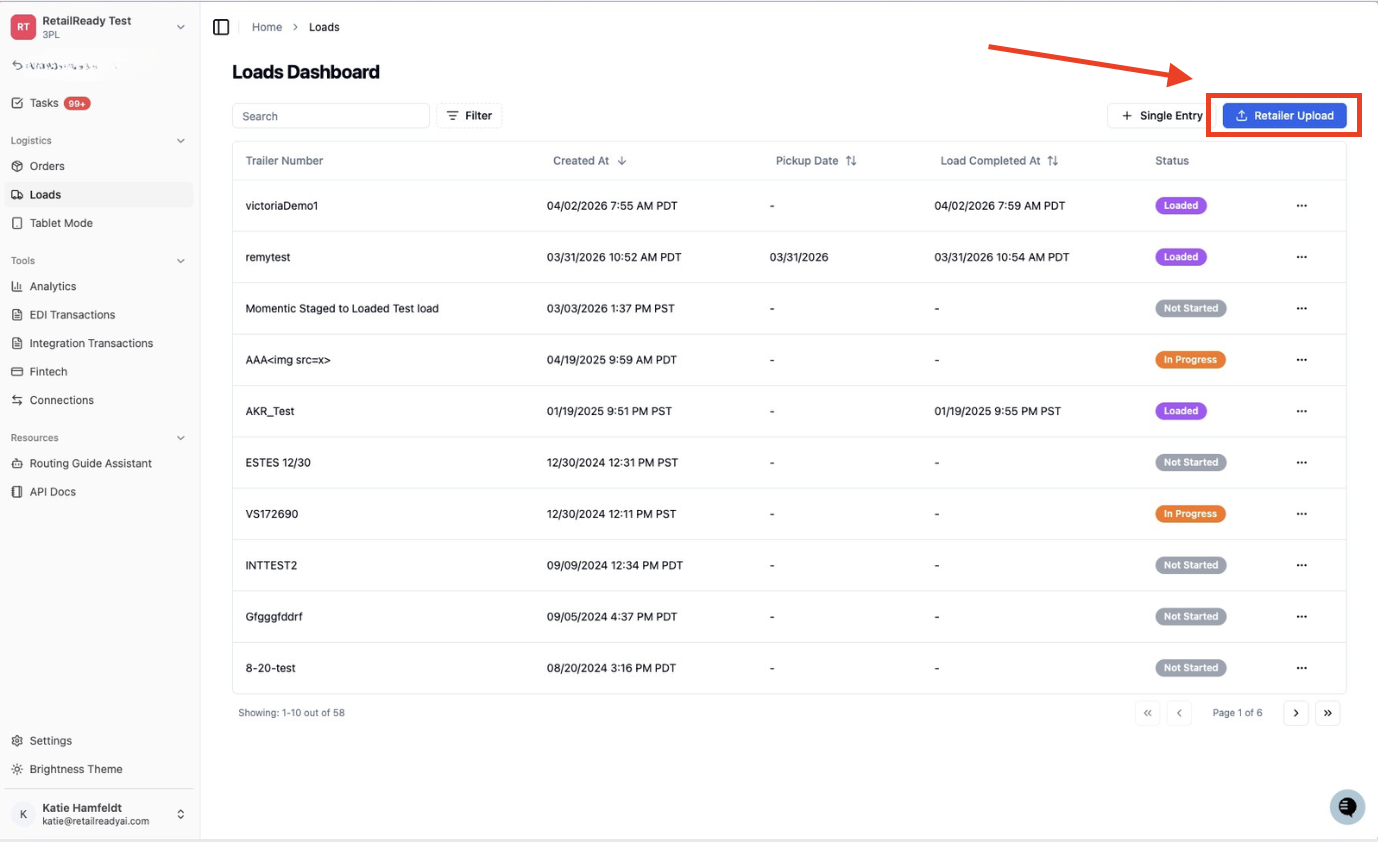
Open up your RetailReady Dashboard, and navigate to 'Loads' tab on the Left Hand Side.
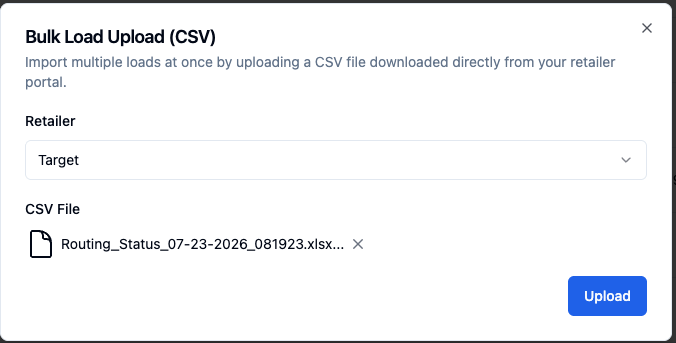
Navigate to the top left of the screen and click 'Retailer Upload'
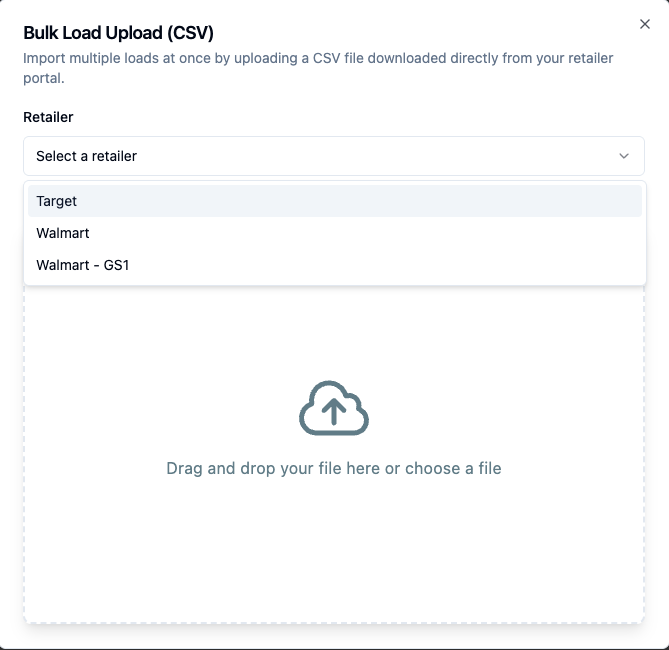
Select the retailer you are shipping to
For 3P: Select Retailer
For Brand Users: Select Retailer and Facility
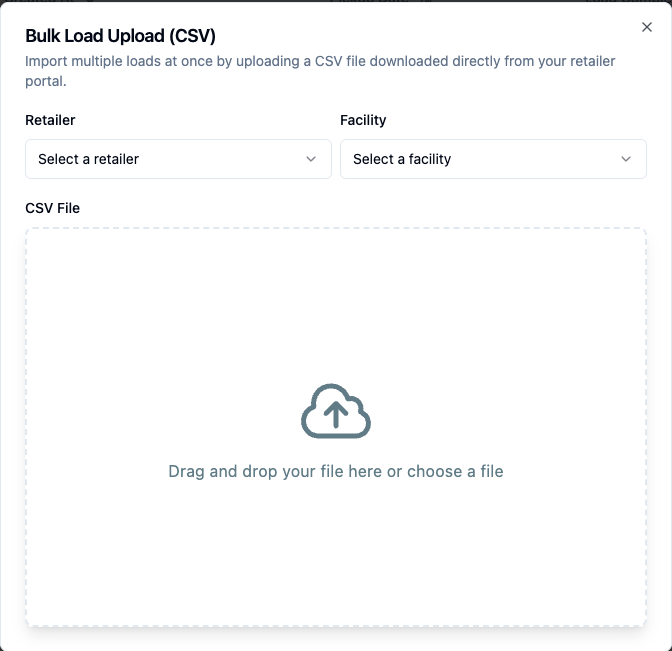
Drag and drop your file.
Click 'Upload'
FAQs:
Do you need to make a load for parcels?
No. This is only needed for freight orders.