How to Reprint Shipping Labels
Last updated: September 7, 2026
Sometimes labels don't print the first time, get damaged, or need to be reprinted after changes to an order — you don't need to repack or restart the order to get new labels.
This article walks through reprinting shipping labels directly from the Dashboard and Mobile App.
Reprinting Shipping Labels from the Dashboard
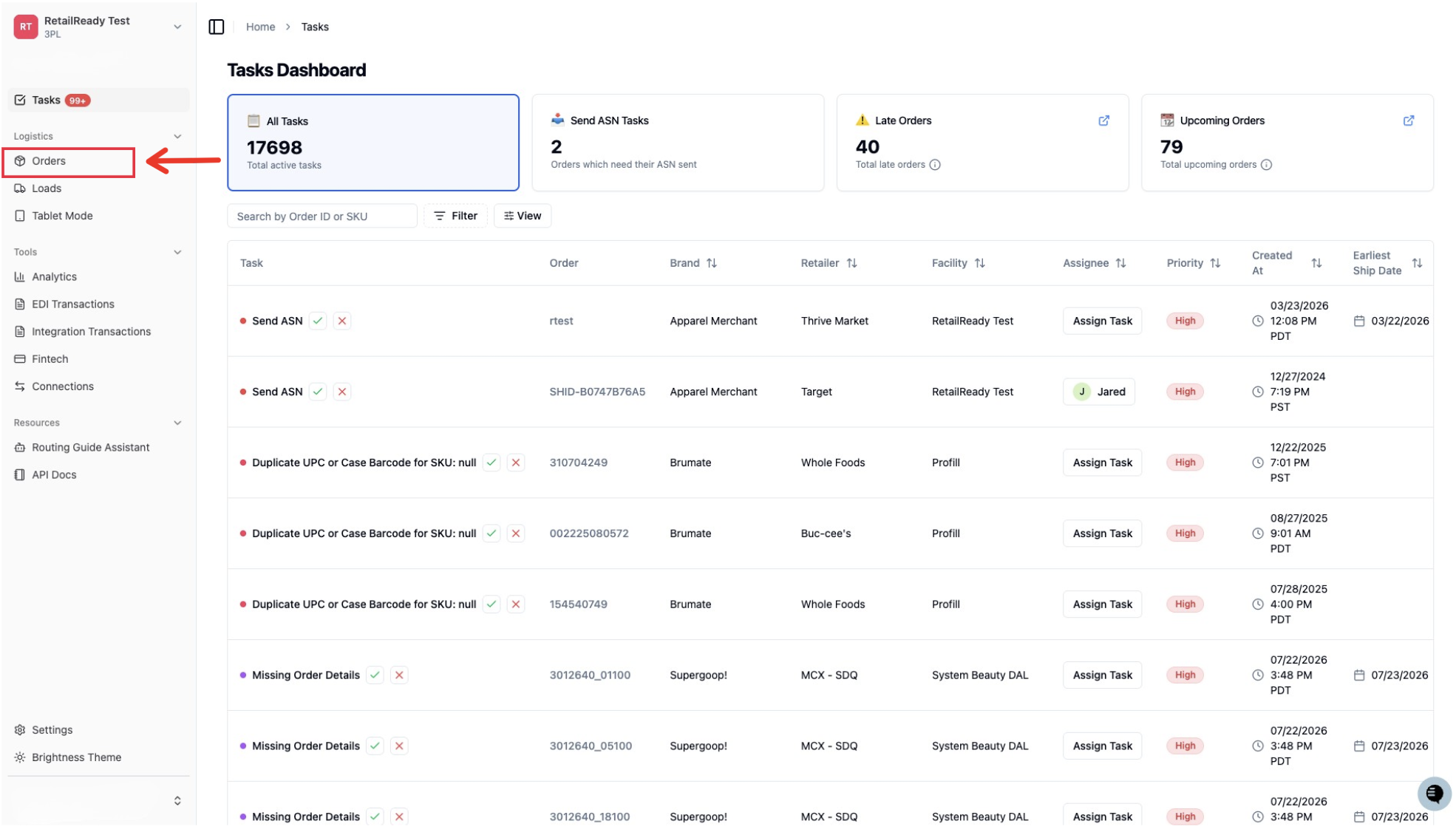
Open up your RetailReady Dashboard, and navigate to 'Orders' tab on the Left Hand Side.
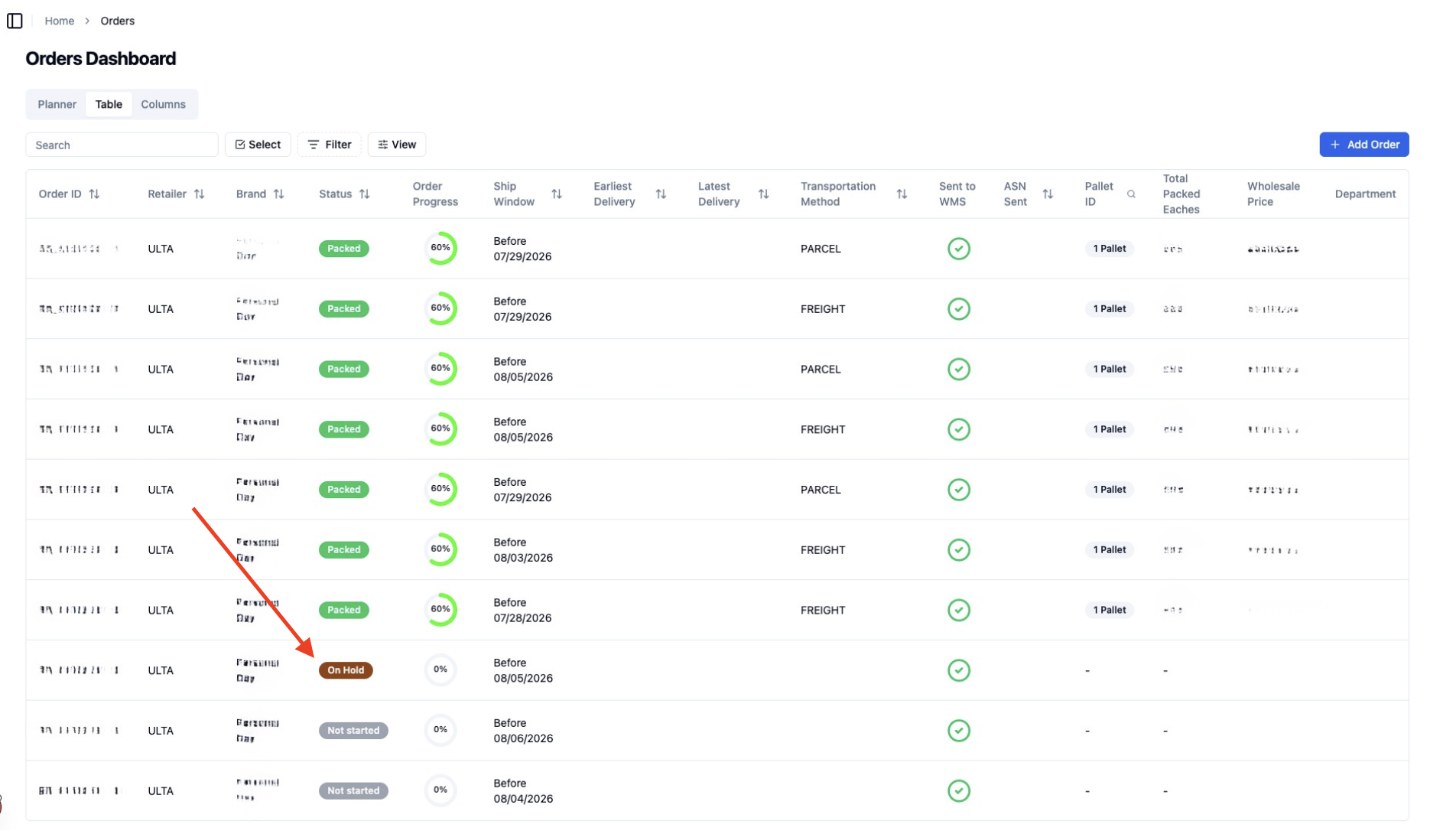
Navigate to the order you would like to print a shipping label for.
Navigate to the bottom of the screen (might need to scroll) and find the Cartons section.
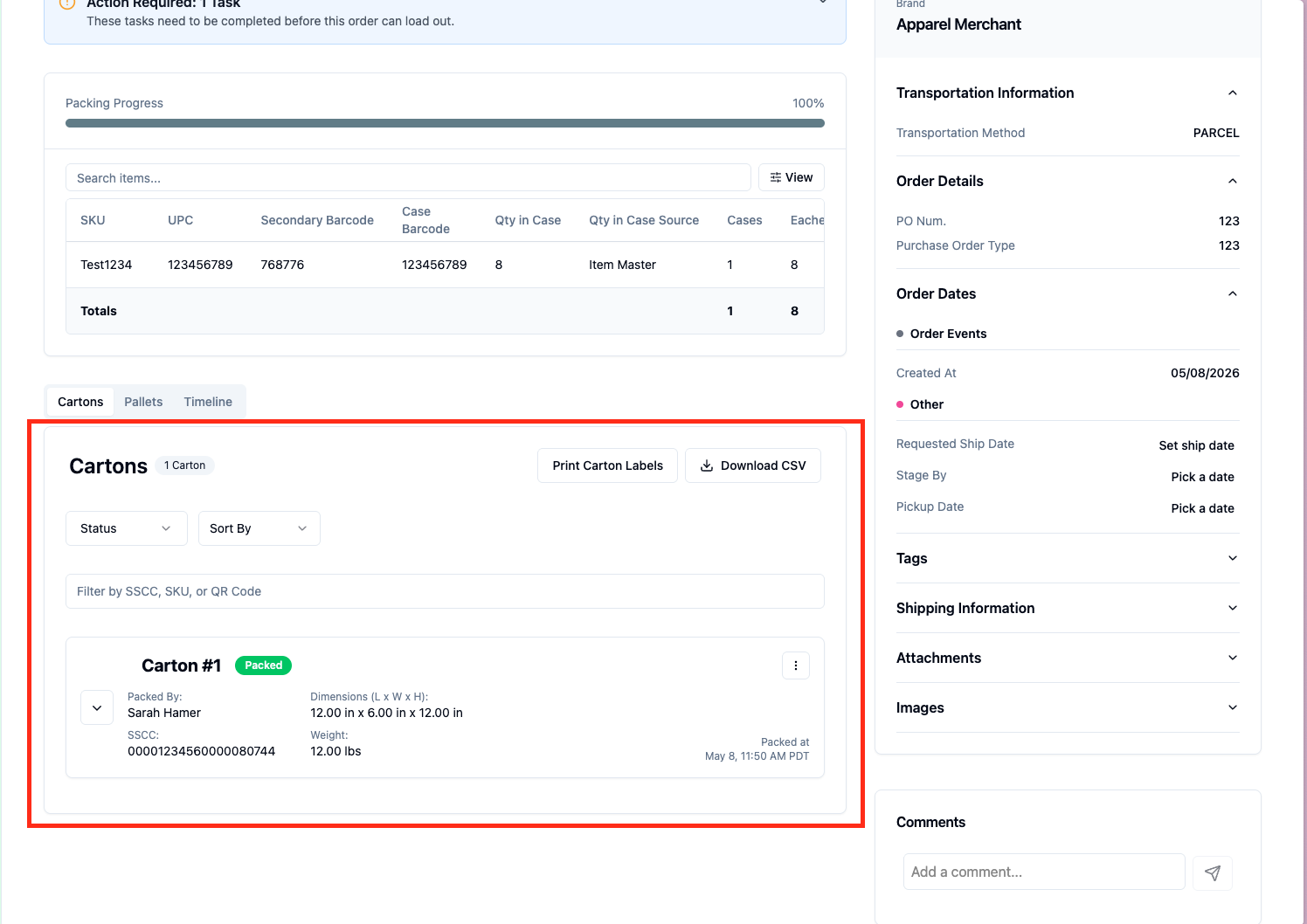
There are four ways you can print or download to print labels from the Dashboard.
1. Individual Cartons
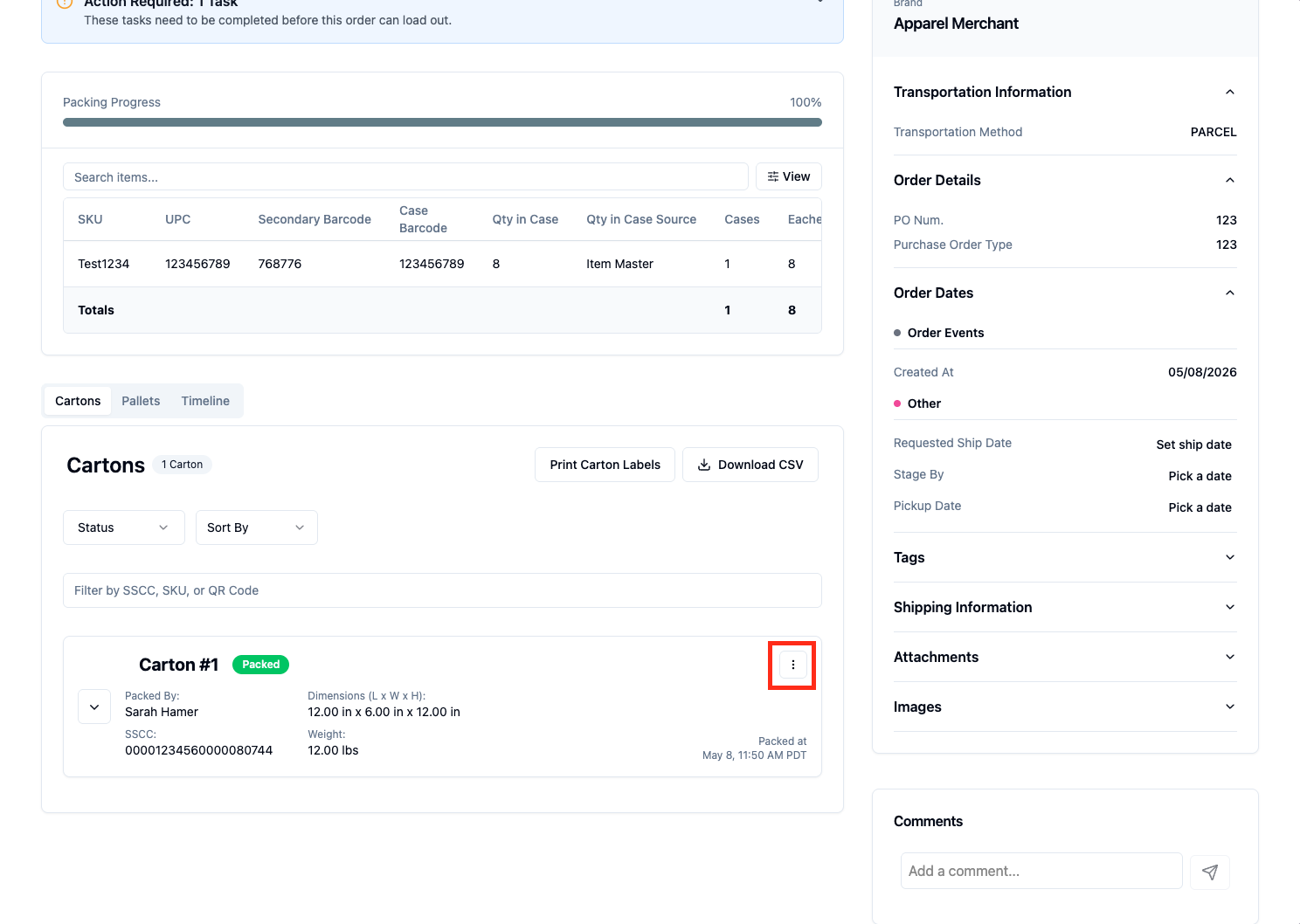
Navigate to and click on the three dots of the Carton you are wanting to print the label for.
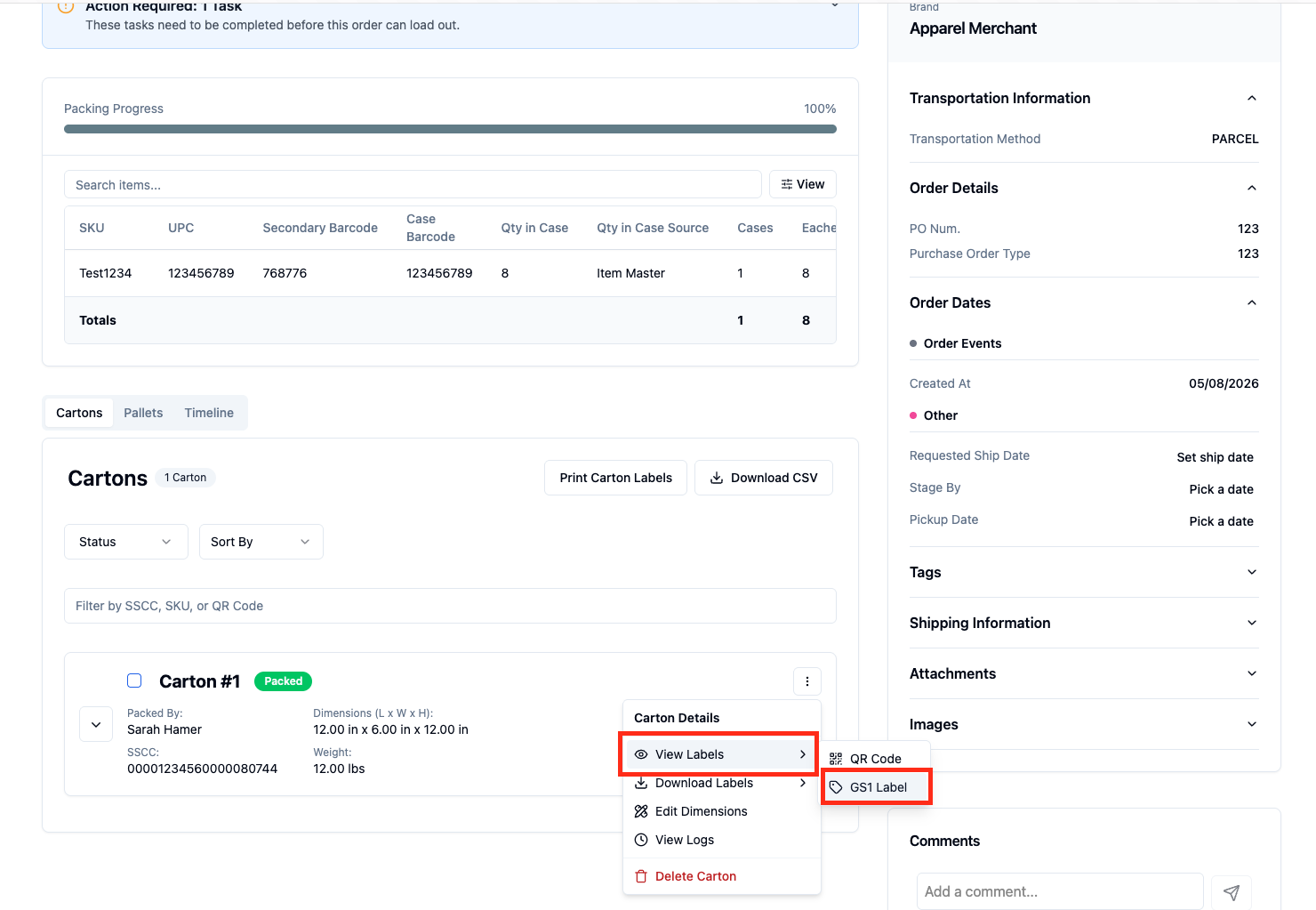
Click on 'View Labels' and then click on 'GS1 Label'
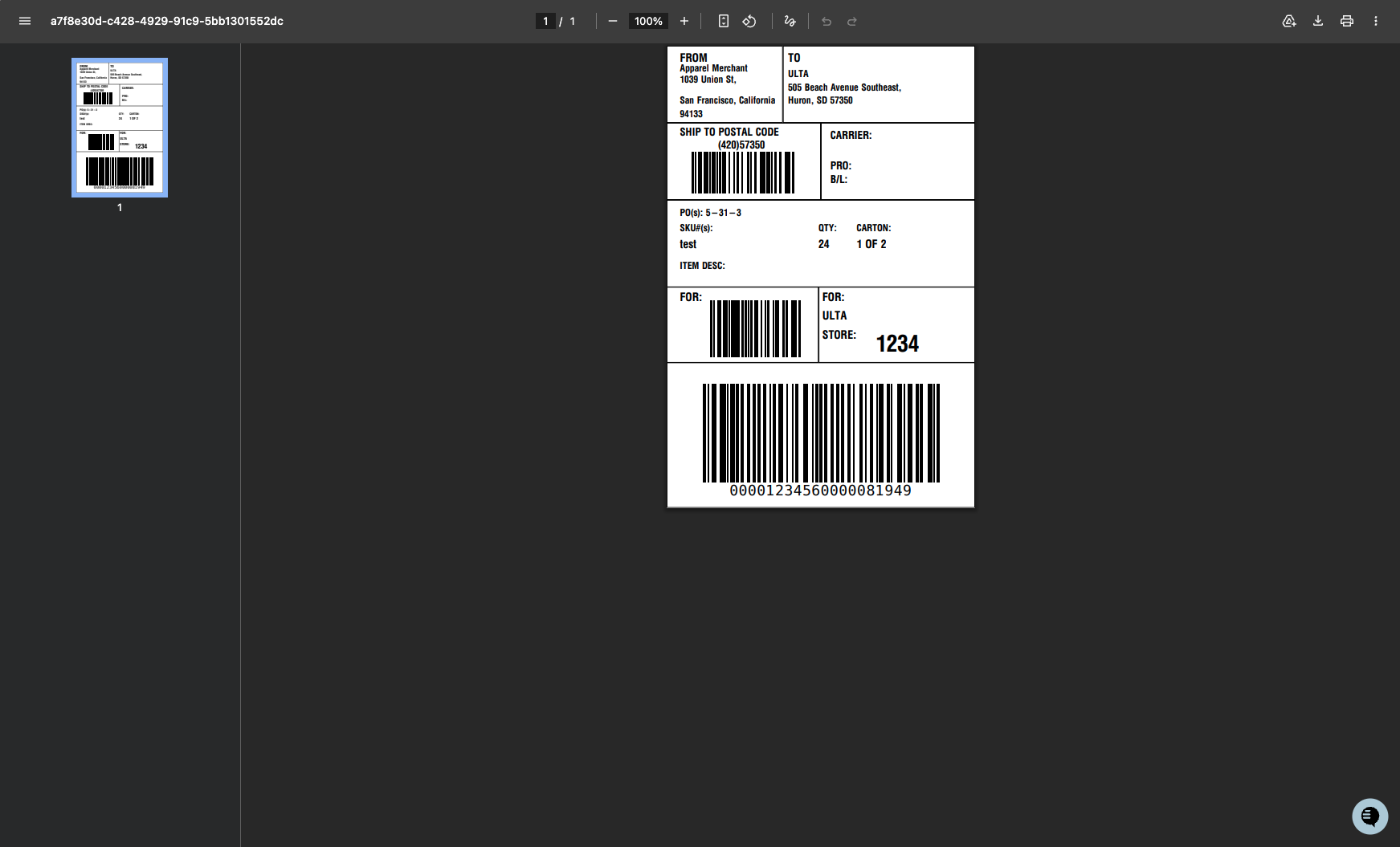
Label is then available to download/print!
2. Multiple Cartons by SKU
Note: This method only applies to orders shipping to Ulta.
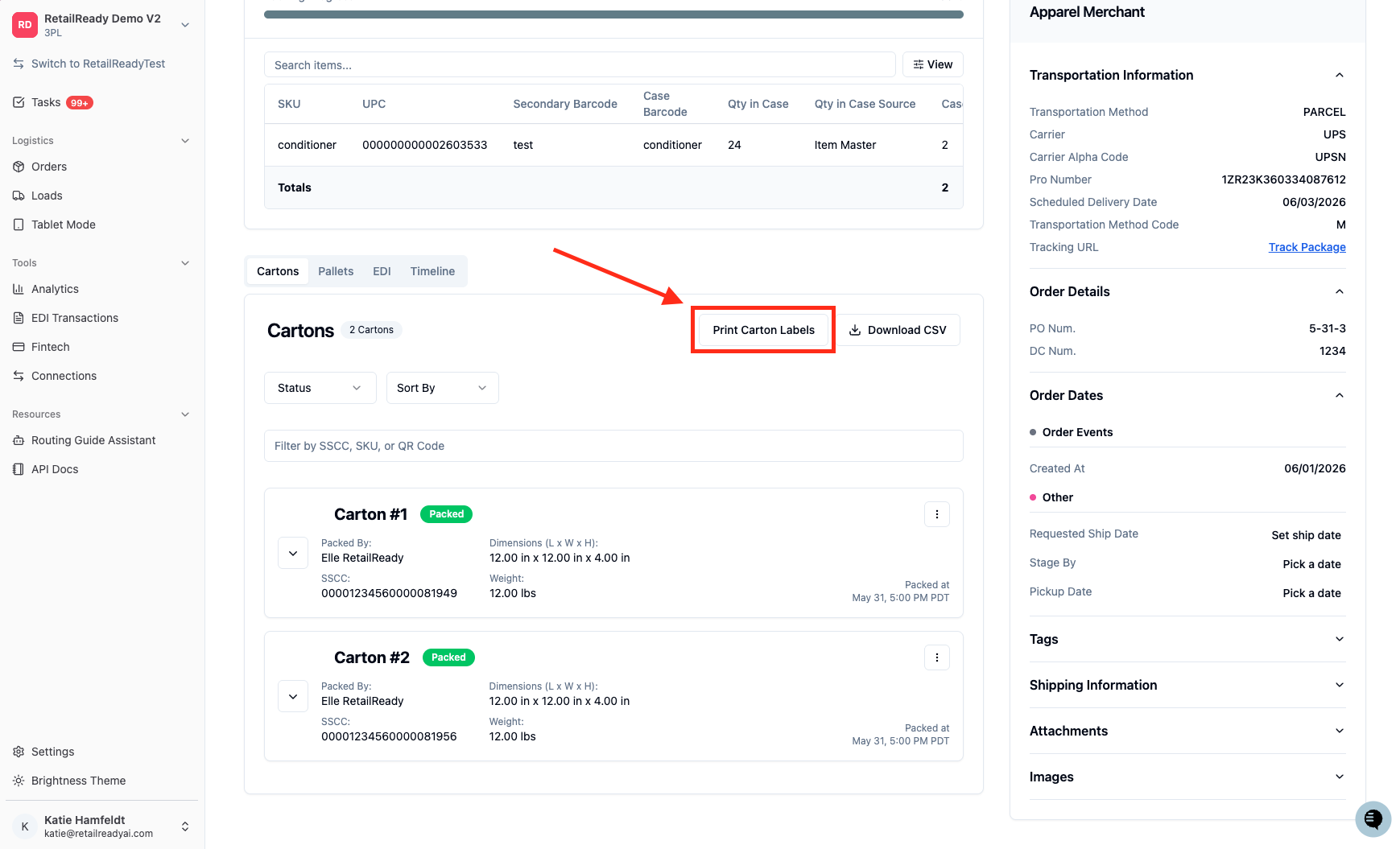
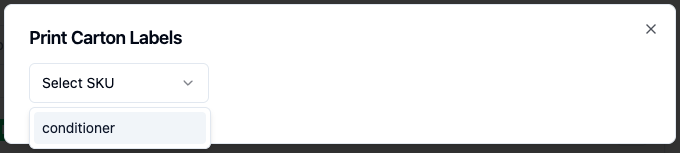
Navigate to and click 'Print Carton Labels'
Select the SKU you would like to reprint
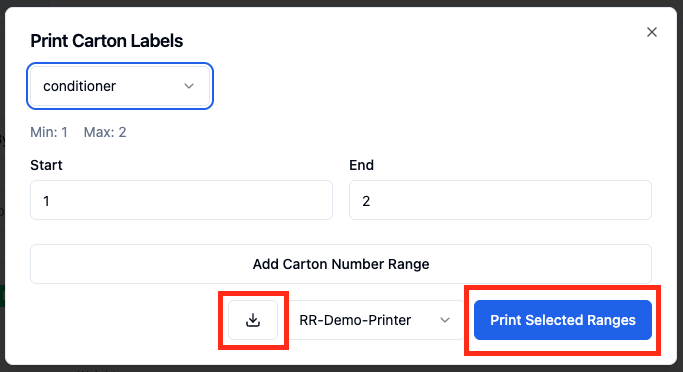
Select the Carton Number Range. Then you can 'Download' or 'Print Selected Ranges'
3. Bulk Cartons
Hover into a Carton and click the 'Square' in the top left
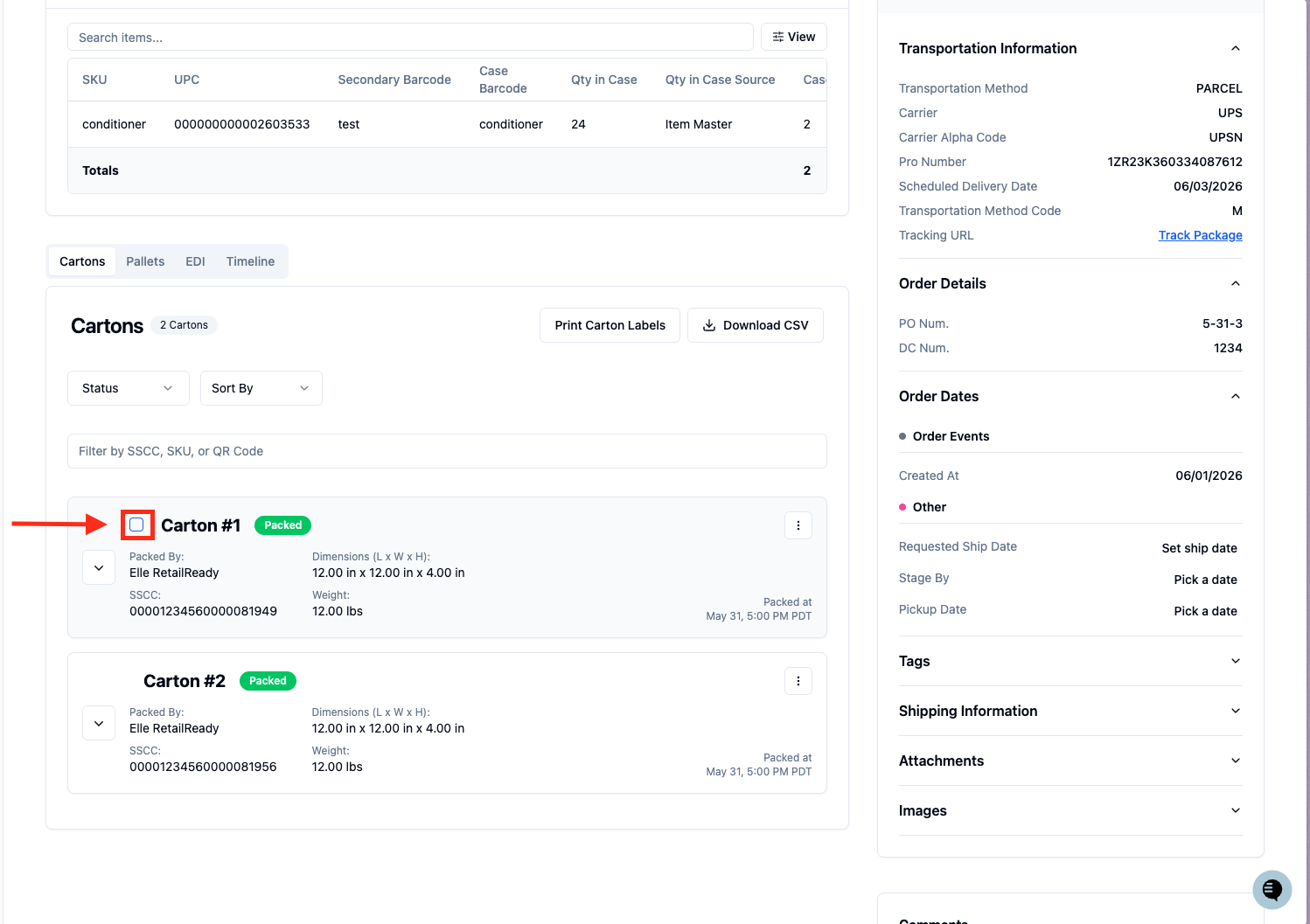
Can choose select Cartons OR navigate to the bottom of the screen and click 'Select All' to select all Cartons
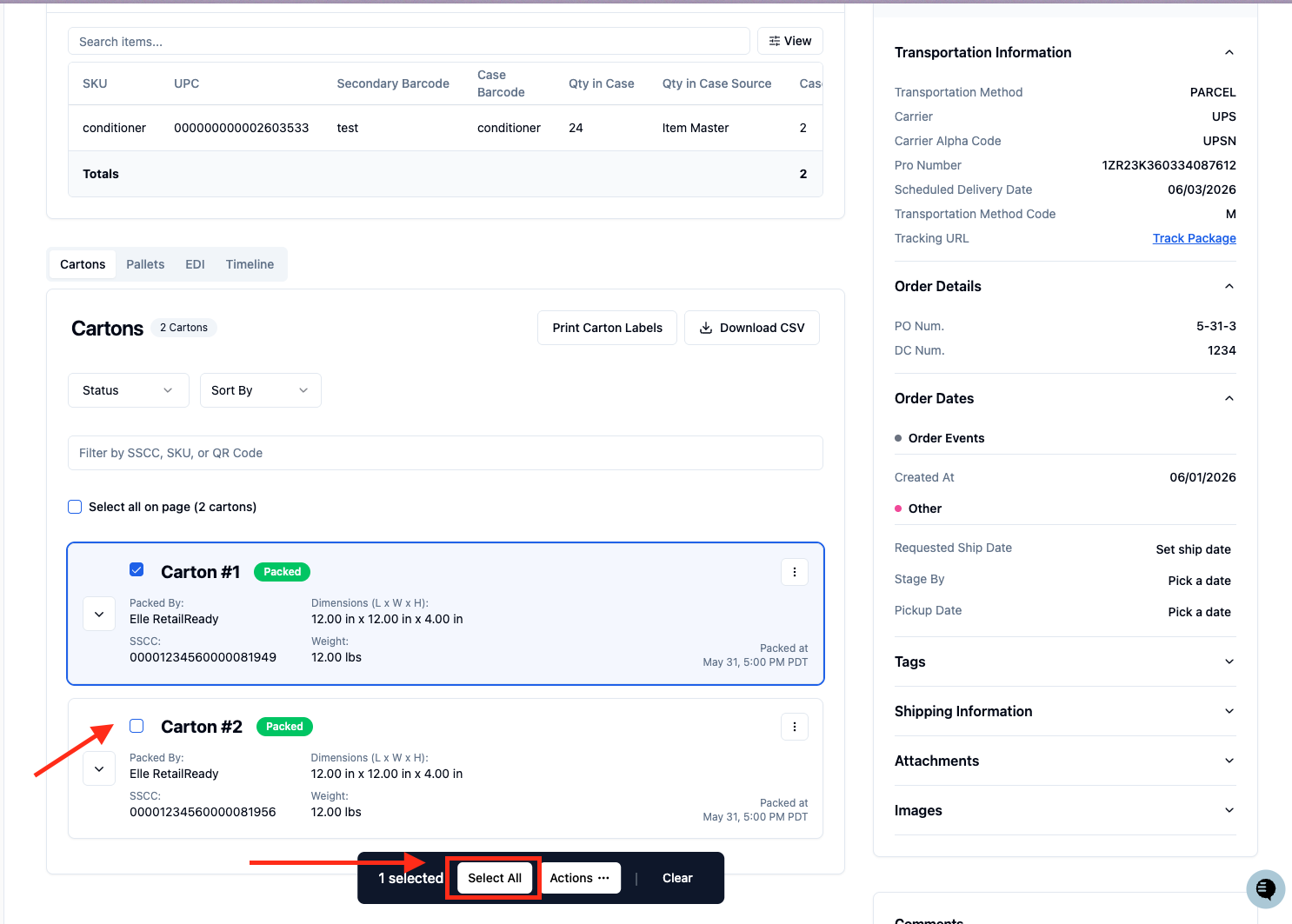
Click 'Actions ...' and then click 'Download Labels' to get all Cartons and SKUs
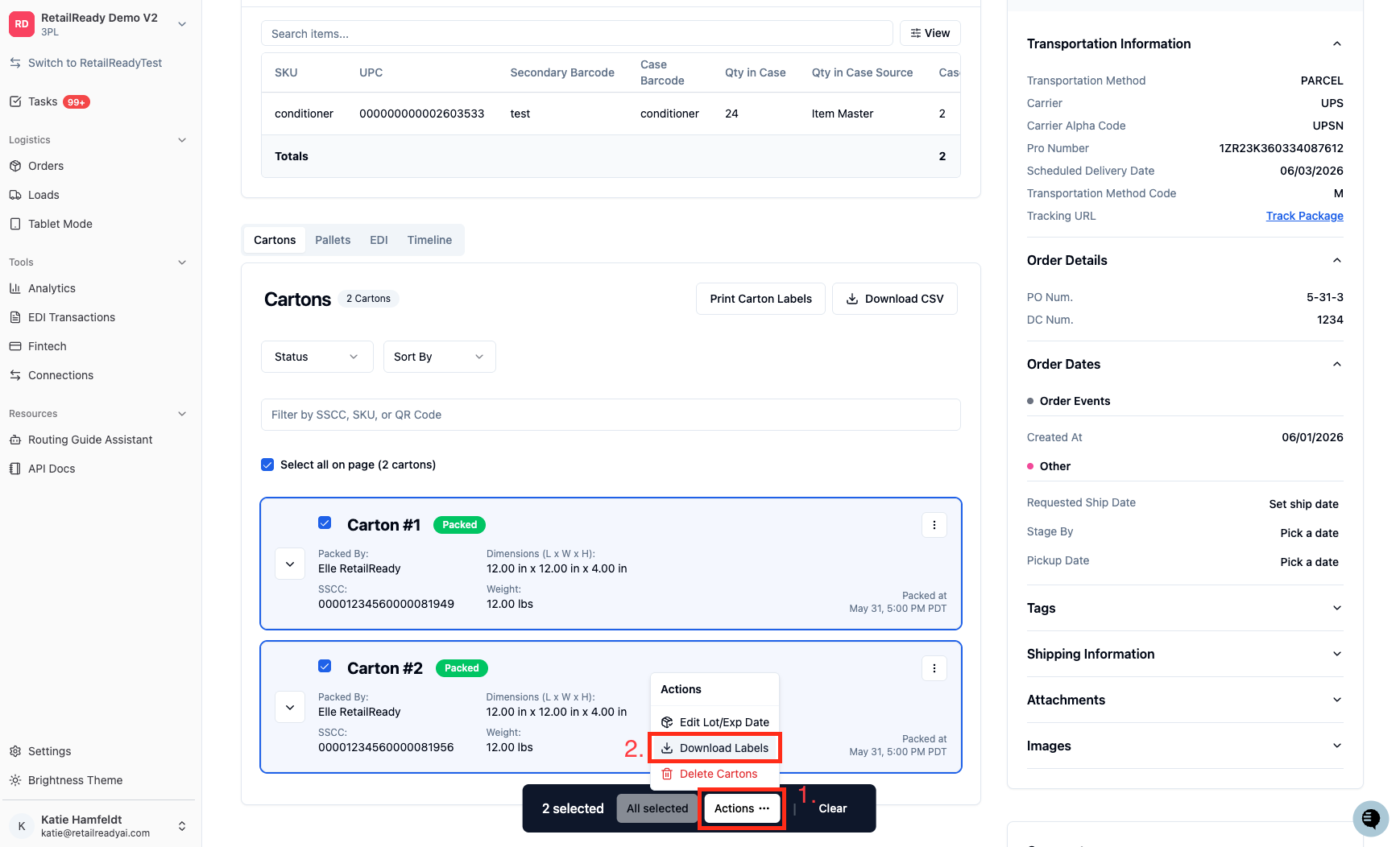
4. Bulk Pallets
Select the 'Pallets' section.
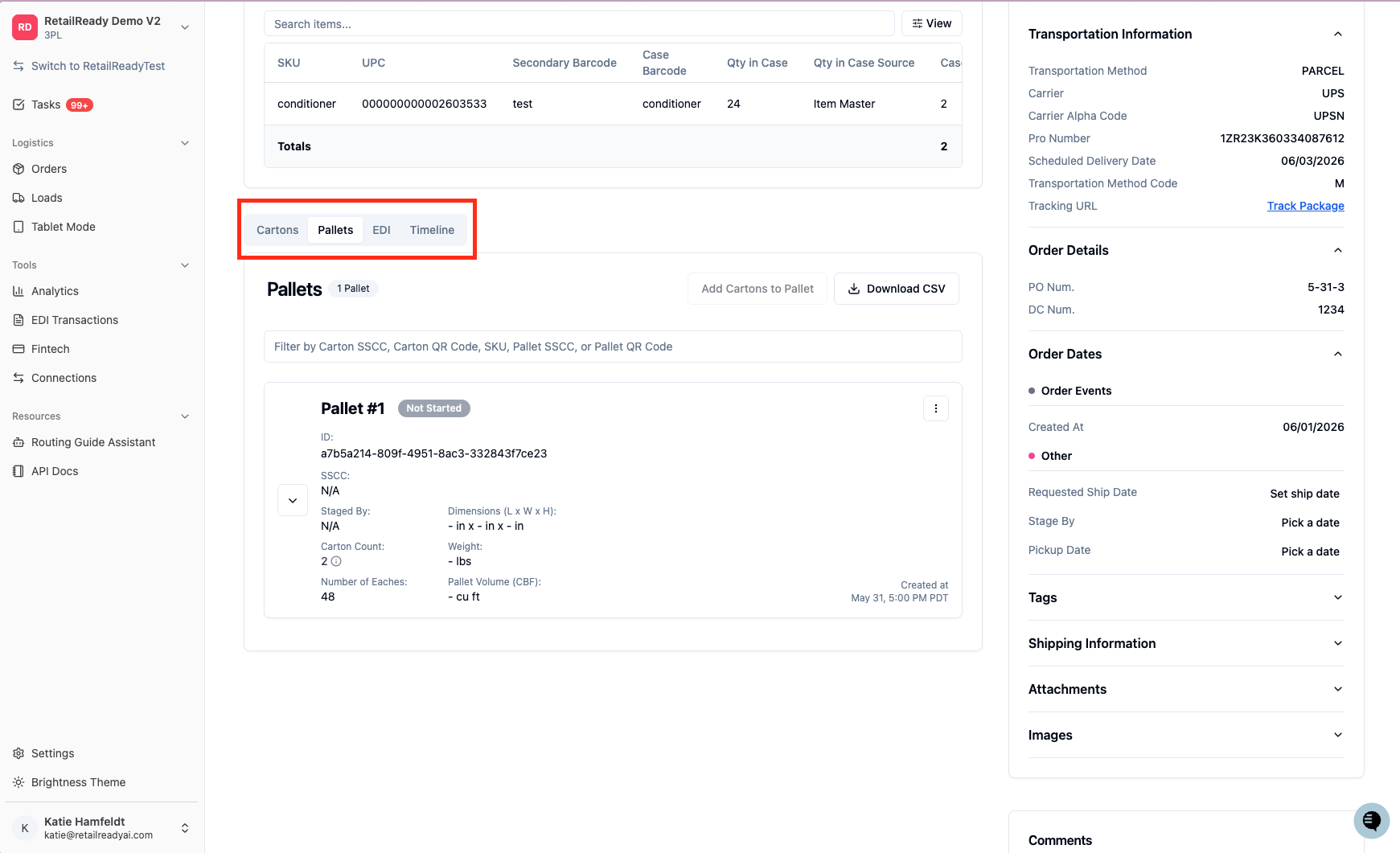
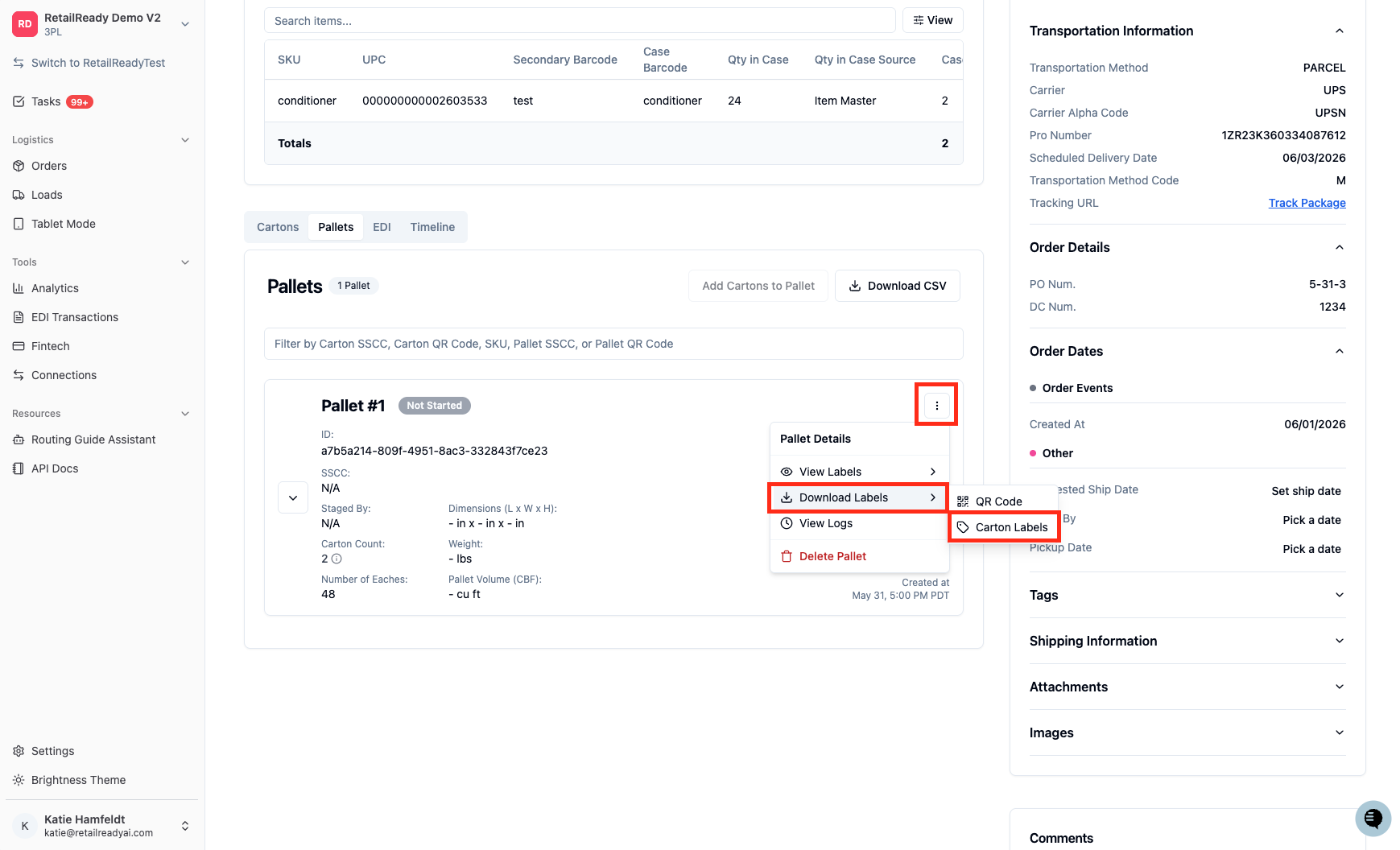
Navigate to and click the three in the Pallet section and click 'Download Labels' then click 'Carton Labels'
Printing Shipping Labels from the Mobile App
Open up your RetailReady App.
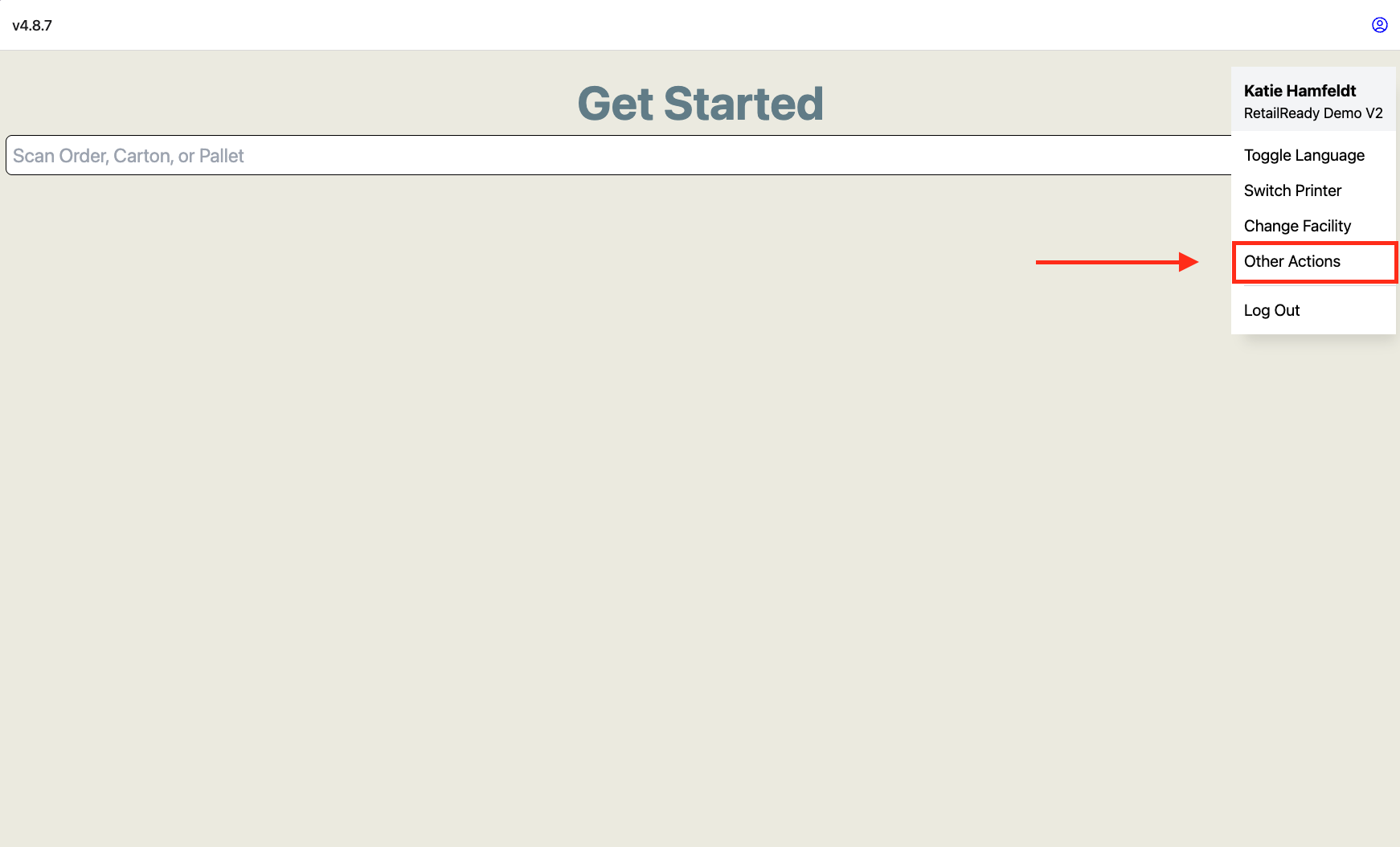
Navigate to the top right corner and click the 'Person Icon'.
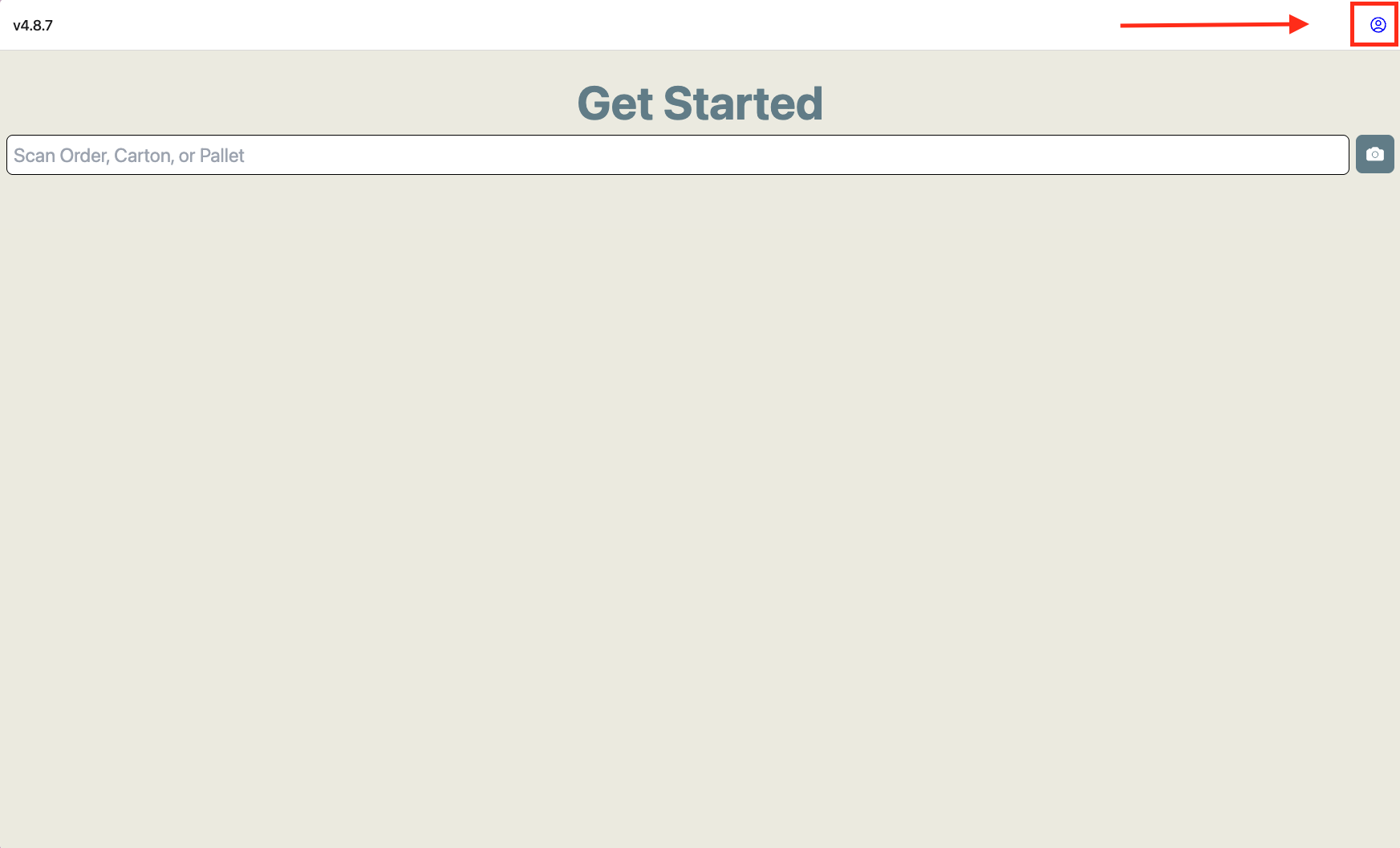
Select 'Other Actions'
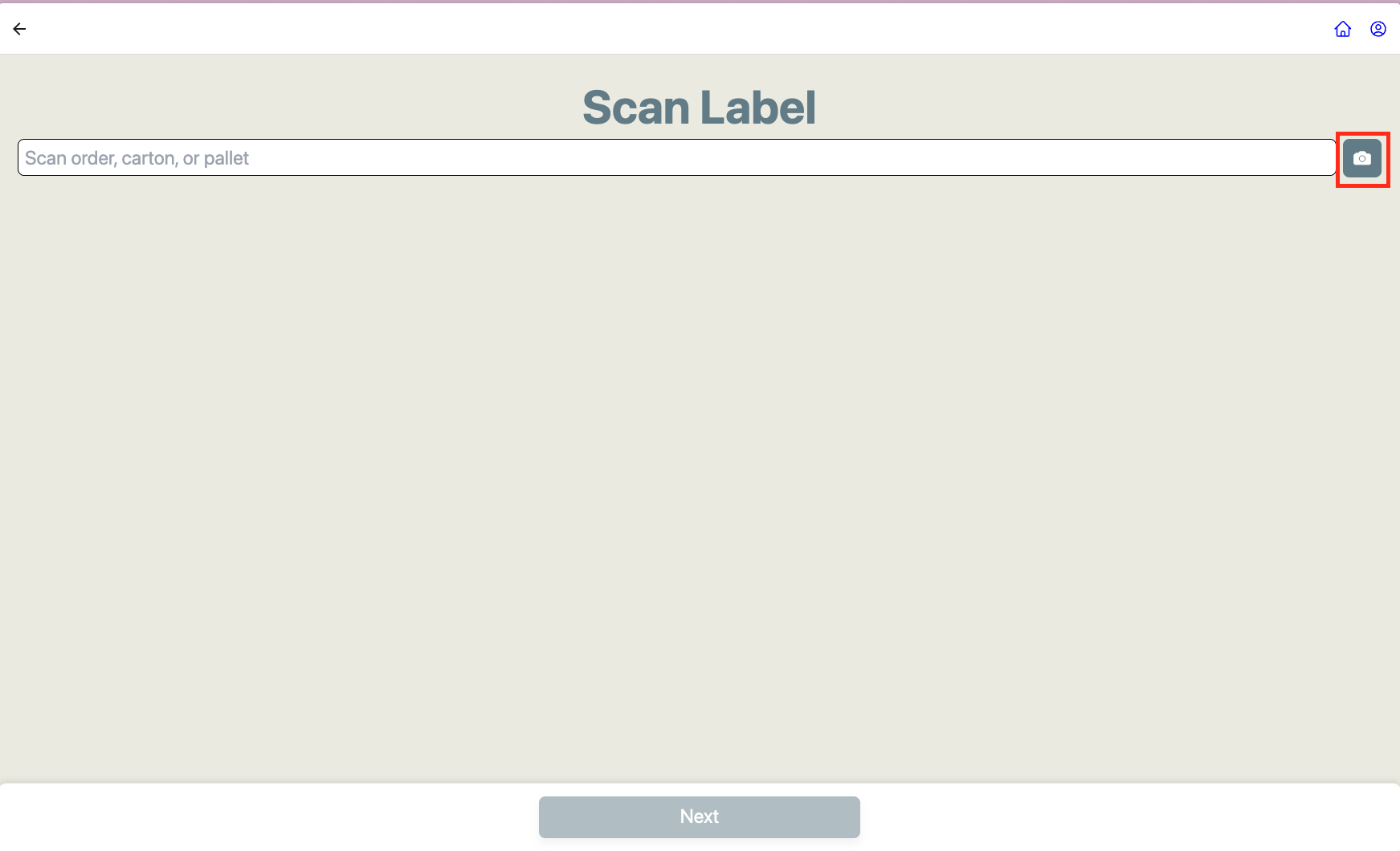
Click the 'Camera Icon' and scan (the order or carton, or pallet)
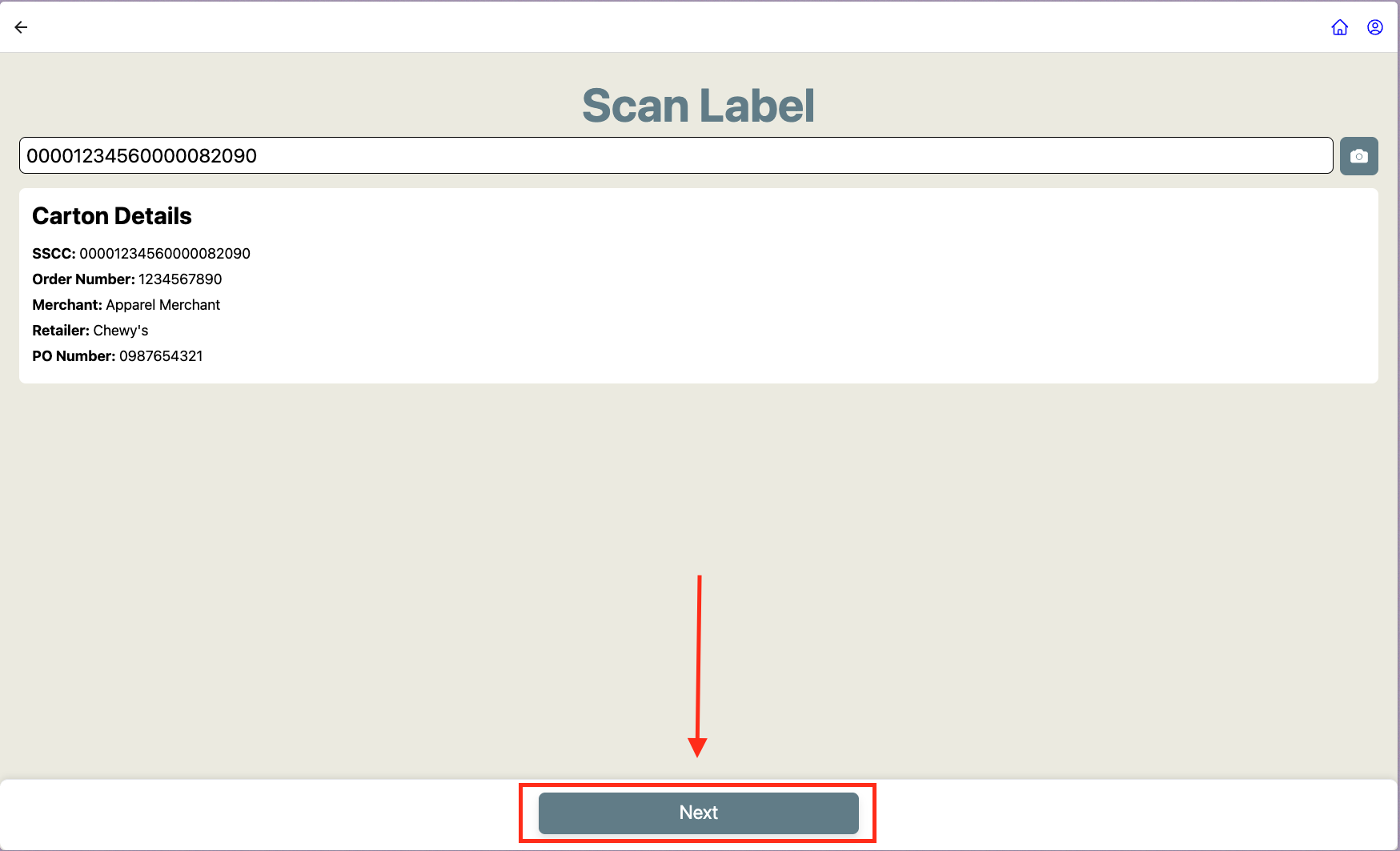
Click 'Next'
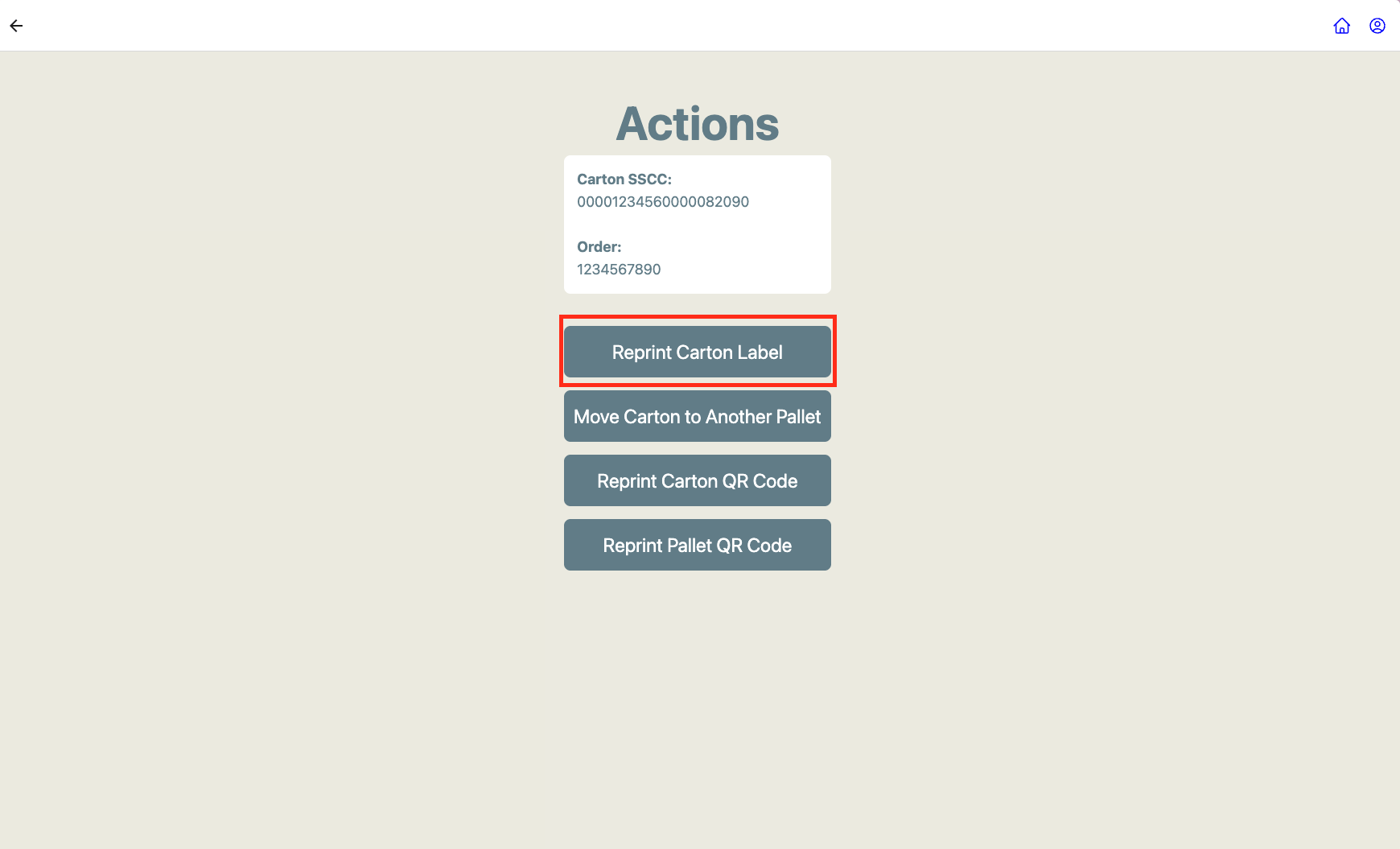
Select what you would like to print (e.g. 'Reprint Carton Label')
Label prints!