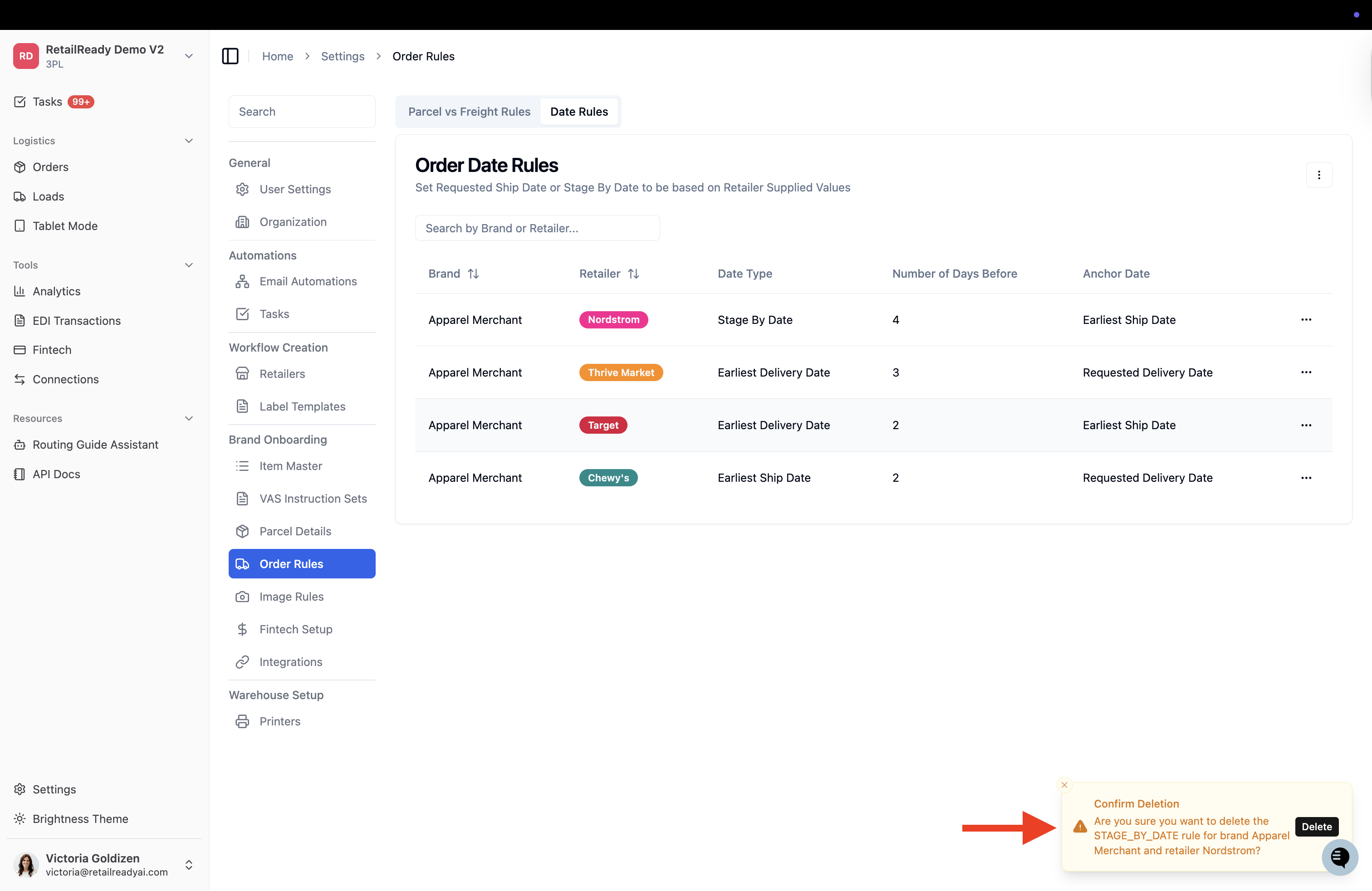
Order Date Rules
Last updated: April 22, 2026
Order Date Rules allow you to automatically set key order dates, such as Requested Ship Date, Earliest Ship Date, Earliest Delivery Date, Latest Delivery Date, or Stage By Dates, based on values supplied by the retailer. Rather than manually entering dates on each order, you configure a rule once per brand/retailer combination and RetailReady calculates the correct date automatically.
How to Create an Order Date Rule
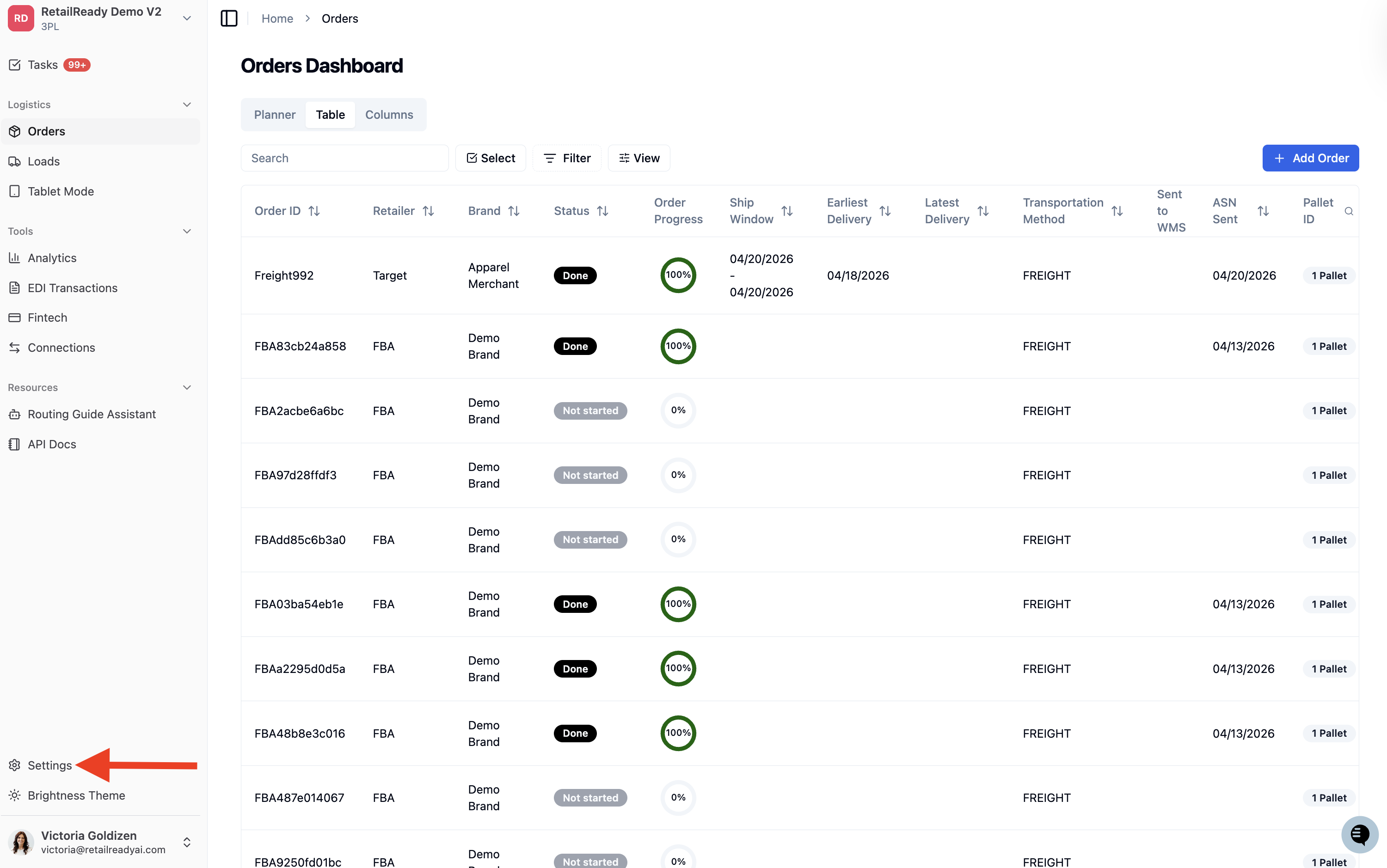
From the left-hand navigation, click 'Settings' at the bottom of the sidebar.
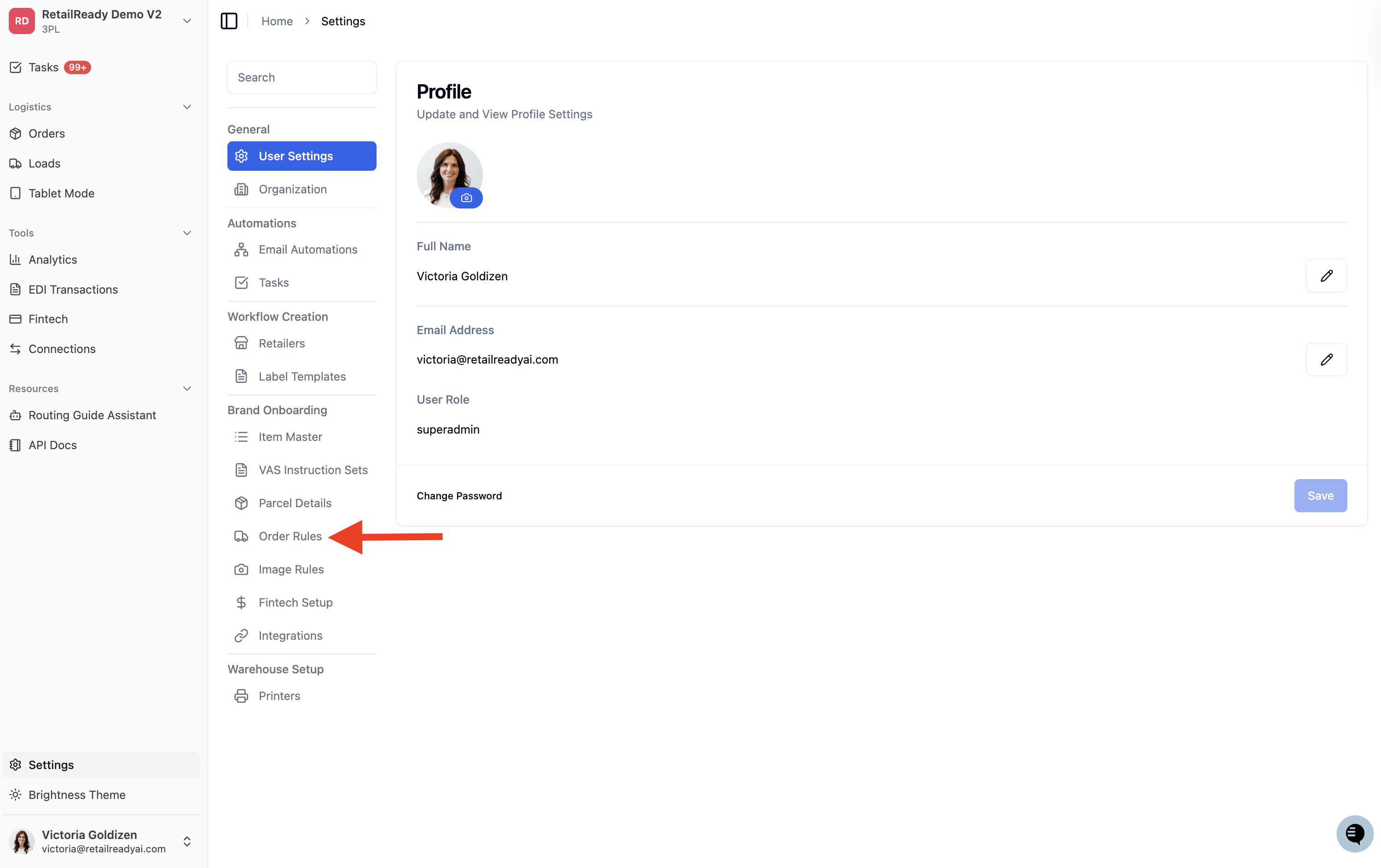
In the Settings menu, scroll down to the Brand Onboarding section and click 'Order Rules'.
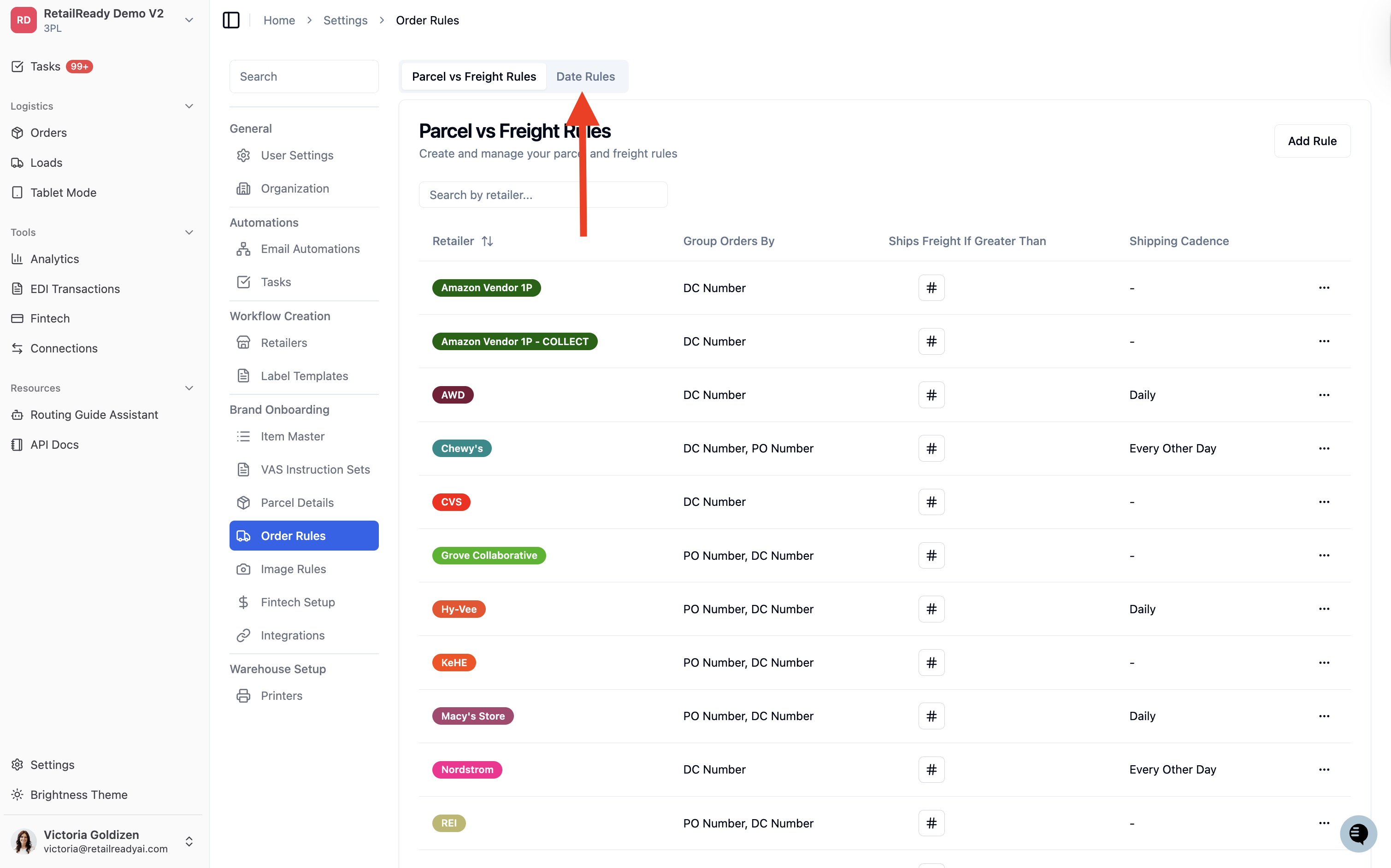
At the top of the Order Rules page, click the 'Date Rules' tab.
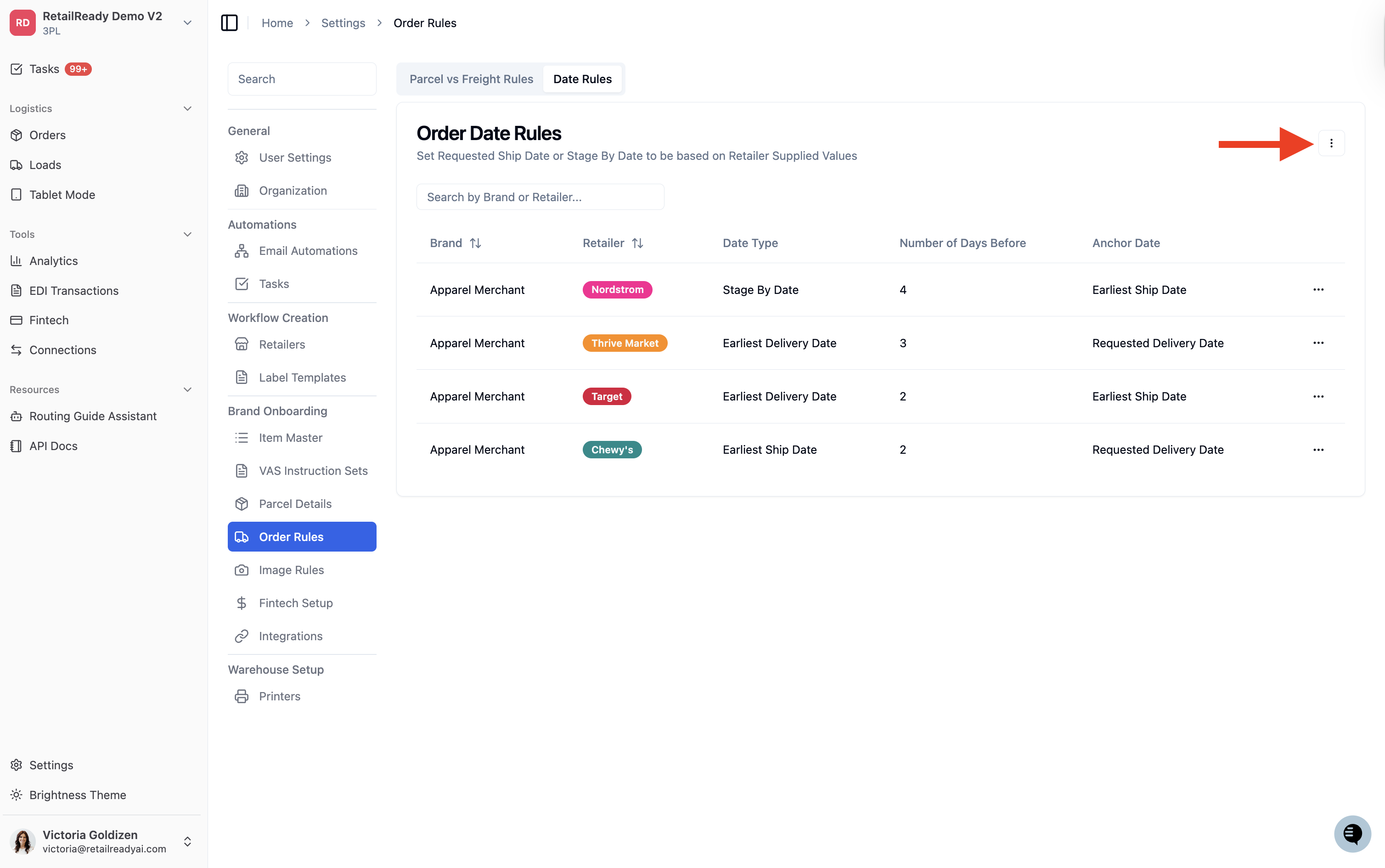
On the Order Date Rules page, click the '3 dot menu (⋮)' in the top-right corner of the page.
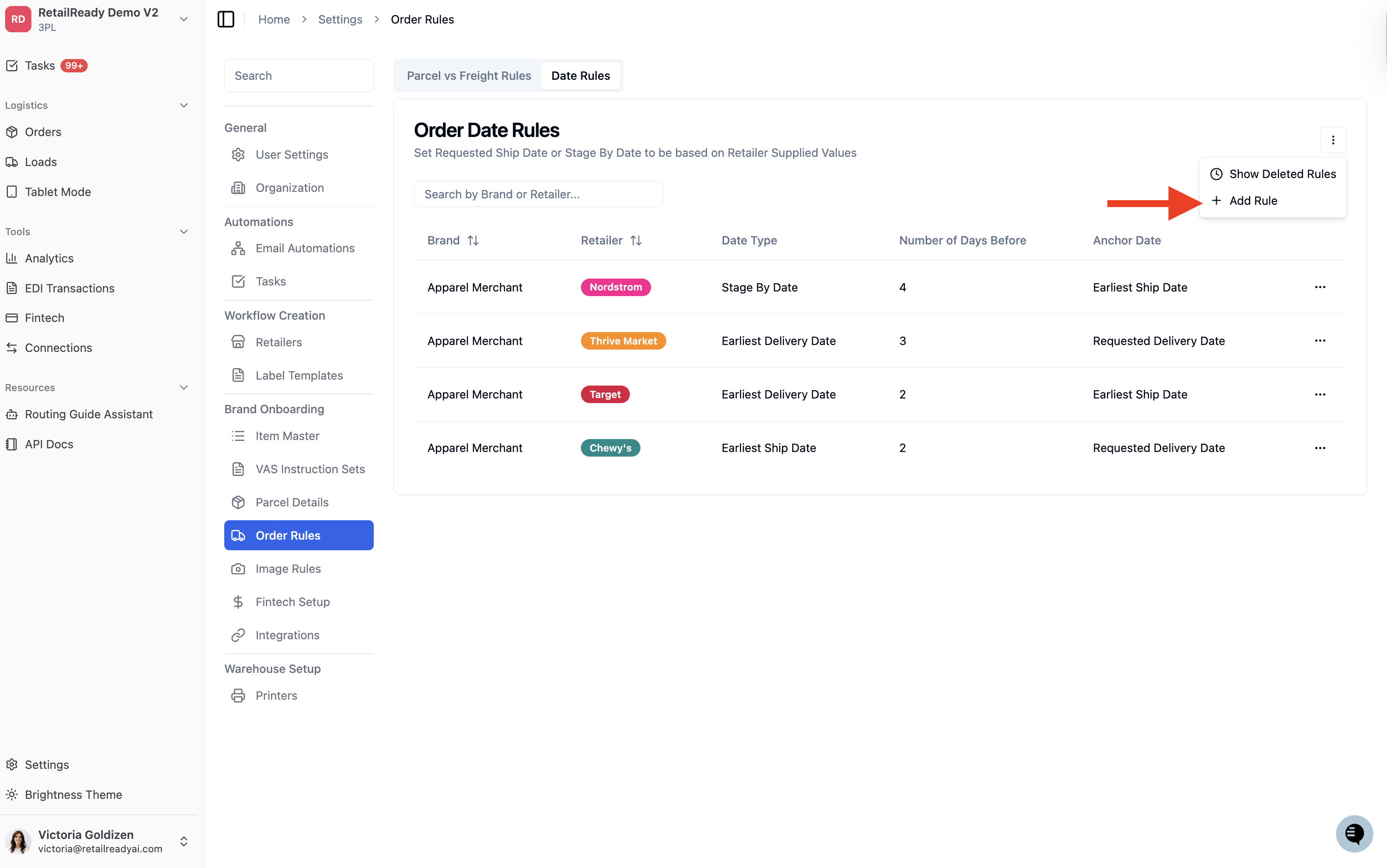
Click '+ Add Rule' from the dropdown. The Add Order Date Rule modal will open.
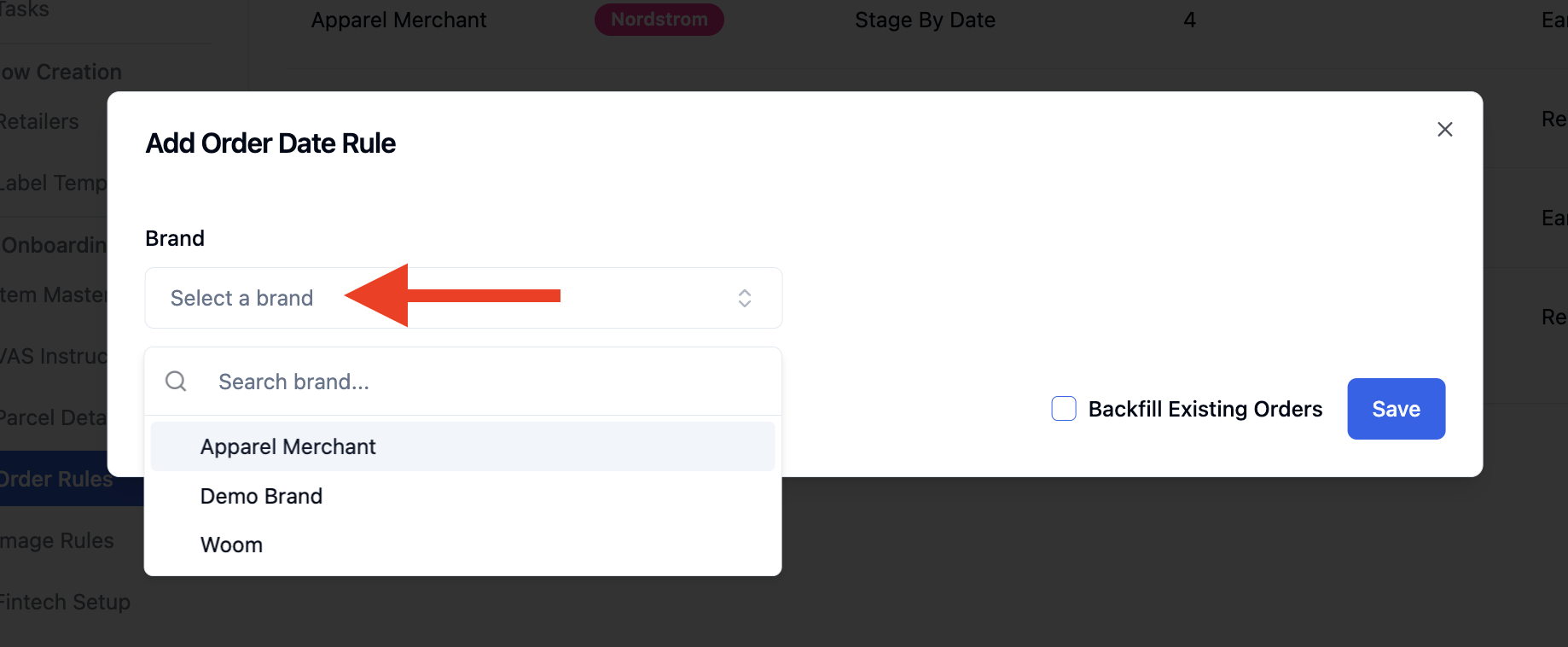
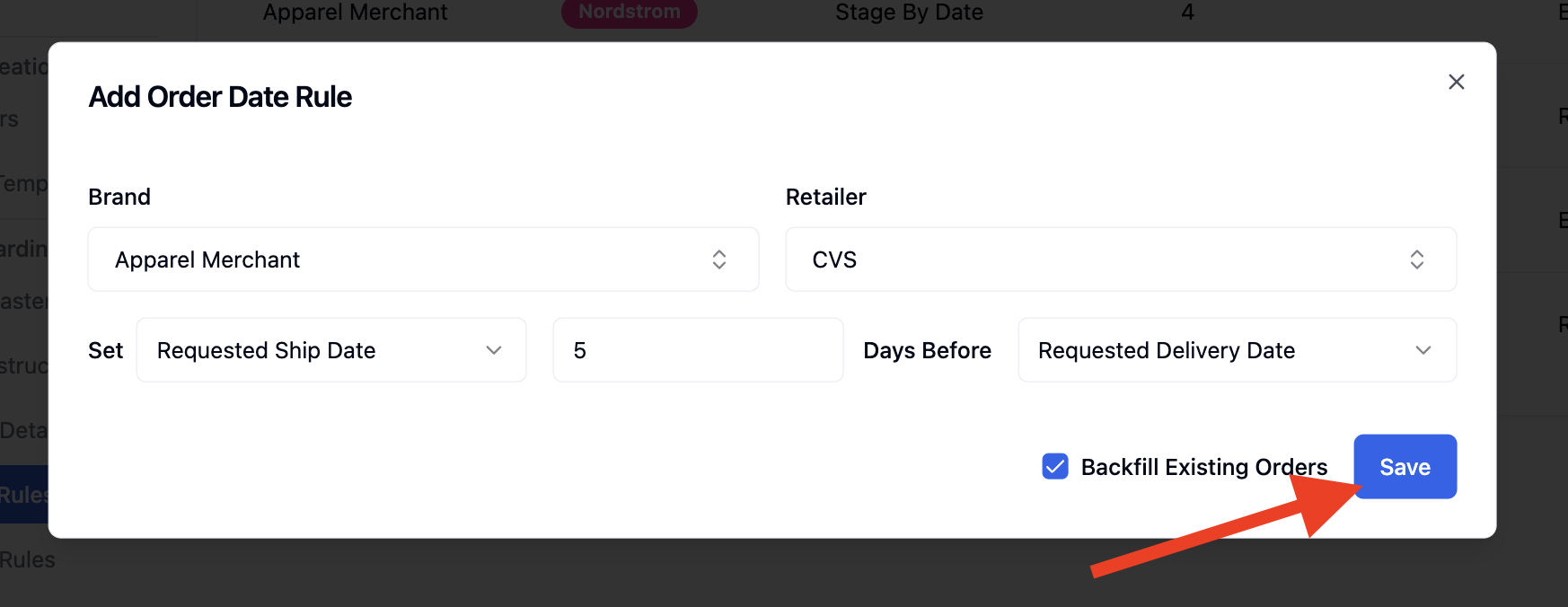
In the Brand field, click 'Select a brand' and search for or select the brand you want this rule to apply to.
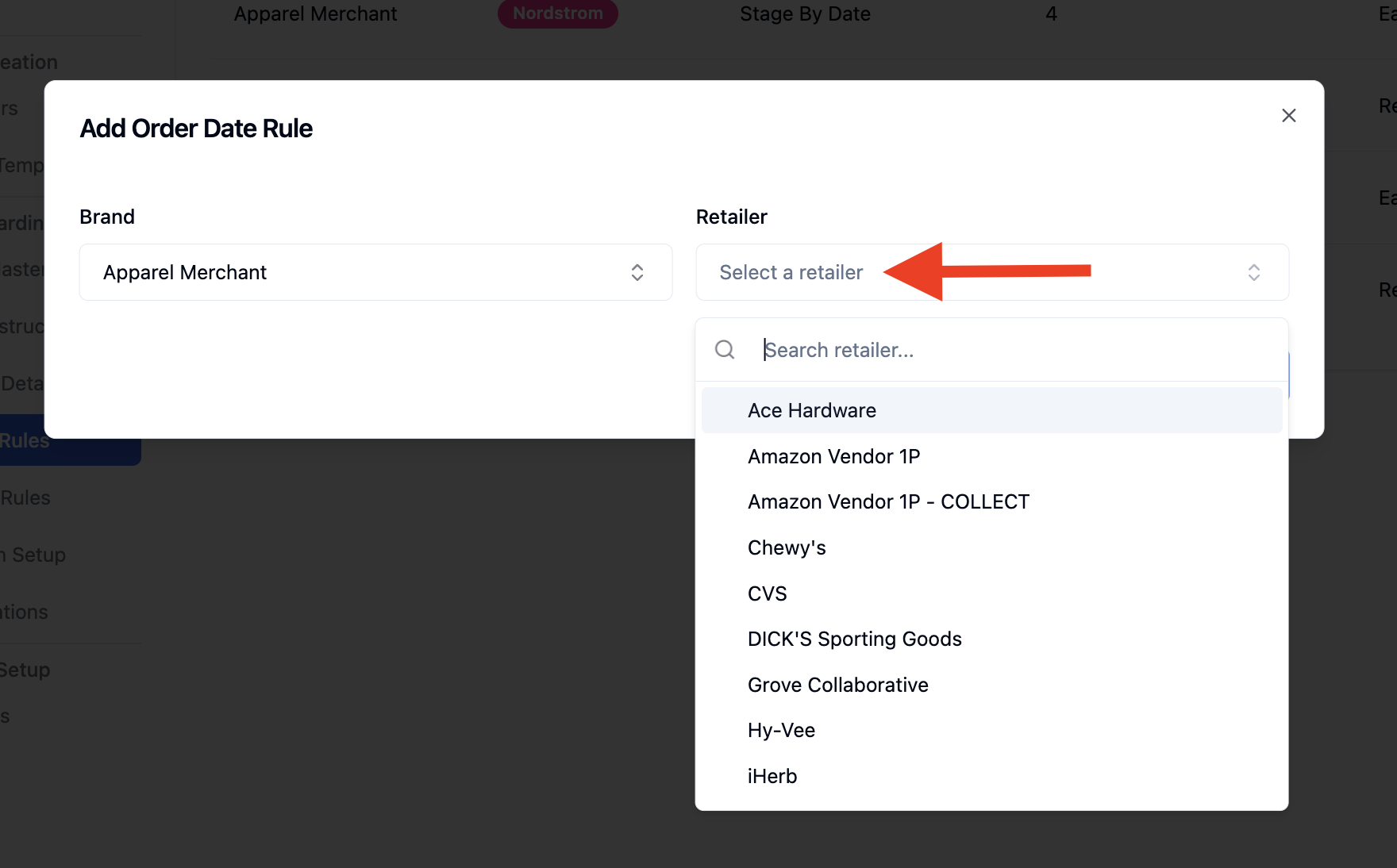
Once a brand is selected, a Retailer field will appear. Click 'Select a retailer' and choose the retailer for this rule.
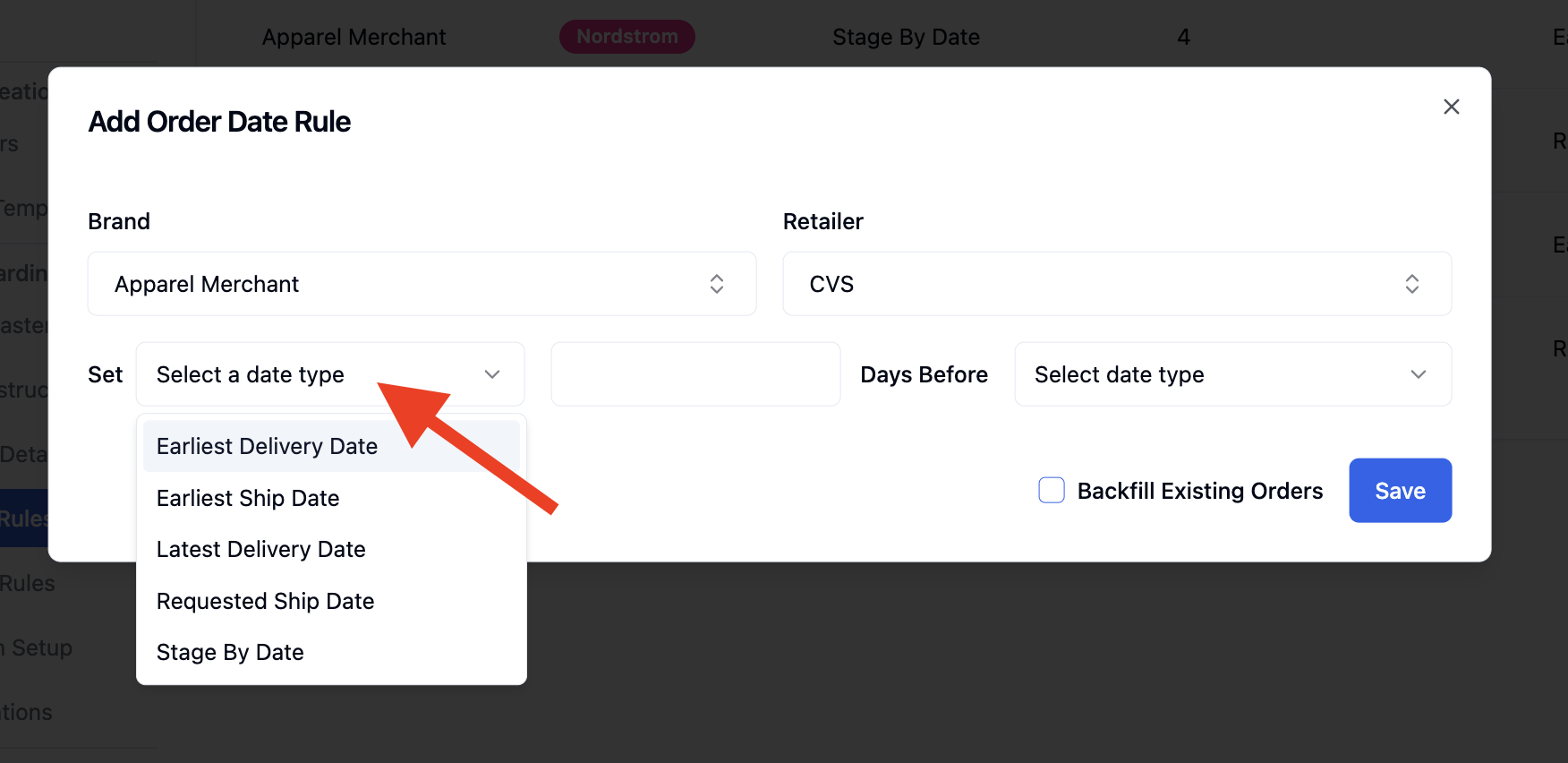
In the Set field, select the date you want RetailReady to calculate and populate on the order. The available options are:
Earliest Delivery Date - The earliest date the retailer will accept delivery of the shipment at their DC or store. Orders delivered before this date may be refused or incur a chargeback.
Earliest Ship Date - The earliest date the order should leave the warehouse. Shipping before this date may violate retailer compliance requirements.
Latest Delivery Date - The last date the retailer will accept the shipment. Delivery after this date typically results in a late delivery chargeback.
Requested Ship Date - The date the retailer is requesting the order ship from the warehouse.
Stage By Date - The date by which the order needs to be fully picked, packed, and staged in the warehouse and ready to ship.
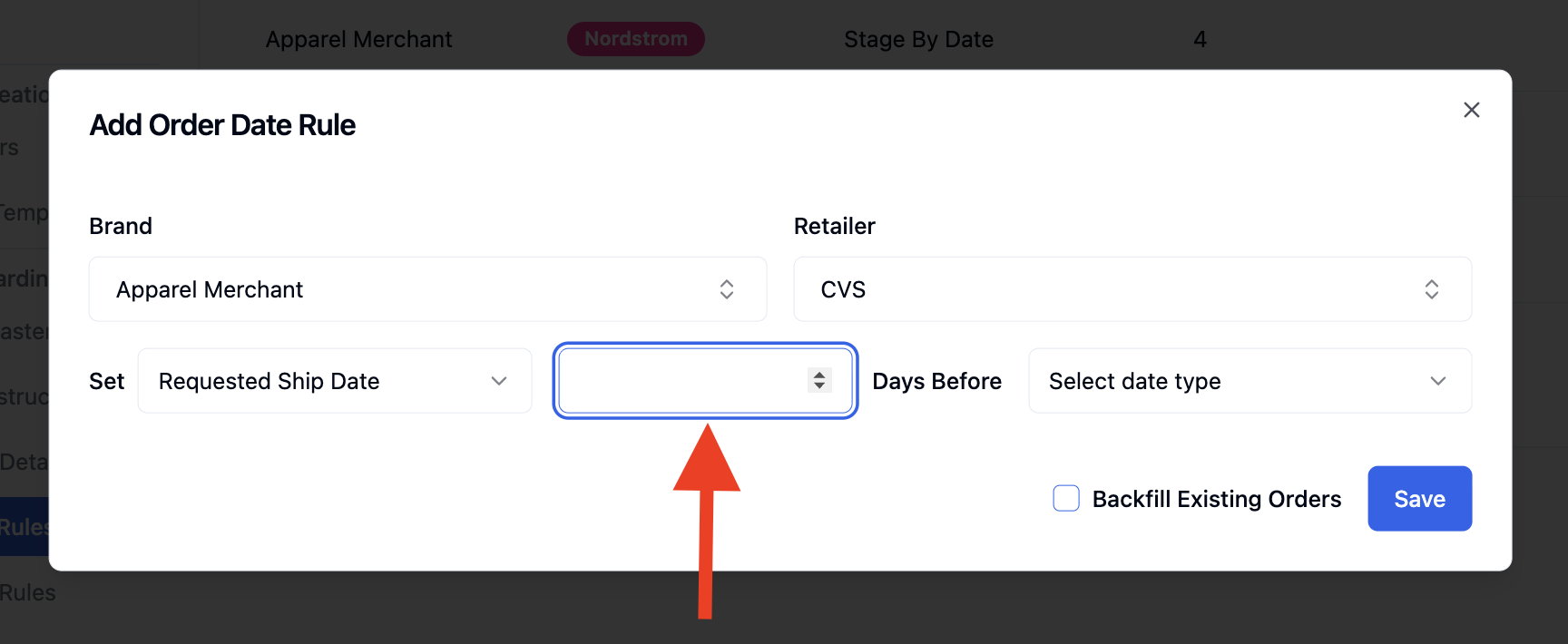
In the number field (between Set and Days Before), enter the number of days before the anchor date that the calculated date should be set. For example, entering 5 means the date will be set 5 days before the anchor date.
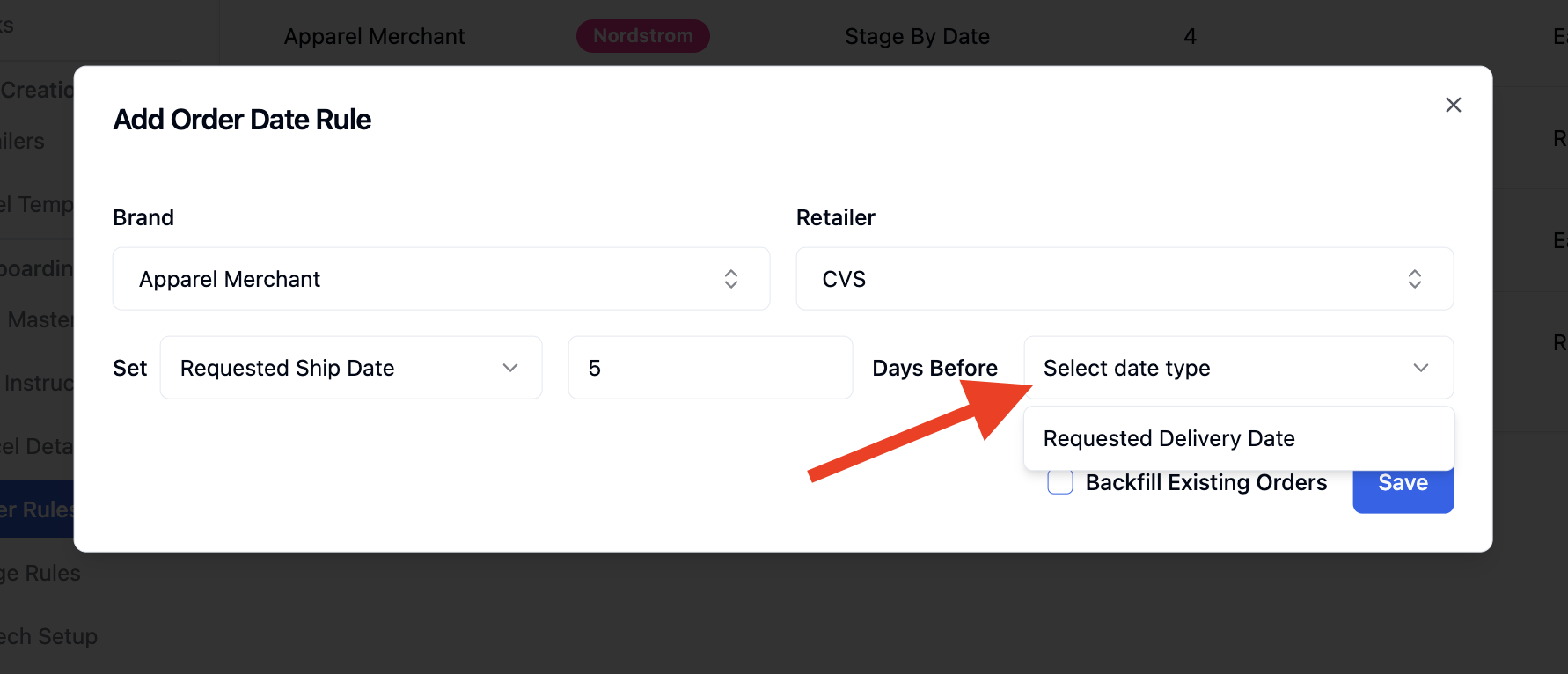
In the Days Before field, select the anchor date, the retailer-supplied date that RetailReady will reference to calculate the value in the Set field. Options include:
Requested Delivery Date (Additional anchor date options may appear depending on what the retailer sends)
(Optional) Check 'Backfill Existing Orders' if you want this rule to apply retroactively to orders that are already in the system for this brand/retailer combination.
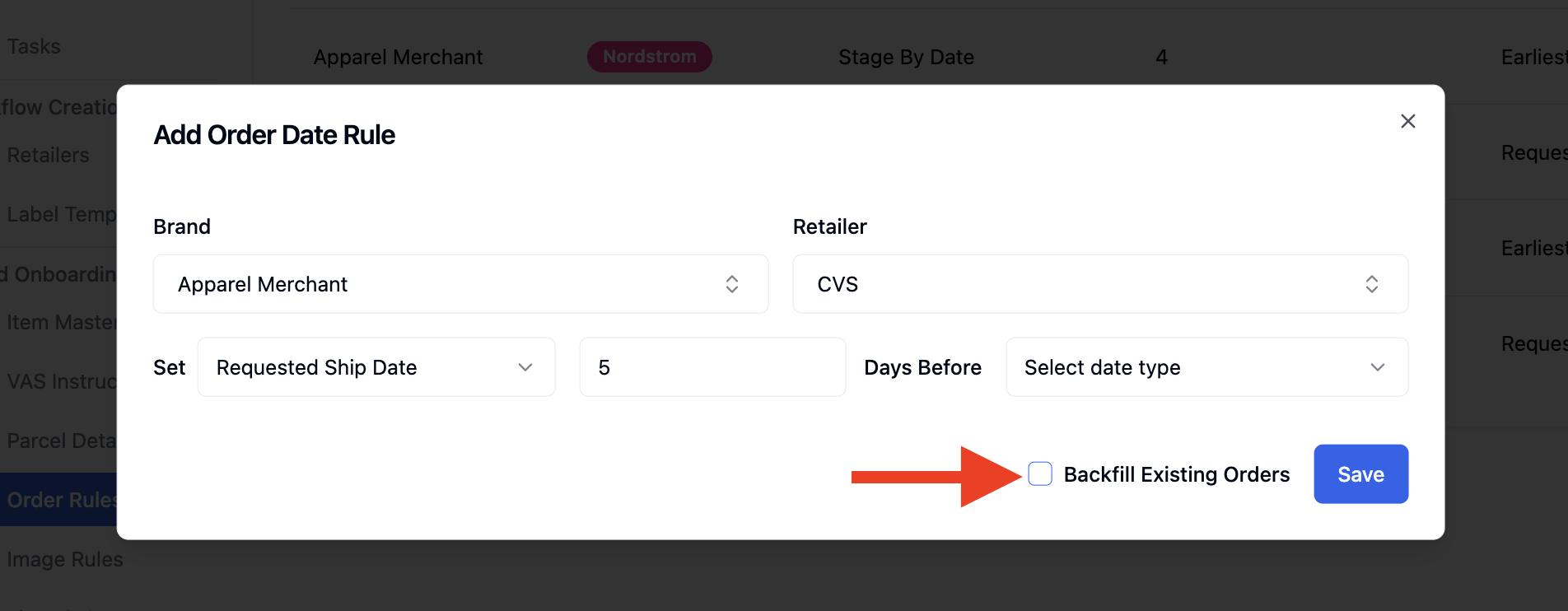
Click 'Save'. A confirmation message will appear at the bottom of the screen: "Order date rule created successfully." The new rule will appear in the Date Rules table.
How to Edit or Delete an Order Date Rule
From the left-hand navigation, click 'Settings' at the bottom of the sidebar.
In the Settings menu, scroll down to the Brand Onboarding section and click 'Order Rules'.
At the top of the Order Rules page, click the 'Date Rules' tab.
On the Order Date Rules table, locate the rule you want to manage. Click the '3 dot menu (⋮)' on the far right of that rule's row.
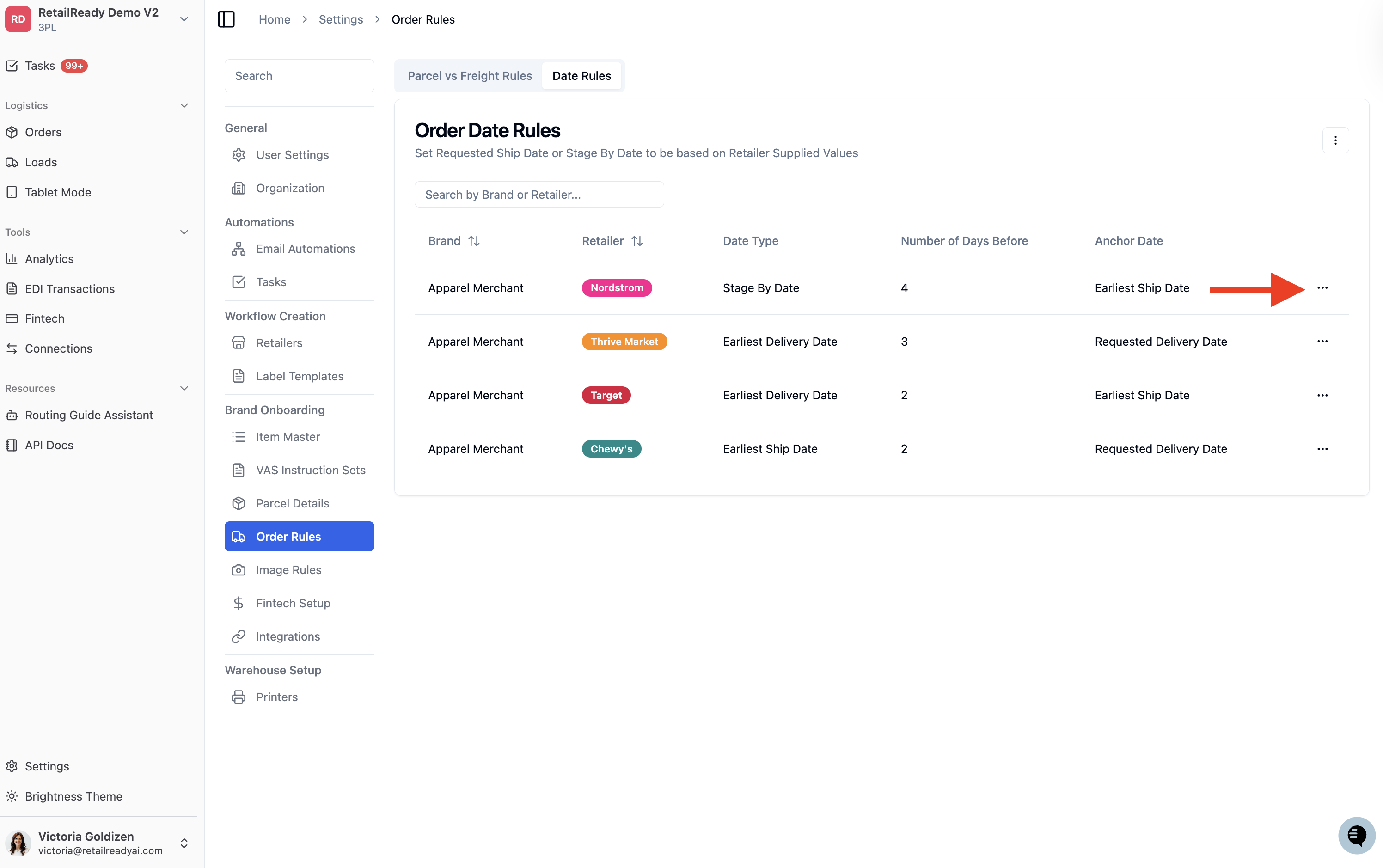
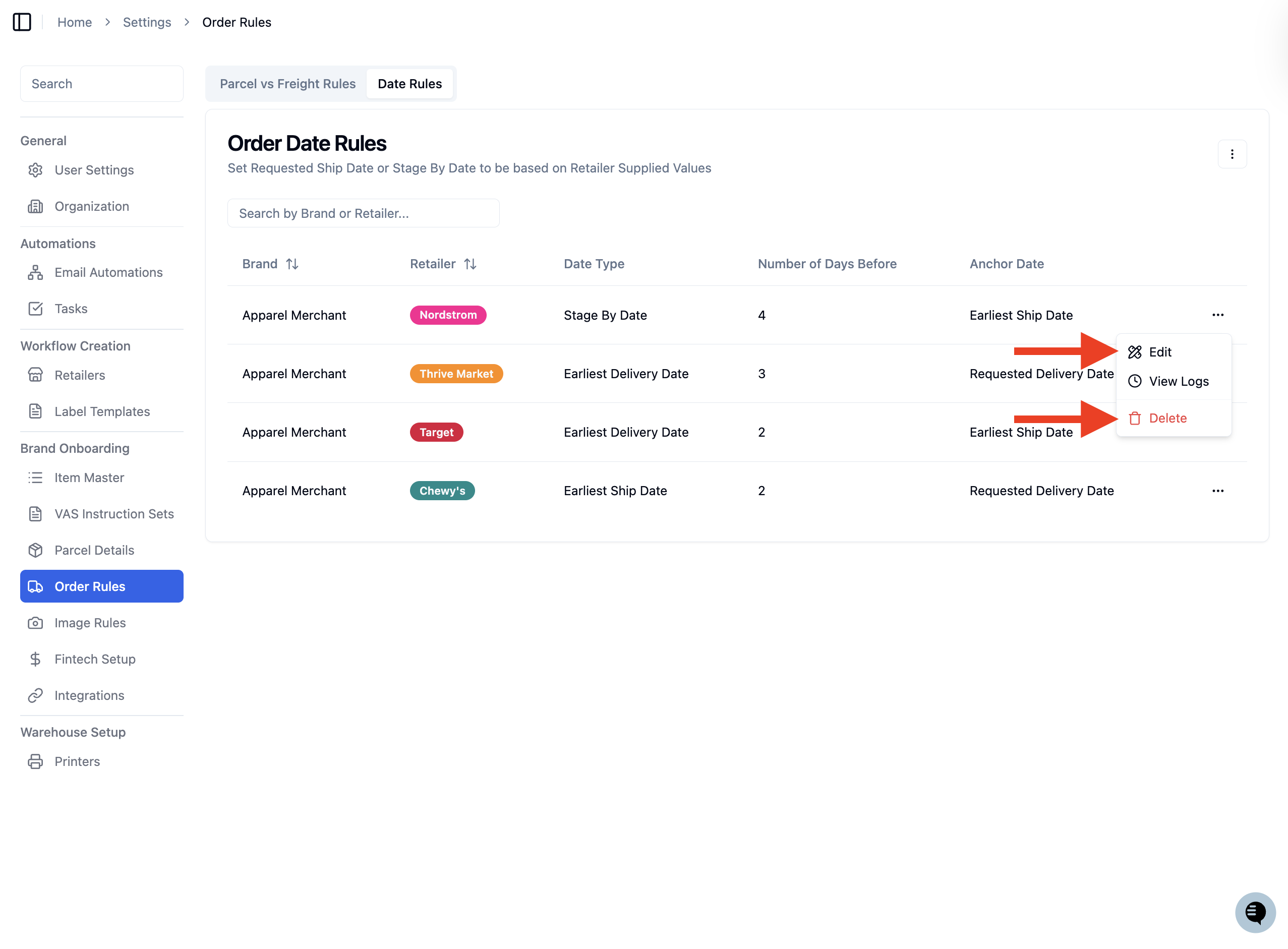
A dropdown will appear with three options:
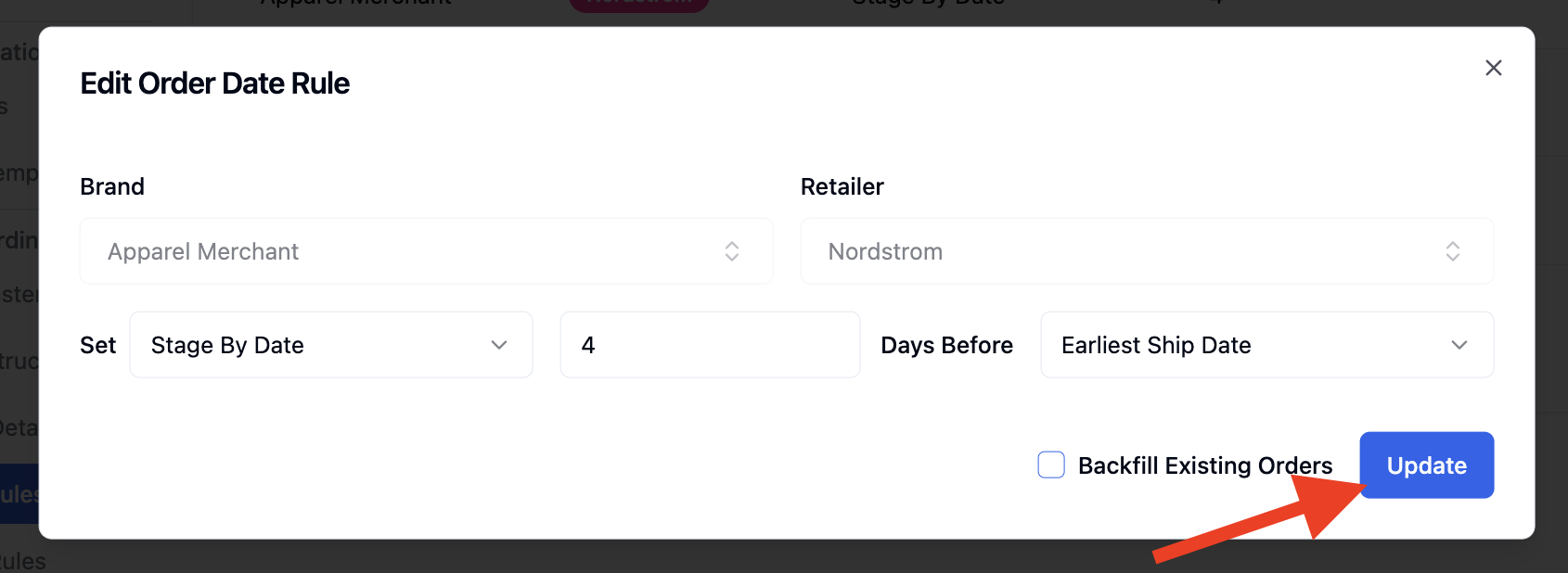
'Edit' - Opens the rule modal so you can update field the date type, number of days, or anchor date.
'View Logs' - Shows a log history of when this rule has fired and what dates it has set on orders. Useful for troubleshooting.
'Delete' - Permanently removes the rule. Deleted rules can be reviewed by clicking the 3 dots page menu(⋮) and selecting 'Show Deleted Rules'.
If editing: Click 'Update' in the bottom right of the modal to save your changes.
If deleting: A confirmation prompt will appear at the bottom right of the screen asking you to confirm the deletion. Click 'Confirm' to permanently delete the rule.