Bulk Downloading and Printing Carton Labels
Last updated: May 20, 2026
You can download or print multiple carton labels at once directly from the order detail page in the RetailReady dashboard. This feature lets you select a range of carton numbers and download them all as a PDF, or send them directly to your network printer in one action.
How to Download All Carton Labels for an Order
Open an order in the dashboard and navigate to the Cartons section
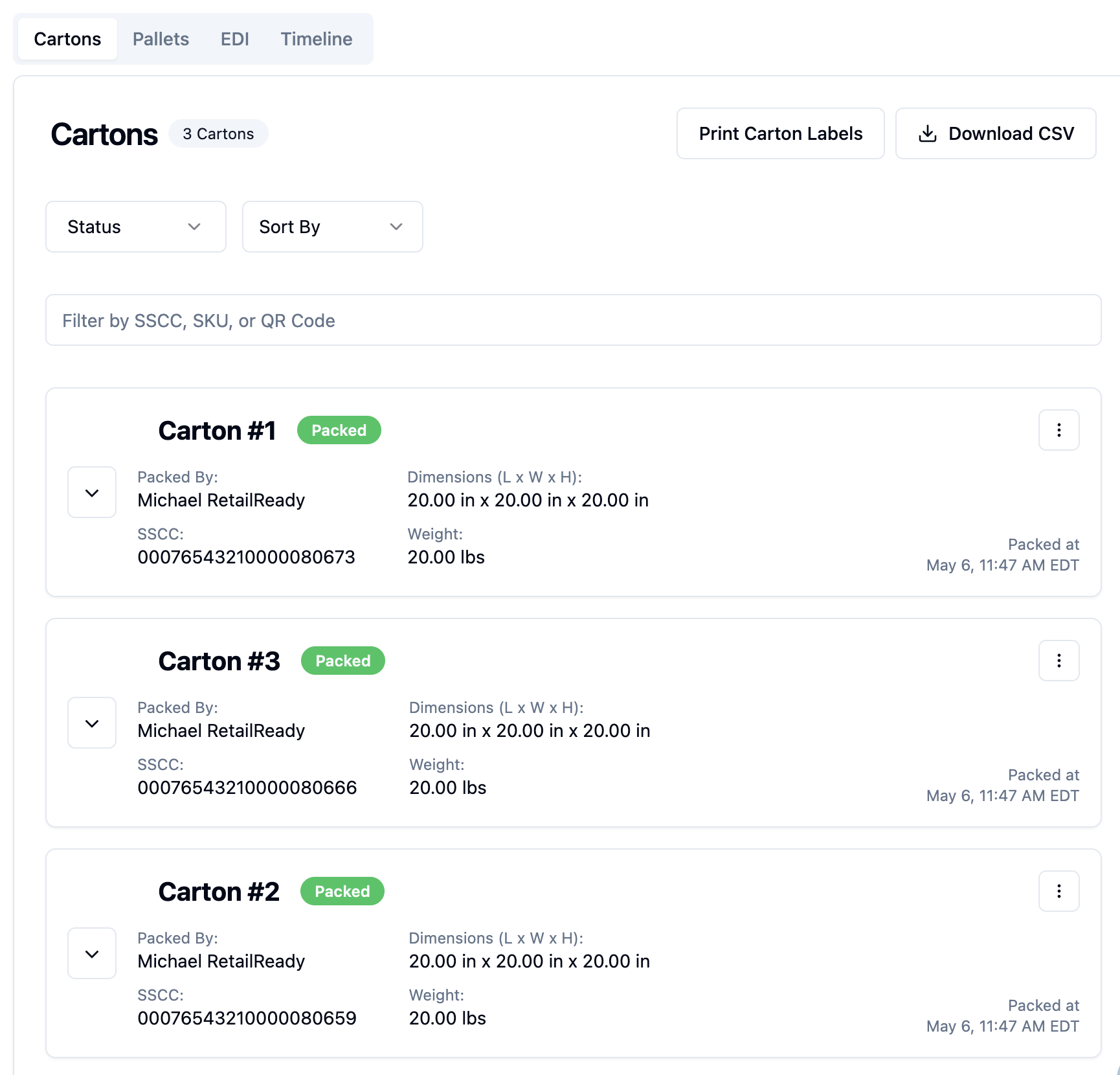
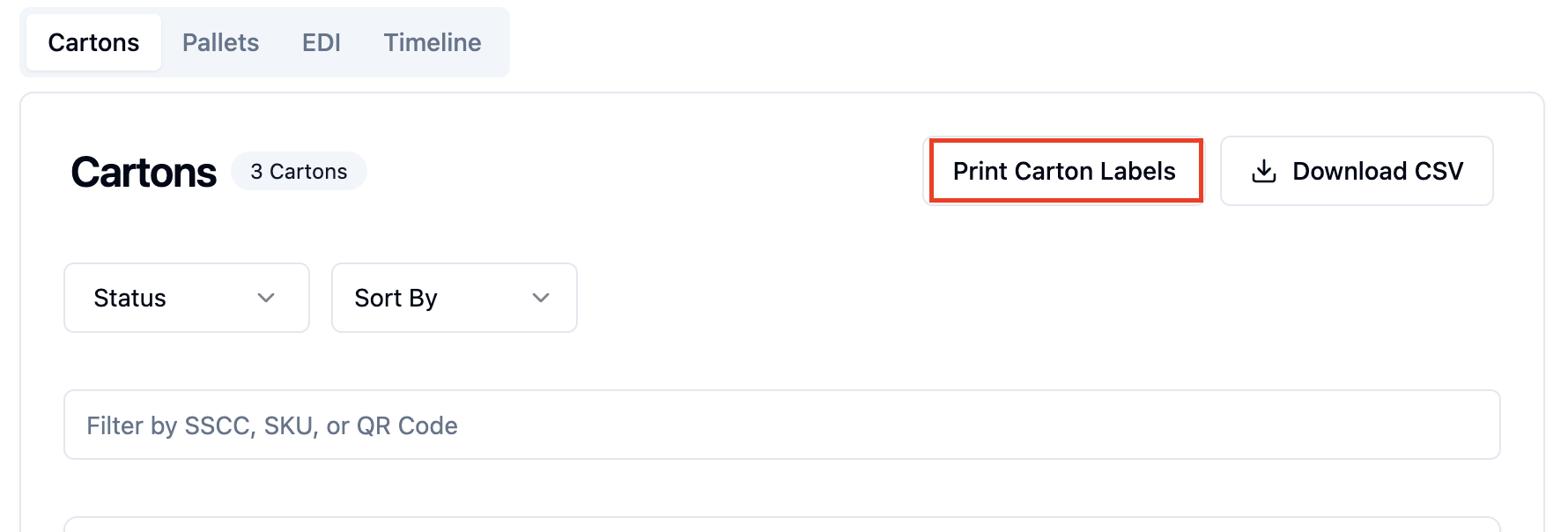
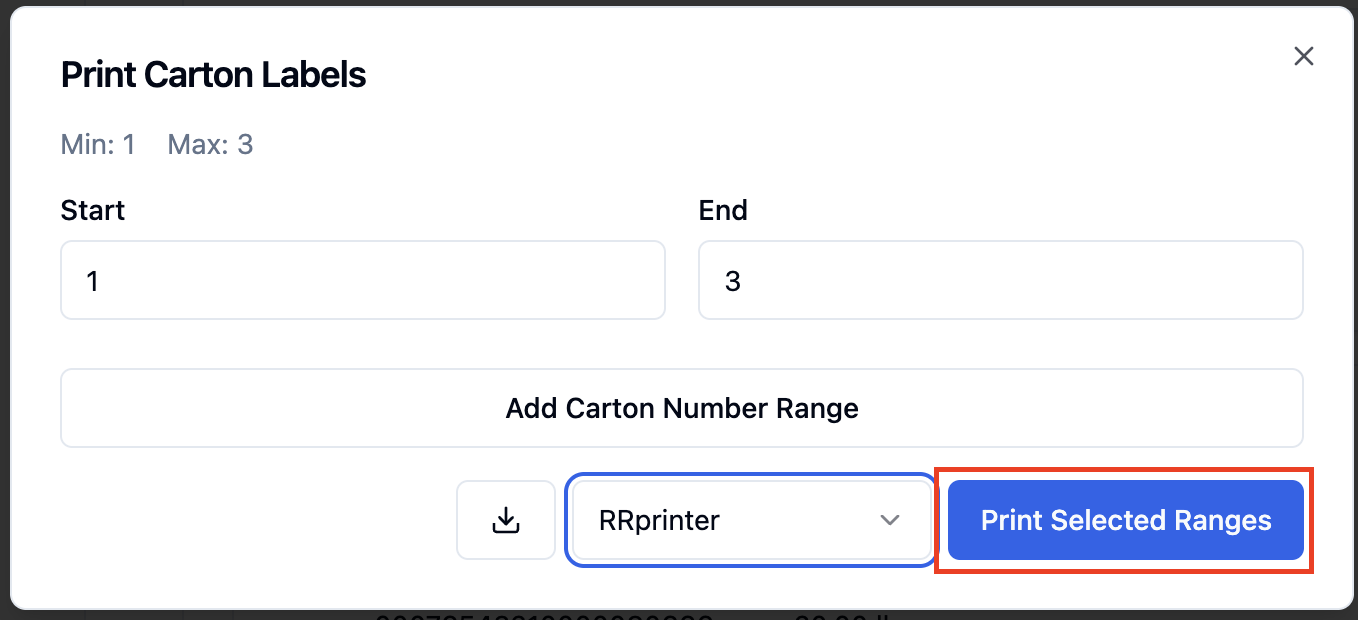
Click the Print Carton Labels button in the Cartons header
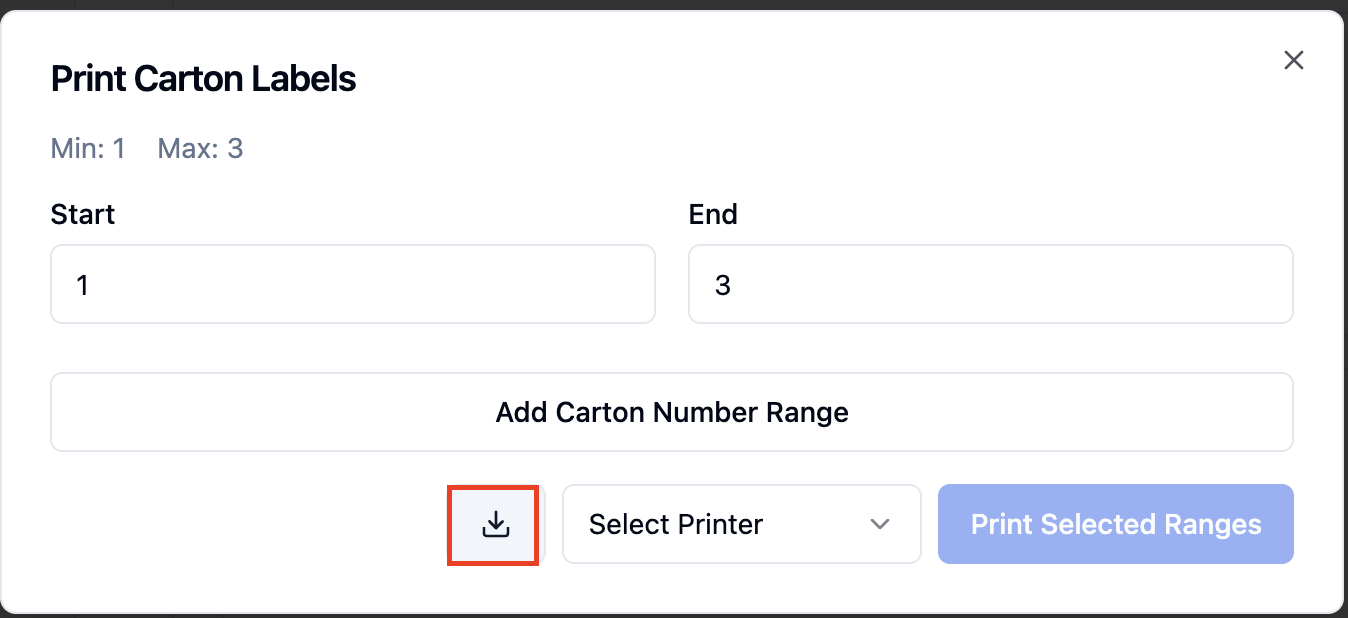
If prompted, select a SKU from the dropdown, and enter a start and end carton number for the range you want. If your range has only one carton, the start and end fields are filled in automatically.
Click the download icon to download the labels as a PDF file
How to Print Carton Labels to a Network Printer
Follow steps 1–3 above
Select your printer from the printer dropdown
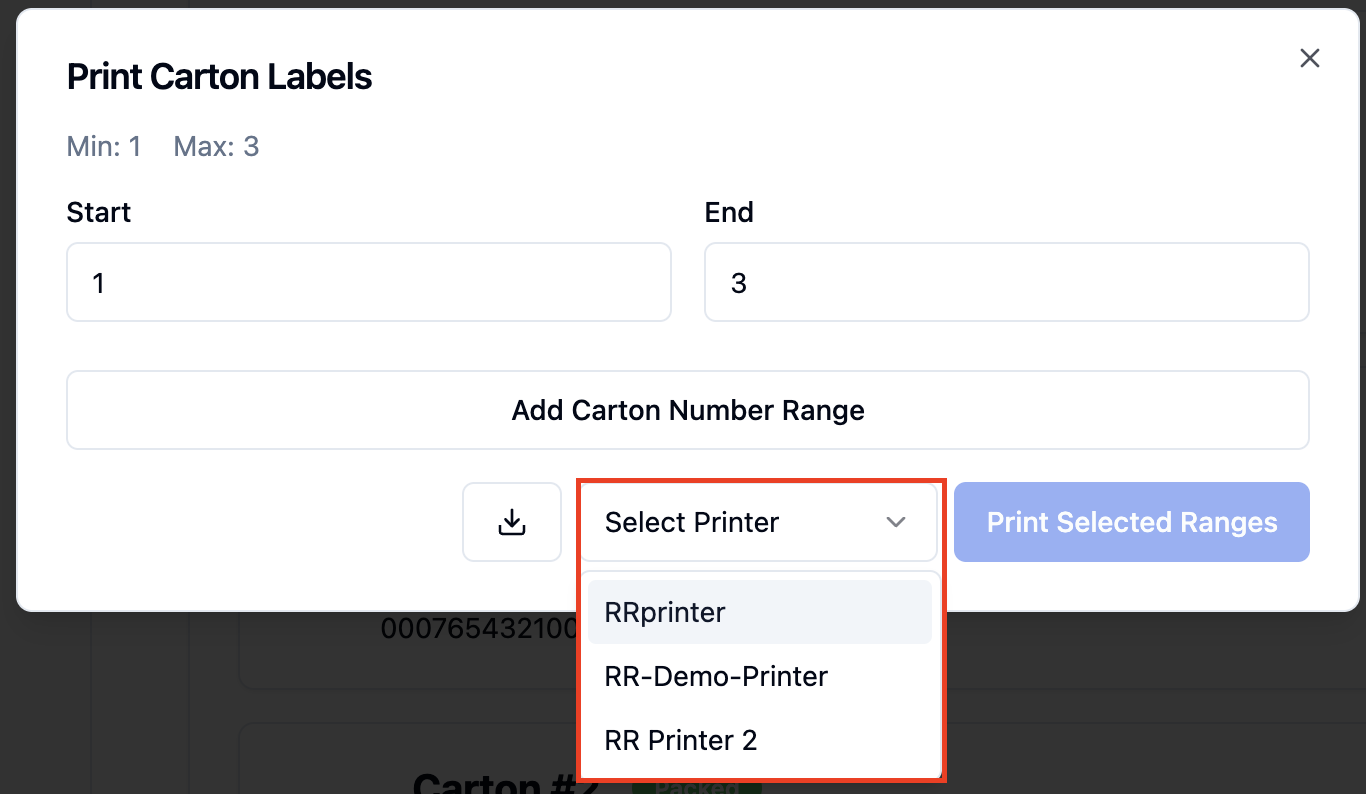
Click Print Selected Ranges to send the labels directly to the printer. Your printer selection is saved after printing so you don't need to re-select it next time.
How to Download Select Carton Labels for an Order
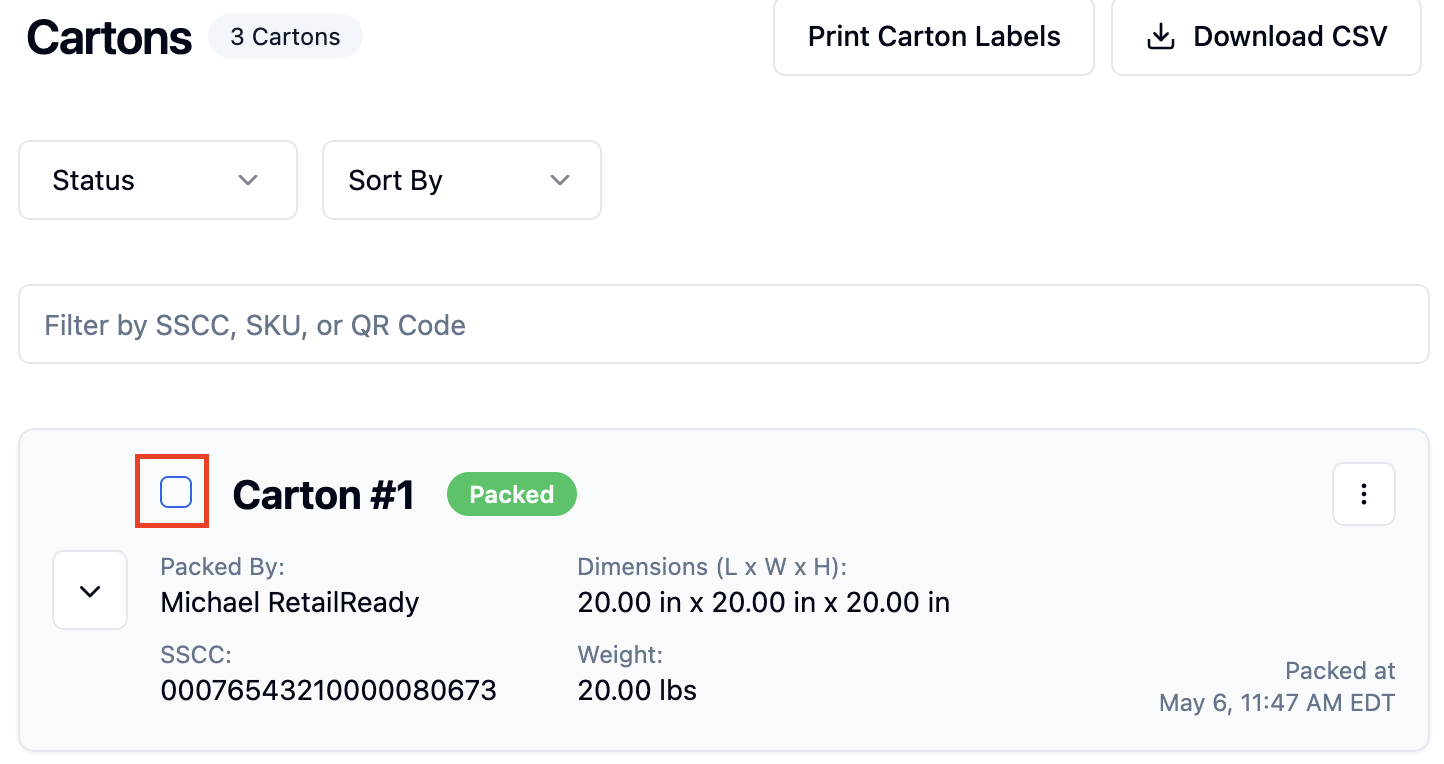
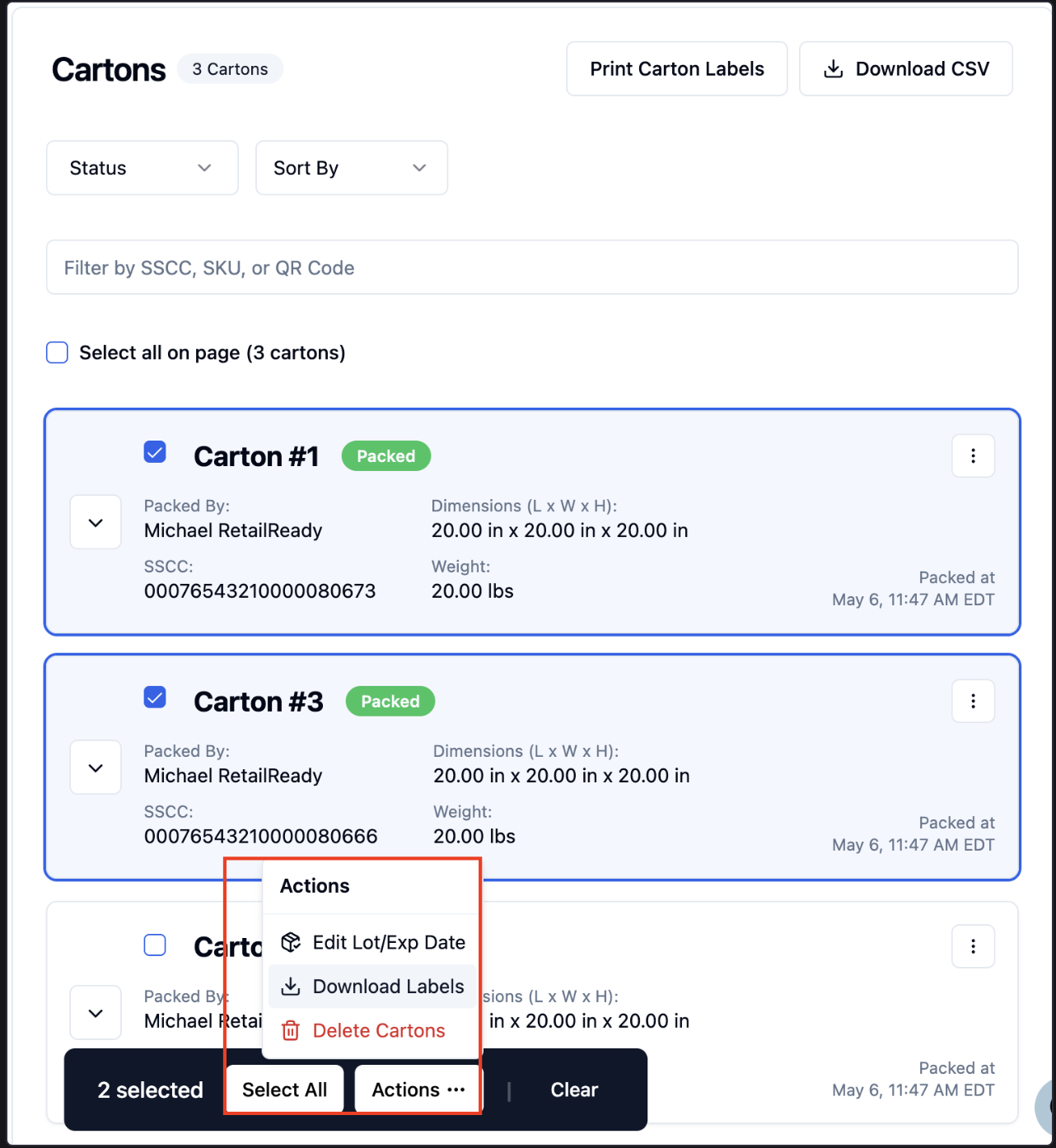
On the bottom of the order detail page in the Cartons section, select individual cartons using the checkboxes
Click the Actions menu, choose Download Labels
FAQs
How do I Add Multiple Carton Ranges within an Order?
You can download labels for non-consecutive carton numbers on the Print Carton Label view:
Enter your first carton range (e.g. 1–10)
Click Add Carton Number Range
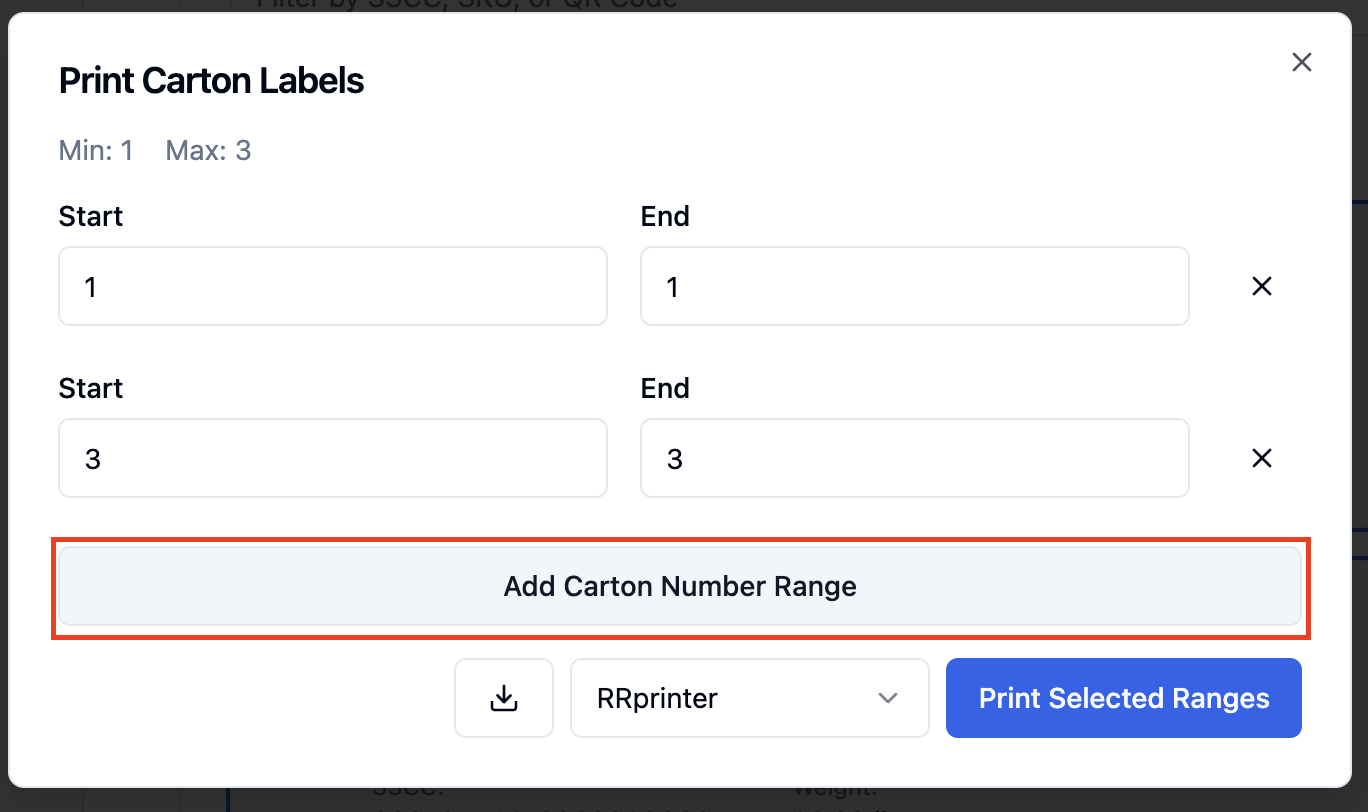
Enter a second range (e.g. 25–30)
Download or print — the output will include labels for both ranges
What if the Print Button is not Visible?
The Print Carton Labels button only appears when the order is in Packing, Packed, Staged, Loaded, or Done status and the retailer is configured for carton label printing. If you don't see the button, the order may still be in Not Started or an On Hold status, or your retailer might not have carton labels.
To check if an Order does not have labels for the retailer, click the '...' next to a carton, and 'View Labels'. You'll see that no carton labels are available to view.
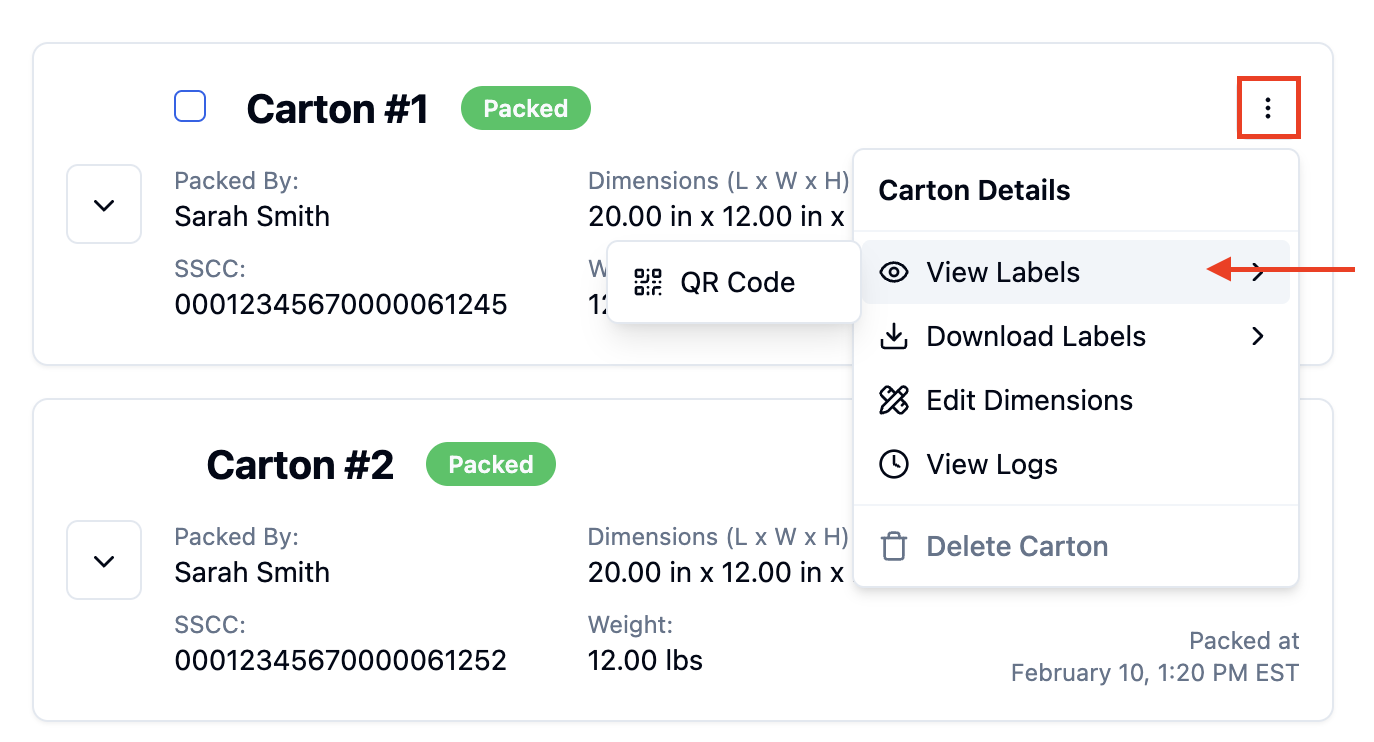
If the order is in Packing status, only cartons in Packed status will be able to have their carton labels printed.
In What Format do the Labels Download?
Labels are downloaded as a single merged PDF file, so that you are able to see all labels within the same file.