FBA - Mark Order Staged
Last updated: July 26, 2026
The 'Mark Order Staged' feature allows 3PL admins to manually stage FBA DWF (Directed Workflow) orders directly from the admin dashboard, bypassing the standard mobile packing process. This article explains how to use the 'Mark Order Staged' feature in RetailReady for FBA orders. This feature includes important compliance warnings and requires explicit acknowledgment of risks.
How to Mark an Order as Staged
Navigate to the order you want to mark as staged. The order must be an FBA DWF order with 'Not started' status.
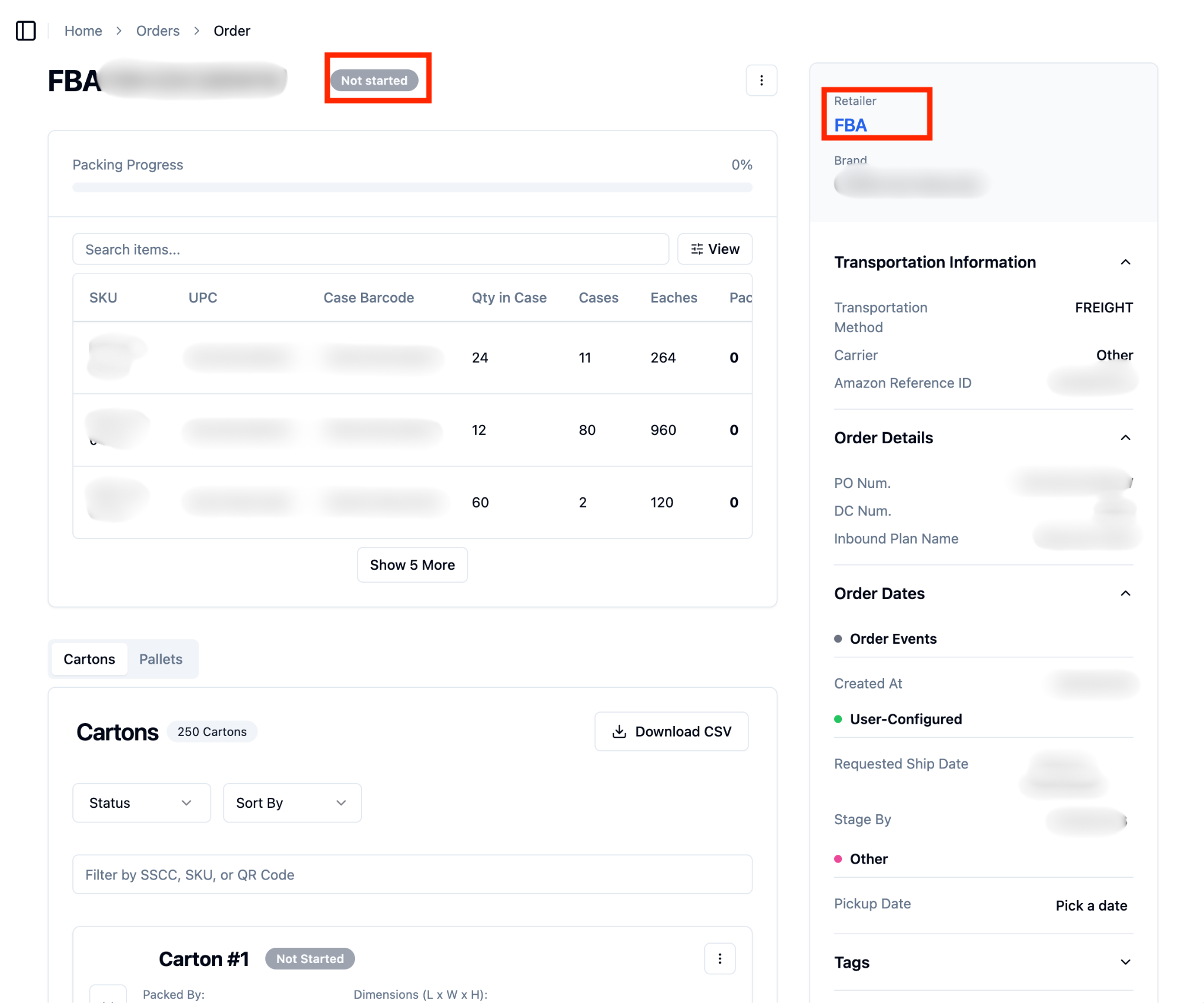
Click the three dots action menu next to the order.
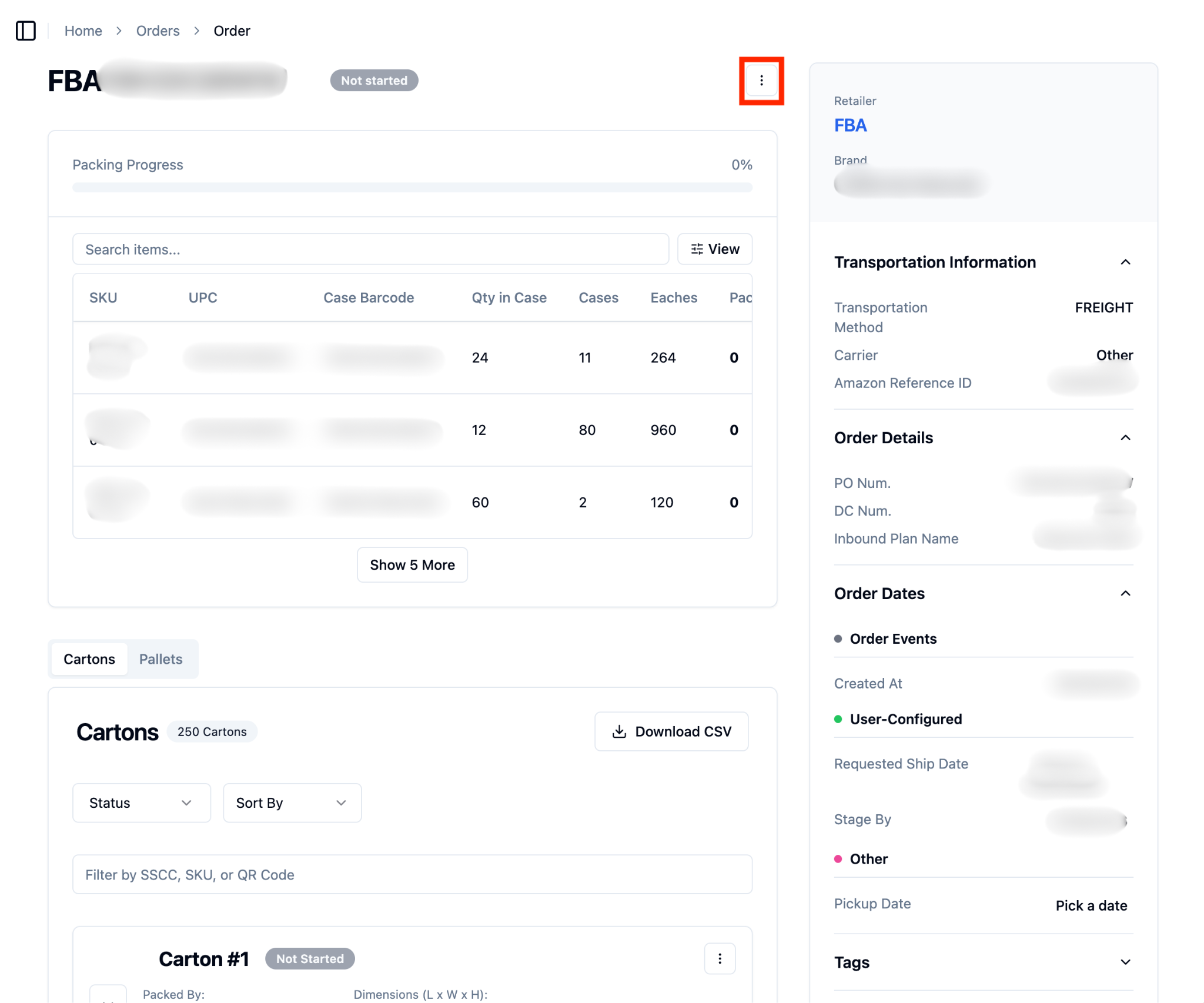
Select the 'Mark Order Staged' option in the dropdown menu.
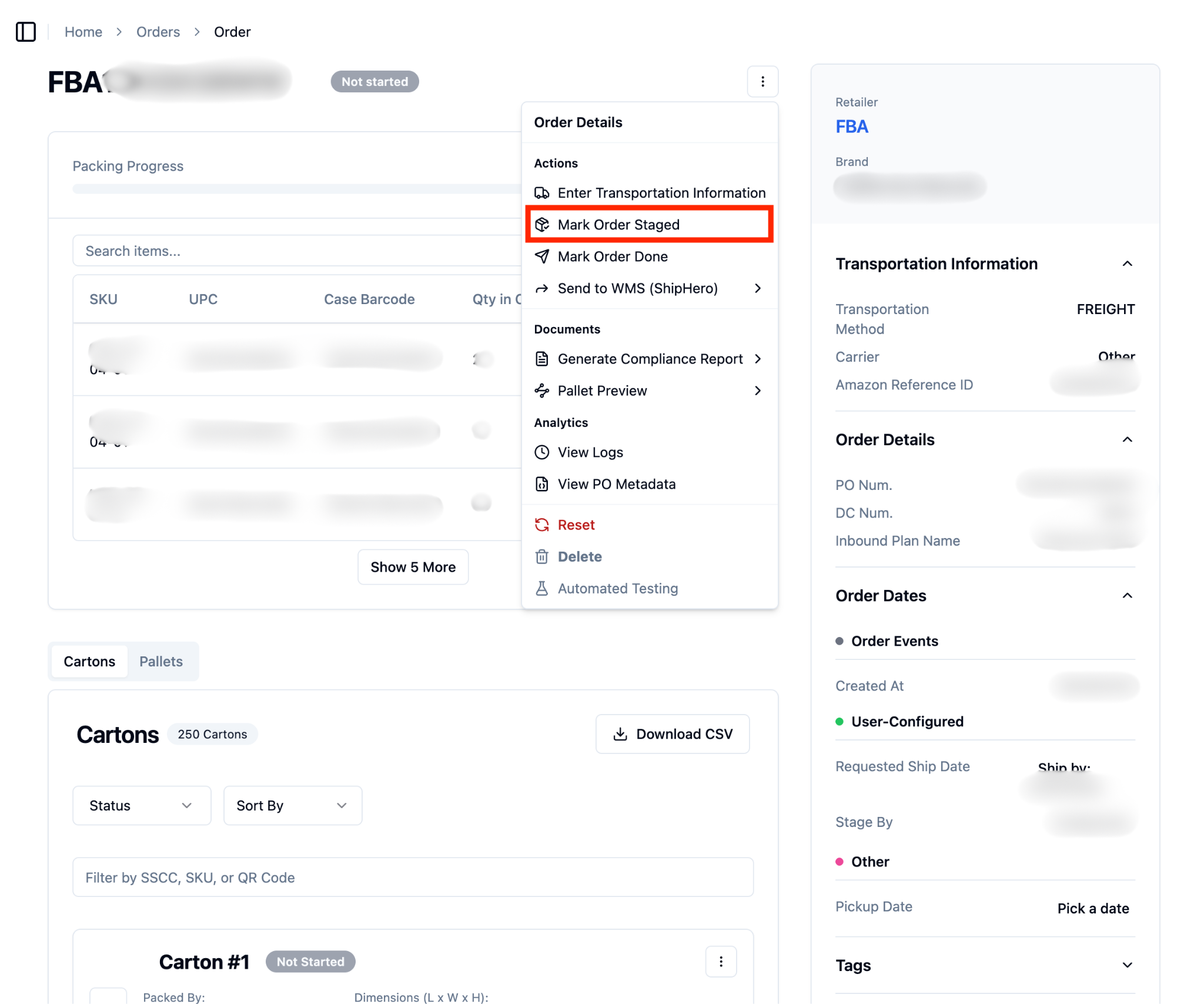
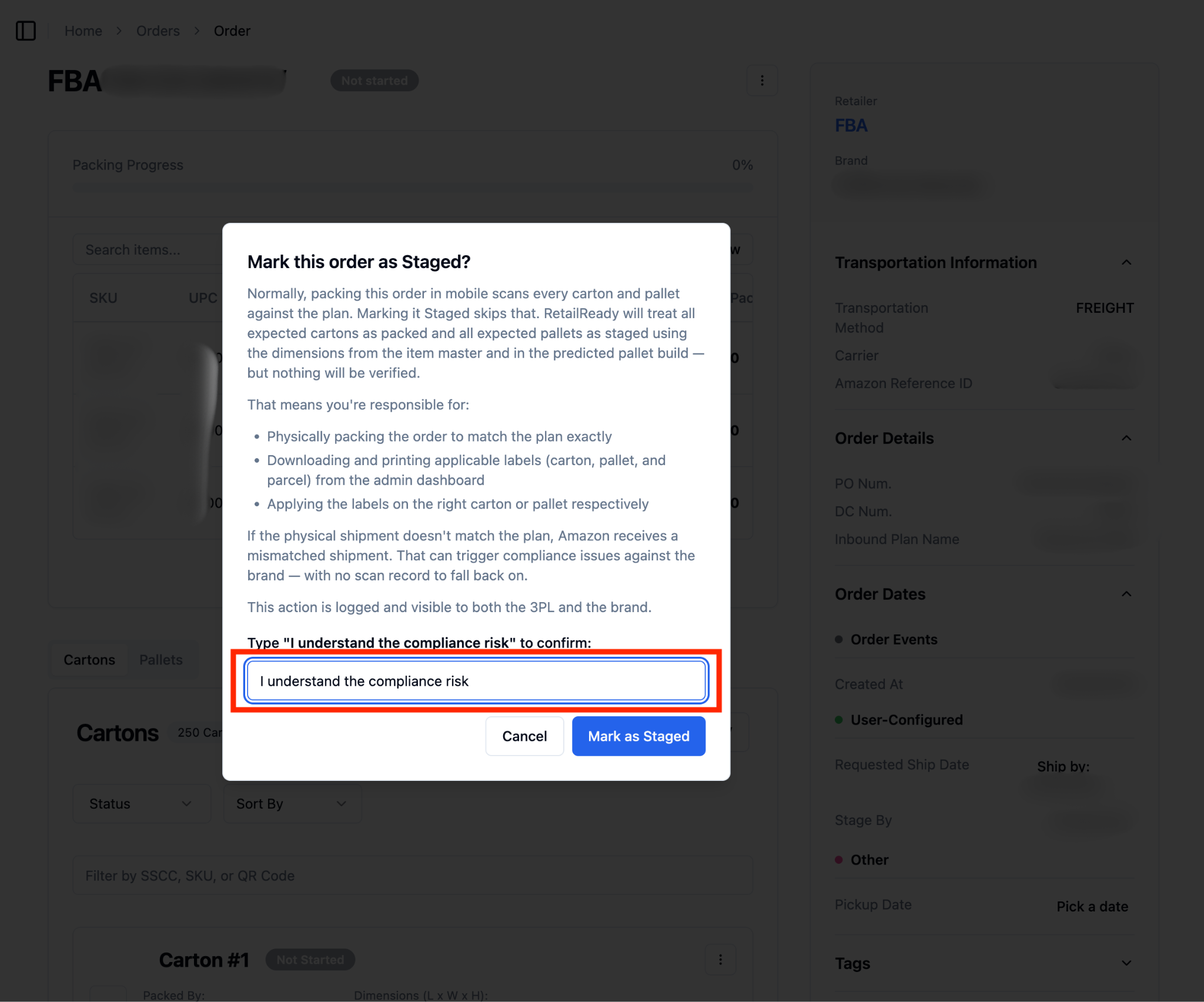
Read the compliance warning carefully, as this process bypasses standard packing procedures and may impact compliance with FBA requirements.
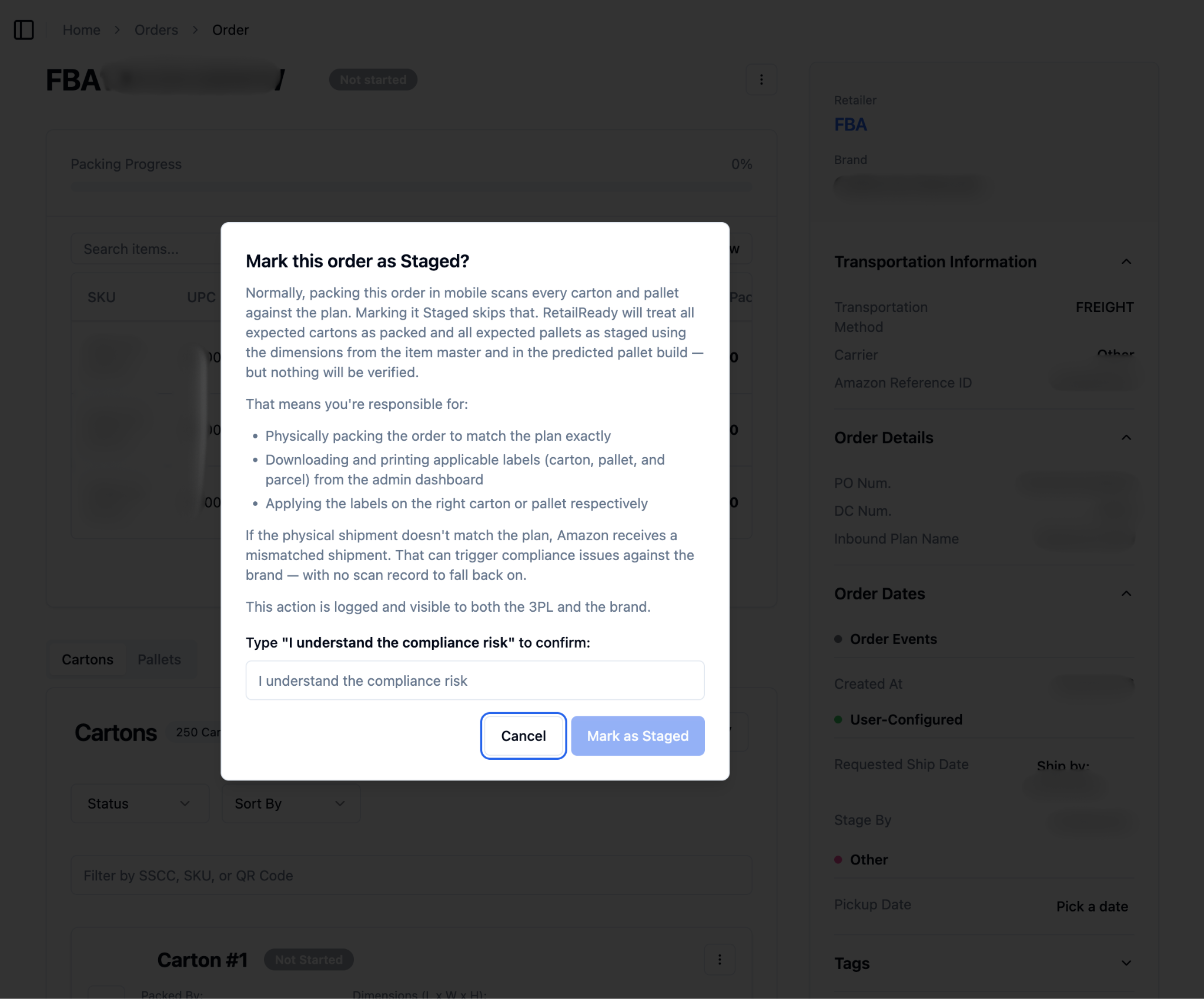
Type exactly "I understand the compliance risk" in the text field provided.
Once you've entered the confirmation text, click 'Mark as Staged' to complete the process.
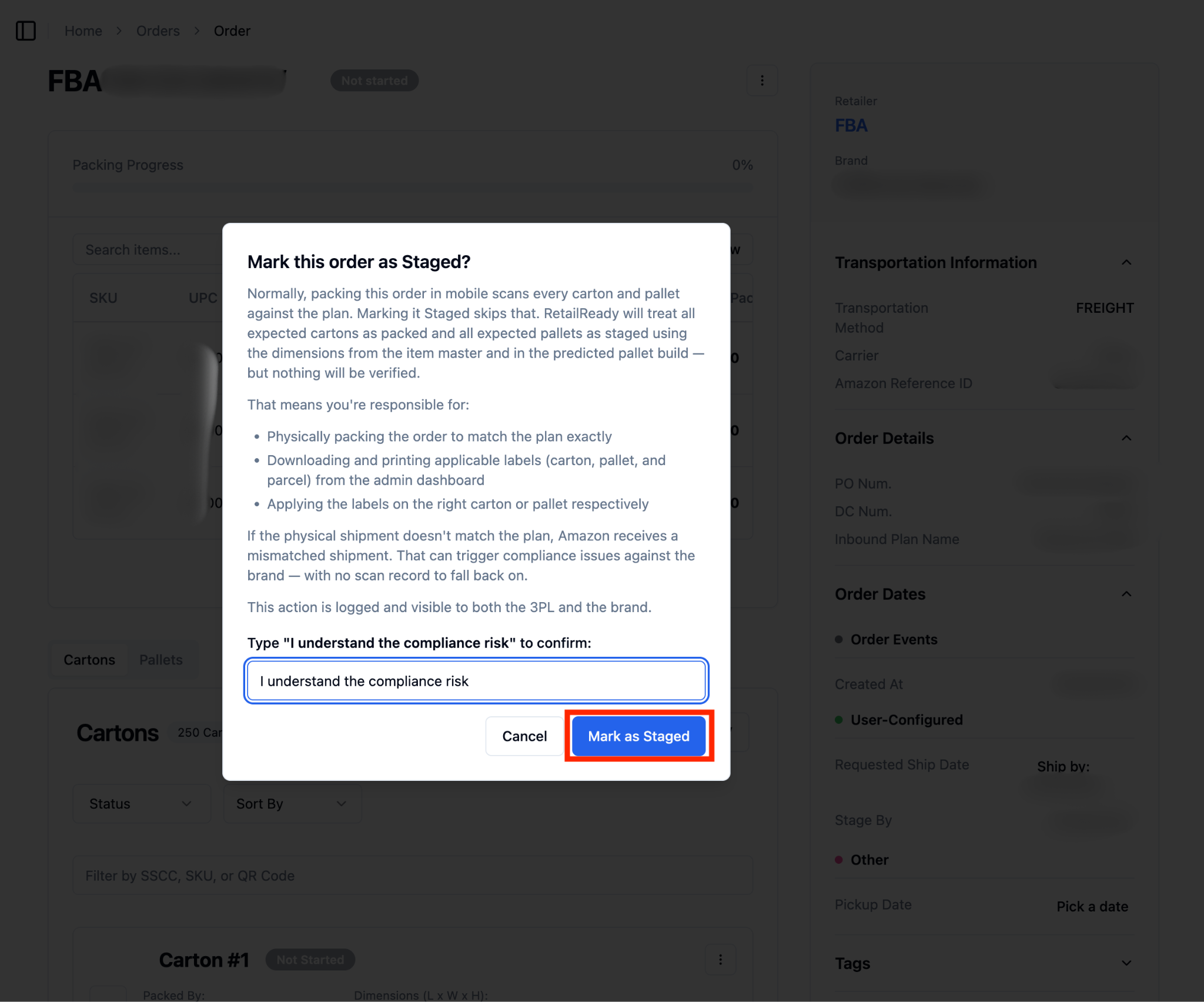
After confirming, the system will automatically change the order status to 'Staged', mark all Cartons as 'Packed', mark all Pallets as 'Staged', and create detailed logs that both 3PL and brand users can view.
Downloading and Printing Shipping Labels after Marking Order as Staged
After marking an order as staged, you will need to download and print the shipping labels yourself from the admin dashboard by doing the following.
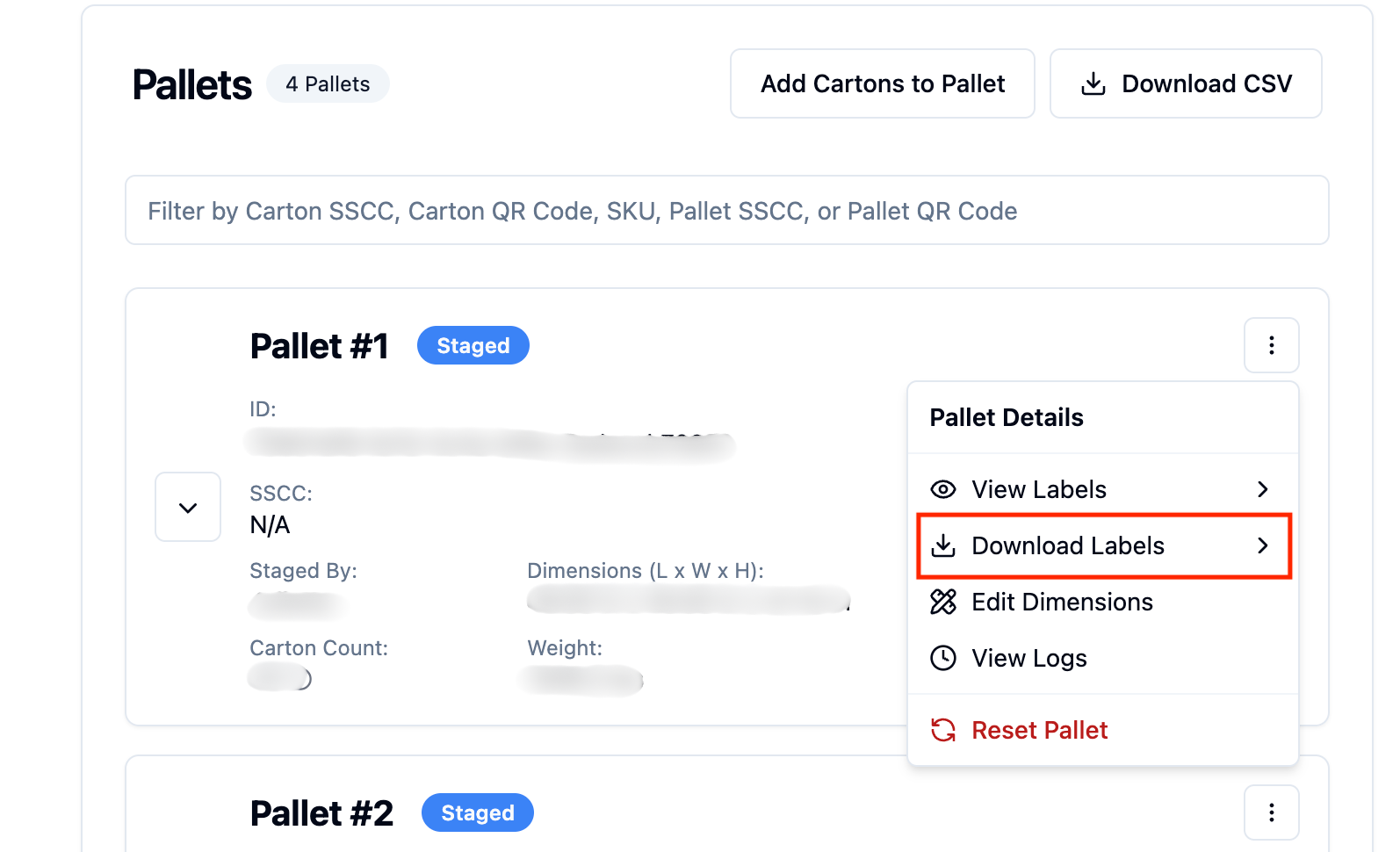
Navigate to the ‘Pallets’ tab in the order.
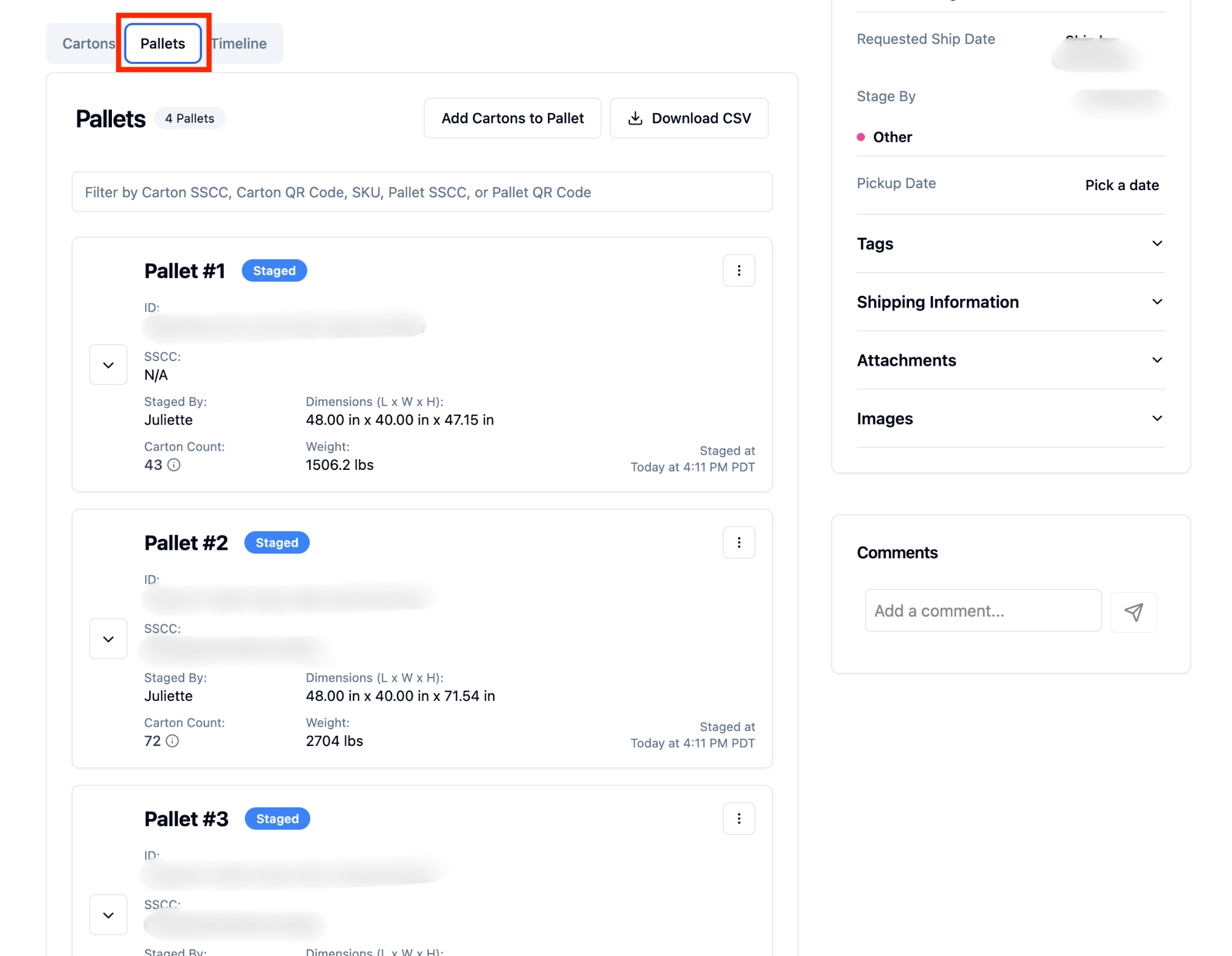
Click the three dot action menu.
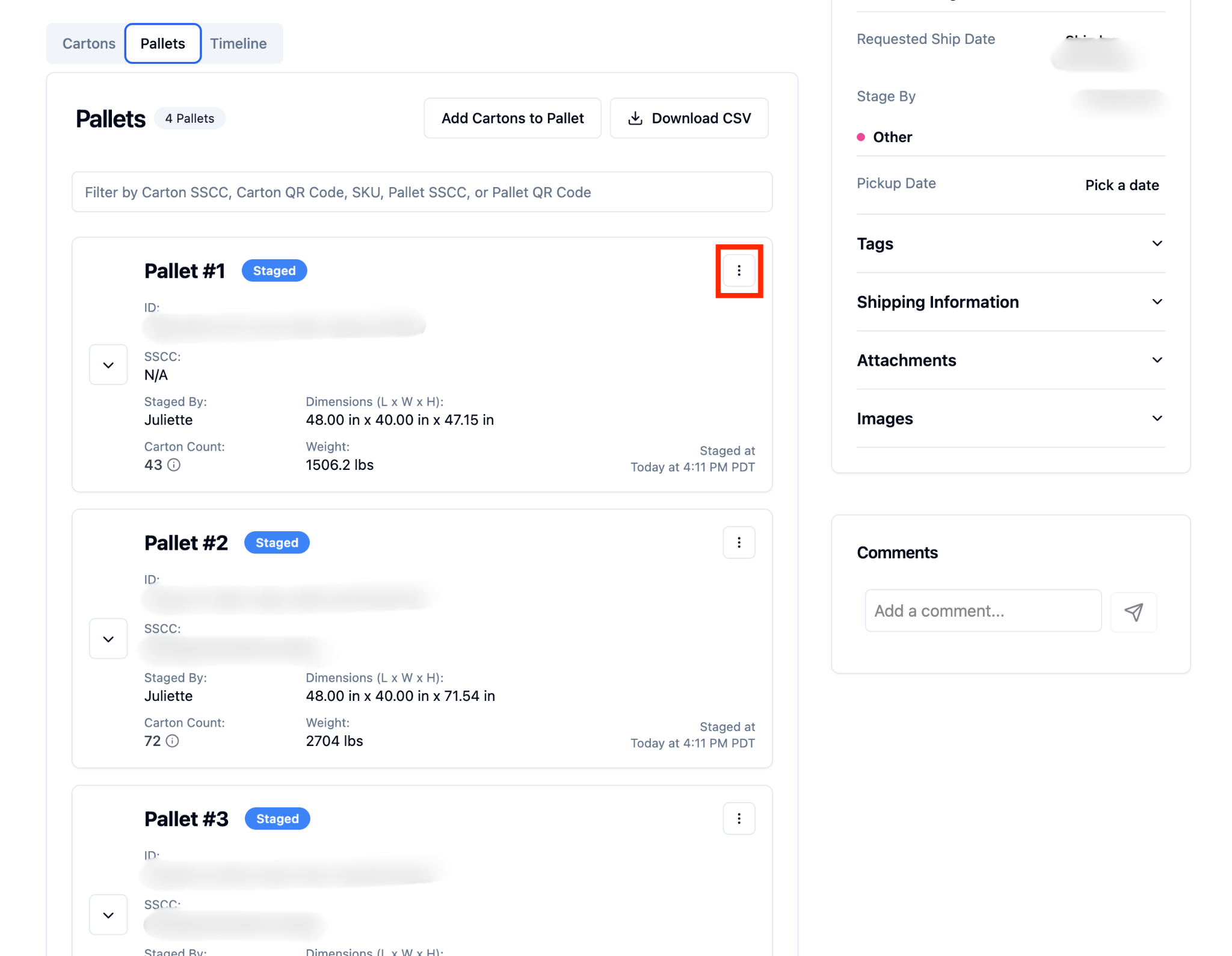
Select ‘Download Labels’ from the dropdown menu.
Wait for the labels to download to your device after selecting ‘FBA Label’ from the dropdown menu.
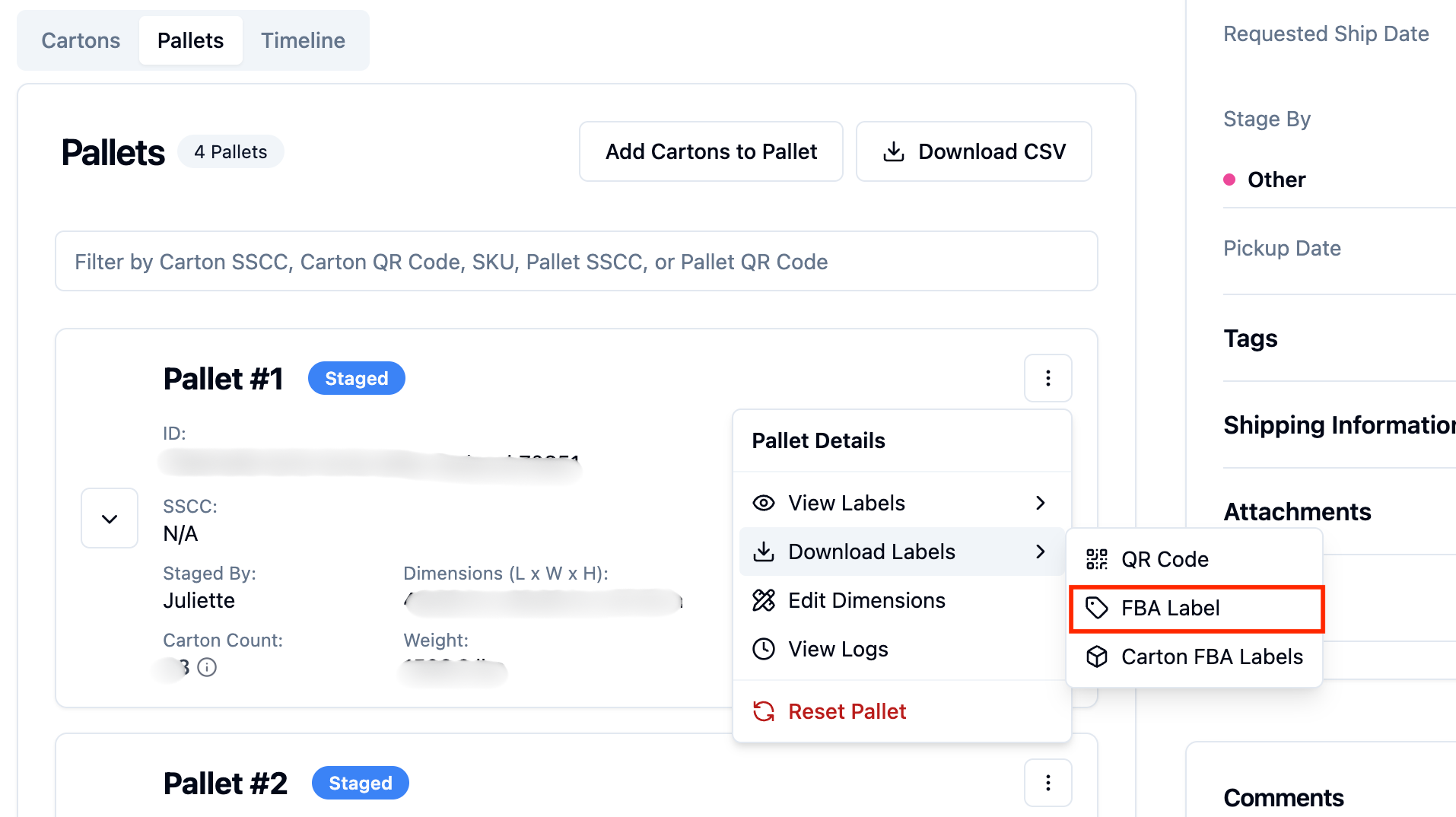
Print the downloaded FBA labels and apply them to the correct pallets.
FAQs:
Why don't I see the 'Mark Order Staged' option?
This feature is only available to 3PL administrators for FBA DWF orders in 'Not started' status. Brand users and non-admin facility users cannot access this feature.
What happens if I try to use this feature on a non-FBA order?
The 'Mark Order Staged' option will not appear for non-FBA orders. This feature is specifically designed for FBA DWF orders only.
Can I use this feature on orders that have already been started?
No, this feature only works on orders in 'Not started' status. If an order has already been started, the option will appear disabled with a tooltip explaining why it cannot be used.
What are the compliance risks I'm acknowledging?
By using this feature, you're bypassing the standard mobile packing process, which means the system is marking items as packed based on predicted specifications rather than actual verification. This could potentially impact FBA compliance if the actual packed items don't match the predictions.
Will brand users be able to see that I used this feature?
Yes, comprehensive logs are created when you use this feature, and these logs are visible to both 3PL and brand users. This ensures full transparency in the order processing history.
Can I still add the order to a load after marking it as staged?
Yes, orders marked as staged through this feature can still be added to loads and processed through normal load-out procedures just like any other staged order. All actions are logged and visible in the order history for both 3PL and brand users.