Automatic Invoice Number Lookup from NetSuite
Last updated: September 7, 2026
RetailReady can pull invoice numbers directly from NetSuite for brands that use NetSuite as their invoicing system. When this is enabled for your account, RetailReady automatically retrieves the correct invoice number from NetSuite and sends it to your EDI trading partner, no manual entry required in most cases. This article covers how that workflow works, what to do if you need to enter an invoice number yourself, and how to complete the "Send Invoice" task on an order.
How the Automatic Invoice Number Lookup Works
For accounts set up to pull invoice numbers from NetSuite, invoicing works differently once an order is completed:
When an order reaches 'Done' status, RetailReady does not send an invoice to your EDI trading partner right away.
Instead, RetailReady queues the order and checks NetSuite once every 24 hours for the invoice number tied to that order.
Once the invoice number is found, RetailReady sends it to your trading partner automatically, no action needed on your end.
A "Send Invoice" task appears on the order until the invoice is successfully sent. Once it's sent, the task clears on its own.
The automatic lookup runs once every 24 hours and will continue checking for up to 5 days after the order's ASN was sent. If the invoice number has not been retrieved within that window, the task will remain open and will need to be completed manually using the steps below.
How to Manually Enter an Invoice Number
If the automatic lookup has not yet retrieved an invoice number, or if you need to send the invoice right away, you can enter the invoice number manually from the order detail page.
Navigate to your Orders Page.
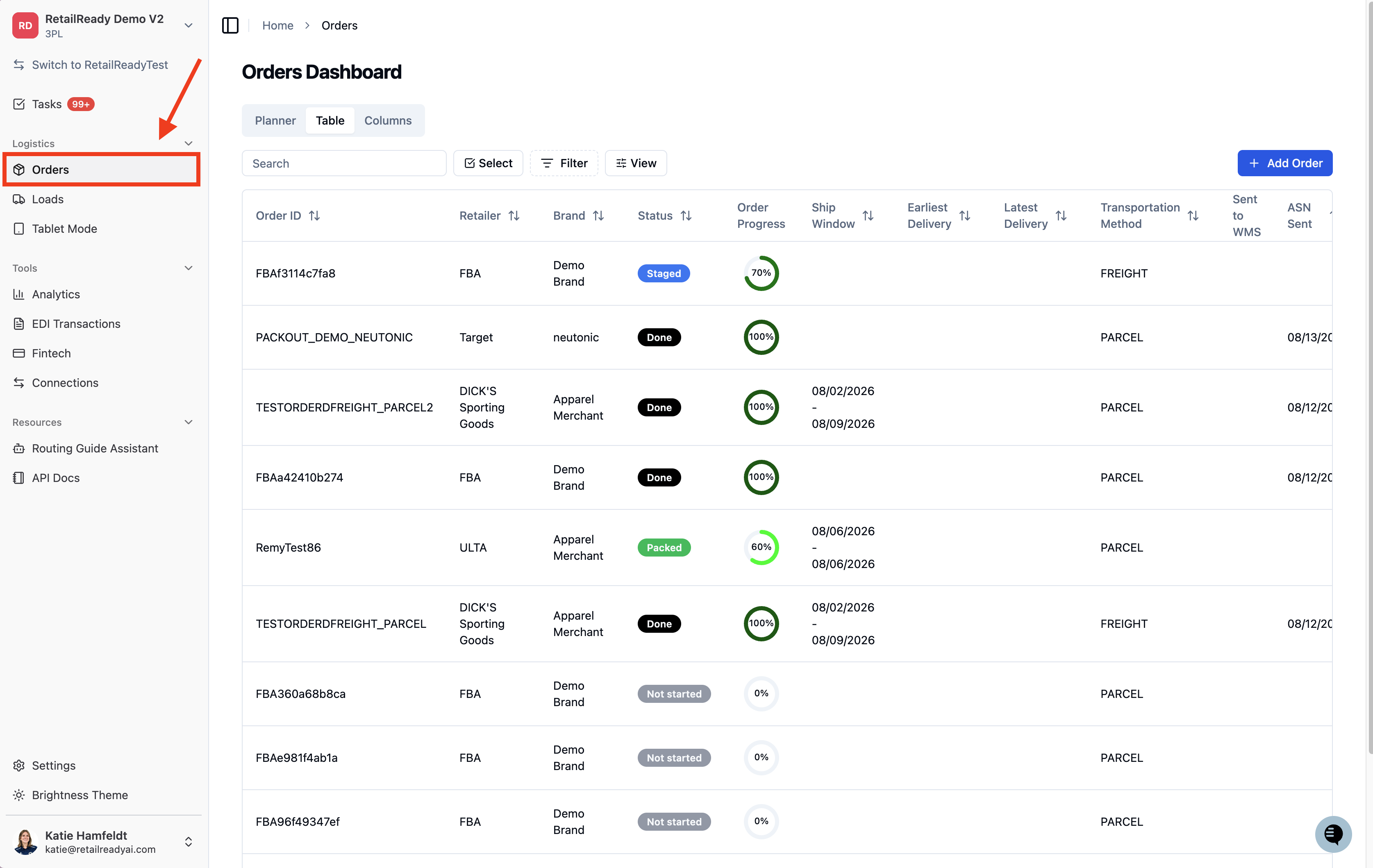
Click into the desired order.
At the top of the page locate the Action Required banner
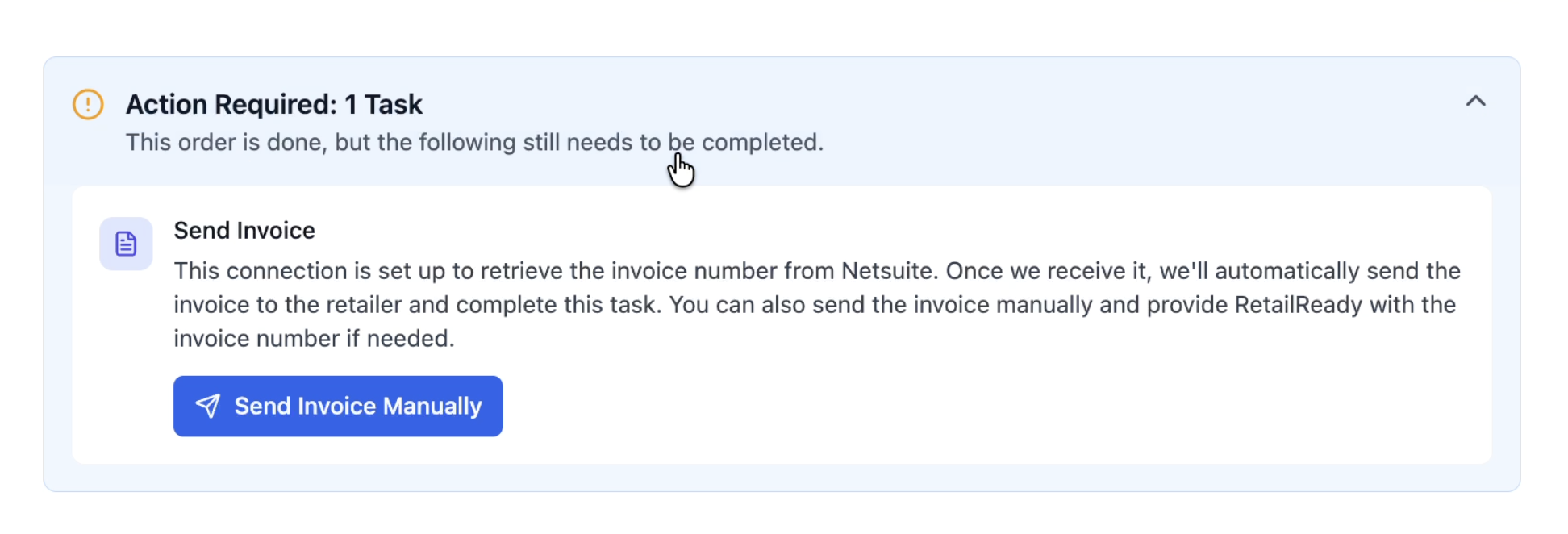
Click 'Send Invoice Manually'.
A pop-up window will appear with a text field. Enter the invoice number exactly as it appears in NetSuite (for example,
INV1235021).
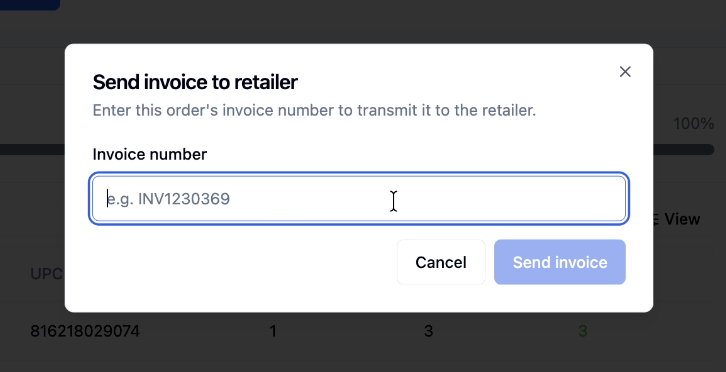
Click 'Send invoice' to send the invoice to your EDI trading partner.
Once submitted successfully, the 'Send Invoice' task on the order will be marked as complete.
Understanding the 'Send Invoice' Task
The 'Send Invoice' task is a high-priority action item that appears on the order detail page whenever an invoice is waiting to be transmitted to your EDI trading partner. Here is what you need to know about it:
The task appears only for orders where invoice numbers are pulled from NetSuite. It will not appear on standard orders that send invoices automatically.
The task will clear automatically if the daily lookup successfully retrieves the invoice number and transmits it without any action on your part.
If you enter the invoice number manually using the steps above, the task will also clear after a successful submission.
If the task remains open after 5 days, please contact your RetailReady account team for assistance.
FAQs:
Why isn't the invoice being sent automatically when the order is marked Done?
For accounts set up to use NetSuite invoice numbers, RetailReady intentionally waits to retrieve the correct invoice number from NetSuite before transmitting to your EDI trading partner. This ensures the invoice number your trading partner receives matches exactly what is in NetSuite, rather than a system-generated number.
How long does it take for the invoice number to be fetched automatically?
The automatic lookup runs once every 24 hours. Depending on when your order completes, it may take up to a day for the invoice number to be retrieved and sent. If you need it sent sooner, use the manual entry option described above.
What happens if the invoice number is never found in NetSuite?
RetailReady will keep trying for up to 5 days after the order's ASN was sent. If the invoice number still cannot be found after that window, the 'Send Invoice' task will remain open. At that point, you can enter the invoice number manually, or reach out to your RetailReady account team for help.
Can I use the manual entry option even if the automatic lookup hasn't failed yet?
Yes. You can use the manual override at any time by clicking 'Send Invoice' from the order action menu. If you already have the invoice number from NetSuite, entering it manually will send the invoice immediately without waiting for the next daily lookup.
Will this affect my other orders or brands?
No. This workflow only applies to brands specifically configured to pull invoice numbers from NetSuite. All other orders will continue to follow the standard invoice process with no changes.
Who do I contact if the 'Send Invoice' task won't clear after I submit a manual invoice number?
Please reach out to your RetailReady account team or submit a support request. Include the order number and the invoice number you entered so the team can investigate quickly.