How to Export a Filtered Order List as a CSV
Last updated: September 7, 2026
RetailReady lets you filter your orders using a variety of fields, such as Order Status (Not Started, Packed, Staged, etc.), ASN On Time, ASN Status, ASN Sent At, Cancel By, Created Date, and more. This article walks you through applying filters to your orders and exporting the results as a CSV.
Generating a Custom Order Report
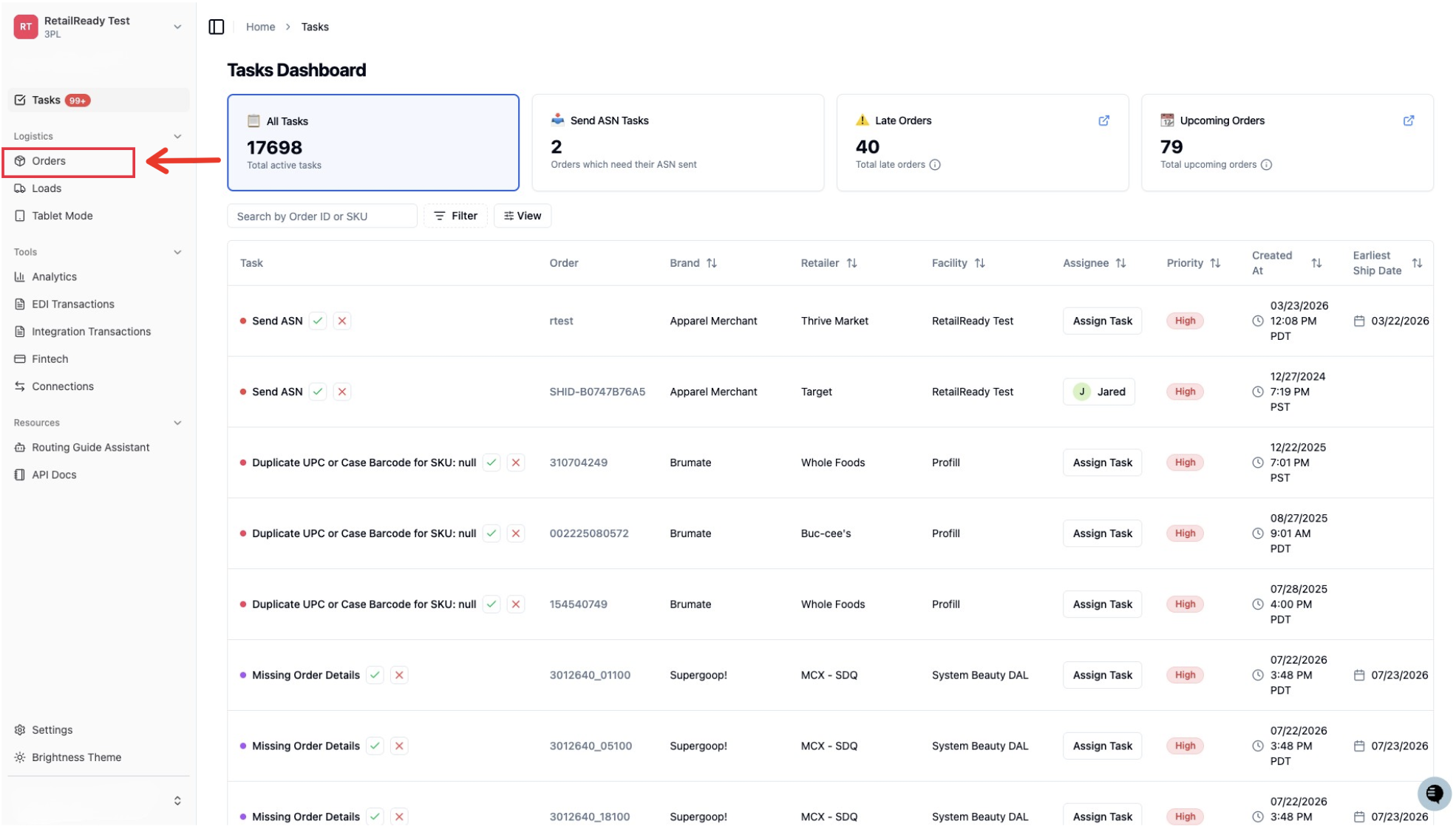
Open up your RetailReady Dashboard, and navigate to 'Orders' tab on the Left Hand Side.
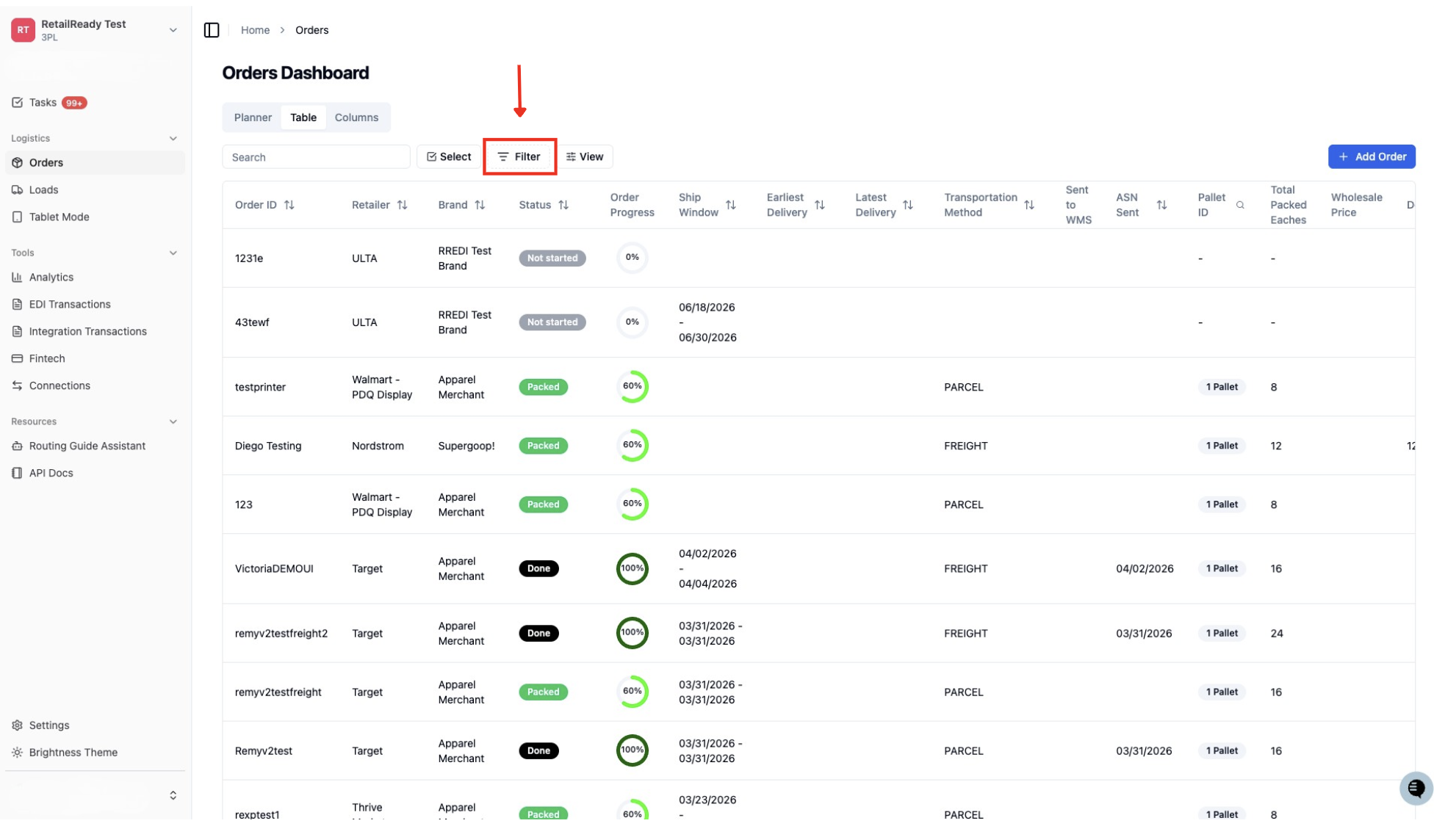
Navigate to 'Filter'
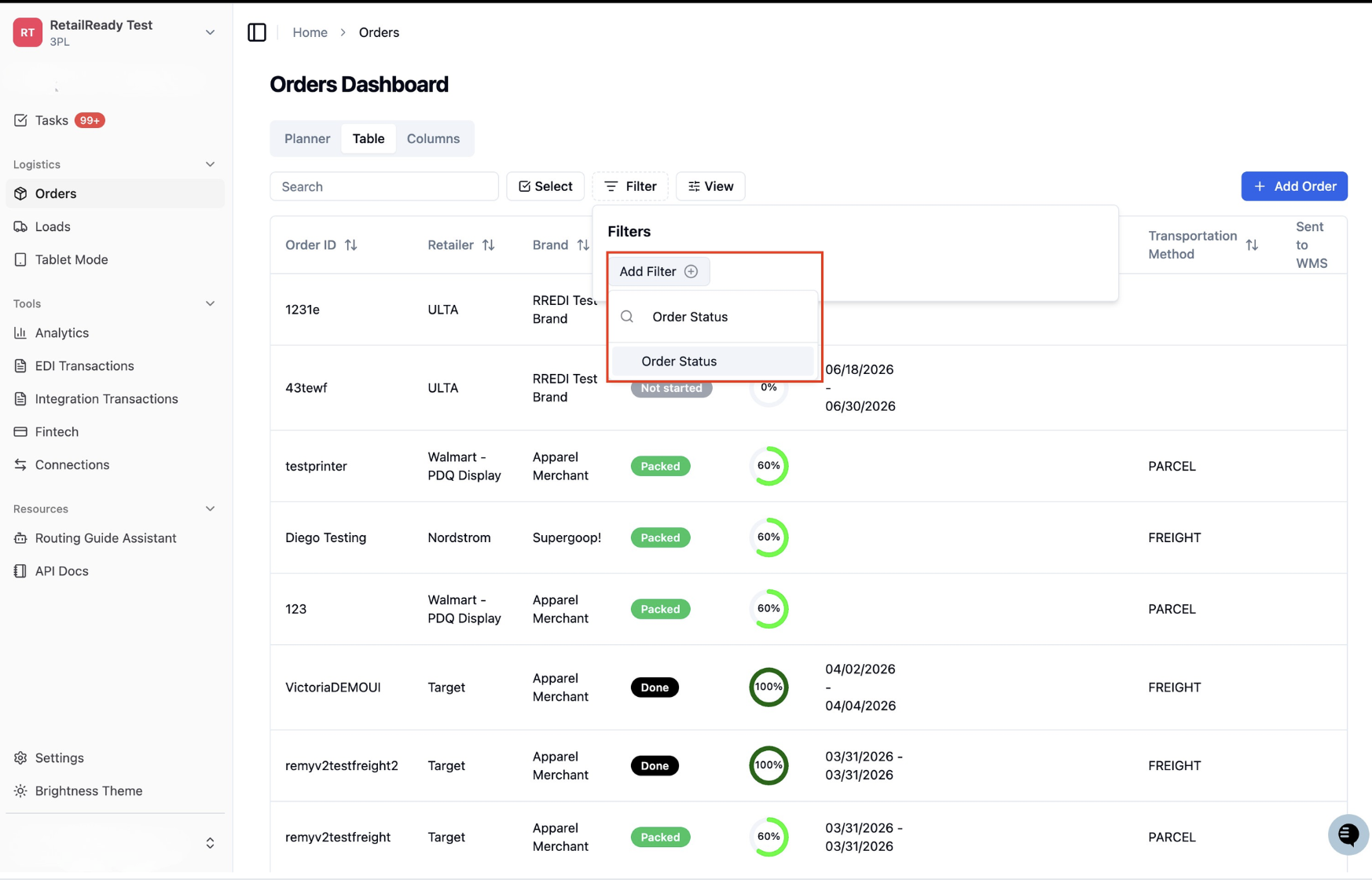
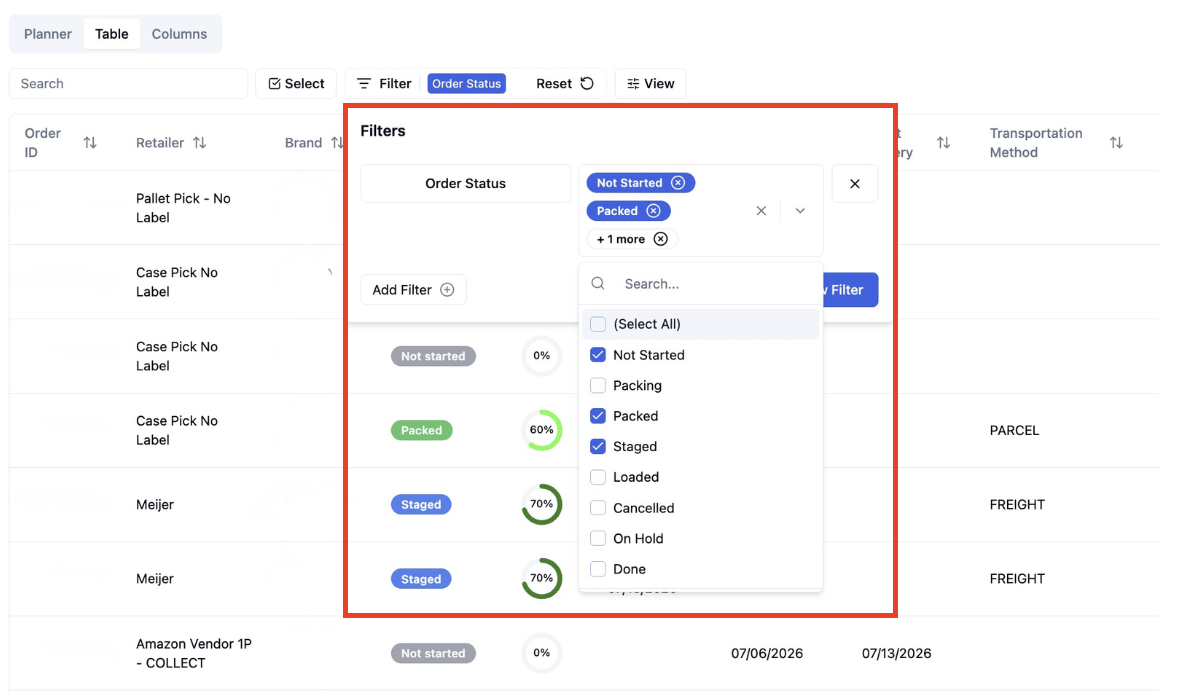
Click 'Add Filter' and choose the field you want to filter by (e.g. Order Status, ASN Status, Retailers, SKU, etc.) Note: For this demonstration we will be selecting 'Order Status'
Select the specific value(s) for that field you would like to filter by. For example, if filtering by 'Order Status', you could select 'Not Started', 'Packed', and 'Staged' or any other combination relevant to your report.
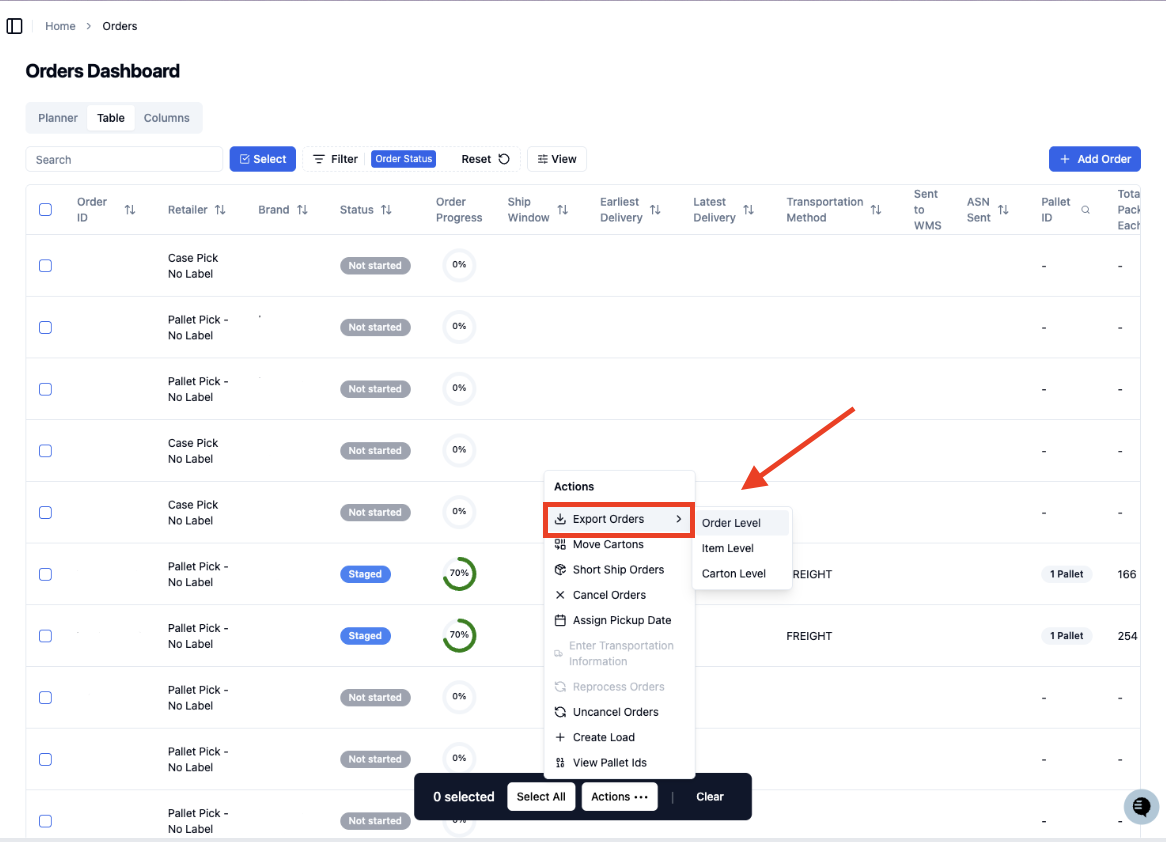
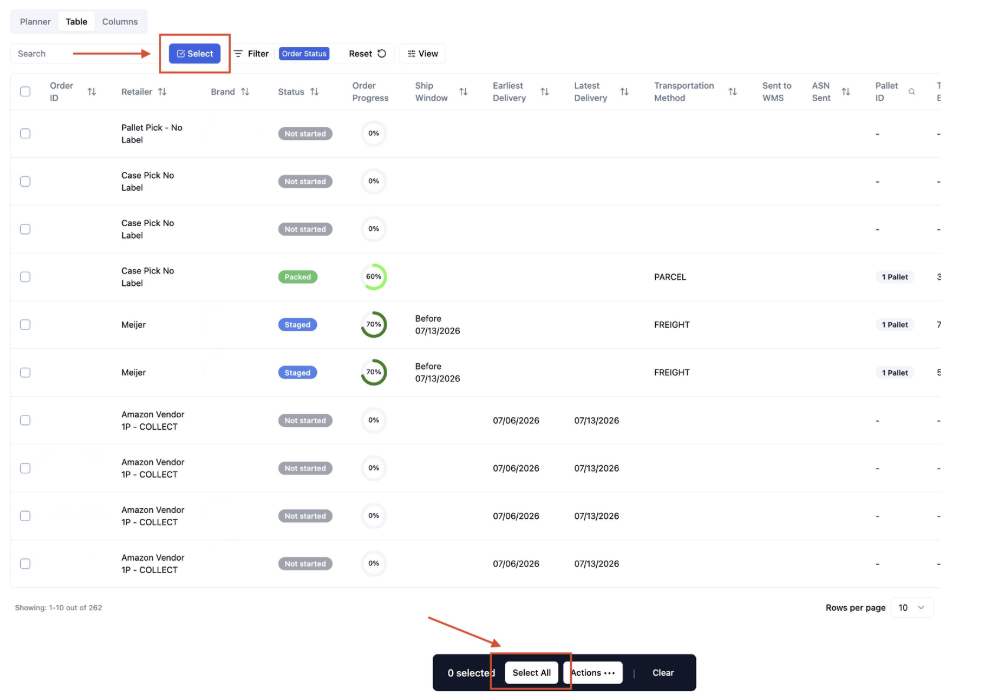
Navigate to 'Select' in the top left and click. You can now select specific orders or click 'Select All' at the bottom of the screen that will pop up AFTER clicking 'Select'.
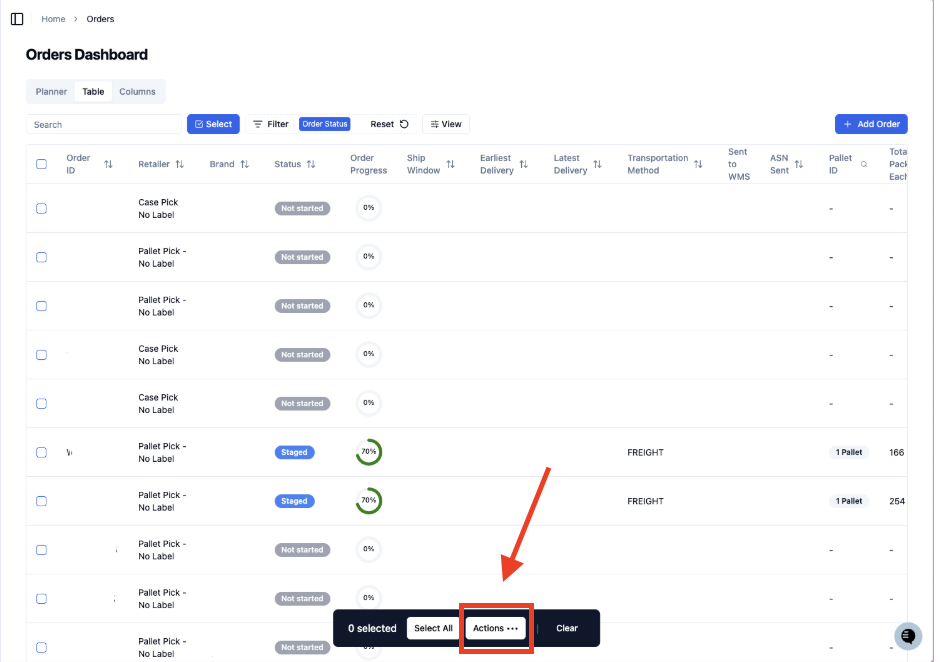
Navigate to the bottom of the screen and click 'Actions ...'
Click 'Export Orders' and choose what level you would like to export at (e.g. Order Level, Item Level, Carton Level). This will then export as a CSV!