RetailReady tasks - How to Remove Holds
Last updated: April 21, 2026
The Purpose of Tasks
Tasks are created to let you know when an action needs to be taken for an order to continue progressing. The tasks will appear in your Task Dashboard as well as on the order they apply to. It is important to complete these tasks before continuing work on the order.
Different Tasks and What They Mean
Enter Transportation Information
This task is created when an order moves to packed status. To resolve, determine which method of transportation will be used and input your transportation information.
Create a Load
When an order is moved to staged status, this task is created. This requires the user to add the order to a load or to create a new load. Once this is complete, the user can continue packing out the order.
Send an ASN
This task is created at different times depending on if the order is going freight or parcel.
On freight shipments, the 'Send ASN' task is created when an order moves to "Loaded" status. This task will only be created if transportation has not yet been input. If it has, the ASN will be sent automatically.
On parcel shipments, this task will be created when an order moves to "Packed" status. If a parcel account has been established for this brand <> retailer connection, and transportation information has been entered, RetailReady will print parcel labels on demand and the ASN will be sent automatically. If a parcel account is not set up for this brand <> retailer connection and transportation information has been entered, the "Send ASN" task will be created.
Click 'Send ASN' to resolve this task and send your ASN.
Edit WMS Item Master
This task is created when an item is missing from the WMS, causing an order to be rejected. To resolve, add the missing SKUs to your WMS, then navigate back to RetailReady and manually take the order off hold.
Enter Case Dims
If a brand that does all case packs creates an order and we don’t have case pack details provided in the item master, RetailReady will create this task. To resolve, navigate to the item master and input case information for the necessary SKUs.
Enter Pallet Configuration
This task is only created for brand <> retailer connections that use directed workflow. If directed workflow is enabled and the item master is missing pallet configuration details, this task will be created. To resolve, the pallet configuration must be entered into the item master.
Create SKU
This task is created if your item master in RetailReady is missing a SKU that is on the order. To resolve this task, navigate to your item master and create the necessary SKUs.
Duplicate Case Barcode in Item Master
This task is triggered when one or more SKUs in your Item Master share the same case barcode. Each SKU must have a unique case barcode to proceed. To resolve this, navigate to the order’s Task Panel and click the case barcode shown to open the Item Master, where you can review the SKUs sharing that value. Update each SKU to ensure all case barcodes are unique and correct. Once updated, if the order is an EDI order, click the three dots (⋮) within the order and select “Reprocess Order.” If the order is a non-EDI order, it cannot be reprocessed and will need to be deleted and re-entered manually.
Note: if you do not have a case barcode, copy the UPC and use that as the case barcode
Split Order
When an order is over 26 pallets and will not fit onto a single truckload, the order must be split. This task is created to notify the user that this is required.
Resolve Partial Case Packs
When a brand does all case packs and an order is submitted for a quantity that does not match, a "Resolve Partial Case Packs" task is created. Editing either the item quantity or case pack quantity will resolve this issue.
SKU Issues Detected
While syncing your latest WMS data, we noticed unexpected SKUs that weren't part of the original order.
Issue/ Resolve
Two SKUs share the same case UPC, causing the system to match to SKU A instead of SKU B. To unblock the order immediately, exclude the retailer from SKU A and reprocess the order, the system will then correctly map to SKU B.
The WMS received a PO change from the retailer's EDI partner (e.g., SPS Commerce) containing a SKU that differs from what was sent to RetailReady. This causes an "unknown SKU" hold because the two systems are not in sync. To resolve: Compare the SKU on the order in the EDI portal (SPS/Orderful) against what the WMS received. If they differ, the brand or 3PL should contact their EDI partner to determine why the PO change transmitted to the WMS does not match the version sent to RetailReady. Once the correct file is resent, reprocess the order.
Assigning Tasks
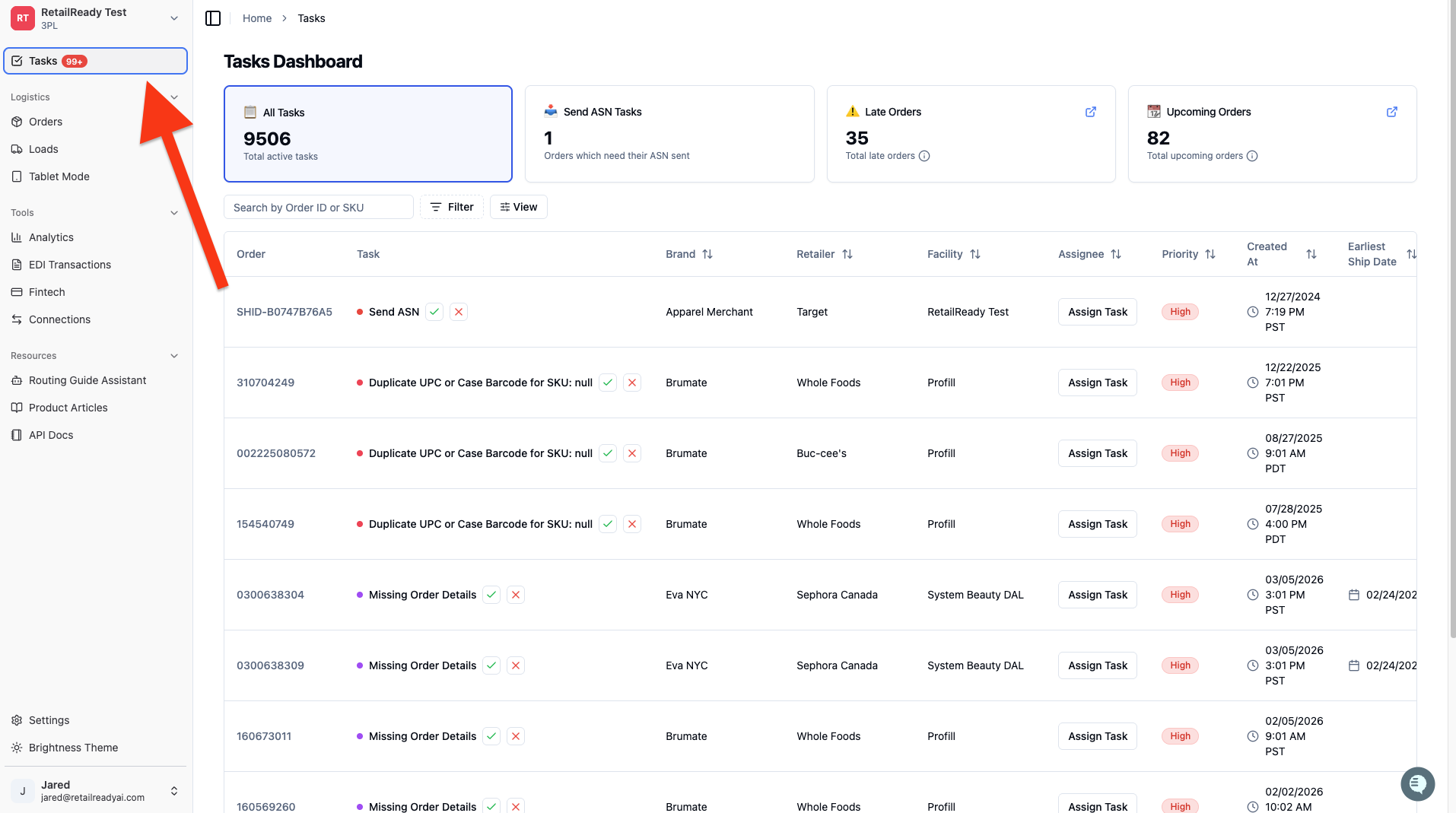
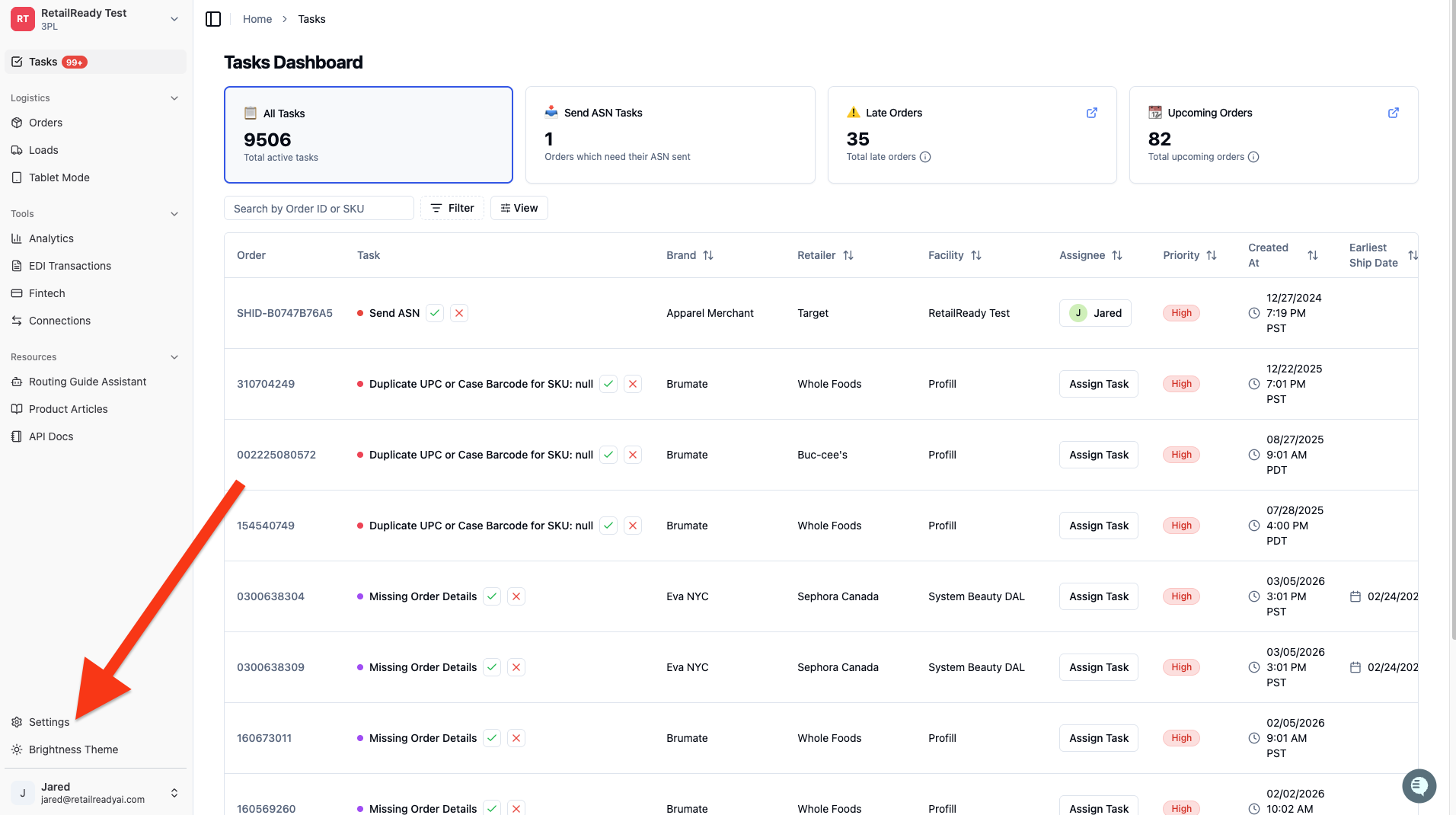
You can view your tasks by clicking 'Tasks' in the column on the left side of your dashboard.
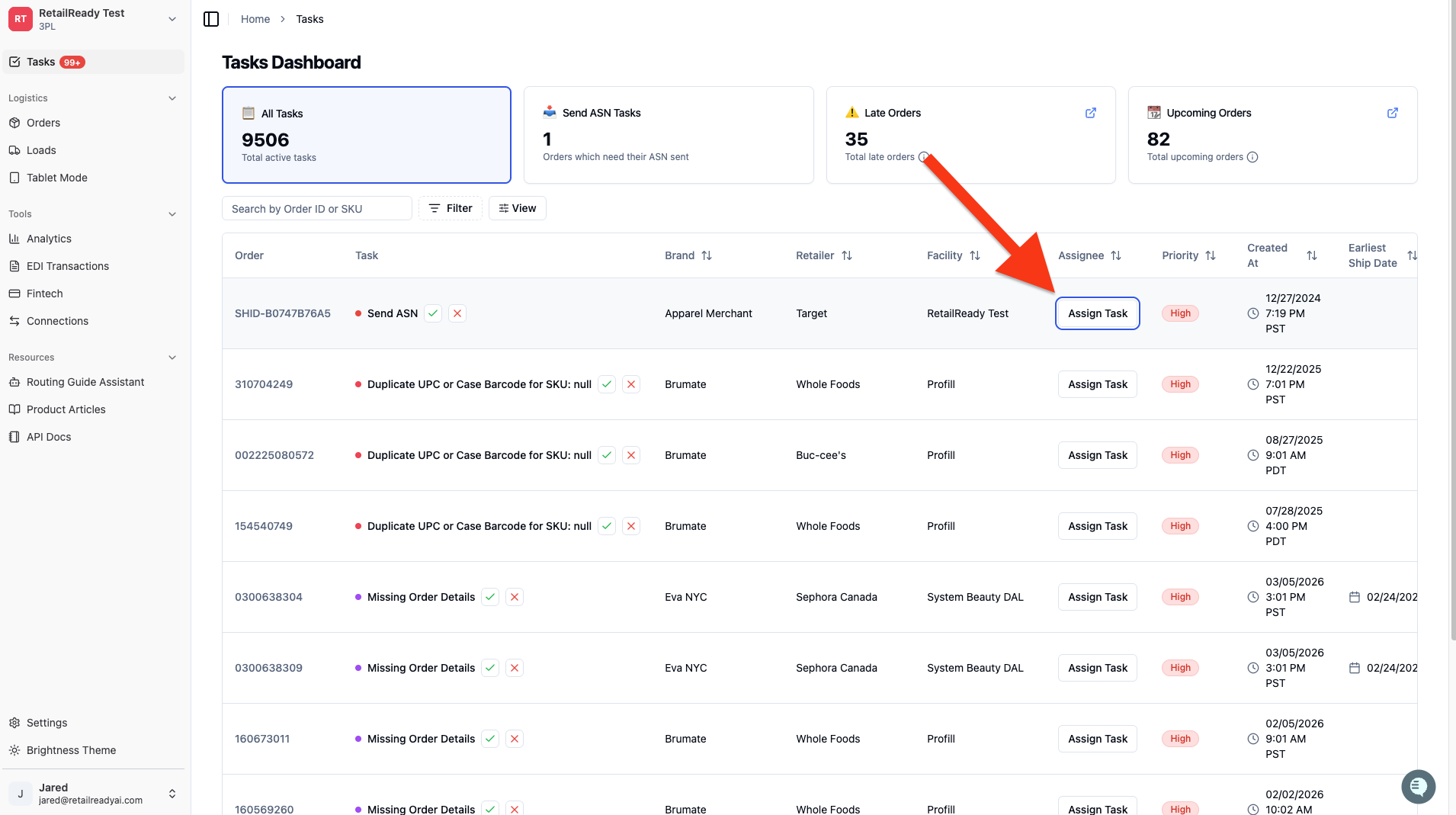
You can assign tasks to user by clicking the 'Assign Task' button in the tasks row.
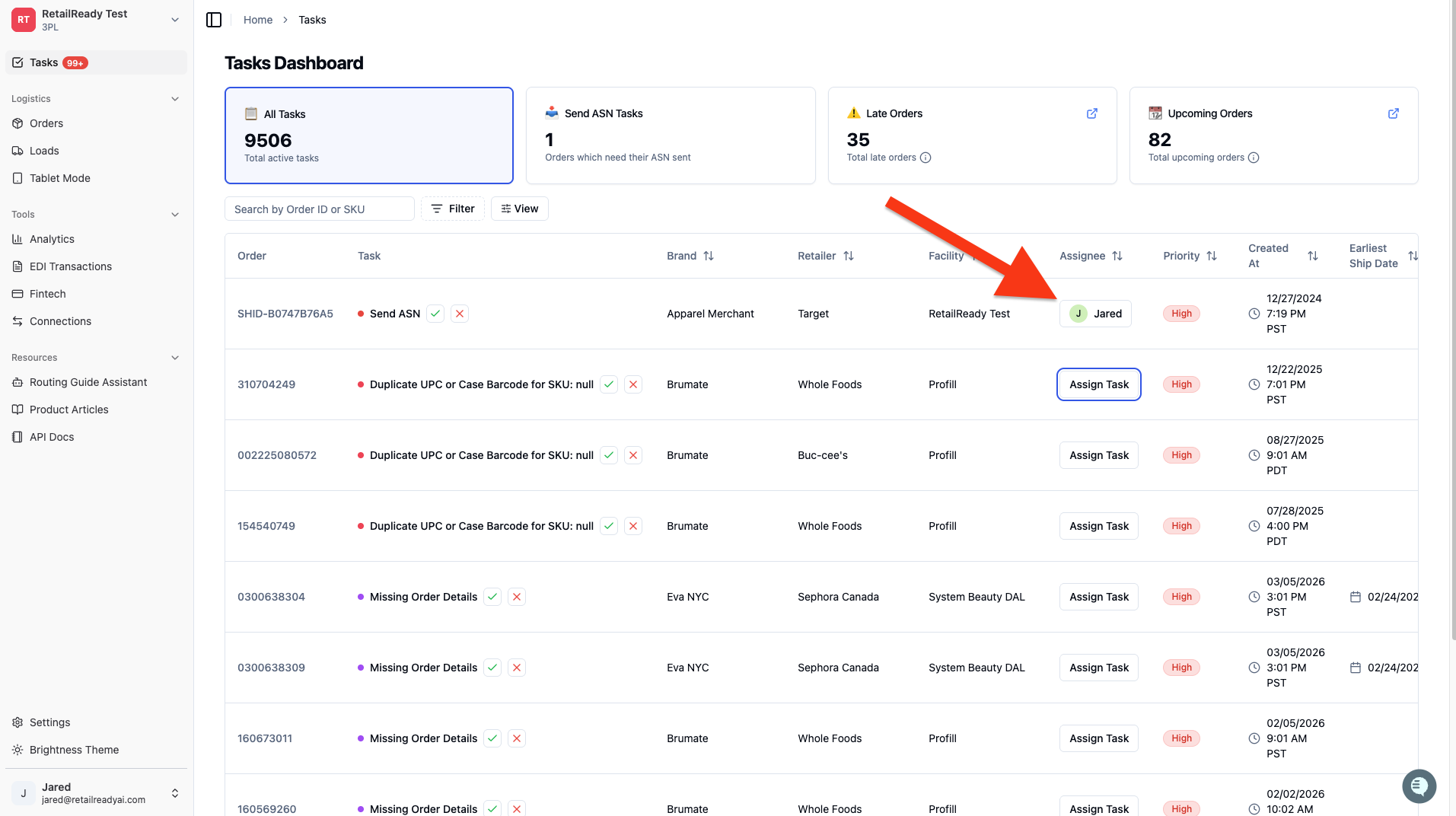
Select the user that you would like to assign this task to. If the task was assigned successfully, there name will show up on the task.
If you want a specific type of task to always be assigned to a user you can set this up by navigating to 'Settings'.
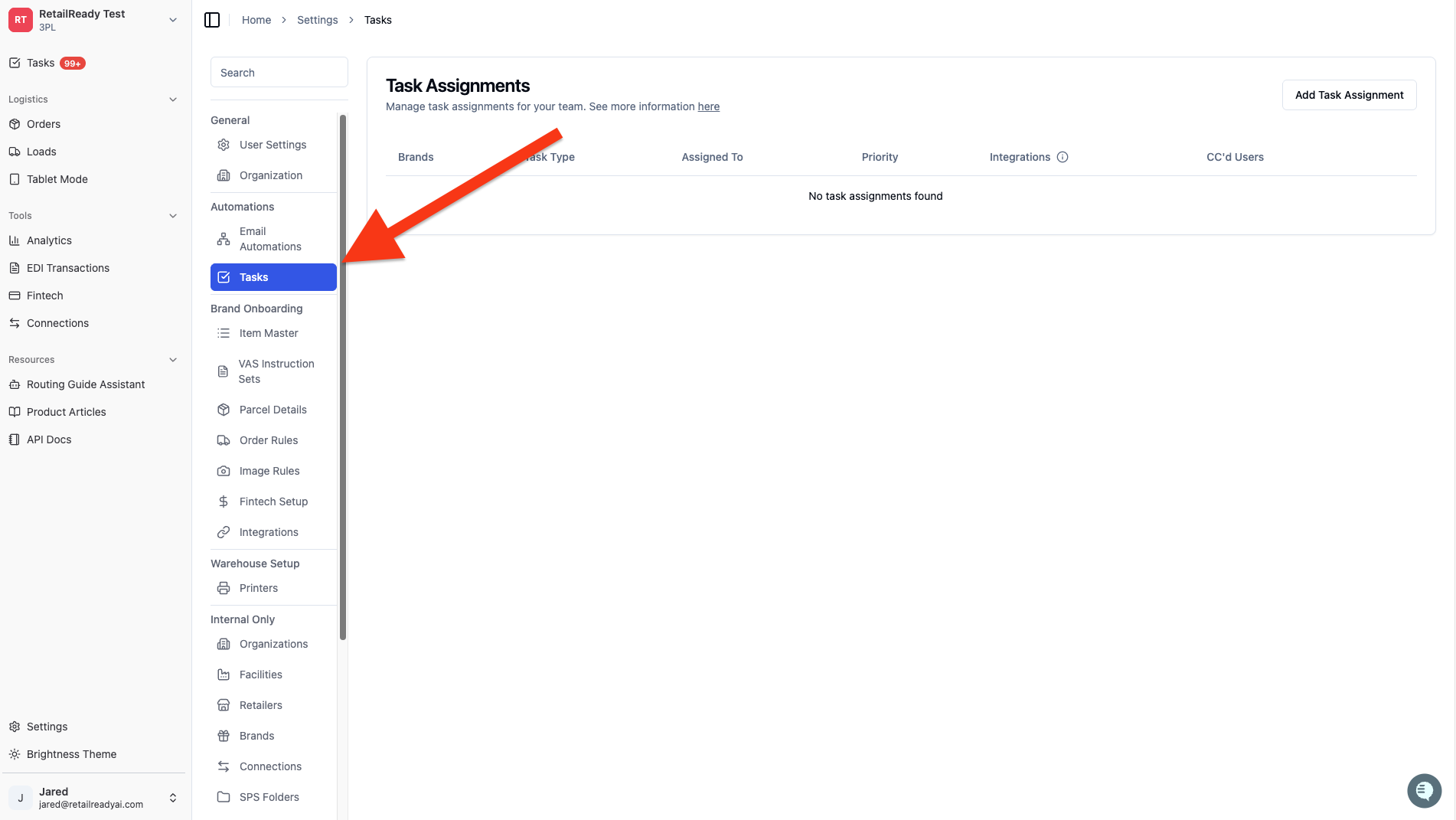
Click on the 'Task' option in the column that opens.
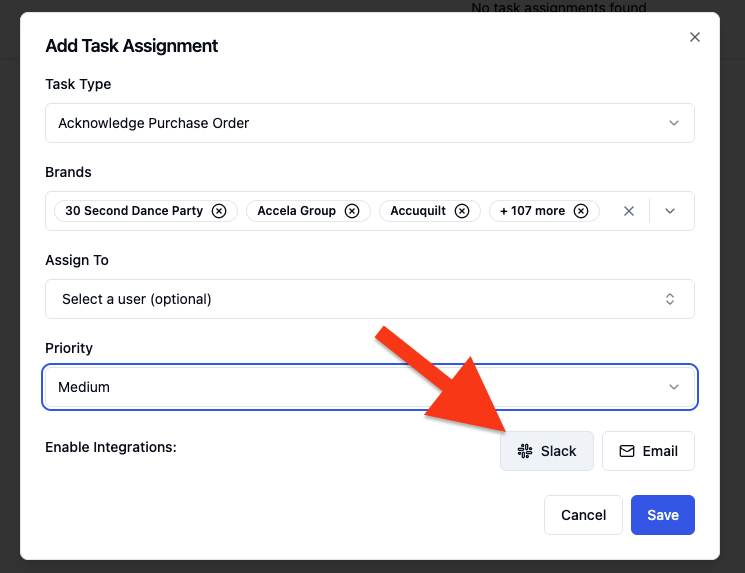
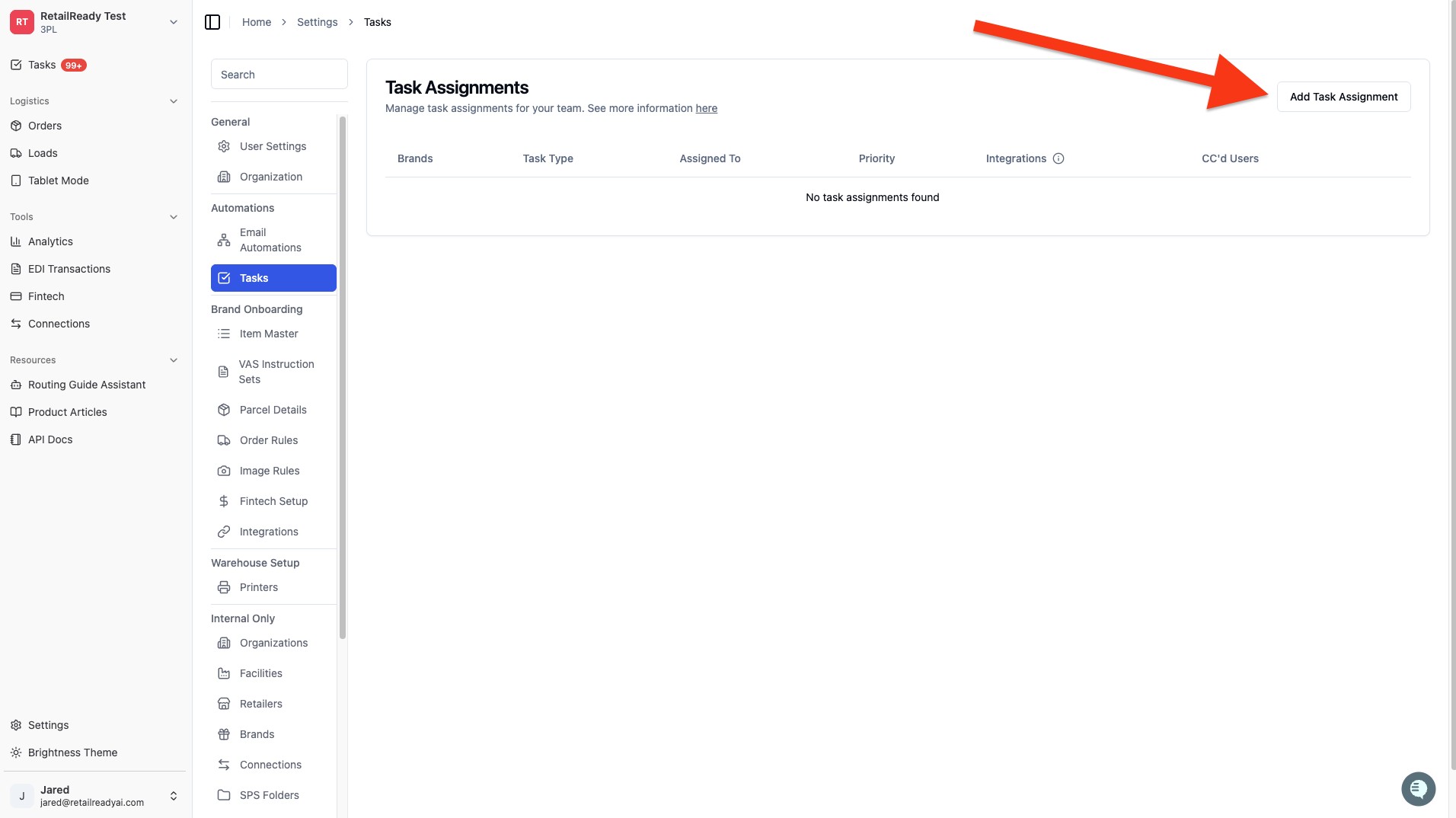
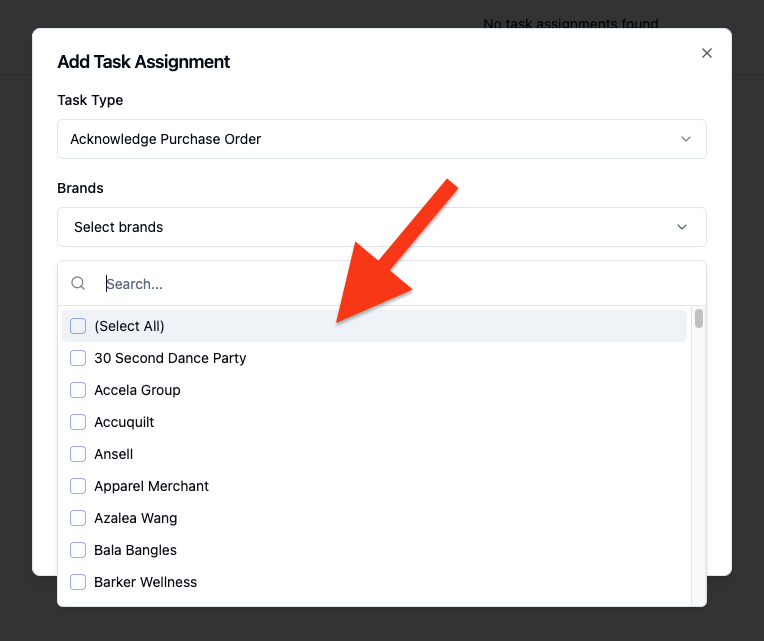
Then click 'Add Task Assignment'.
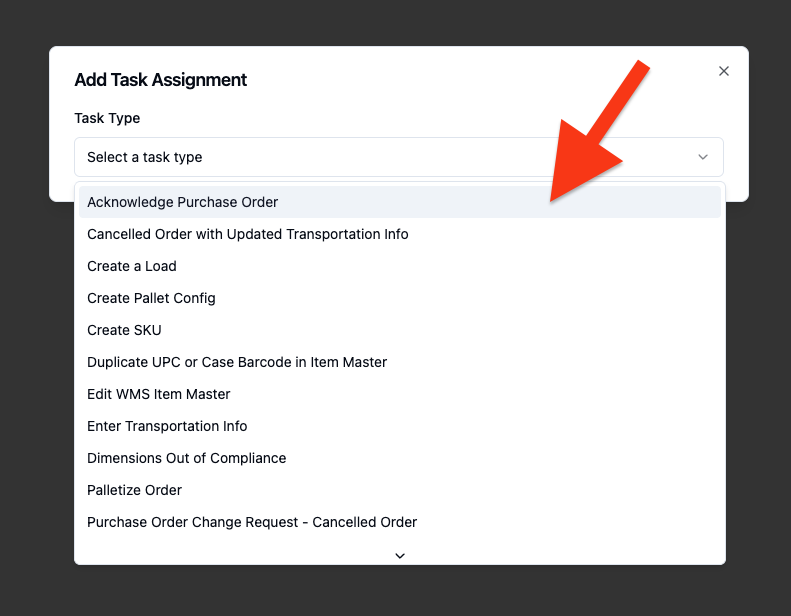
You can select the type of task that you would like to assign from the drop down menu.
You can then select the brands for which you would like to assign this task. You can select all brands if you are assigning this task for each brand.
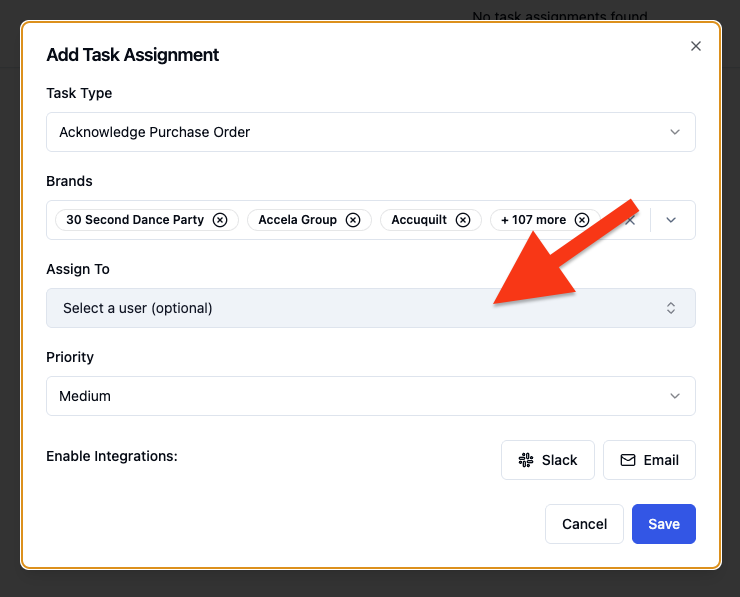
Then you can select a user to assign these tasks to.
Set your task priority from the 'Priority' dropdown.
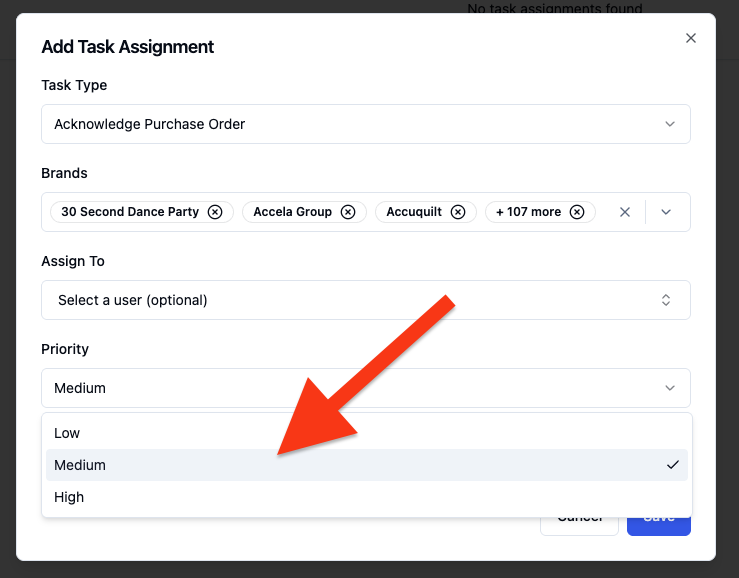
You can set up an integration with slack and email for these tasks as well! This will notify the user when a task is assigned to them.