Email Automations for Chargebacks
Last updated: September 7, 2026
RetailReady now supports automated email notifications for chargeback activity. Brand users can configure email automations that trigger when a chargeback is created, when a dispute is submitted, or when a dispute is resolved — scoped to each of your retail partners individually. This article walks through how to set up, manage, and understand chargeback email automations in RetailReady.
Creating a New Chargeback Email Automation
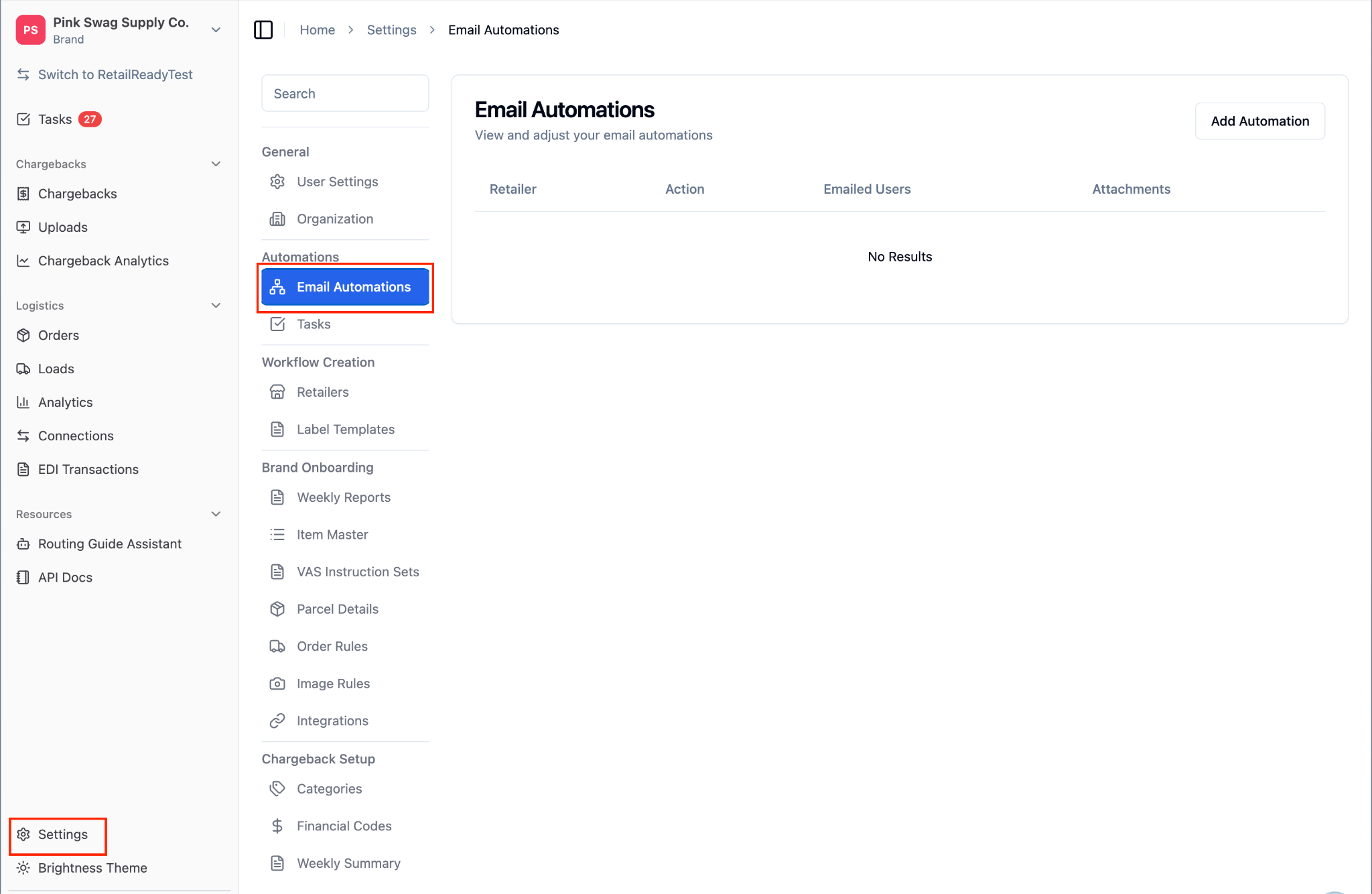
Navigate into ‘Settings’, and press 'Email Automations'. Any previously created chargeback automations will appear in this list. If you have not set any up yet, the list will be empty.
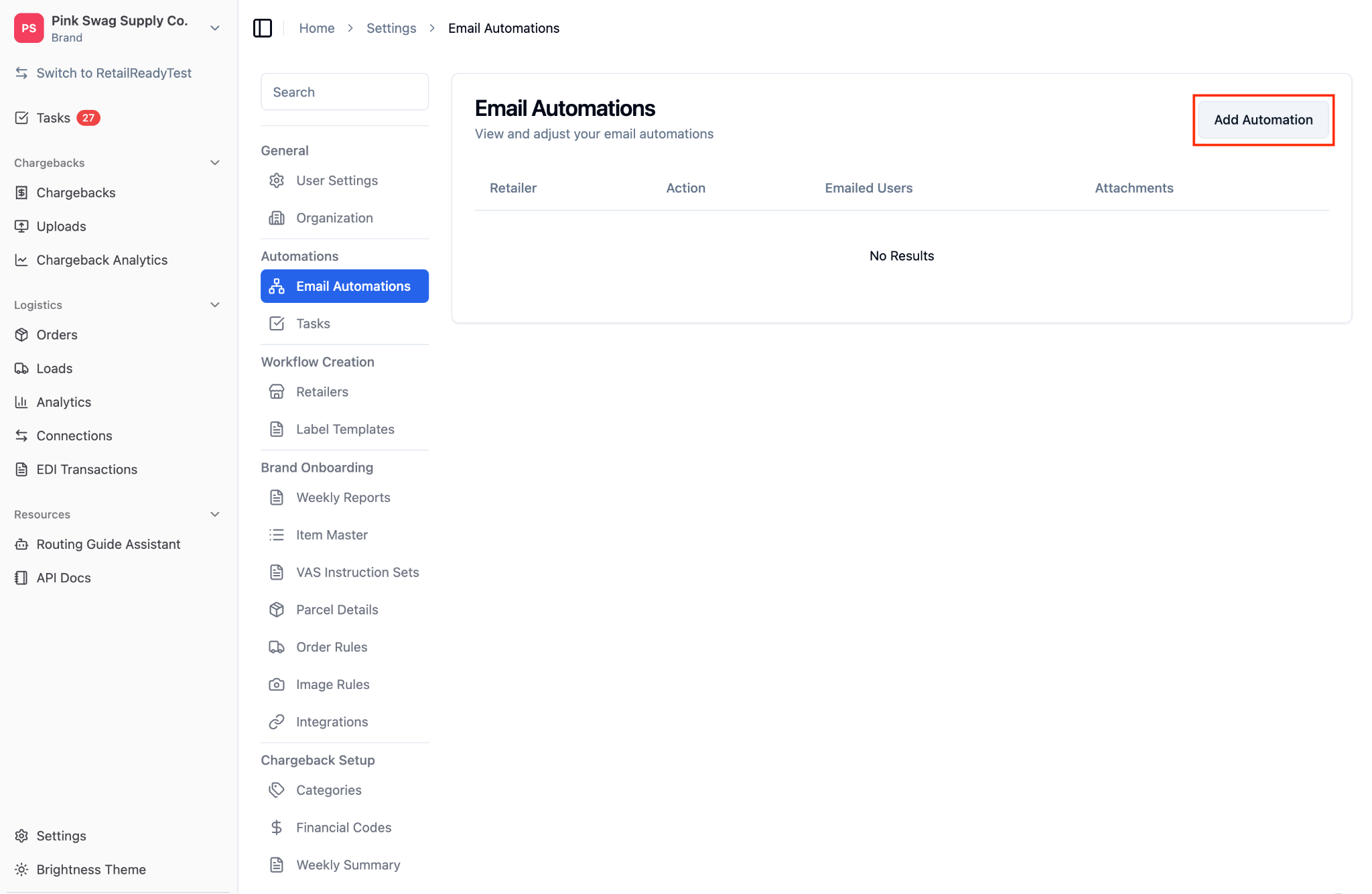
Press ‘Add Automation’.
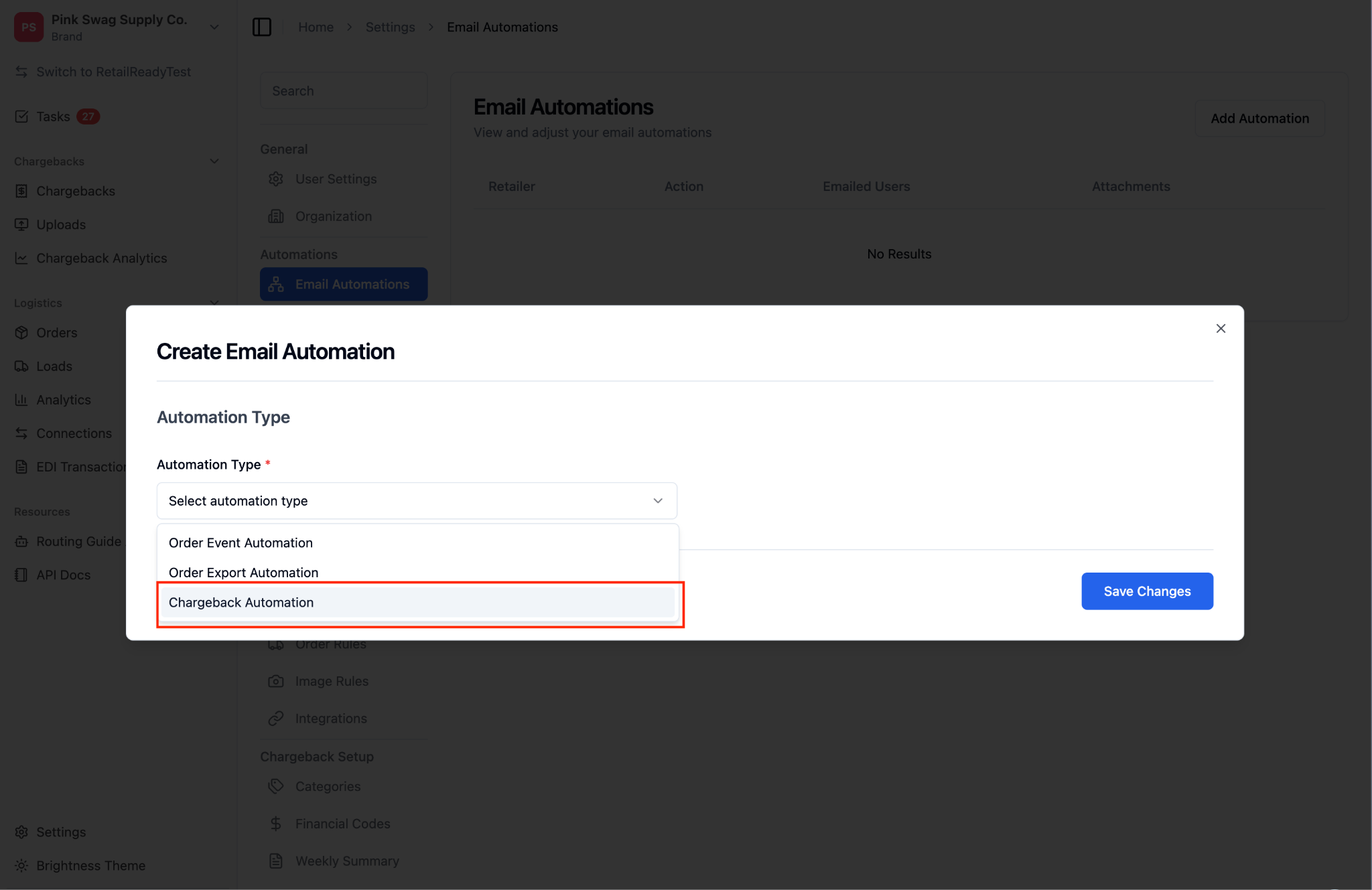
From the dropdown, select ‘Chargeback Automation’.
Under 'Retailer', select the retail partner you want to configure this automation for. You can create separate automations for each of your retail partners.
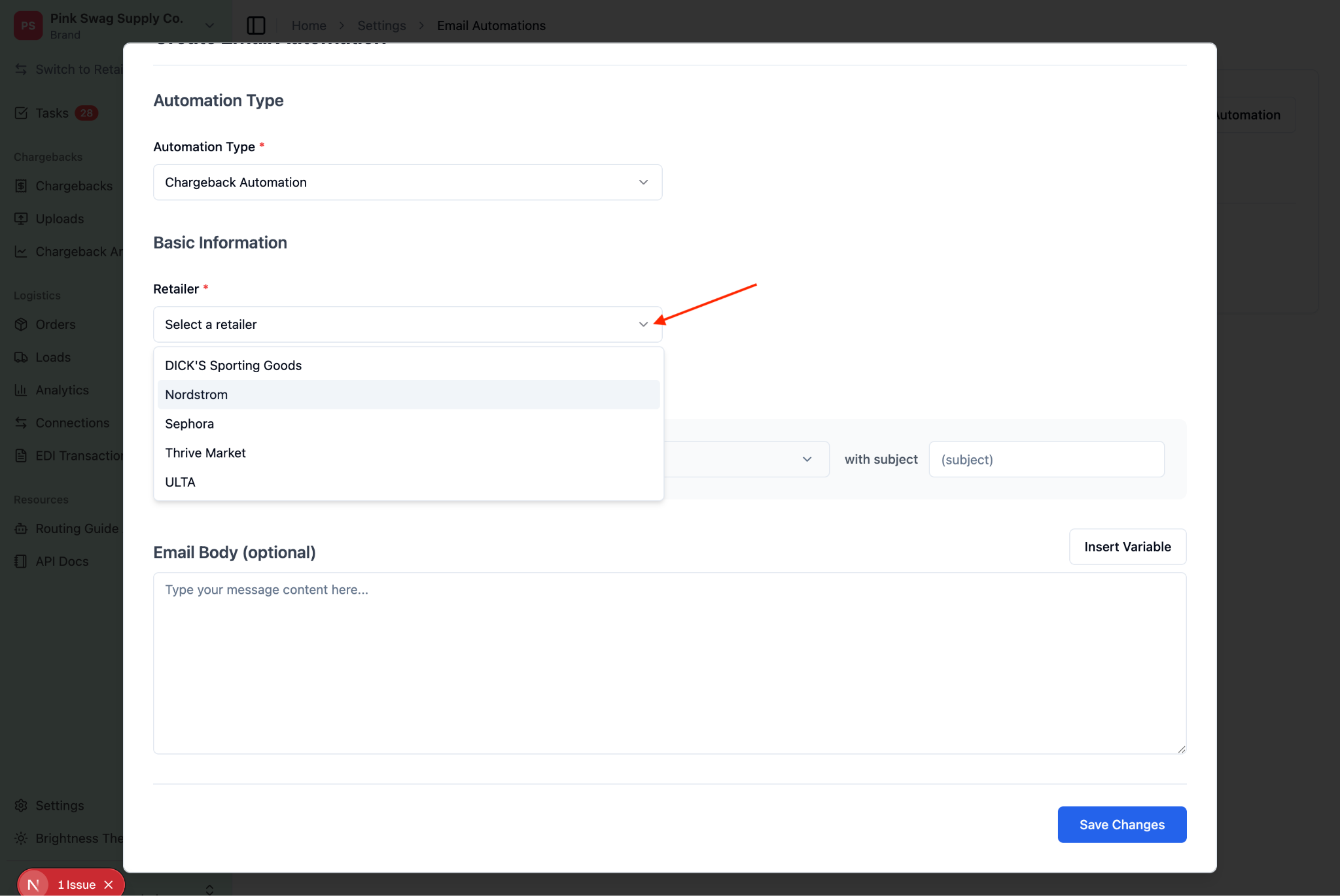
After selecting a retailer, RetailReady will check whether chargebacks are currently being collected for that partner. You may see one of the following messages:
If RetailReady is not currently collecting chargebacks for the selected retailer or no chargeback configuration exists at all for that retailer, a notice will appear letting you know. You can still save the automation, but emails will not be sent until chargeback collection is active. Use the chatbot at the bottom of the page to request that chargebacks be enabled for that retailer.
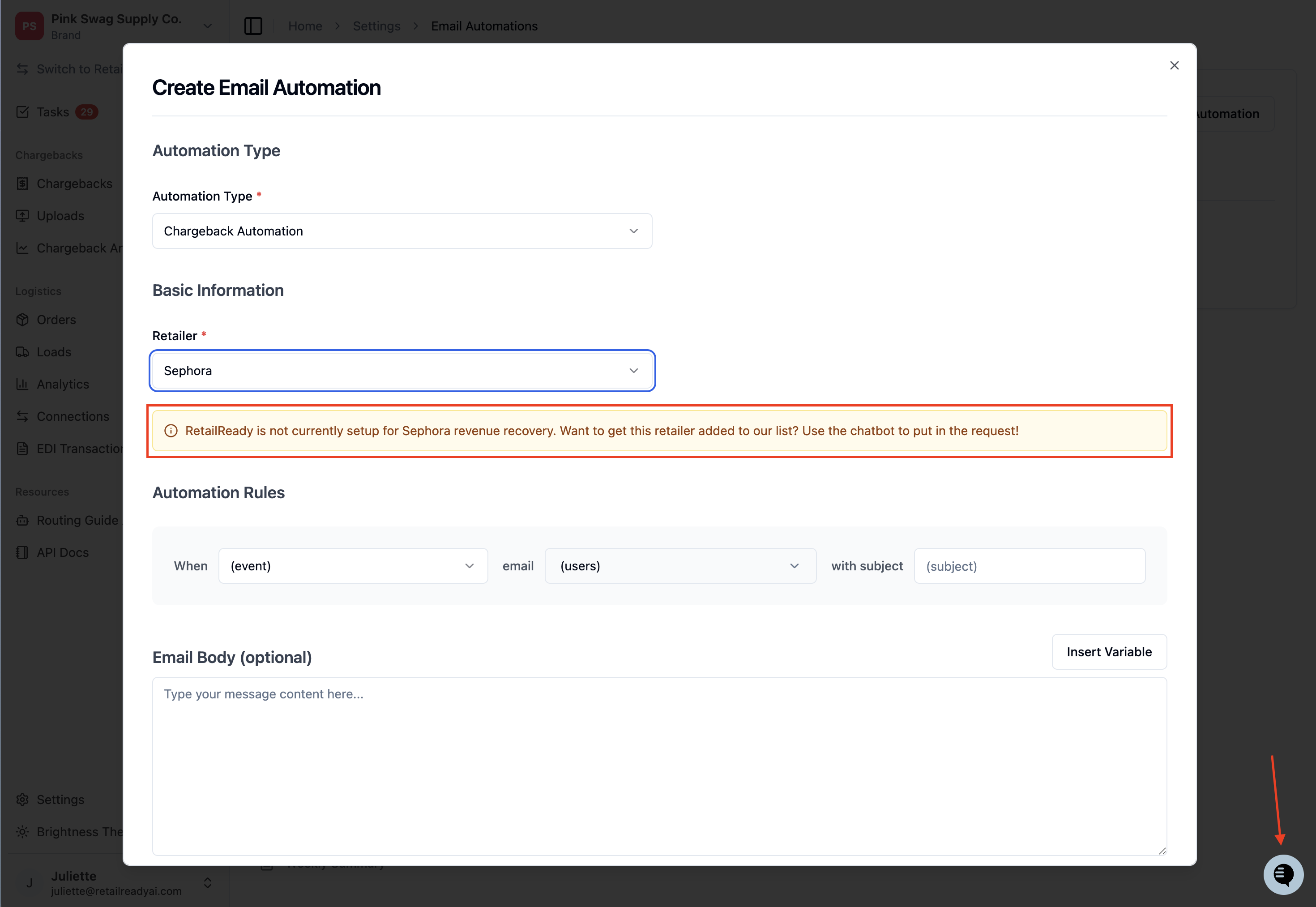
If chargebacks are actively being collected, no notice will appear and you are good to proceed.
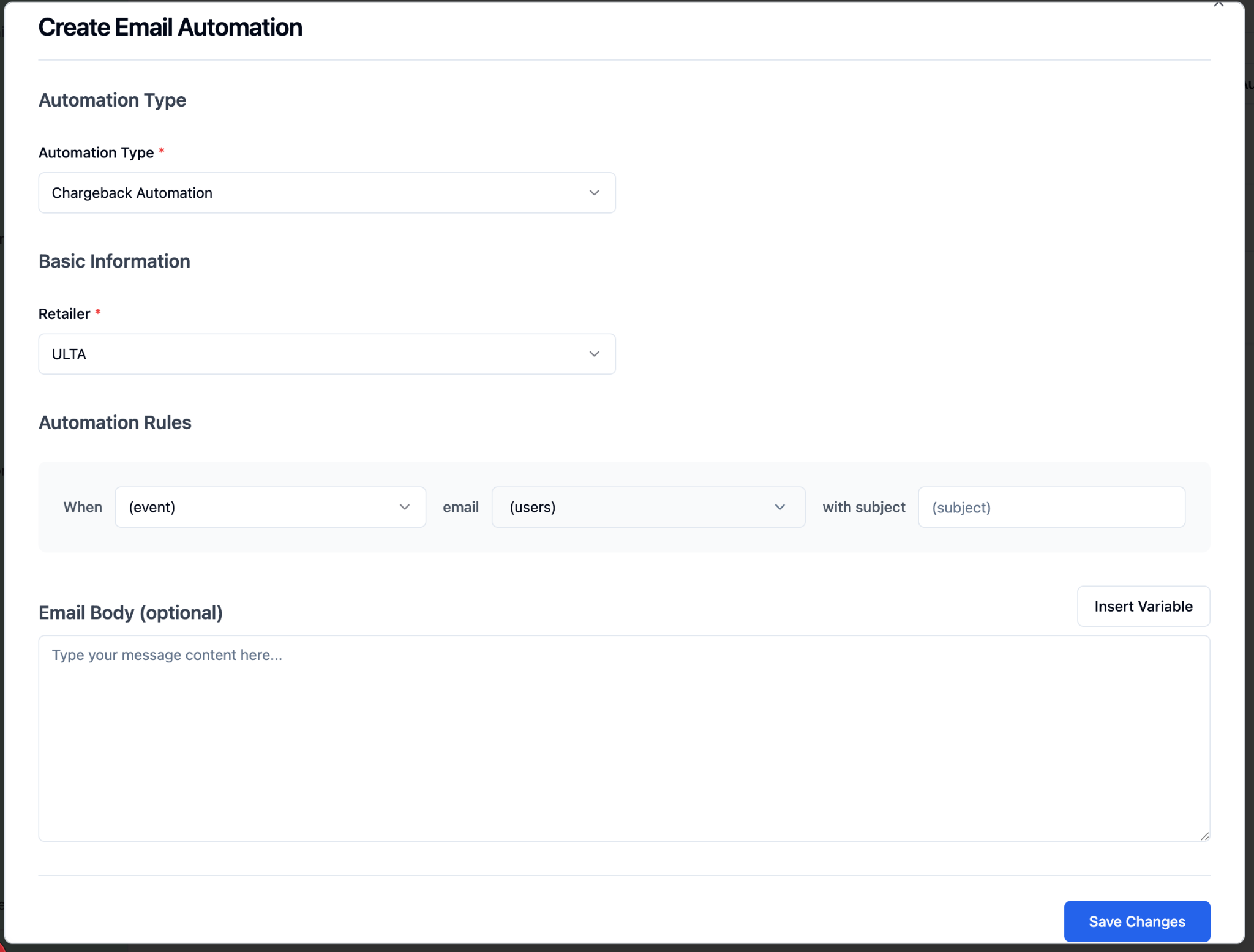
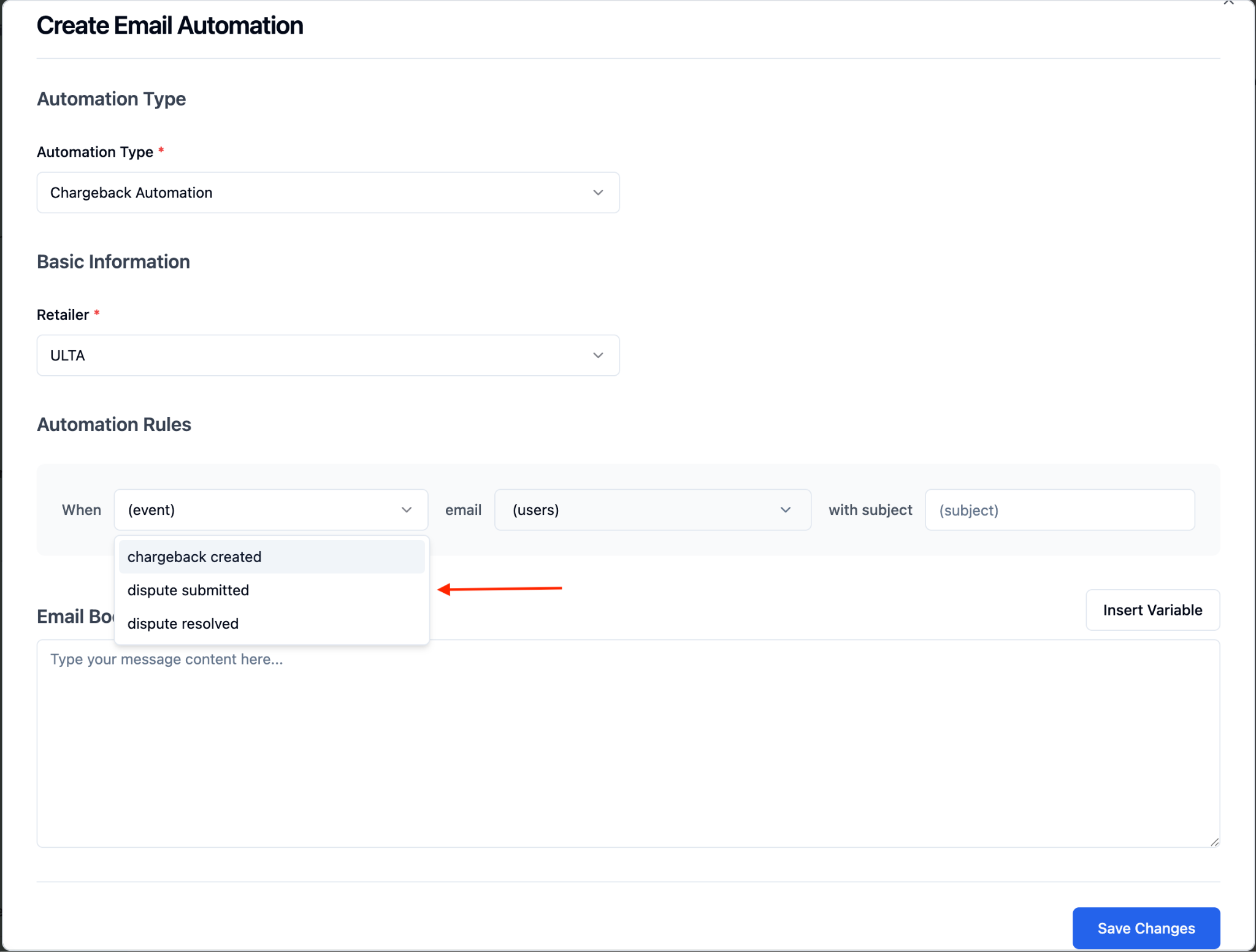
Under 'Automation Rules’, from the ‘(event)’ dropdown menu, select the chargeback event that should send the email. The available triggers are:
chargeback created: sends an email when a new chargeback is logged for your brand with the selected retailer, flagged for your review.
dispute submitted: sends an email when a dispute has been formally submitted on a chargeback.
dispute resolved: sends an email when a chargeback dispute has been resolved.
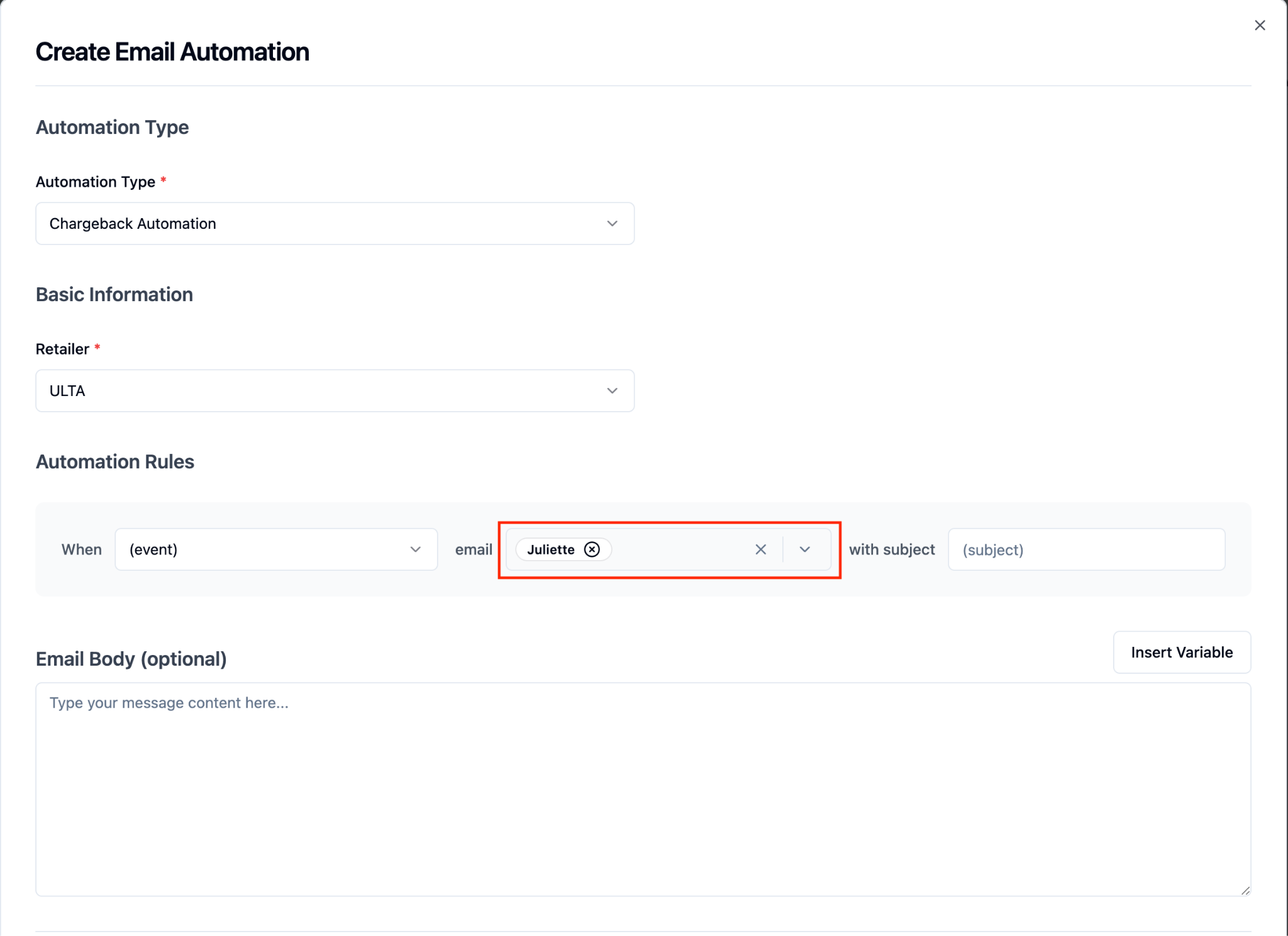
Once an event is selected, select the recipient email address or addresses from the ‘(users)’ dropdown menu that should receive notifications when this trigger fires.
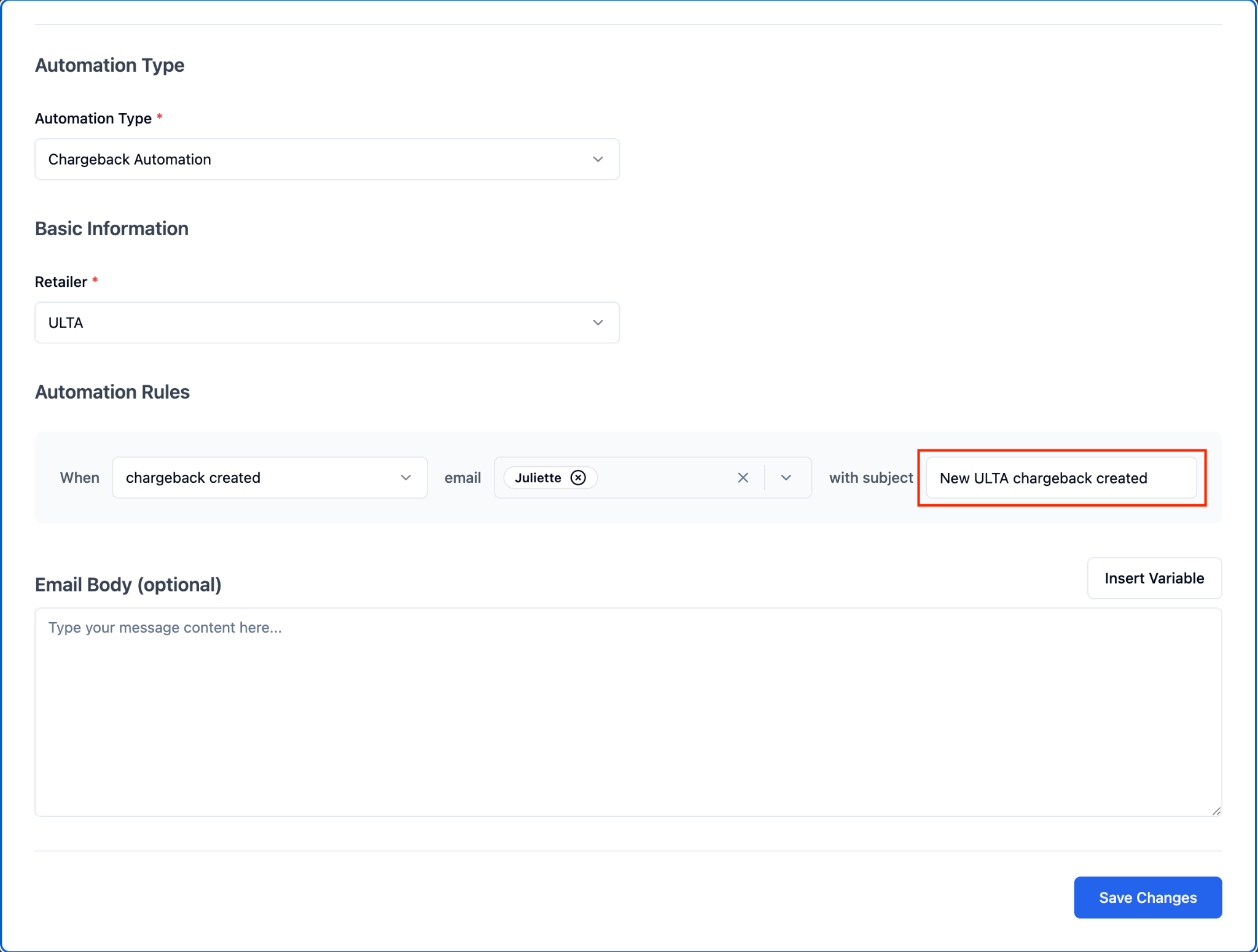
Enter a subject for the email by clicking ‘(subject)’.
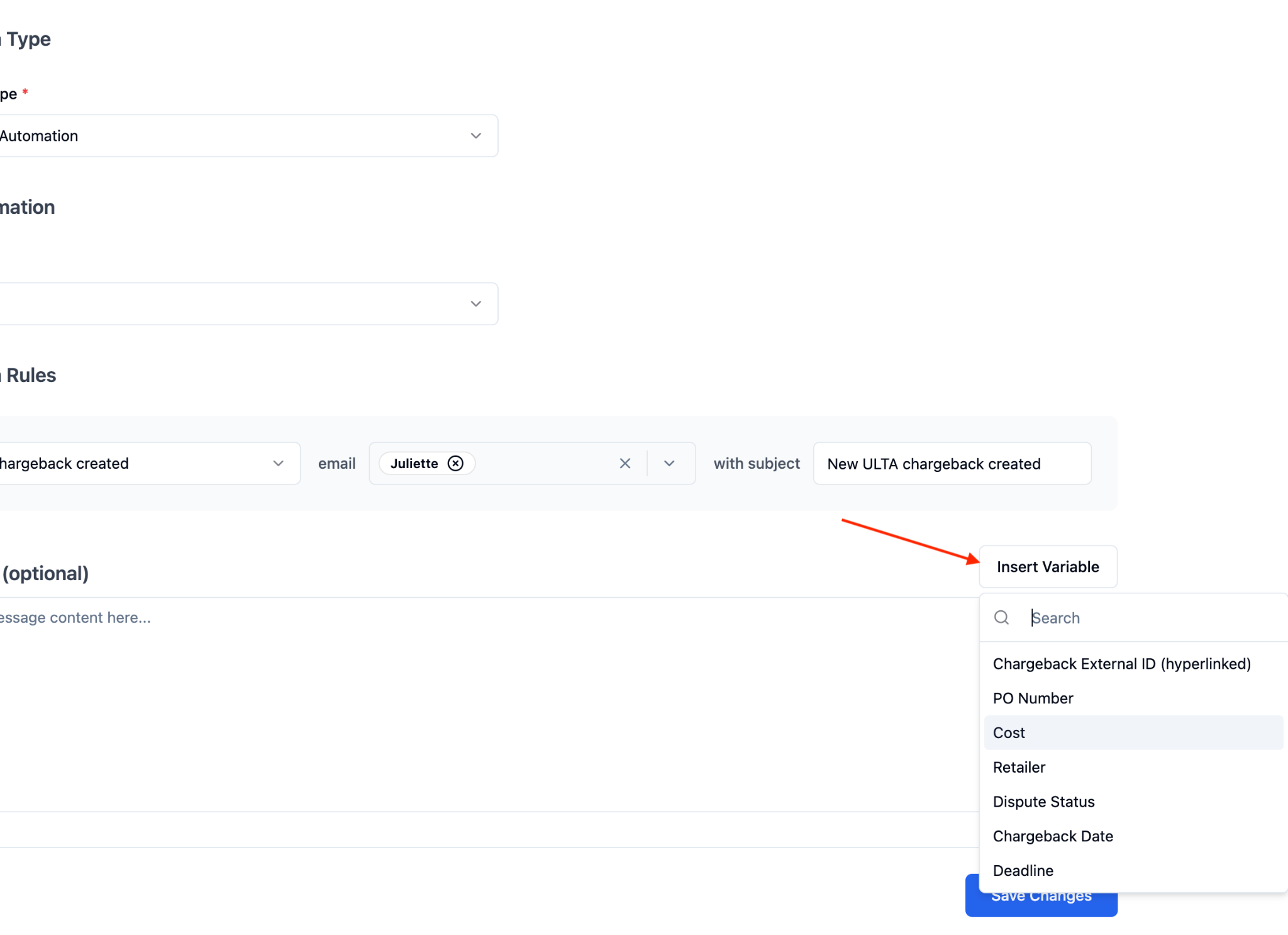
Optionally, customize the email body with your desired message content and using the available template variables shown in the ‘Insert Variable’ dropdown. These variables will automatically populate with real chargeback data when the email is sent.
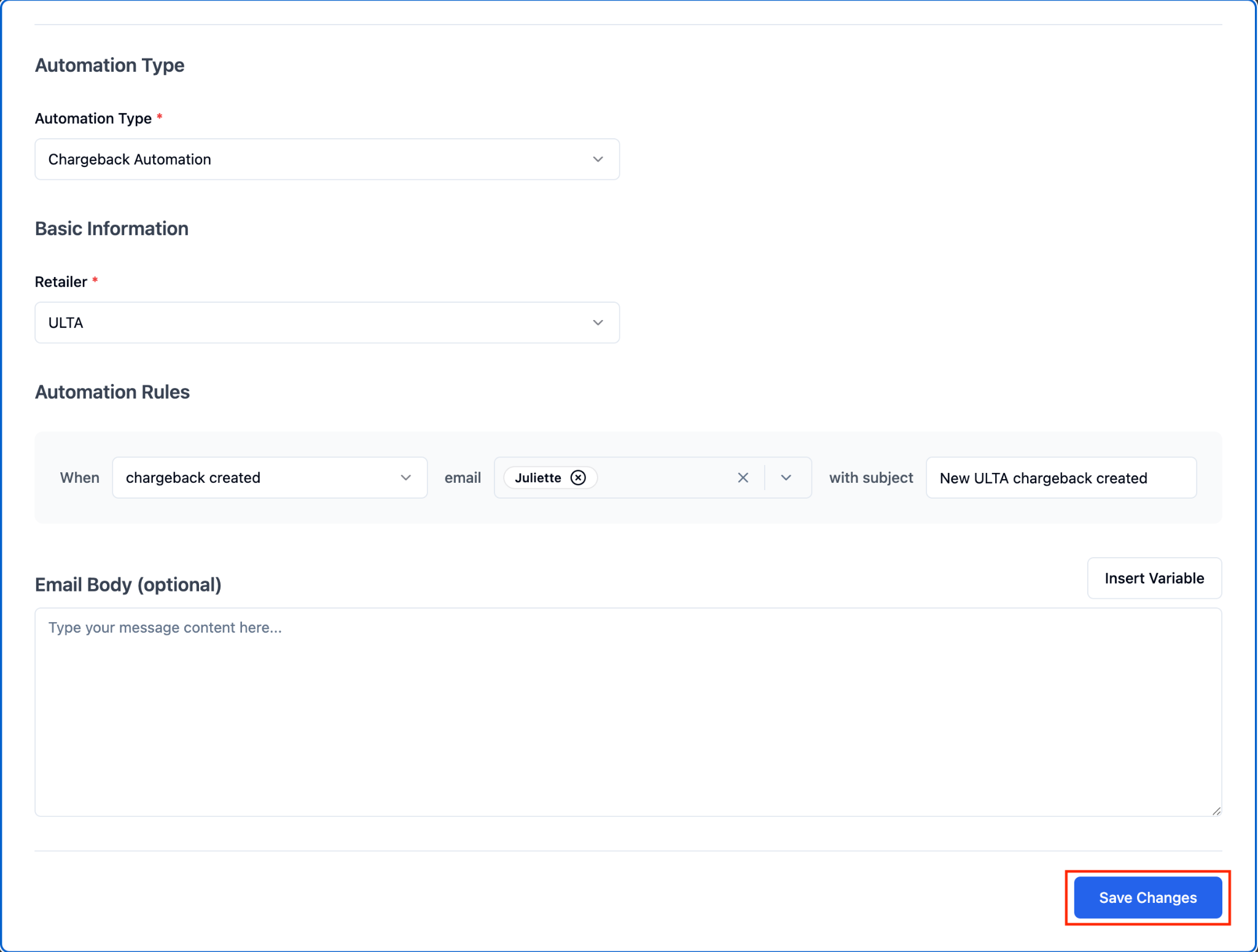
When you are ready, click 'Save Changes' to activate it.
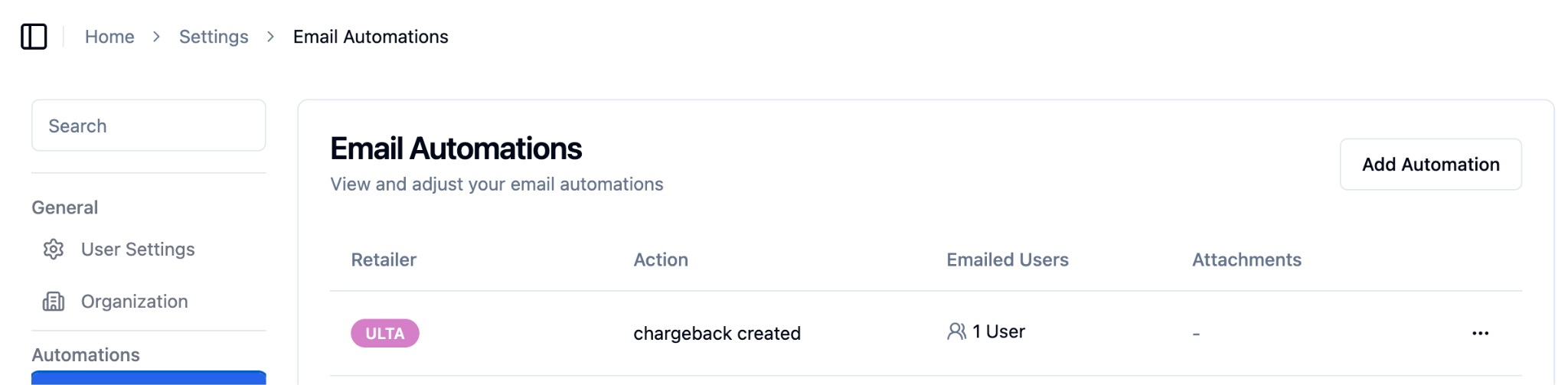
The new automation will now appear in the ‘Email Automations’ tab.
Editing or Deleting a Chargeback Email Automation
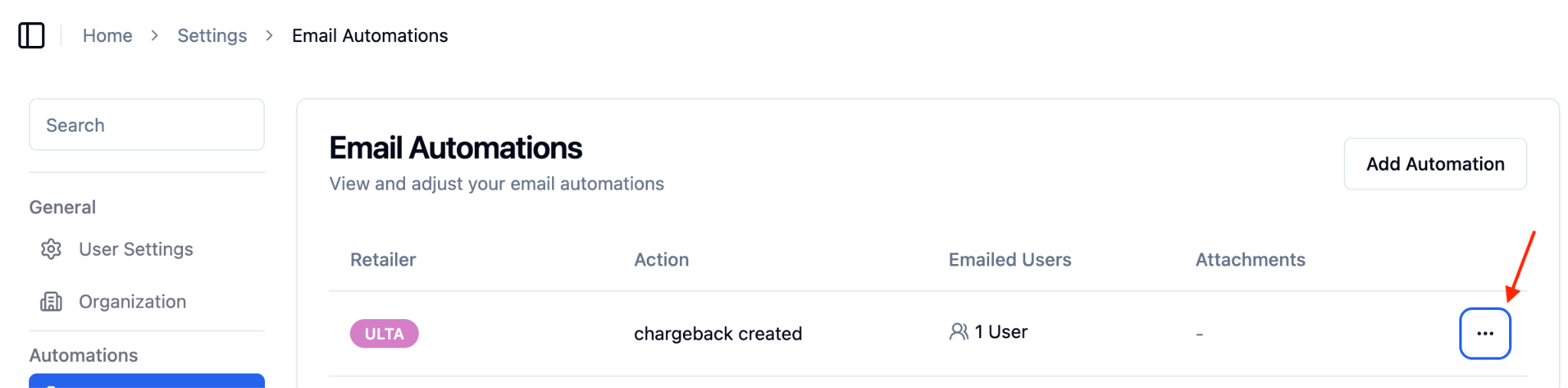
Navigate into ‘Settings’, and press 'Email Automations'.
Identify the email automation you want to edit or change and press the three dot menu next to the automation.
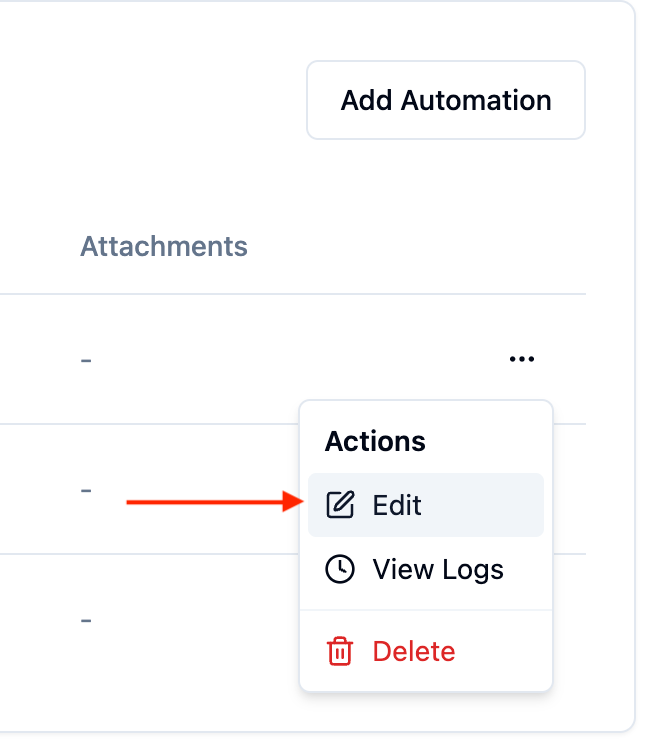
To edit the automation, press ‘Edit’. To delete, press ‘Delete’ and skip to step 6.
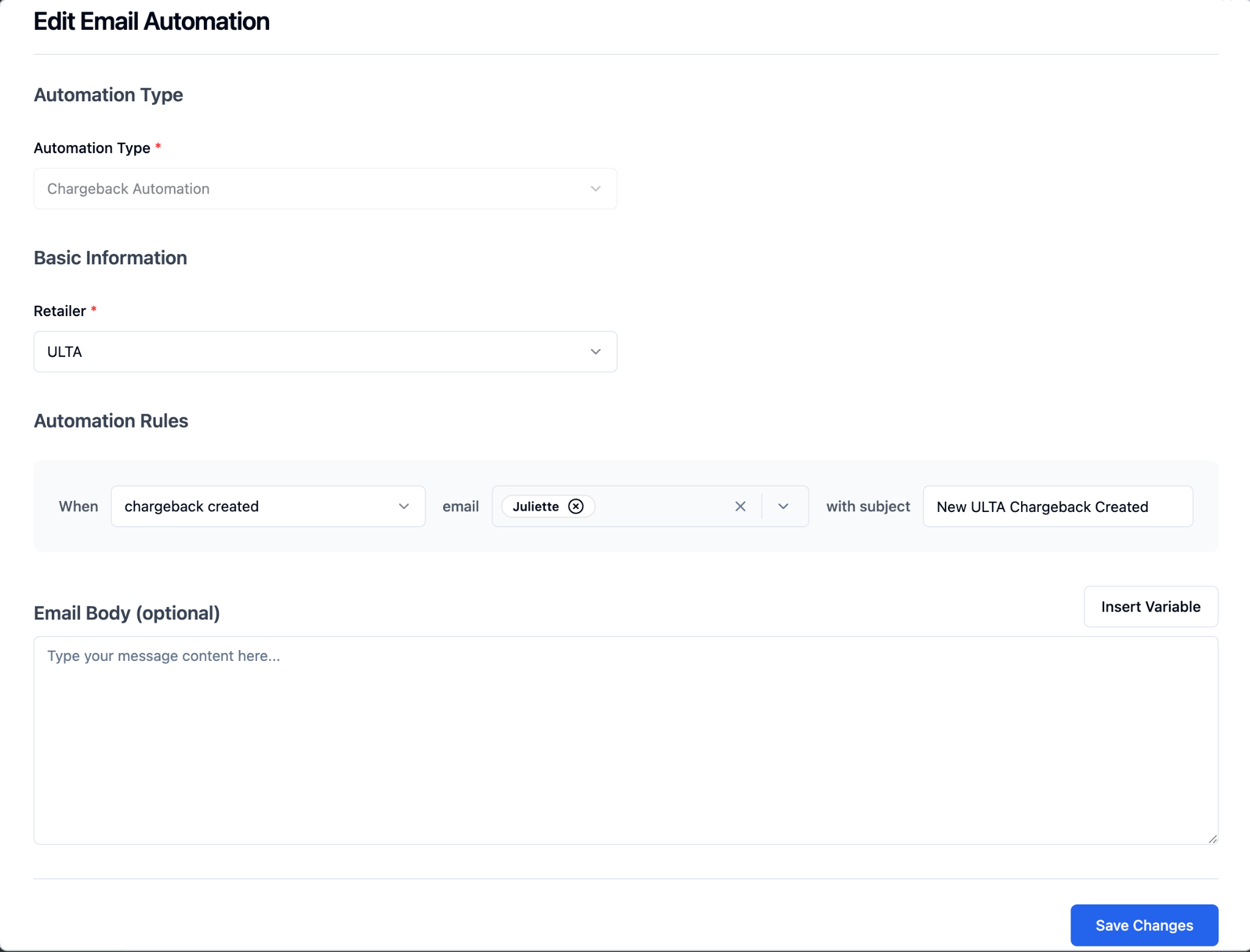
If ‘Edit’ is selected, the ‘Edit Email Automation’ menu will open. Make your changes to the retailer, trigger event, recipients, or email content.
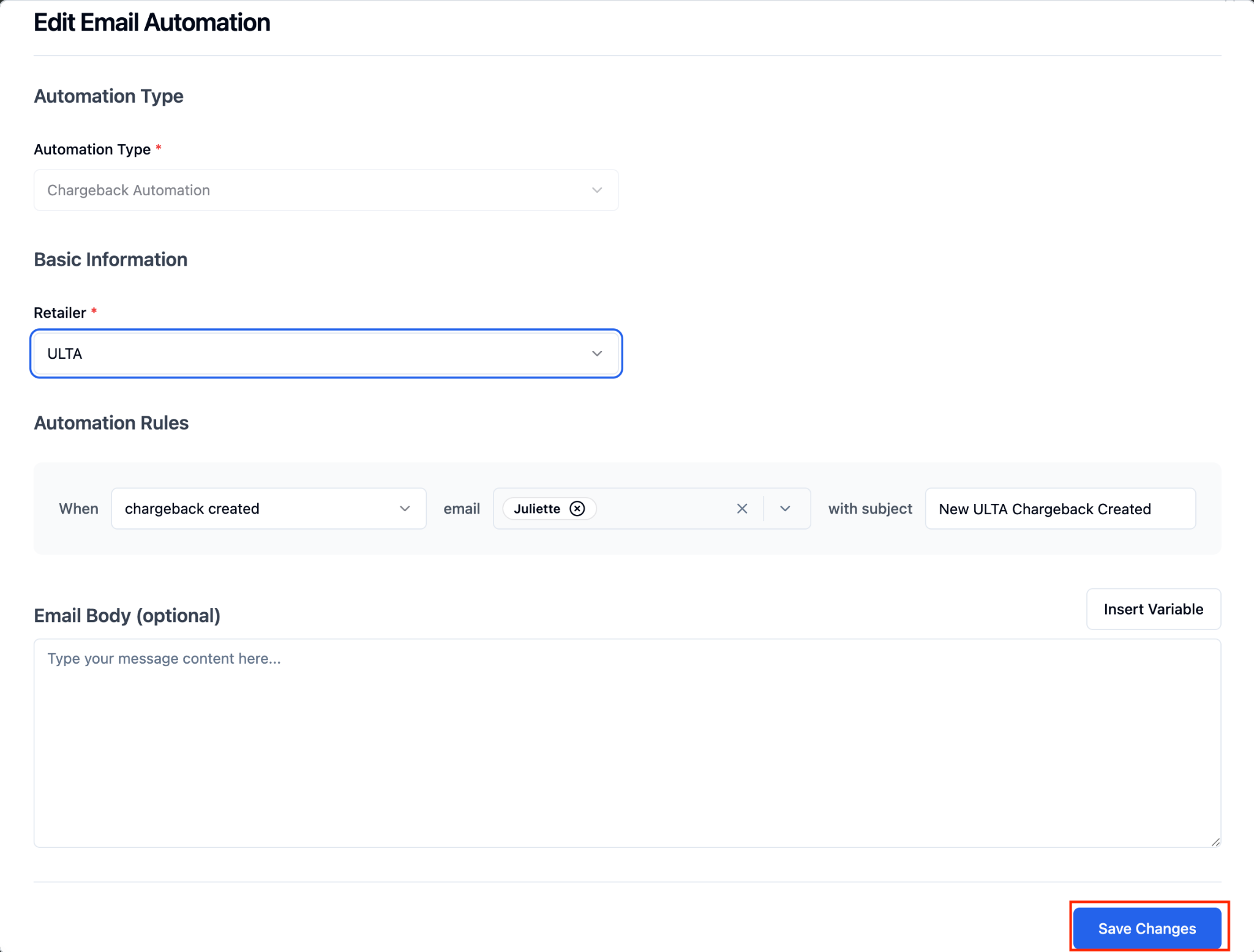
Click 'Save Changes' to apply your changes.
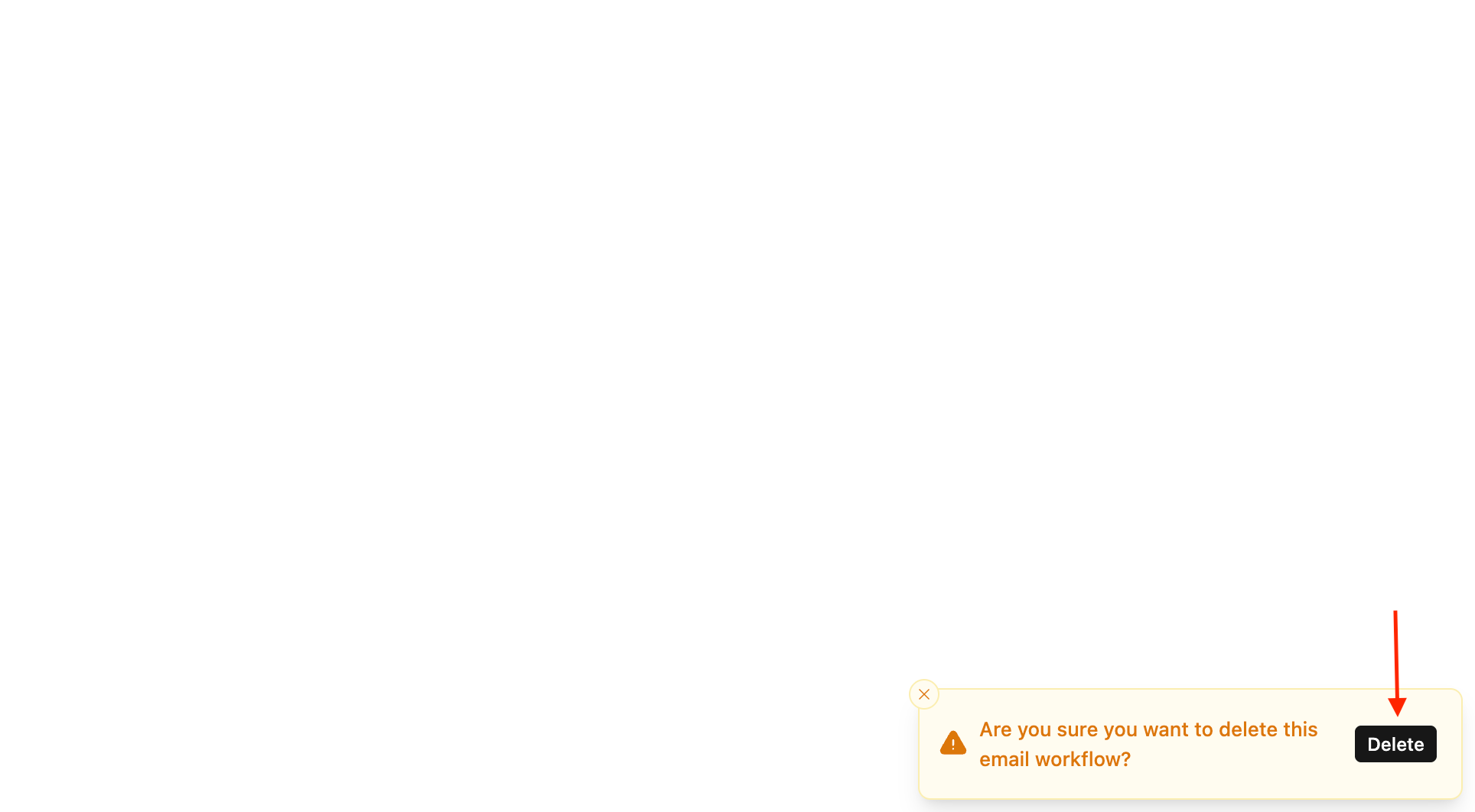
If ‘Delete’ was selected at step 3, a pop-up notification will appear at the bottom of your screen. You must press ‘Delete’ to delete the email automation.
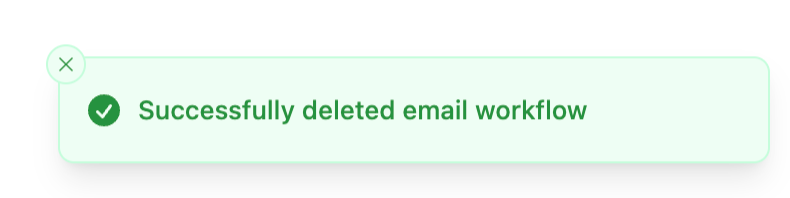
Once successfully deleted, a green confirmation message will appear and the email automation will no longer be visible in the ‘Email Automations’ table.
FAQs:
Can I set up chargeback email automations for multiple retailers?
Yes. You can create a separate chargeback email automation for each retail partner you work with in RetailReady. Each automation is configured and managed independently, so you can use different triggers or recipient lists per retailer.
Why is there a warning message after I select a retailer?
RetailReady checks whether it is actively collecting chargebacks for that retailer. If it is not, or if collection has been paused, you will see an informational notice. You can still save your automation, but emails will not be sent until chargeback collection is active for that retailer. Use the chatbot at the bottom of the page to request that chargeback collection be enabled.
What is the difference between ‘dispute submitted’ and ‘dispute resolved’?
‘dispute submitted’ fires when a dispute has been actively filed on a chargeback. ‘dispute resolved’ fires when that dispute has reached a final outcome. You can configure automations for one, both, or neither of these triggers depending on what your team needs to be notified about.
Will I still receive emails if chargeback collection is not active for a retailer?
No. If RetailReady is not collecting chargebacks for the selected retailer, the triggers will not fire and no emails will be sent — even if the automation is saved and active. The warning message shown during setup is intended to flag this situation so you can take action.
Can I use template variables in my chargeback email body?
Yes. When editing the email body, you will see a list of available variables — such as retailer name, chargeback amount, and status — that will be automatically filled in with real data when the email is sent.