Reauthenticate UPS Account
Last updated: May 15, 2026
We've made it easier to reconnect your UPS shipping account when your login details change. You can now do this yourself without contacting support.
About
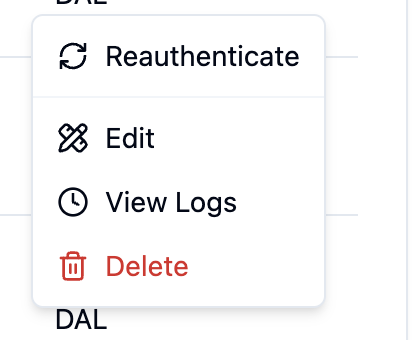
When you go to Settings → Parcel Details → Base Accounts, you'll now see different options depending on your UPS account status:
New UPS accounts: Shows "Authenticate" button to connect for the first time
Connected UPS accounts: Shows "Reauthenticate" button to reconnect your account
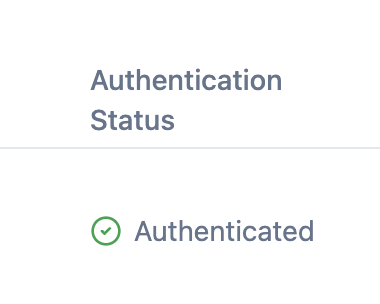
Other carriers (FedEx, USPS): No changes - still shows "Authenticated" when connected
When to Use Reauthentication
You should reauthenticate your UPS account when:
You've changed your UPS account password
Your UPS account permissions have been updated
You're getting shipping errors related to authentication
Support has asked you to reconnect your account
How to Reauthenticate
Go to Settings in the top navigation
Click Parcel Details
Select Base Accounts
Find your UPS account in the list
Click the "Reauthenticate" button
You'll be taken to the UPS login page
Enter your current UPS account credentials
Approve the connection to RetailReady AI
You'll be redirected back to your account settings
What to Expect
The reauthentication process is the same as when you first connected your UPS account. After successful reconnection:
Your account will show as "Authenticated"
You can immediately start processing UPS shipments
All your existing settings and preferences remain unchanged
Troubleshooting
"Login Failed" Error
This means your UPS credentials weren't accepted. Double-check your username and password, then try again.
"Connection Timeout" Error
The connection to UPS took too long. Wait a moment and try the reauthentication again.
"Permission Denied" Error
Your UPS account may not have the right permissions. Contact your UPS account administrator or UPS support.
Still Having Issues?
If reauthentication continues to fail, contact our support team. Include any error messages you're seeing and your UPS account number.