How to Access a BOL in RetailReady
Last updated: September 18, 2026
Every signed Bill of Lading (BOL) is captured in RetailReady the same way: during Load Out, every team is prompted to take a photo of the signed BOL. That photo is attached automatically and can be viewed at either the load level or the order level.
Separately, RetailReady also supports two other ways a BOL document can appear, depending on where it originated:
The retailer provided a BOL from their own TMS → upload that file directly.
The retailer uses a standard BOL format → generate that BOL directly in RetailReady instead of filling it out by hand.
This article walks through how to access the BOL captured during Load Out, and how to generate or upload one yourself.
Signed BOL Photo Capture (Load Out)
During the Load Out process, every team is prompted to take a photo of the signed BOL. This happens automatically as part of that workflow.
This is where every signed BOL will be found, regardless of whether a BOL was also uploaded or generated through one of the methods below.
To View BOL at Load Level
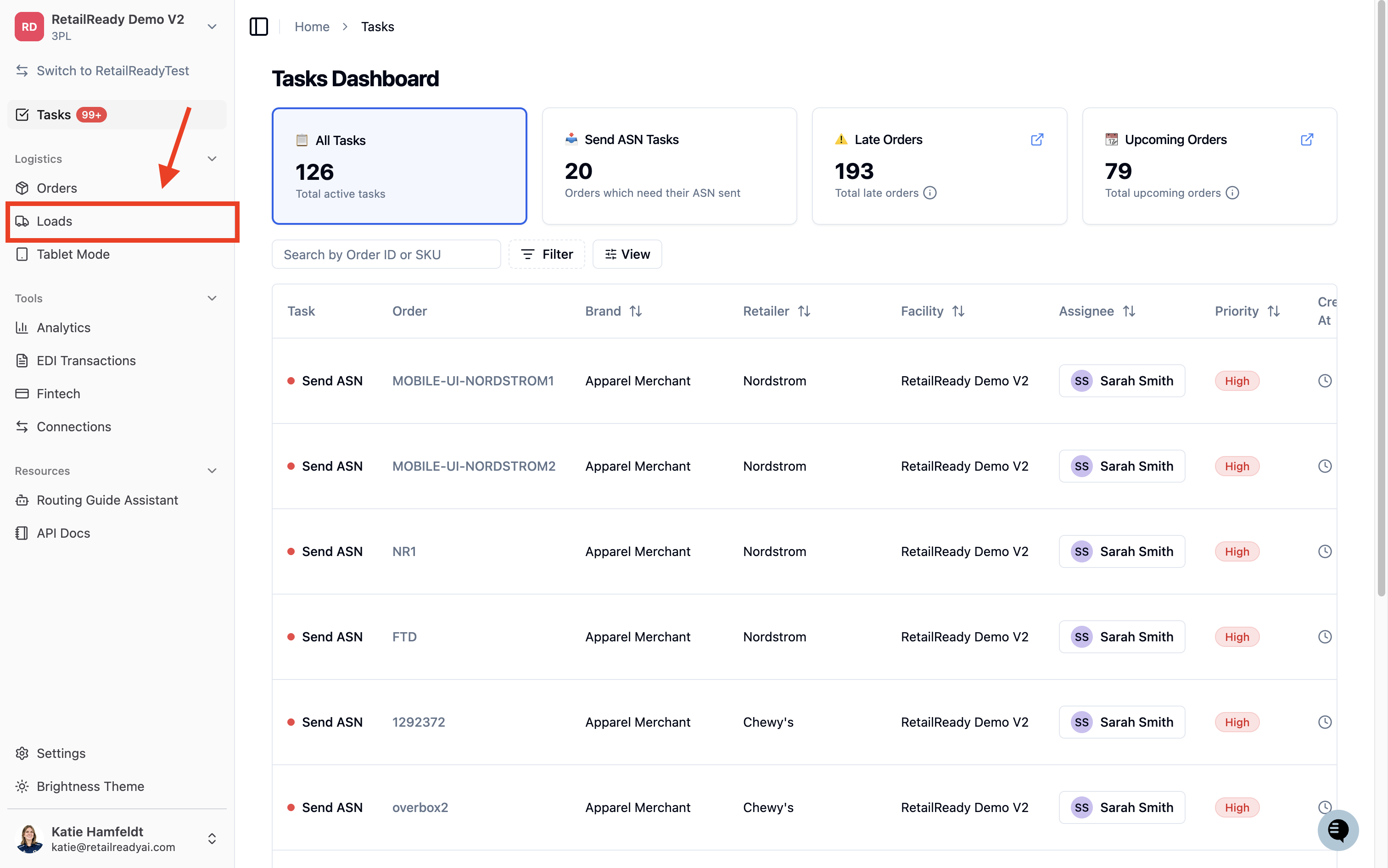
Open your RetailReady Dashboard and navigate to the Loads tab on the left-hand side.
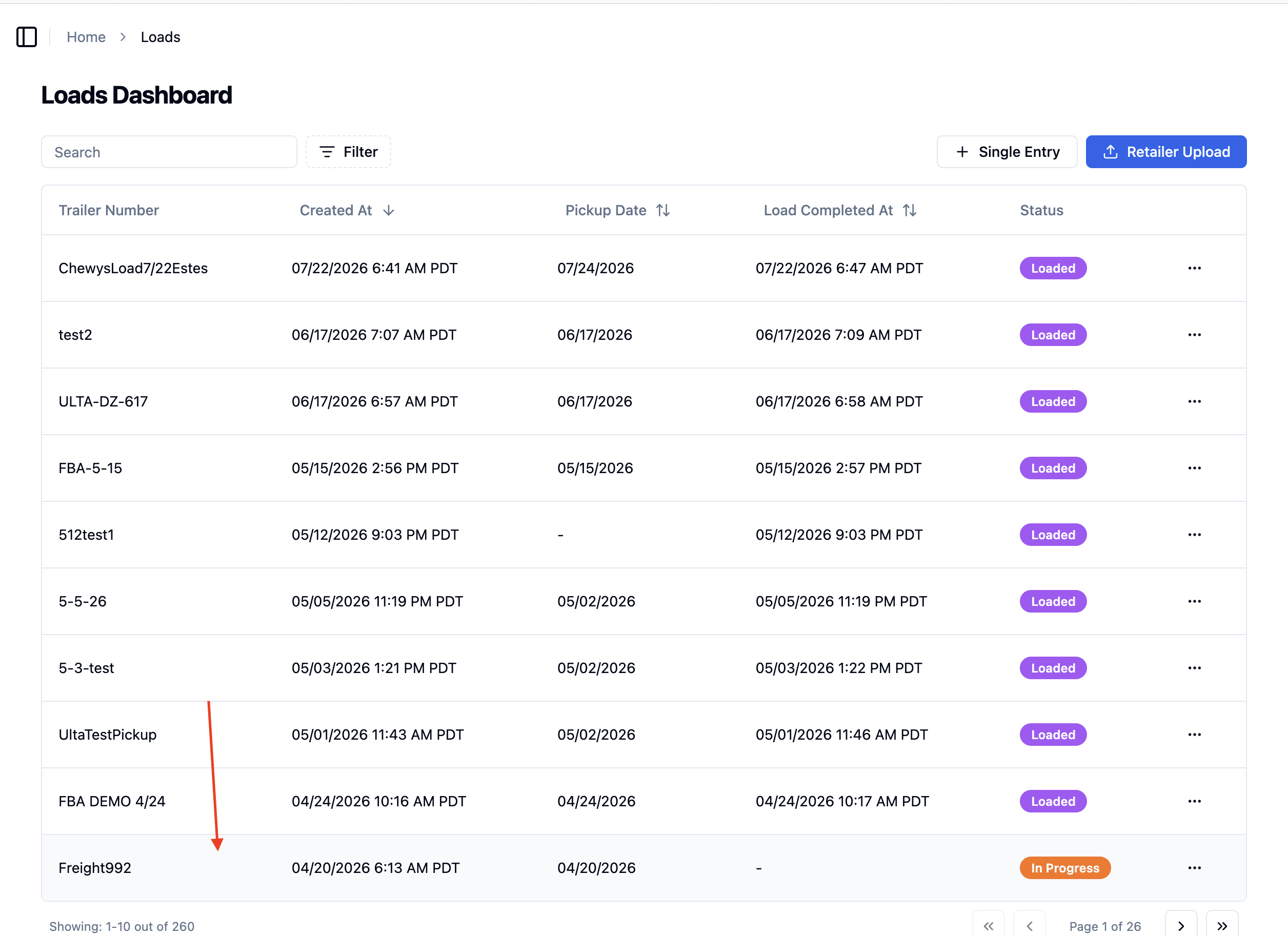
Click on the desired Load.
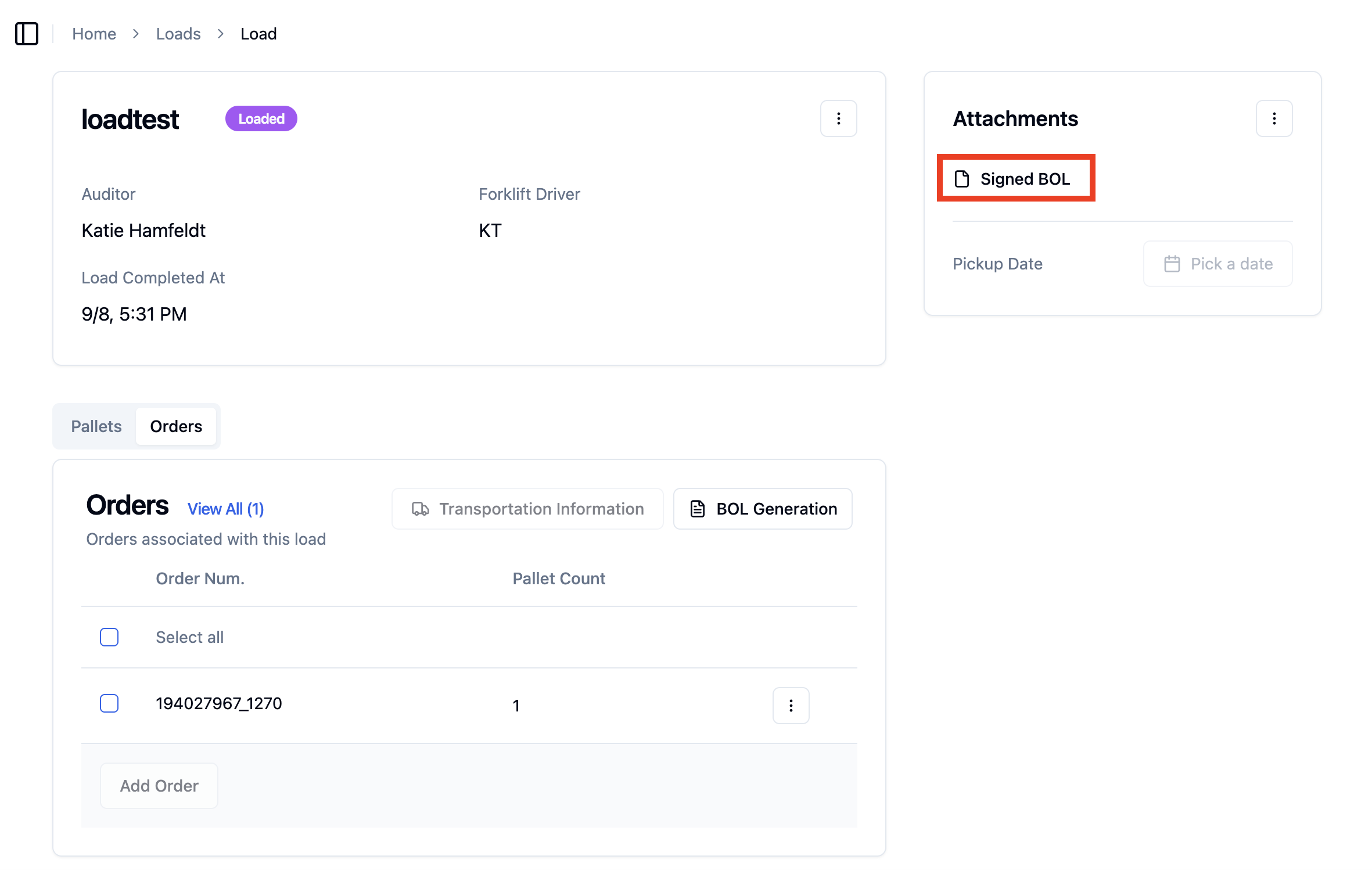
Navigate to the Attachments box in the top right of the screen, and click 'Signed BOL' - the photo should already be listed there.
To View BOL at Order Level
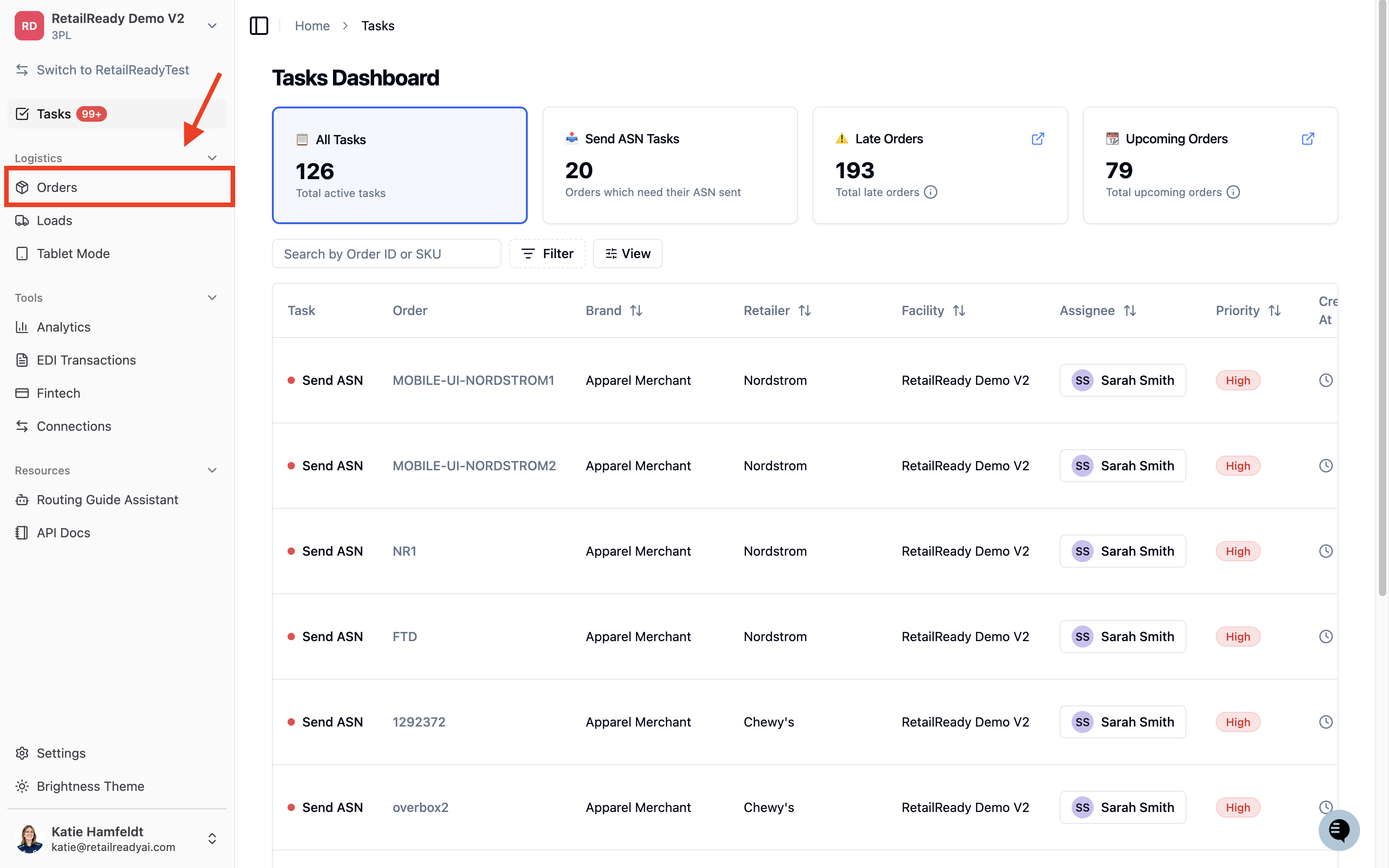
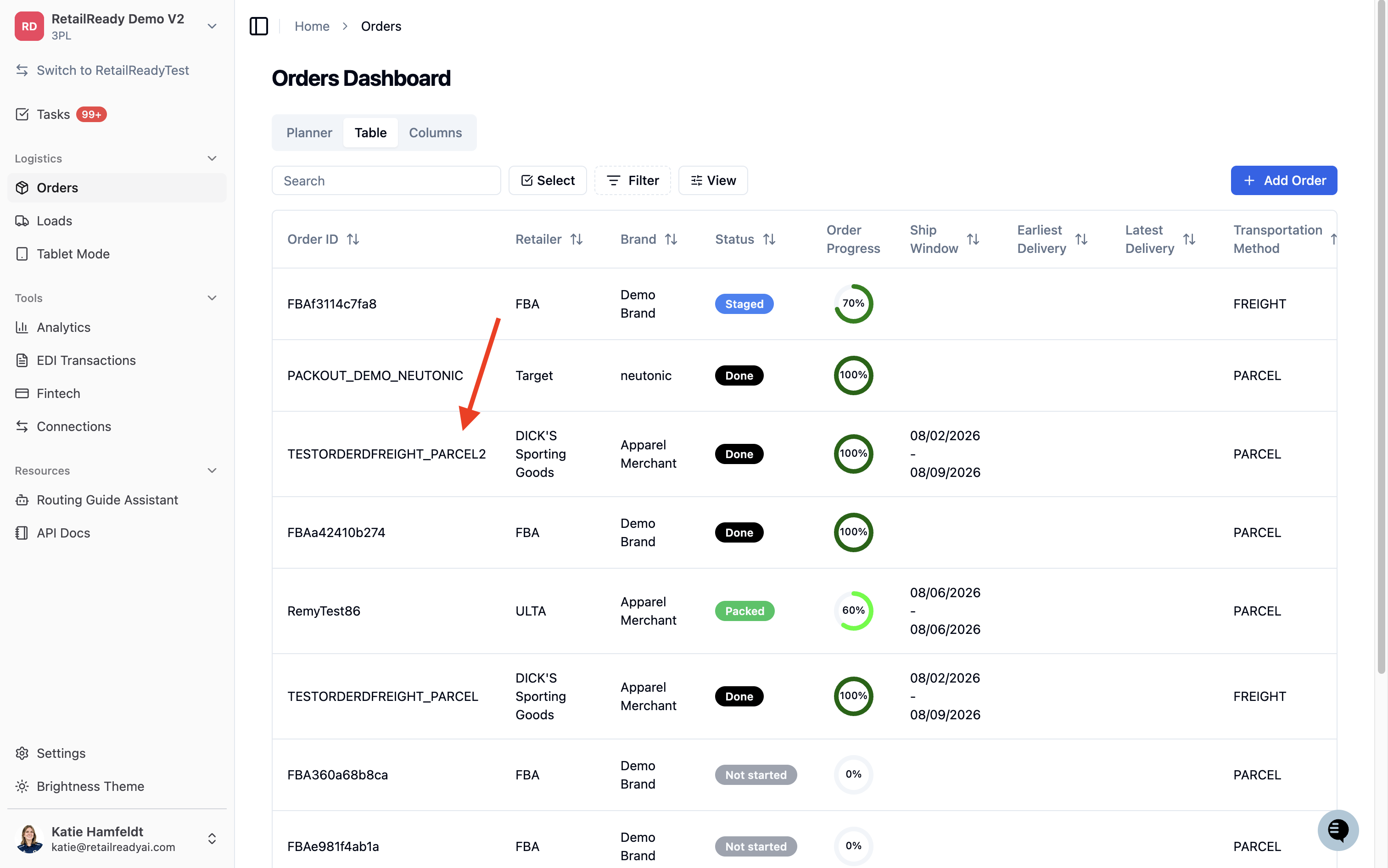
Open your RetailReady Dashboard and navigate to the Orders tab on the left-hand side.
Click on the desired Order.
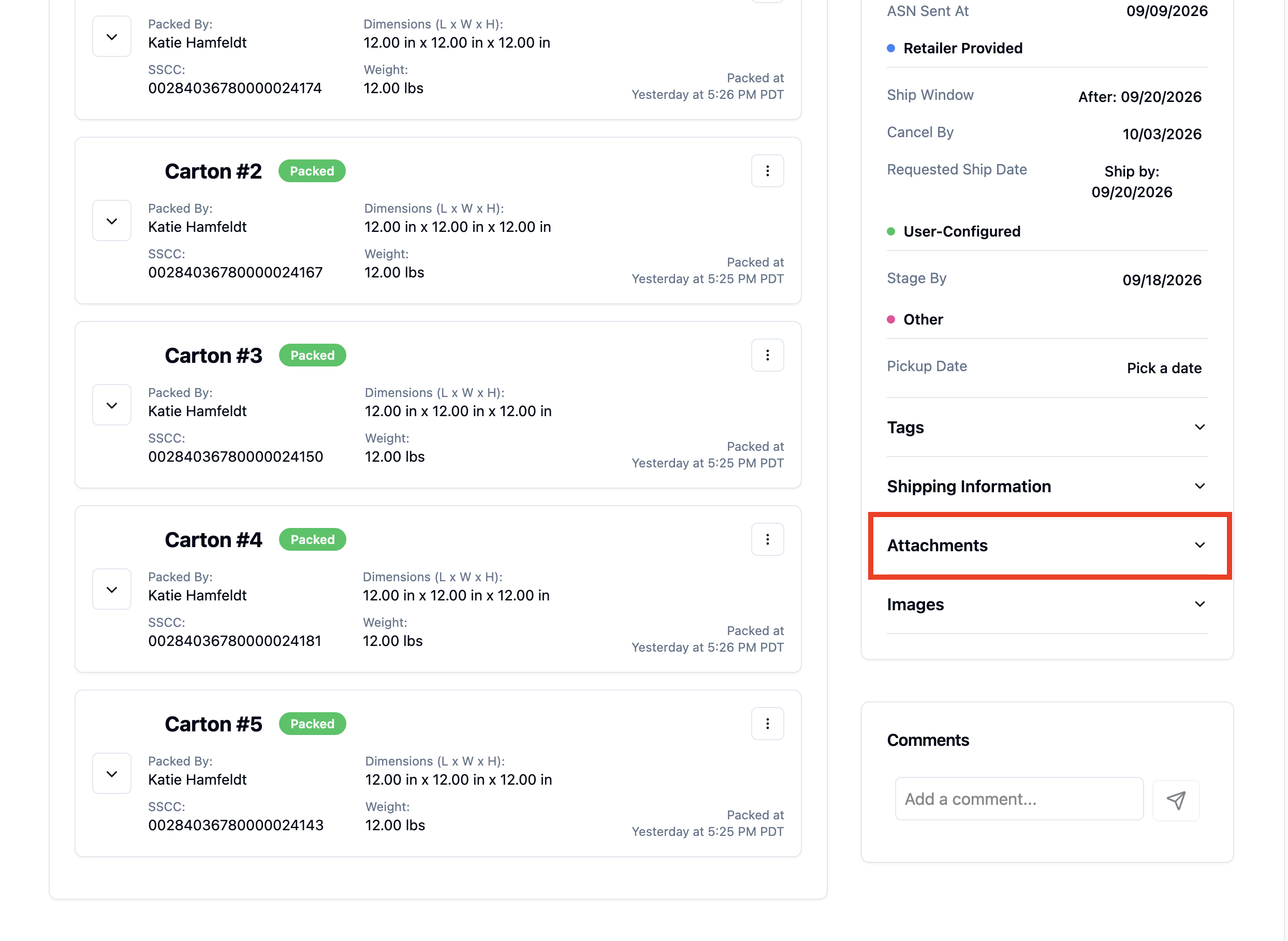
Scroll down to the bottom of the page to find the Attachments section on the right side of the page. Open the Attachments section by clicking the down arrow.
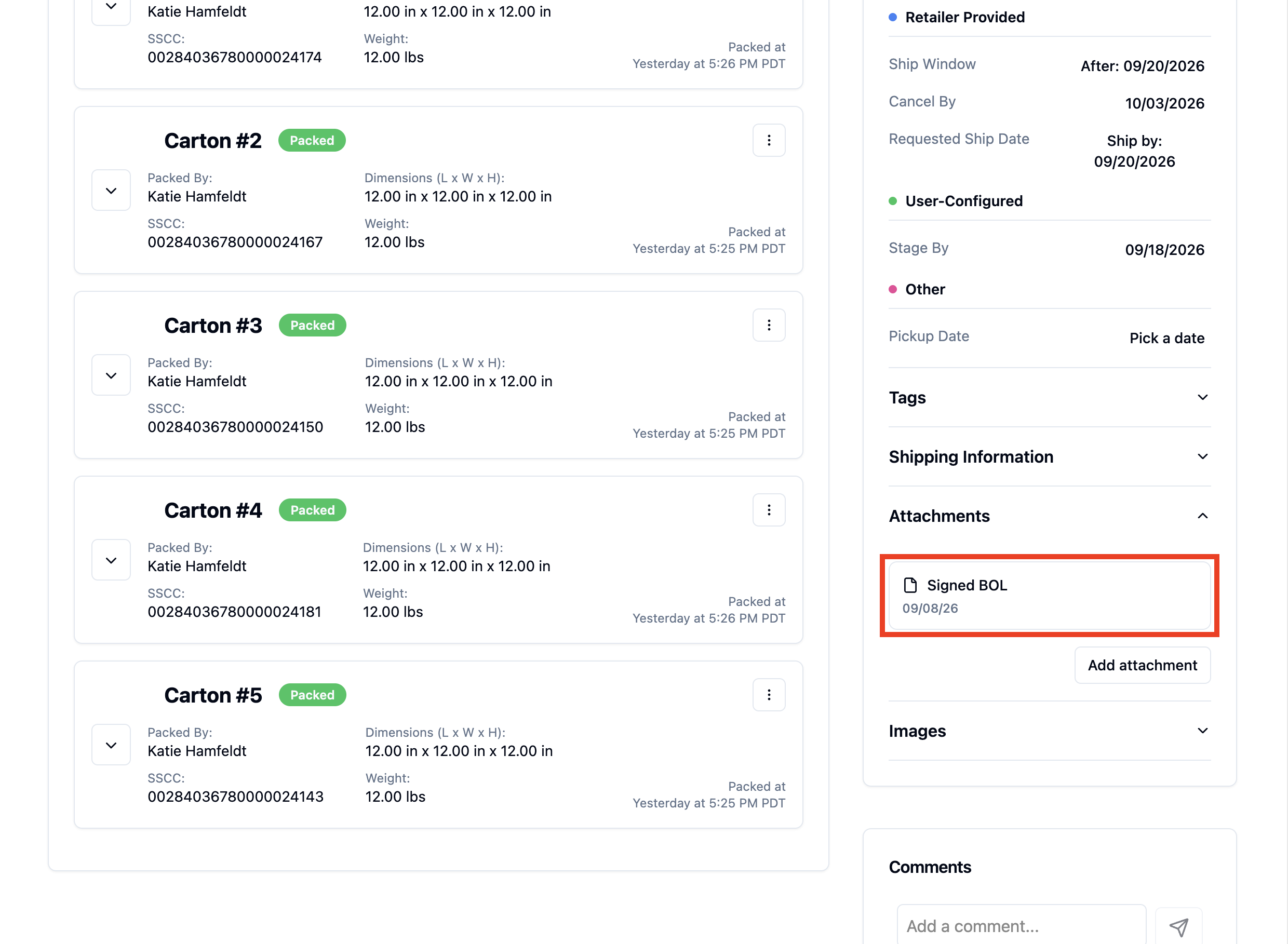
Click 'Signed BOL' to see the BOL photo you took during Load Out.
Uploading a BOL from the Retailer's TMS
Use this method when the retailer provides a BOL generated from their own TMS, and you want that specific document on file in RetailReady in addition to the signed photo capture.
Uploading BOL from Load Level
Open up your RetailReady Dashboard, and navigate to 'Loads' tab on the Left Hand Side.
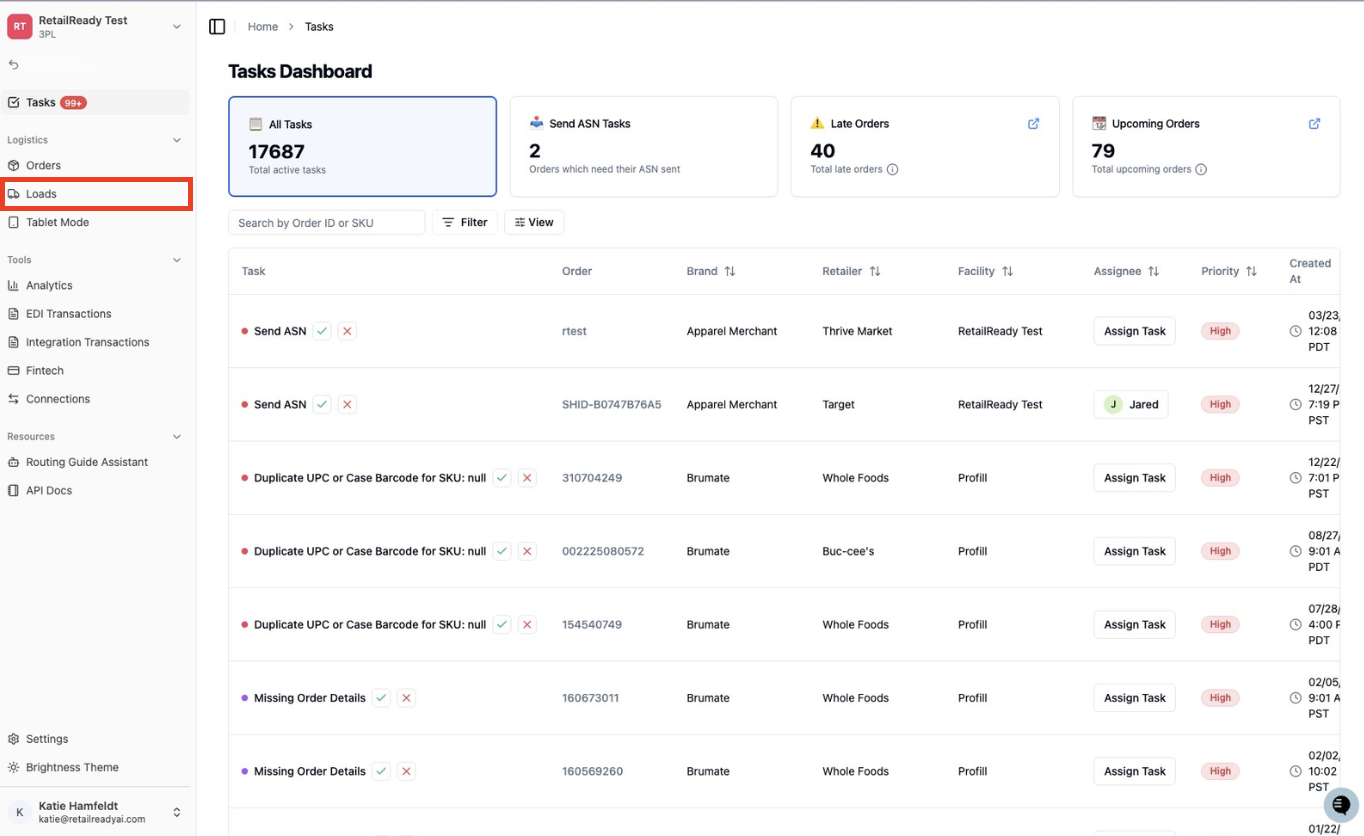
Click on desired Load
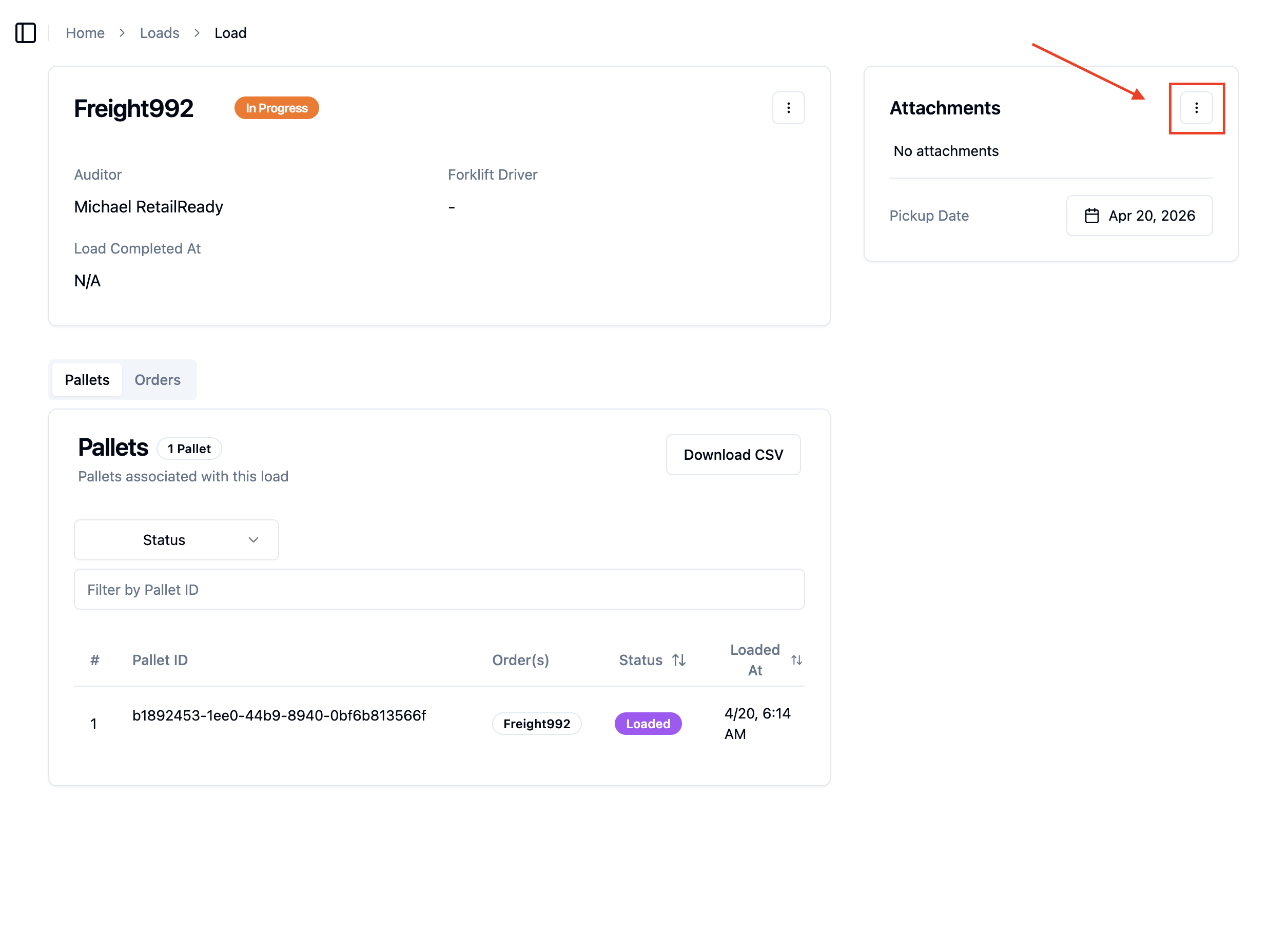
Navigate to the top right side of the screen and click the three dots in the Attachments box
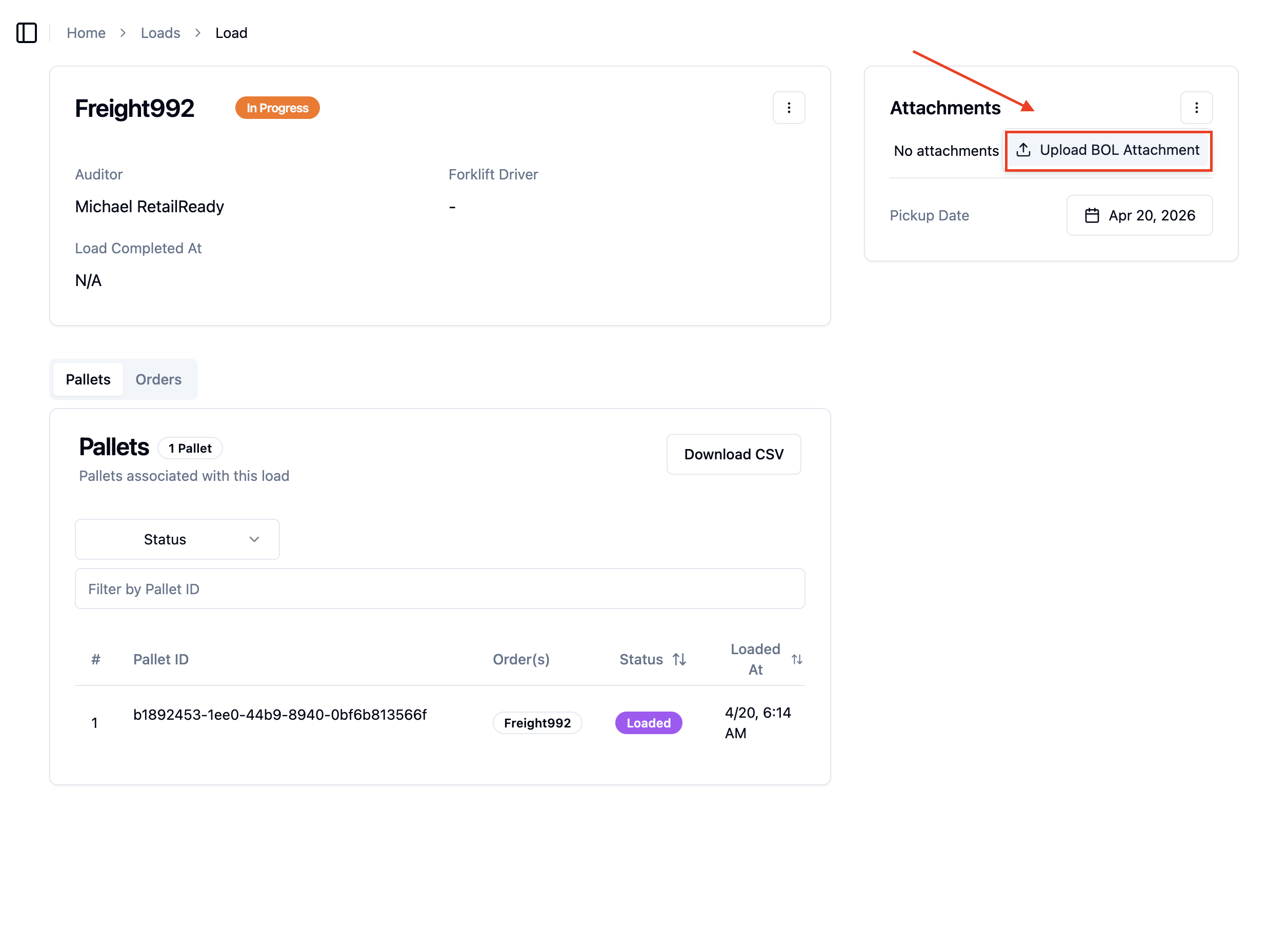
Click 'Upload BOL Attachment'
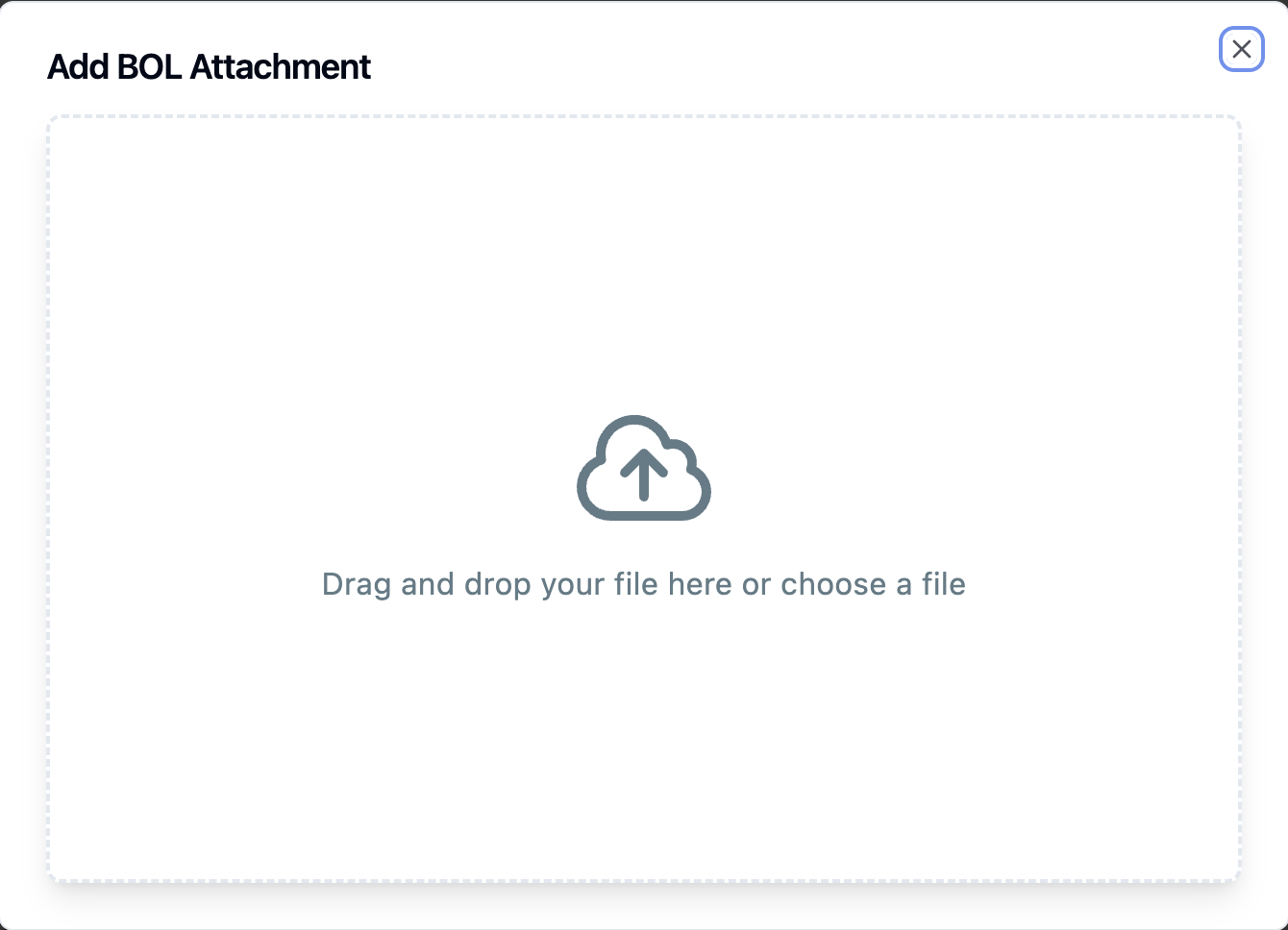
Add your BOL File
Uploading BOL from Order Level
Open your RetailReady Dashboard and navigate to the Orders tab on the left-hand side.
Click on the desired Order.
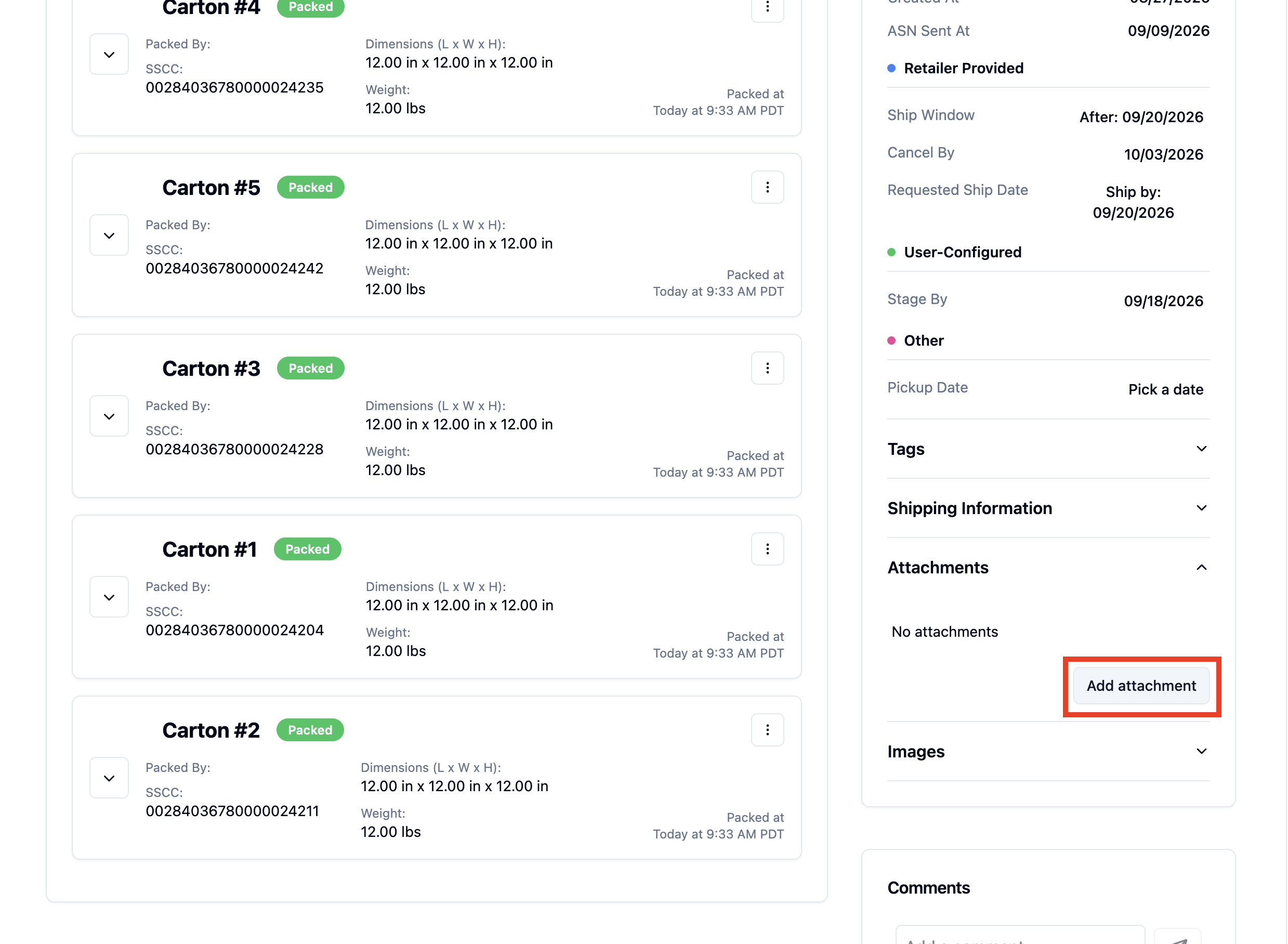
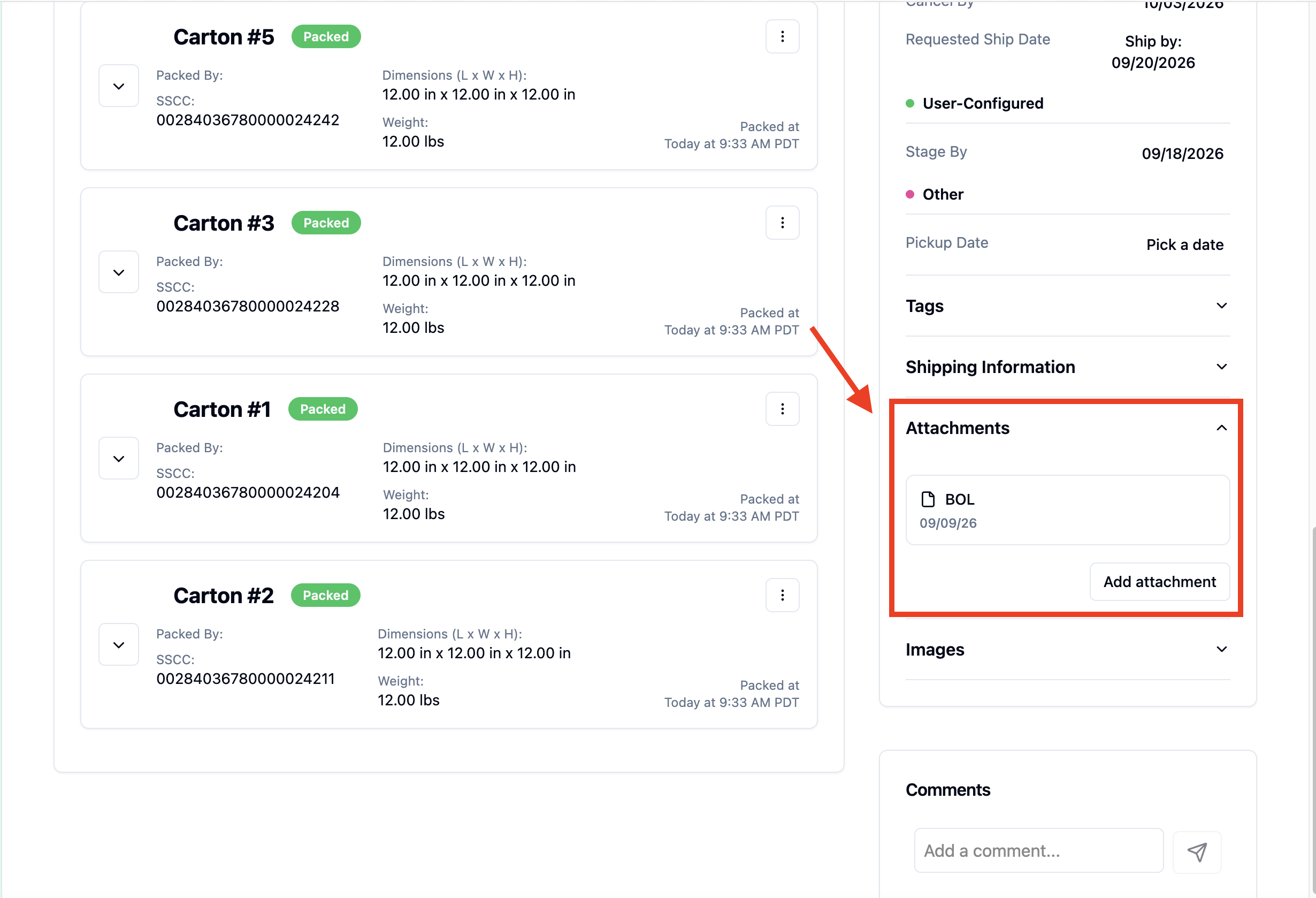
Scroll down to the bottom of the page to find the Attachments section on the right side of the page. Open the Attachments section by clicking the down arrow.
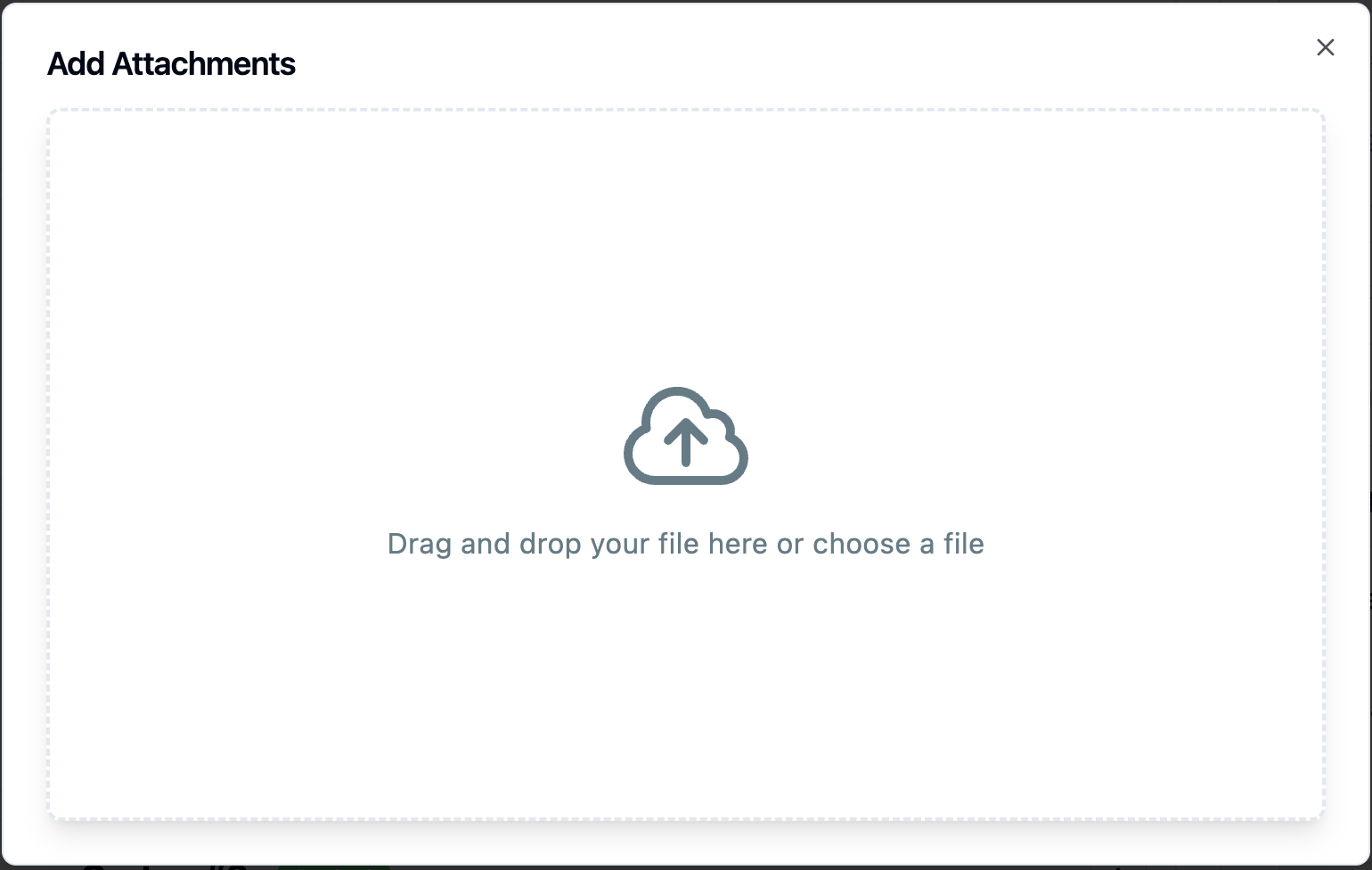
Click 'Add attachment'
Attach the desired BOL
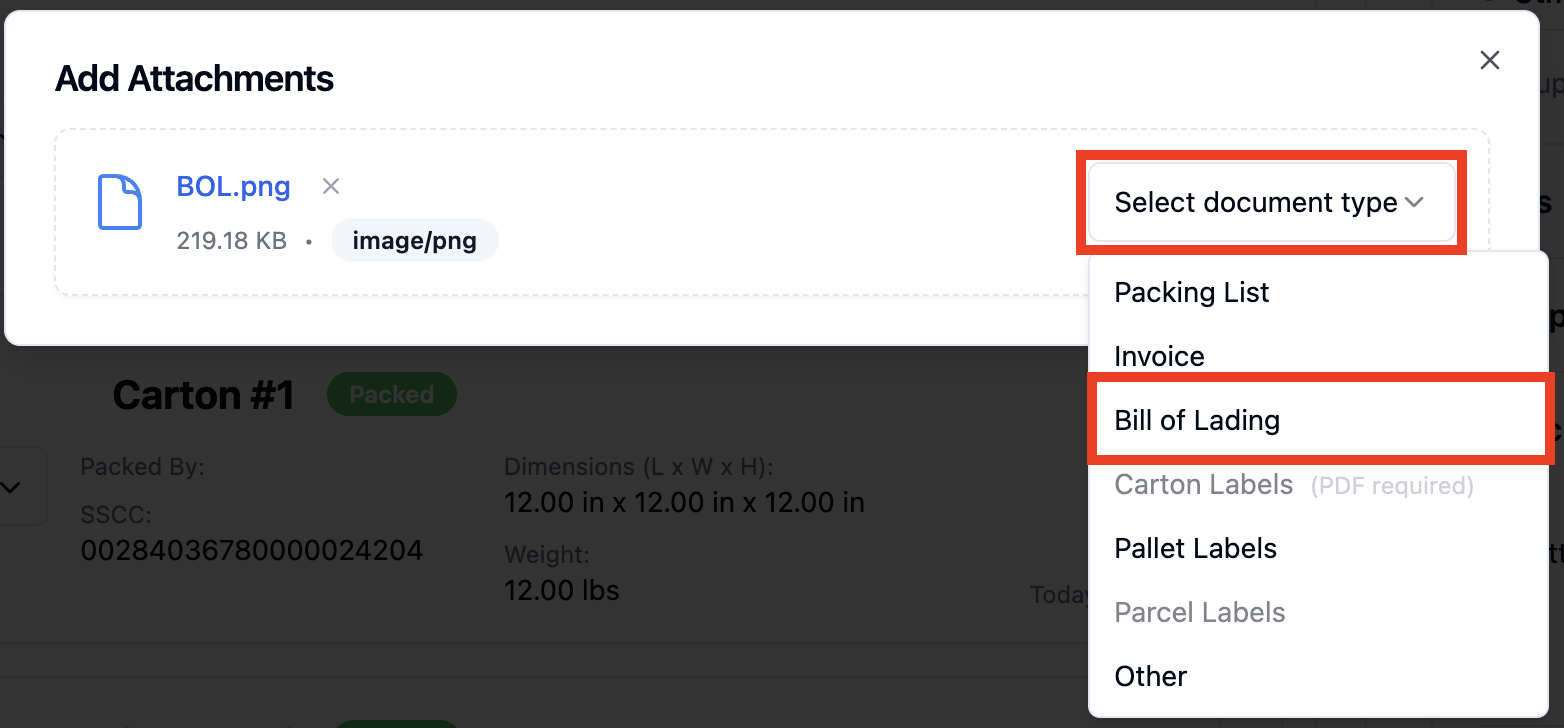
Click 'Select document type' and the click 'Bill of Lading'
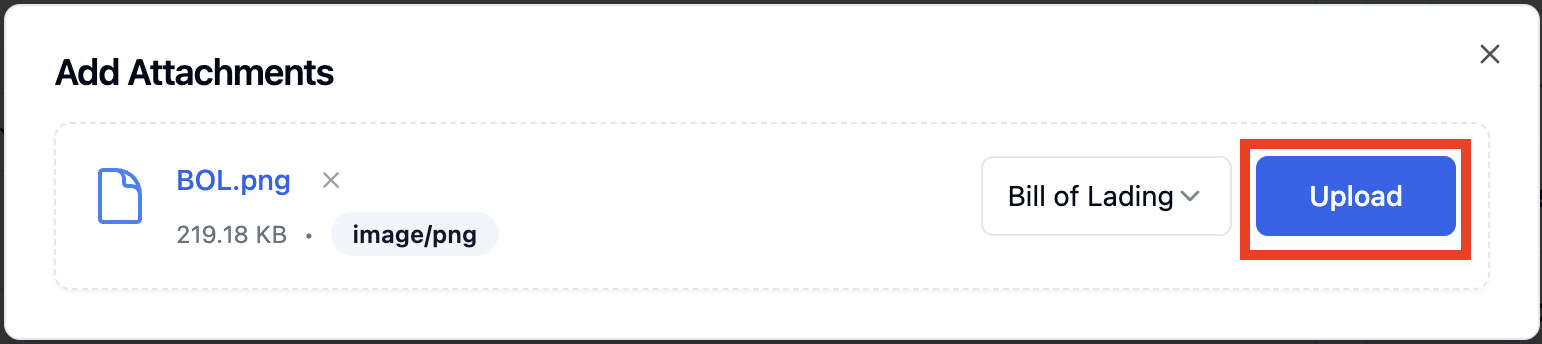
Click 'Upload'
The BOL you uploaded will be in the Attachments section!
Generating a Standard BOL in RetailReady
Use this method when the retailer follows a standard BOL format that RetailReady can generate for you, rather than a document you'd upload.
Open up your RetailReady Dashboard, and navigate to 'Loads' tab on the Left Hand Side.
Click on desired Load
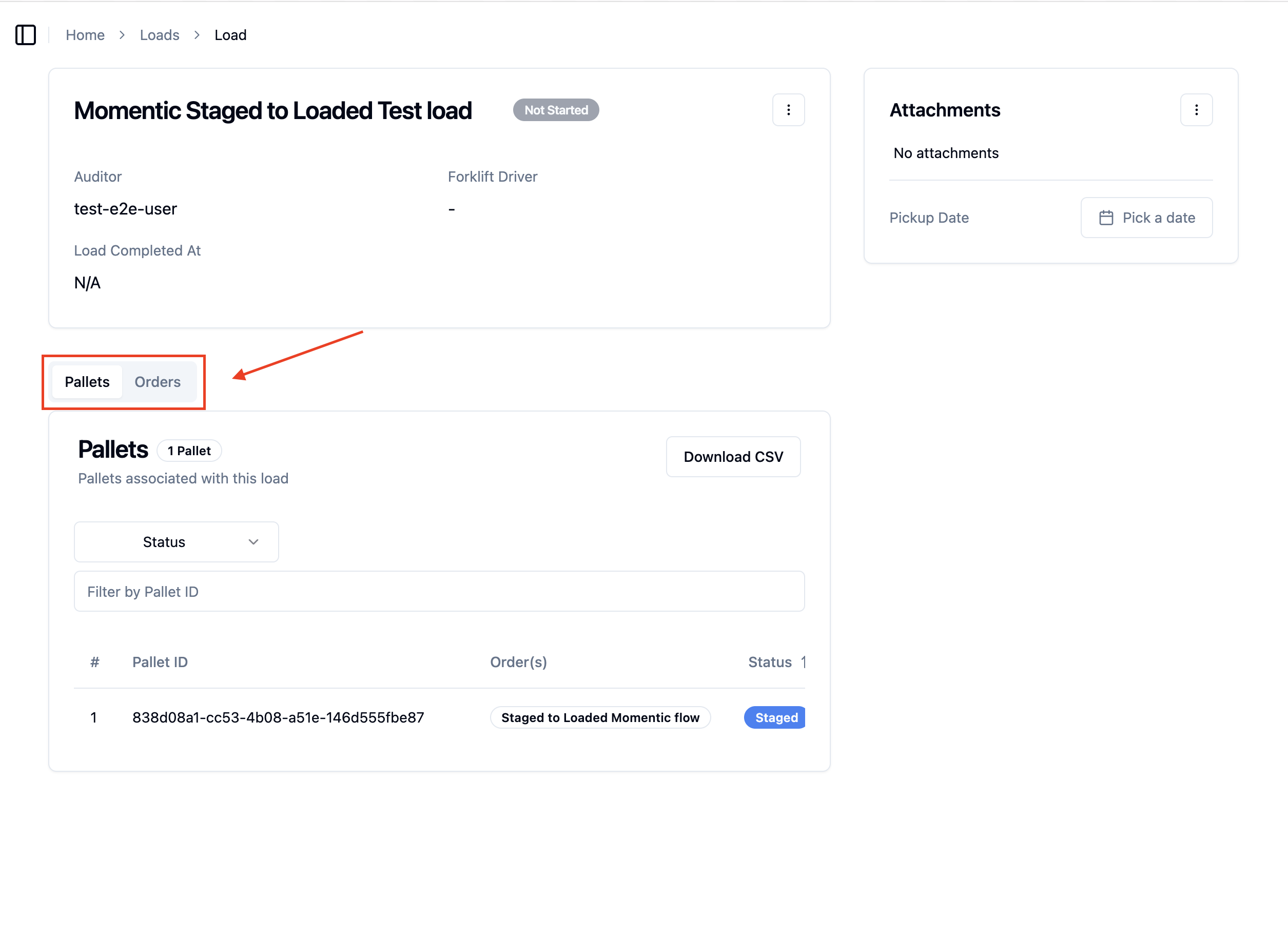
Toggle from Pallets to Orders
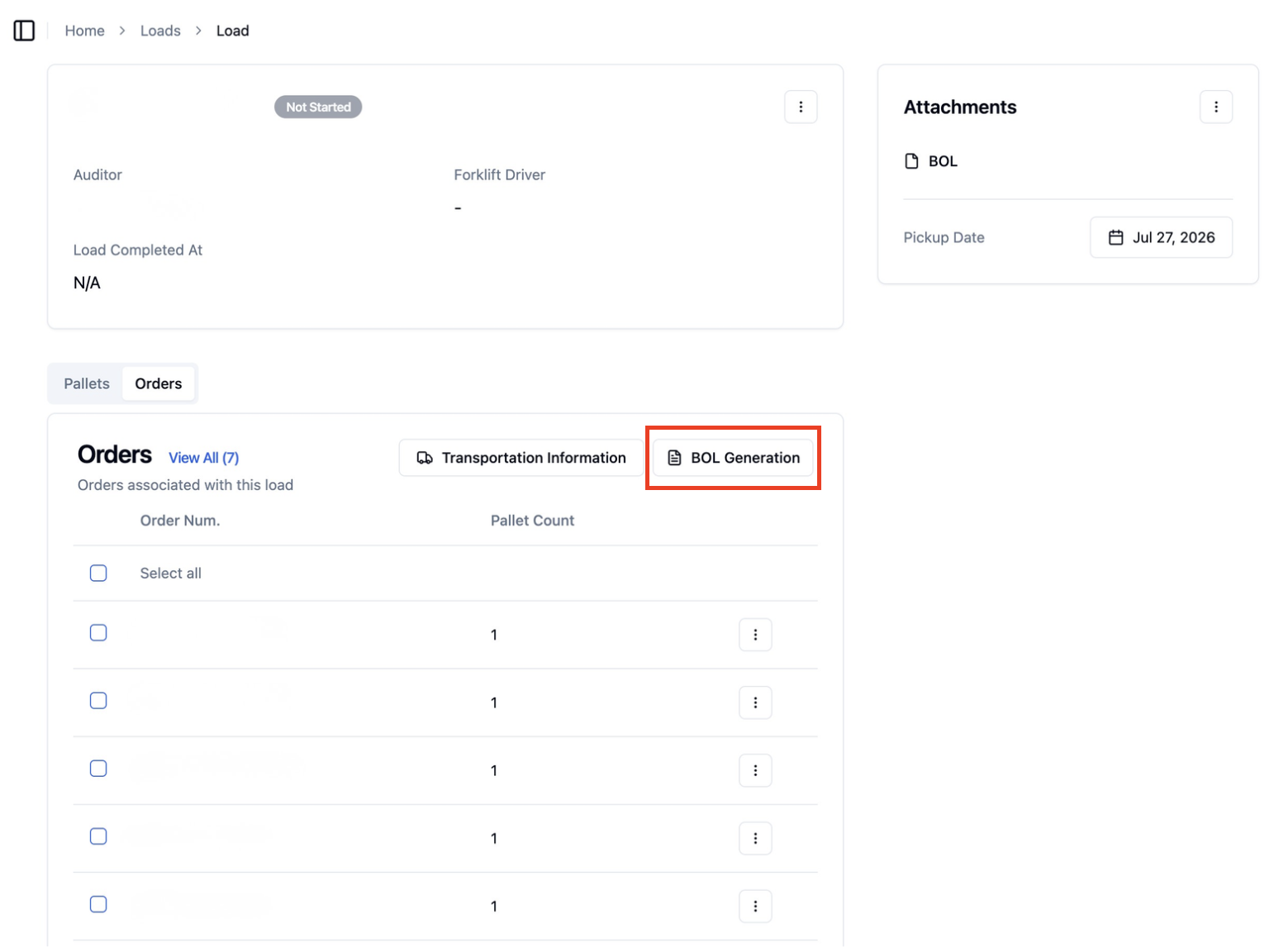
Click 'BOL Generation'
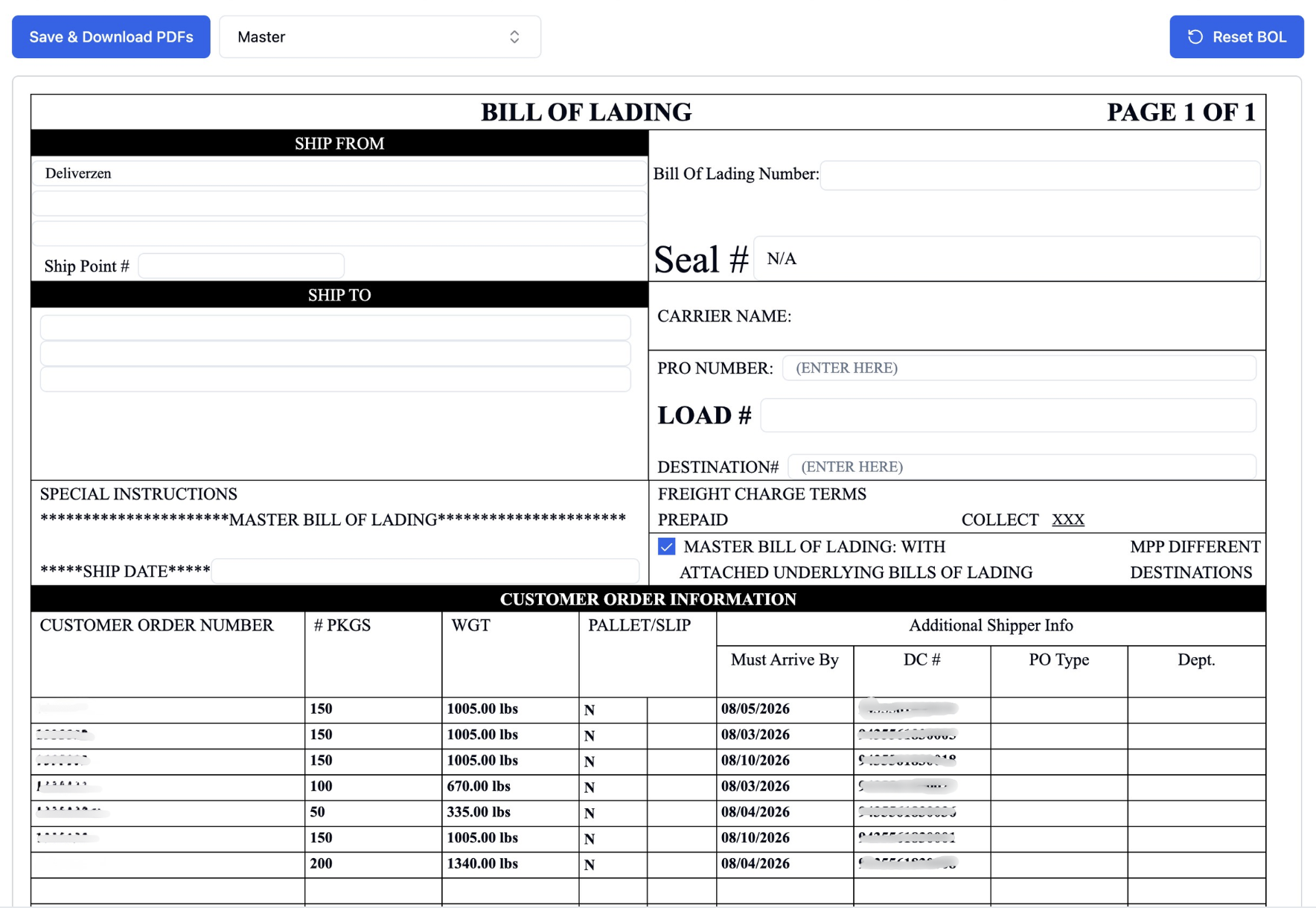
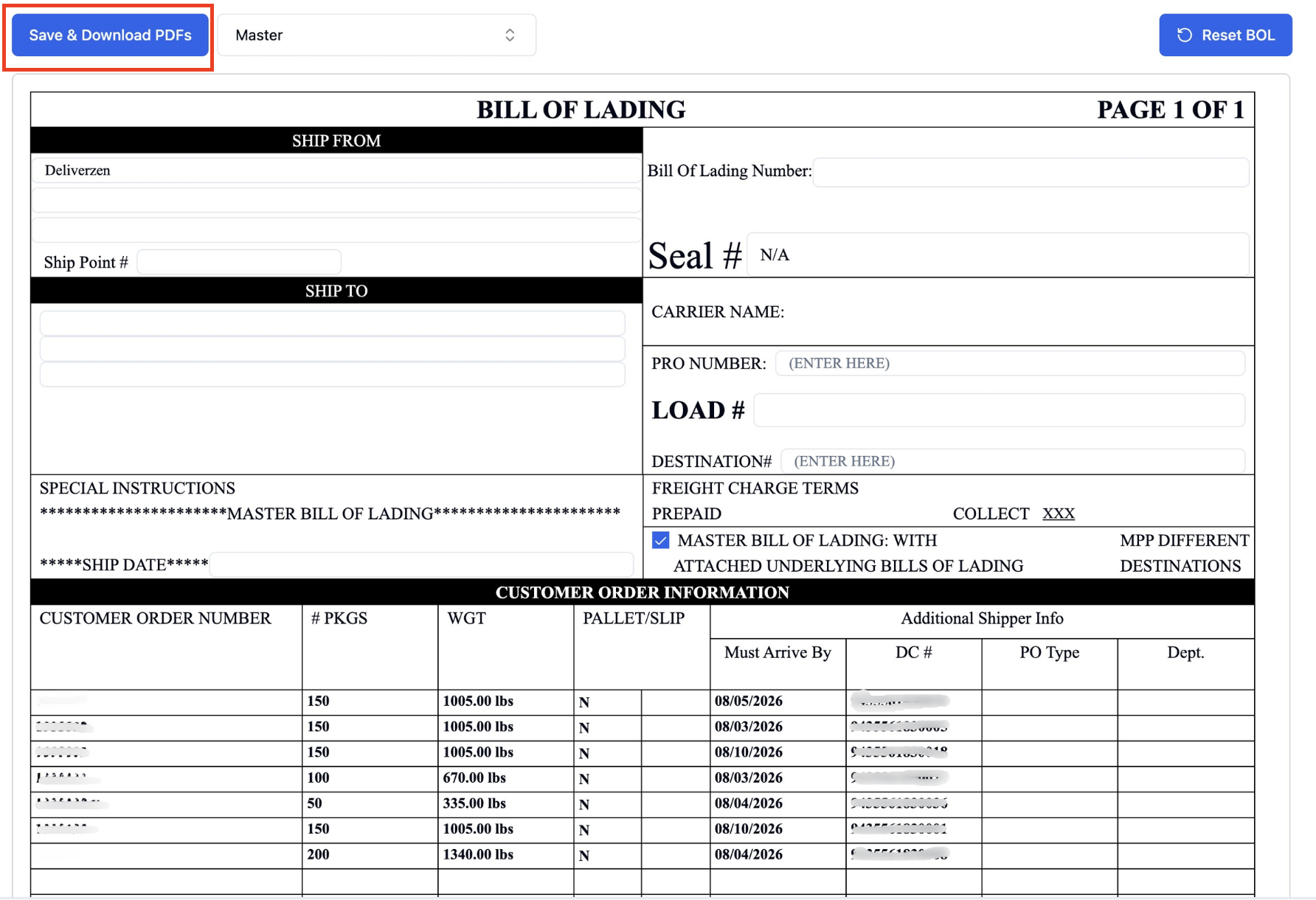
The BOL form will open in that same window, where you can fill it in directly.
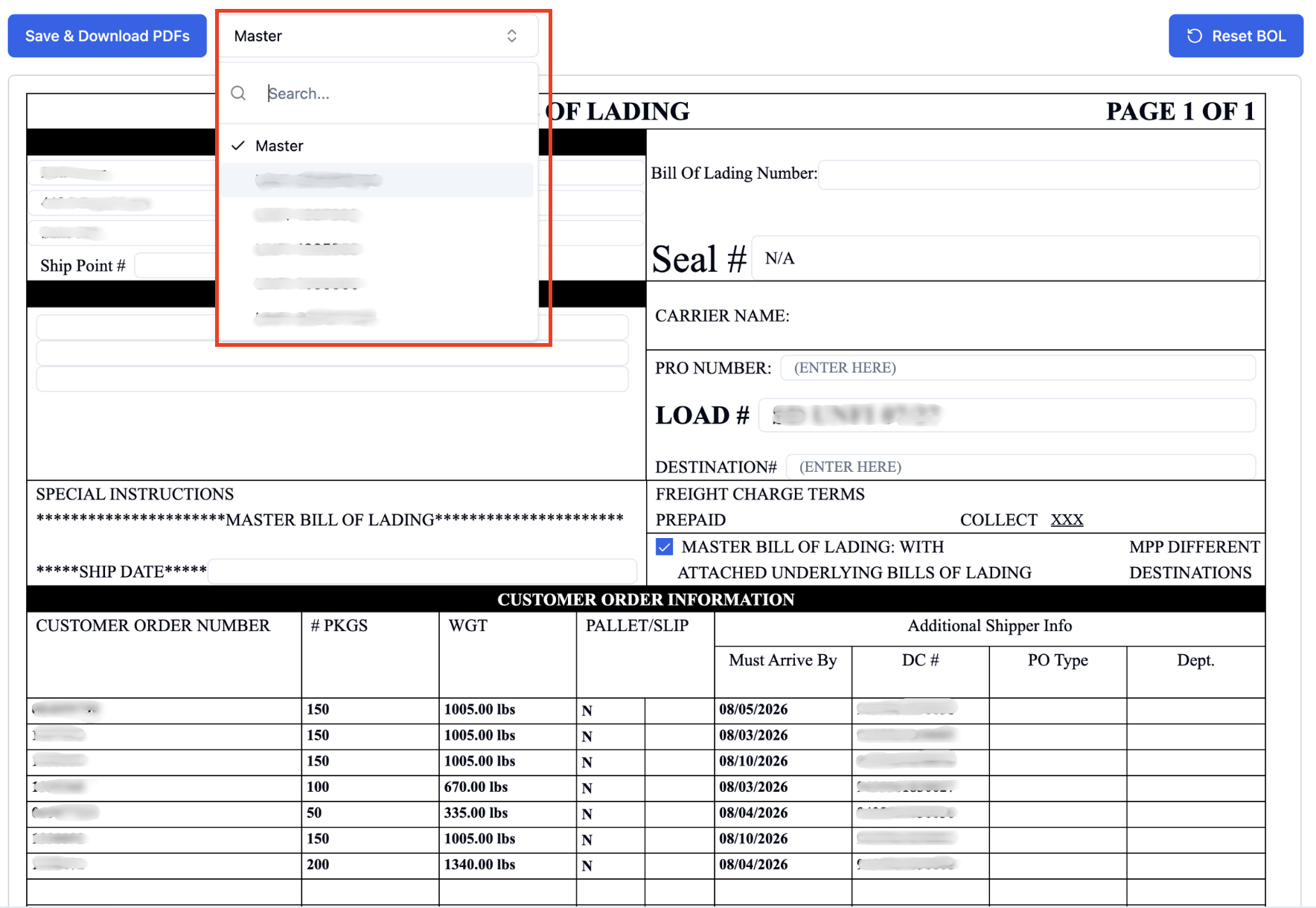
Use the dropdown menu to choose whether you want to fill out the BOL for the entire shipment (Master) or for individual orders.
Click 'Save & Download PDFs' and it will automatically load into the BOL Attachments on RetailReady
FAQs
Where do I find the signed BOL for a load?
Check the Attachments box at the load or order level. Every signed BOL is captured automatically as a photo during Load Out, so it will be there regardless of any other BOL documents on file.
Do I need to fill out the BOL for the whole shipment, or can I do it per order?
You can choose either. Use the dropdown menu to select whether you're filling out the BOL for the Master (entire shipment) or for individual orders.
What if the carrier or retailer already gave me a BOL, do I still need to fill one out in RetailReady?
No, if a BOL was already provided by the retailer or carrier, you can upload that document directly instead of generating a new one in RetailReady.