How to Add a Tracking Number to a Carton and When It's Required
Last updated: September 15, 2026
RetailReady lets you add a parcel tracking number directly to individual cartons from the web interface.
Use this when a retailer requires carton-level tracking but RetailReady isn't printing the shipping label, e.g. when the carrier or retailer supplies it. The carton still needs a tracking number before the ASN can go out.
This article covers how to add a tracking number to a packed carton, when tracking numbers are required before sending an ASN, and common questions about the feature.
Adding a Parcel Tracking Number to a Carton
If your retailer requires a parcel tracking number at the carton level (for example, Zappos), you can now enter that number directly in RetailReady without needing to upload any files. Have the tracking number from your shipping carrier ready before you begin.
After packing, on the main RetailReady dashboard, navigate to ‘Orders’, and open the shipment you are working on.
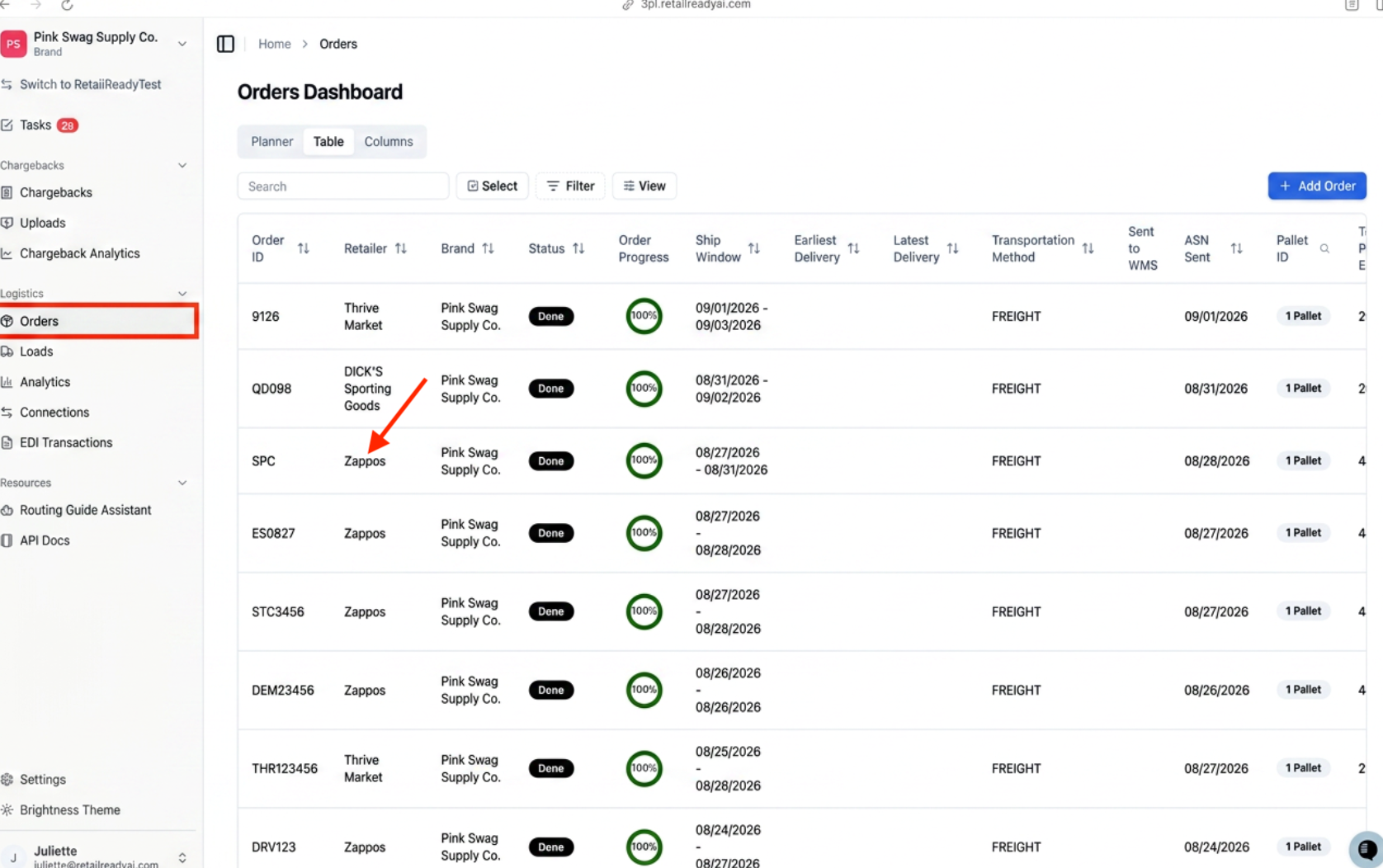
Navigate to the 'Cartons' tab within the order. Locate the carton where you need to add the parcel tracking number.
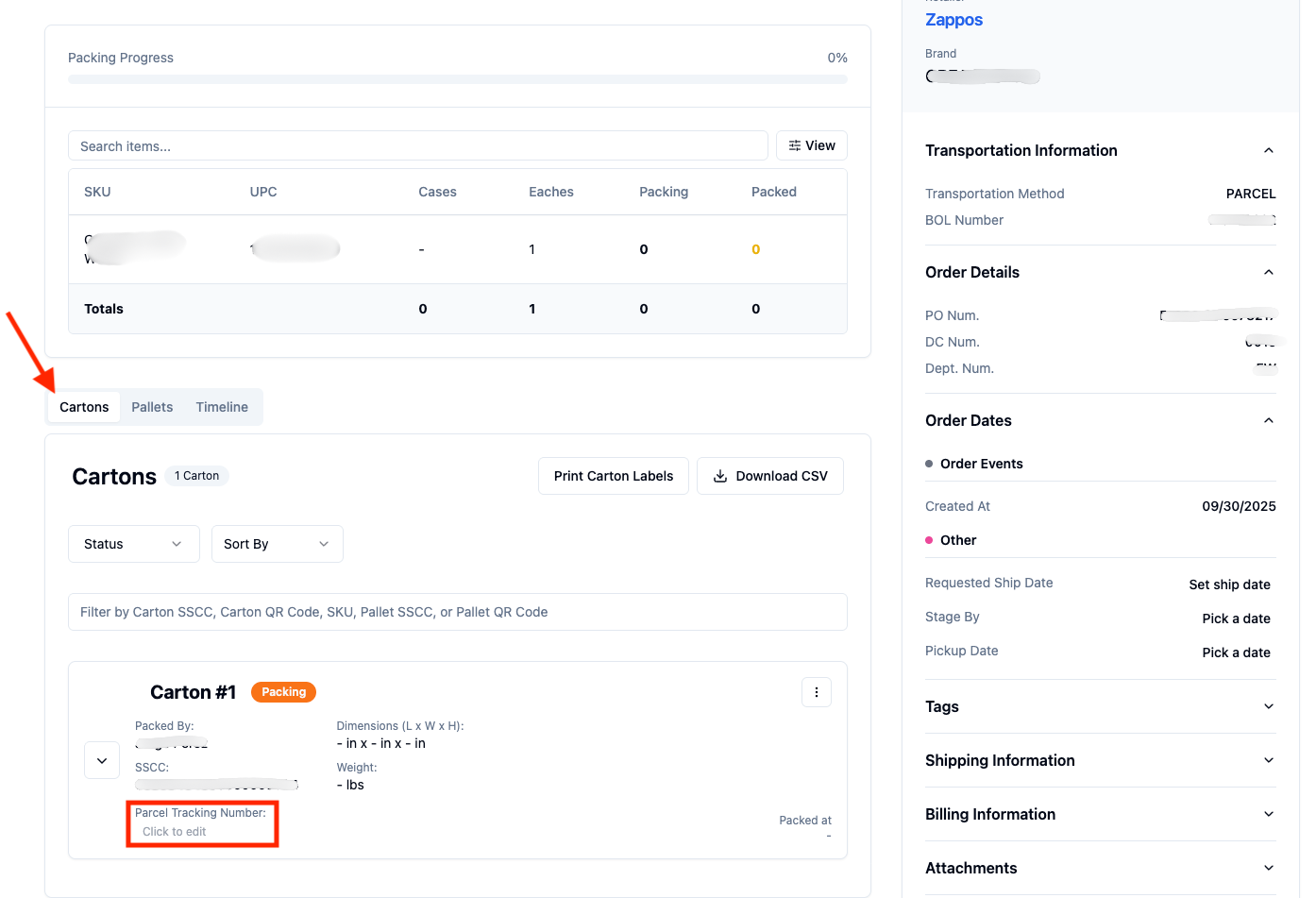
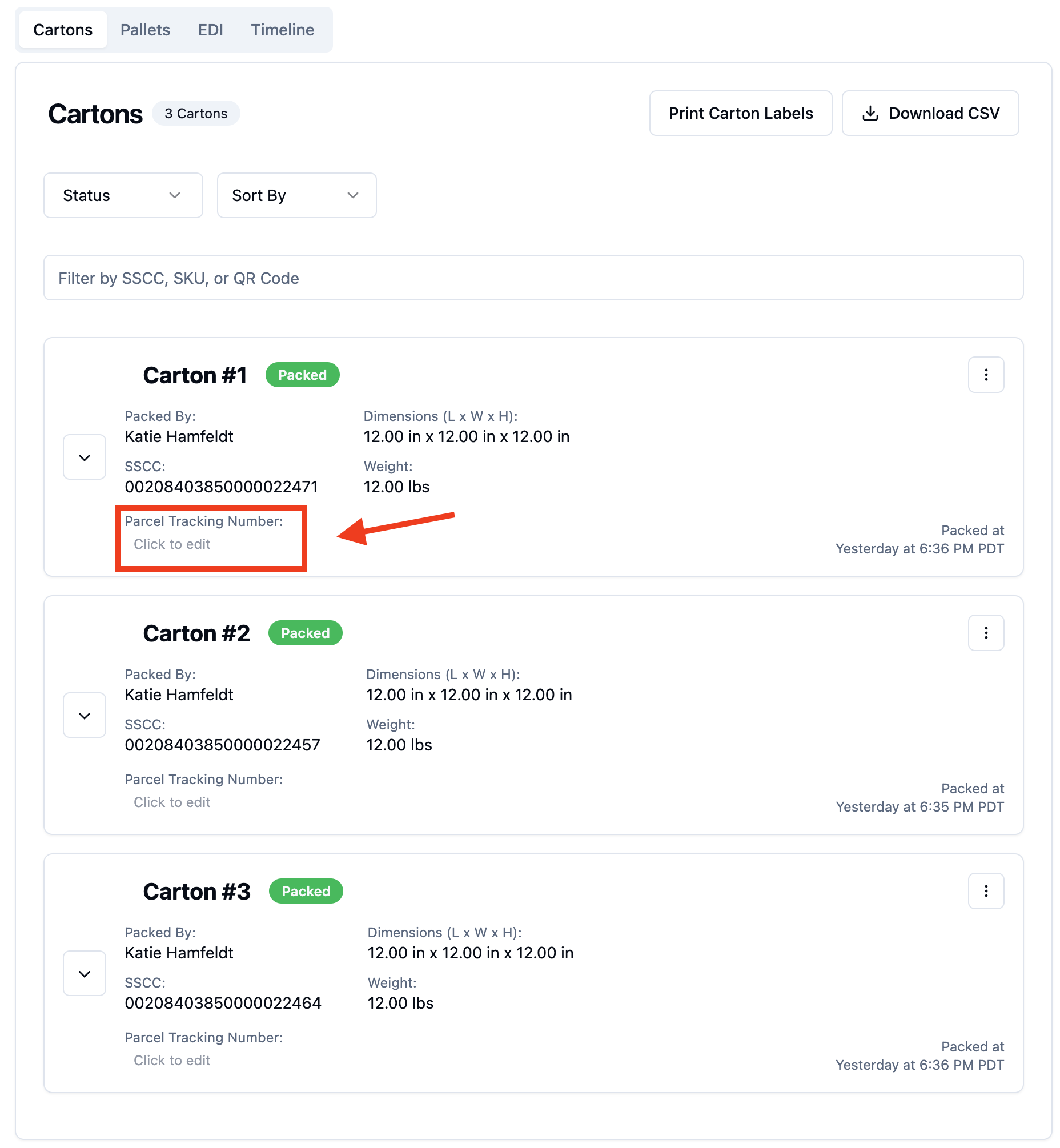
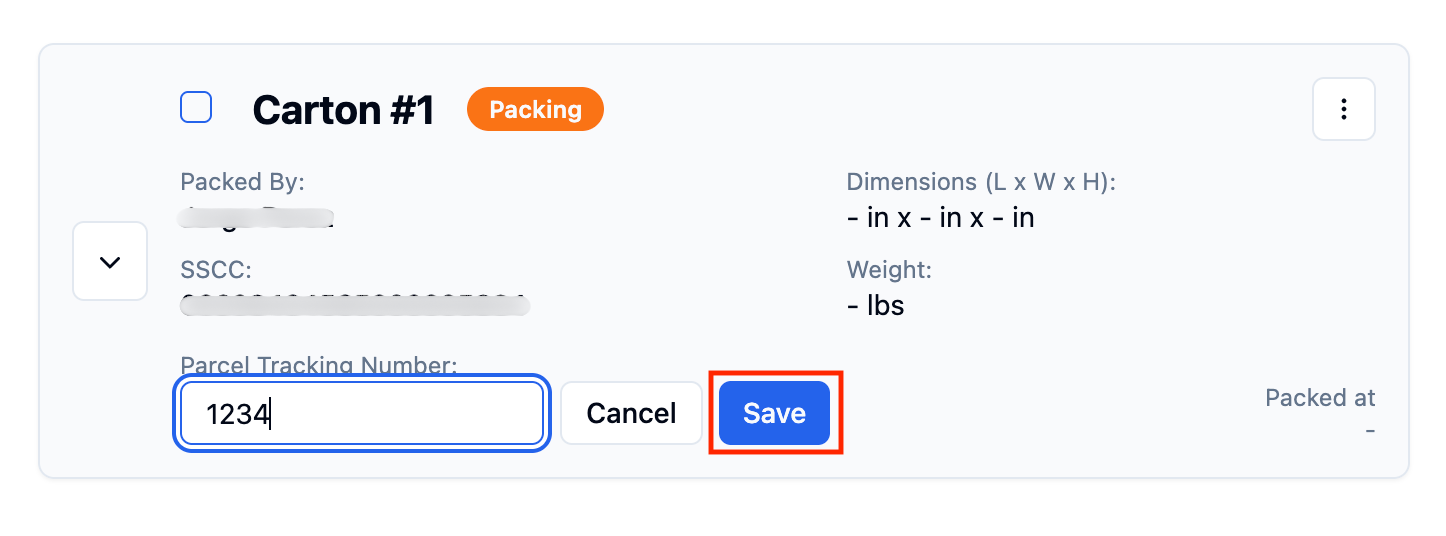
Find the 'Parcel Tracking Number' field click 'Click to edit' and type or paste the tracking number provided by your carrier (for example, a UPS tracking number).
Click 'Save' to apply the change. The tracking number is now stored against that carton and will be included in the ASN when it is sent.
Repeat this process for each carton in the shipment that requires a parcel tracking number.
FAQs:
Can I enter tracking numbers for multiple cartons at once?
Currently, tracking numbers must be entered one carton at a time from the carton detail view. If you have a large number of cartons to update, we recommend working through them in order using the Cartons tab on your shipment.
What happens if I accidentally enter the wrong tracking number?
You can return to the carton detail view at any time and update the tracking number. Each time you save a change, RetailReady logs the update, including the previous value, so there is always an audit trail of what was entered and when.
I don't see the Parcel Tracking Number field on my carton. What should I do?
If the field is not visible, it may not be enabled for your retailer configuration. Please reach out to your RetailReady account contact or the support team and we can confirm the setup for your account.
Does this work for retailers other than Zappos?
Yes. The ability to enter a parcel tracking number on a carton and the scoped required-field settings are available for any retailer whose ASN configuration includes carton-level marks and numbers fields. Your specific retailer setup determines which fields appear and whether they are required.
Where do I get the parcel tracking number to enter?
Your retailer will provide the carrier labels or tracking numbers separately. For example, Zappos provides UPS labels outside of RetailReady. Locate the tracking number printed on the carrier label and enter it manually into the 'Parcel Tracking Number' field on each carton.
Can I enter tracking numbers for some cartons but not others?
Yes. You can save tracking numbers to cartons individually at any point before sending the ASN.
Does RetailReady automatically read tracking numbers from carrier label PDFs?
Not at this time. Automatic parsing of carrier label PDFs is not available. Tracking numbers must be entered manually on each carton.