Bulk Take off hold
Last updated: May 7, 2026
Bulk Remove Brand Hold
You can now remove multiple orders from hold at once, making it faster to process orders that are ready to move forward.
Who Can Use This Feature
Only Brand Administrators can use the bulk remove brand hold feature. If you're a 3PL user, you won't see this option.
How to Remove Orders from Hold
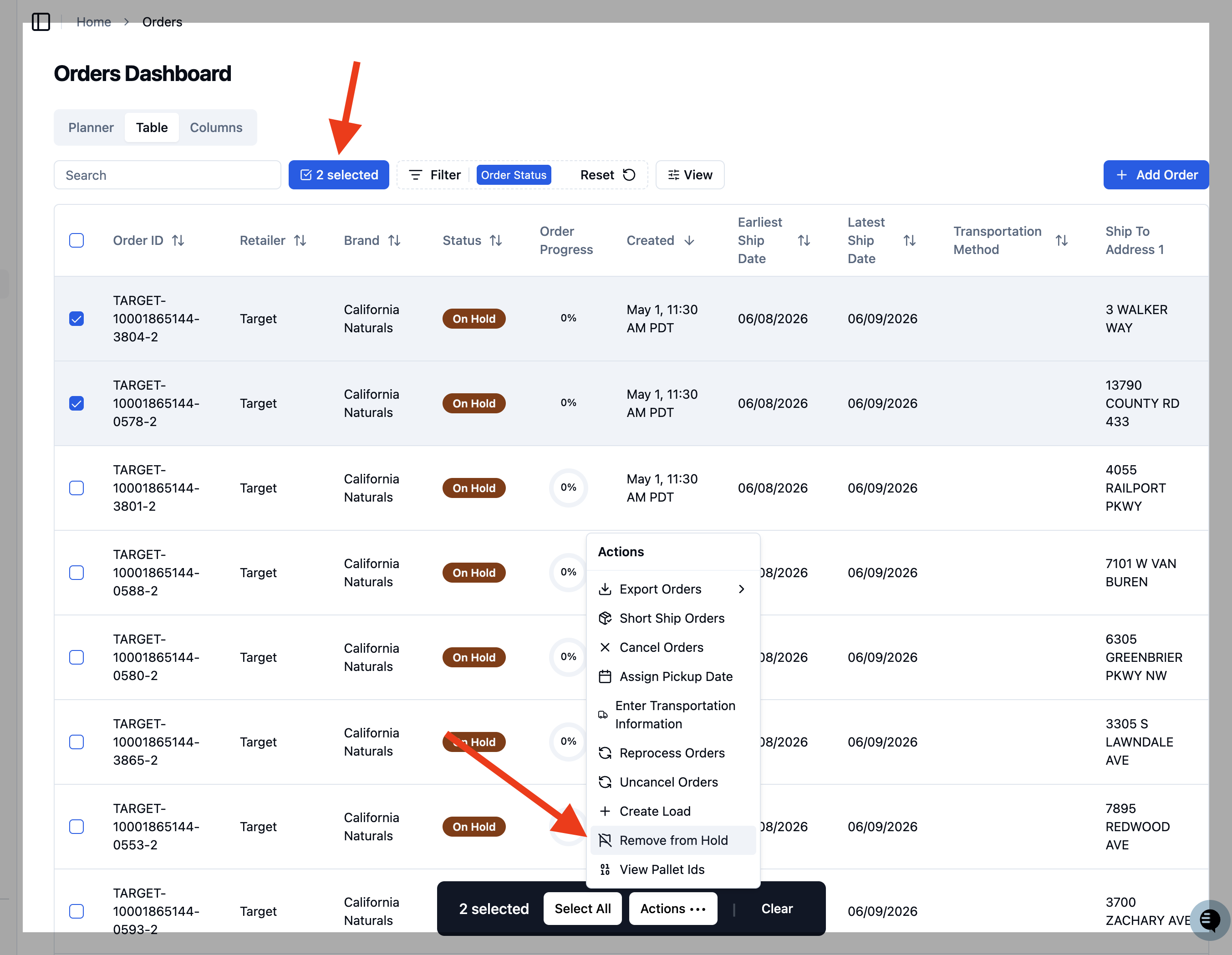
Go to your Orders 'Table'
Select the checkbox next to each order you want to remove from hold
Look for the "Remove from Hold" button in the bulk actions toolbar
Click the button to remove all selected orders from brand hold
When the Remove Button is Available
The "Remove Brand Hold" button will only work when:
All selected orders are currently on hold
The orders are on hold only because of brand hold reasons
You have brand administrator permissions
When the Remove Button is Disabled
The button will be grayed out and unusable if:
Mixed order statuses: Some selected orders are on hold and others are not
Multiple hold reasons: Orders have other types of holds in addition to brand hold (such as Create SKU tasks)
No orders selected: You haven't selected any orders yet
Understanding Error Messages
"Selected orders have different statuses"
This means you've selected both orders that are on hold and orders that aren't. Only select orders that are currently on brand hold.
"Some orders have additional hold reasons"
This means at least one selected order is on hold for reasons beyond just brand hold. These orders need individual attention to resolve other hold issues first.
"Access denied"
You don't have permission to remove brand holds. Contact your administrator if you believe you should have access.
What Happens After Removing Hold
Once you successfully remove orders from brand hold:
The orders will move back to normal processing
They'll appear in the regular workflow queues
Warehouse staff can begin picking and packing these orders
You'll see a confirmation message showing how many orders were updated
Tips for Success
Check order details first: Make sure orders are ready to be released before removing the hold
Select similar orders: Choose orders that are all in the same hold status for best results
Work in batches: For large numbers of orders, process them in smaller groups
Need Help?
If you're having trouble with the bulk remove feature or think you should have access but don't see the button, contact your system administrator.