Bulk Reprocess Order
Last updated: June 25, 2026
You can now reprocess multiple orders at once instead of doing them one by one. This new bulk action lets you select up to 20 orders and reprocess them all with a single click.
What does Bulk Order Reprocessing do?
Bulk reprocessing allows you to reprocess multiple orders, refreshing the order status and applying any new updates to the orders.
Bulk reprocessing is helpful when you need to:
Update multiple orders after an Item Master change
Fix issues affecting multiple orders at once
Completely reset an order (including disassociating from loads)
How to Use Bulk Reprocessing
Step 1: Select Your Orders
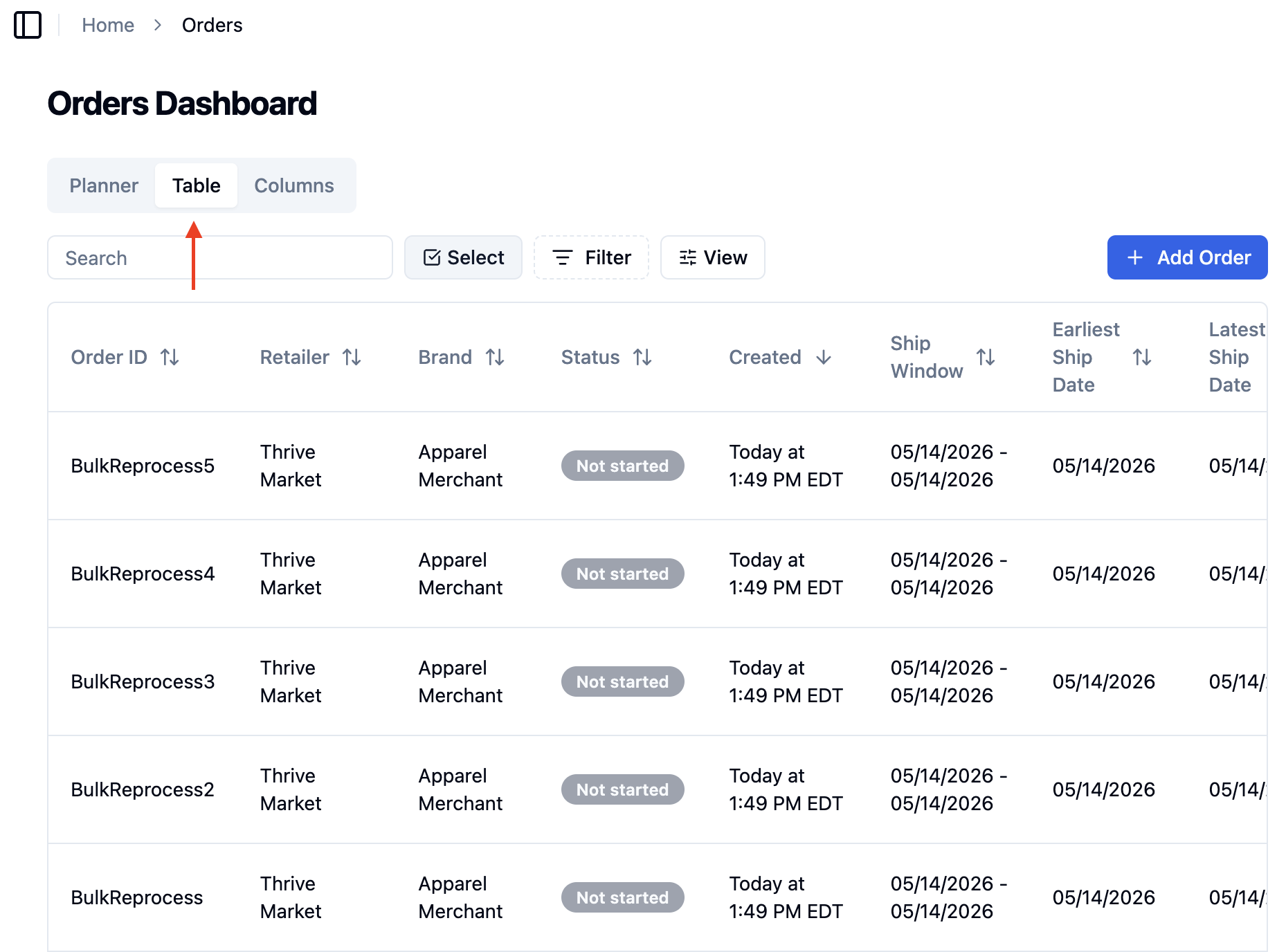
Go to the Orders Dashboard page and click 'Table' view
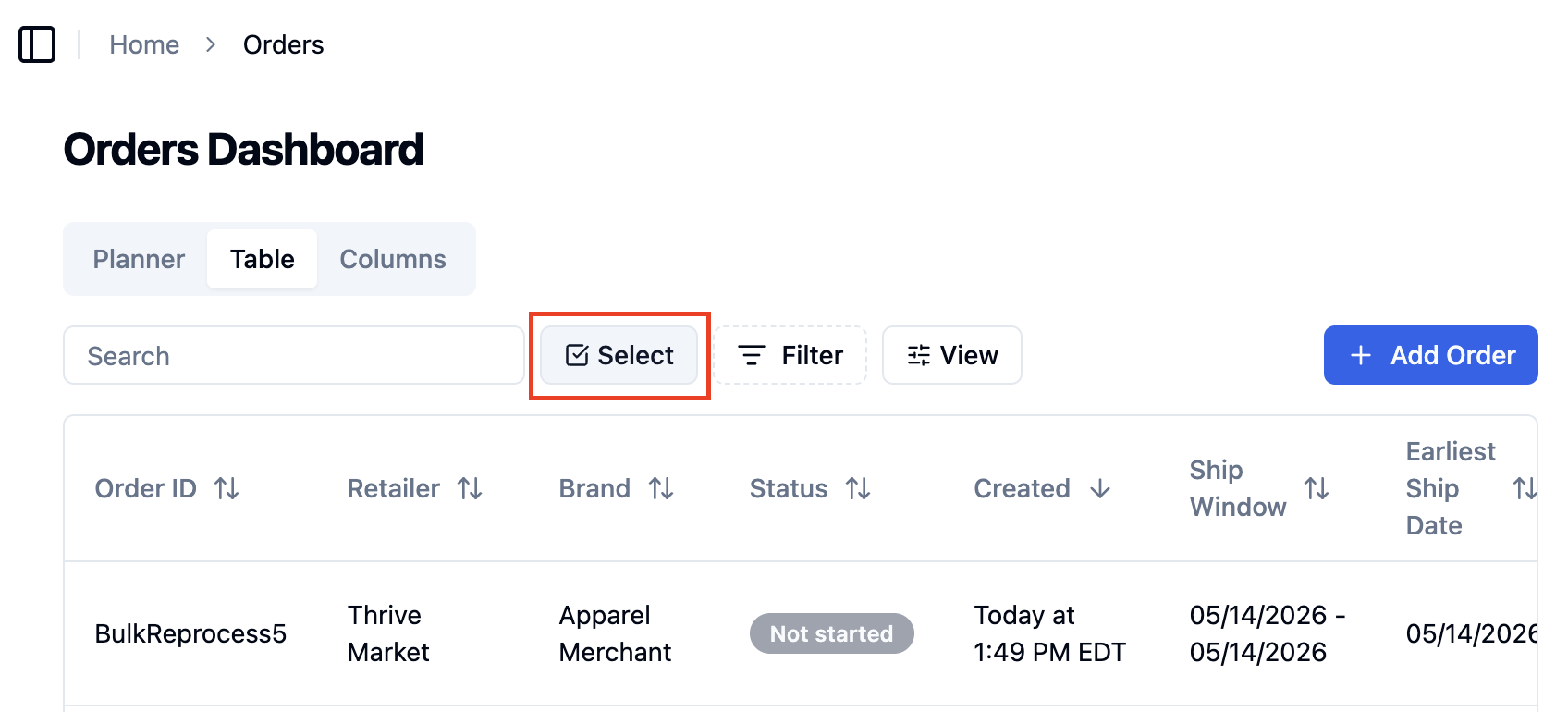
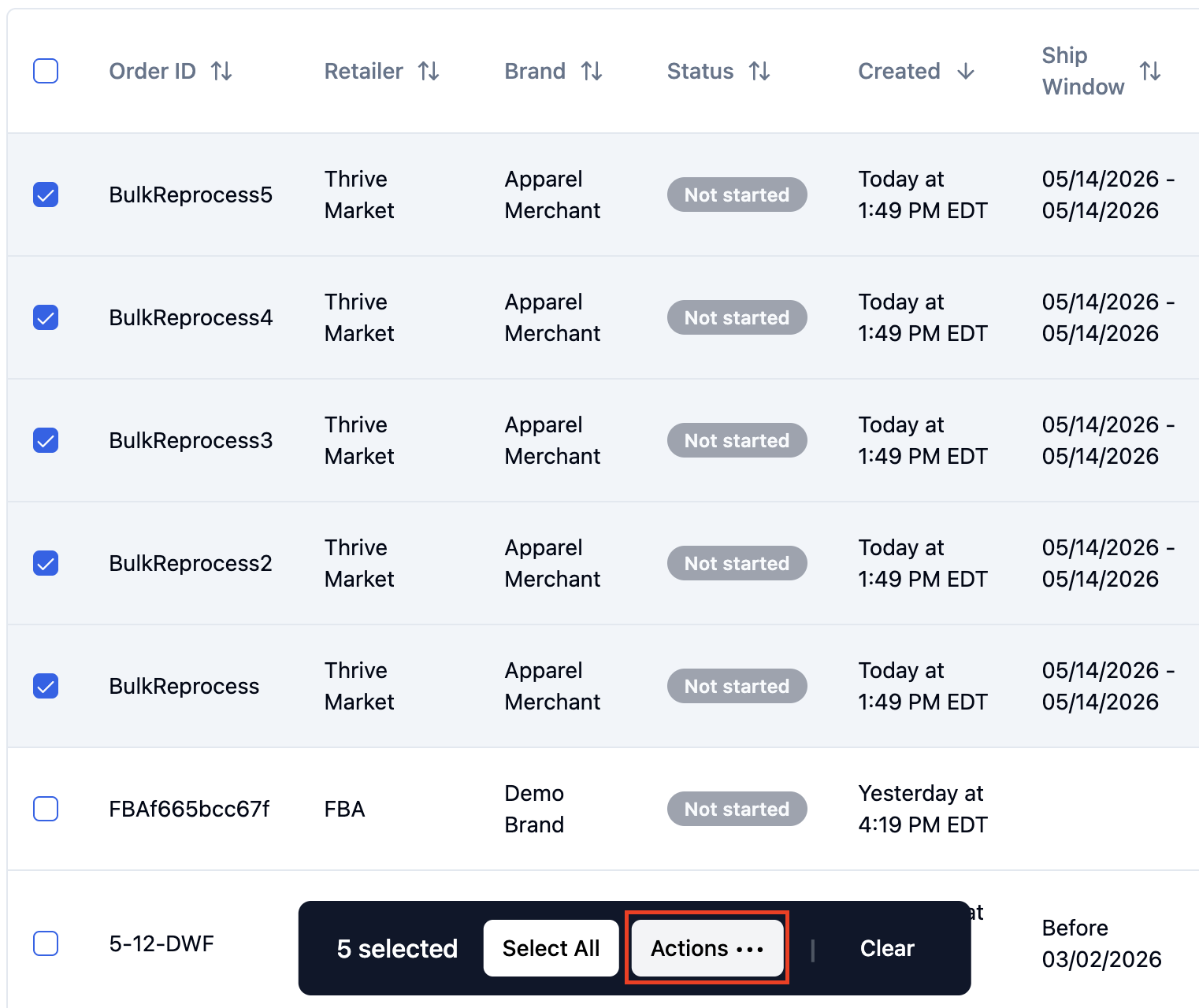
Click 'Select' to multi-select the orders you want to reprocess
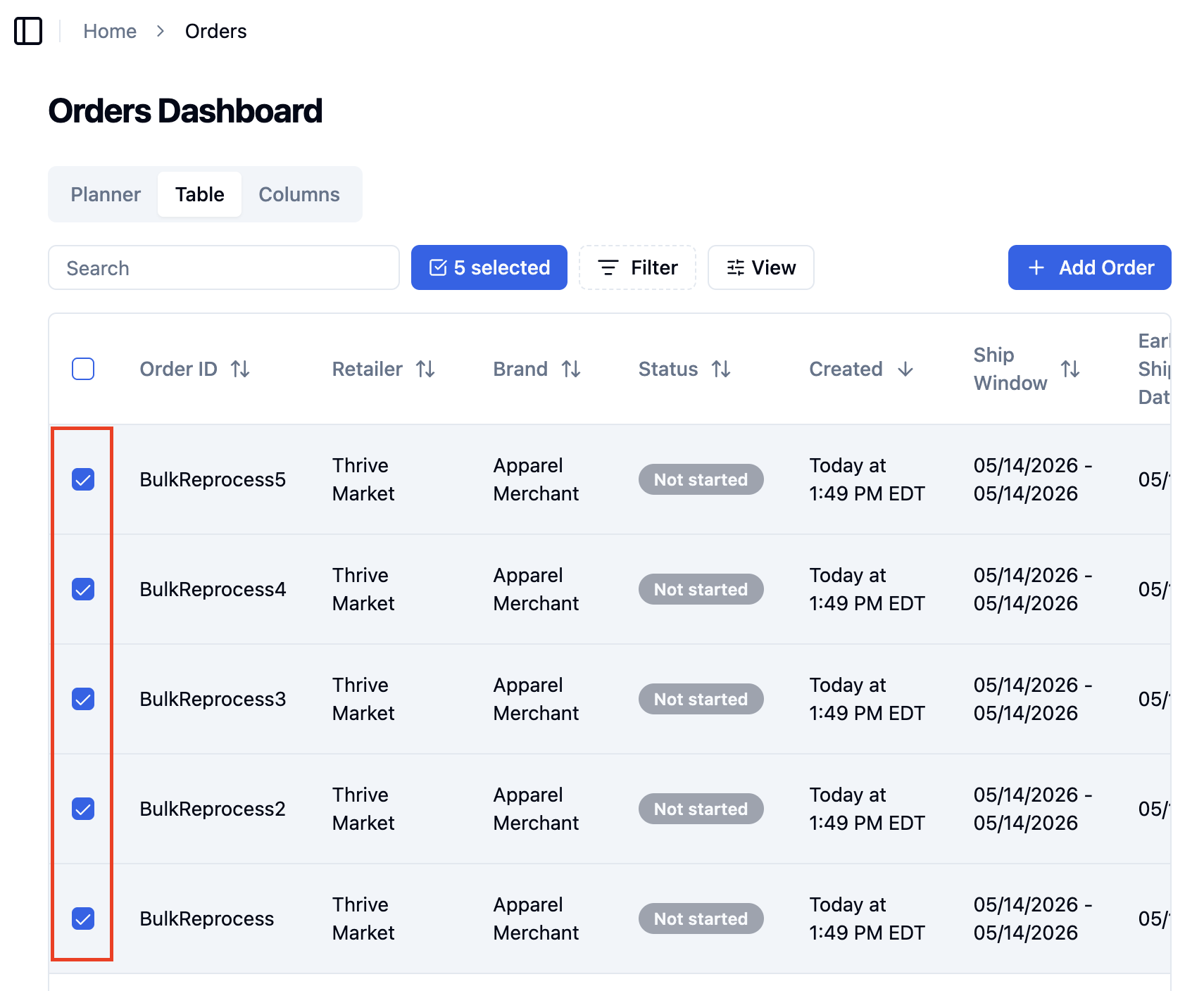
Using the checkboxes, you can select up to 20 orders at a time
Step 2: Start the Bulk Reprocess
After selecting your orders, click 'Actions ...'
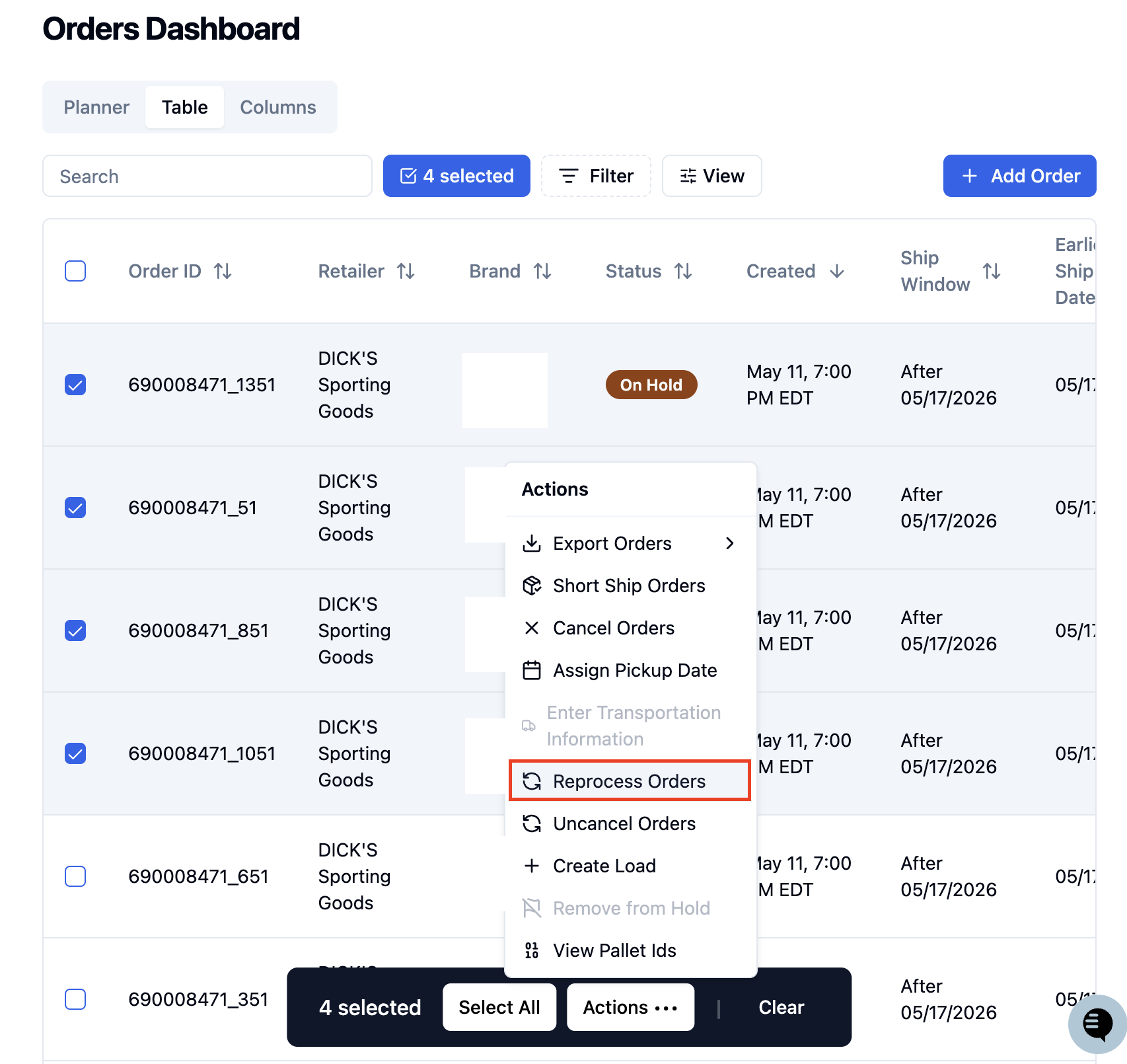
Then click on 'Reprocess Orders'
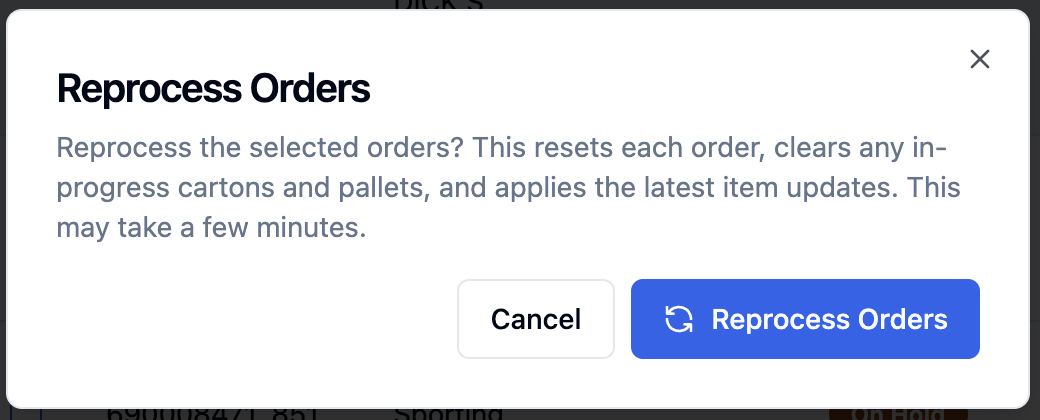
A dialog will appear asking you to confirm, click 'Reprocess Orders'
Step 3: Track Progress
You'll see a message confirming how many orders are being reprocessed, and the orders will be processed in the background. When complete, the system will display a message saying that bulk reprocessing has completed.
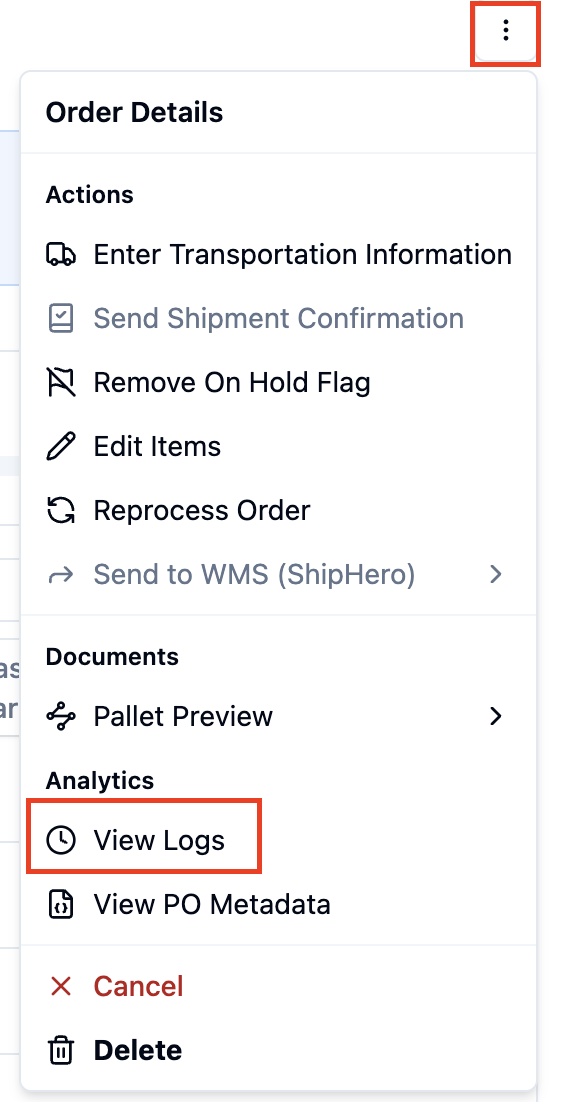
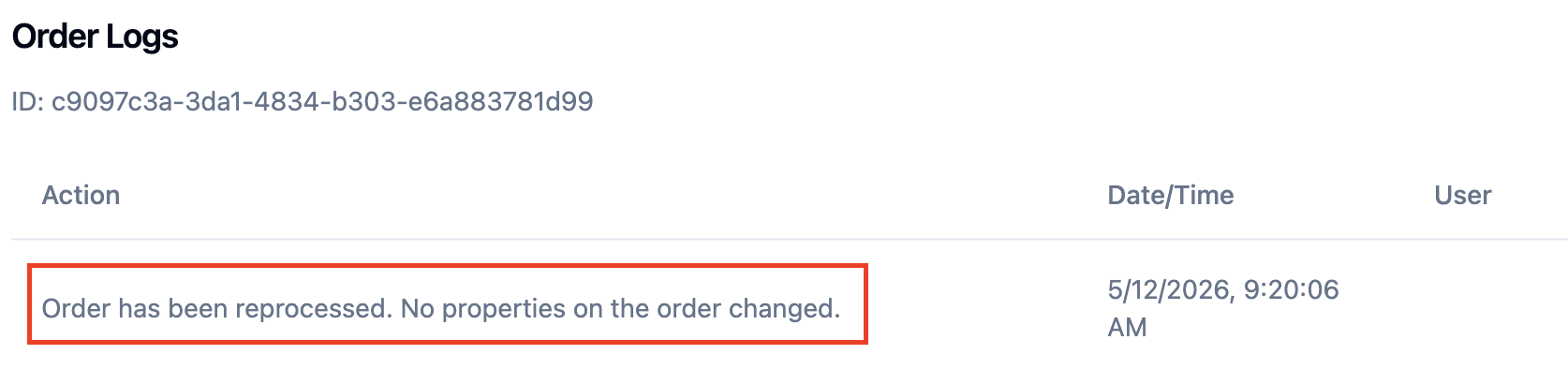
From an Order's page, you can click '...' and then 'View Logs' to see an in order's activity when reprocessing is complete.
FAQs: Common Error Messages
"Reprocess is blocked for Order #12345 - Open PO change in progress"
What this means: One of your selected orders has a purchase order change currently being processed.
What to do: Wait for the PO change to complete, then try reprocessing again. You can also remove that order from your selection and process the others.
"You don't have permission to reprocess orders"
What this means: Your user account doesn't have the right permissions for reprocessing.
What to do: Contact your warehouse manager or system administrator to get the proper permissions.
"Cannot select more than 20 orders for bulk reprocess"
What this means: You've selected too many orders at once.
What to do: Reduce your selection to 20 orders or fewer, and break your work into multiple batches.
Getting Help
If you continue have additional questions around this feature, please use the Chatbot feature (bottom right of the page) in RetailReady to contact the RetailReady support team. Please include the order number(s) you are attempting to reprocess.