Troubleshooting Zebra Printer Label Printing Issues
Last updated: September 7, 2026
This article covers common issues with Zebra printers not printing labels correctly in RetailReady, including blank labels, misaligned labels, connectivity issues, and PDF printing problems.
For General Setup please refer to📄 Printer Setup Guide
Basic Troubleshooting
Basic Troubleshooting Steps
Restart the printer completely
Check that labels are loaded correctly in the printer
Verify printer settings match your label size
Ensure that your printer is not bouncing between different access points in the warehouse (IT team should know how to test this)
This may be happening if the printer randomly stops printing mid-labeling
Calibration and Label Alignment Fixes
If labels are printing but appear misaligned or cut off, this is typically a printer calibration issue:
Access your printer's IP address through a web browser
Adjust the overall label height settings in the printer configuration
Check horizontal/left offset driver settings are set to 0
Test print alignment after each adjustment
Printer Connection and Setup Issues
If RetailReady shows "Cannot Connect to Printer" or similar errors:
Connection Troubleshooting
Restart the printer and reconnect to WiFi
Check that the printer shows as "Ready" in the printer utility
Test the printer connection in RetailReady by going to Settings > Printers > Test Printer
If the test label prints successfully, the printer connection is working
Blank Labels or Labels Not Printing
If the printer receives the print job but produces blank labels:
Basic Printer Checks
Verify labels are loaded correctly
Check for any error messages on the printer screen
Try holding the feed button to advance labels
Ensure the printer is not out of power
Ensure PDF printing is setup (see below for more information on PDF printing issues)
Zebra API and Wireless Connectivity Issues
If your Zebra printer is connected wirelessly and labels are not printing, this may be due to Zebra API issues that can affect wireless printing from iPads or computers.
Workaround for Wireless Issues
Note! Browser Print Support is deprecated
Browser Print Support was previously listed as a way to work around this issue, but it is no longer recommended. Zebra has discontinued development on Browser Print, and it may not be compatible with newer Zebra printer models/firmware.
If you have a USB connection available, you can use a wired connection as a workaround:
Download Zebra Browser Print Support
Fill out the form (you’ll be automatically approved to download).
Once downloaded, open the Zebra Browser Print Support app.
Open the RetailReady App on your desktop.
The first time you connect a wired printer, you’ll see a Zebra Browser Print popup asking for permission to communicate with your browser — select Yes.
Contact Zebra support at (866) 322-5203 to confirm the printer is setup for both PDF and ZPL.
Select the printer labeled with (usb).
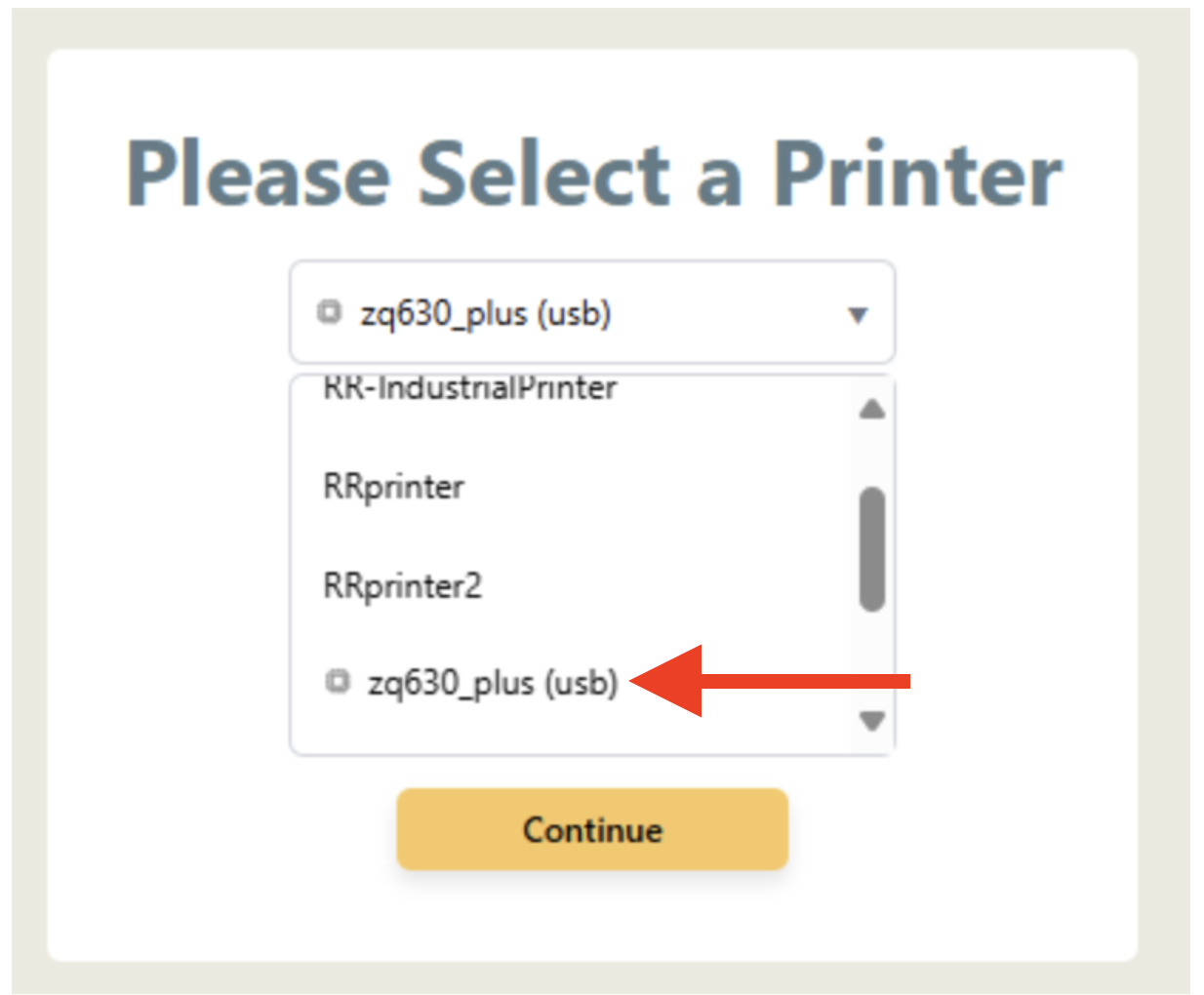
PDF Printing Setup Issues
If ZPL labels print correctly but PDF labels do not print, your printer may need PDF emulation setup. An example of this is if FBA labels do not print, as those are PDF labels.
Steps to Resolve PDF Printing
Contact Zebra support at (866) 322-5203
Inform them you need to print both ZPLs and PDFs via API
They will help set up PDF emulation on your printer
Send the PDF emulation file (.NRD file) to your printer
Test PDF printing after setup is complete
Labels printing upside down
If your labels are printing upside down and you need them inverted you may need to adjust your settings:
Steps to resolve upside down printing (API connection)
Connect to the affected printer using the Zebra Setup Utilities App
Select Media Settings
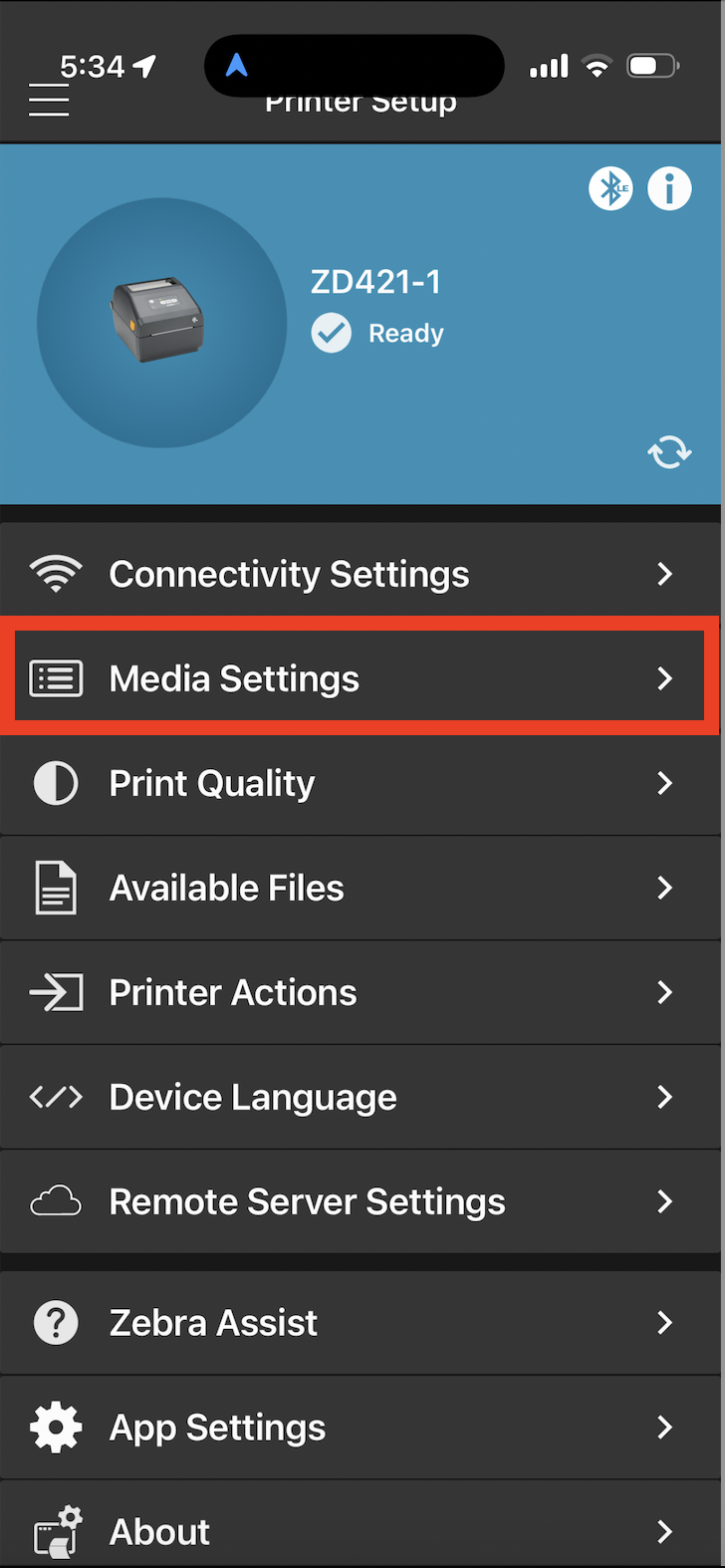
Select Media Settings again!
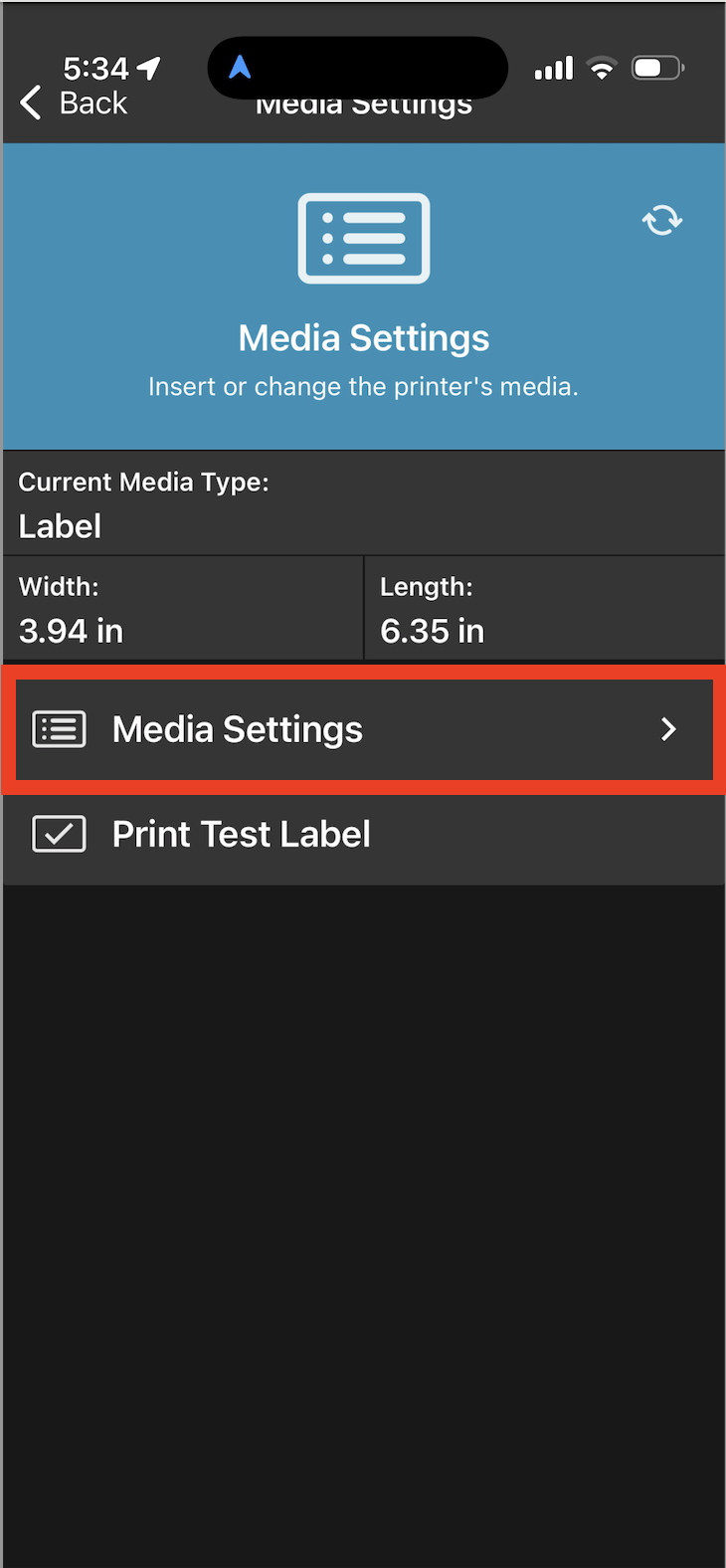
Adjust the Orientation to be "Inverted" instead of "Normal"
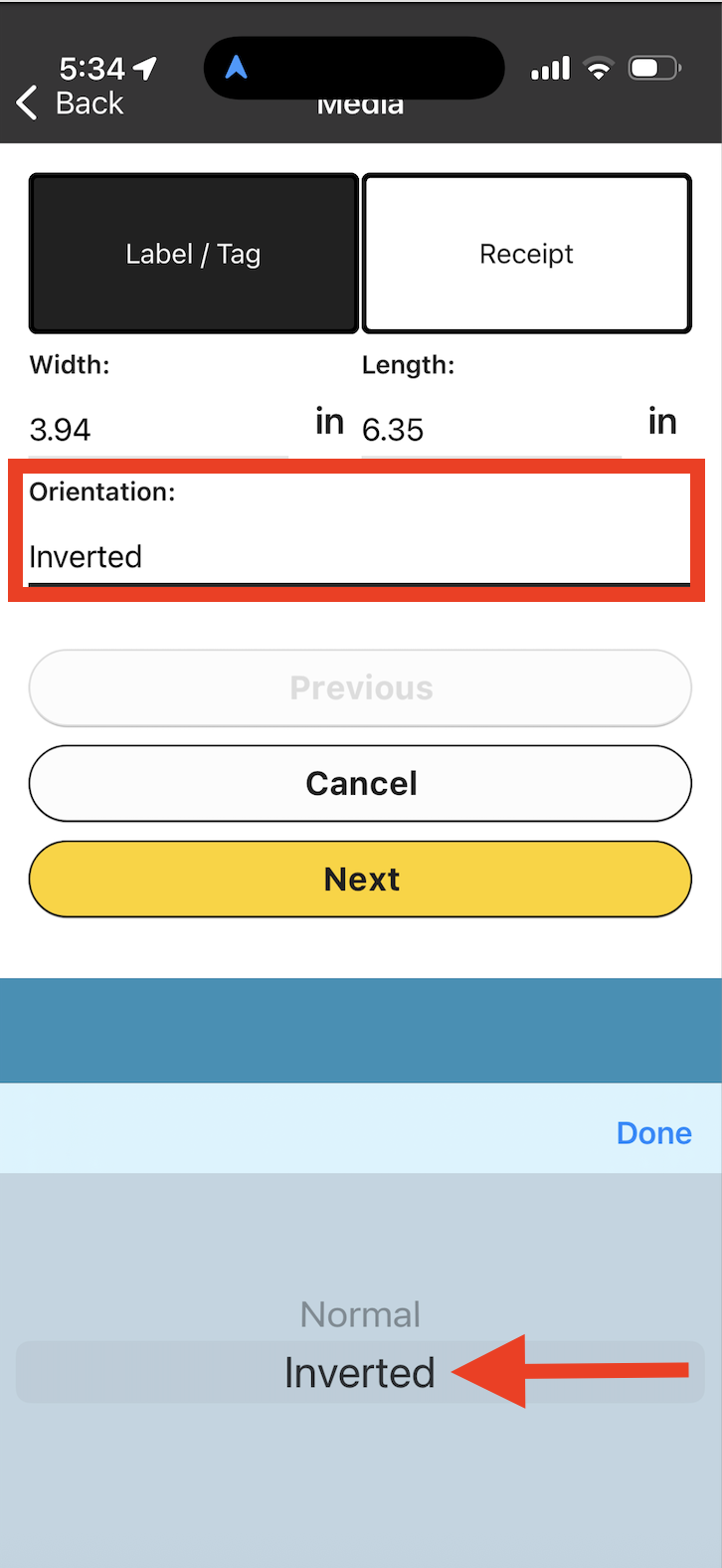
Select Next
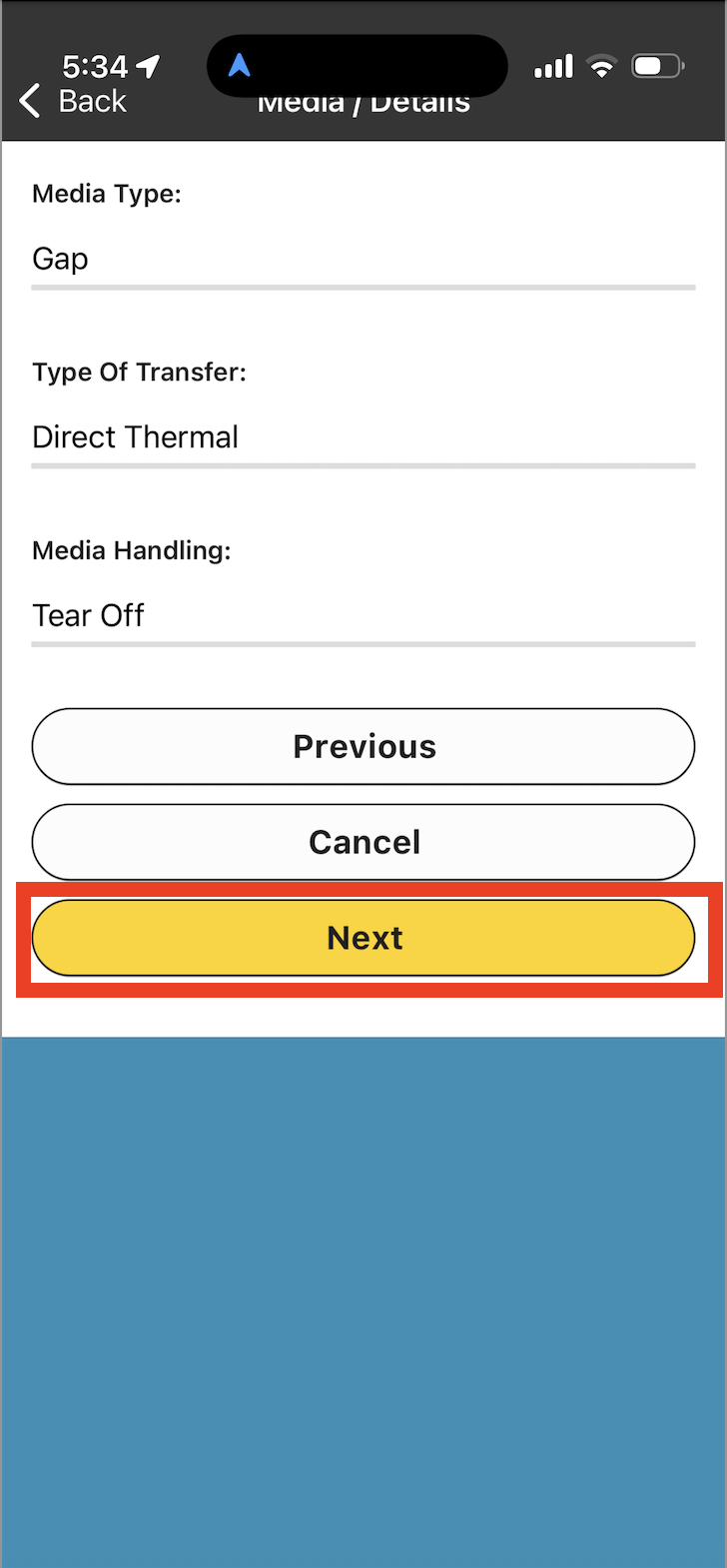
Select Apply
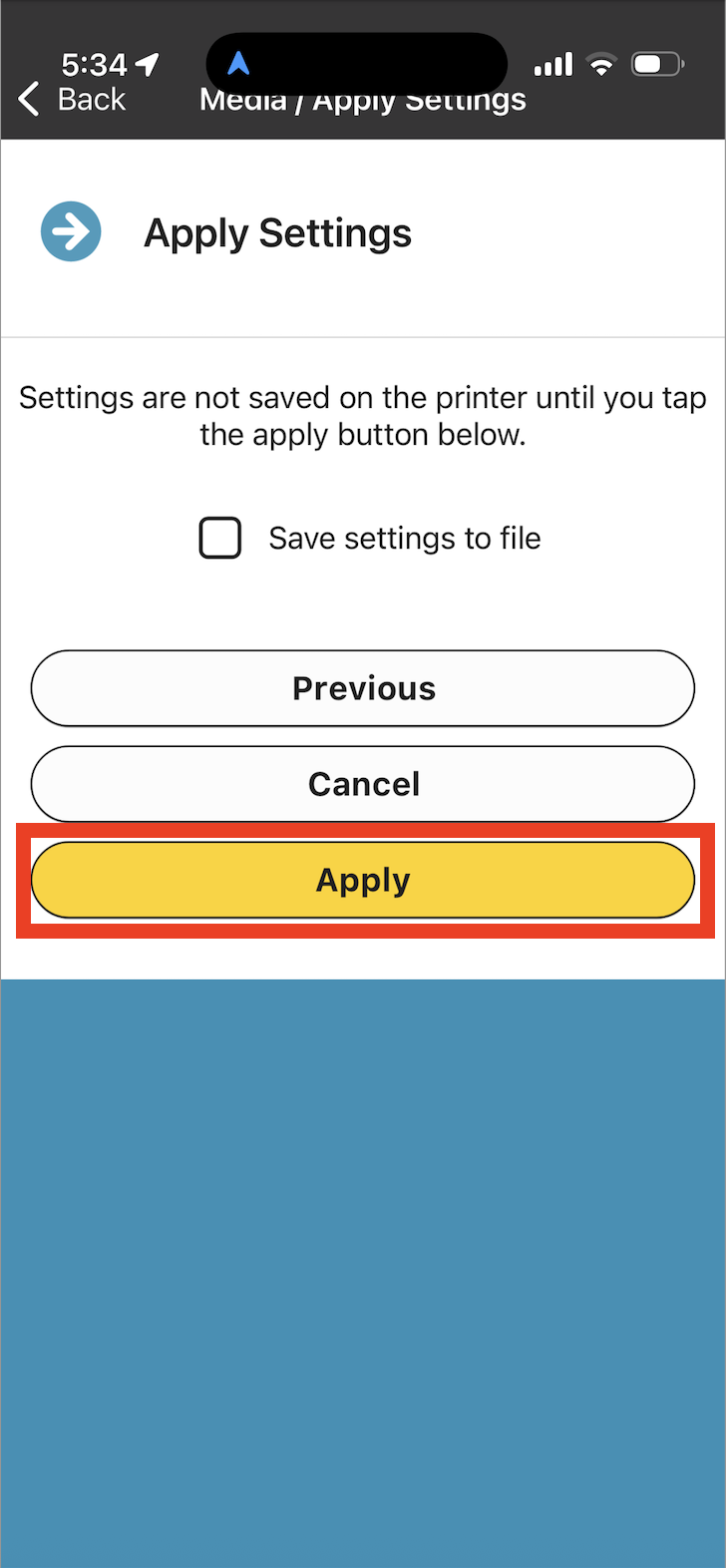
2 test labels should print out -- after complete your labels should print in the proper direction!
Steps to resolve upside down printing (Wired)
Open the System Dialog
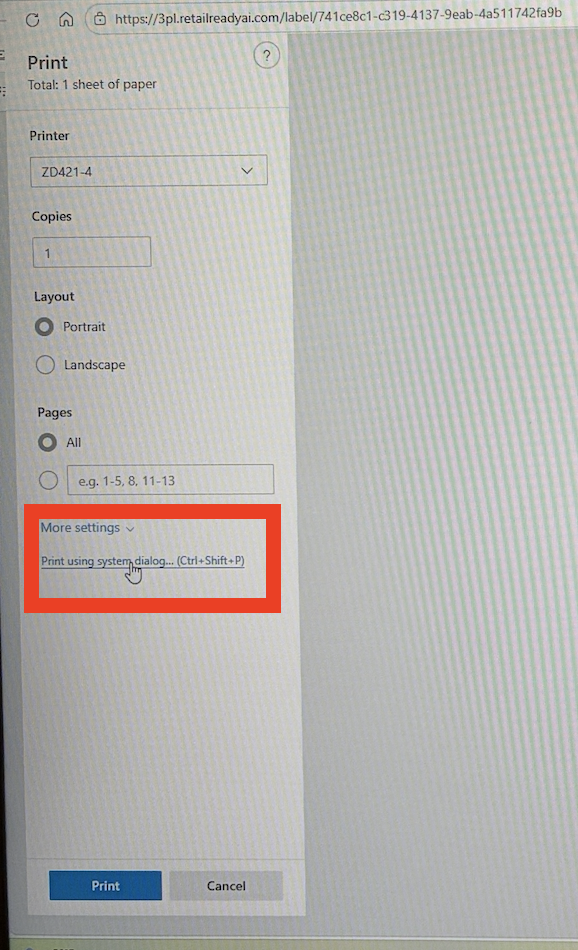
Select more settings
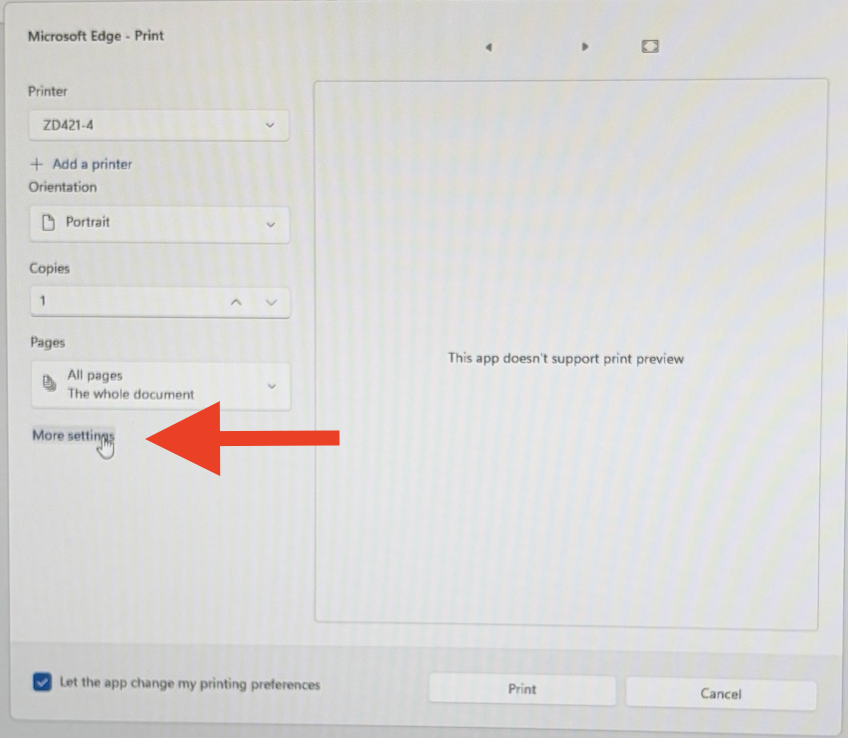
Change the Rotation to be 180 - and select OK
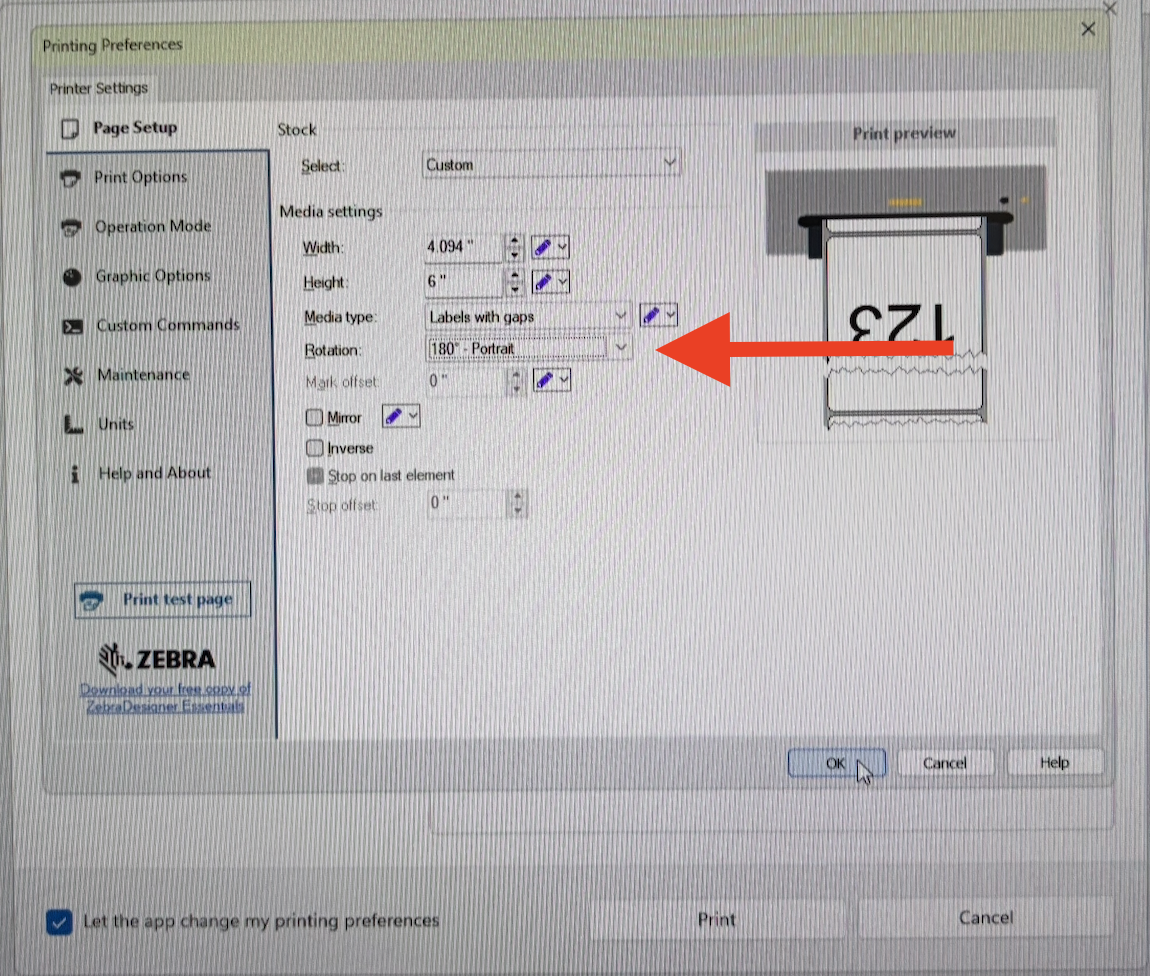
Print your labels
FAQs
What should I do if my printer was working but suddenly stopped printing?
First, try restarting the printer completely. If labels that were queued start printing after restart, this indicates a temporary connectivity issue. Check your WiFi connection and printer status.
Why do some label types print while others don't?
Different label types (ZPL vs PDF) require different printer configurations. ZPL labels typically work out of the box, while PDF labels require additional emulation setup through Zebra support.
How can I tell if the issue is with my printer or with RetailReady?
Use the test printer function in RetailReady (Settings > Printers > Test Printer). If the test label prints successfully, the printer hardware and connection are working, and the issue is likely with specific label templates or configurations.
When should I contact Zebra support vs RetailReady support?
Contact Zebra support for hardware issues, PDF emulation setup, printer calibration problems, and connectivity issues. Contact RetailReady support for label template errors, missing label data, or issues specific to label generation within the platform.