Why Isn't My Order Showing Up in RetailReady?
Last updated: March 27, 2026
Missing Orders in RetailReady
When orders don't appear in RetailReady, it's usually due to issues with order transmission, SKU setup, or routing problems. This article will help you troubleshoot and resolve missing order issues.
Common Causes and Solutions
There are several reasons why orders might not appear in RetailReady. Here are the most common causes and how to resolve them:
1. Orders Not Transmitted from Retailer
Sometimes retailers haven't sent the order through their EDI system or there are transmission issues.
Check with your retailer contact to confirm they've sent the order
For non-RetailReady EDI orders, verify the order appears in your EDI portal (like SPS Commerce)
For RetailReady EDI orders, if the retailer has sent the order but it is not displaying in RetailReady, please contact RetailReady Support using the chatbot located in the bottom right corner of the platform.
3. Orders Sent to Wrong Facility
Your WMS might have routed the order to a different facility than expected.
Check other facilities in RetailReady using the facility switcher
Navigate to the three dots (...) and click on 'Change Facility' feature to move orders to the correct location
Verify your WMS routing configuration
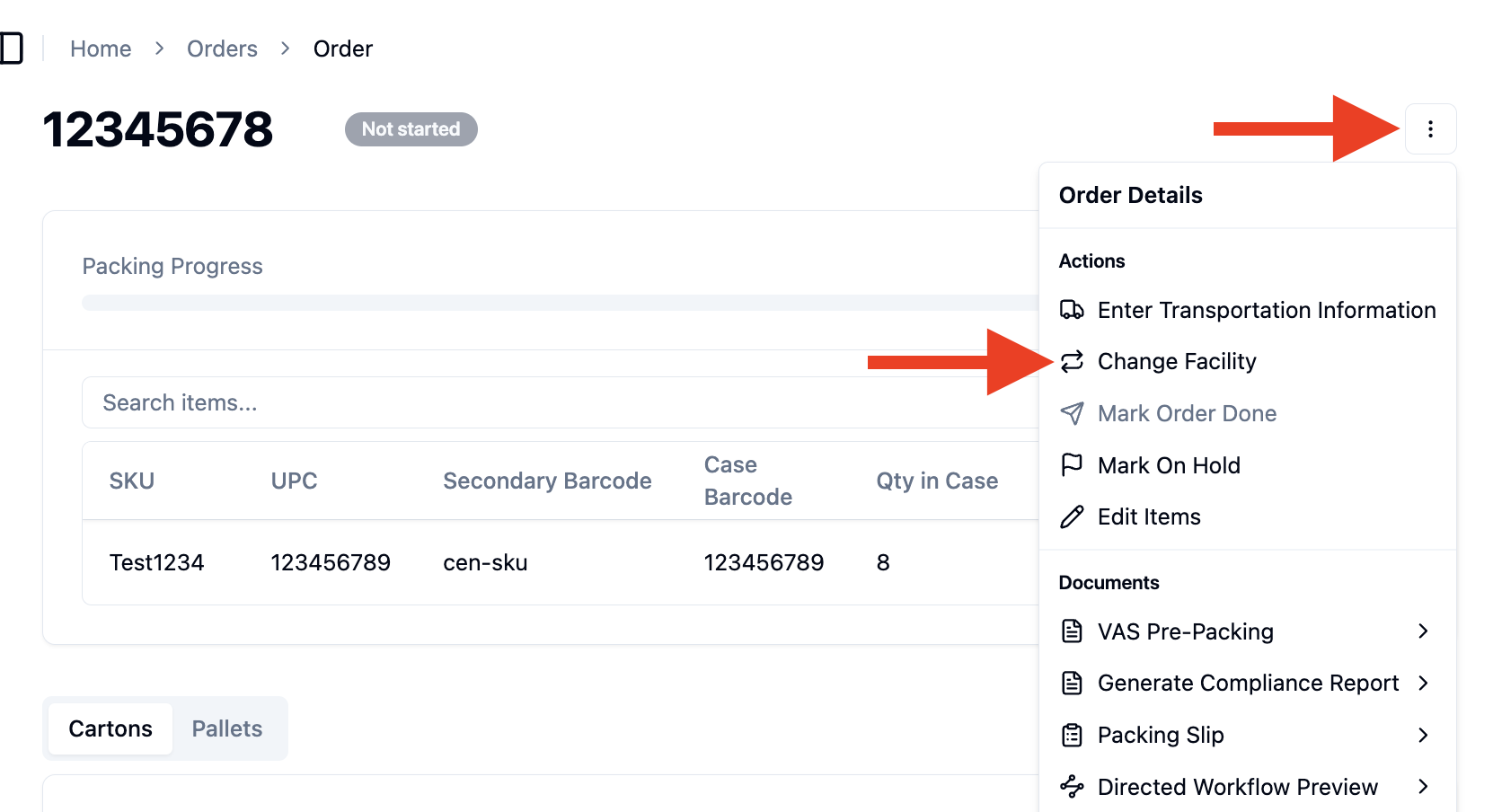
4. Orders on Hold
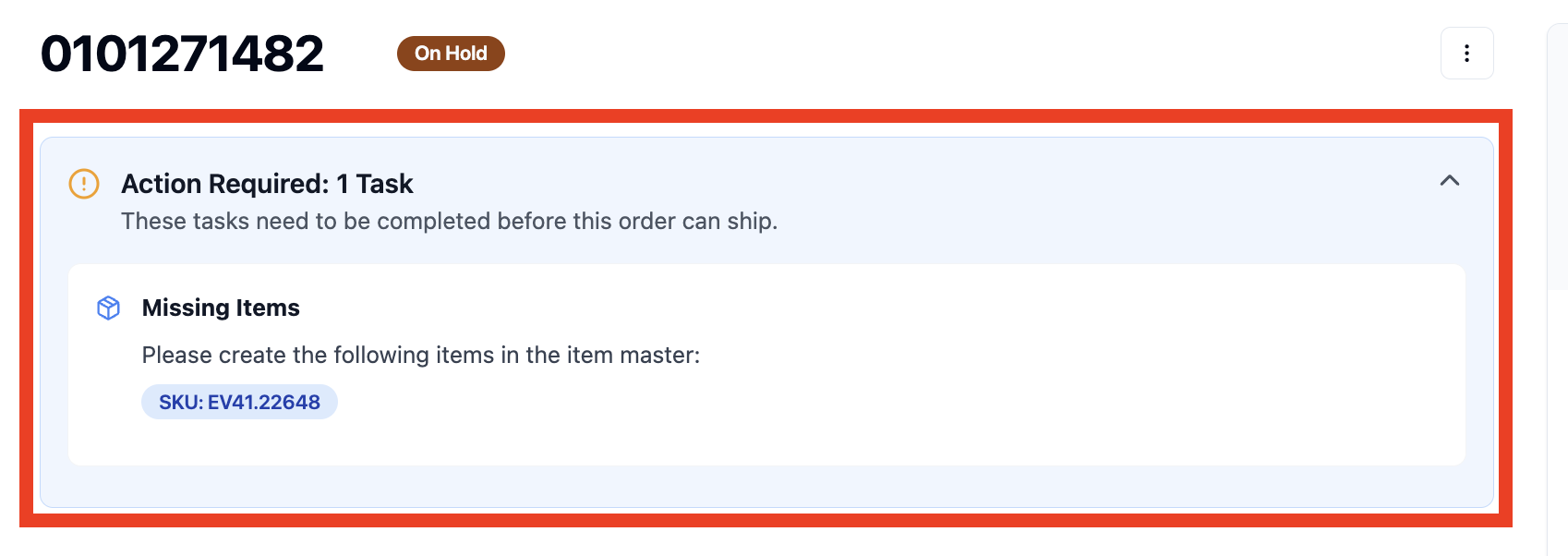
Orders may be in RetailReady but placed on hold due to SKU issues.
Check your Orders dashboard using Table view for orders with "On Hold" status
Review hold reasons and resolve any SKU or address mapping issues
How to Check Connection Details
You can view how your connection is configured to understand the order flow:
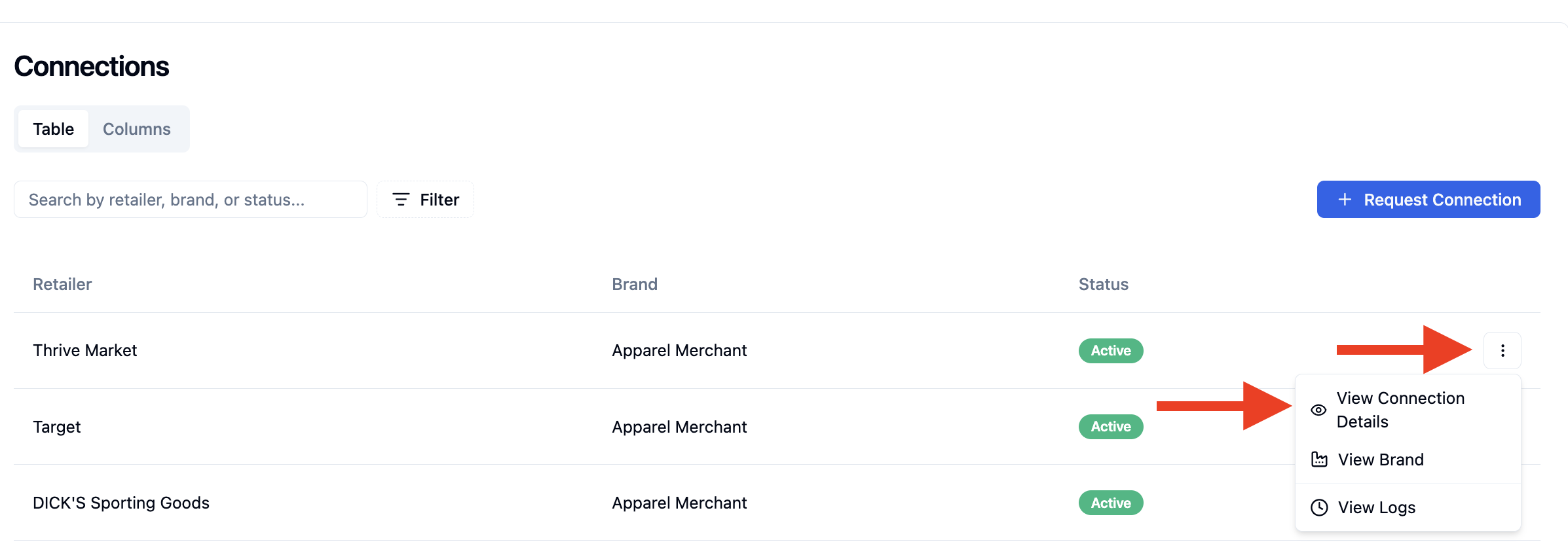
Navigate to 'Connections' from the left navigation bar
Find your retailer connection and click the three dots (...)
Select 'View Connection Details'
FAQs
How often do orders sync from RetailReady to my WMS?
Orders typically sync in batches on a scheduled basis every 20 minutes, at the :30 and :50 minute marks of each hour. If an order is taken off hold, it will sync immediately.
If you need an order to be sent to your WMS right away, you can use the “Send to WMS” feature to manually trigger the sync for that specific order.