AWD Set Up and Order Creation
Last updated: May 15, 2026
Amazon Warehouse and Distribution is a fulfillment option for selling on Amazon that works hand in hand with Amazon FBA. The AWD facility stores inventory that will be used to replenish stock at the FBA facility automatically. This allows for lower storage and shipping costs.
How do I set up AWD on RetailReady?
The first step for shipping to Amazon through their AWD program is to connect your Seller Central account in RetailReady.
Navigate to 'Settings' in the bottom left corner of the page.
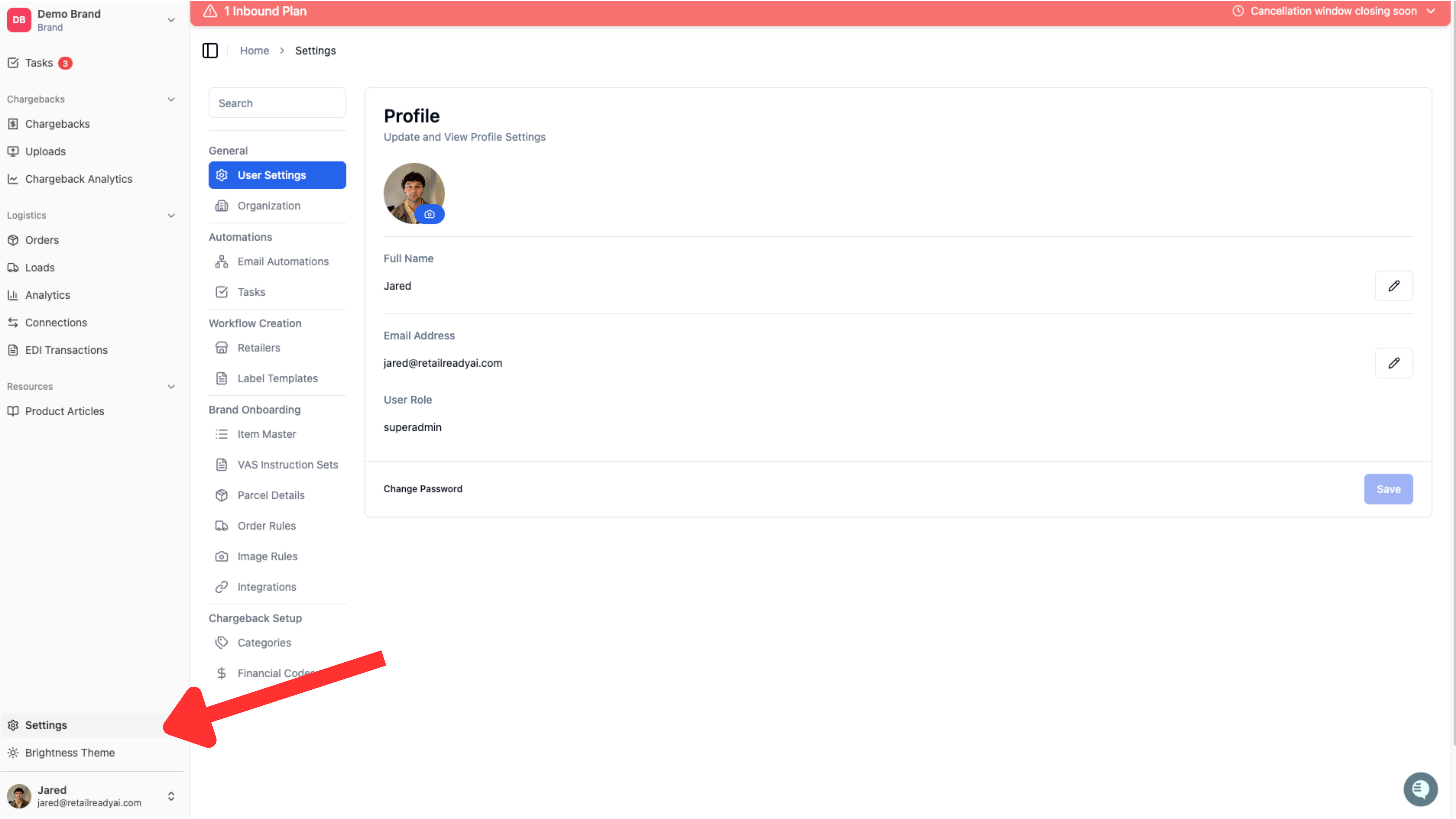
Click on 'Integrations' in the column that opens.
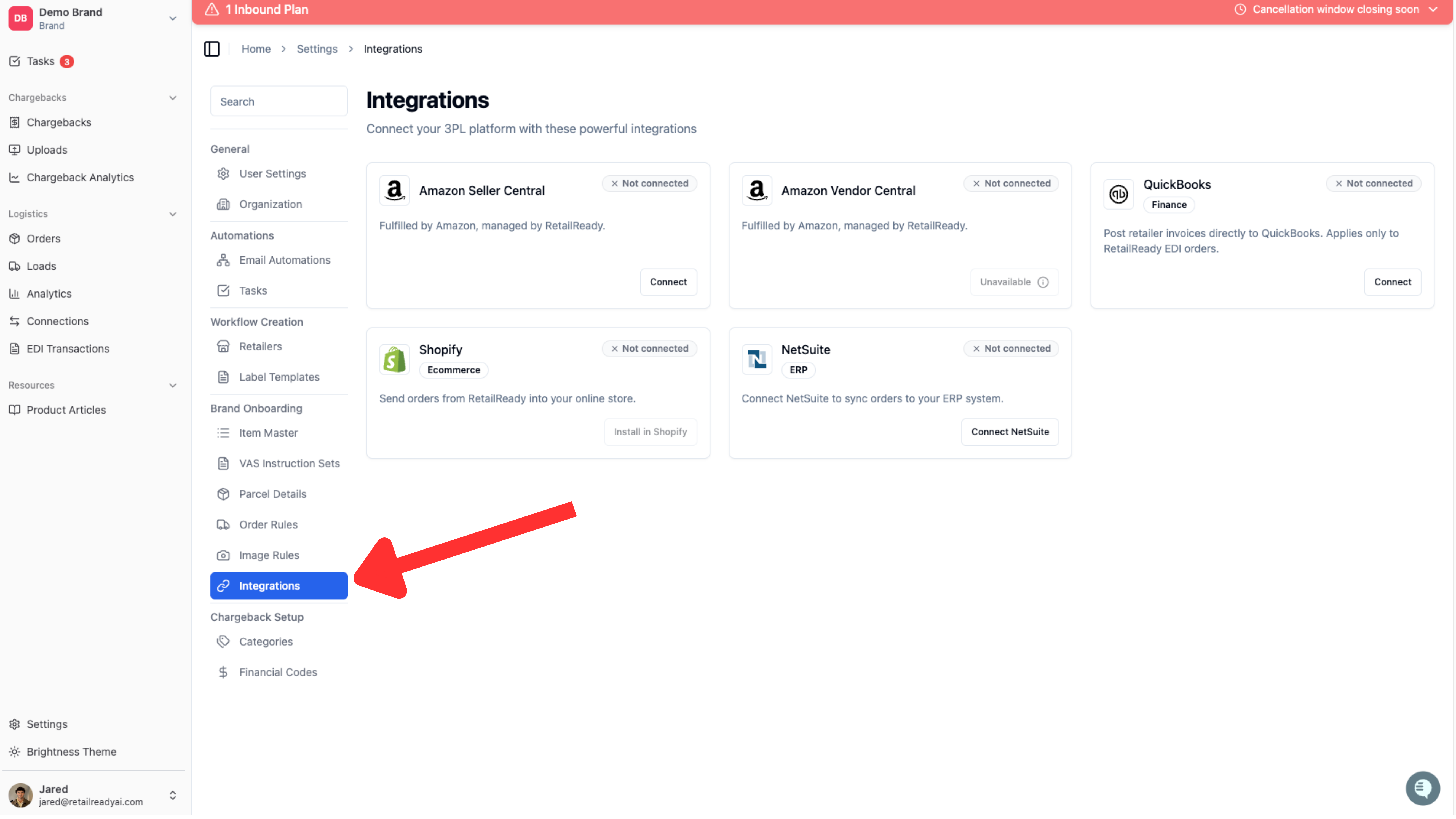
Click 'Connect' on the Amazon Seller Central tile and log in to the window that opens.
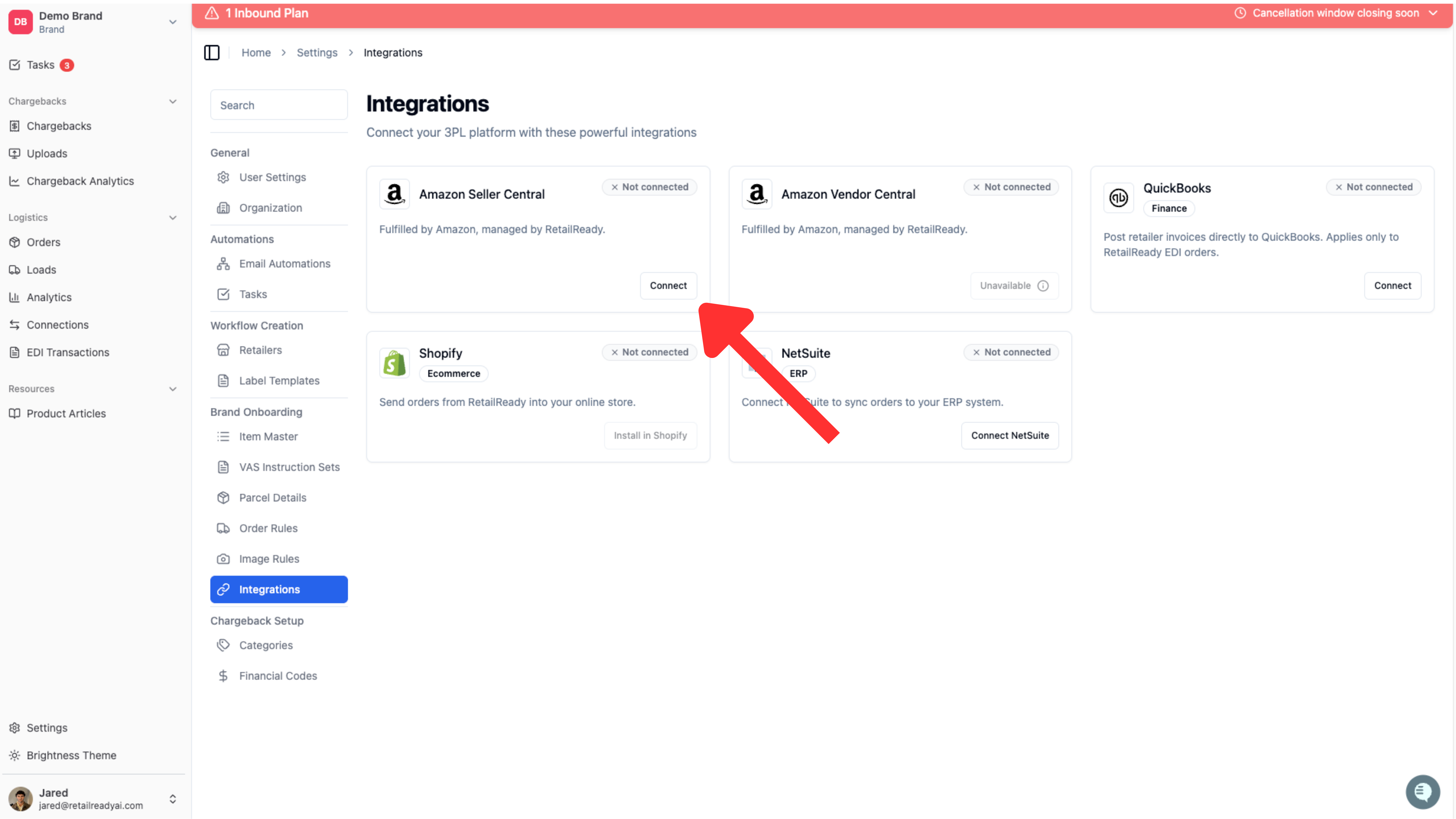
Once you have connected you Amazon Seller Central account, navigate directly to your Item Master page by clicking item master in the column that opens
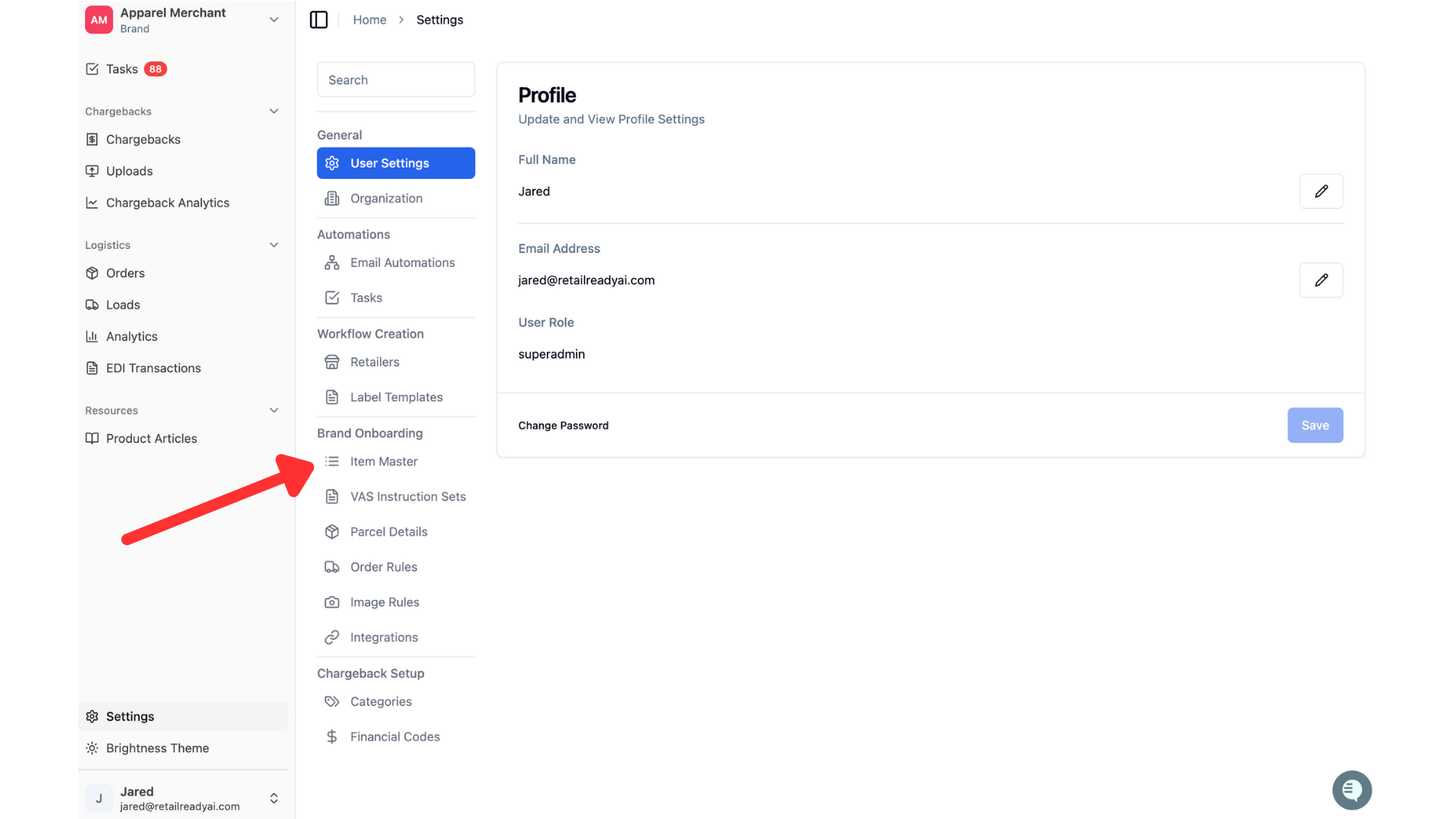
Begin uploading your items. To do this select your brand from the drop down menu.
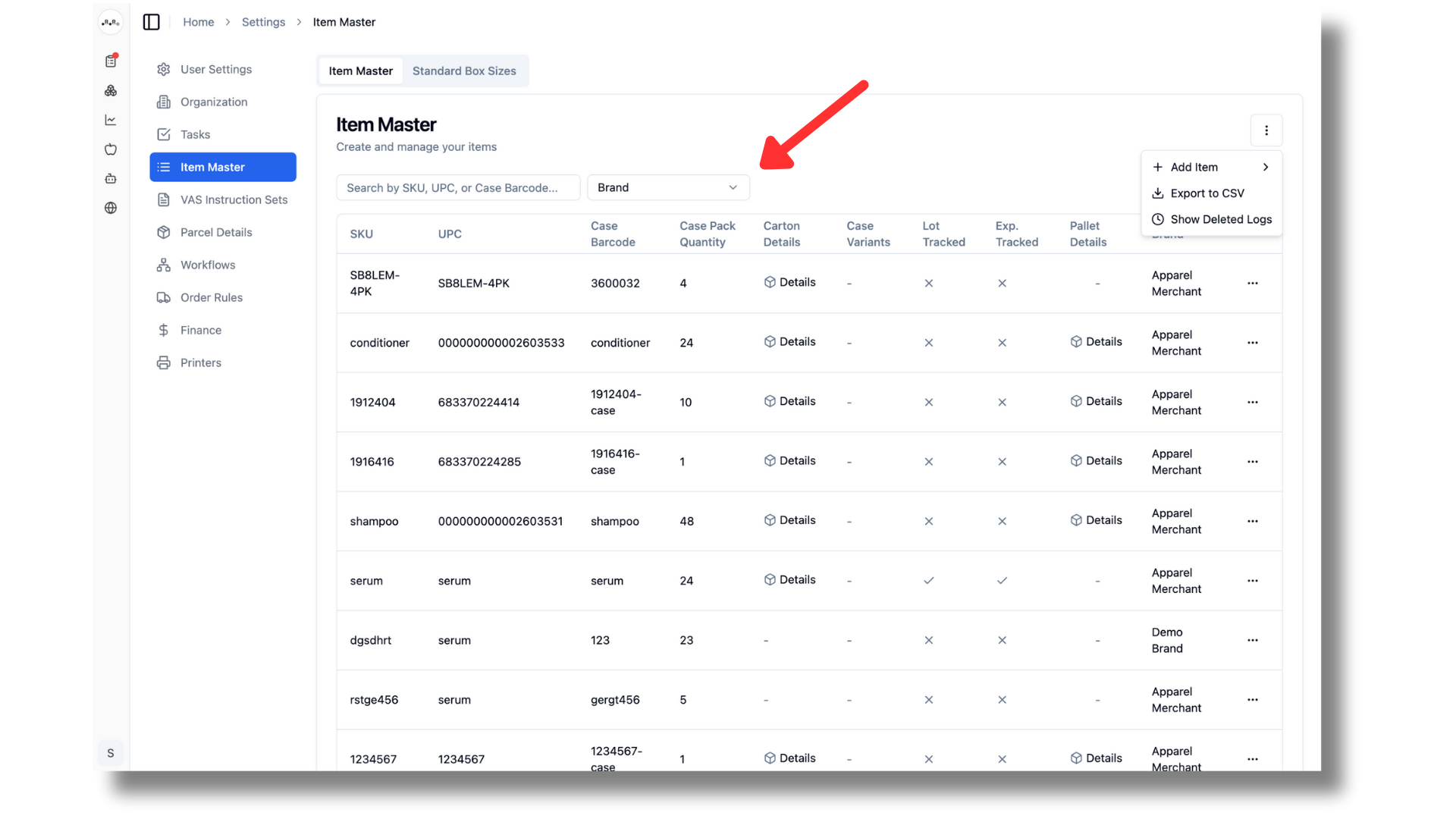
Click on the 3 dots located in the top right corner, followed by add item.
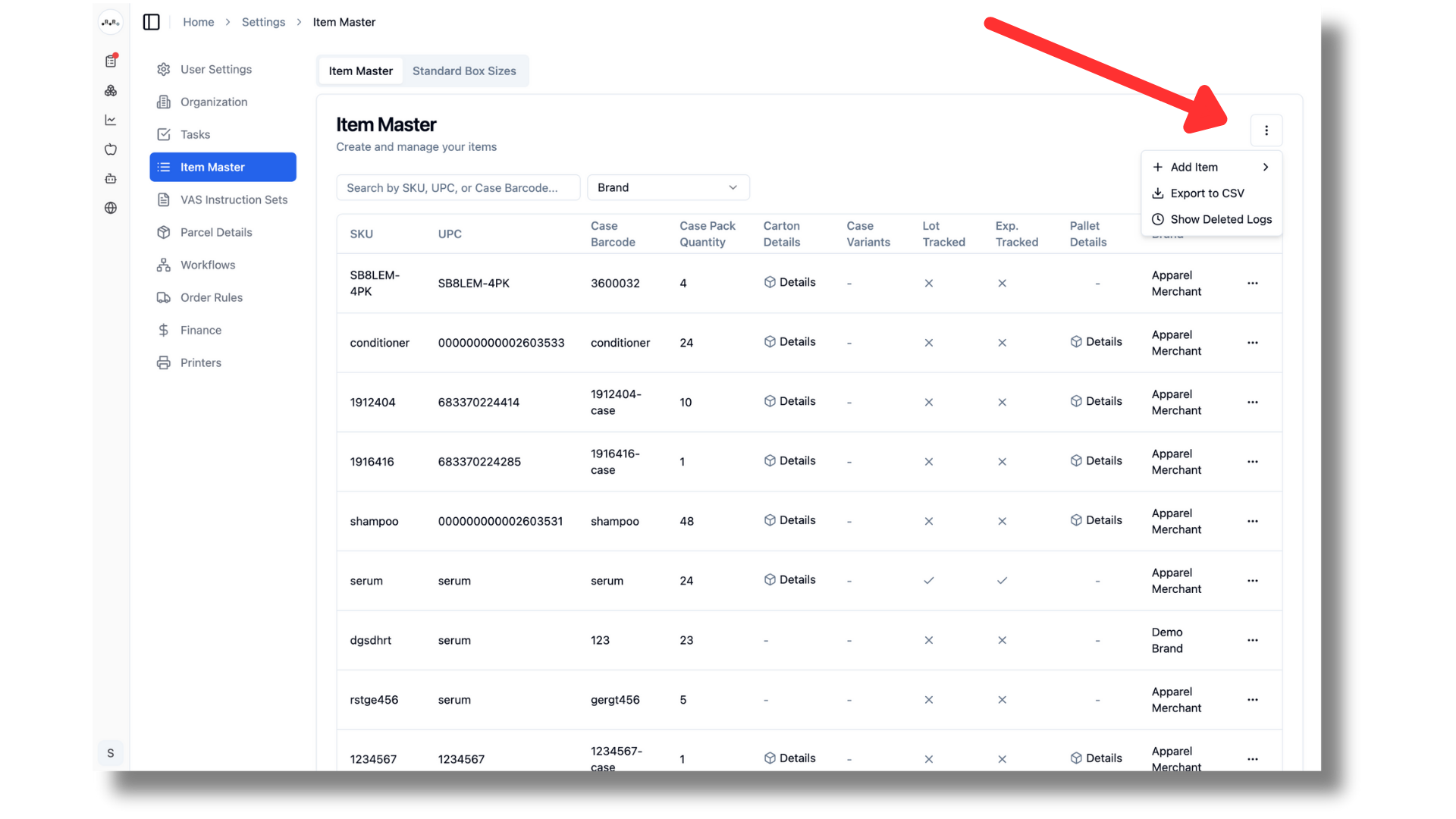
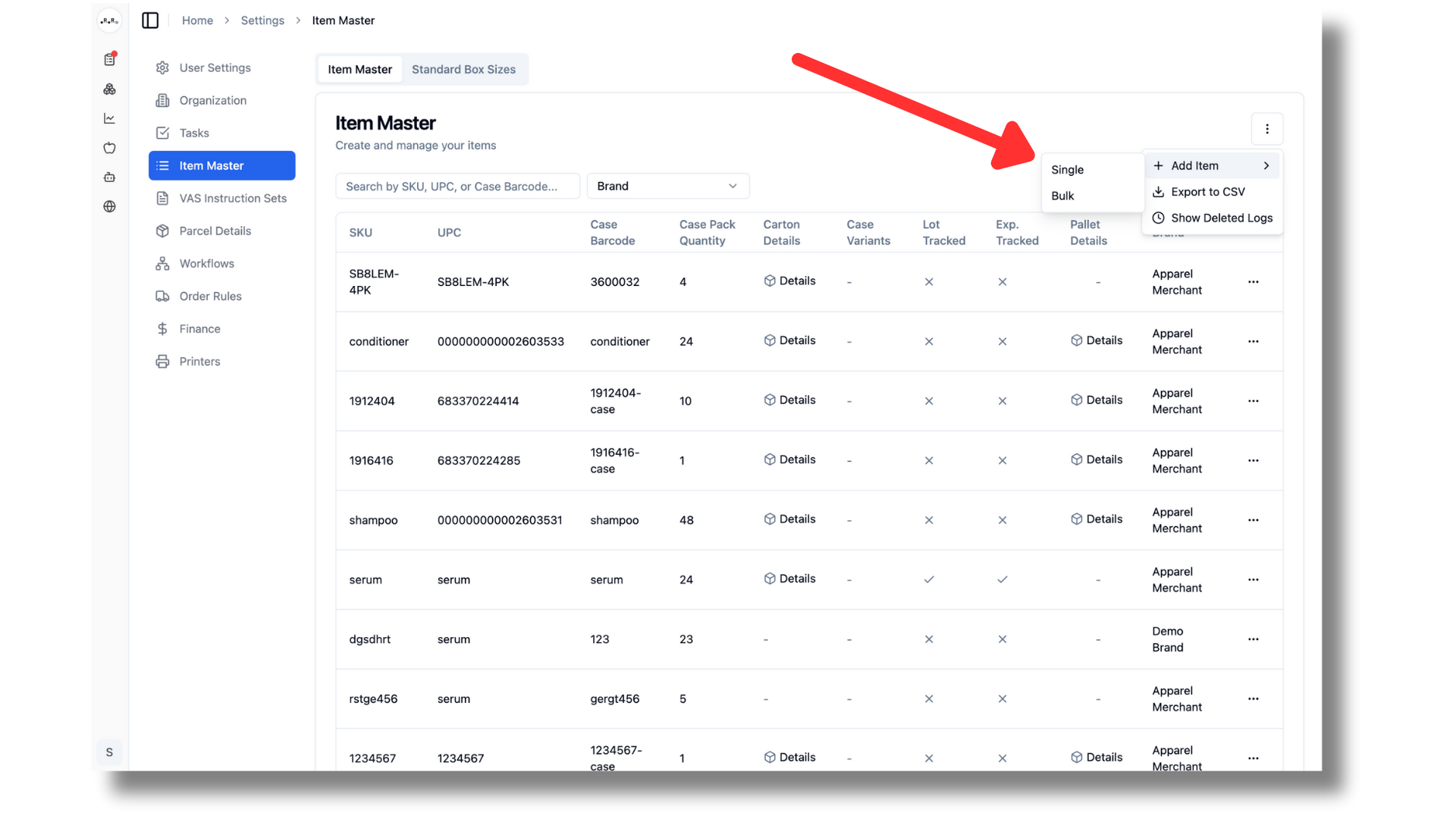
Select single upload.
Now it is time to input the details for a specific item. You will see the brand name is already filled in. Select a facility, then input the items SKU and UPC. If the item has a lot number, expiration date or serial number you can toggle those on. This tells RetailReady to track those values as well!
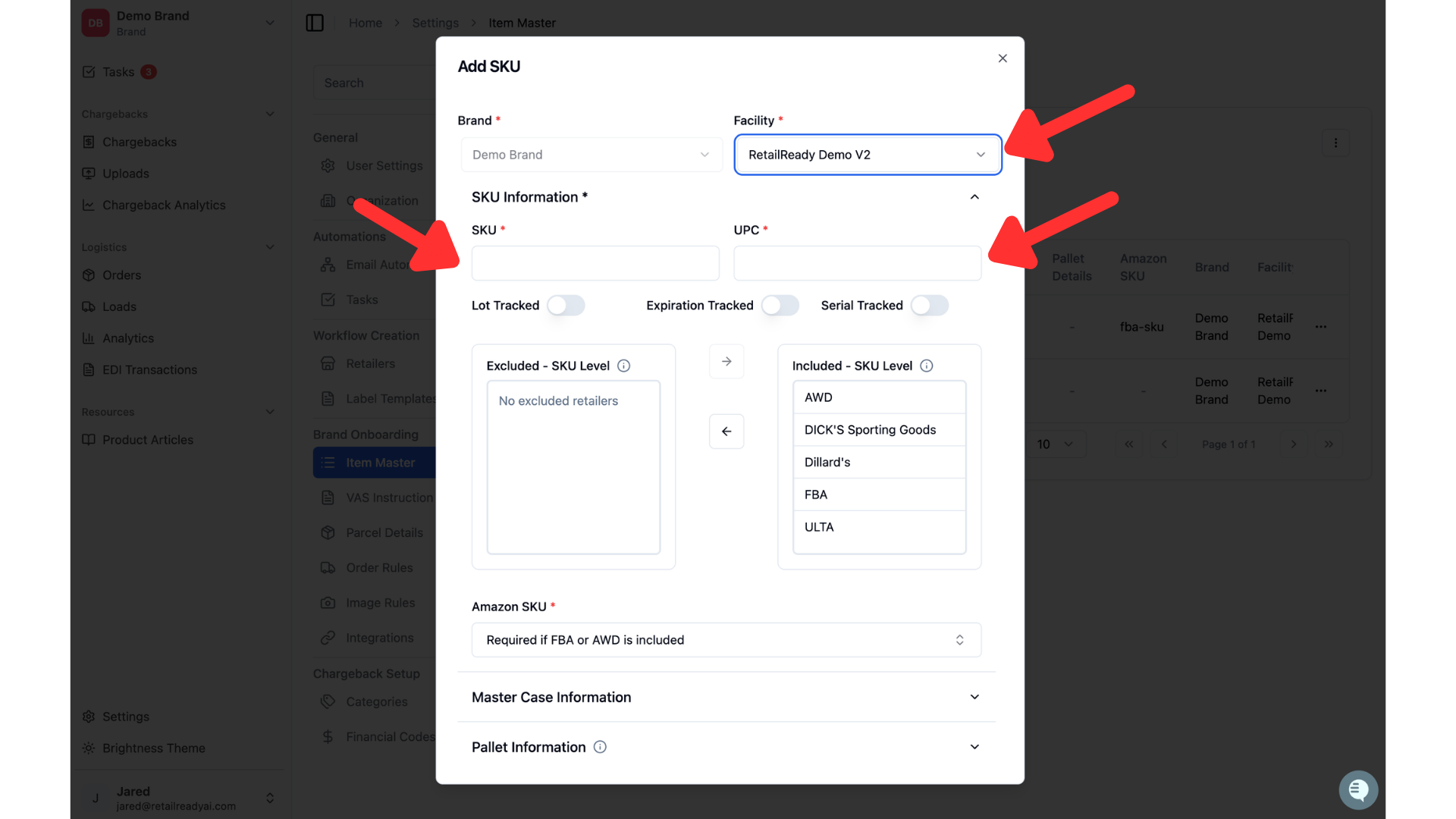
The Included and Excluded sections determine which retailers can receive this SKU. All retailers default to Included. Move any retailer that should not receive this SKU to Excluded. Clicking a retailer moves it between sections.
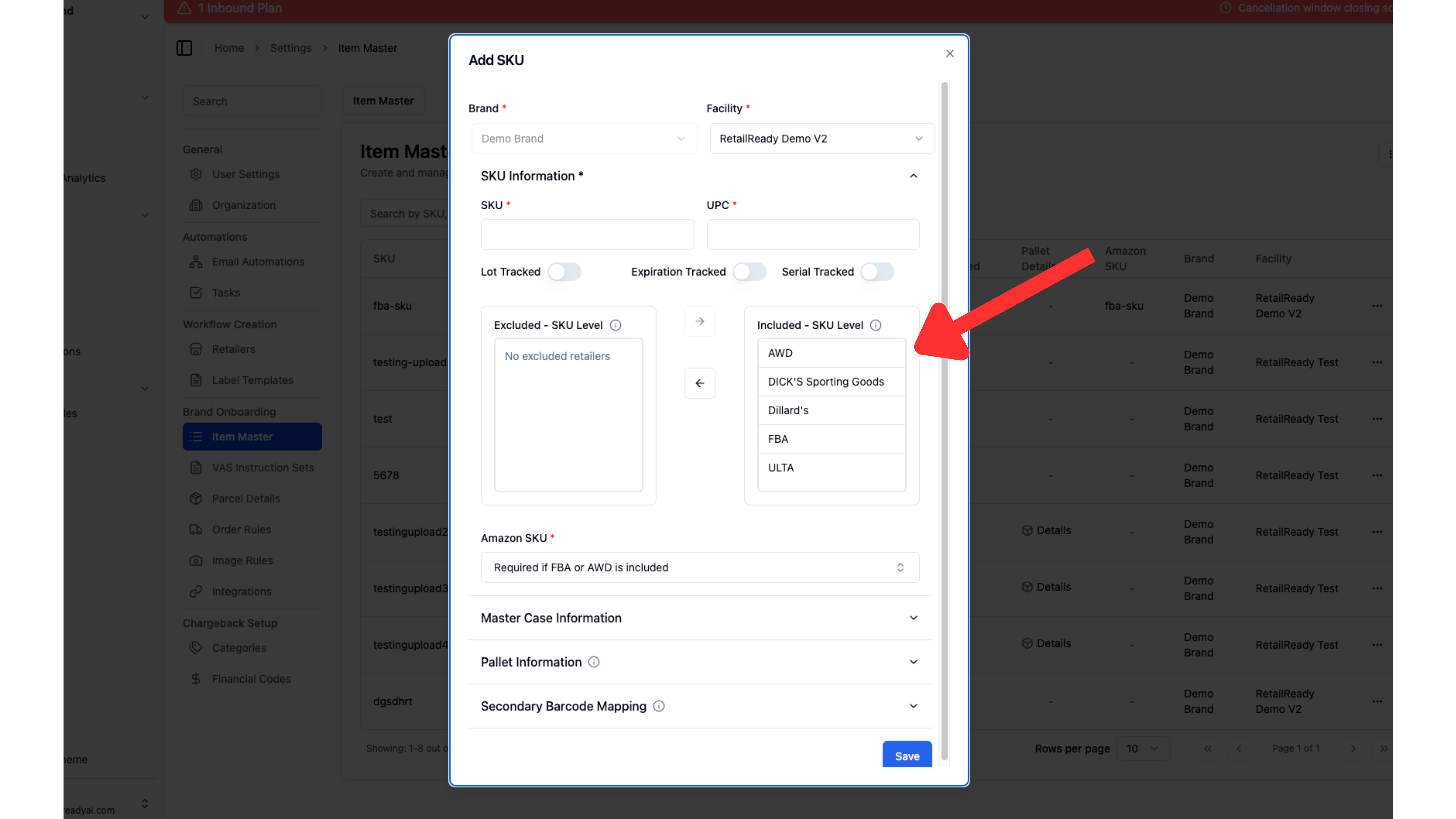
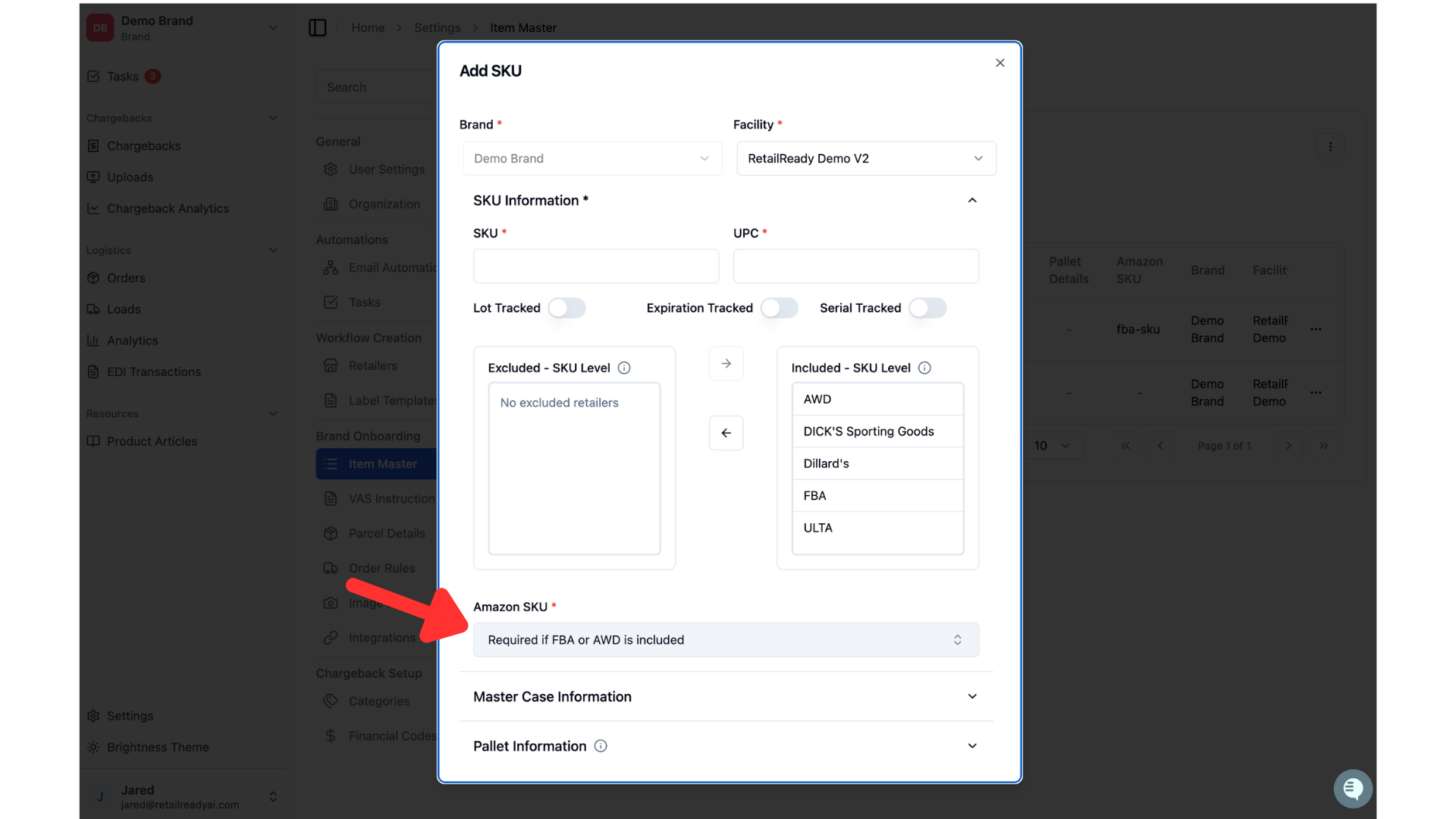
Select the Amazon SKU that this item is associated with. This is how RetailReady will make sure the items are connected properly and the products are what Amazon expects.
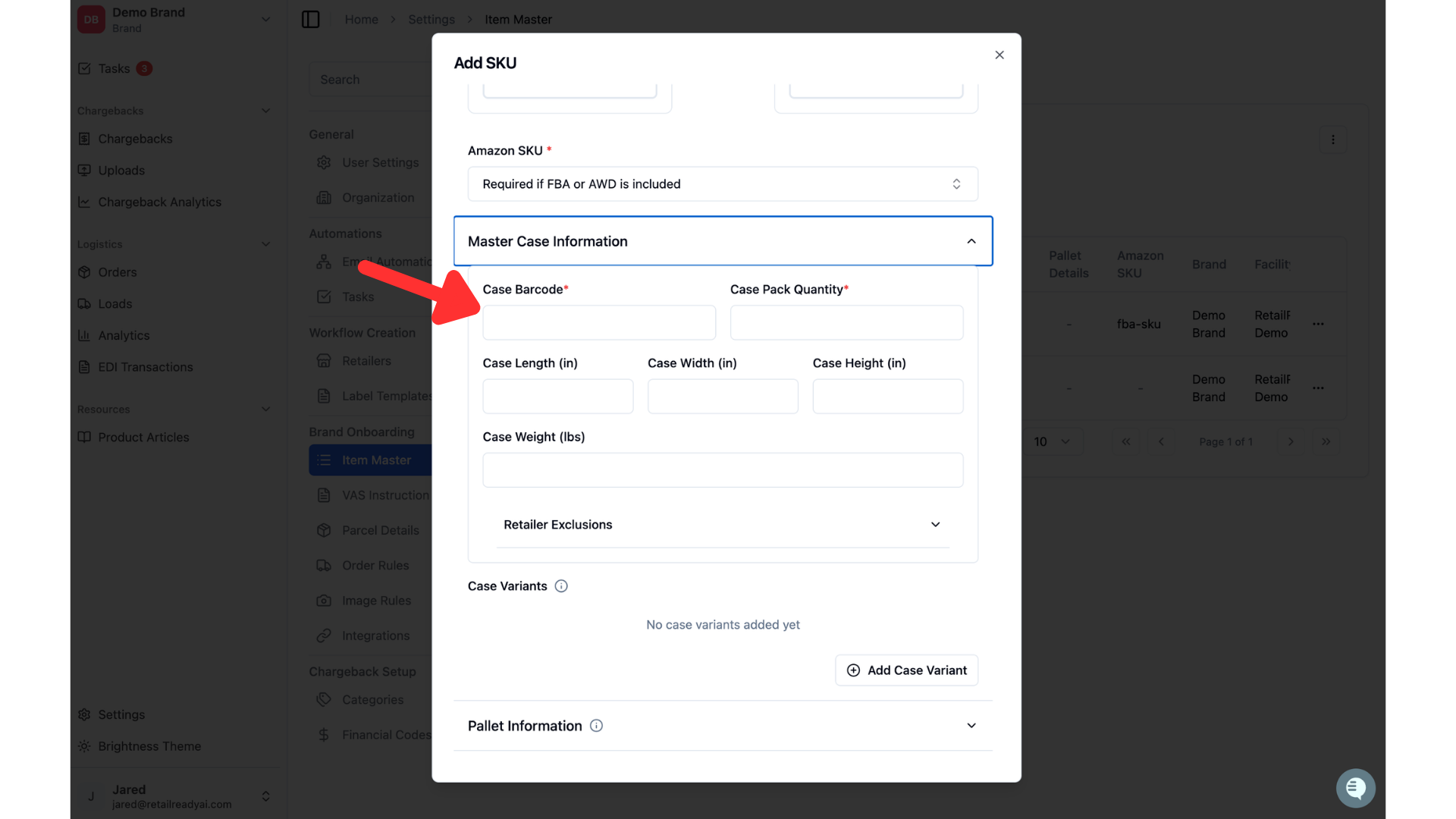
Lets input the Master Case Information! This is where you can specify the quantity of items in your standard case, the case dimensions, and the weight of the case. This allows RetailReady to track the size and weight of cartons during the pack out process. One of the ways we make sure you stay compliant!
Hit save and your item is uploaded to the Item Master!
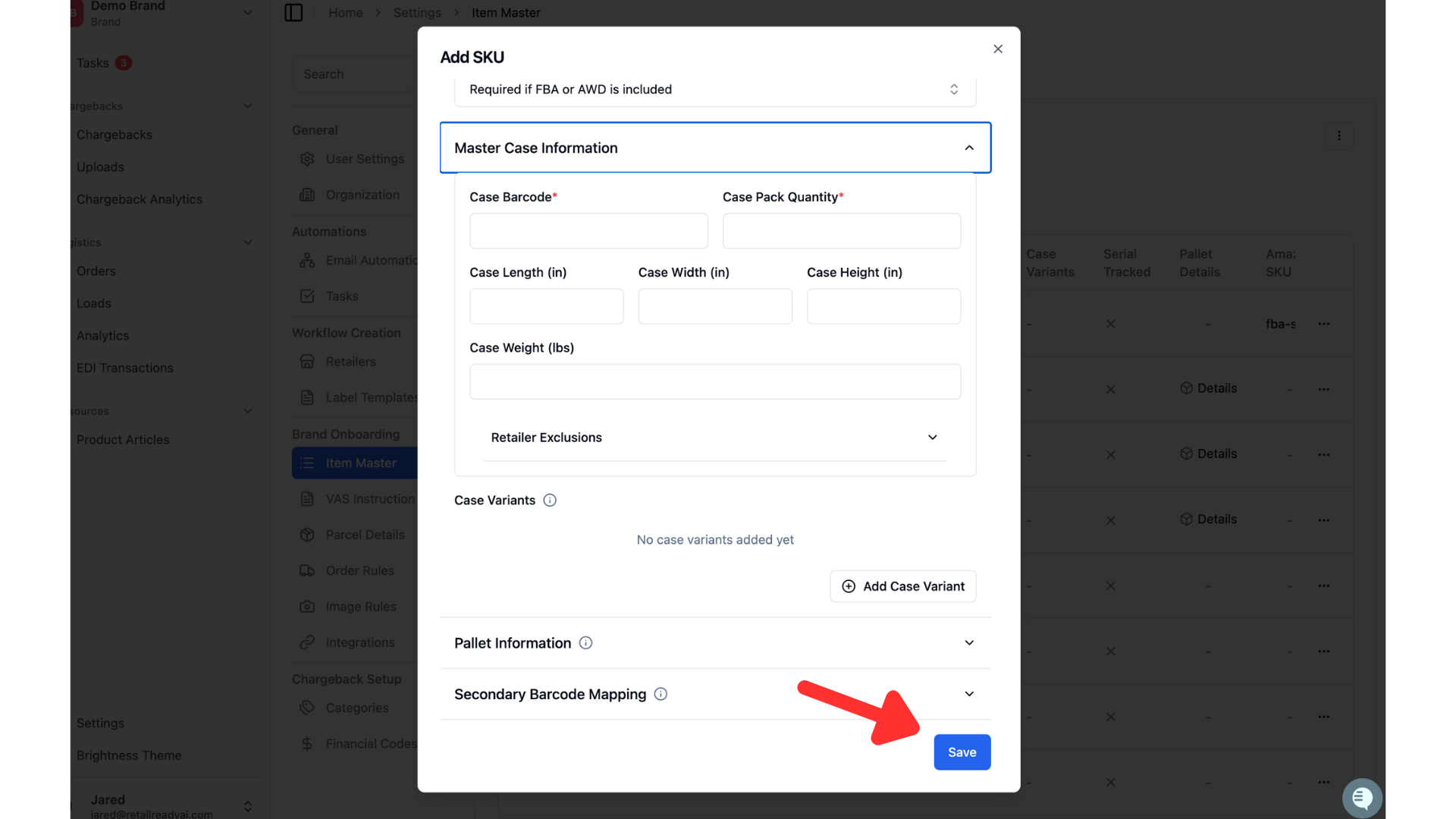
For more information about the optional sections of the single item upload, refer to the How to use Item Master!
📄 How to use Item Master
Now it's time to create the AWD order!
Only brands are able to create an AWD order in Retail Ready. If you are a 3PL trying to create an AWD order you must reach out to the brand.
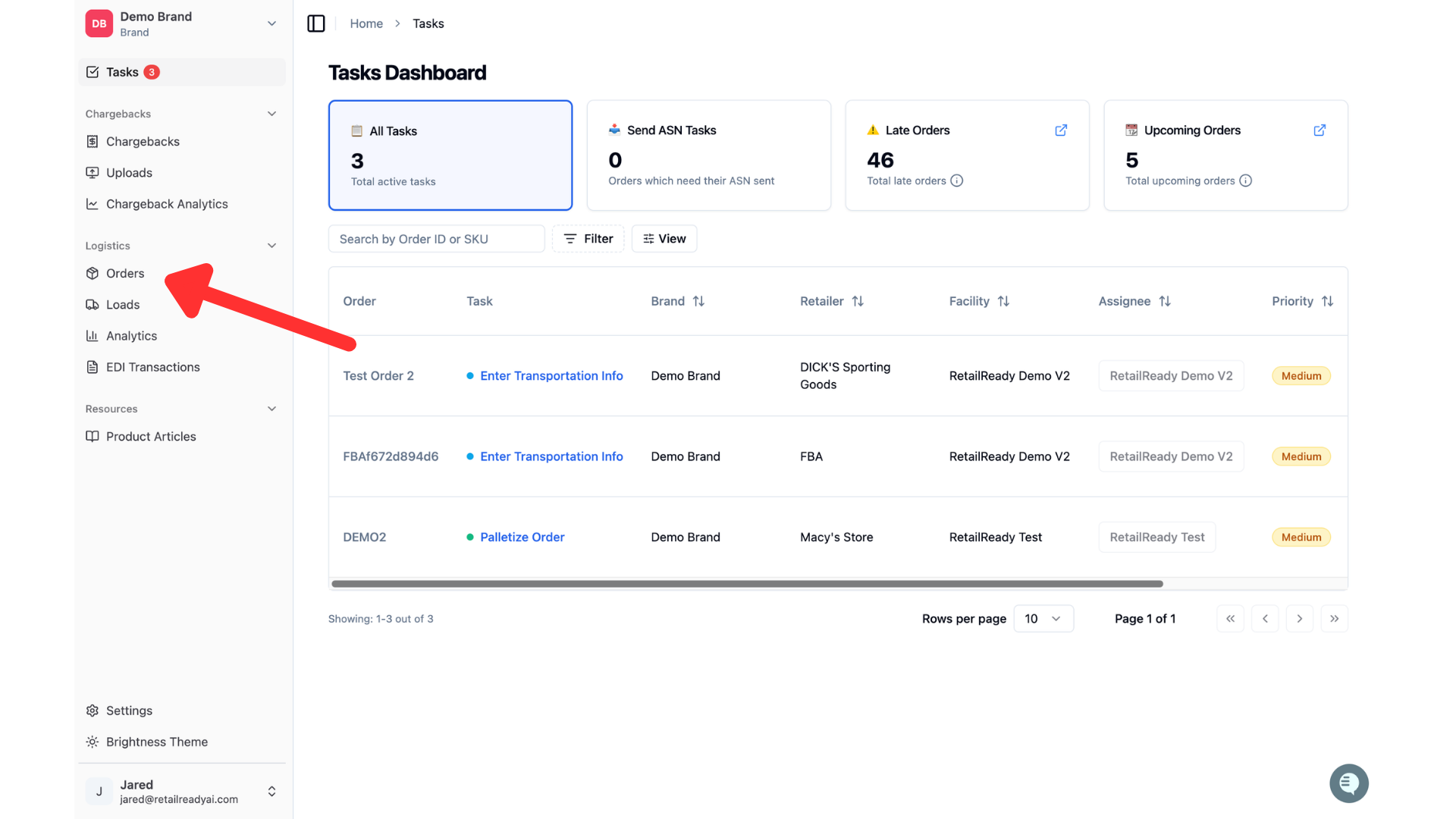
Once the item master is set up, navigate to the orders tab by clicking orders in the left most column.
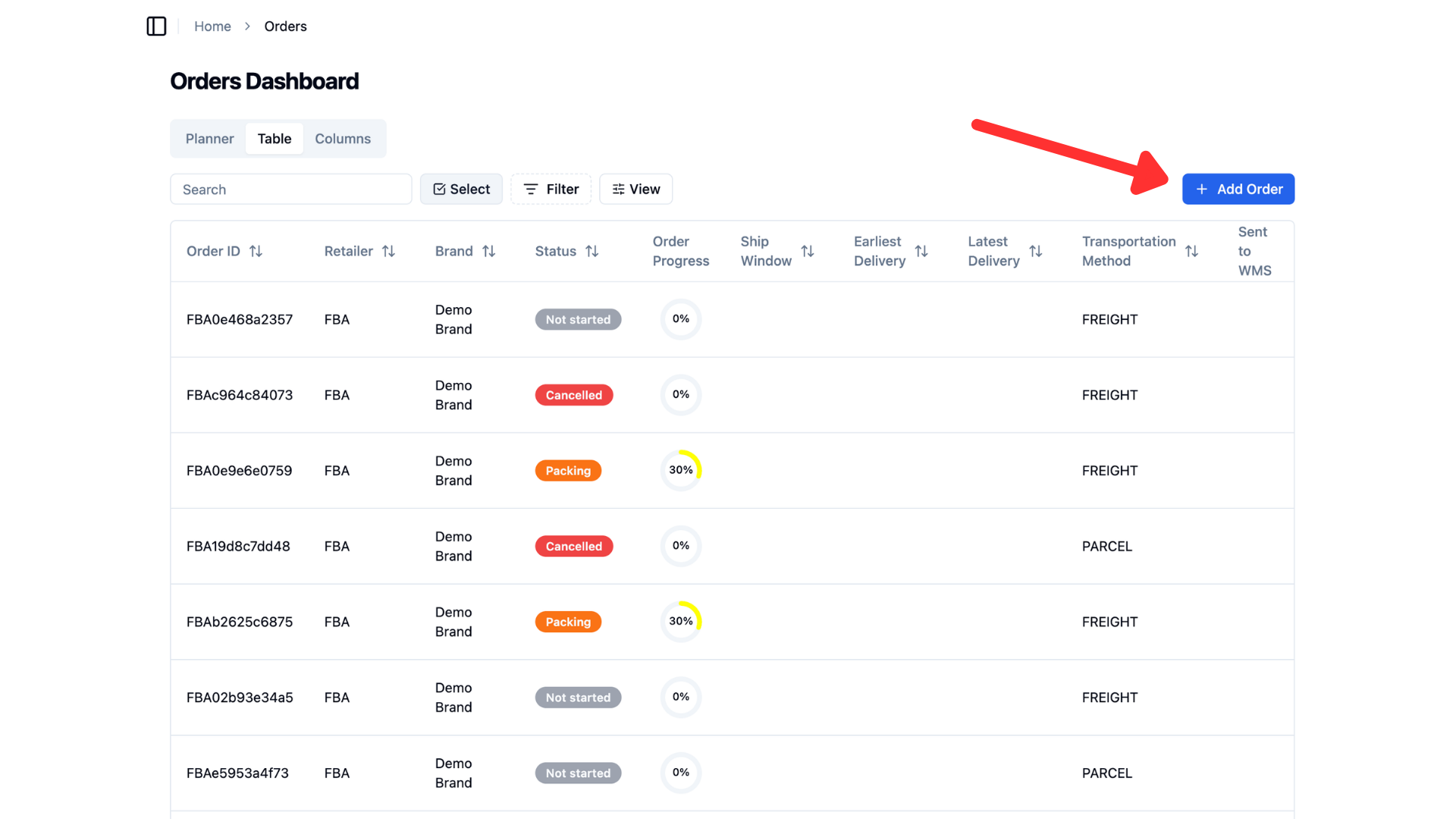
Click the add order button
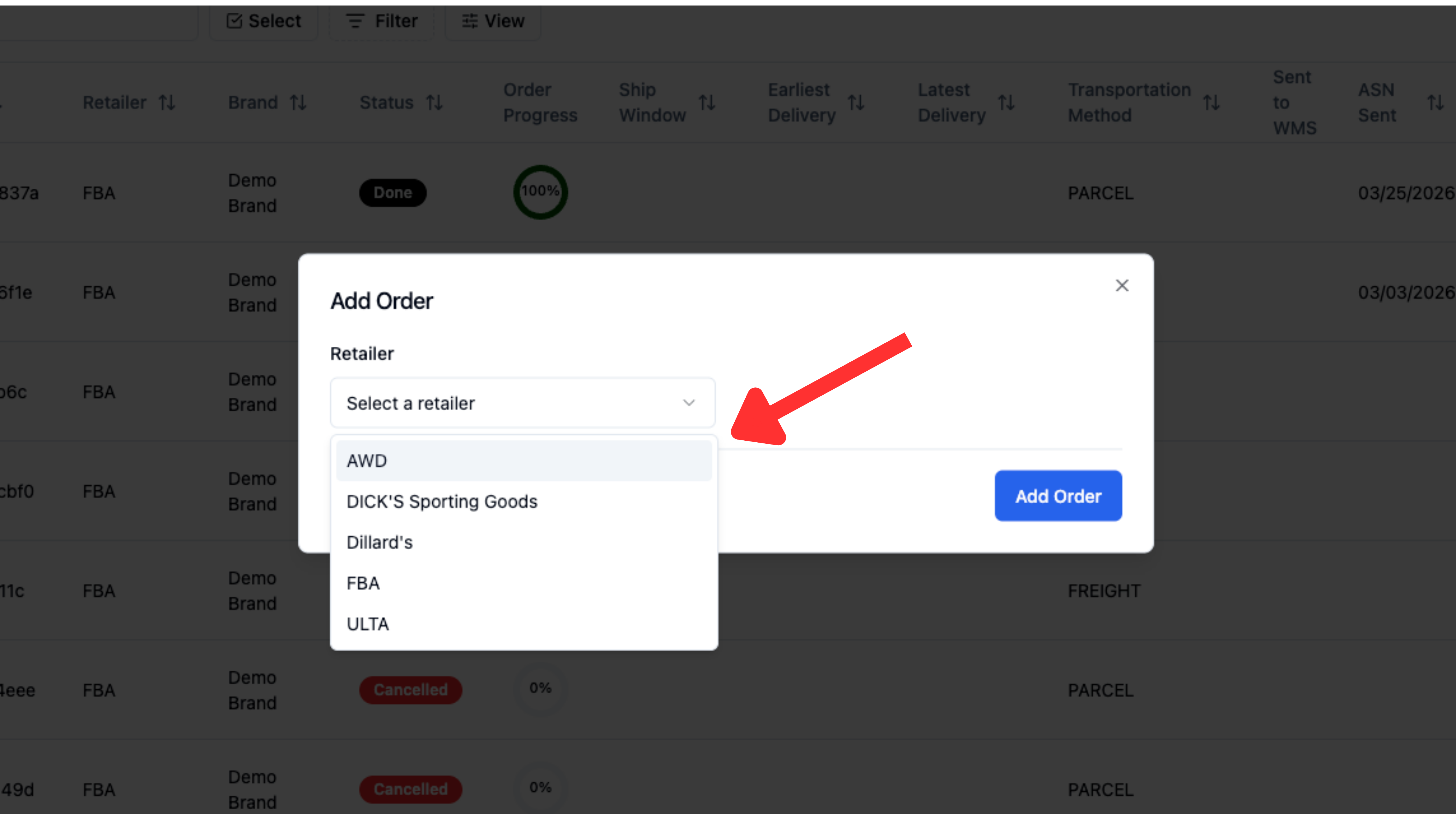
Click select a retailer to select which retailer this order is going to. Since this is an AWD order, you should be selecting AWD.
Start by naming your inbound plan. This is a required field for Amazon to identify the inbound plan and will be viewable in Amazon Seller Central. Each AWD shipment will be tied to this inbound plan name.
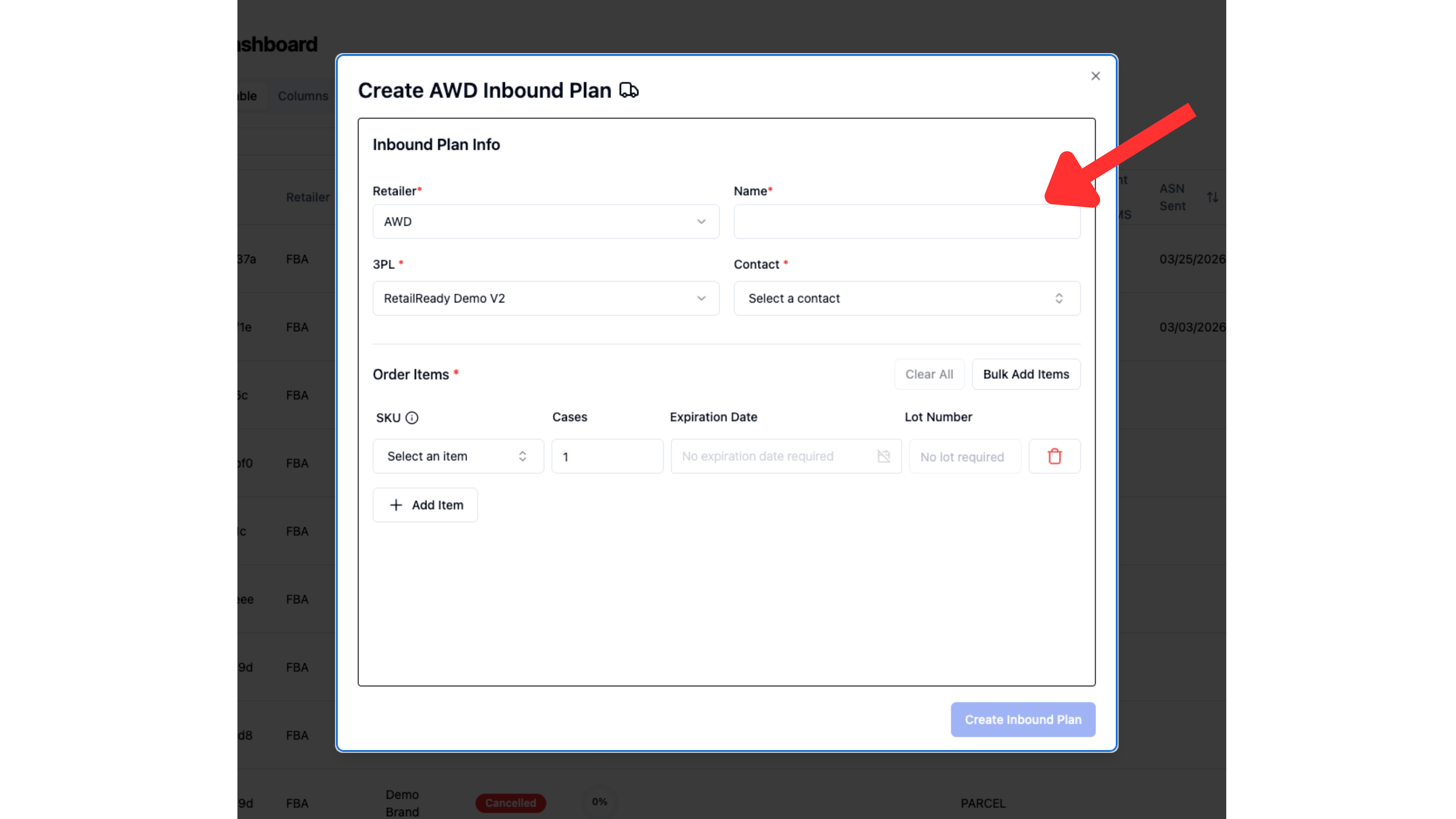
Select your 3PL from the dropdown menu.
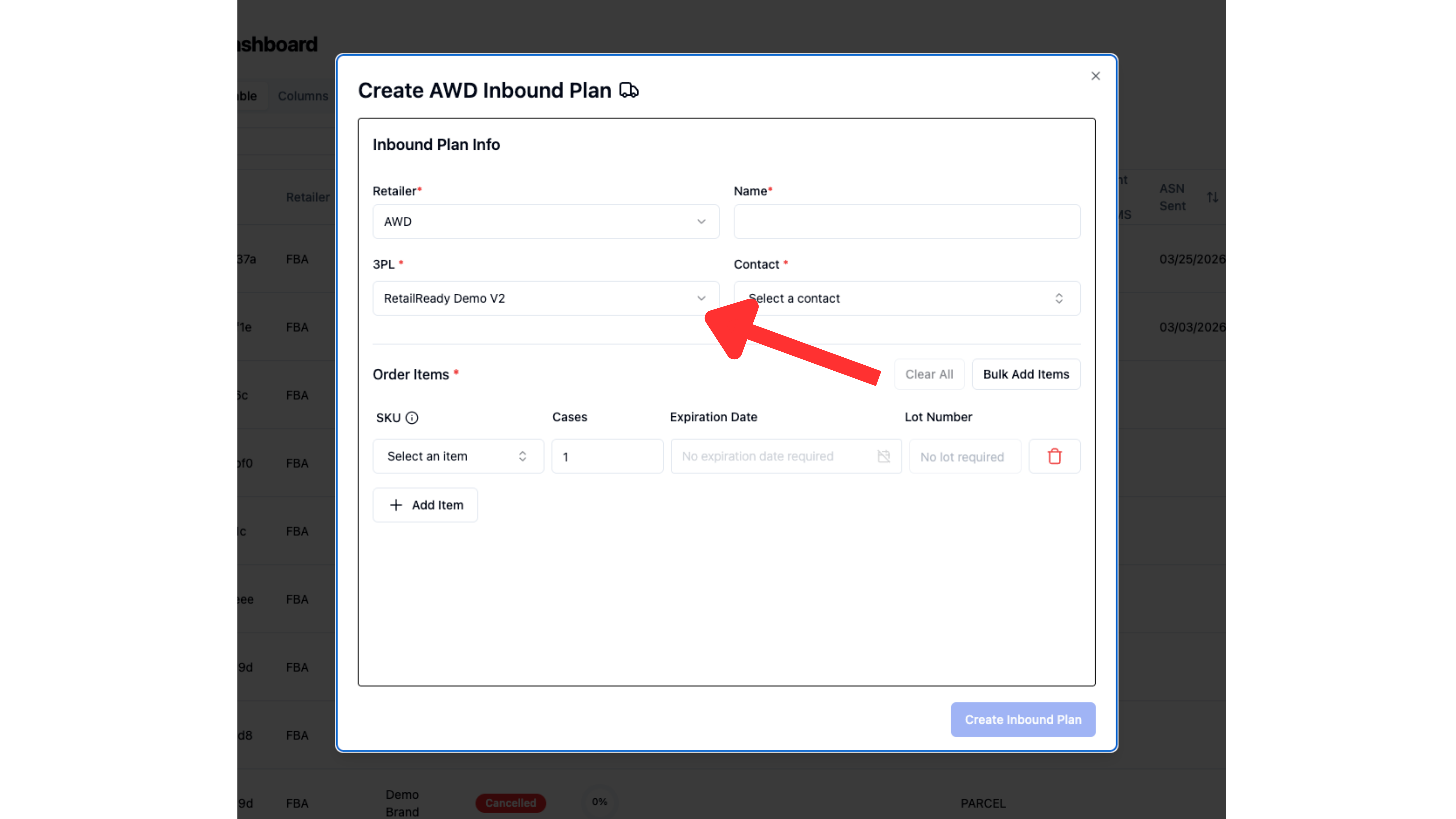
Select a contact from the chosen facility
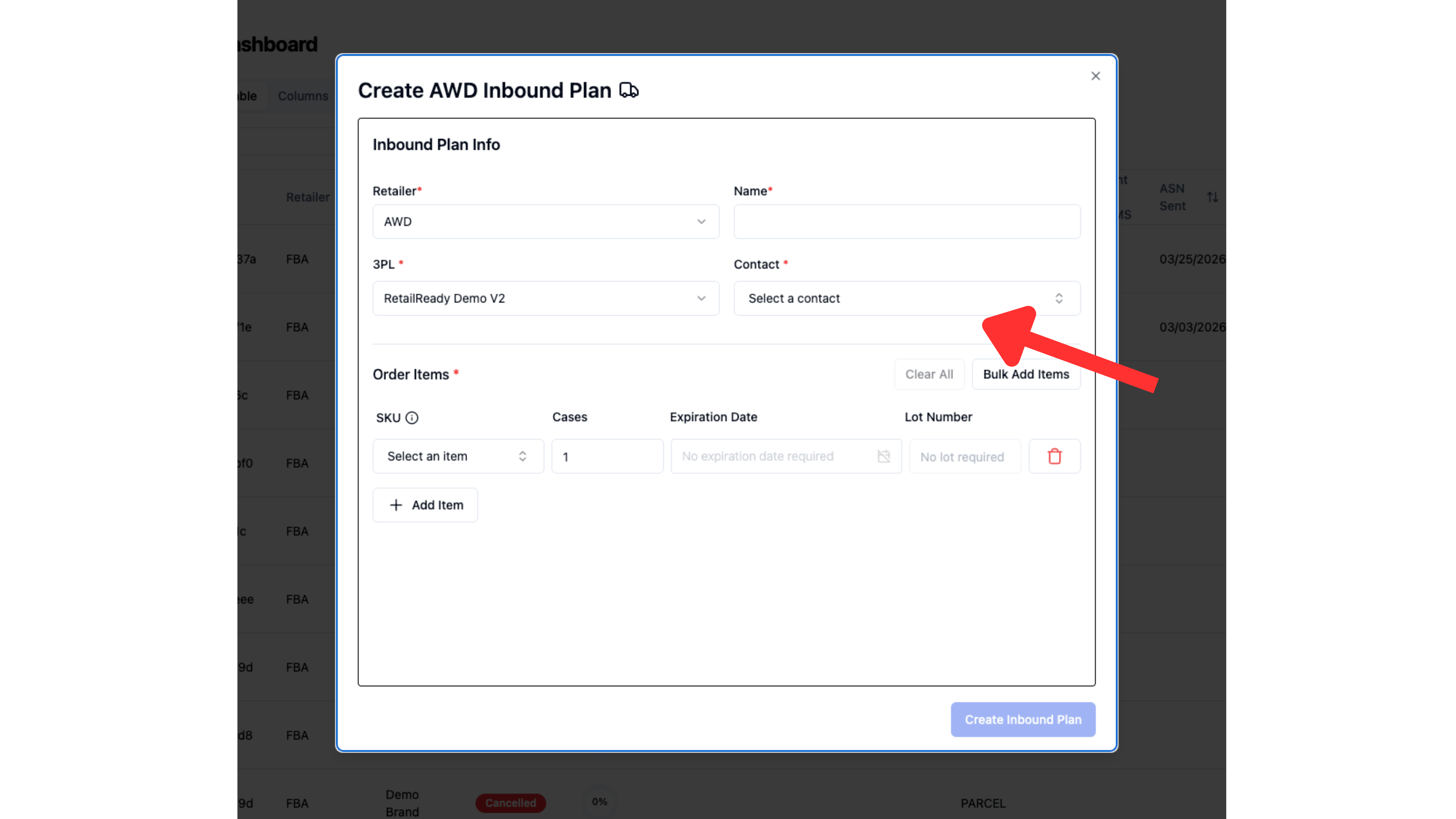
Select the first item you are choosing for this inbound plan from the SKU drop down menu.
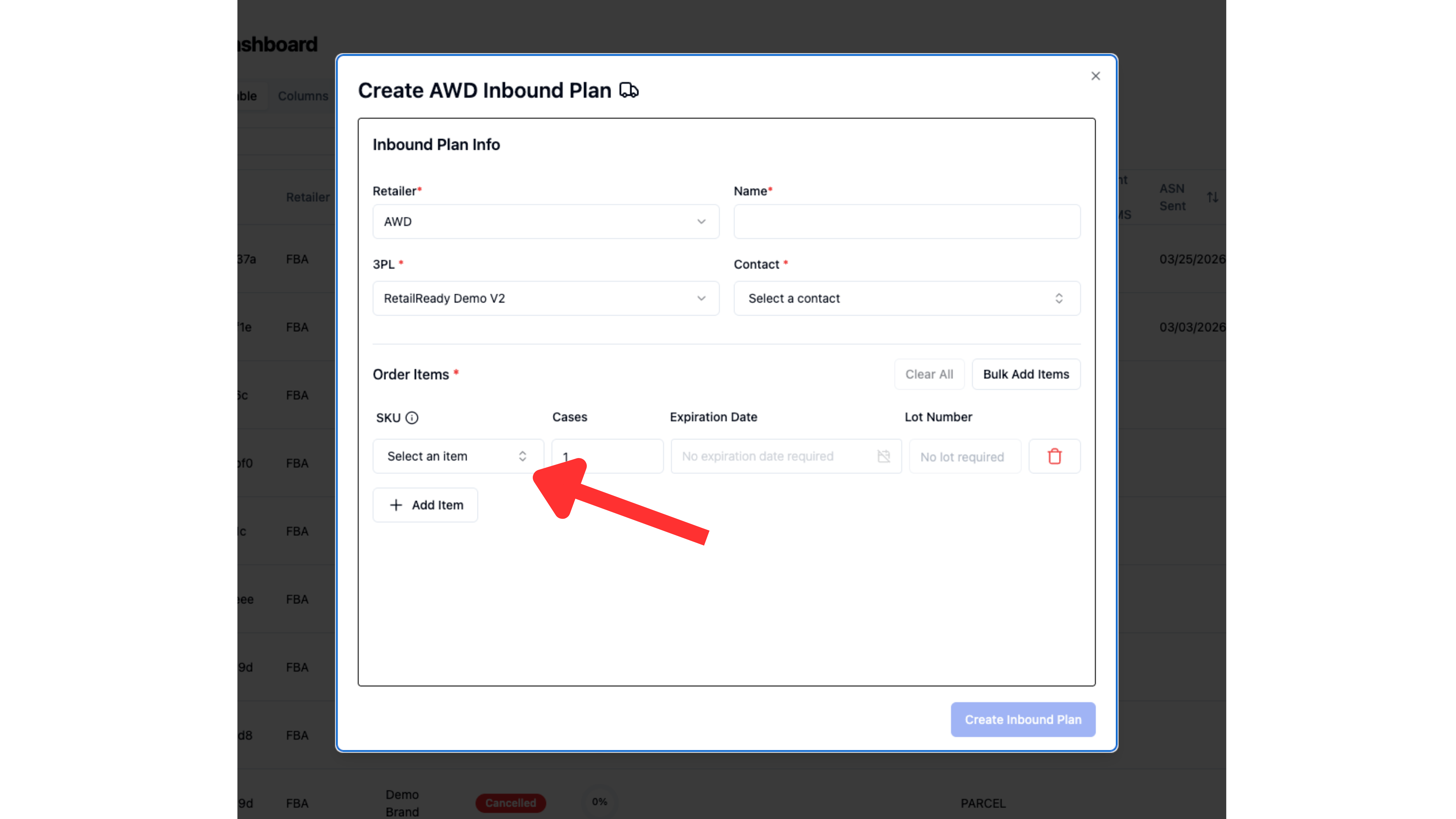
Select how many of these items are going to be on the order.
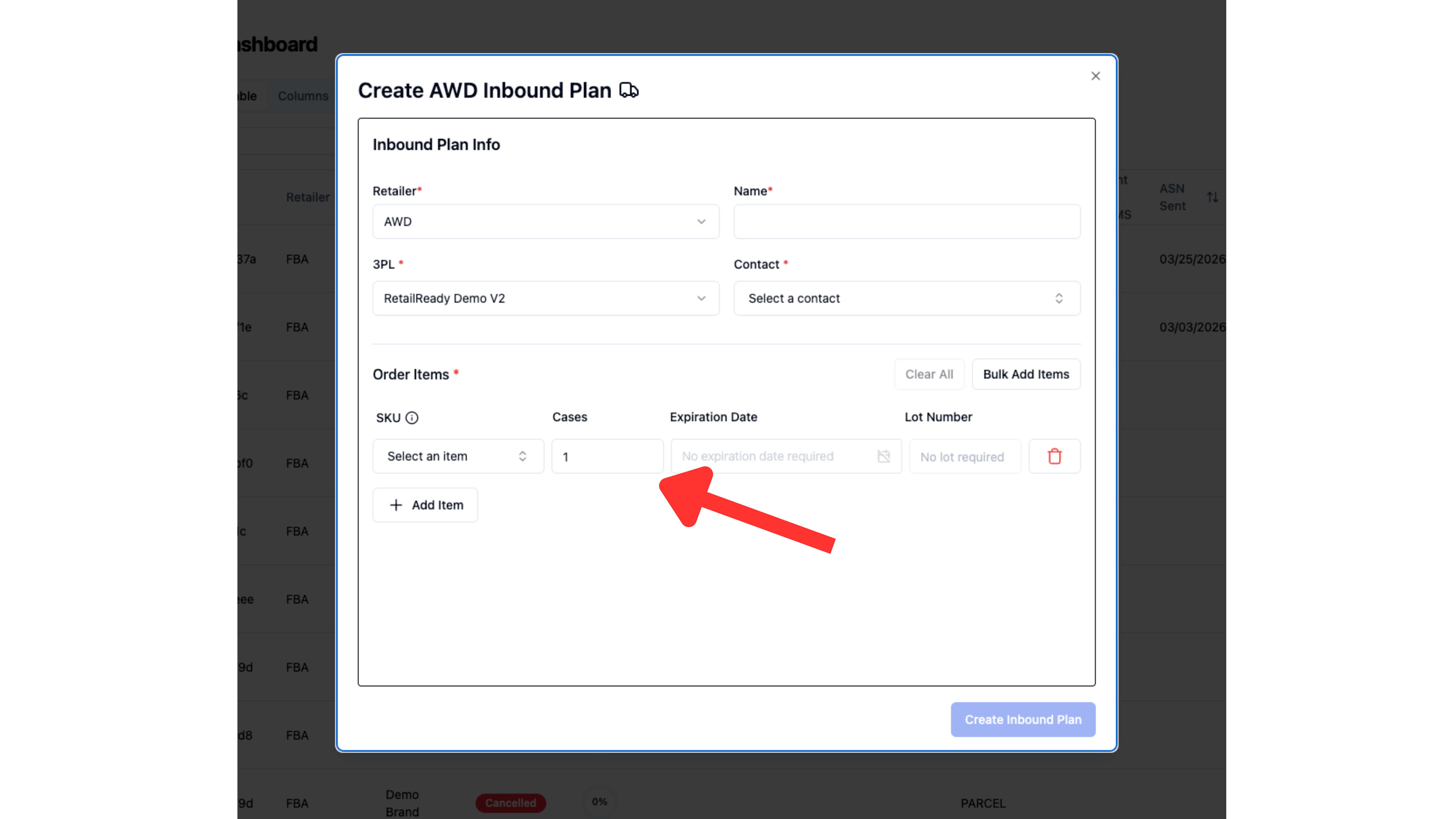
If this item has an expiration date or lot number, add them in these fields. If the SKU does not have tracking toggled on for expiration date or lot number, these fields will be blocked and should be skipped.
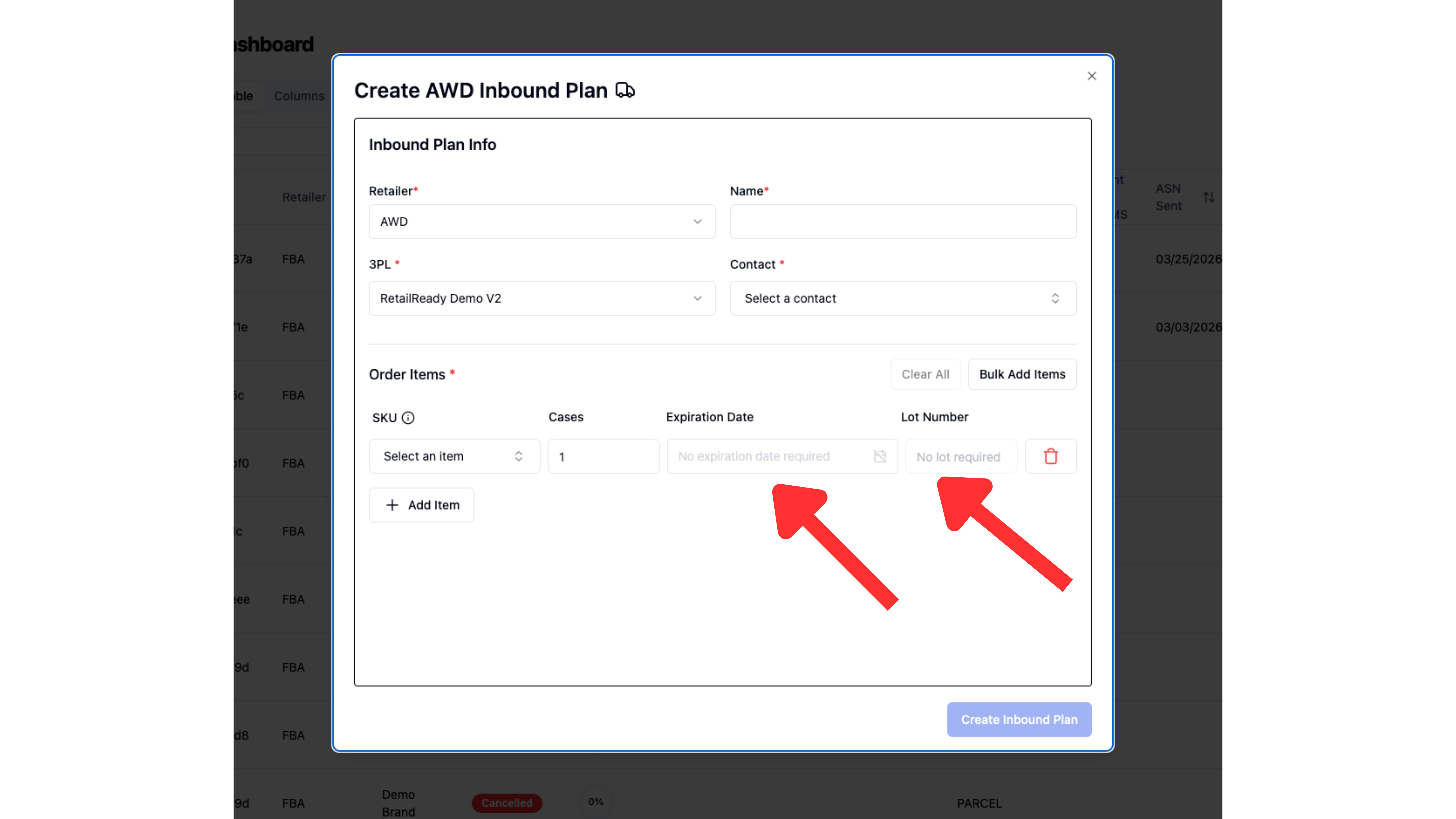
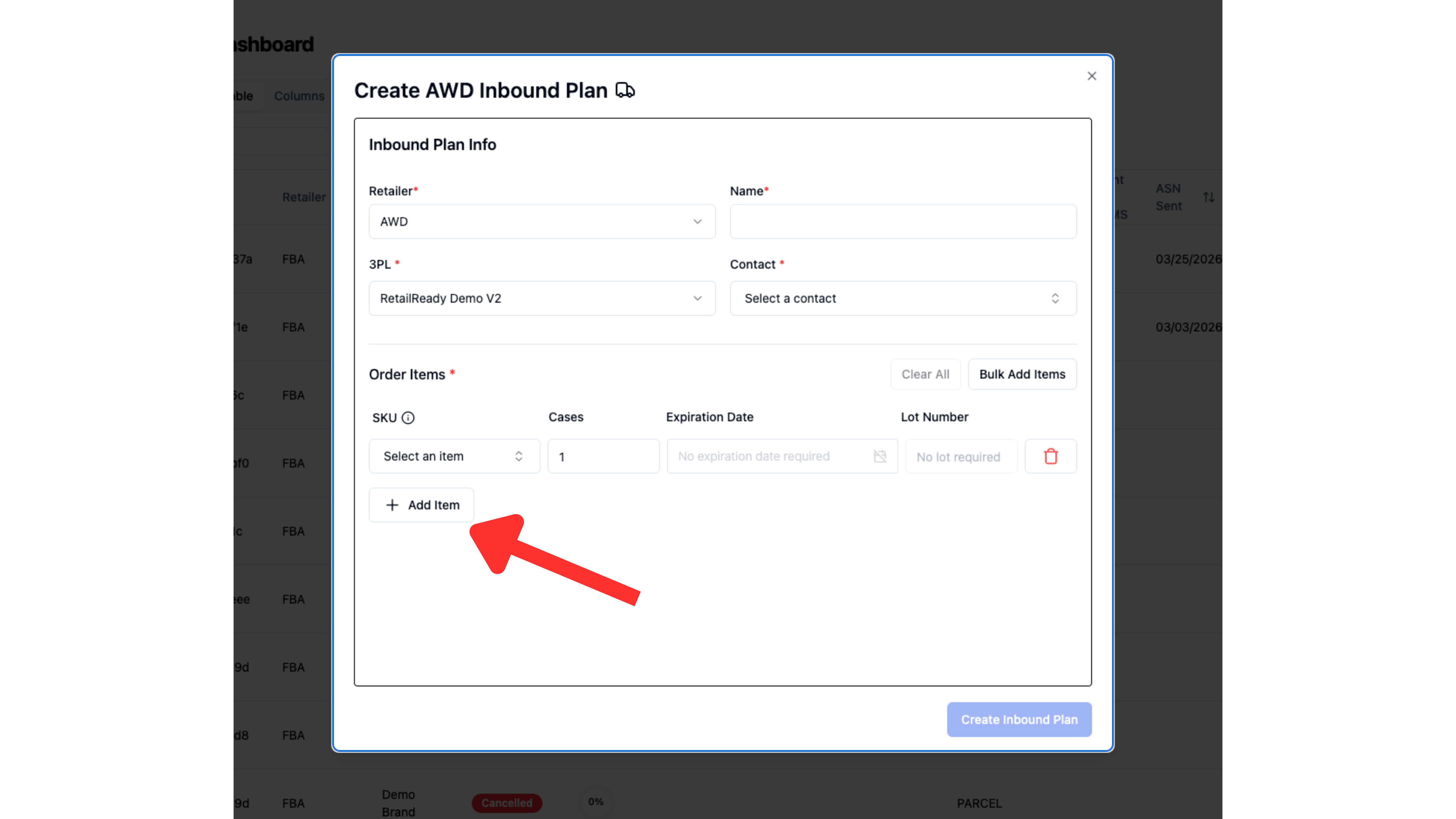
If there will be more than one SKU on this order, click add item and repeat steps 8 through 10 for each additional SKU.
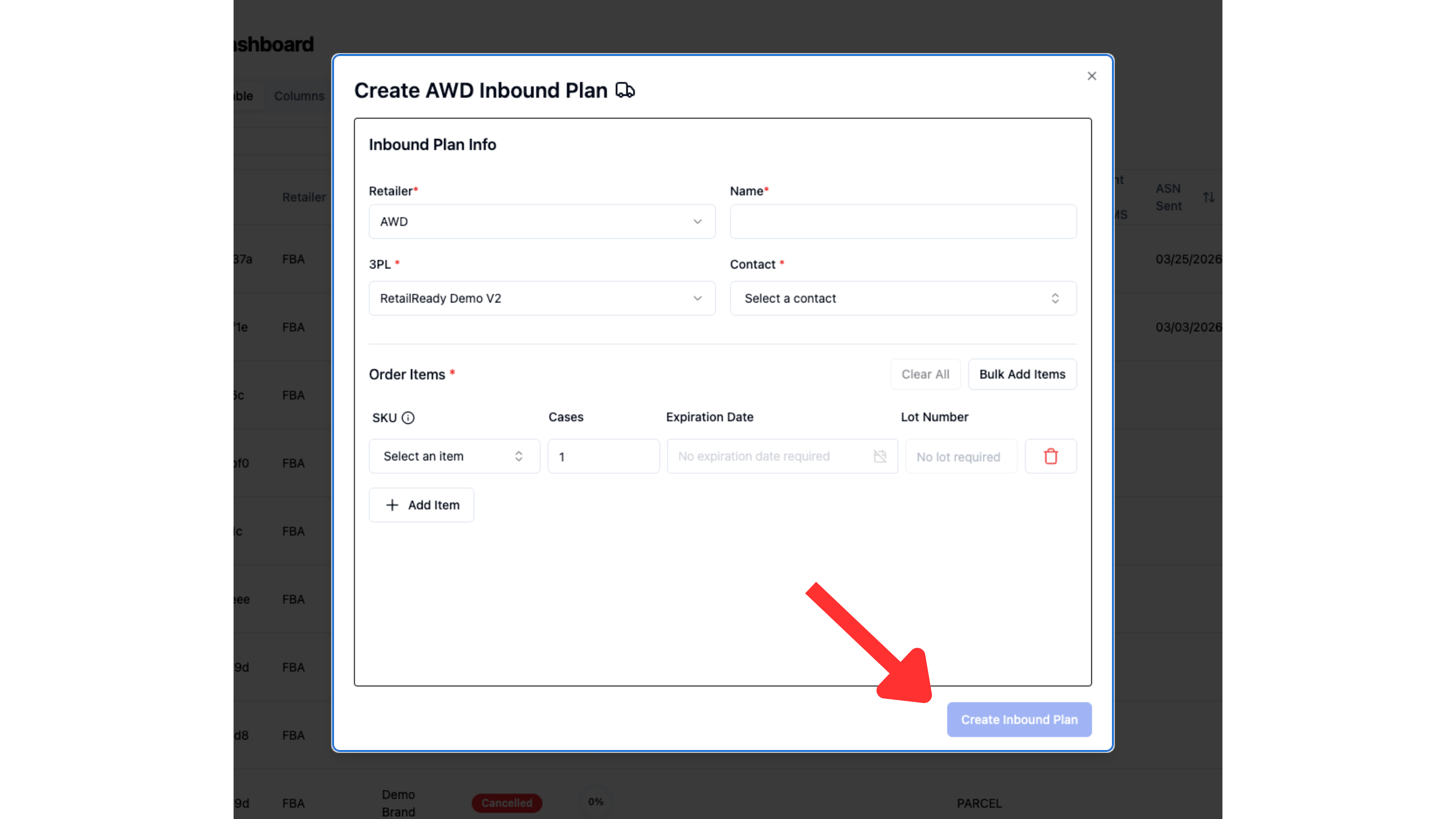
Click create inbound plan
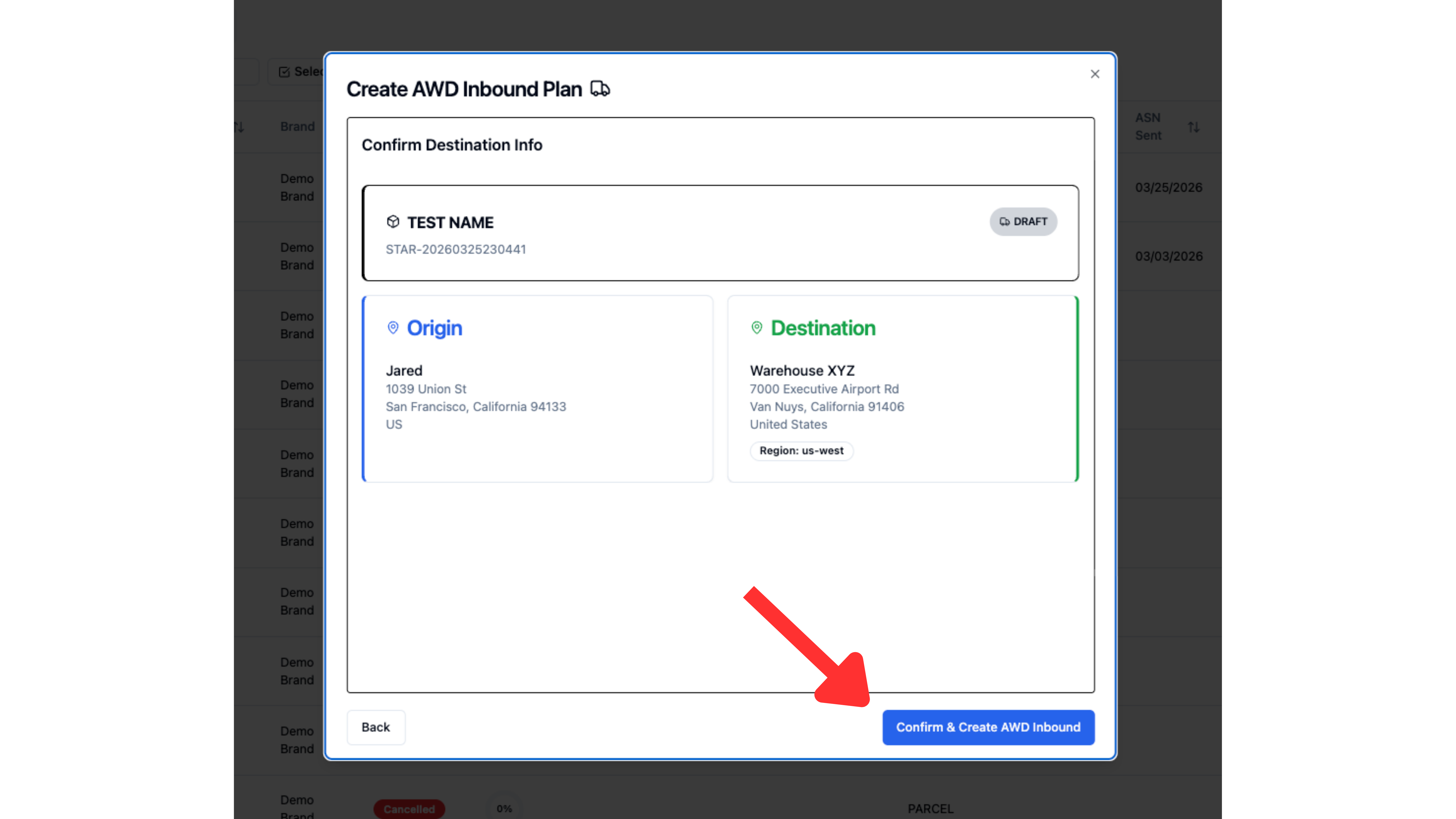
You will see a detail page to confirm everything looks correct. Then you should click 'Confirm & Create Inbound Plan'.
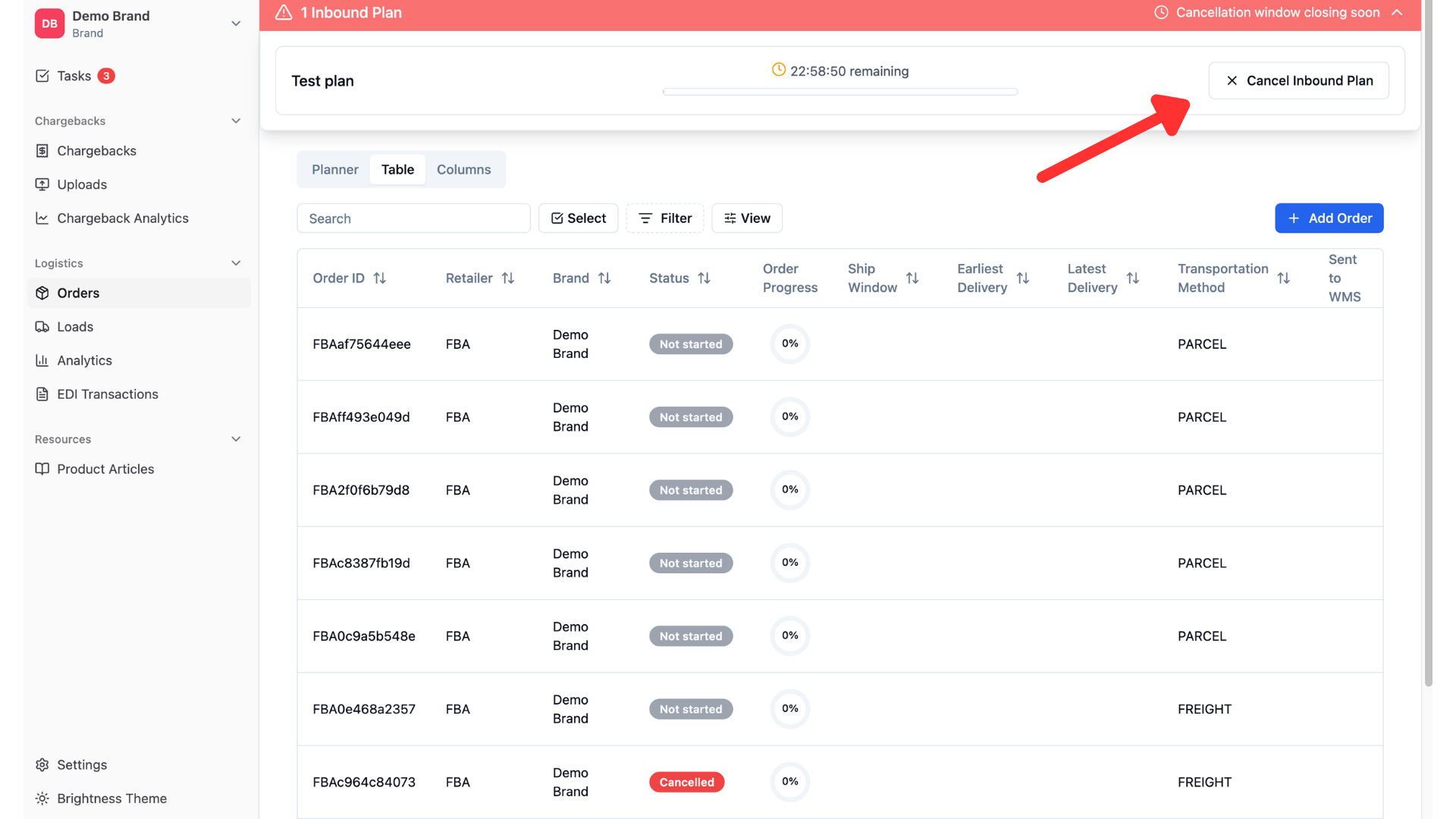
Once your order is placed, you will have a certain amount of time to cancel your inbound plan. This will be indicated by a banner across the top of your screen. For freight orders, you will have 1 hour, for parcel, 24 hours.
FAQs
How do I move cartons on a pallet for a freight AWD order?
Since Amazon provides specific shipment instructions, moving cartons on a pallet for a freight order is not allowed.
How do I cancel my AWD order outside the cancellation window?
Once the cancellation window has closed, you are unable to cancel your plan. You may try contacting Amazon to cancel the order but may incur charges.
I'm trying to add an AWD order, but don't see an option to?
AWD orders can only be added by brands - please make sure you are signed in as a brand, to be able to add a new order. To add an order, follow the steps for "Now it's time to create the FBA order!" above.
What to do if AWD order(s) are manually completed Amazon Seller?
The order will require a manual load entry in RetailReady to close it out, as it did not go through standard processing. Use tablet mode to complete this step, then add a comment to the order noting that it was manually loaded to close it out.
How is the pickup date set for Amazon SWD freight orders?
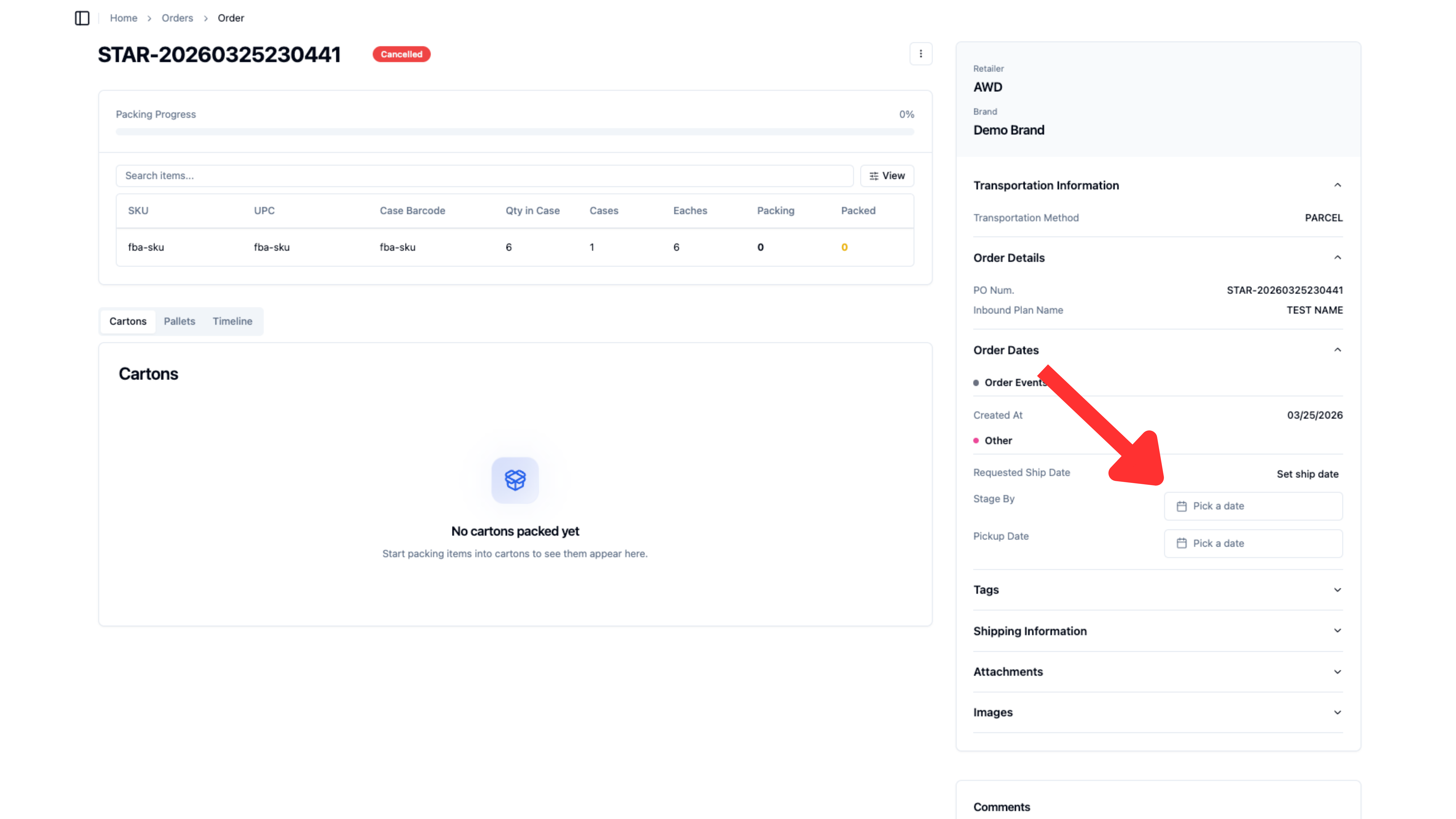
The pick up date is decided entirely by either the brand or 3PL after the order has been created. The dates can be assigned in the order view.
How long do I have to cancel an inbound plan?
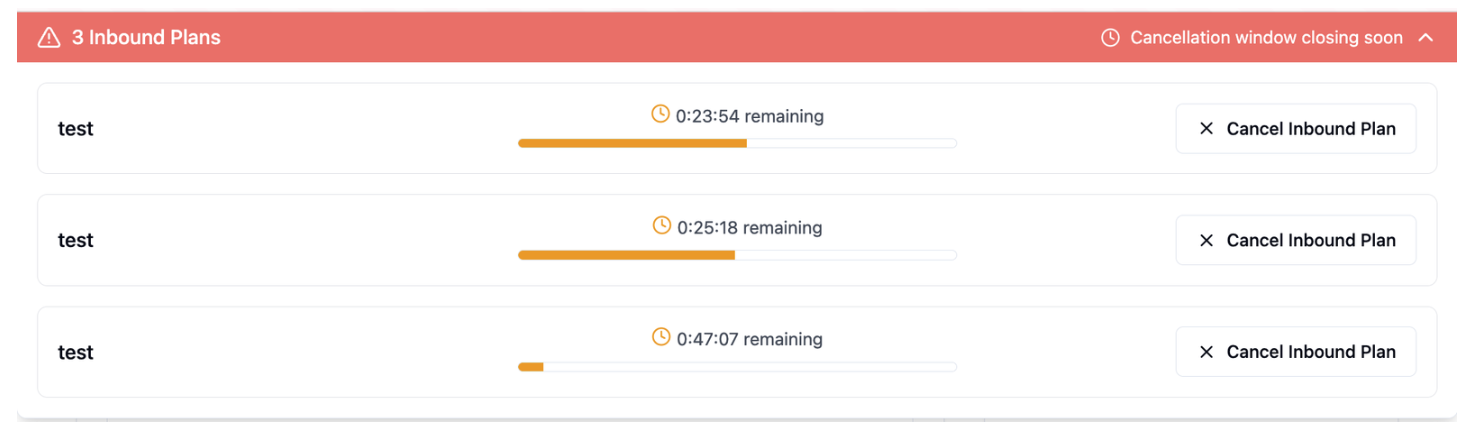
Amazon provides a limited cancellation window for AWD inbound plans:
Freight shipments: 1-hour cancellation window
Parcel shipments: 24-hour cancellation window
After these time windows, the inbound plan becomes locked in Amazon’s system and cannot be canceled. If past cancellation window then you need to Open a case via Seller Central to request cancellation
In RetailReady, any AWD orders that are still within their cancellation window will appear in the red banner at the top of the page. Click the banner to view all eligible orders and use the Cancel button to cancel them.
Why are some SKUs not showing when creating an AWD order?
When creating an AWD inbound plan, RetailReady automatically filters out SKUs that aren’t fully configured for Amazon. You’ll see a red info icon (ℹ) explaining which SKUs were skipped and why.
SKUs are excluded if:
Missing required setup — SKU must have case pack quantity, dimensions, and weight in the Item Master.
Excluded from AWD — SKU’s case rule lists AWD as an excluded retailer.
Duplicate Amazon SKU (MSKU) — More than one internal SKU is mapped to the same MSKU.
Missing prep info in Seller Central — Amazon shows “Prep Category: Unknown,” meaning setup is incomplete.
Already selected — SKUs already added to the current plan are hidden to prevent duplicates.
How to fix:
Hover or click the red info icon to see details and links to each SKU.
Complete the missing fields in RetailReady or update the product setup in Amazon Seller Central.
How do I add my prep details?
Prep details come directly from Amazon Seller Central. You don’t need to enter them manually in RetailReady.
Amazon automatically determines prep requirements based on the product type, but you can review or update them in Seller Central if they’re missing or incorrect.
Update the SKU in Amazon Seller Central with the correct prep category and type if needed.
RetailReady automatically syncs your prep details from Amazon.
These details are saved and reused for future AWD shipments.
Are Amazon Partnered Carriers allowed?
Amazon does not currently support Amazon partnered carriers for AWD shipments. This means that routing is entirely the suppliers responsibility.
Will lot and expiration date requirements be tracked?
The item master has an option to toggle on/off lot and expiration date tracking for each individual SKU. If this has been toggled on, when the SKU is being packed out for a retailer that has lot/expiration requirements, the packer will be prompted to input this information into RetailReady so it can be used appropriately.