Brand User Management in RetailReady
Last updated: September 18, 2026
This article covers how to create and manage Brand users in RetailReady, including assigning roles, configuring permissions, and ensuring proper access to brands.
RetailReady user management aligns system access with operational responsibilities. Brand users are granted visibility into their brand for order tracking.
How To Add A Brand User in RetailReady?
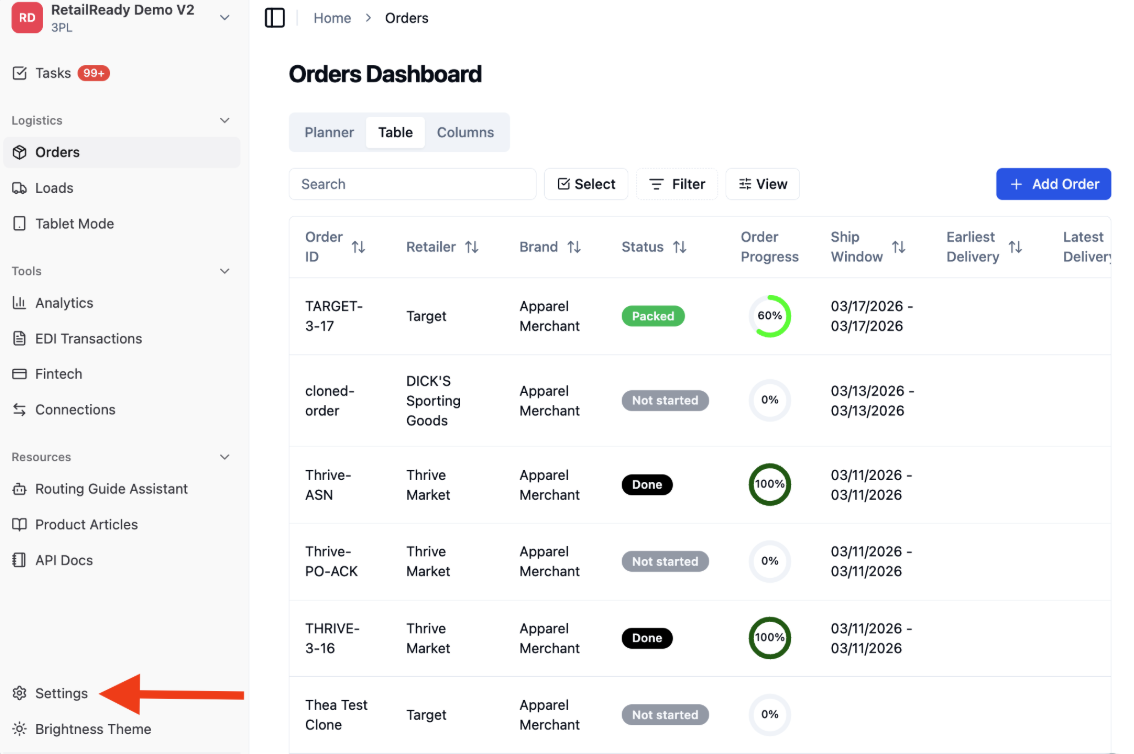
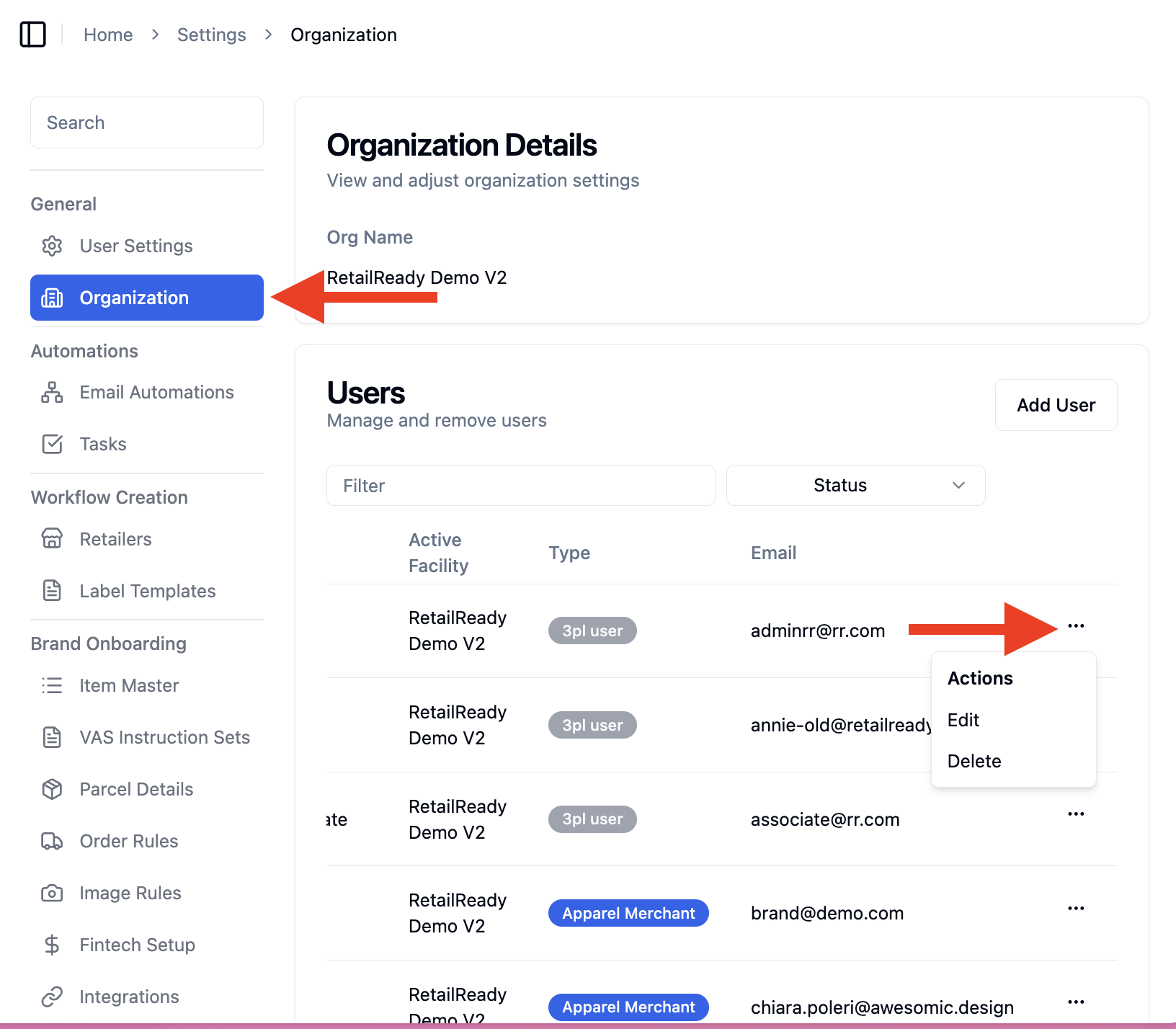
Navigate to the 'Settings' Tab on the left-hand navigation panel of RetailReady.
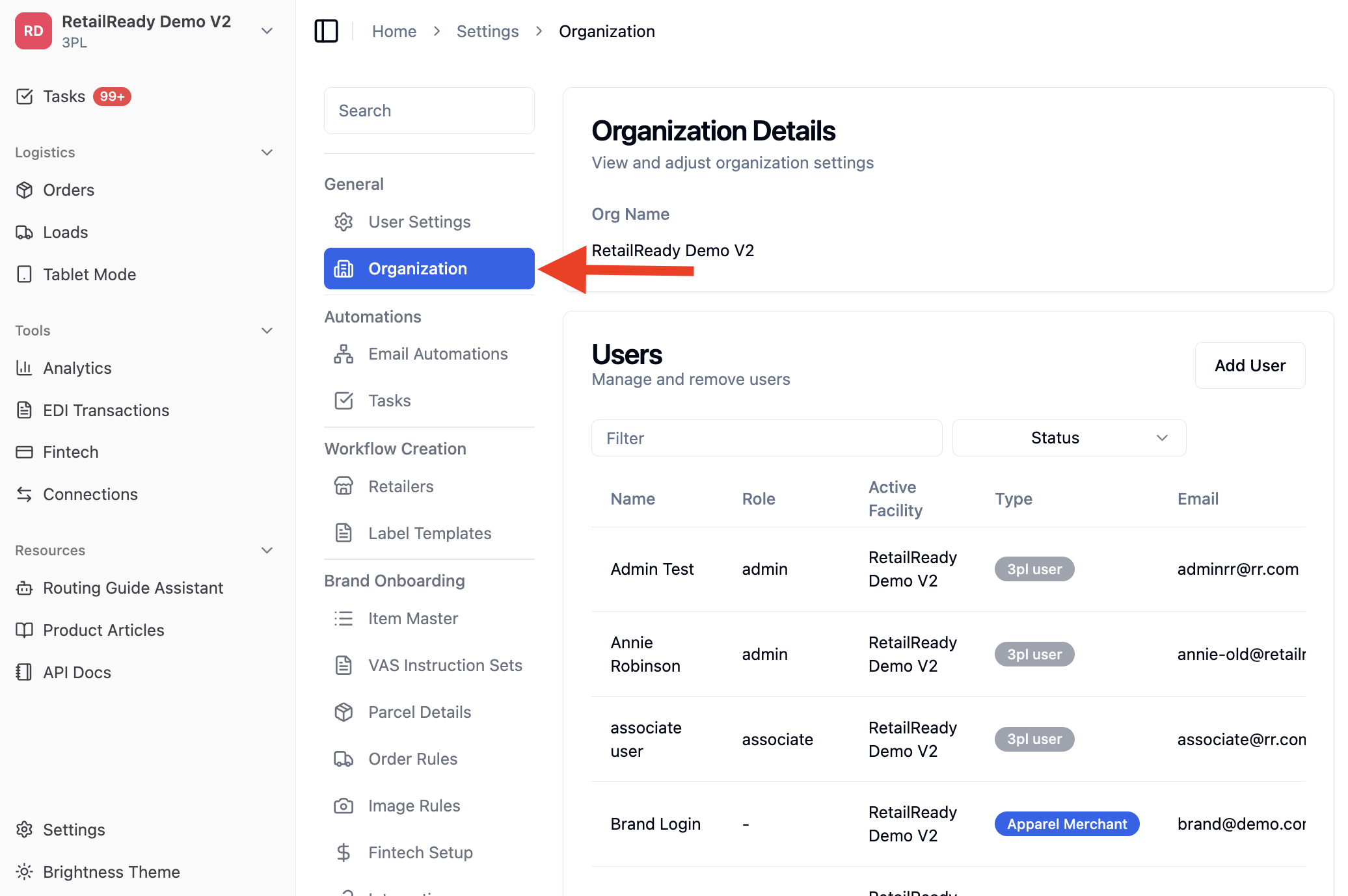
Under the General section, select 'Organization'.
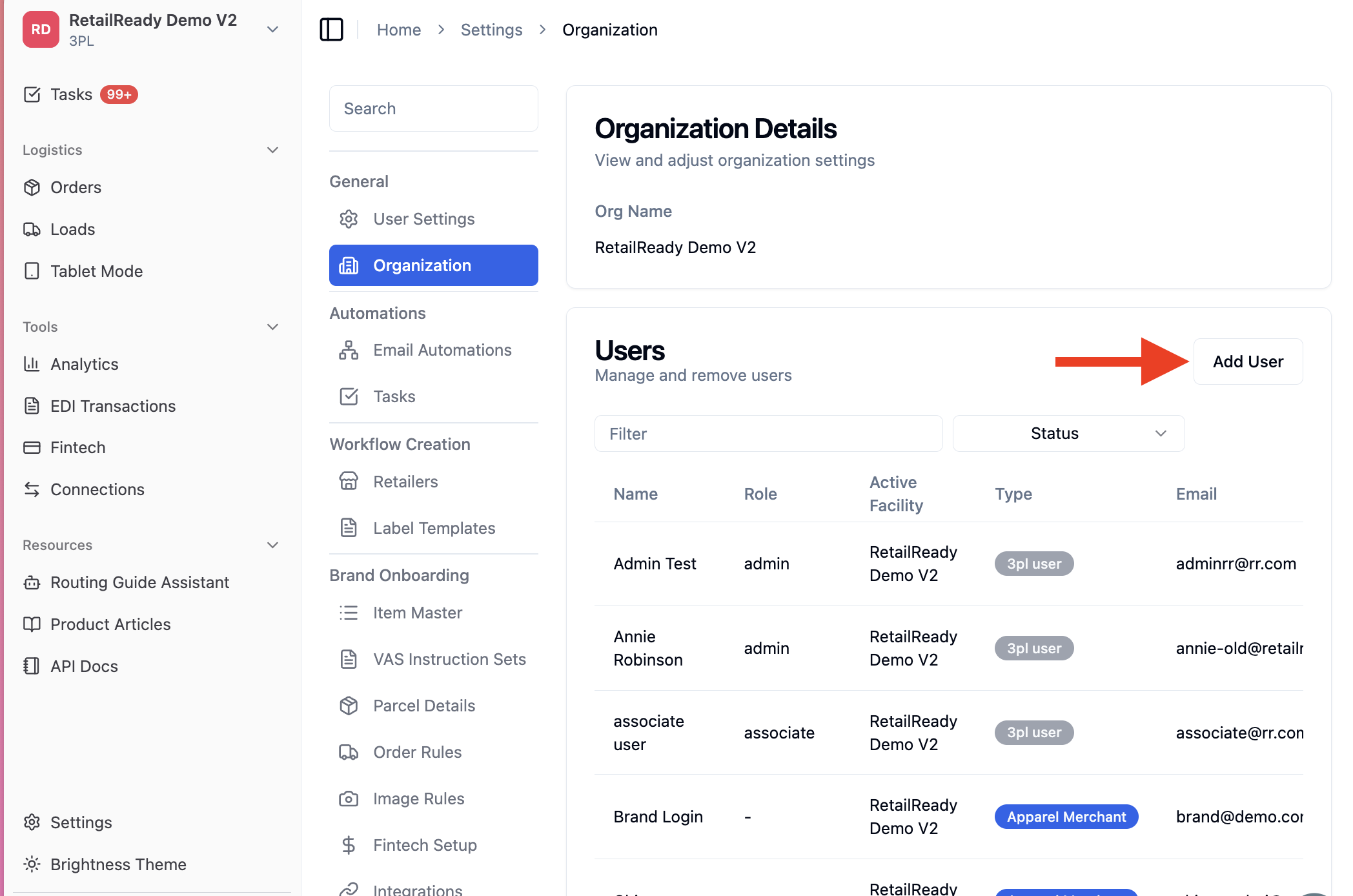
Select 'Add User' to begin creating a new user.
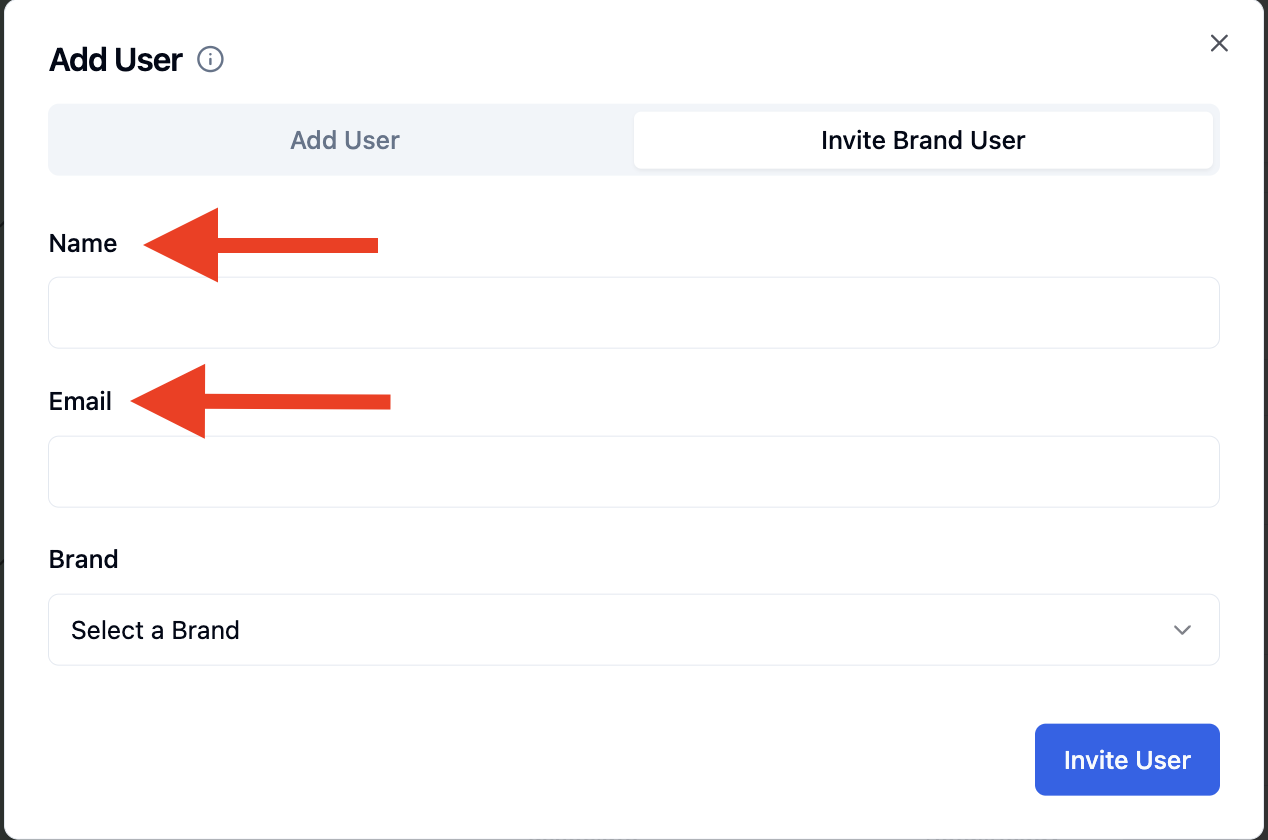
Select 'Invite Brand User' tab to create a brand user.
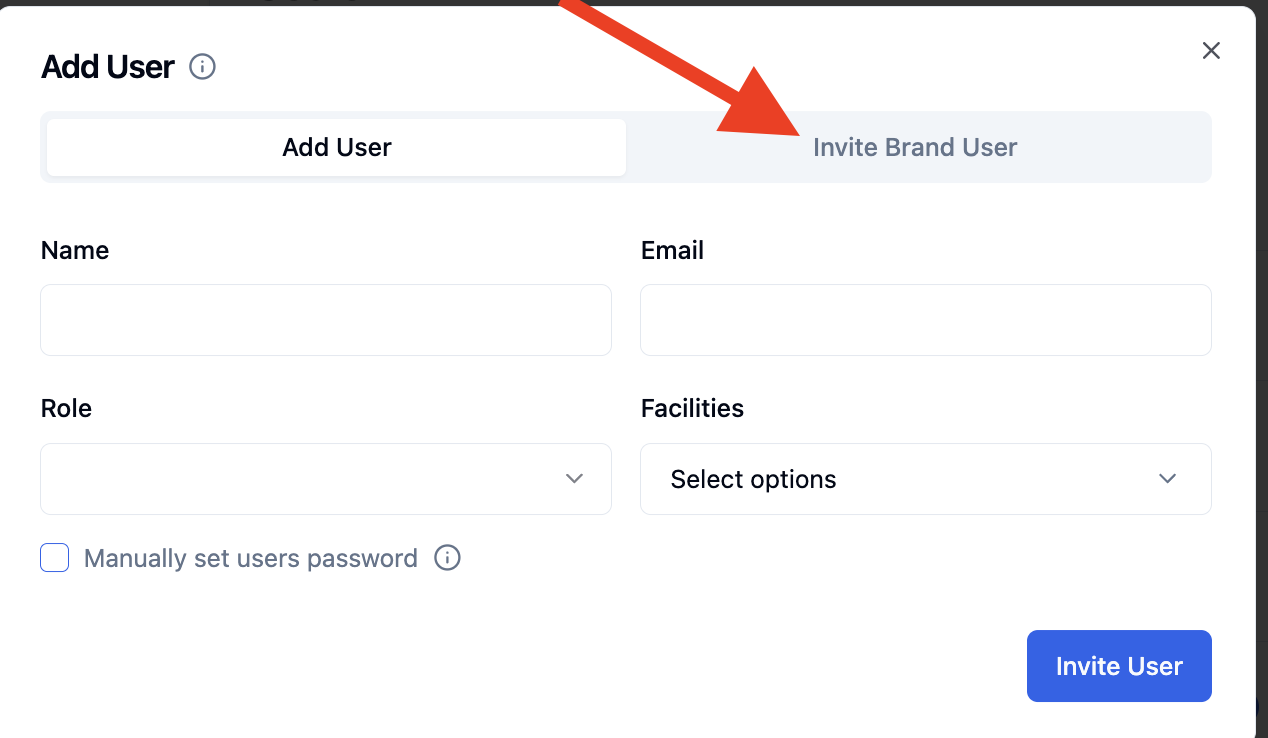
Enter the user’s name and email address in the appropriate fields.
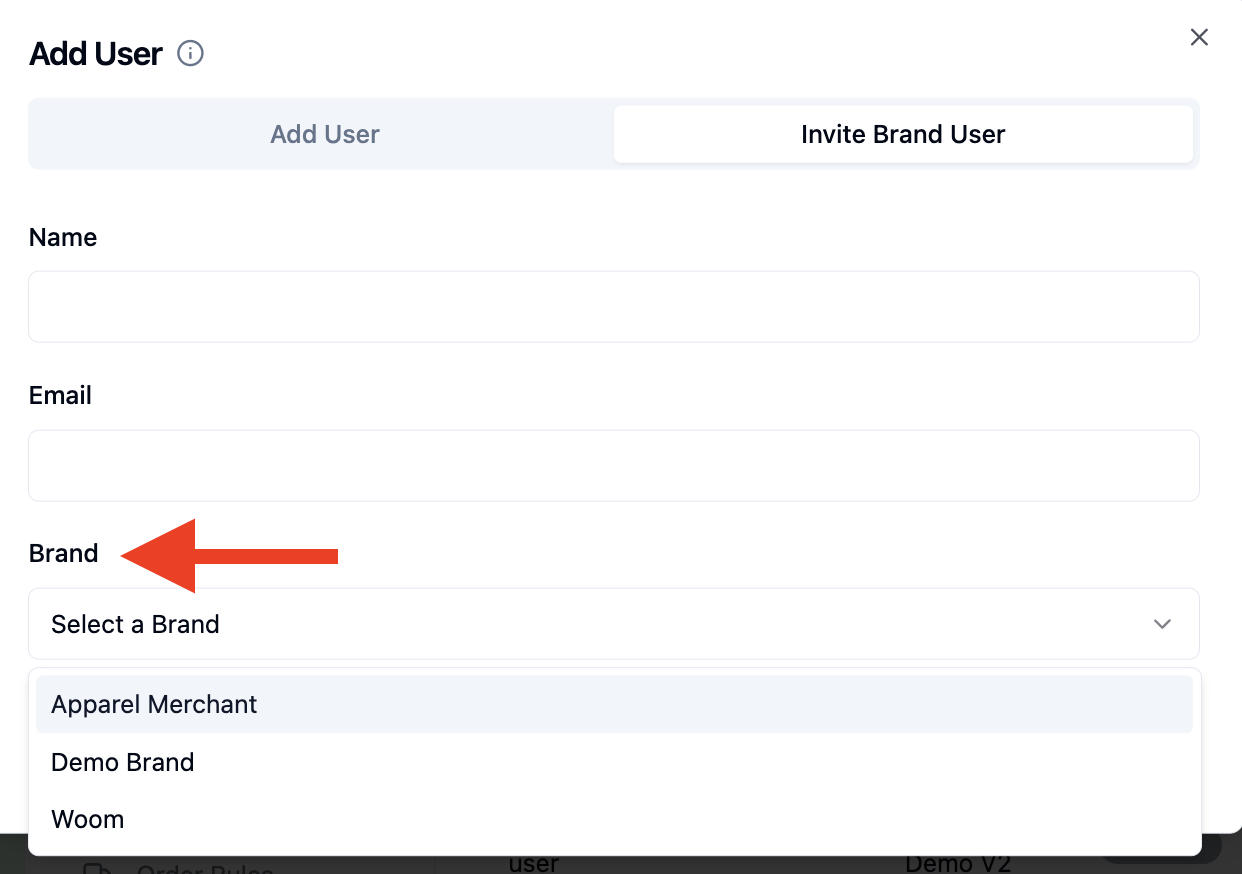
Select the brand from the Brand dropdown menu.
Click 'Invite User'.
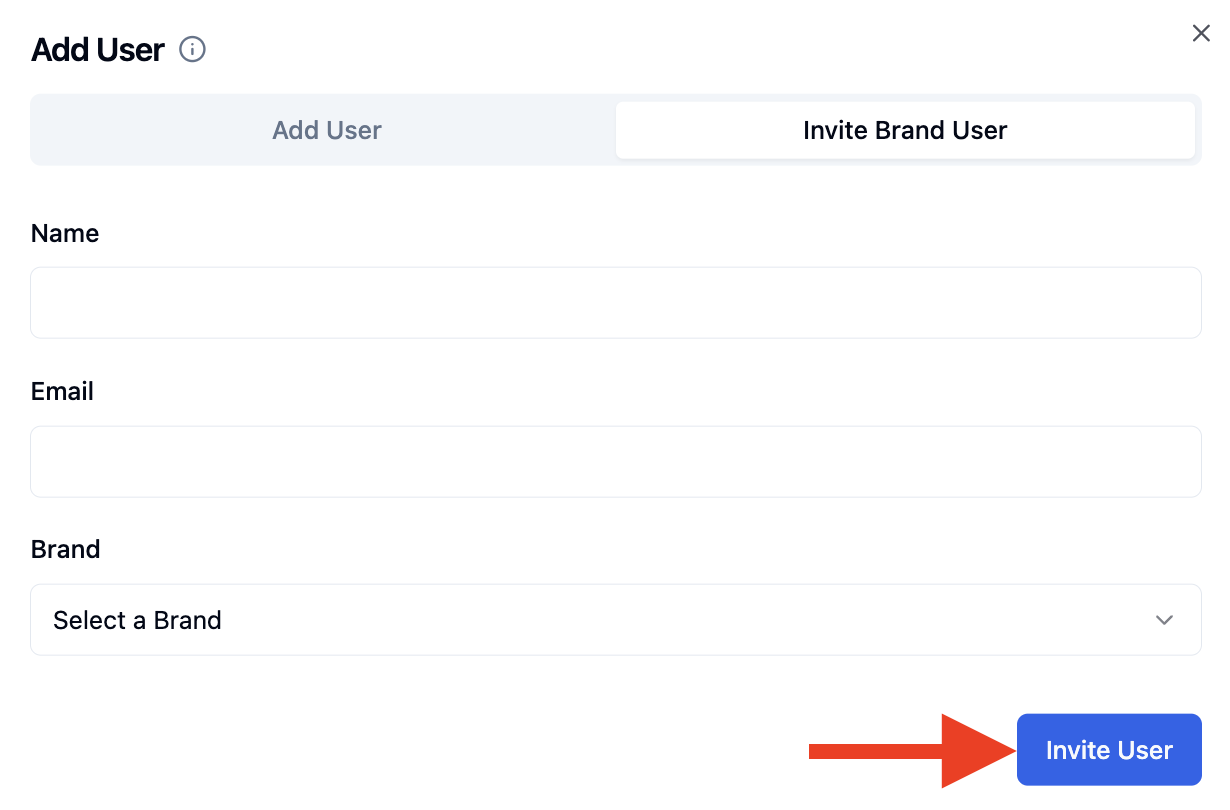
The user will receive an email containing a one-time password and will be prompted to update it upon first login.
Brand User Capabilities
Order Dashboard
Capability | Brand |
View all orders & details | ✅ |
Planner view | ✅ |
View carton / pallet/ documents images | ✅ |
Generate Compliance Report | ✅ |
Enter Transportation Info | ✅ |
View Order Logs | ✅ |
Place Order On Hold (pre-start) | ✅ |
Edit Order (pre-start) | ✅ |
Add Tags / Comments / Attachments | ✅ |
Set Staged By and Pickup Date | ✅ |
Cancel Order (pre-start) | ✅ |
Send ASN | No |
Send Shipment Confirmation | No |
View / Download Packing Slip | No |
Edit Order (post-start → before load) | No |
Cancel Order (before ASN) | No |
Cartons:
| No |
Pallets:
| No |
Loads Dashboard
Capability | Brand User |
View BOL & Pallet Images | ✅ |
View Orders / Pallets on Load | ✅ |
View Created By / Loaded By / Timestamp | ✅ |
Create Load | No |
Add / Remove Orders from Load | No |
Edit Trailer / Auditor | No |
FAQs:
How does a new user receive login credentials?
If a password is not manually set, the user will receive an email with a one-time password and will be prompted to update it upon first login.
Can I update a user’s role or access after creation?
Yes, user roles and access can be updated at any time by navigating to Organization under settings, locating the user, selecting the three dots, and choosing Edit or Delete.
How do I add and manage a 3PL user?
Please refer to 📄 3PL User Management in RetailReady!