Bulk Order Actions
Last updated: March 20, 2026
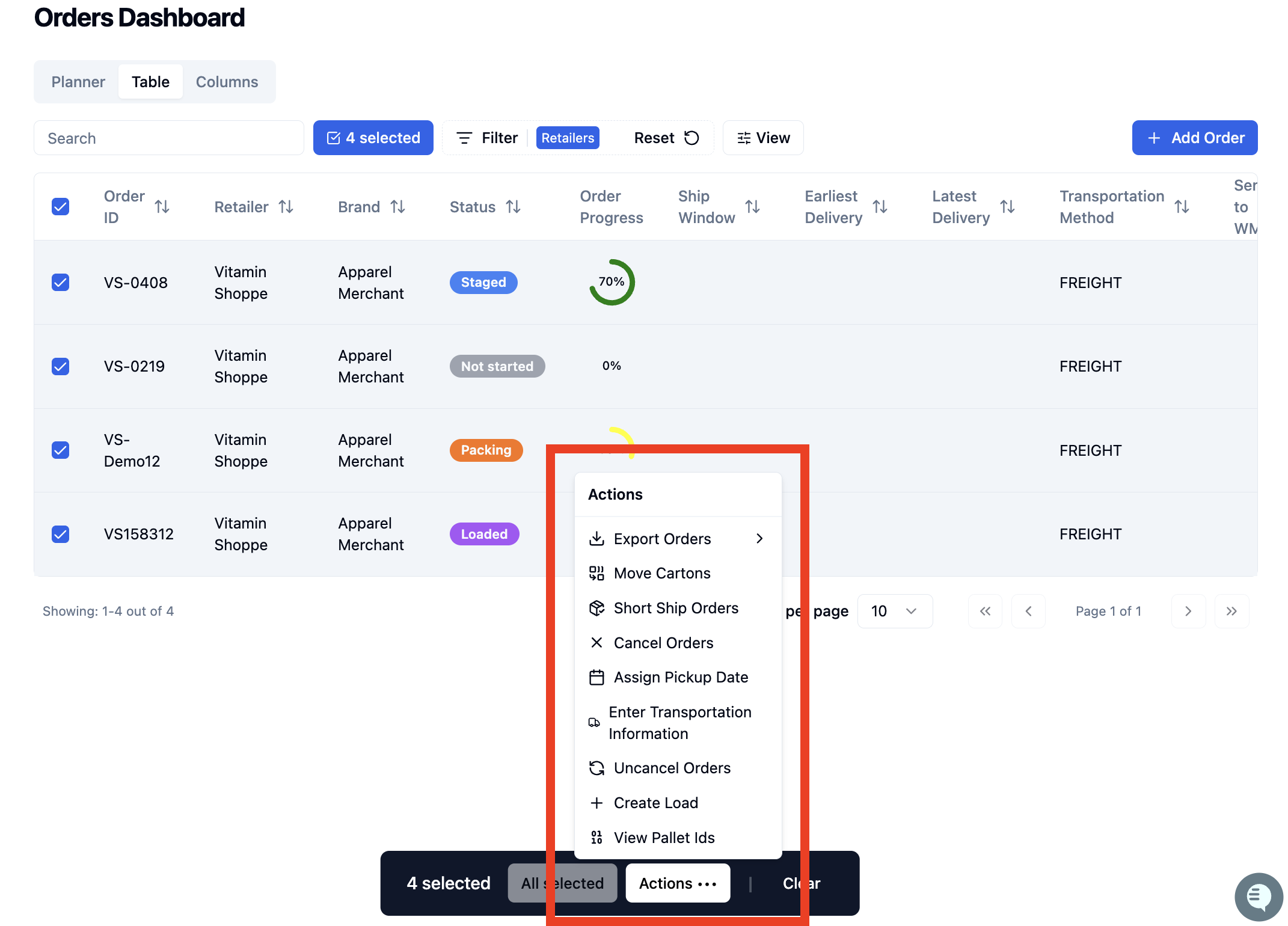
Bulk Order Actions in RetailReady allow users to efficiently manage multiple orders at once directly from the Order Dashboard. Users can perform actions such as exporting orders, moving cartons, short shipping, canceling or uncanceling orders, assigning pickup dates, enter transportation information, creating loads, and viewing pallet IDs.
How to Perform Bulk Order Actions
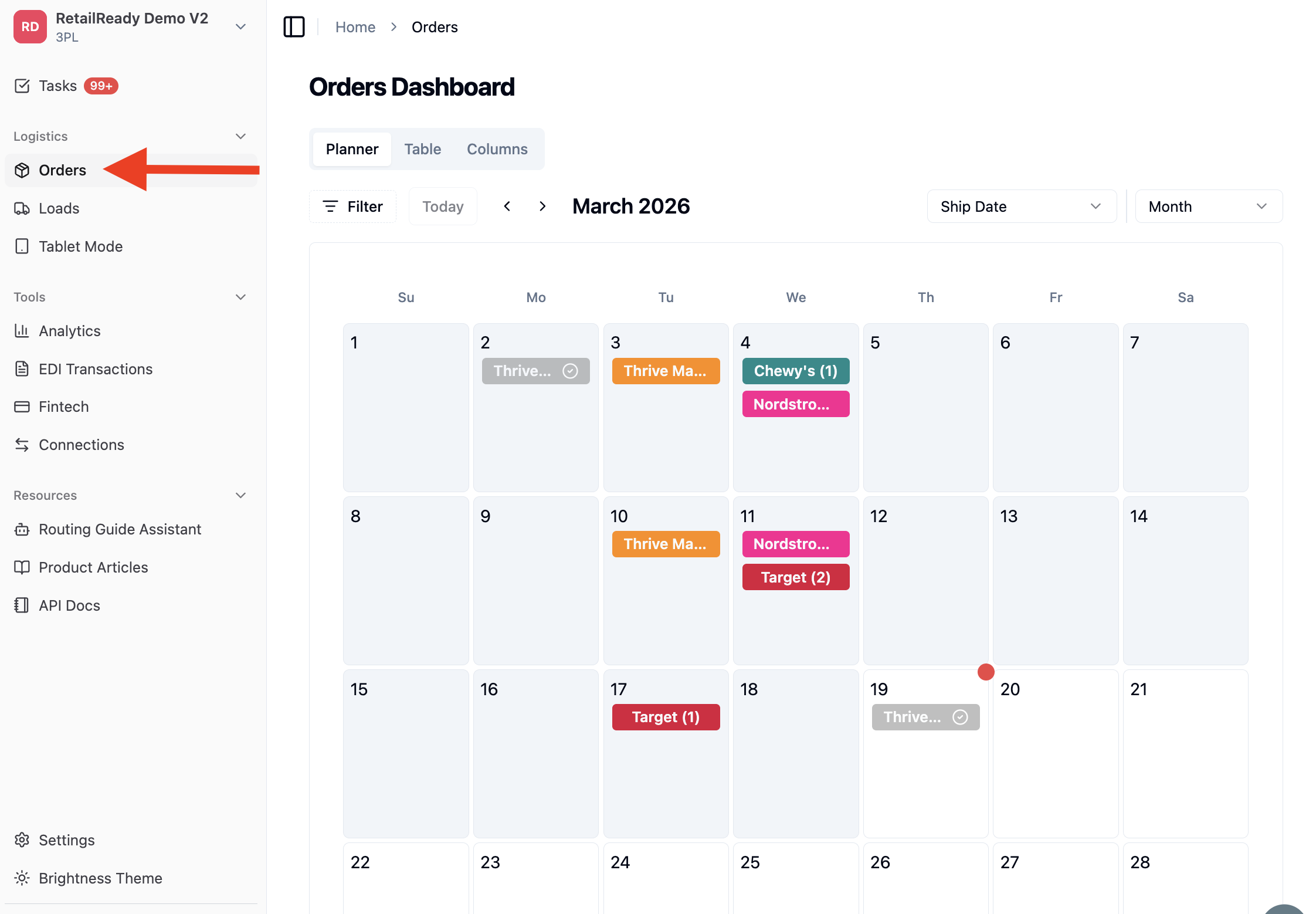
Navigate to 'Orders' from the left-hand navigation panel.
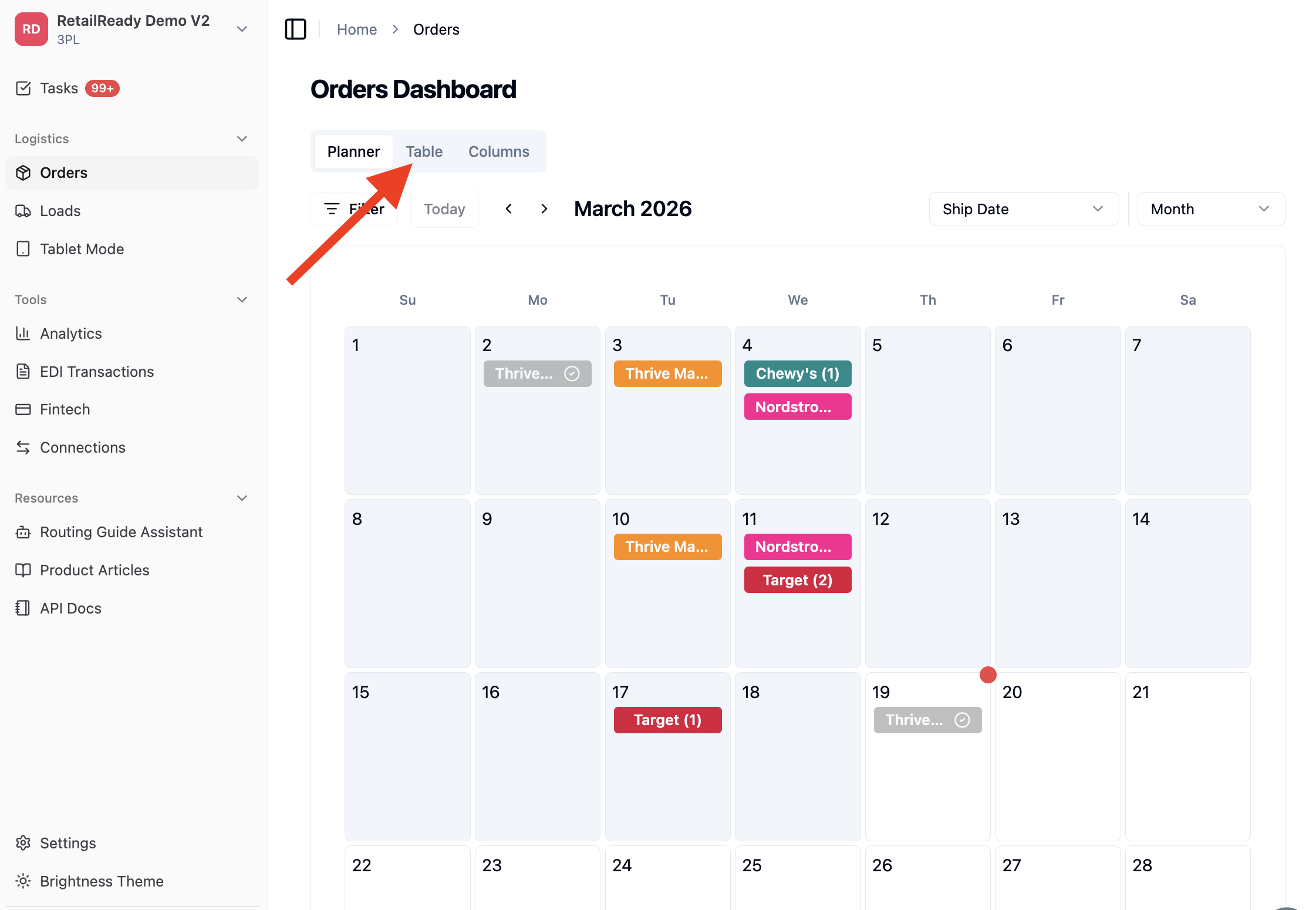
Select 'Table' View.
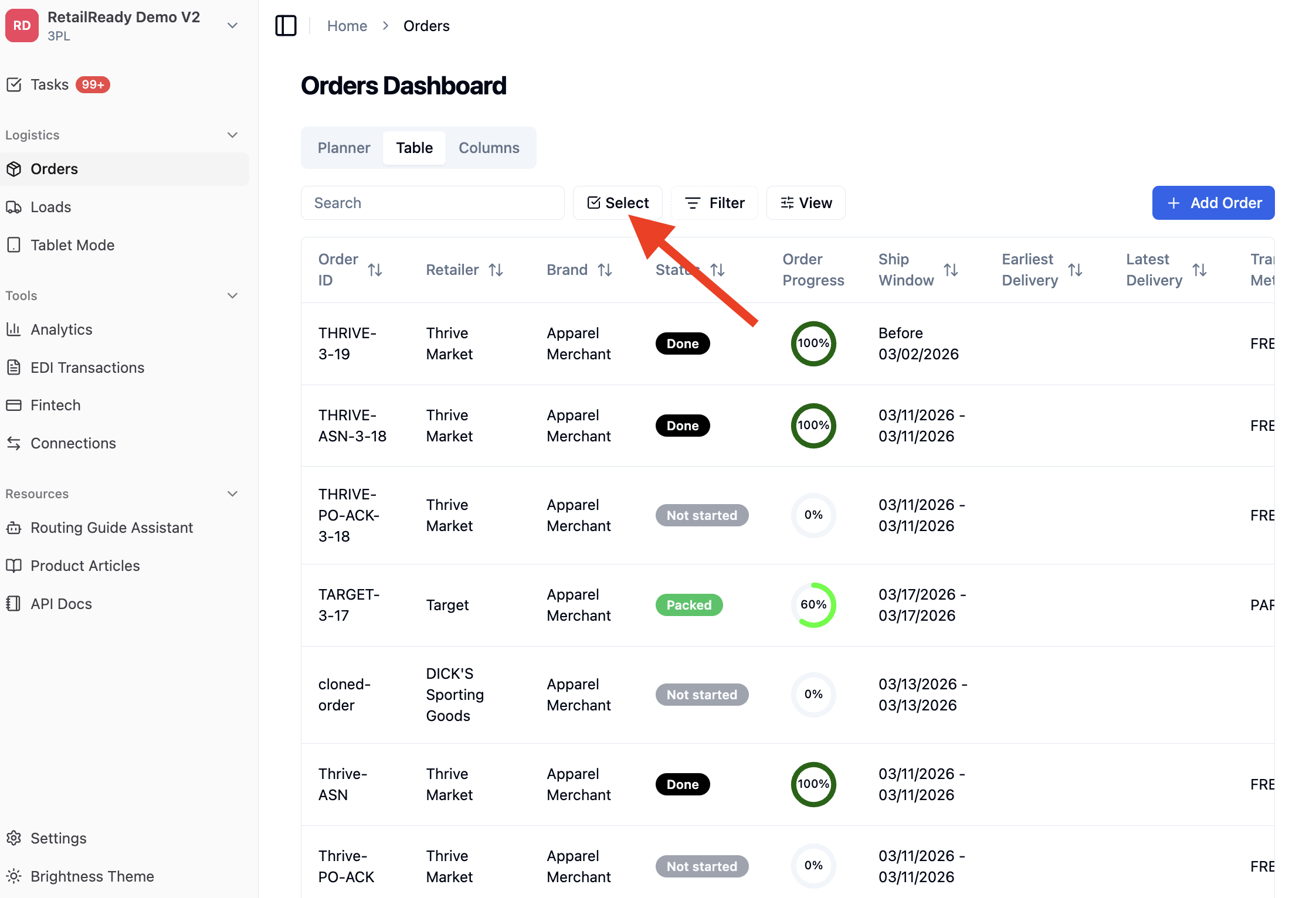
Click 'Select' to activate bulk selection mode.
You can select orders using one of the following methods:
Select Individual Orders by clicking each order row one at a time
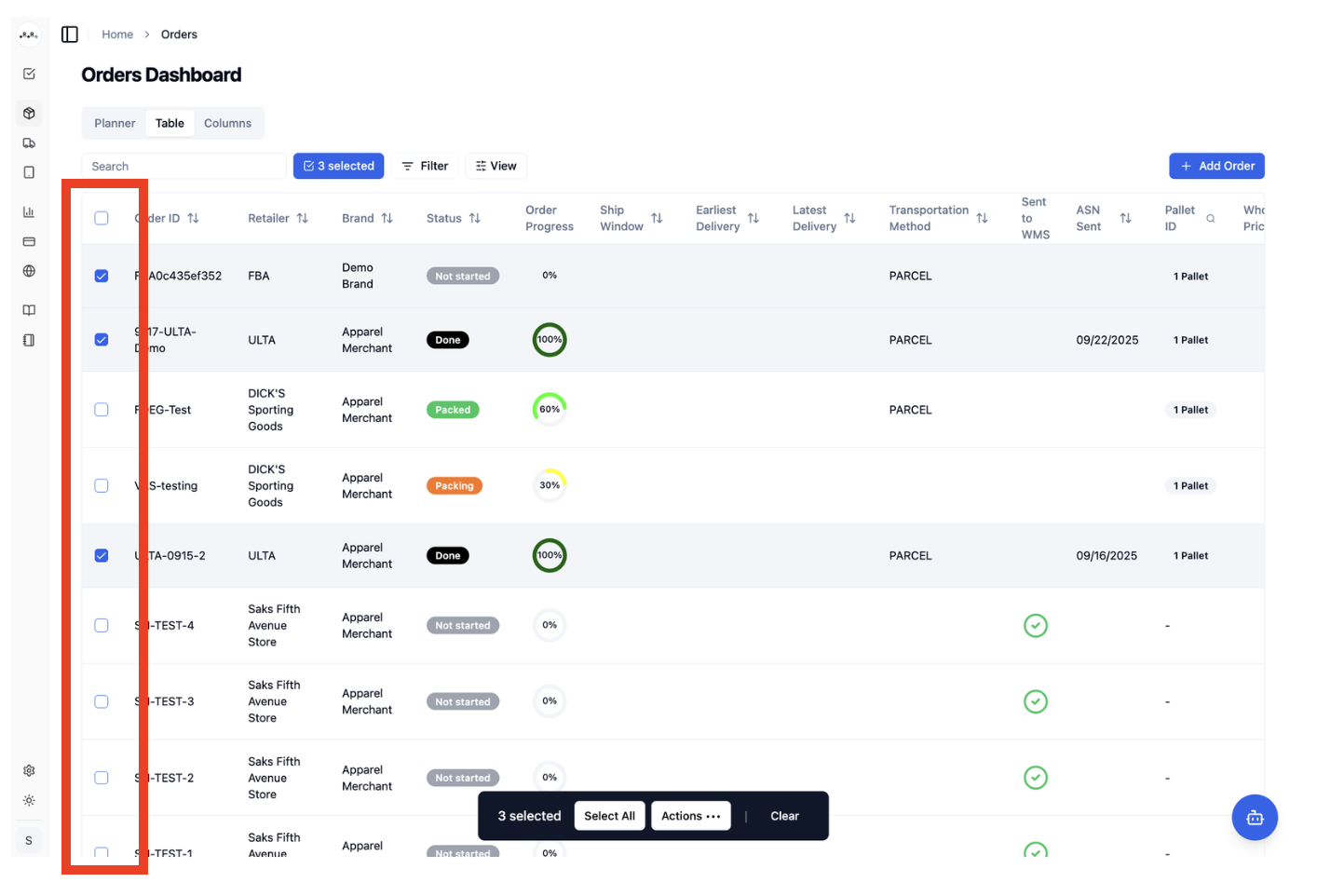
Select All on Page by clicking the top check mark box to select all orders visible on the current page
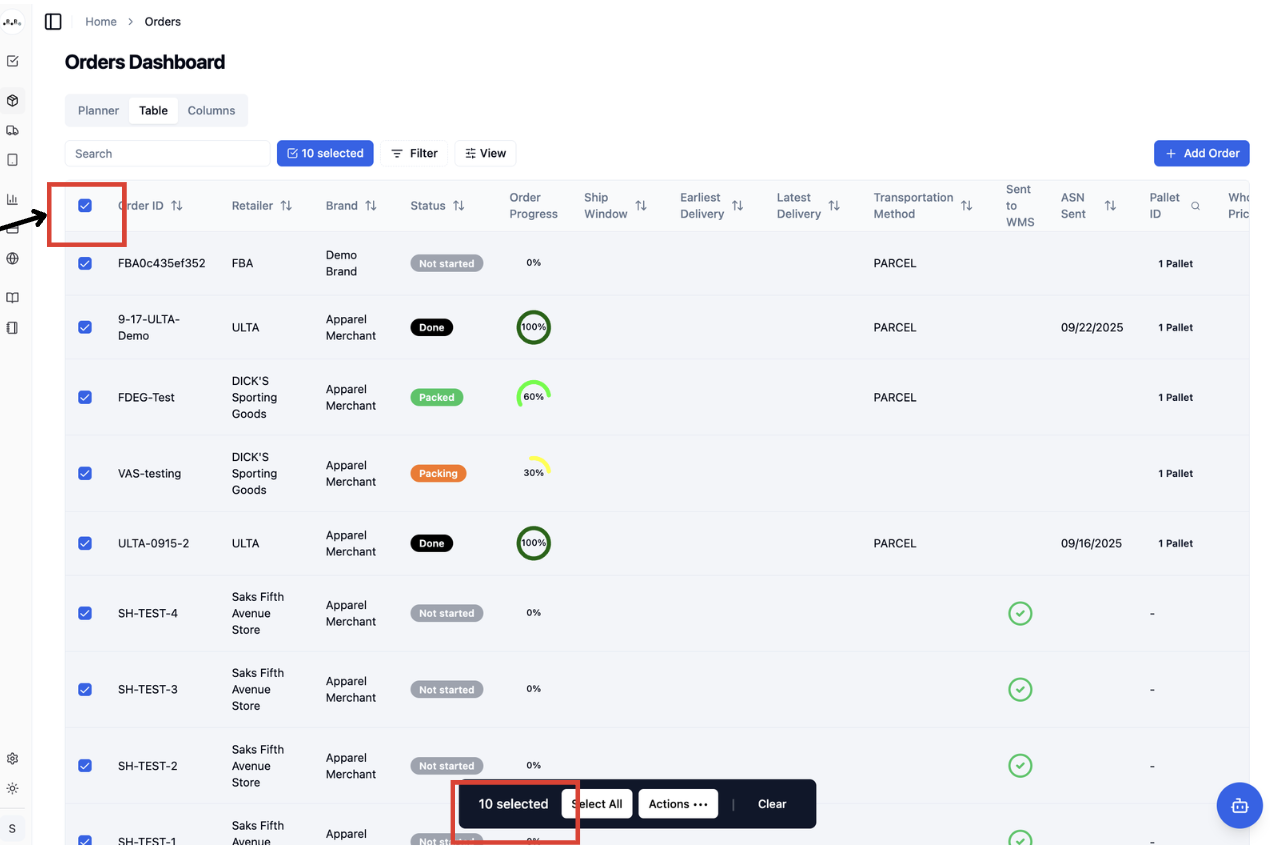
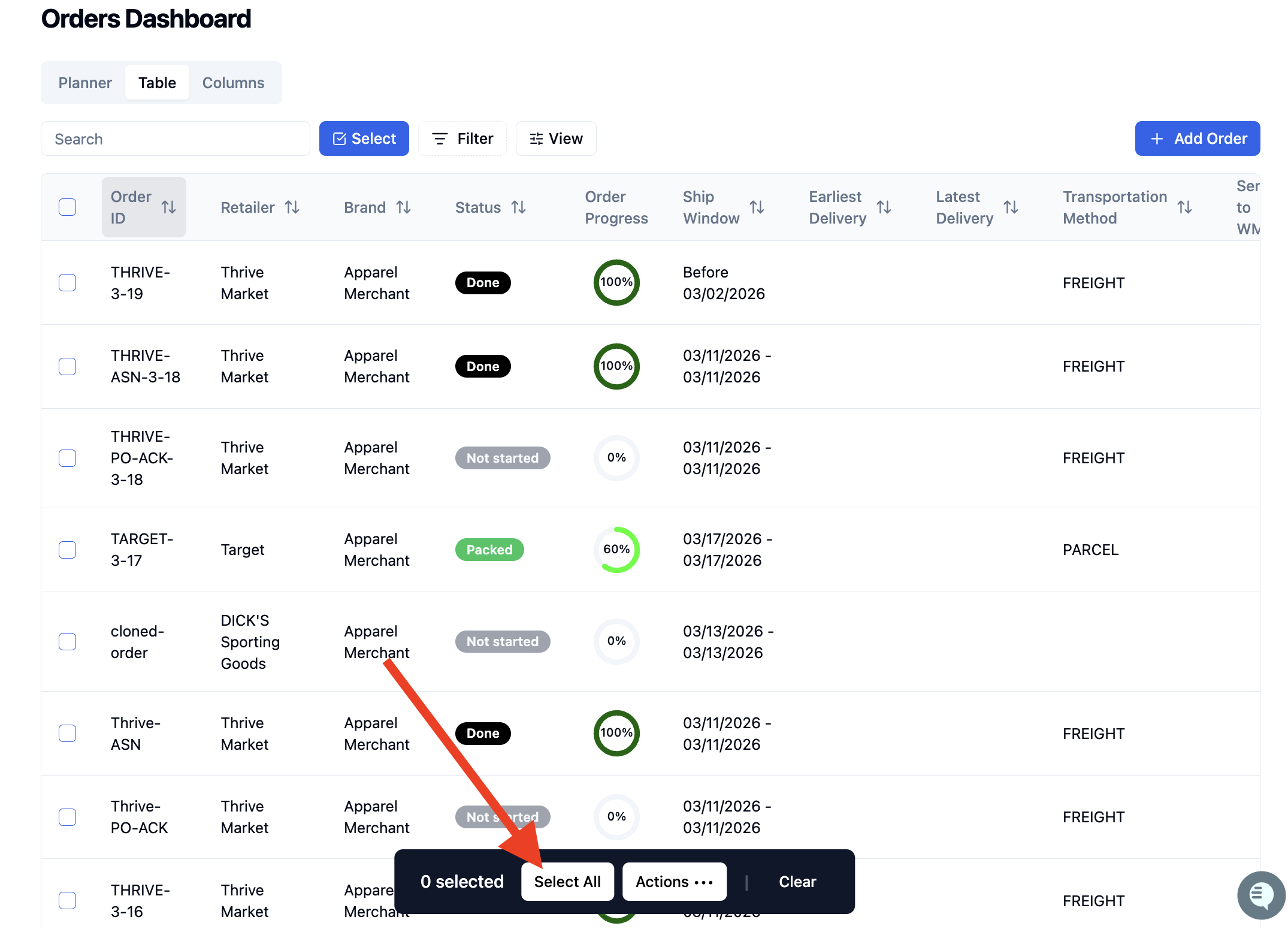
Select Across Pages by choosing 'Select All' in View to include all orders across multiple pages, even if only a subset is displayed
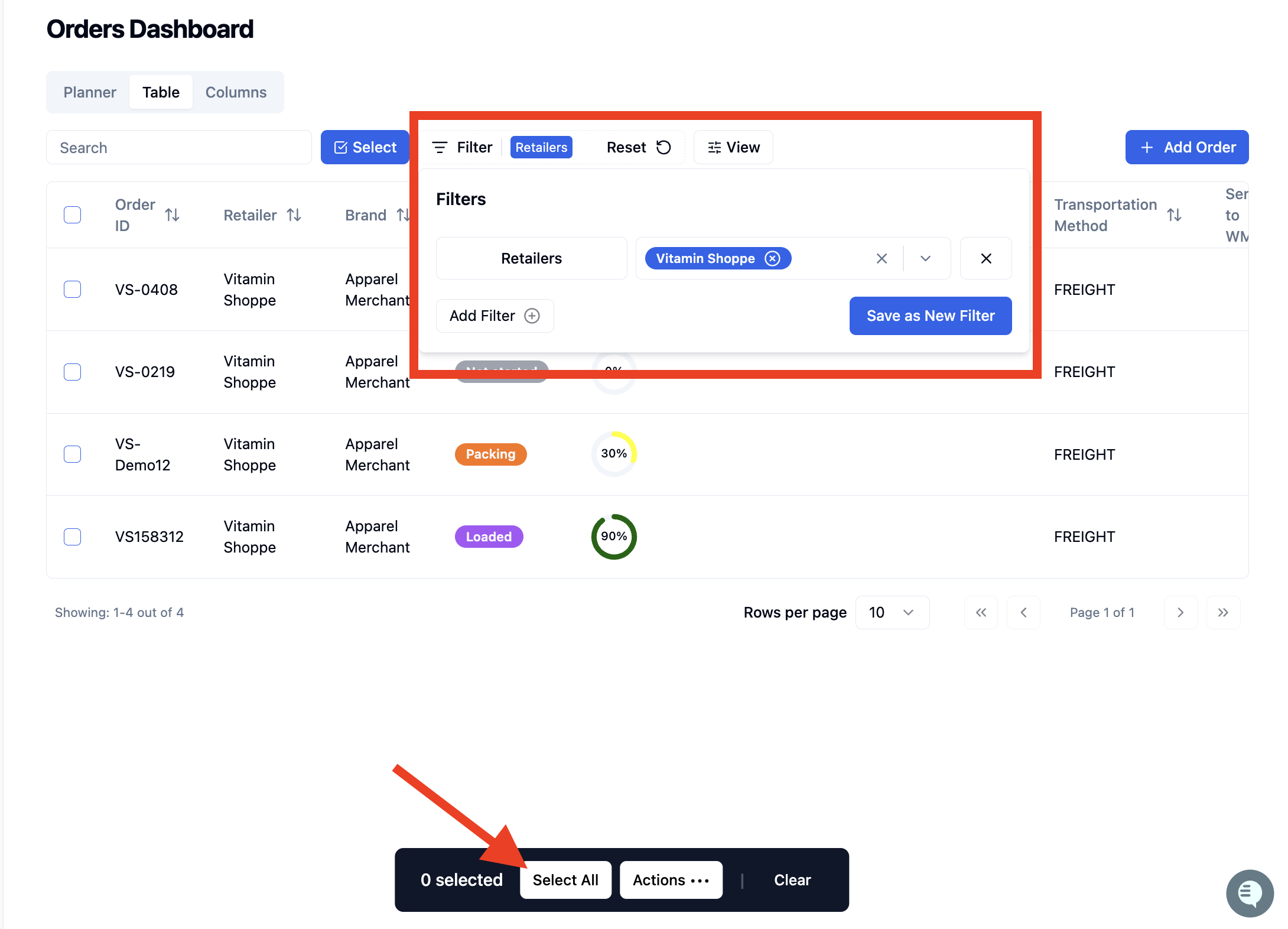
Filter + Select All by applying filters to narrow results, then clicking Select All to target specific groups of orders
Best Practices
Use filters before selecting orders to ensure accuracy when performing bulk actions. Always confirm the number of selected orders before applying an action to avoid unintended updates.
Once orders are selected, click 'Actions' to open the bulk actions menu
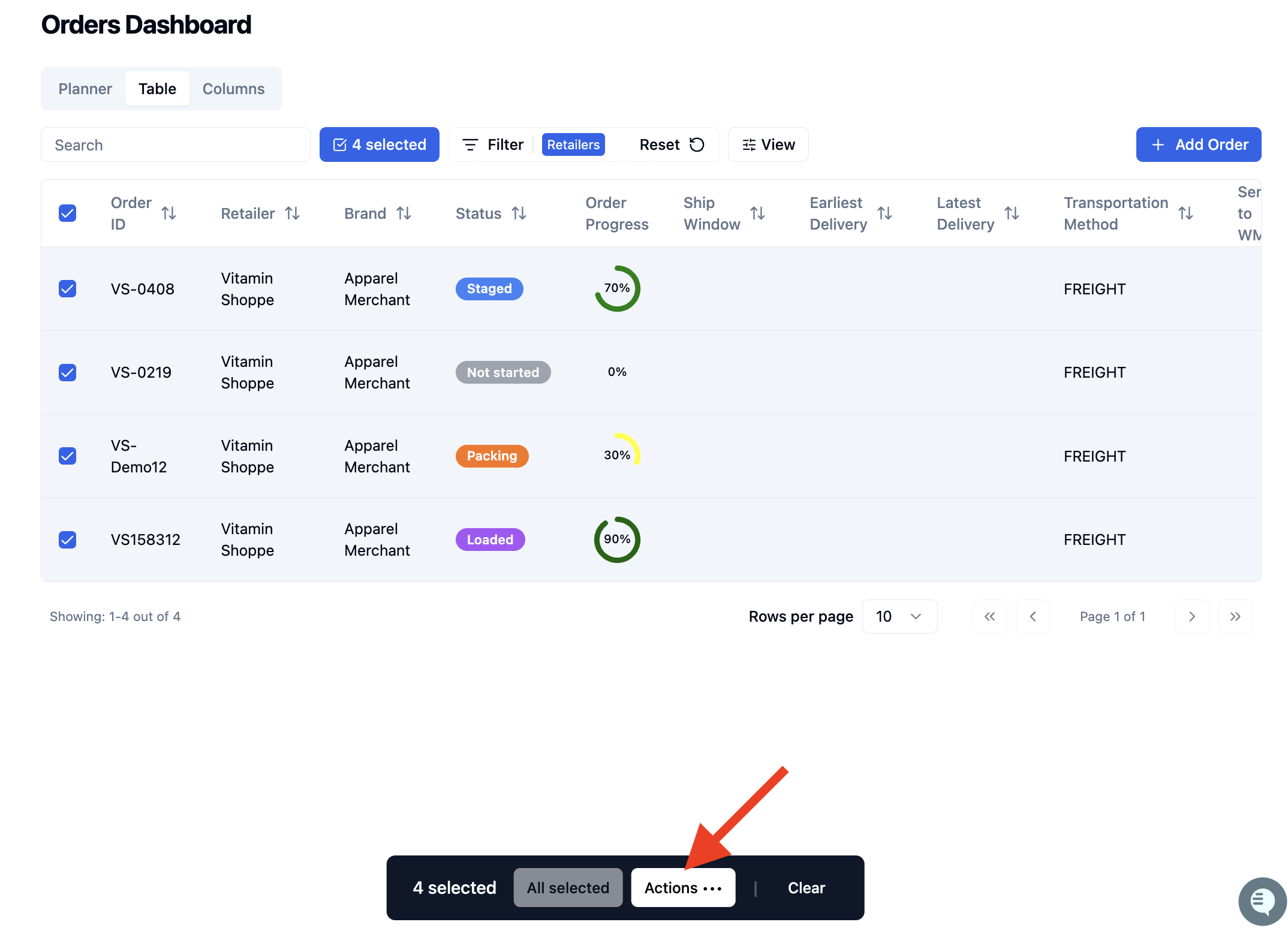
Select the desired action and follow the on-screen prompts to complete the action.
FAQs:
Why are some bulk actions grayed out?
Available actions depend on the selected orders, their current status, and your user role permissions. Certain actions may only be enabled when applicable conditions are met.