Creating, Adding, and Editing VAS Instruction Sets
Last updated: September 10, 2026
Value-Added Services (VAS) Instructions in RetailReady define additional requirements that must be completed during fulfillment that need to be on the brand, retailer, and SKU level. These instructions ensure consistency, compliance, and accuracy during the pack-out process.
What is a Value-Added Service (VAS)?
A Value-Added Service (VAS) is an enhancement applied during pack-out to meet retailer requirements. This can include custom labeling, specialized packaging, bundling, barcoding, and quality checks.
Why VAS Instructions Matter
Retailers enforce strict requirements for product presentation, labeling, and packaging. Failure to meet these standards can result in chargebacks, rejected shipments, or lost shelf placement. VAS Instructions ensure products are “retail-ready” by guiding warehouse teams through required steps, reducing errors and improving operational efficiency.
How RetailReady Uses VAS Instructions
VAS Instructions are configured once in RetailReady and automatically appear during the pack-out workflow. Instructions are displayed at the SKU level, providing clear guidance to warehouse teams to ensure all retailer requirements are met.
Finding and Assigning a VAS Action to Your SKU
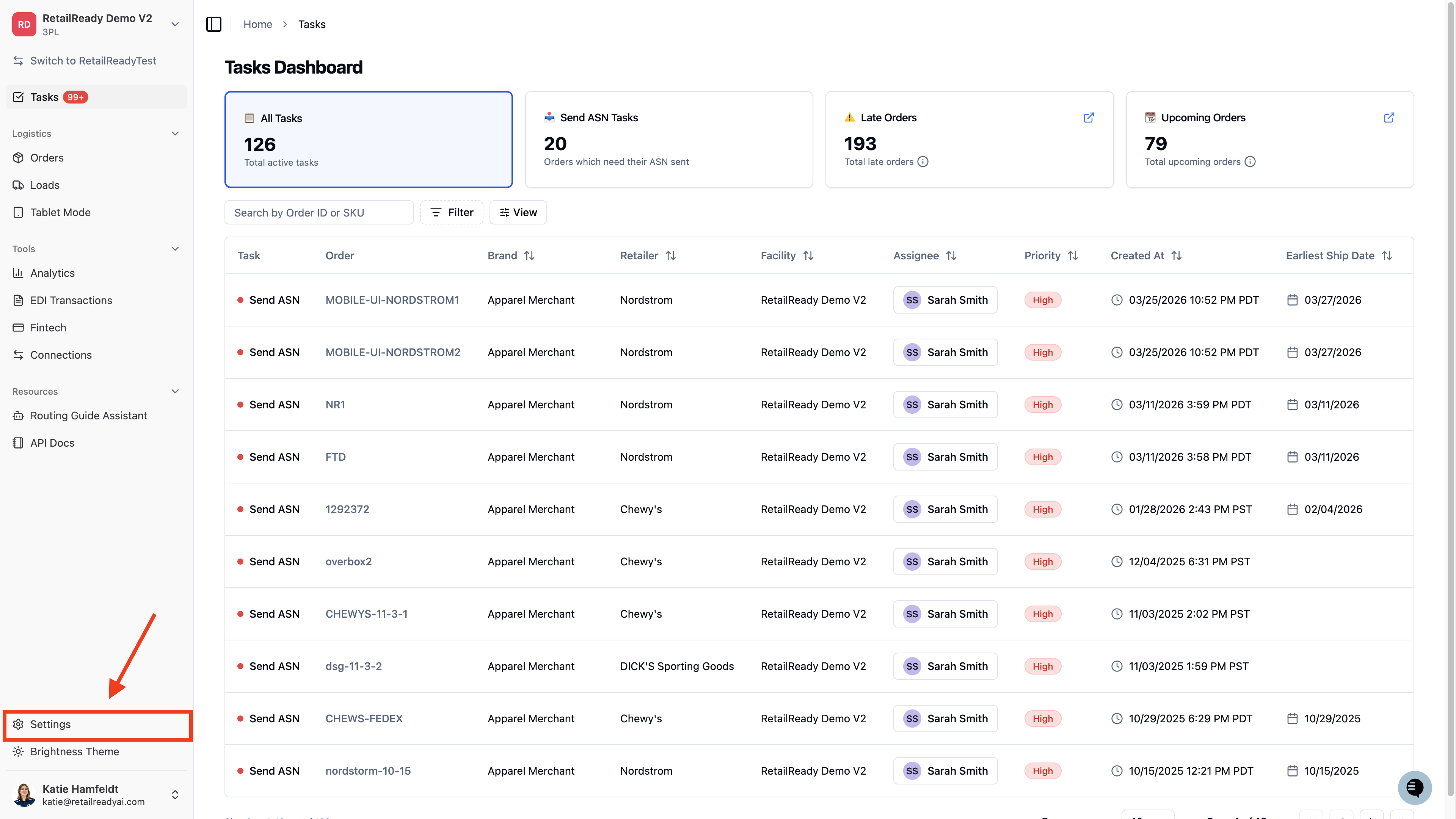
Navigate to the 'Settings' on the Left Hand Side of Retail Ready.
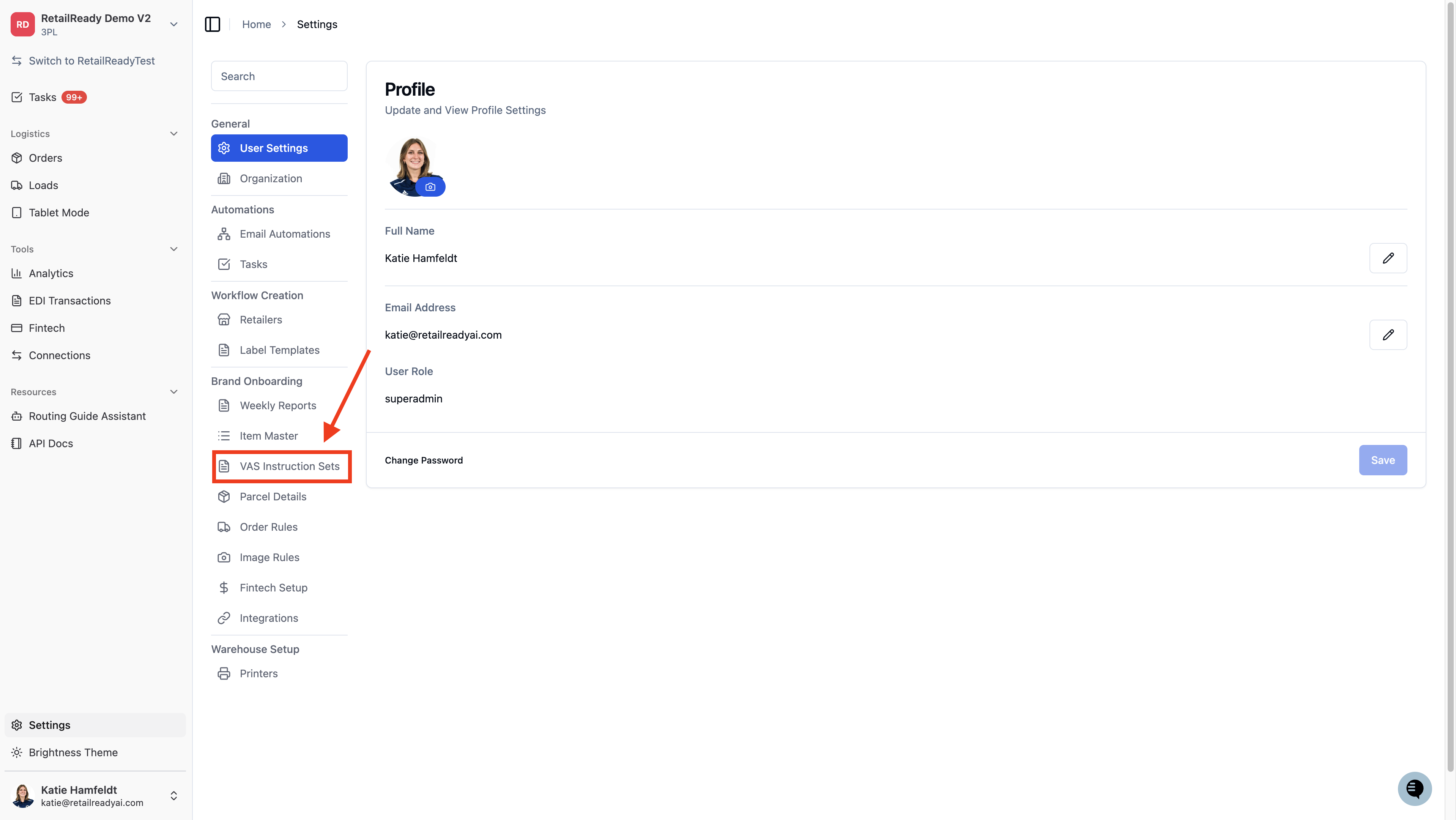
Select 'VAS Instruction Sets' under Brand Onboarding.
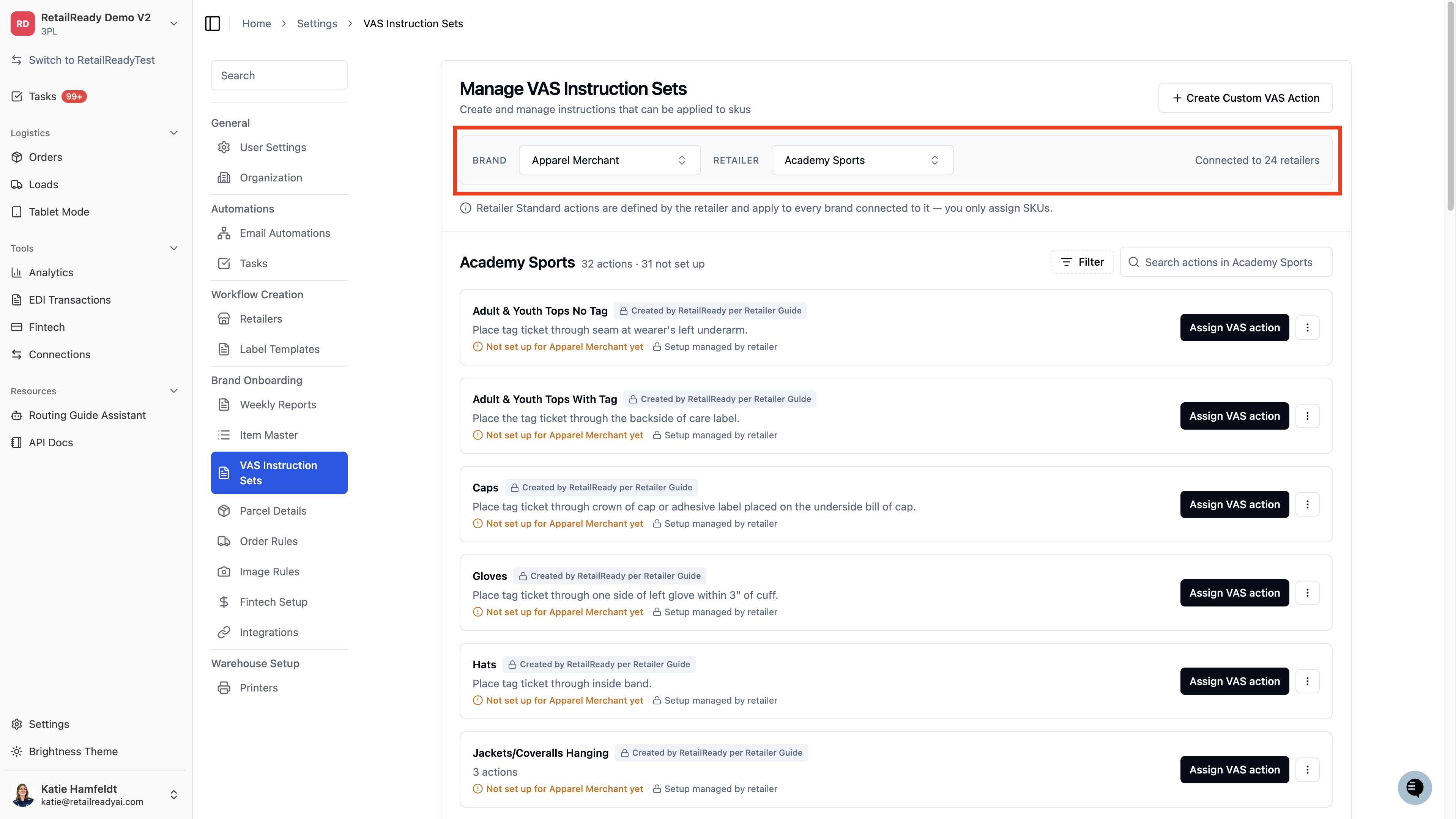
Use the Brand and Retailer filter at the top of the page to select the Brand relationship to the retailer whose catalog you want to browse.
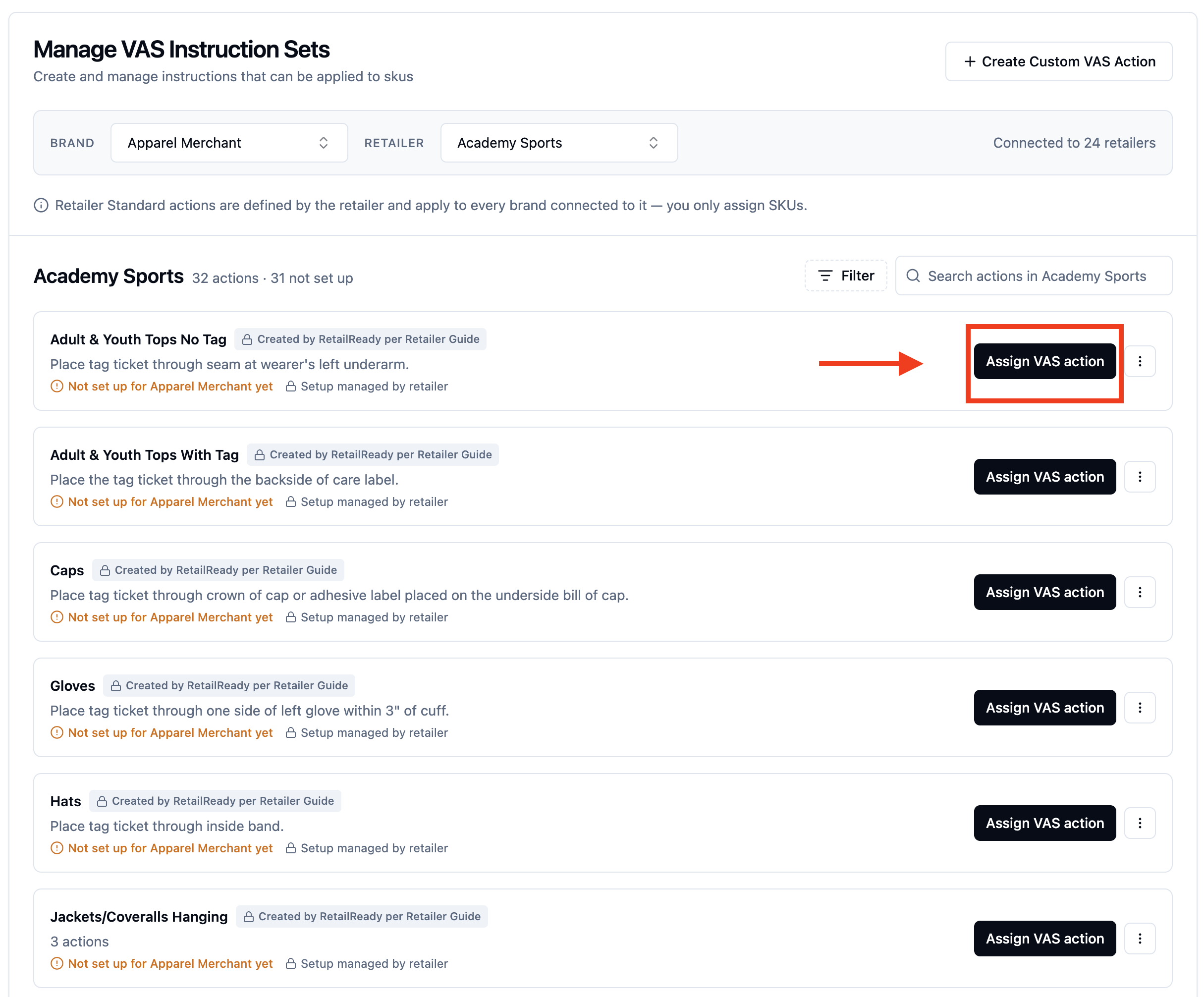
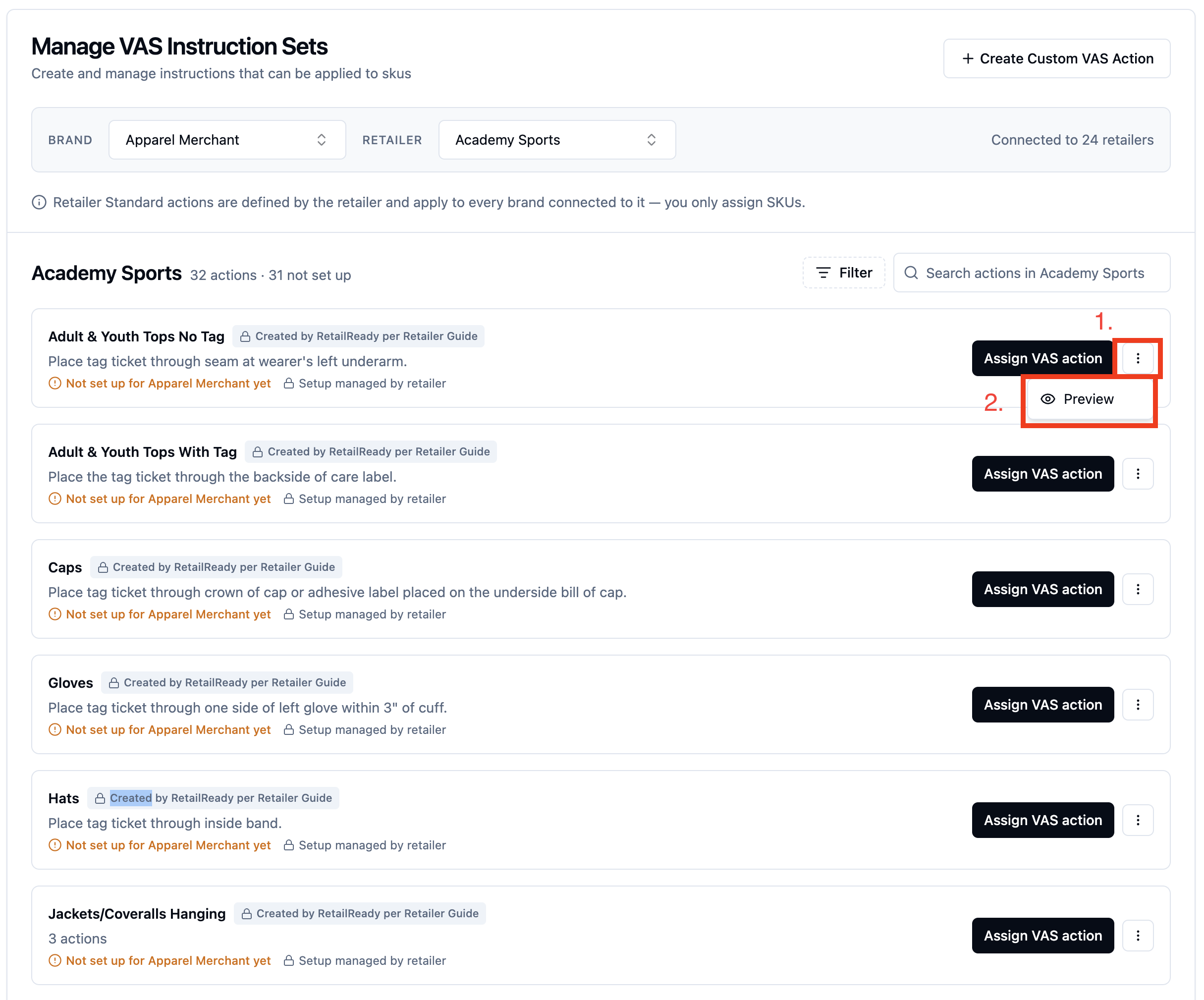
Scroll through to find the applicable VAS action
Click 'Assign VAS Action' to assign it to a particular SKU
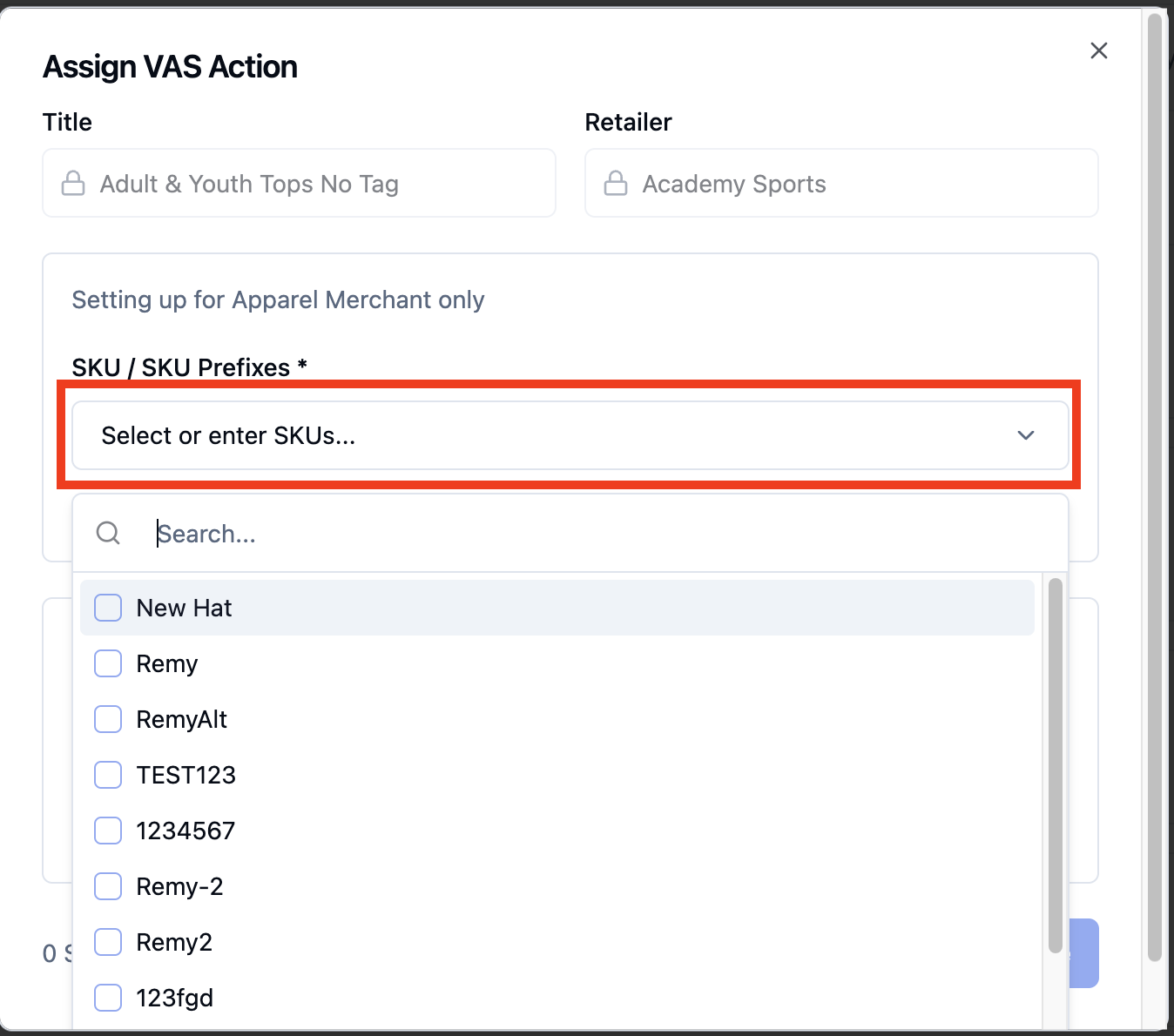
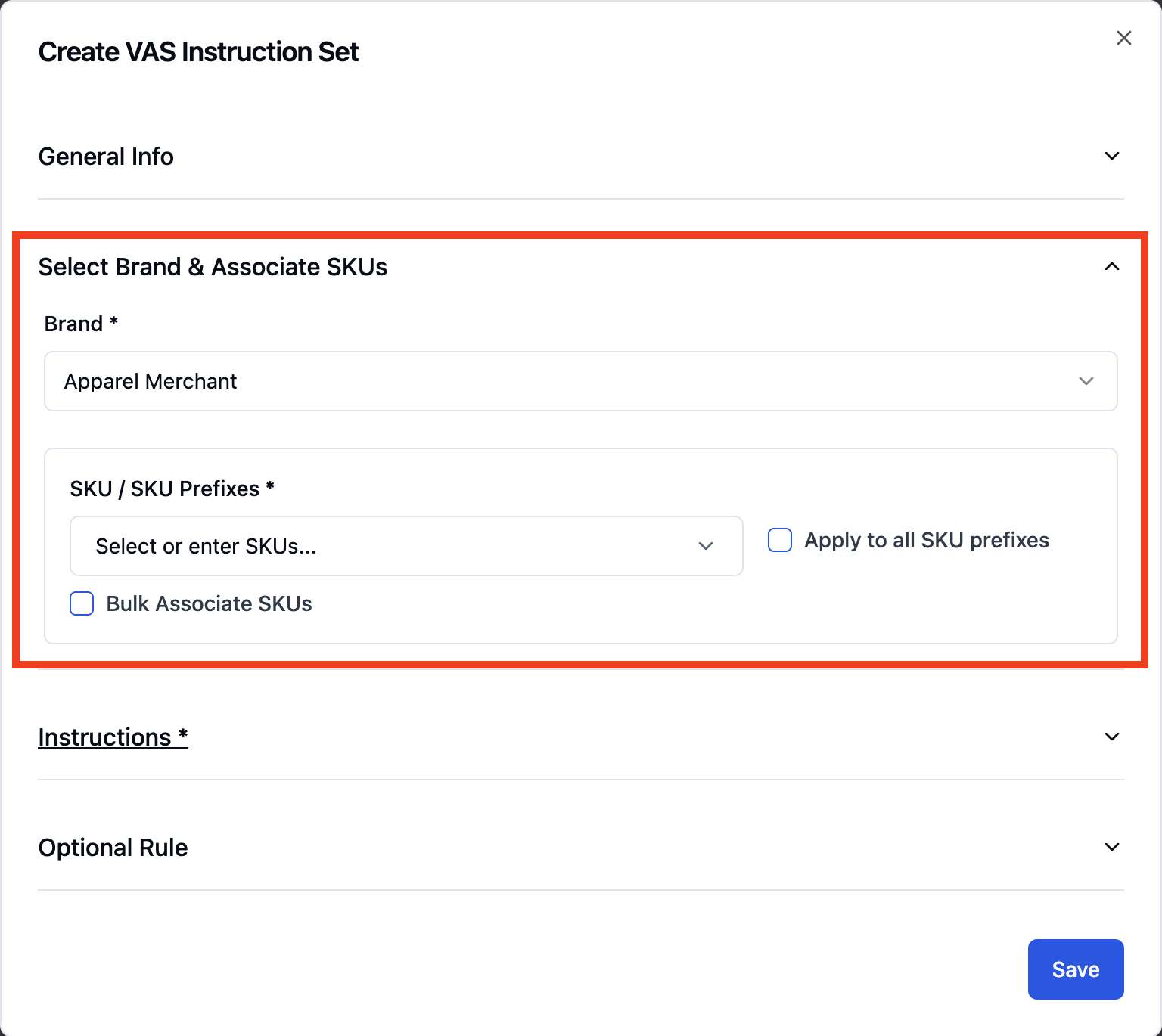
Click 'Select or enter SKUs' and choose the SKU you want to apply it to from the dropdown
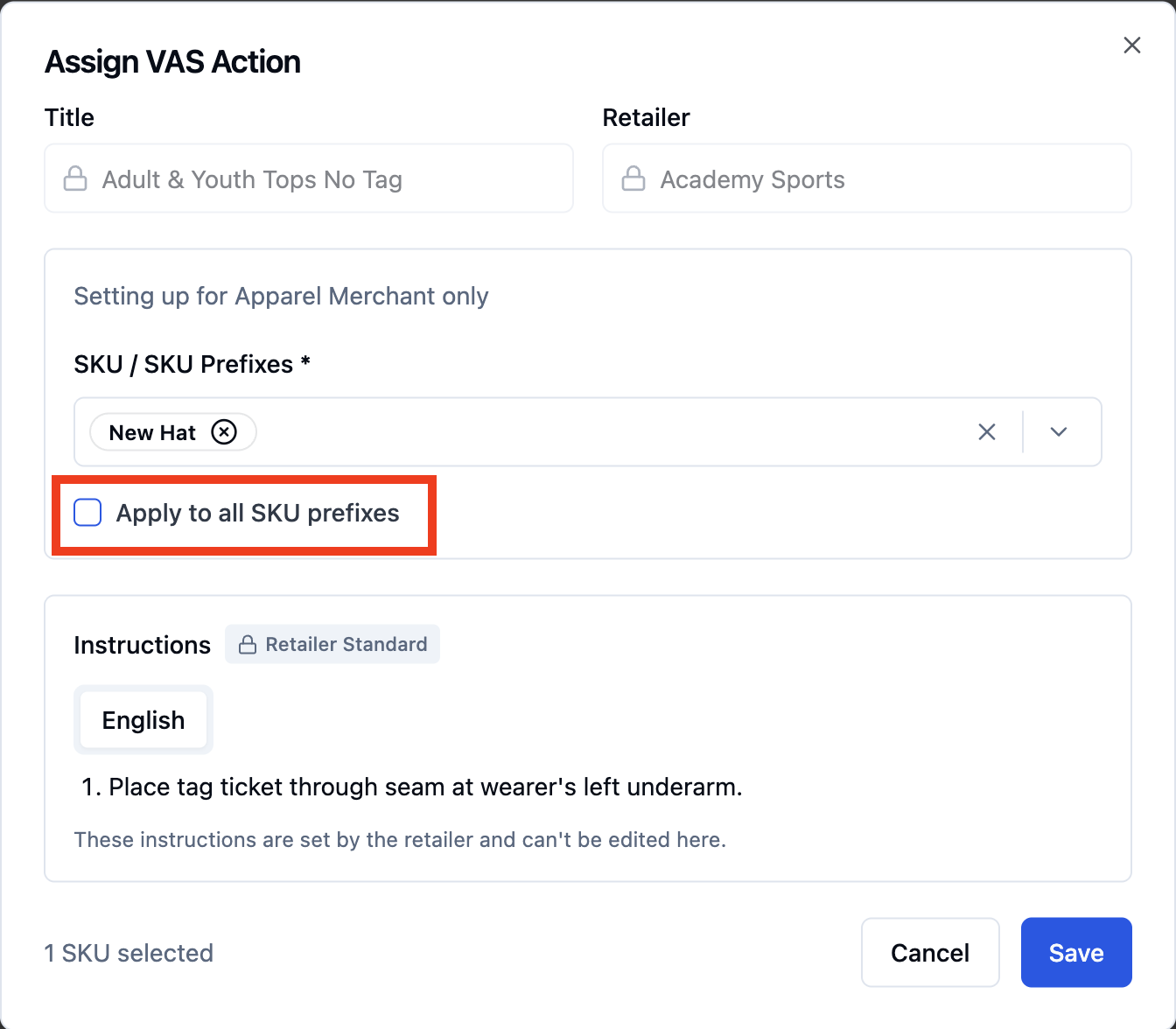
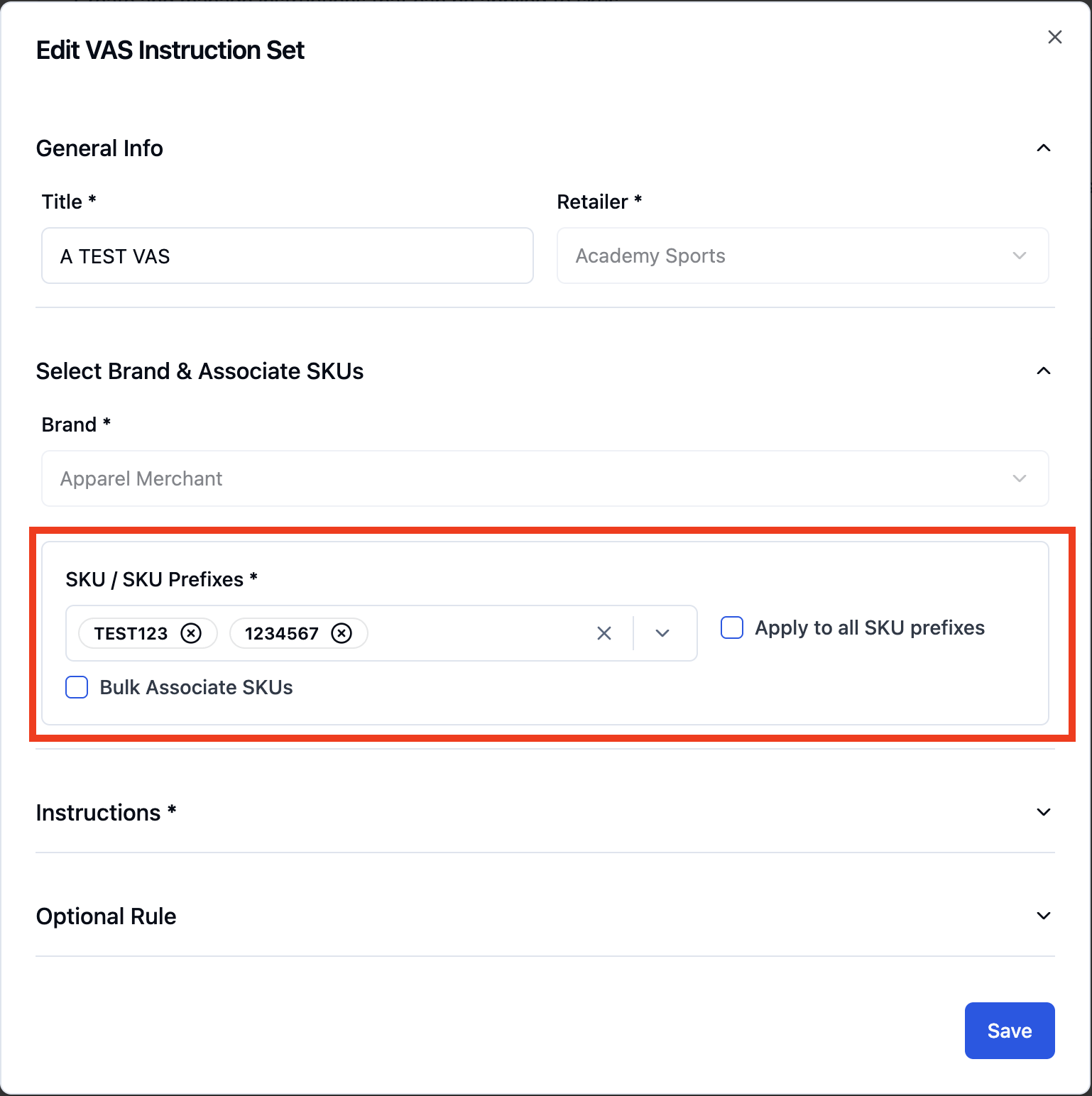
Optionally, select Apply to all SKU prefixes to apply the instructions across multiple or grouped SKUs.
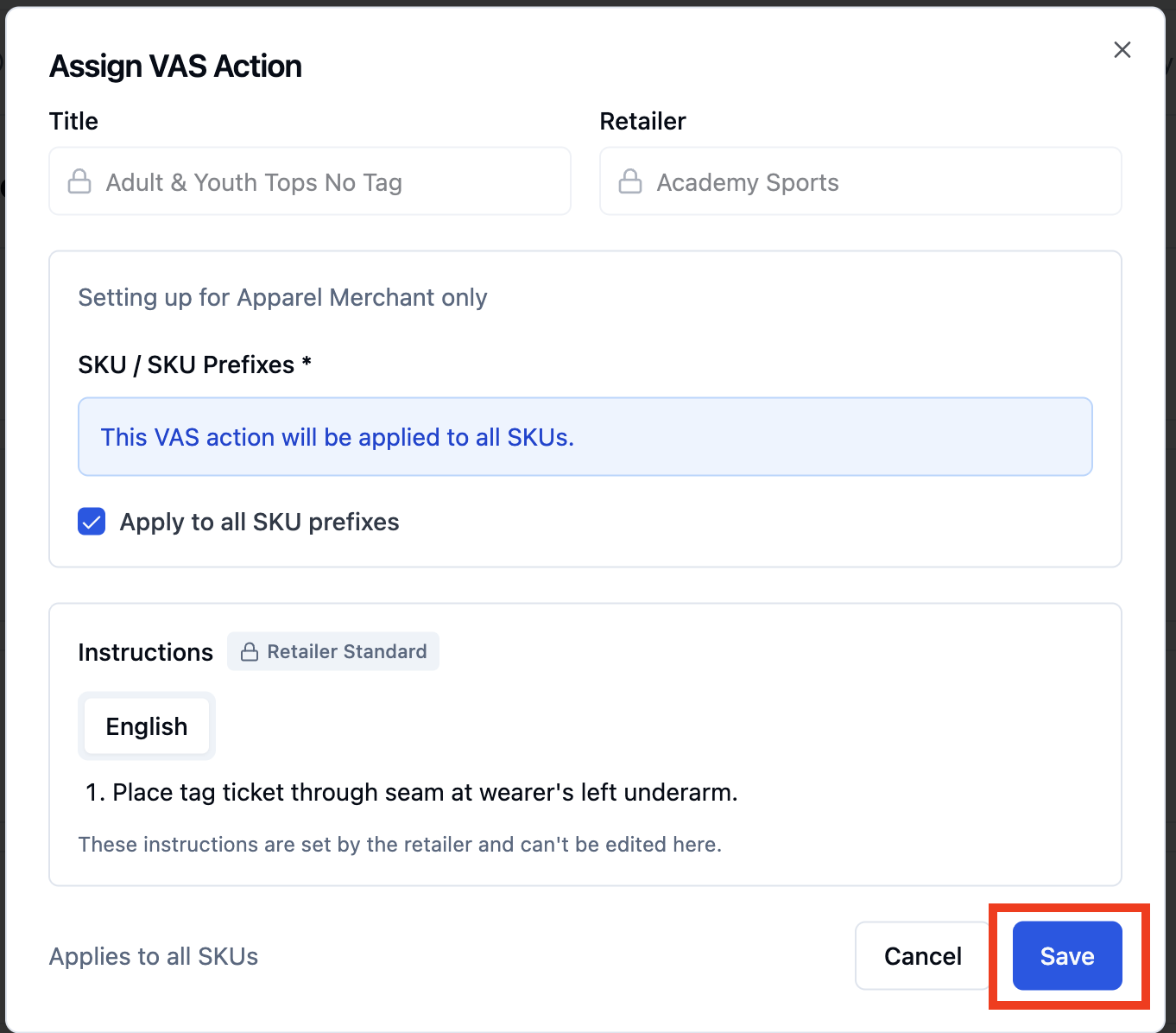
Once complete, click 'Save' to create the VAS Instruction Set.
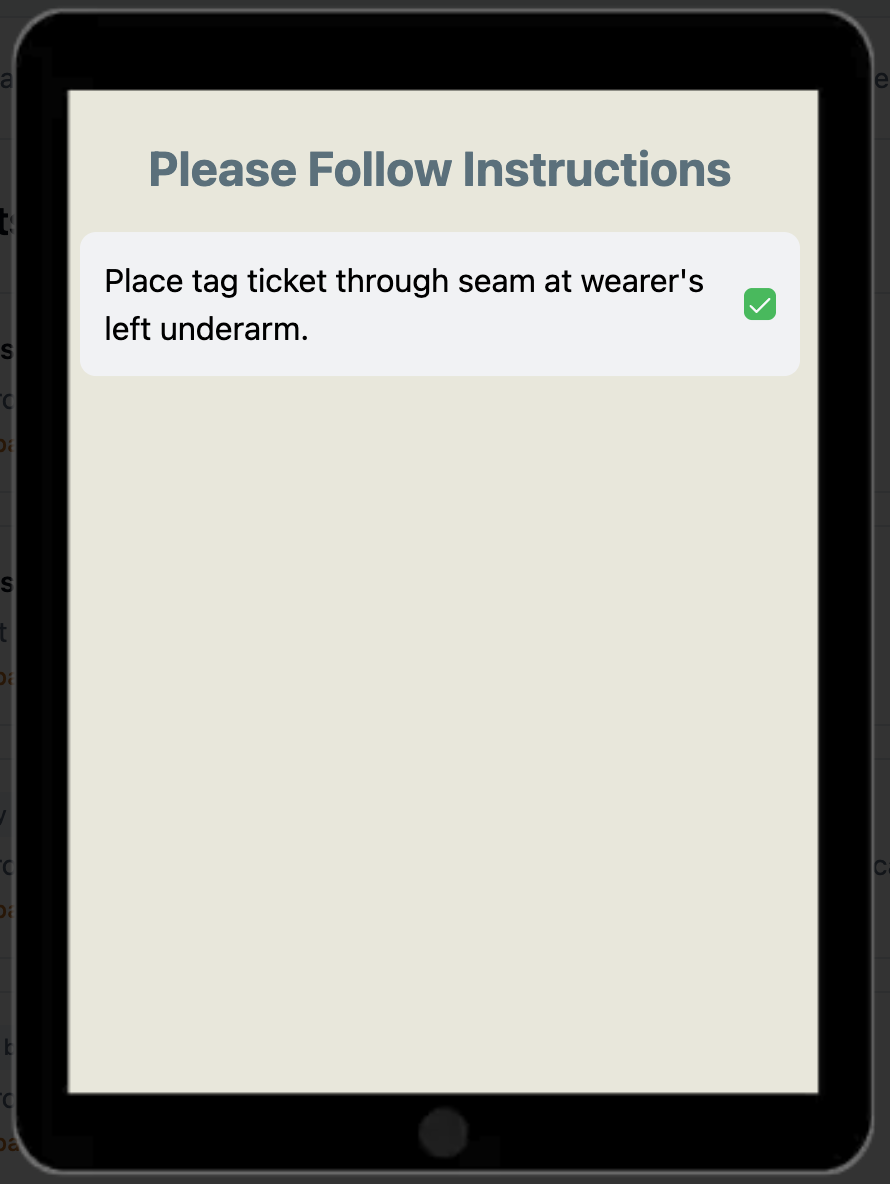
You can preview what the VAS action will look like during Packout by clicking the three vertical dots next to the action.
Creating your own Custom VAS Action
If a VAS action is specific to your process (for example, a custom packout or shipping step) and isn't listed in the catalog, you can create your own Custom VAS Action.
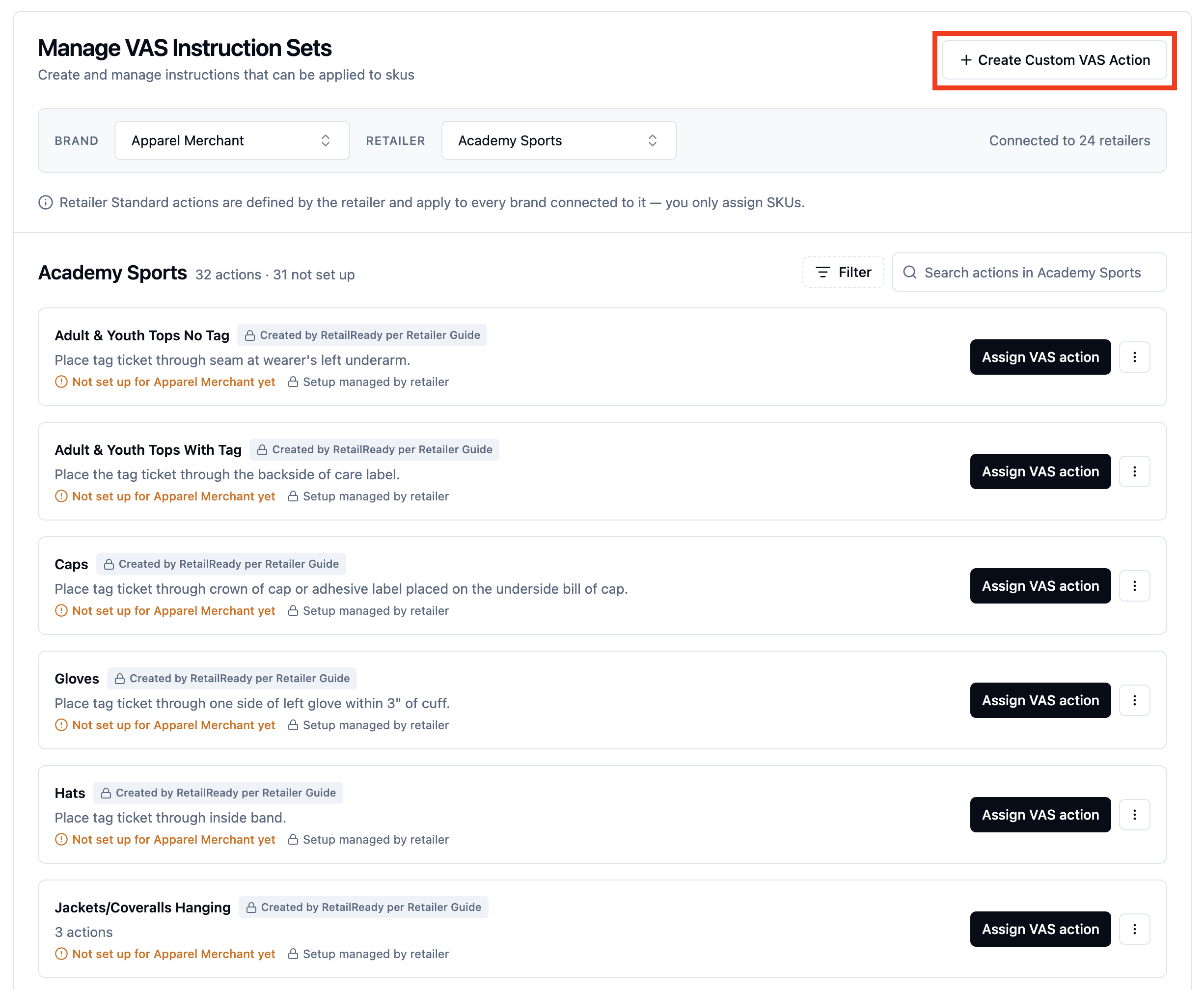
On the VAS Instruction Sets page, navigate to the top right and click '+ Create Custom VAS Action'
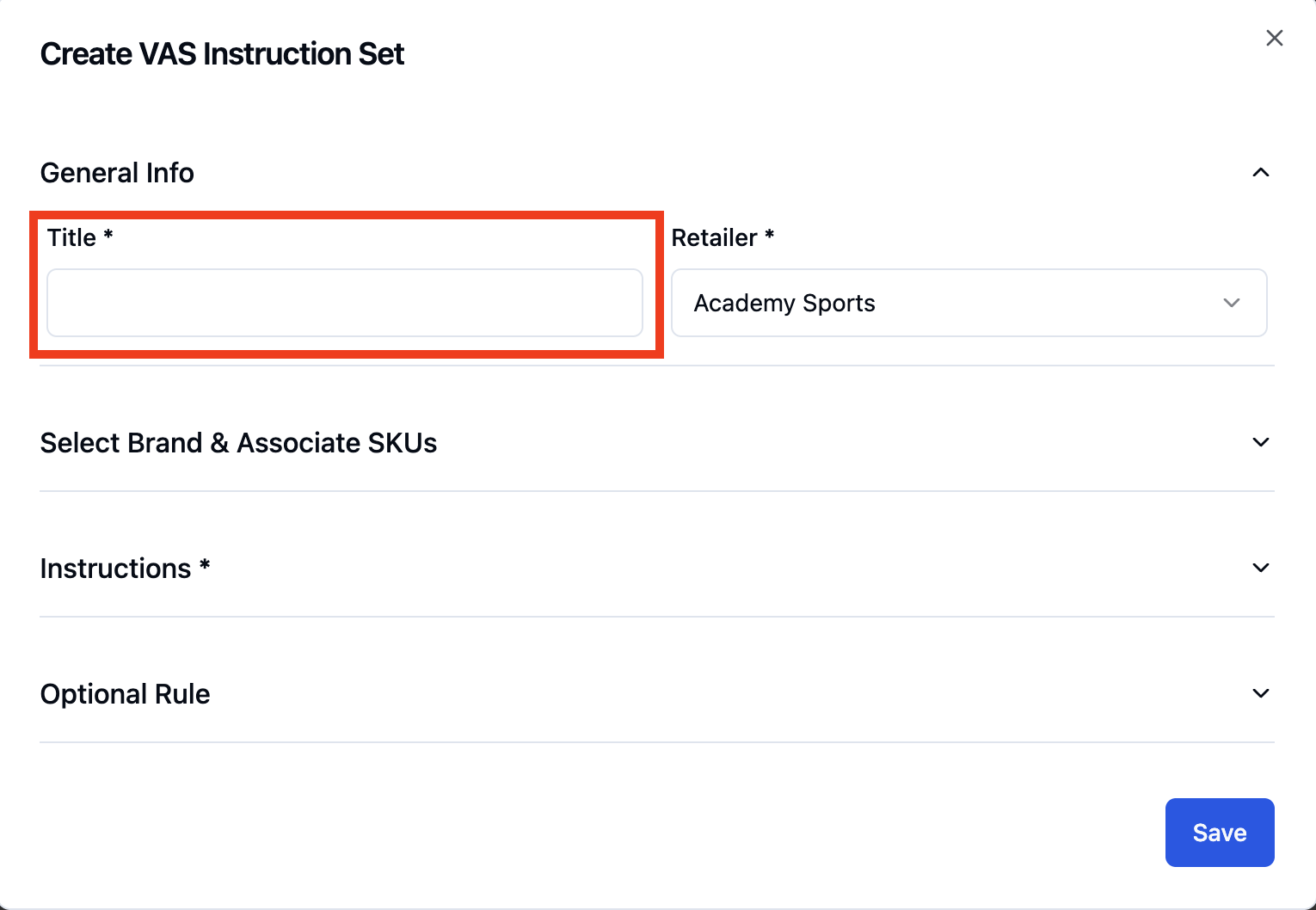
Give your custom VAS a title
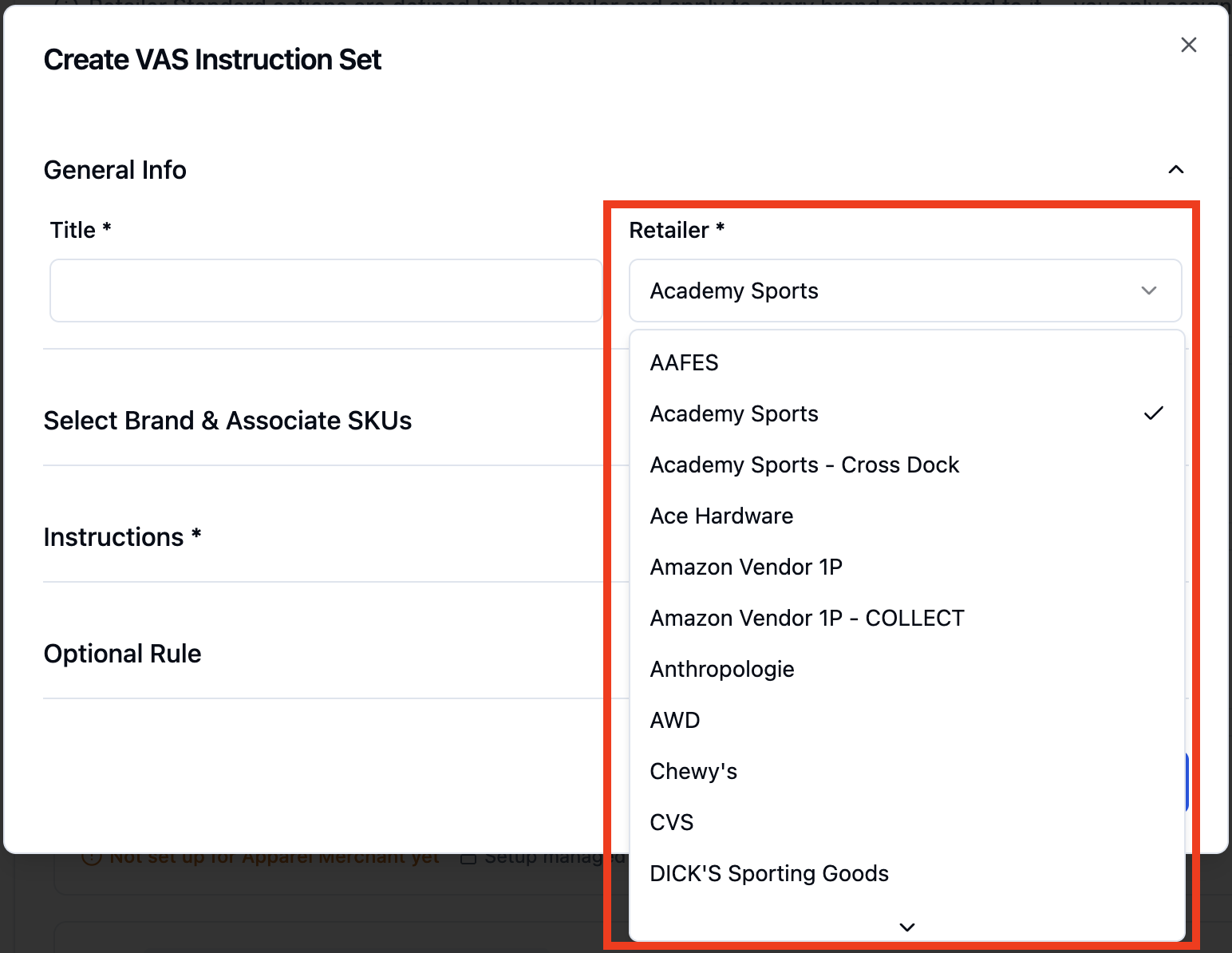
Select the Retailer you want it to apply to
Select the Brand and associated SKUs the VAS action should apply to
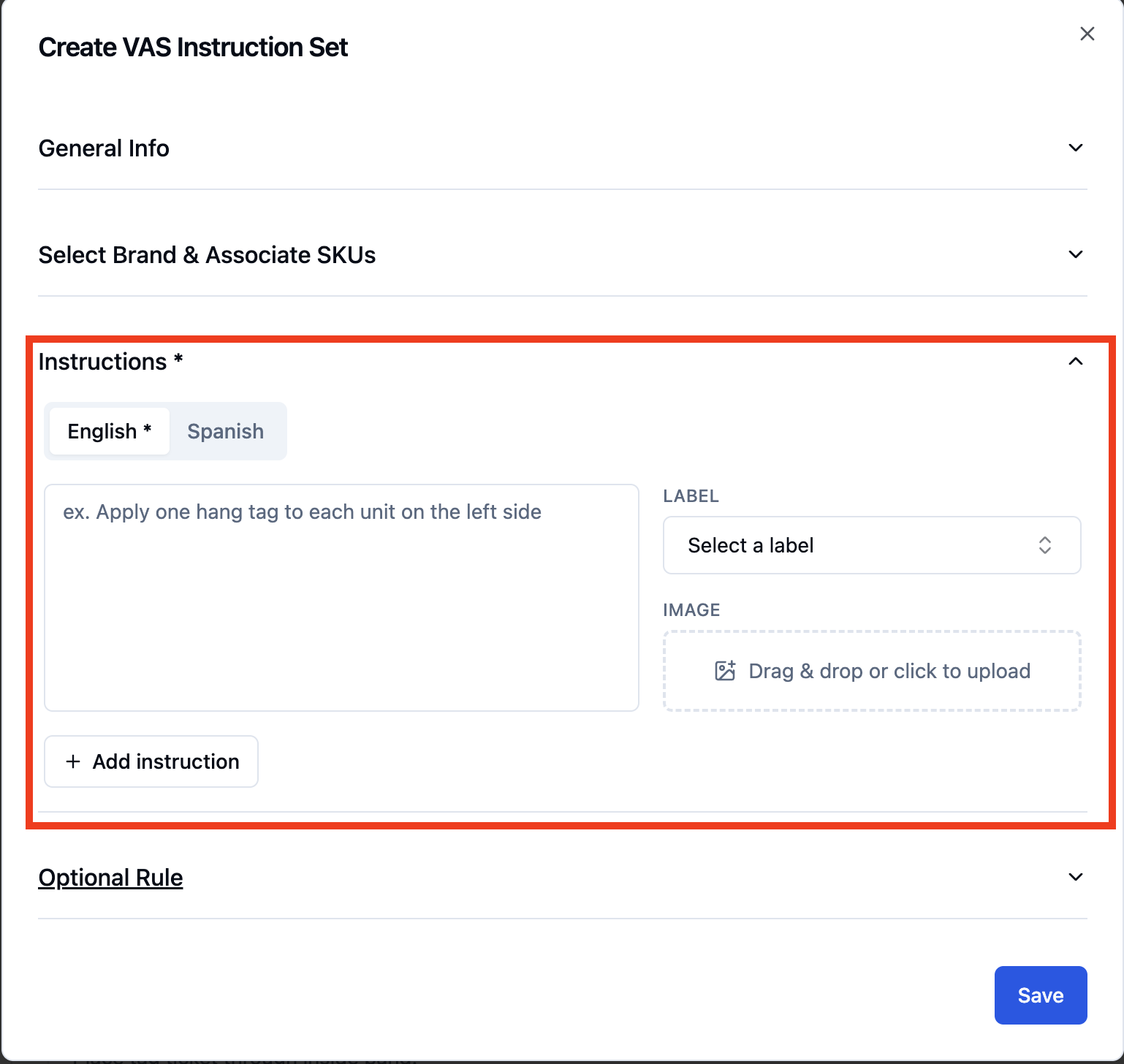
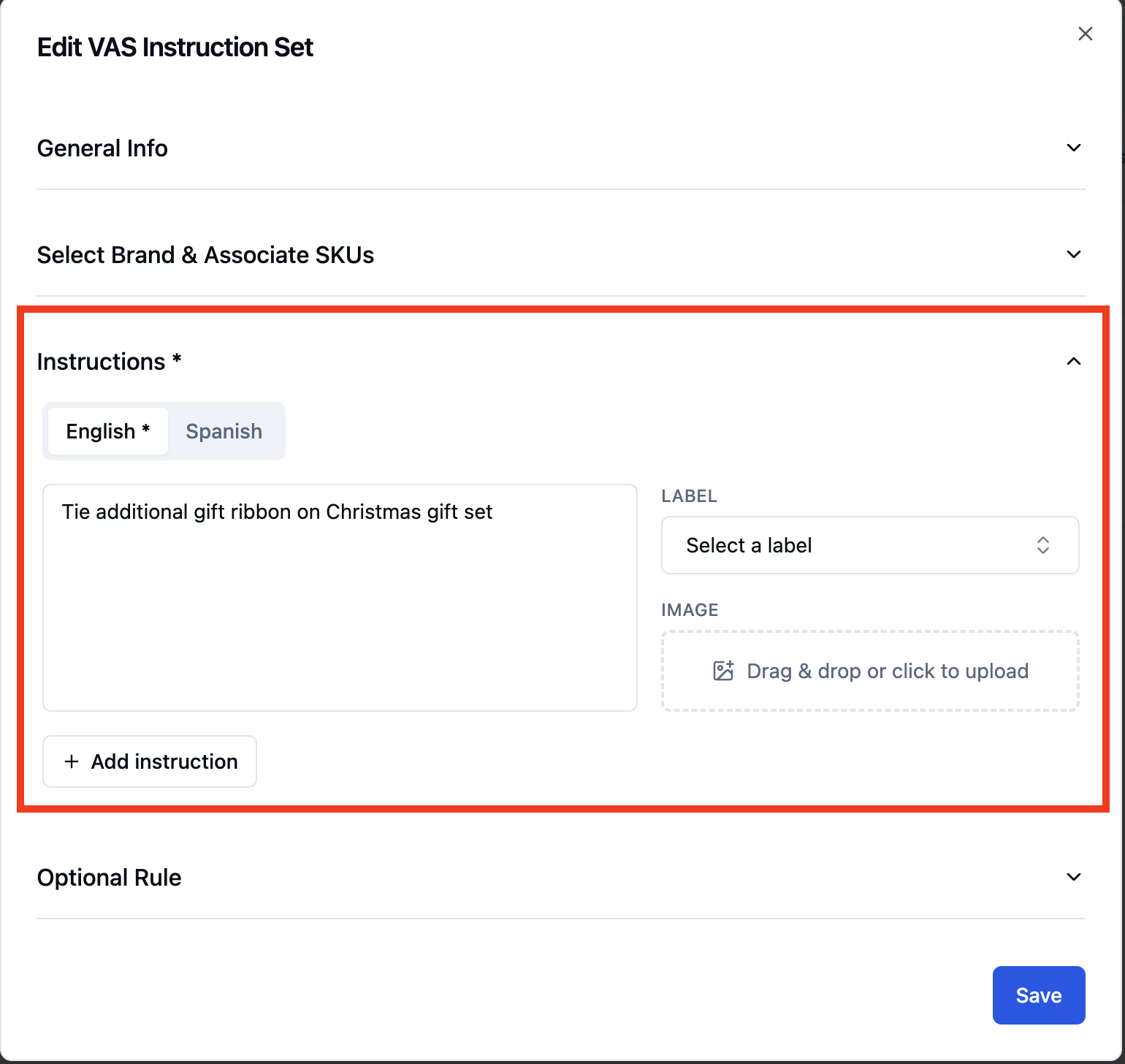
Add the instruction for the VAS.
Click '+ Add instruction' to add multiple set instructions
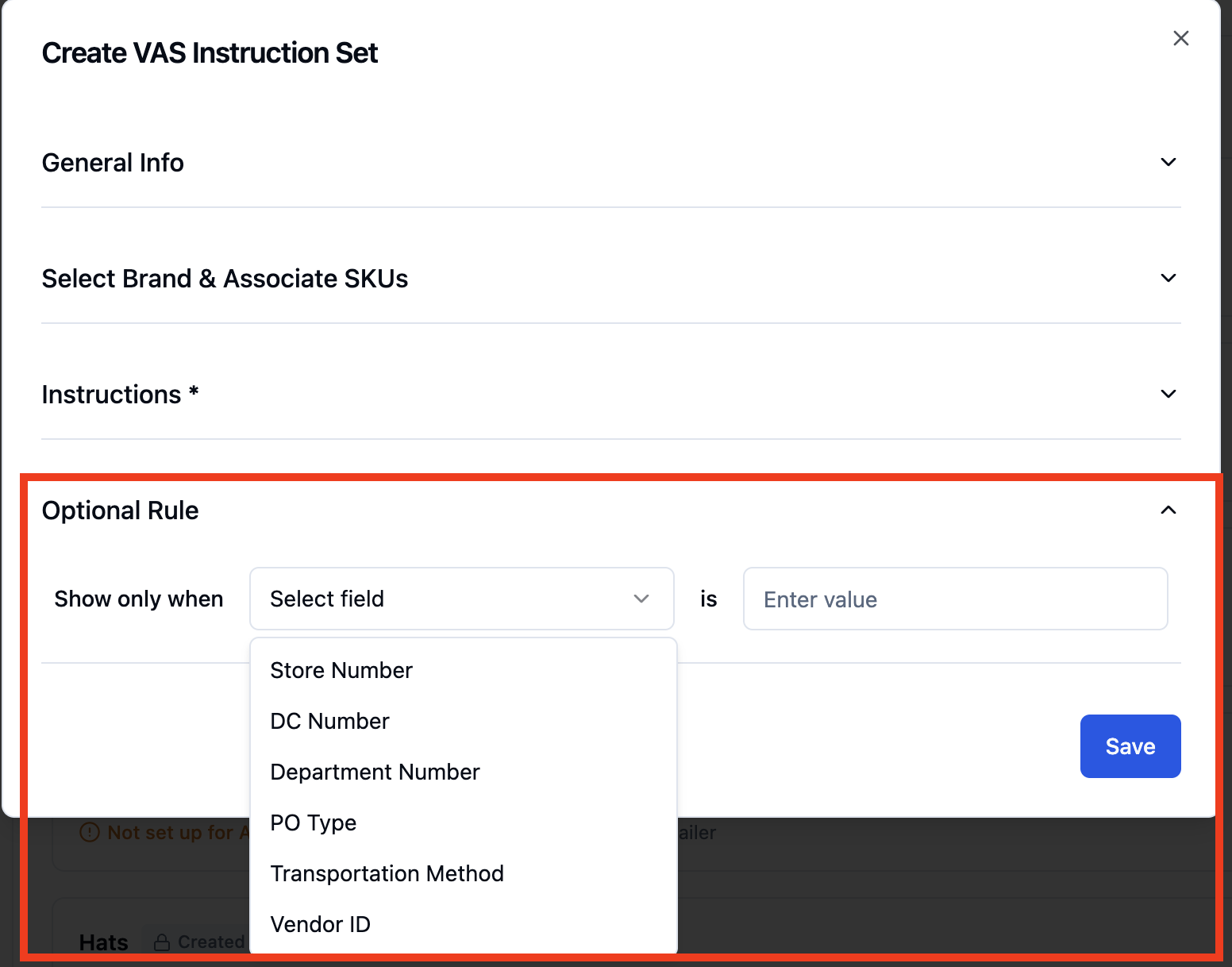
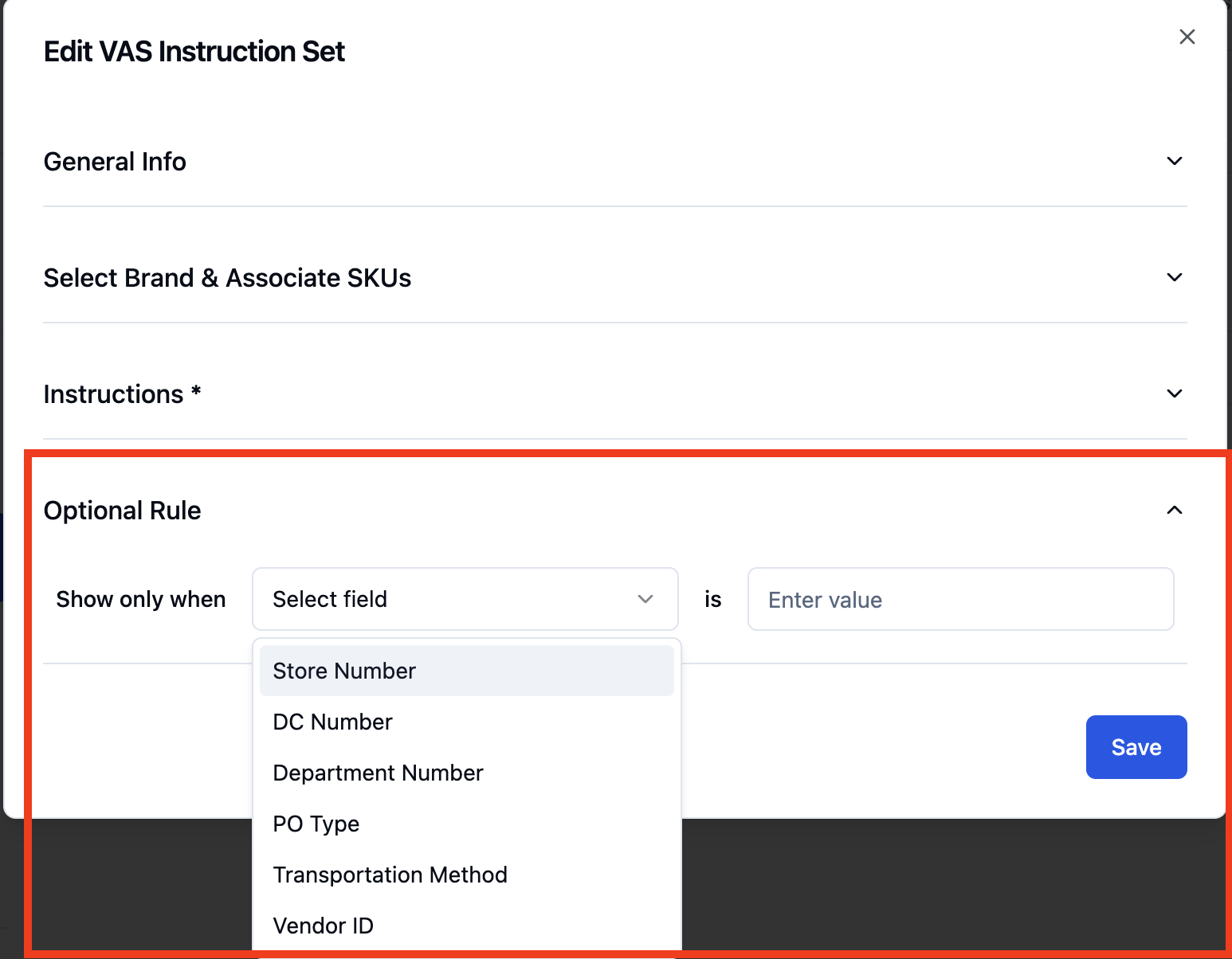
Add an Optional Rule, if applicable
Click 'Save'.
Editing VAS Actions
You may need to edit your VAS action. Whether that is changing the instruction, adding the optional conditional rule, or removing the optional conditional rule. Here are the steps to do just that.
To easily find your custom made VAS action click 'Filter'
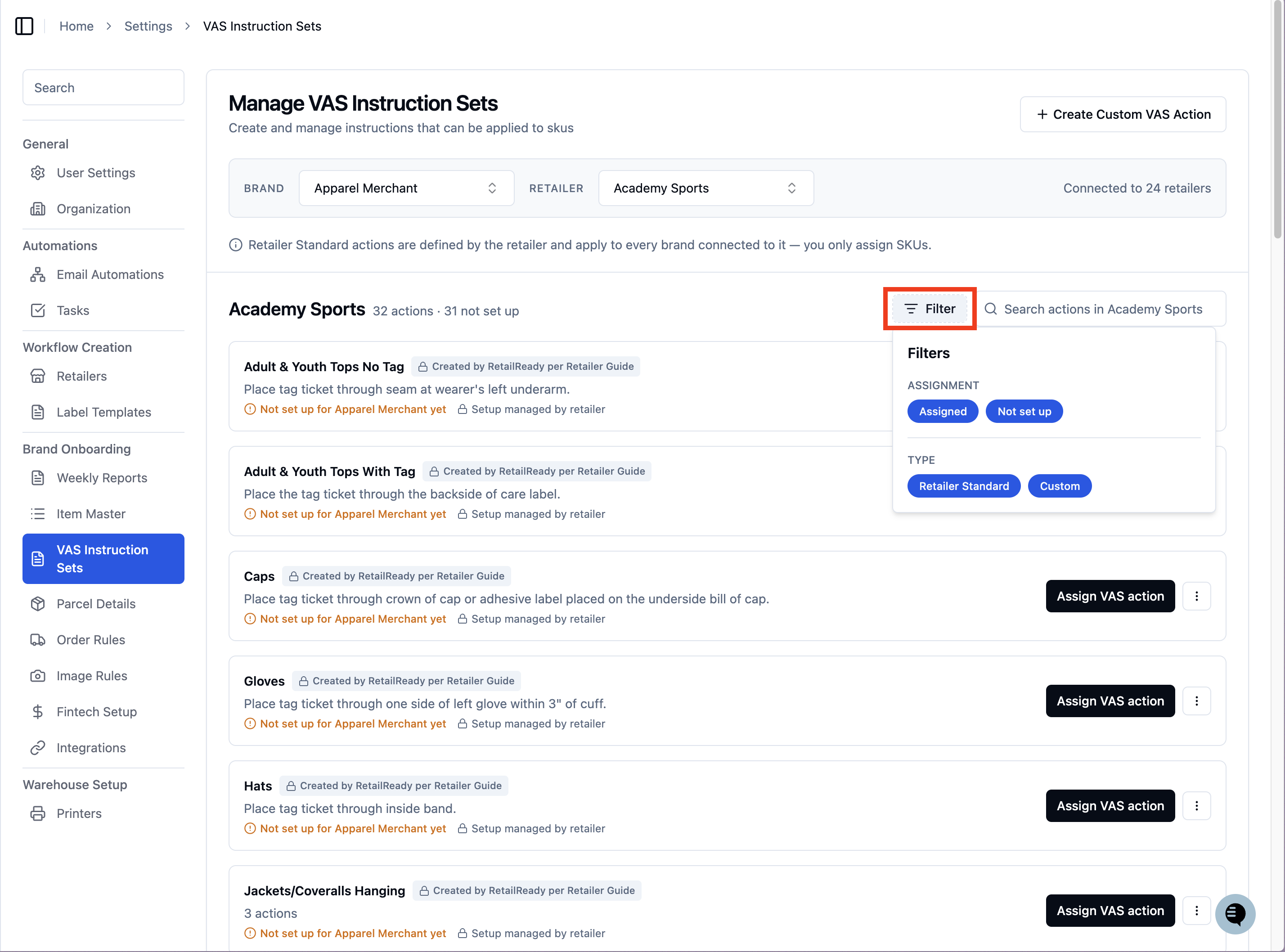
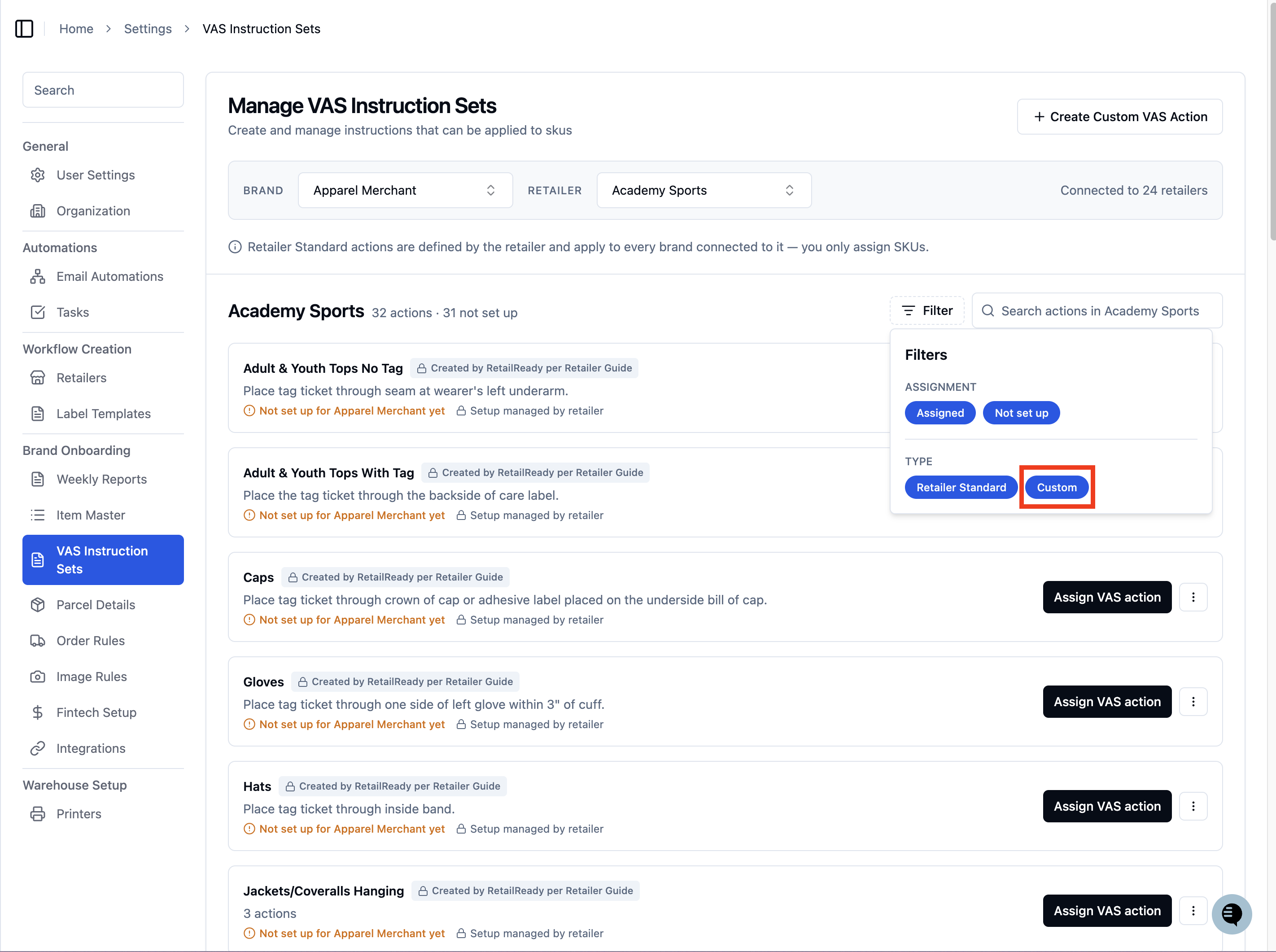
In the filter drop down, click on the blue 'Custom' button
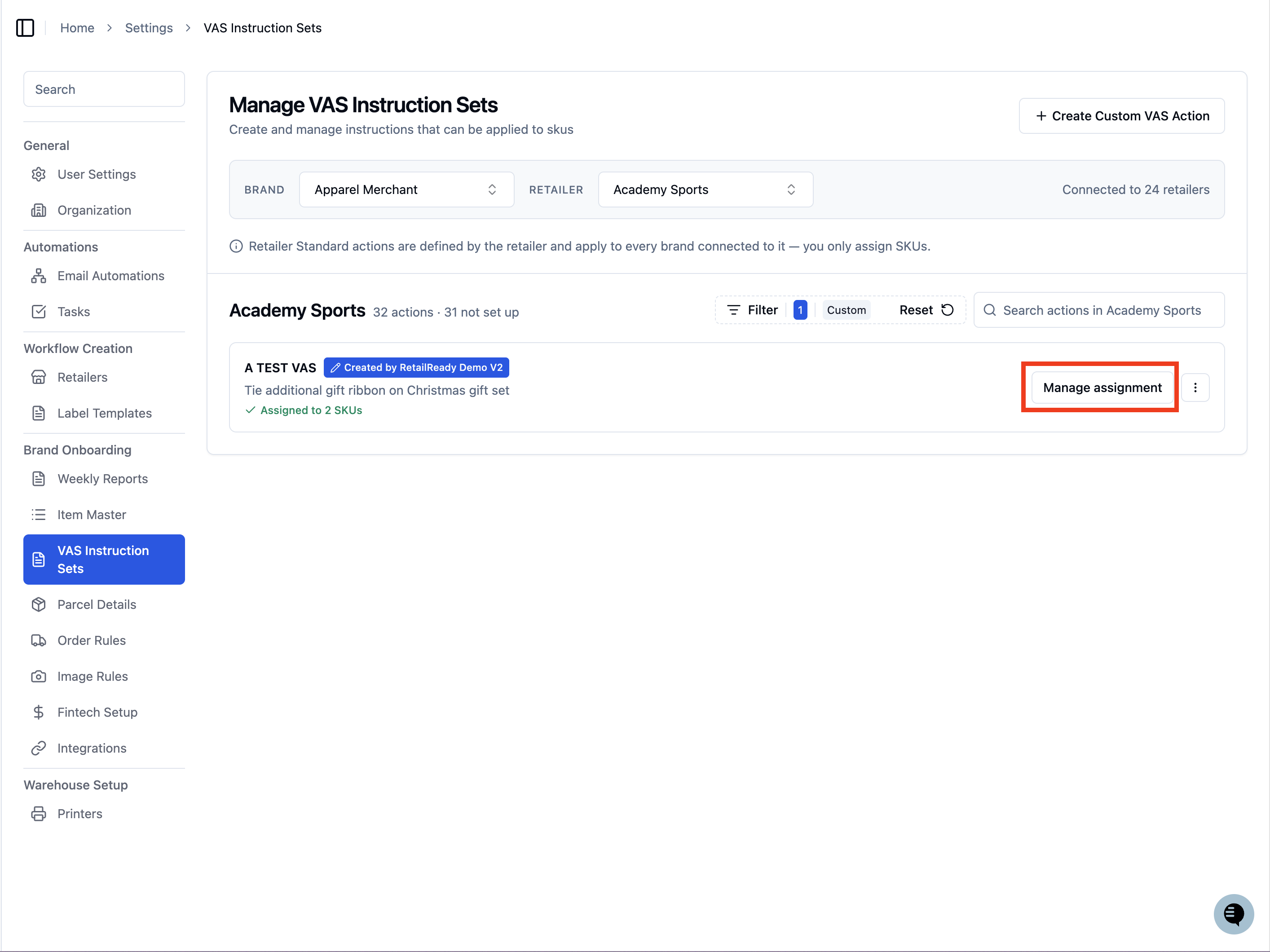
Click 'Manage assignment' next to the custom VAS action you would like to edit
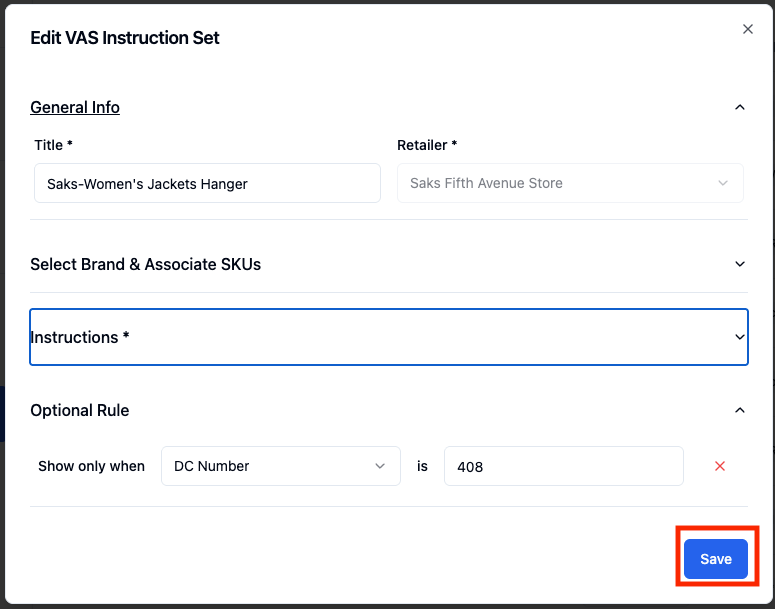
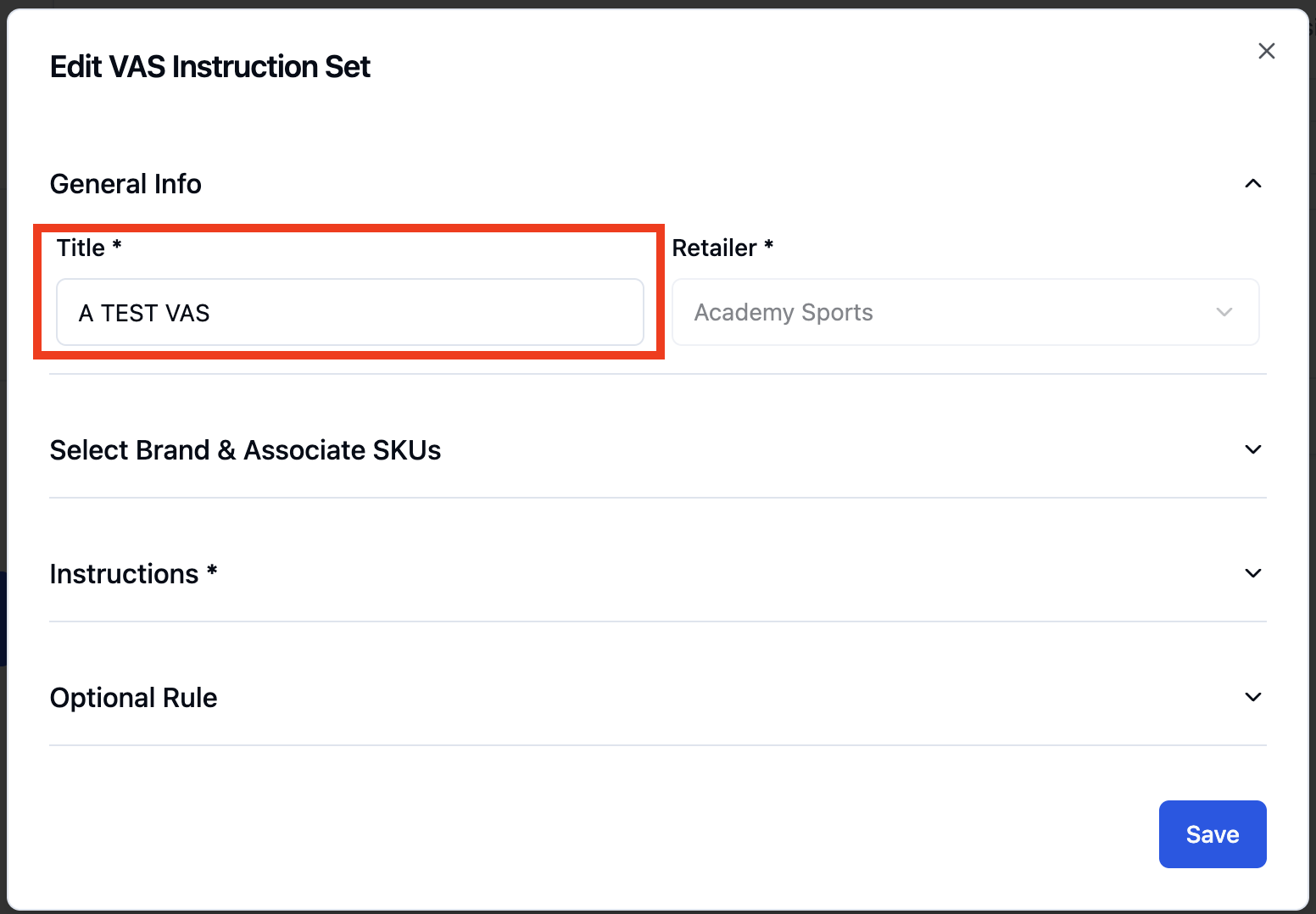
You can now open any field and edit whatever you need!
General Info - you can edit the Title of your VAS action
Select Brand & Associate SKUs - you can edit the SKU / SKU Prefixes to which the VAS actions apply
Instructions - you can edit the existing instructions or add more if necessary
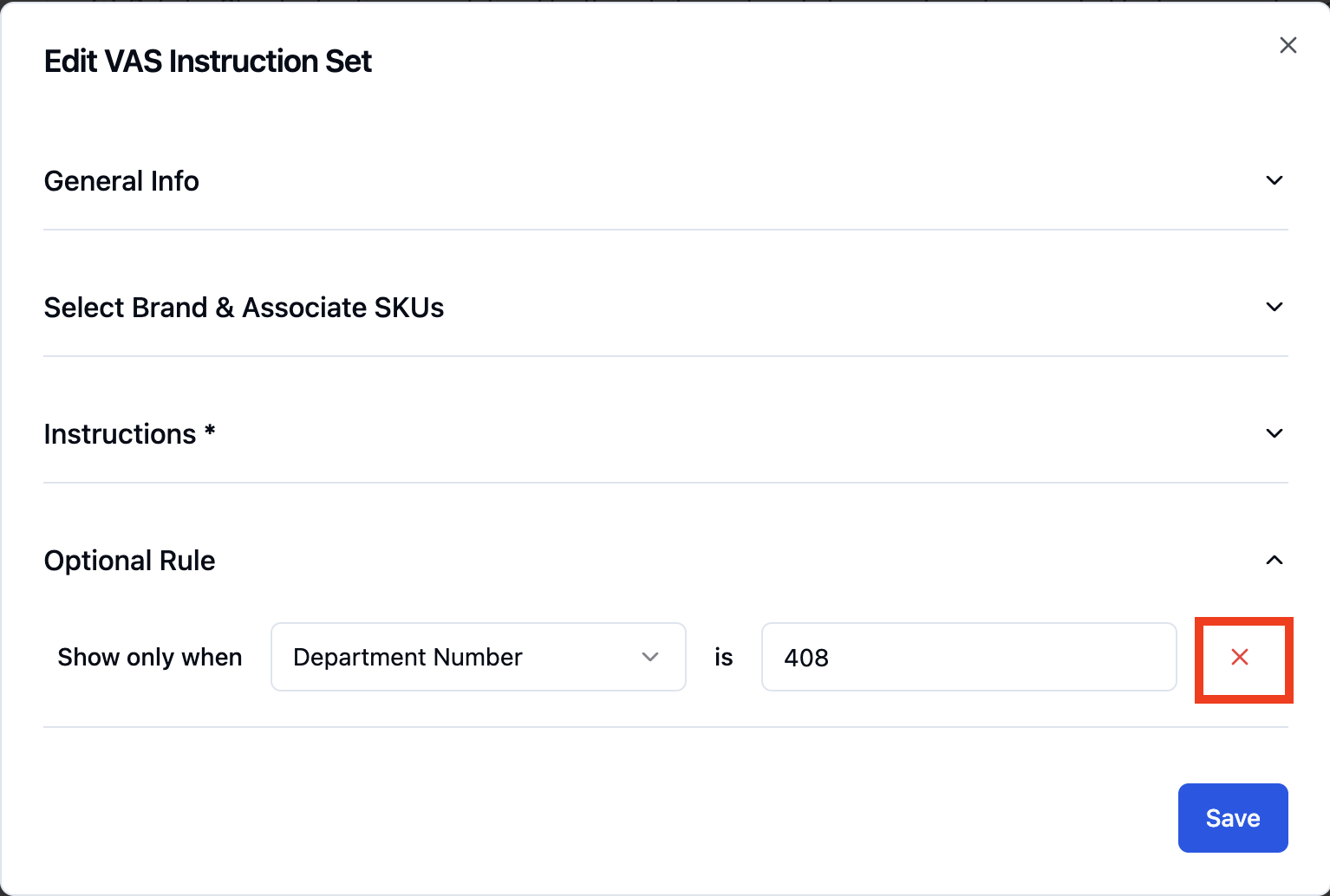
Optional Rule
You can delete the conditional rule you created and make it unconditional. Just click the 'red x' to the right of the rule
You can add an optional rule
Click 'Save' when completed.
FAQs:
When do VAS Instructions appear during fulfillment?
VAS Instructions automatically appear during the pack-out workflow at the SKU level, ensuring warehouse teams follow the correct steps for each item based on retailer requirements.
How do I apply VAS Instructions to multiple SKUs at once?
You can associate multiple SKUs by selecting them directly, uploading a CSV file using Bulk Associate SKUs, or selecting Apply to all SKU prefixes to apply the instructions across grouped or similar SKUs.
Can I edit the instructions inside a Retailer Standard?
No. Retailer Standards are defined and maintained by RetailReady and are read-only for 3PLs and Brands. If you believe a standard contains an error or needs updating, please contact your RetailReady account representative.
What happens if a Retailer Standard is updated after I have already assigned it to a SKU?
When RetailReady updates a Retailer Standard, they may choose to push that update to all existing assignments automatically. If that happens, your assigned SKUs will reflect the latest version of the rule. You will be able to see the updated instructions the next time you view that assignment in the VAS Catalog.
I set up a condition, but the action is still showing for all orders. What should I check?
Make sure both the 'Select field' and the 'Enter value' are filled in before saving, RetailReady will show a validation error and won't let you save if only one of the two is set. Also confirm that the value you entered exactly matches the value on the order, including any leading zeros or capitalization differences.