Pull Logiwa Order Changes
Last updated: July 26, 2026
The Pull Logiwa Order Changes feature now allows 3PL admin users to sync order modifications directly through RetailReady without needing to contact support. This article explains how to use the self-service sync functionality and what to expect when syncing modifications.
Accessing the Sync Feature
Navigate to the order you want to sync modifications for.
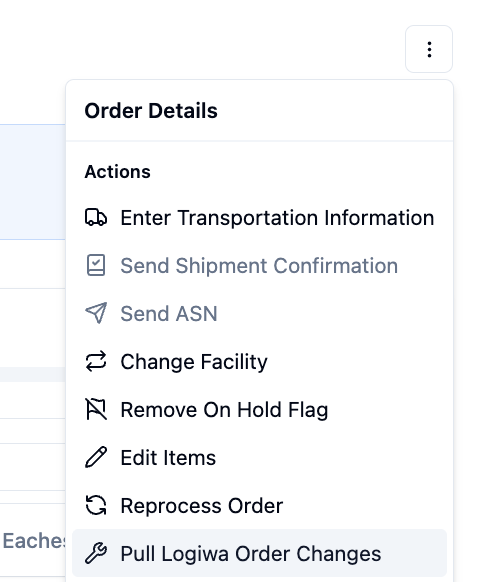
Look for the 'Pull Logiwa Order Changes' button in the order actions section. This button only appears if you have admin status and the brand <> retailer combination of the order was enabled for pulling Logiwa order modifications during the onboarding process.
Click 'Pull Logiwa Order Changes' to open the sync modal.
Syncing Order Modifications
In the sync modal, enter the Logiwa order number associated to the RetailReady order you want to modify.
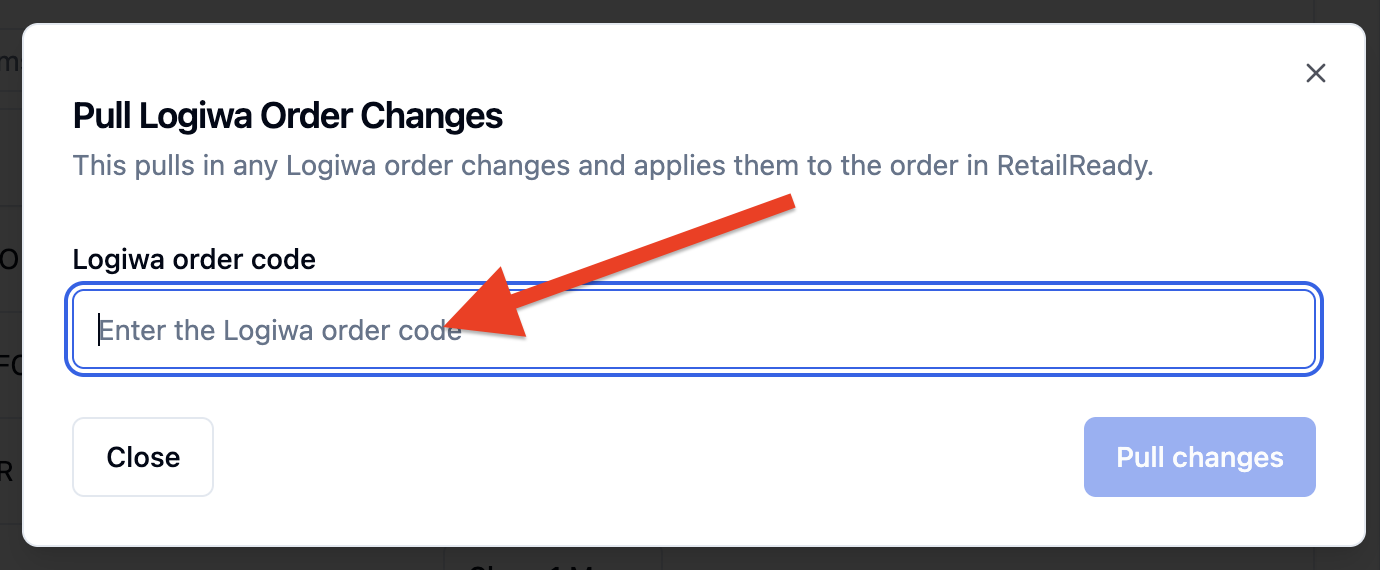
Click 'Pull Changes' to begin the process.
The system will validate that your Logiwa order number matches the current RetailReady order. If the code doesn't match, you'll be automatically redirected to the correct order.
Review the sync results displayed in the modal. You'll see the status of each modification attempt, including any blocked or failed items.
If you see blocked items, hover over the information icon for details about why the sync was blocked.
Click 'Close' when you've finished reviewing the results.
Understanding Sync Results
After running a sync, you'll see results in three categories:
Successful: Modifications that were successfully synced to Logiwa
Failed: Modifications that encountered errors during sync
Blocked: Modifications that were prevented from syncing due to business rules or permissions
Each result includes details about what was processed and any relevant error messages to help you understand the outcome.
FAQs
Why don't I see the 'Sync Logiwa Modifications' button?
The sync button only appears if you have admin status for your facility and the order is connected to Logiwa with modifications enabled. Contact your system administrator if you believe you should have access.
What happens if I enter the wrong picksheet code?
The system will validate your picksheet code against the current order. If they don't match, you'll be automatically redirected to the order that matches your entered code, and you can proceed with the sync from there.
Can I sync multiple orders at once?
Yes, you can enter multiple picksheet codes in the sync modal by putting each code on a separate line. Each code will be processed individually.
What should I do if some modifications are blocked?
Blocked modifications are prevented from syncing due to business rules or system constraints. Hover over the information icon next to blocked items to see the specific reason. Contact support if you need help resolving blocked modifications.
How do I know if my modifications were successfully synced?
The sync results modal will show you the status of each modification attempt. Successful syncs will be clearly marked, and you'll see confirmation that the changes were applied in Logiwa.