PDF Generation of Invoices and Orders
Last updated: May 26, 2026
You can generate and download PDF copies of your EDI documents (invoices, purchase orders) directly from RetailReady without needing to access external systems.
How to Access PDF Documents
Finding the PDF Options
From the Orders Dashboard, go to any order details page by clicking an order
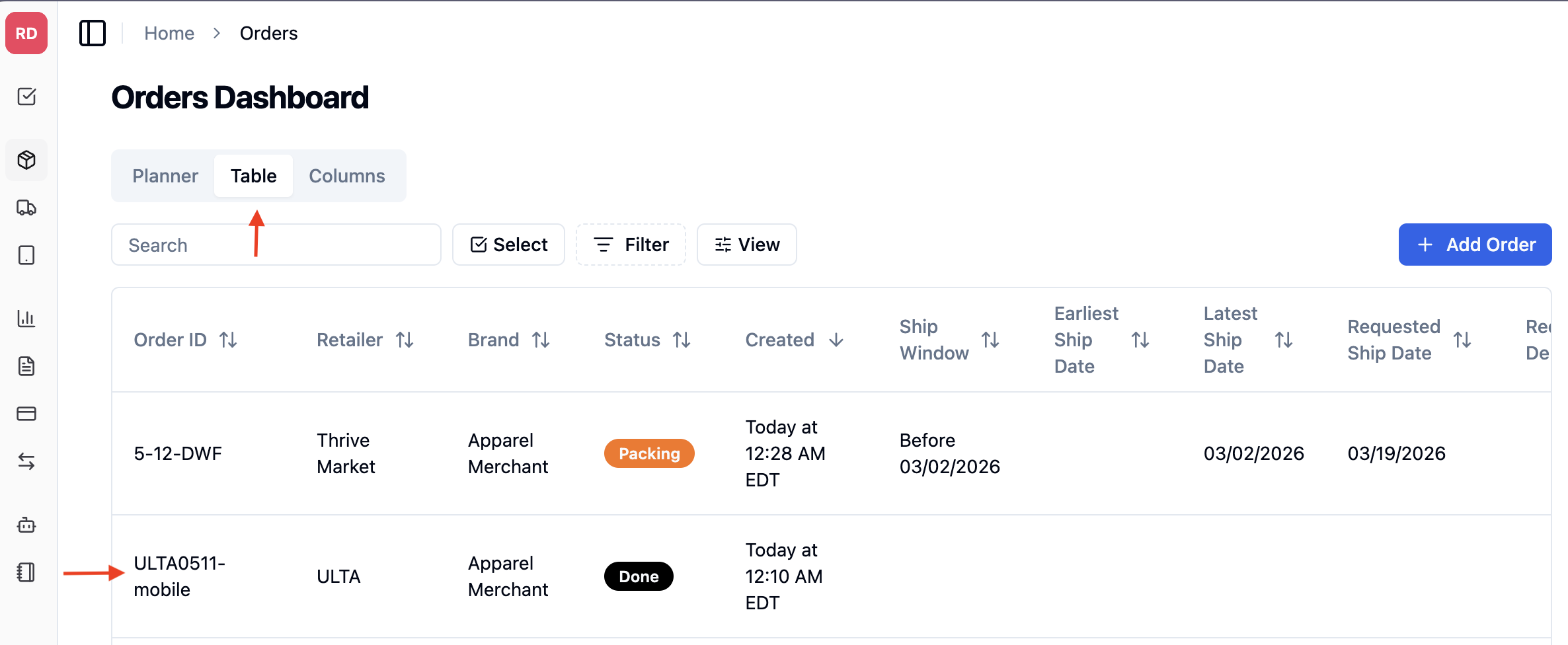
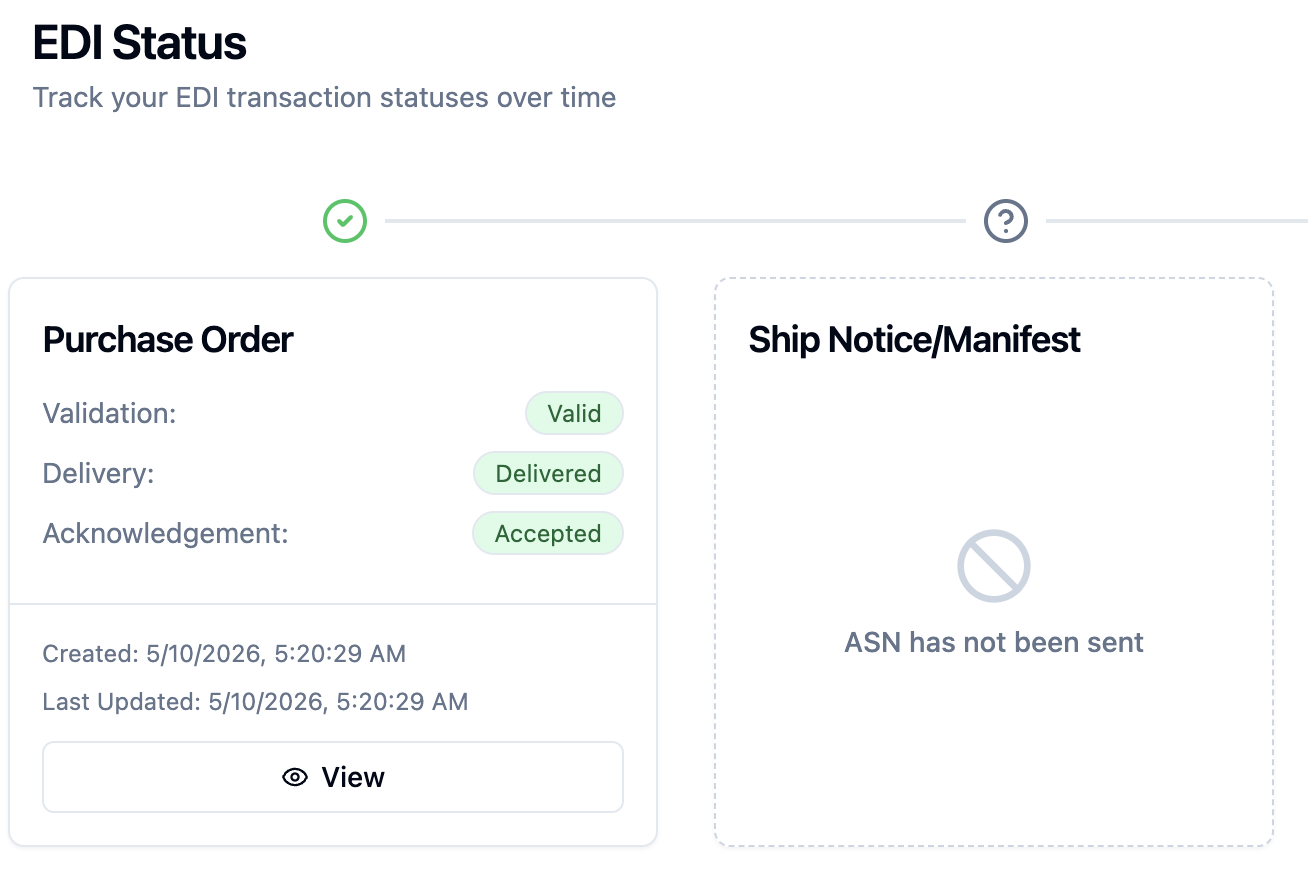
At the bottom of the Order Details page, look for the EDI section that shows the EDI transactions for your order
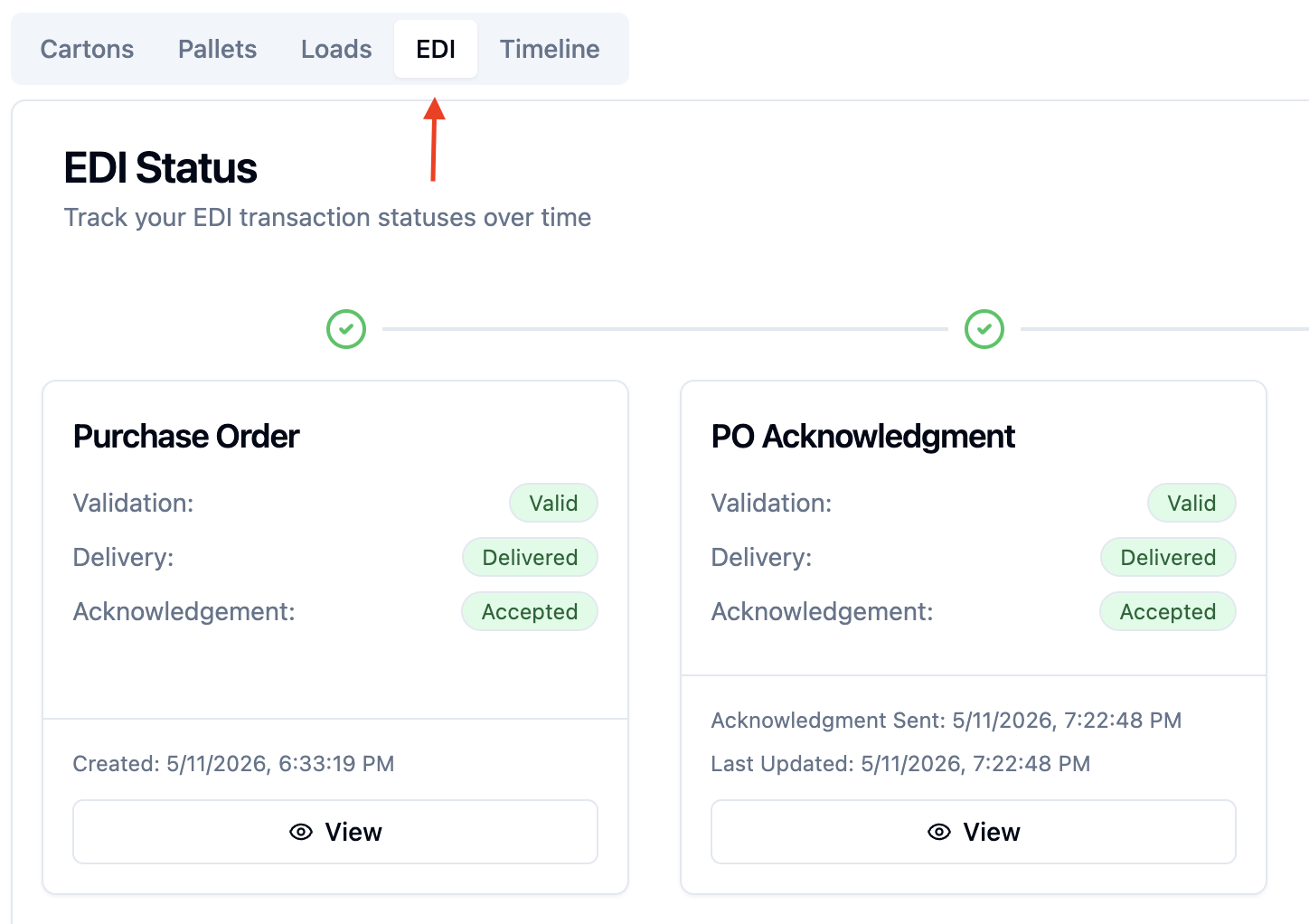
You'll see the status of each document, and can click View to open up the details
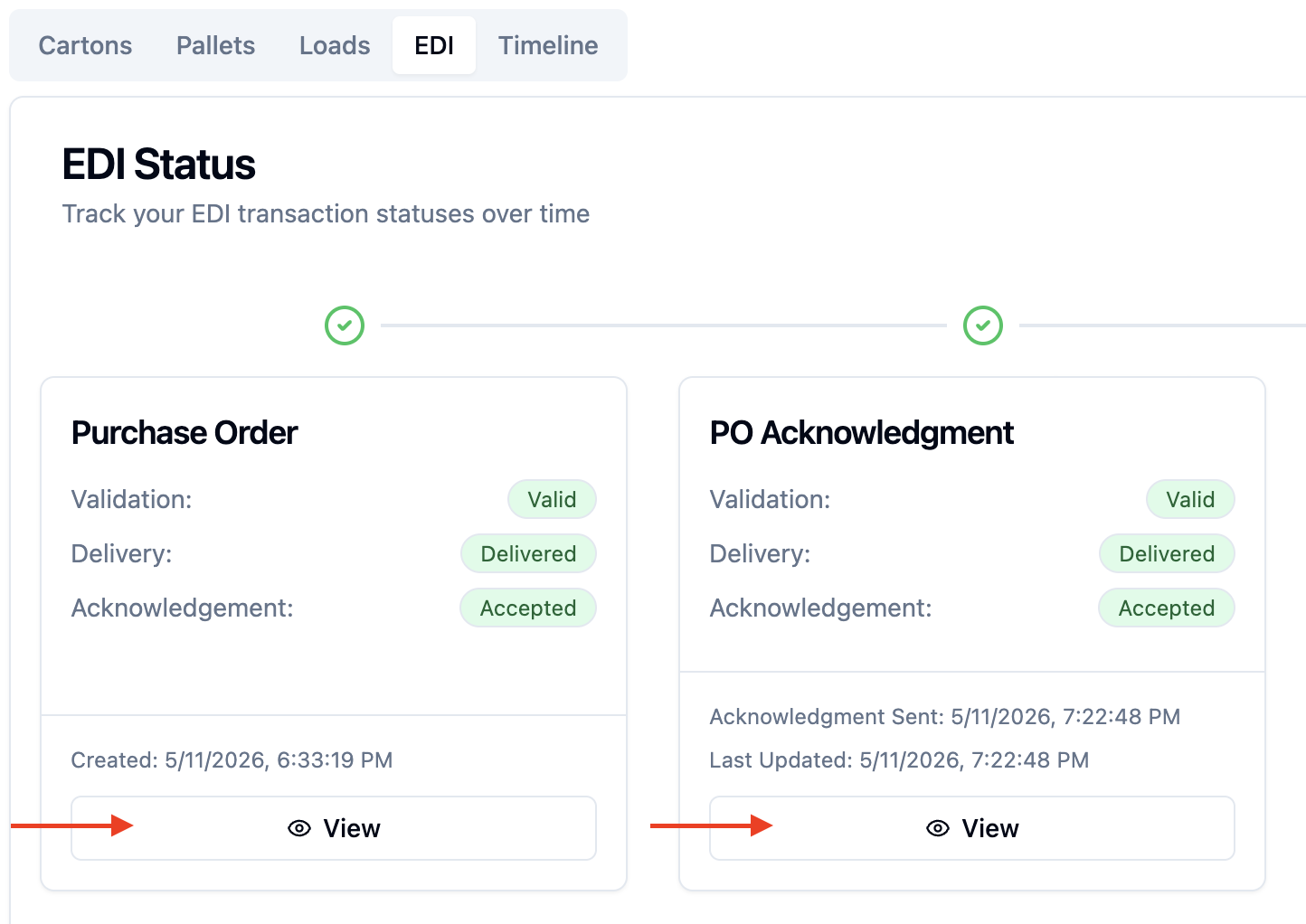
This will open a more detailed view with all of the EDI transaction details; you can use the '...' on the top right of the page to either Print or Download the transaction

Using the PDF Features
Download Button: Click this to immediately save a PDF copy to your computer
Print Button: Click this to open your browser's print dialog
What Documents Are Available
You can generate PDFs for:
Purchase orders (850 documents)
Invoices (810 documents)
Order acknowledgments (855 documents)
FAQs
"Document" has not been sent Message
This means there are no EDI documents associated with this order yet. Documents appear as they are processed through the system.
Download Isn't Working
Check that your browser allows downloads from RetailReady
Try refreshing the page and downloading again
Clear your browser cache if downloads seem stuck
PDF Looks Incomplete
Wait a few seconds for the document to fully load before downloading
For very large documents, the PDF may take extra time to generate
If information is still missing, try refreshing the page
Print Option Not Working
Make sure your browser allows pop-ups from RetailReady
If the print dialog doesn't appear, try the Download option instead
Some browsers may block the print dialog - check your browser settings
Getting Help
If you continue to have issues with PDF generation or can't find the documents you need, please use the Chatbot feature (bottom right of the page) in RetailReady to contact the RetailReady support team. Please include the order number and which type of document you're trying to access.