How to View a PDF of your EDI Transaction
Last updated: September 18, 2026
EDI transactions (such as 810 invoices, 850 purchase orders, or 856 ASNs) are exchanged as raw, machine-readable data — not something you can easily read at a glance. This article shows you how to export any EDI transaction in RetailReady as a readable PDF, so you can quickly review, share, or file a copy of the transaction without needing to parse the raw EDI format.
Viewing a PDF of an EDI Transaction
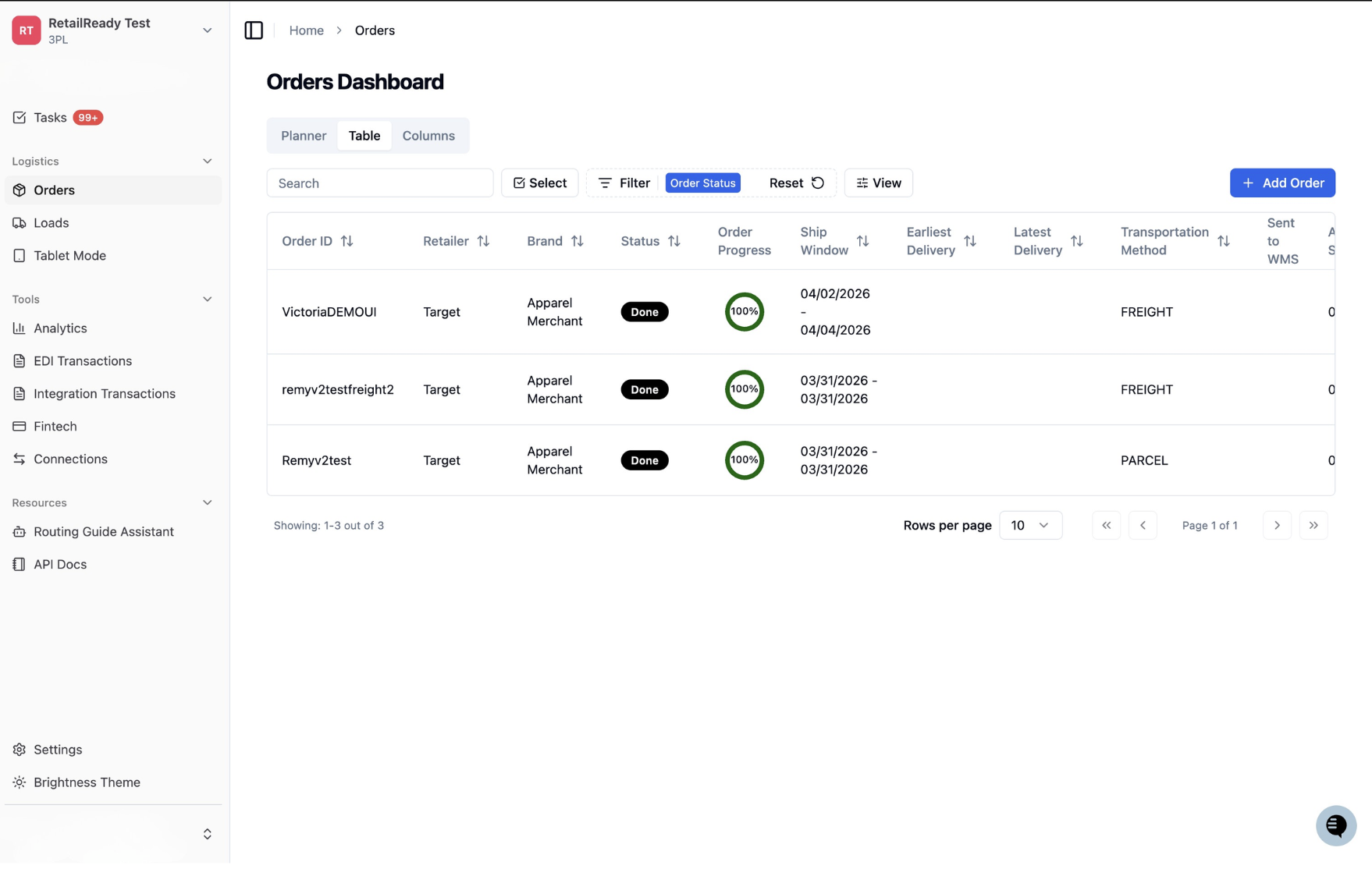
Open up your RetailReady Dashboard, and navigate to 'Orders' tab on the Left Hand Side.
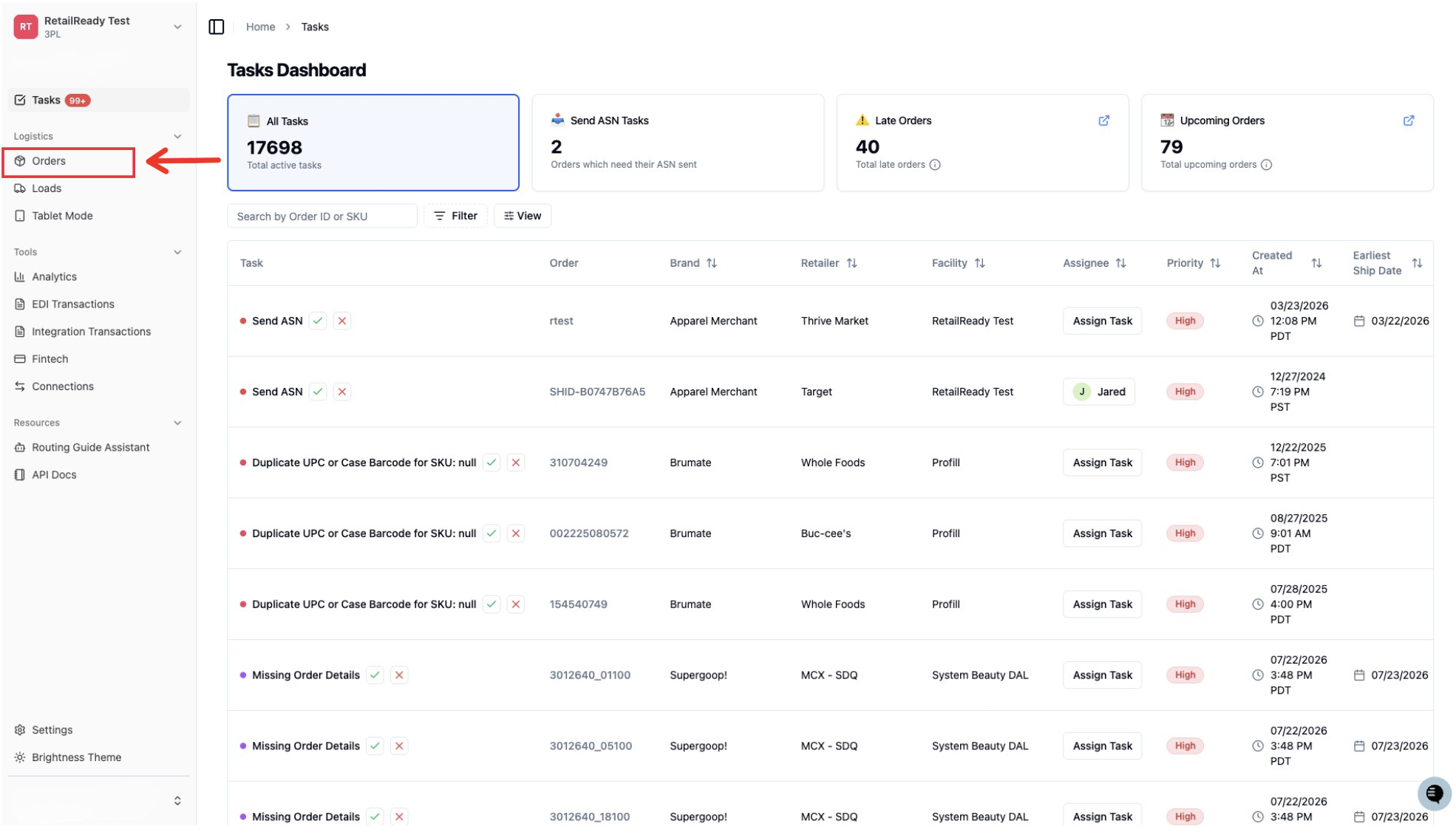
Navigate to 'Filter'
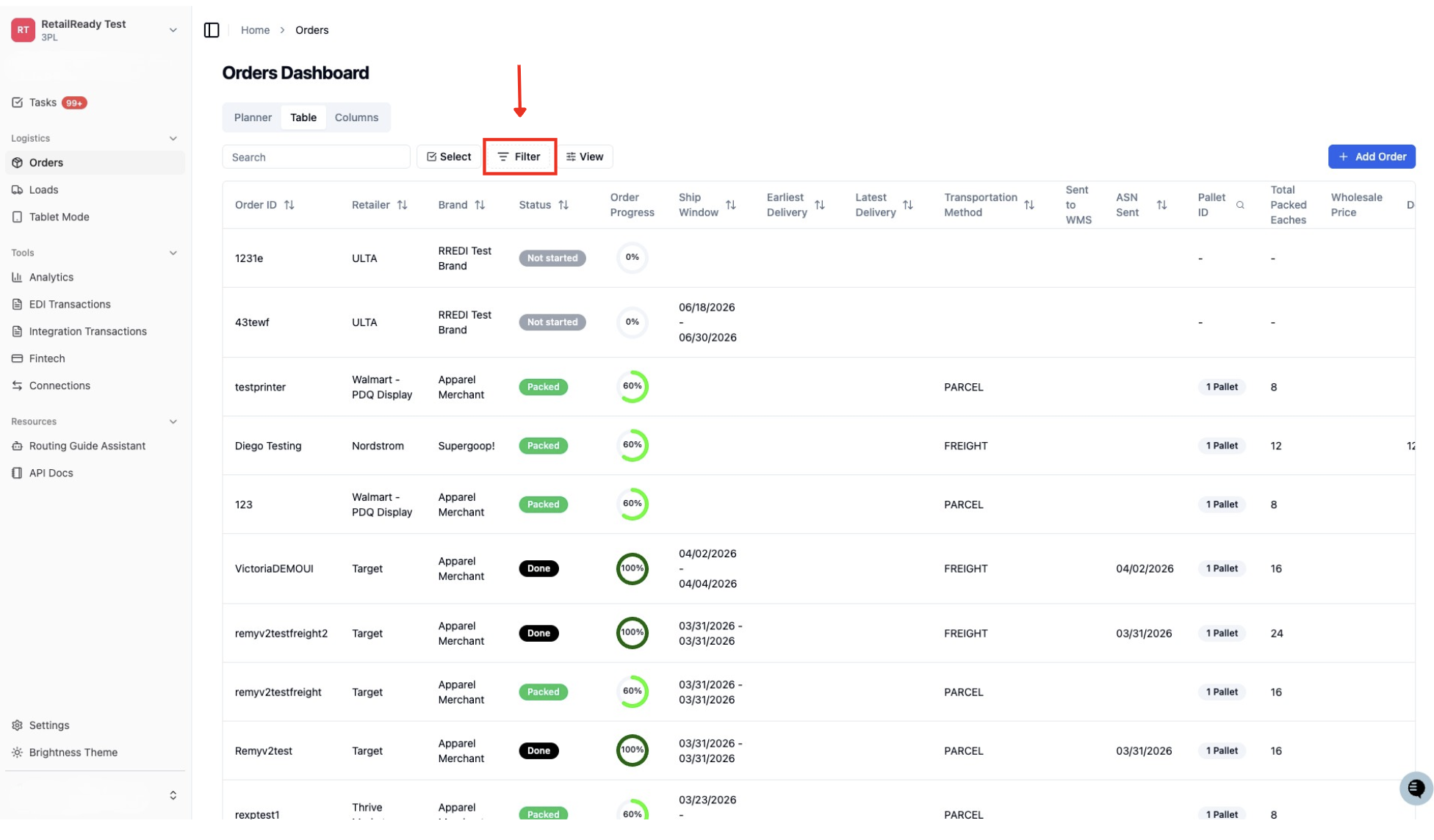
Click 'Add Filter', type and select 'Order Status'
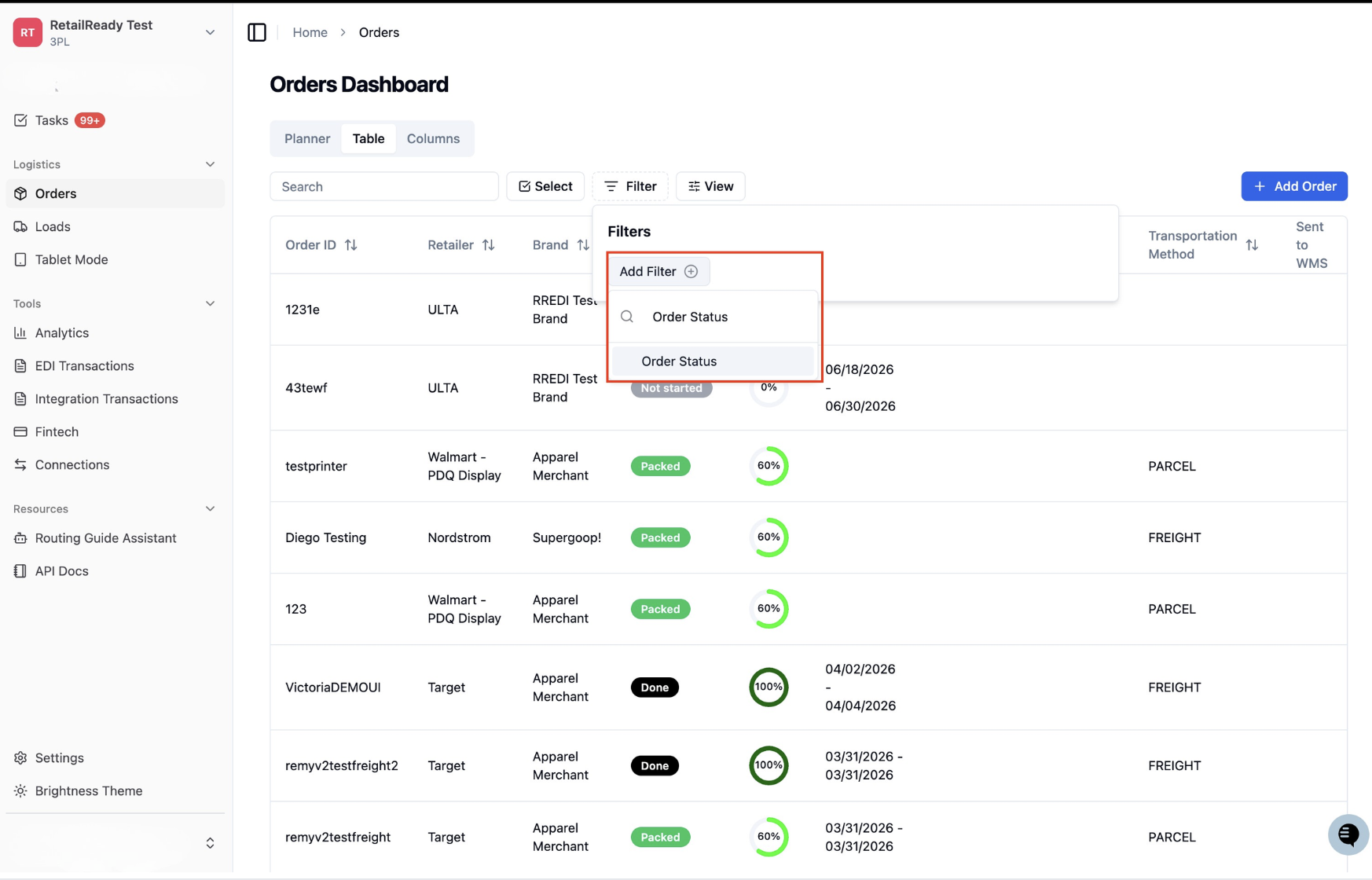
Click 'Select Order Status', type and select 'Done'
Click the desired Order
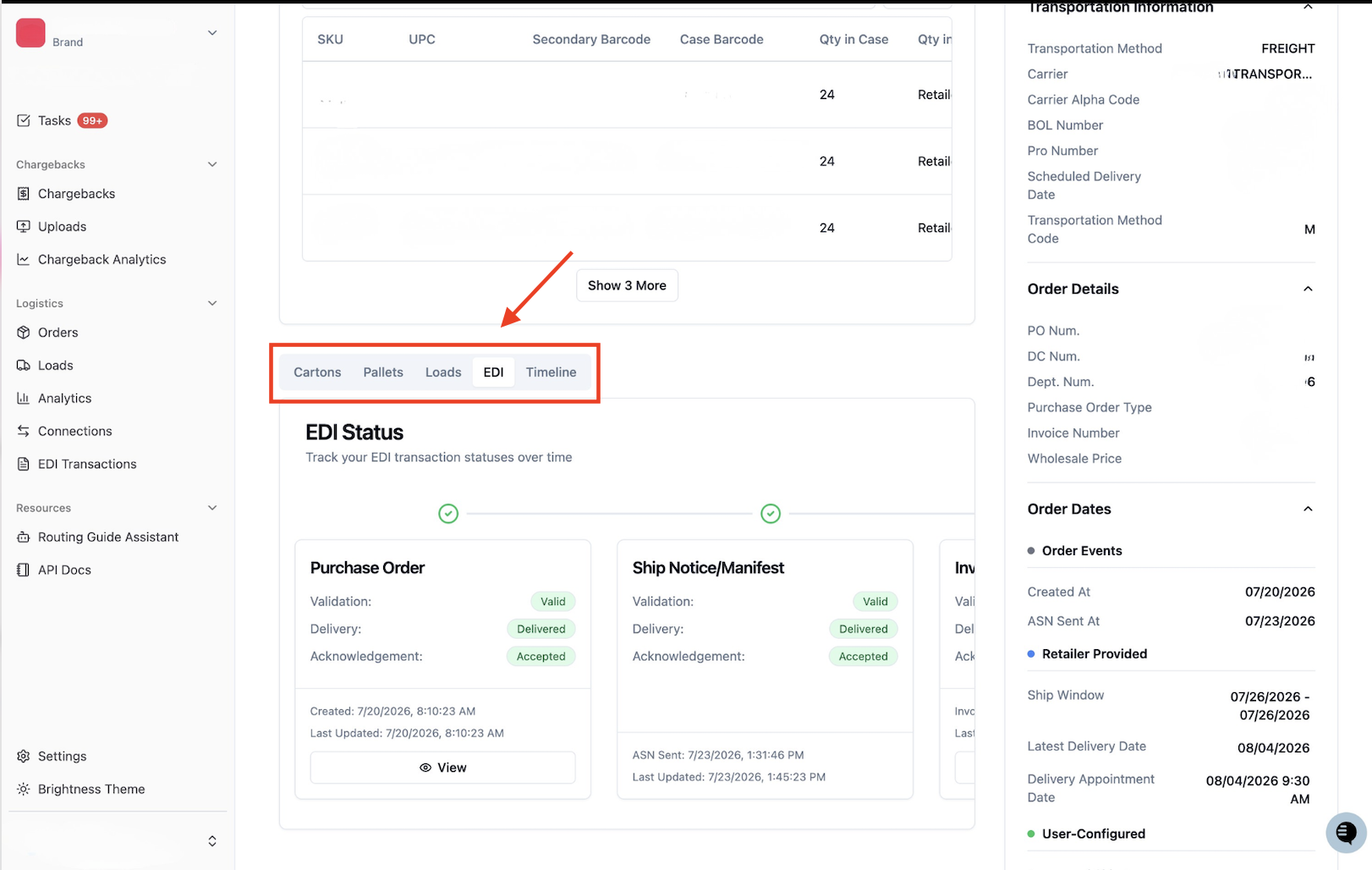
Click from Cartons to 'EDI'
If not seen, scroll down until you find
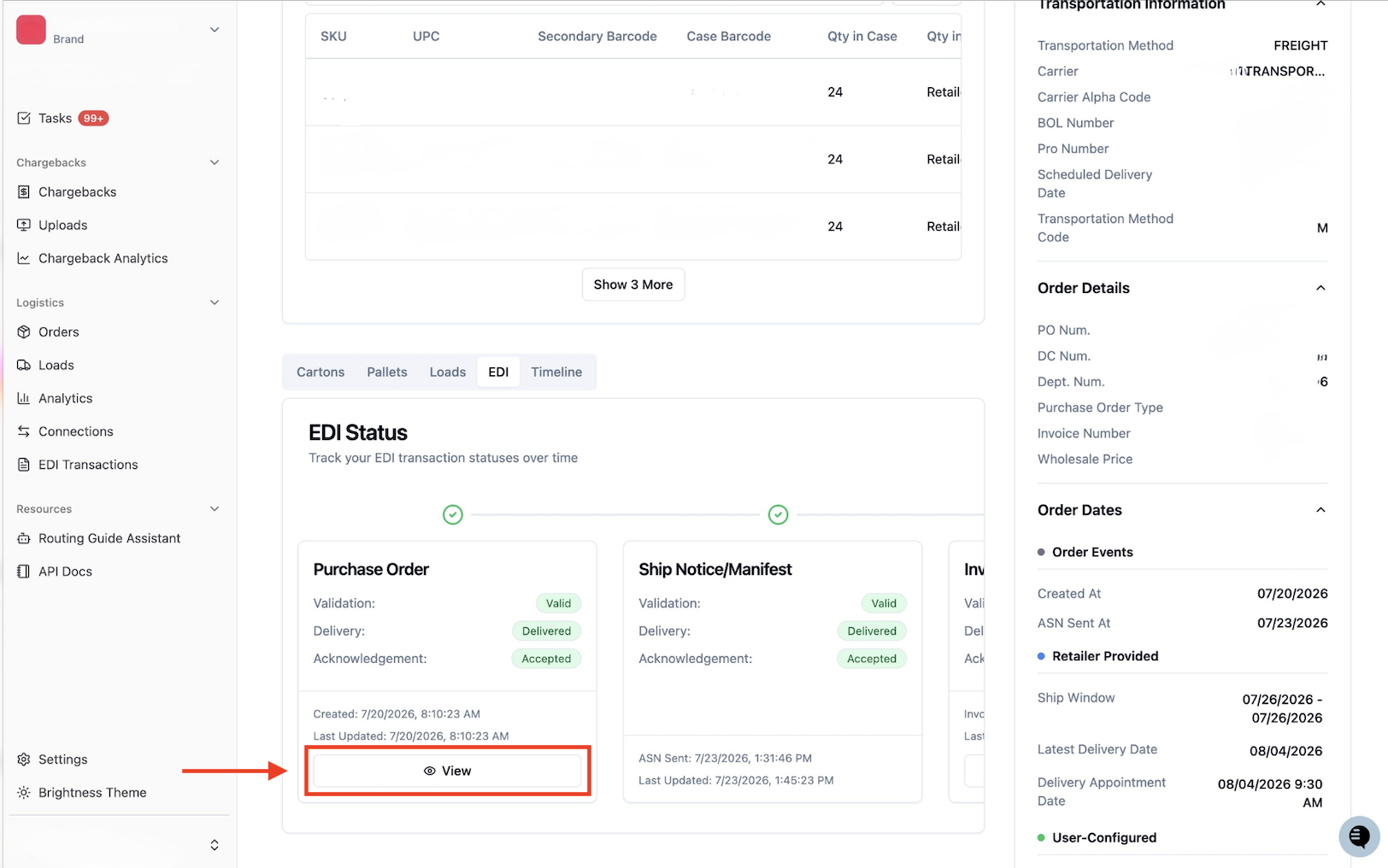
Click 'View' of desired Purchase Order
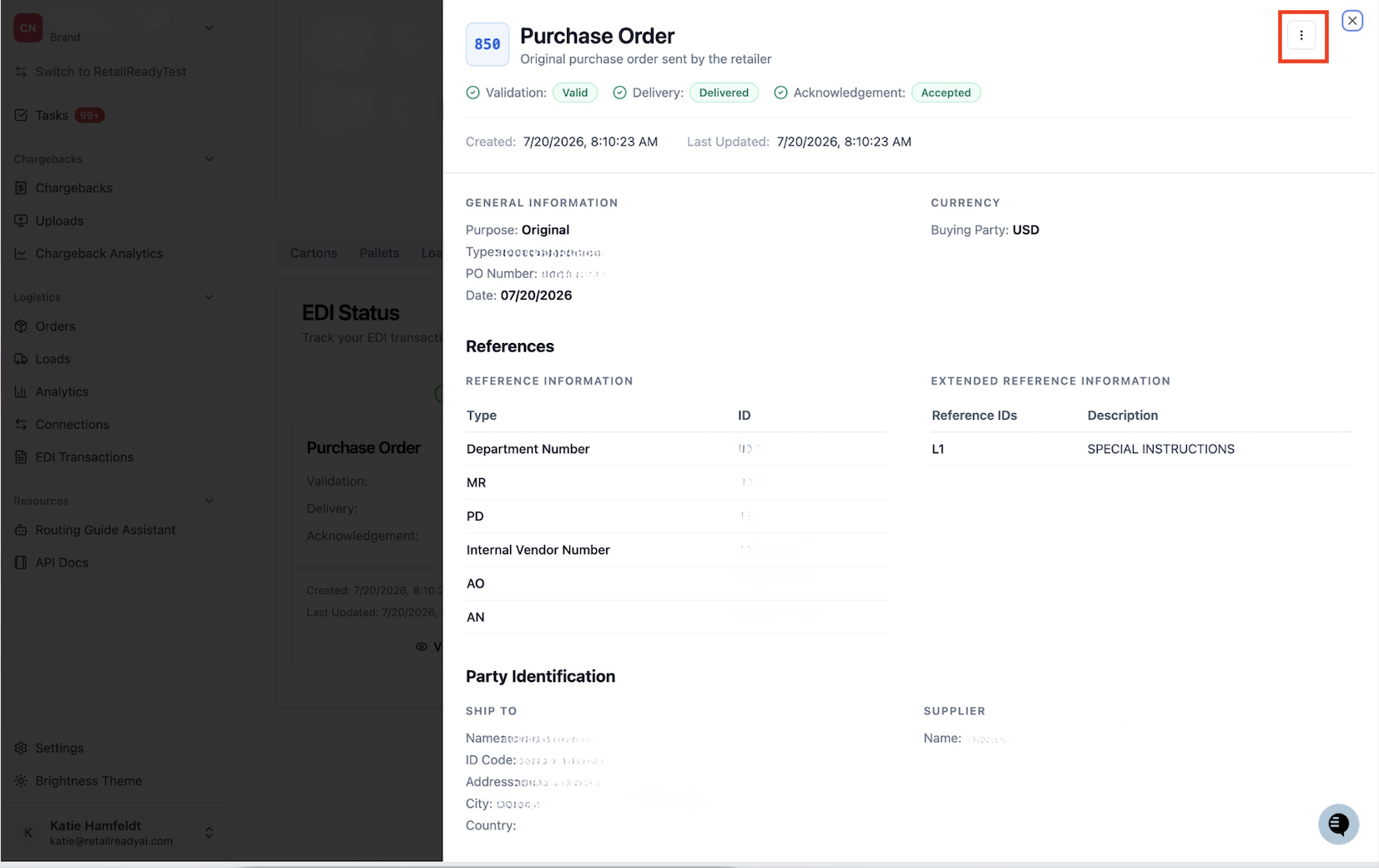
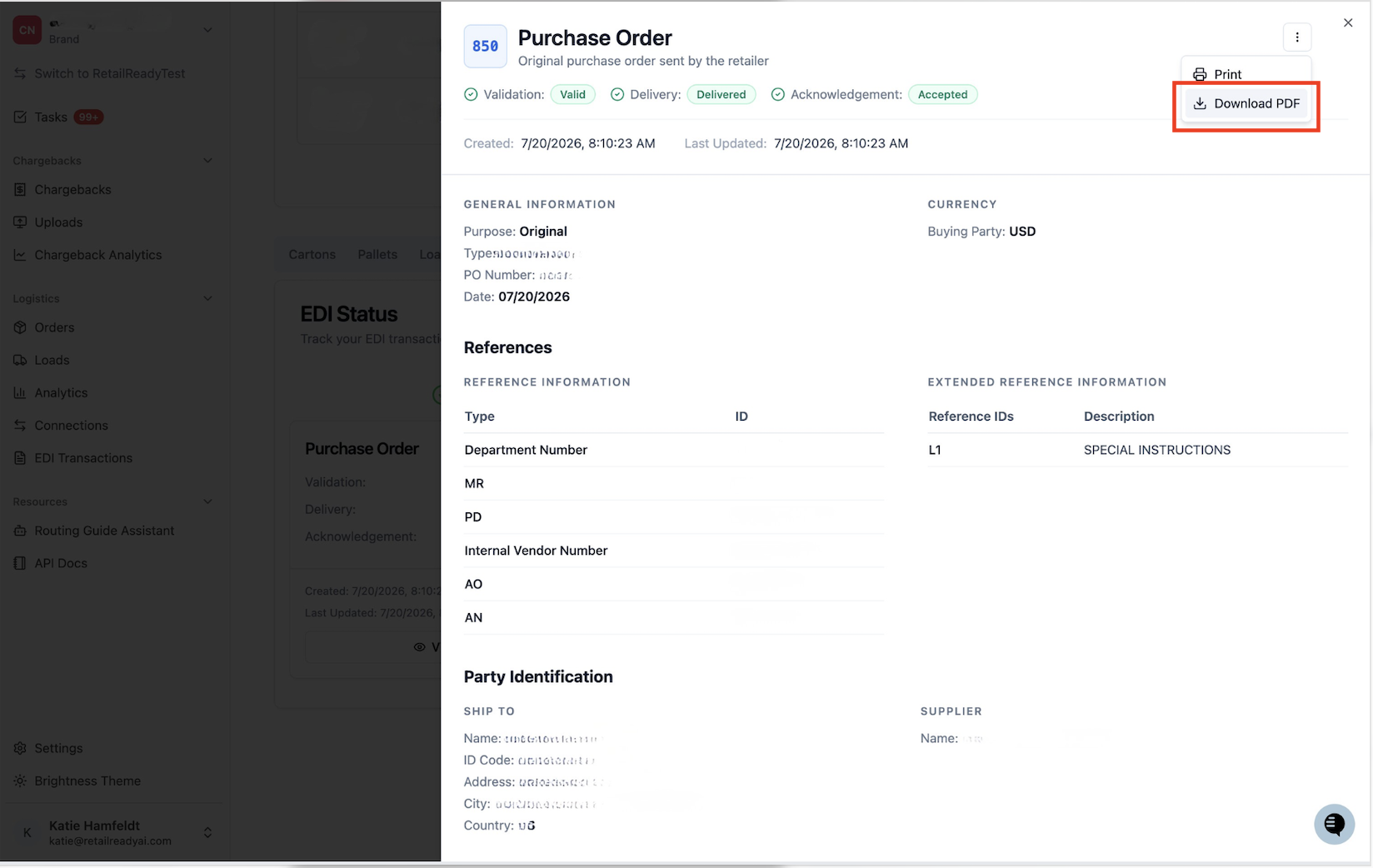
Click the '3 vertical dots' in the Top Right Hand Corner
Click 'Download PDF'
FAQs:
Which EDI transactions can I download?
PO, PO Acknowledgement, and Invoice.
What if EDI isn't and option to select in the order?
That is because the order was a manual transaction, so there is no EDI transaction to download.