Walmart Load Email Automation
Last updated: March 27, 2026
What is Walmart Load Email Automation?
Walmart Load Email Automation allows you to automatically create loads and populate shipment details in RetailReady by simply forwarding Walmart’s Load Confirmation emails. All within minutes, with no manual data entry required
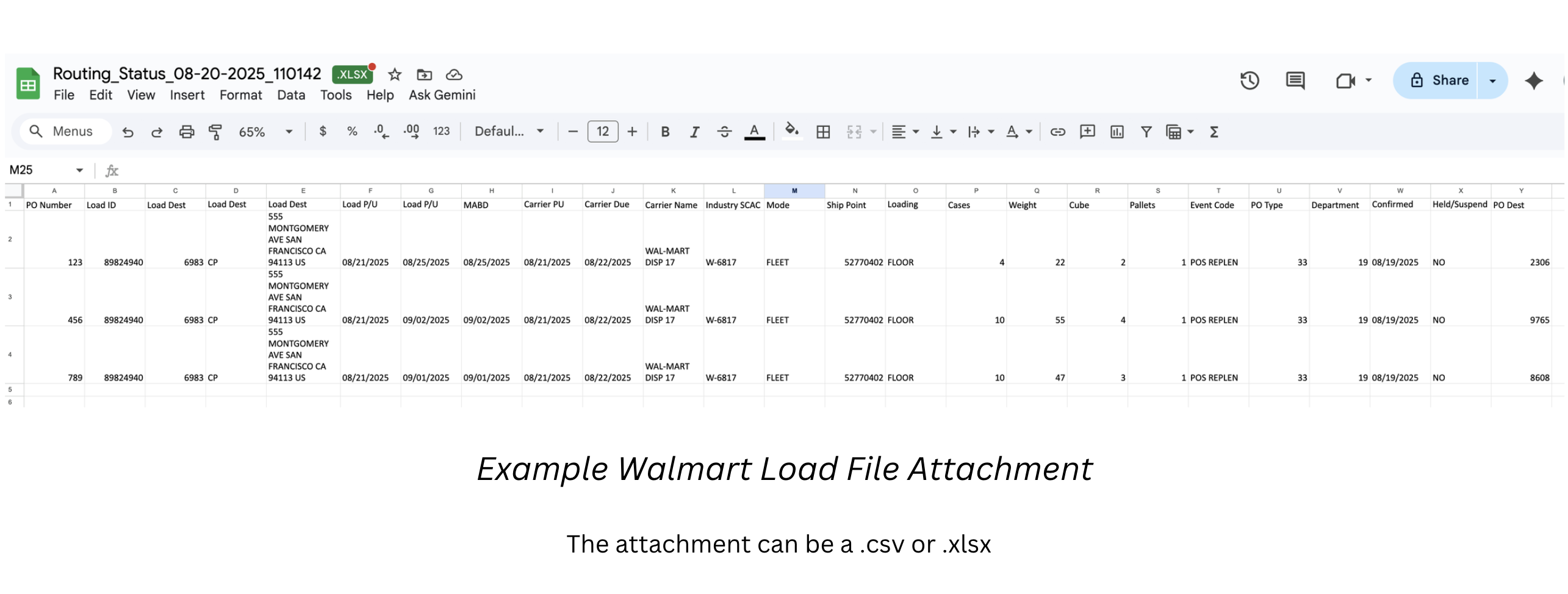
Walmart sends load confirmation emails with an Excel attachment that includes:
Purchase Orders (POs)
Expected load groupings
Shipment details
Instead of manually entering this information, RetailReady will:
Create the Load
Assign all associated orders
Populate Transportation Information
How To Use Walmart Load Email Automation
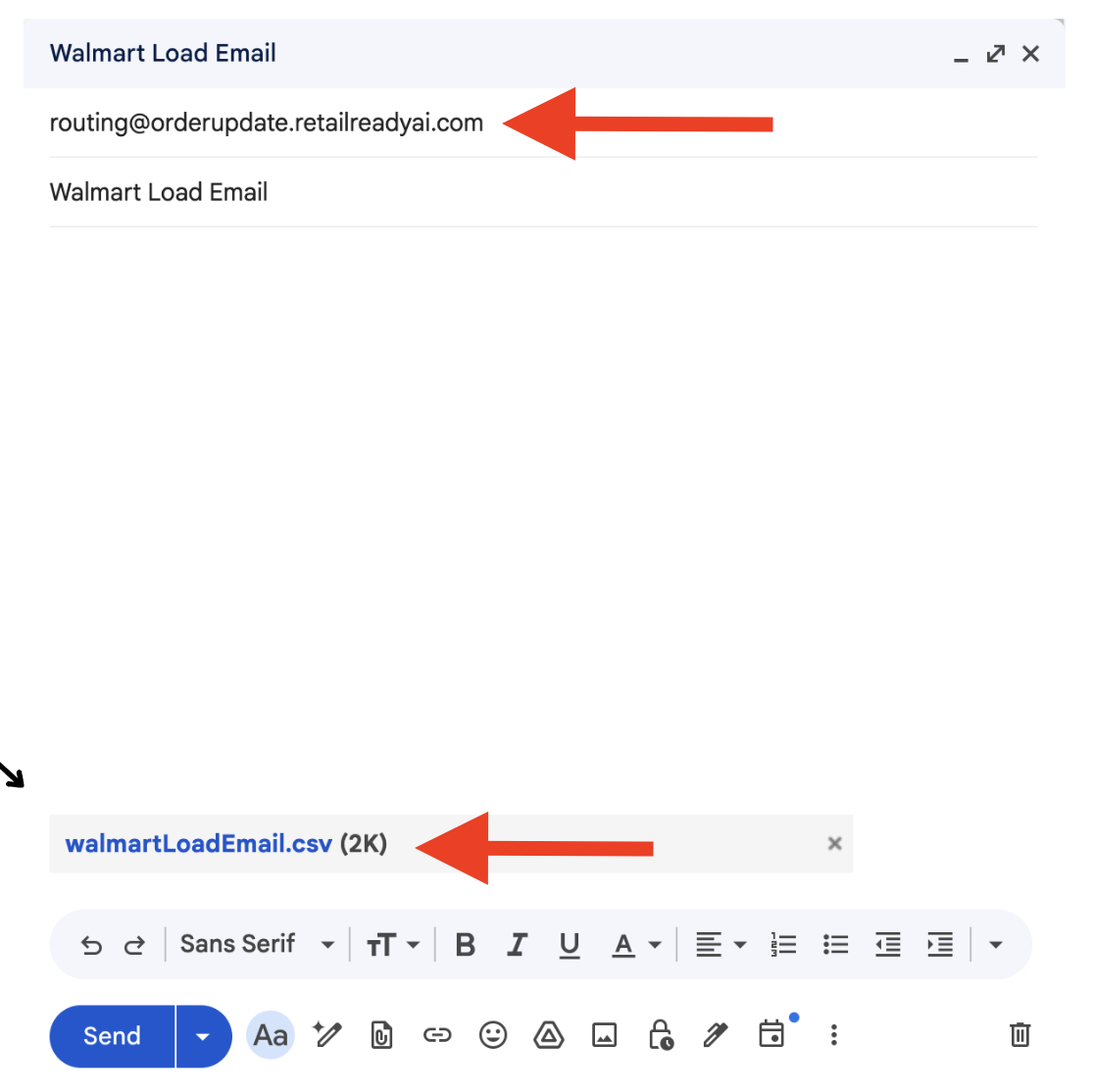
Open the Walmart Load Confirmation email.
Click 'Forward'.
Send the email (with the Excel attachment included) to: routing@orderupdate.retailreadyai.com
Ensure you are sending from the same email address linked to your RetailReady account.
Important Notes:
Emails are typically processed within 1–3 minutes
The POs in the email must already be in RetailReady
Steps After Email is Sent
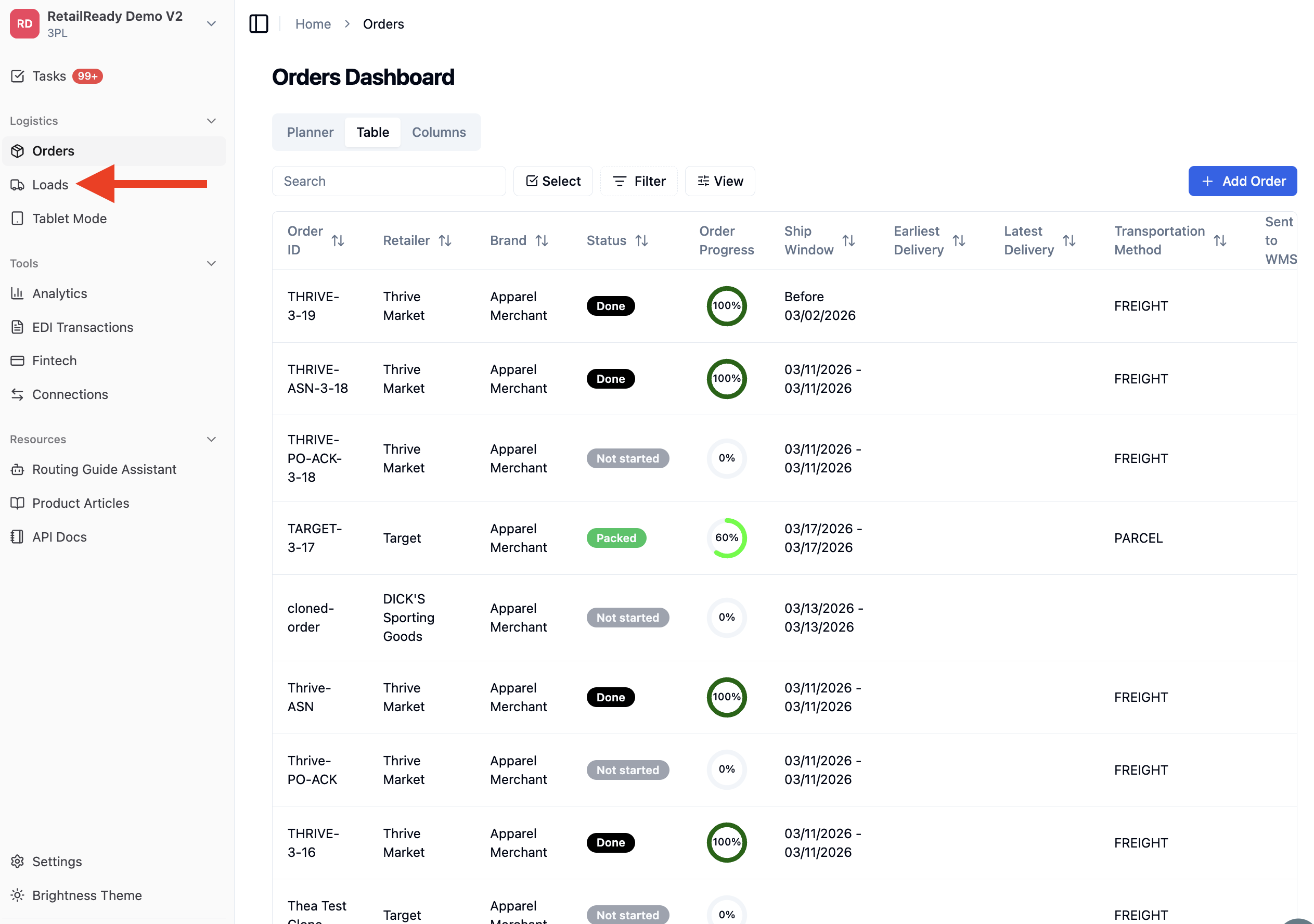
Navigate to the 'Loads' page on the left-side navigation panel.
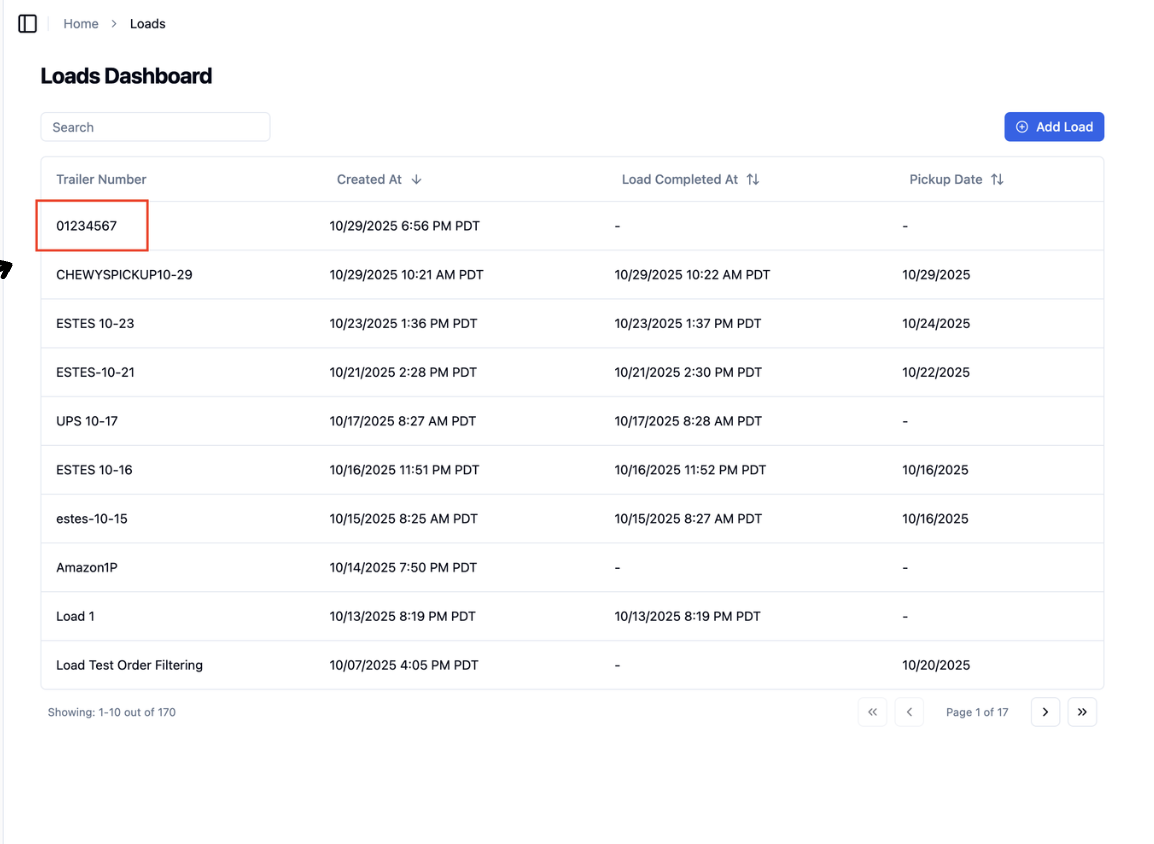
Locate the newly created load(s)
One load is created per Walmart Load ID
Click into the load to and select the 'Orders' tab review assigned orders
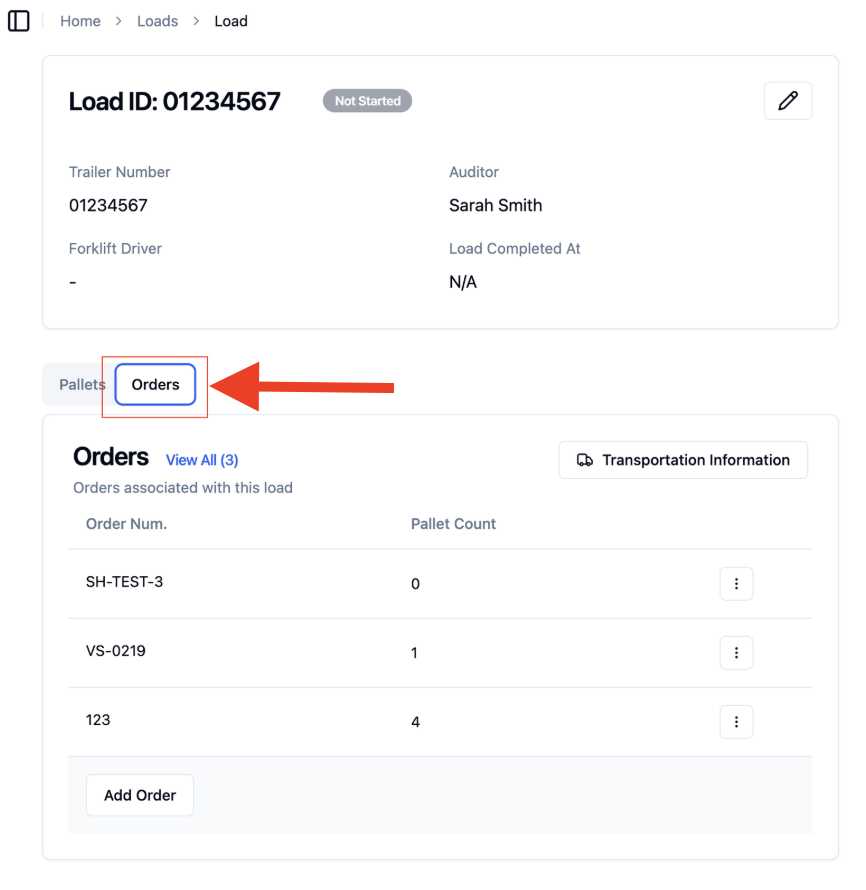
Click into any Order.
Review the Transportation Information section located on the right-side panel.
The shipment details from the email will be in the Transportation Information section.
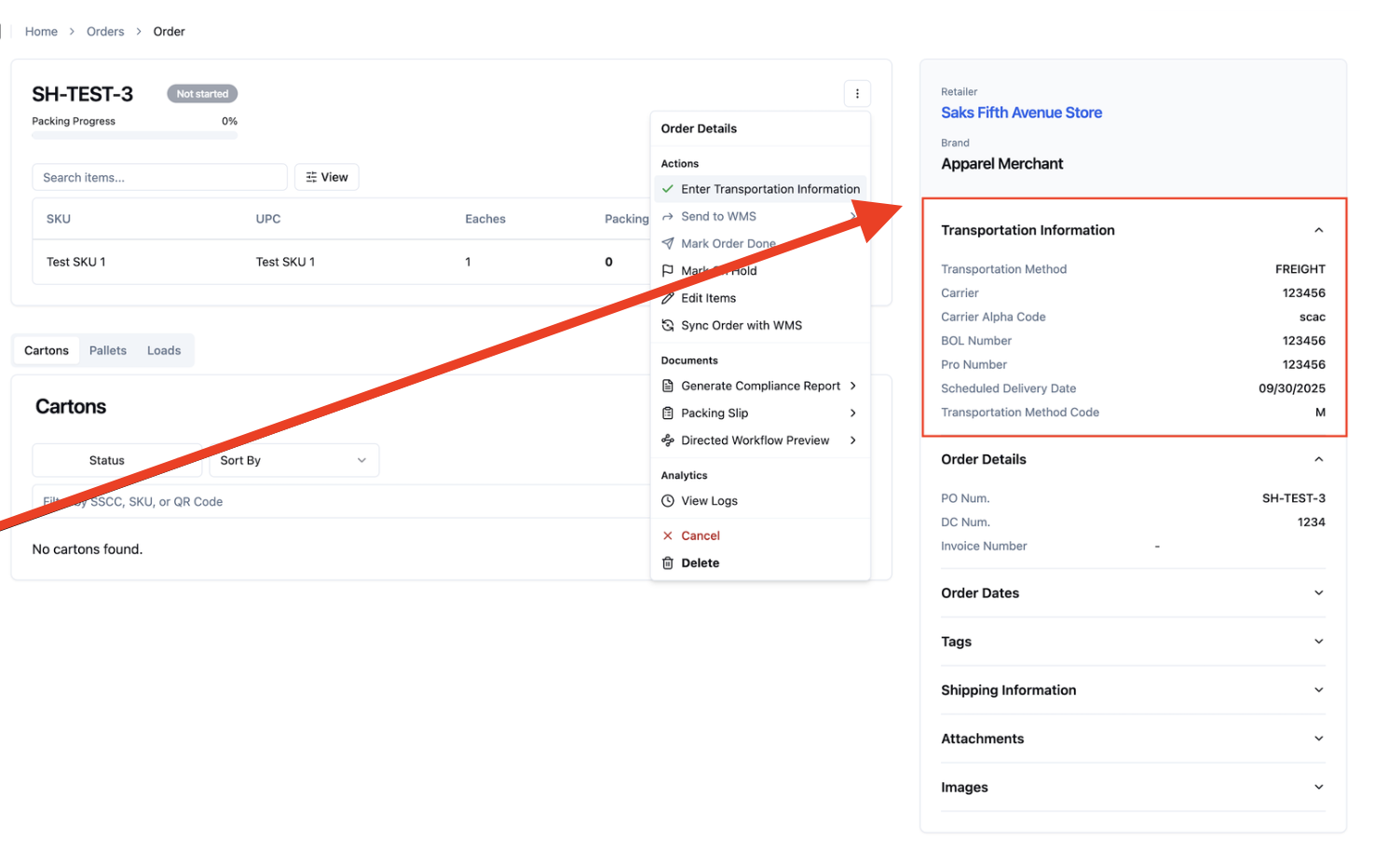
If modifications to transportation information is needed:
To update all orders on a load, navigate to the Loads page and click 'Transportation Information'.
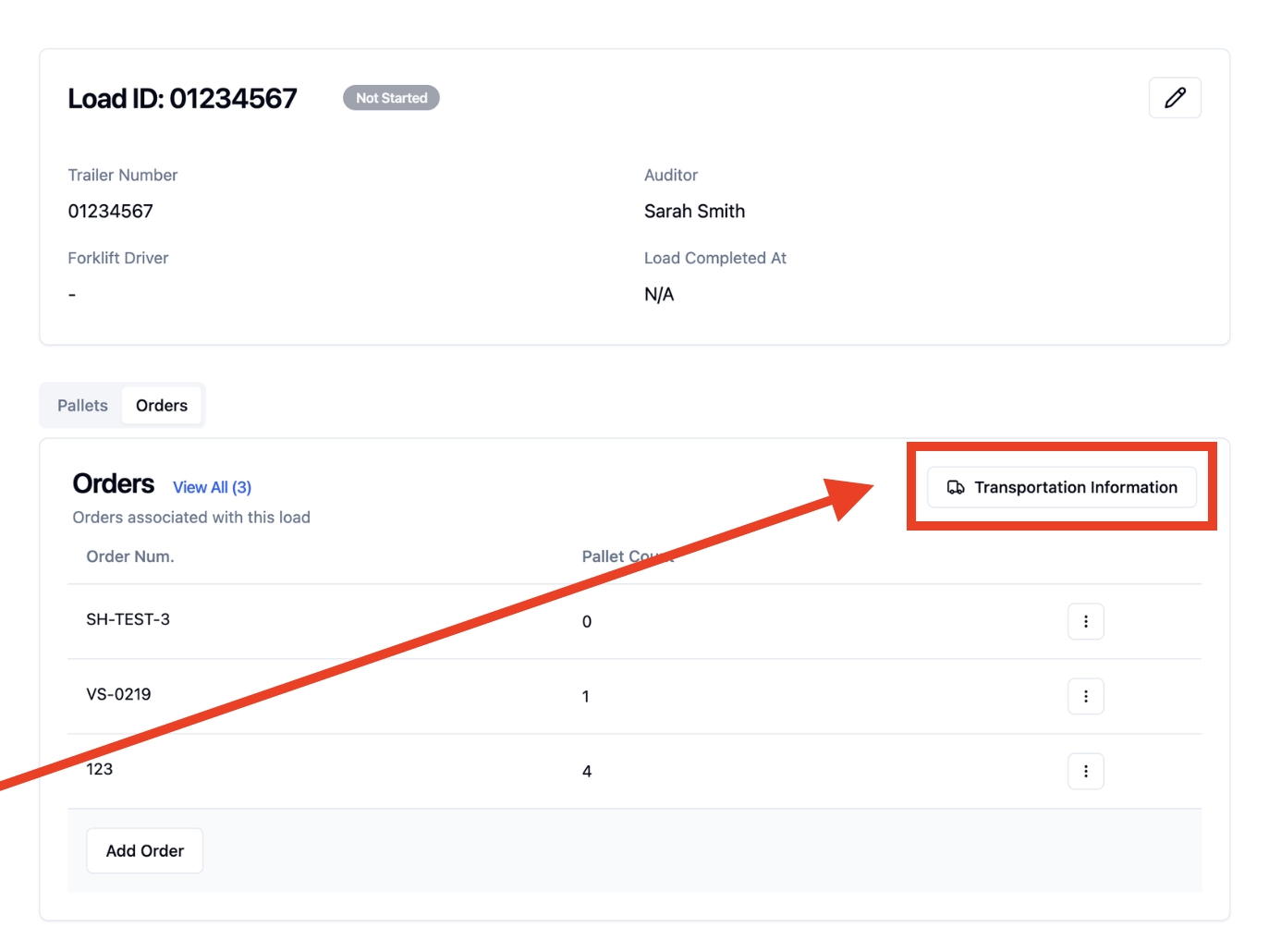
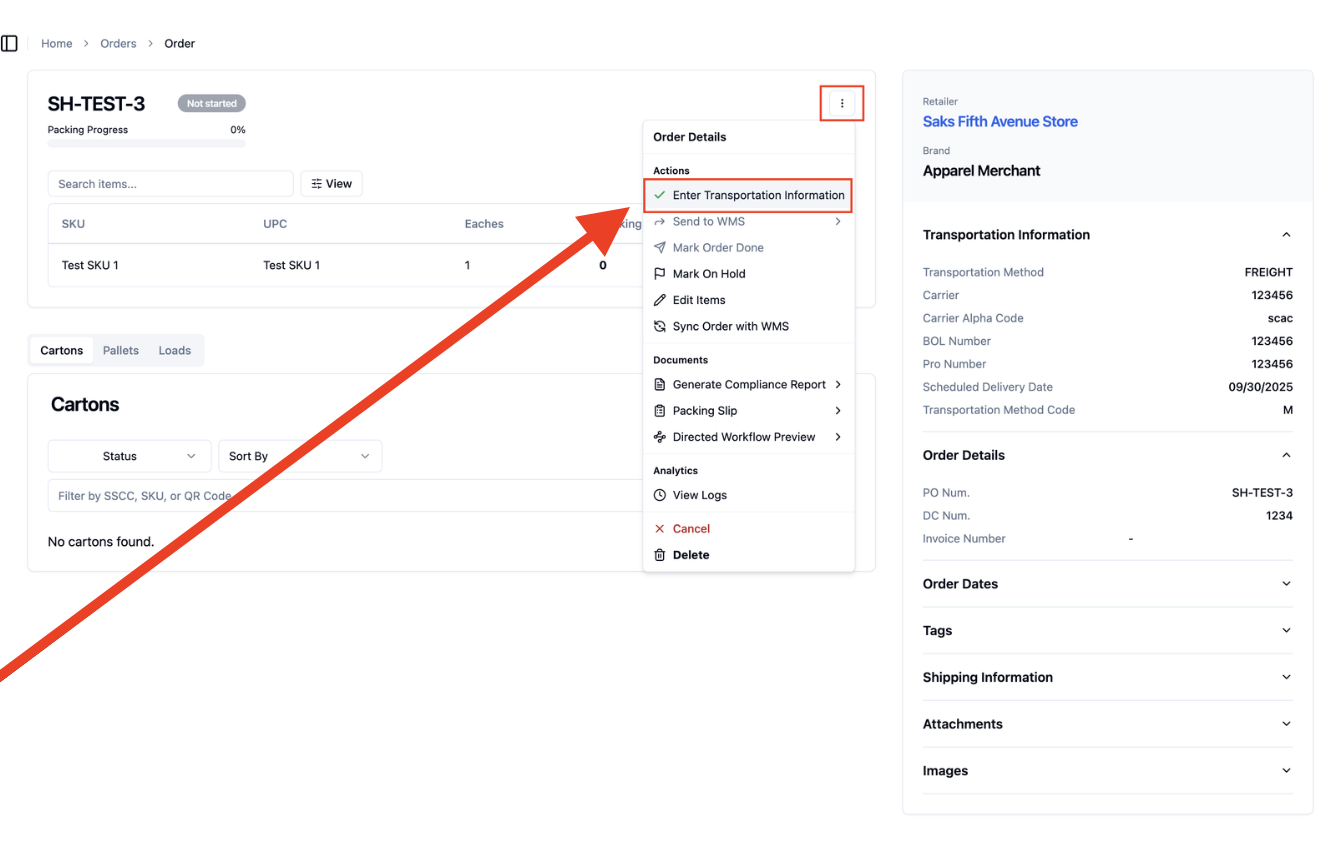
To modify a single order, navigate to the Orders page, click the three dots, and select 'Enter Transportation Information'.
FAQs:
Why didn’t my load get created?
Your load may not have been created if the email was not sent from your verified RetailReady email address, the Excel attachment was not included, or the POs do not already exist in RetailReady.
Can I edit shipment details after the load is created?
Yes, you can use 'Transportation Information' on the Loads page to update all orders, or use 'Enter Transportation Information' on the Orders page to update a single order.