Case Scanning Into a Larger Carton
Last updated: September 7, 2026
RetailReady can turn on a setting that allows multiple case packs, including different SKUs, to be combined into a single carton. Scanning a case barcode automatically adds that case's full quantity to the carton.
Contact RetailReady support to have this feature enabled for your connection.
Here is how different scan methods behave when this setting is turned on:
Scanning a case barcode adds the full case pack quantity for that SKU (for example, if a case of SKU B contains 6 units, one scan of the case barcode adds 6 units).
Scanning a UPC barcode adds 1 unit, exactly as it did before.
Selecting a SKU from the dropdown adds 1 unit, exactly as it did before.
You can continue adding different SKUs to the same carton. The carton is never locked to a single SKU.
Using Case Barcode Scanning During Packout
Once the setting is enabled on the connection, no additional steps are required from the packer to activate it. The behavior is automatic during the pack cartons step.
Begin your packout session as normal until you hit the ‘Build Carton’ step.
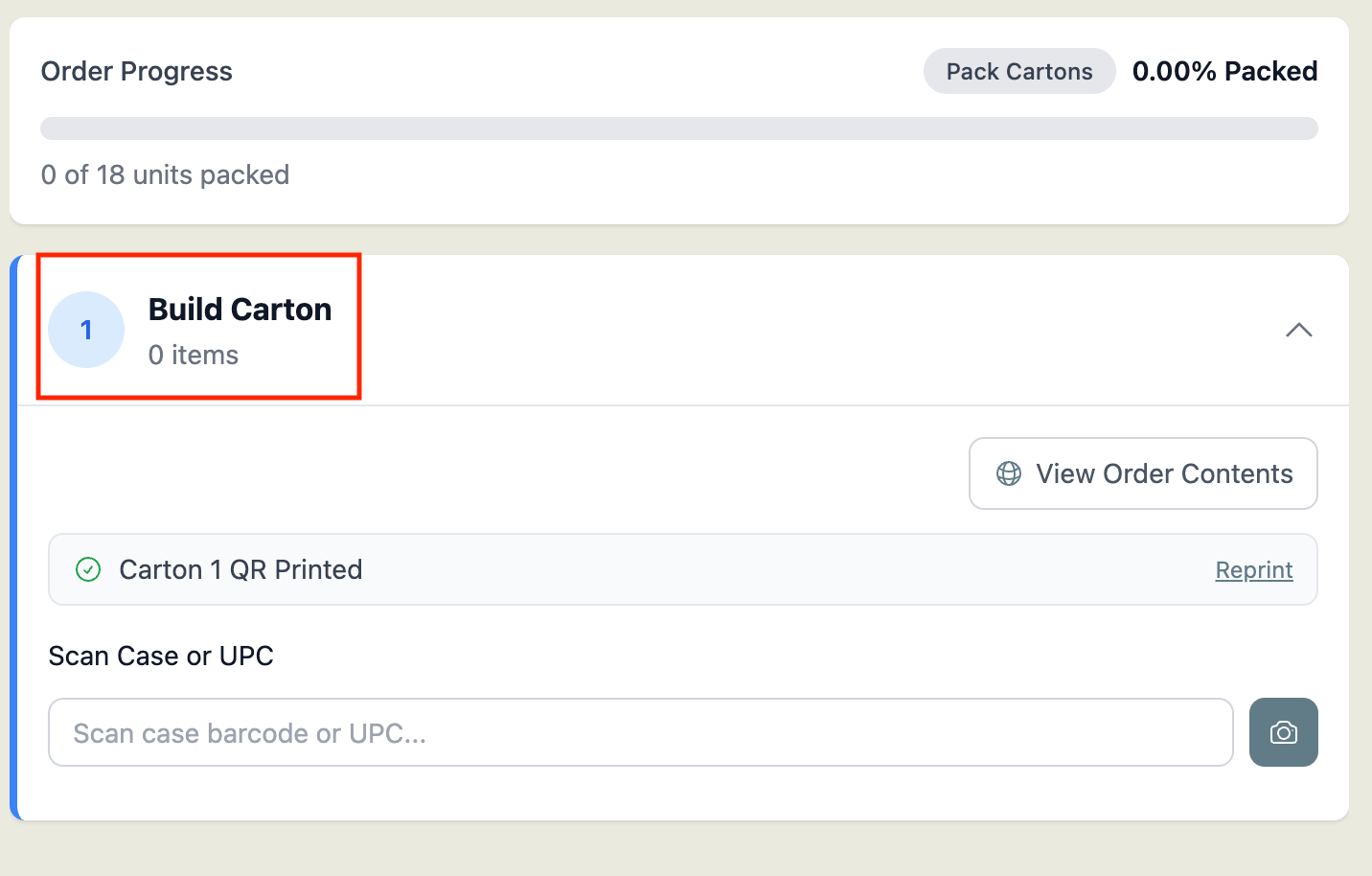
When you are ready to pack a case of a SKU into the carton, scan the case barcode on that case pack. The full case quantity for that SKU will be added to the carton automatically. In this example, a full case quantity is 3 units.
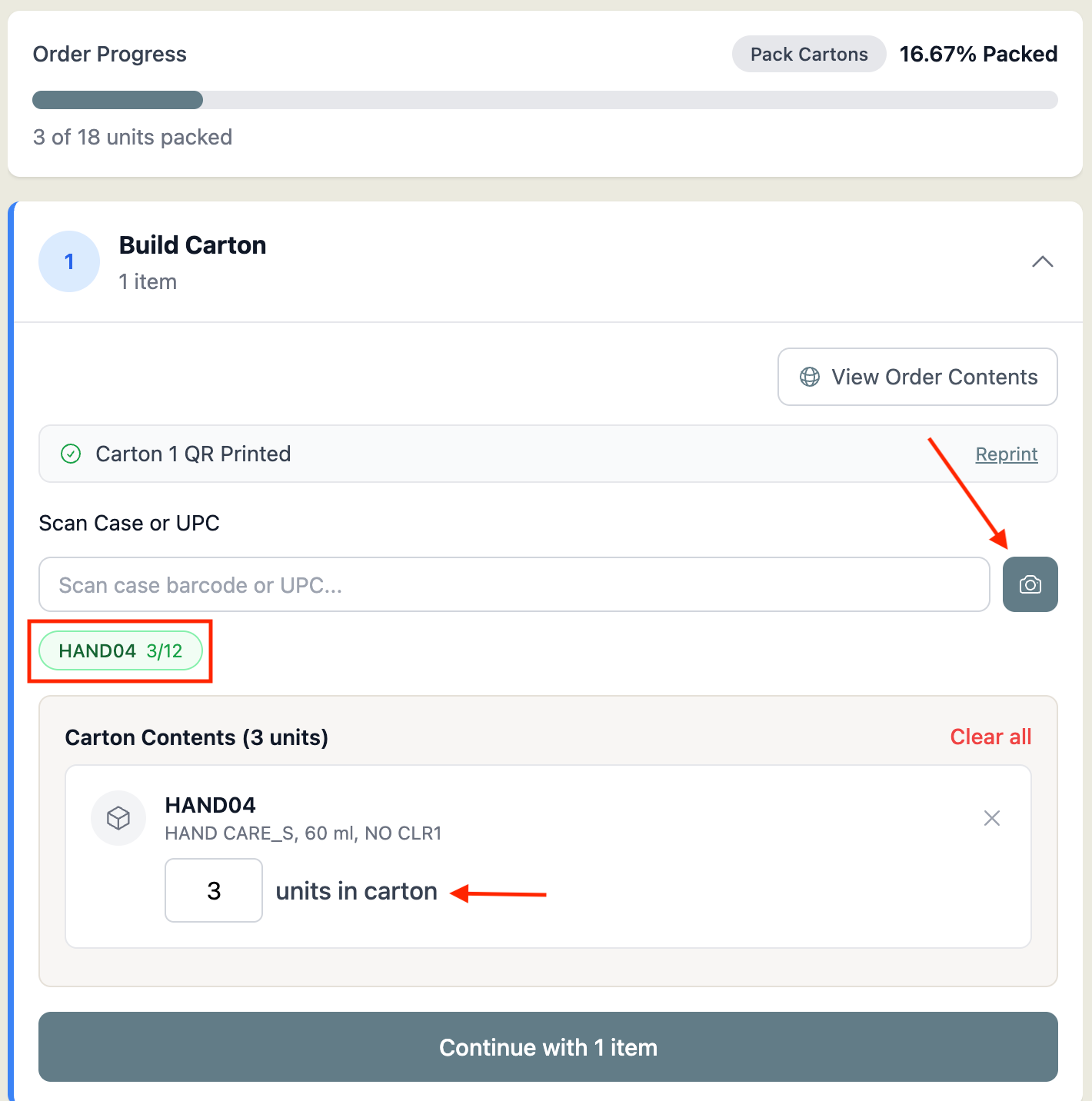
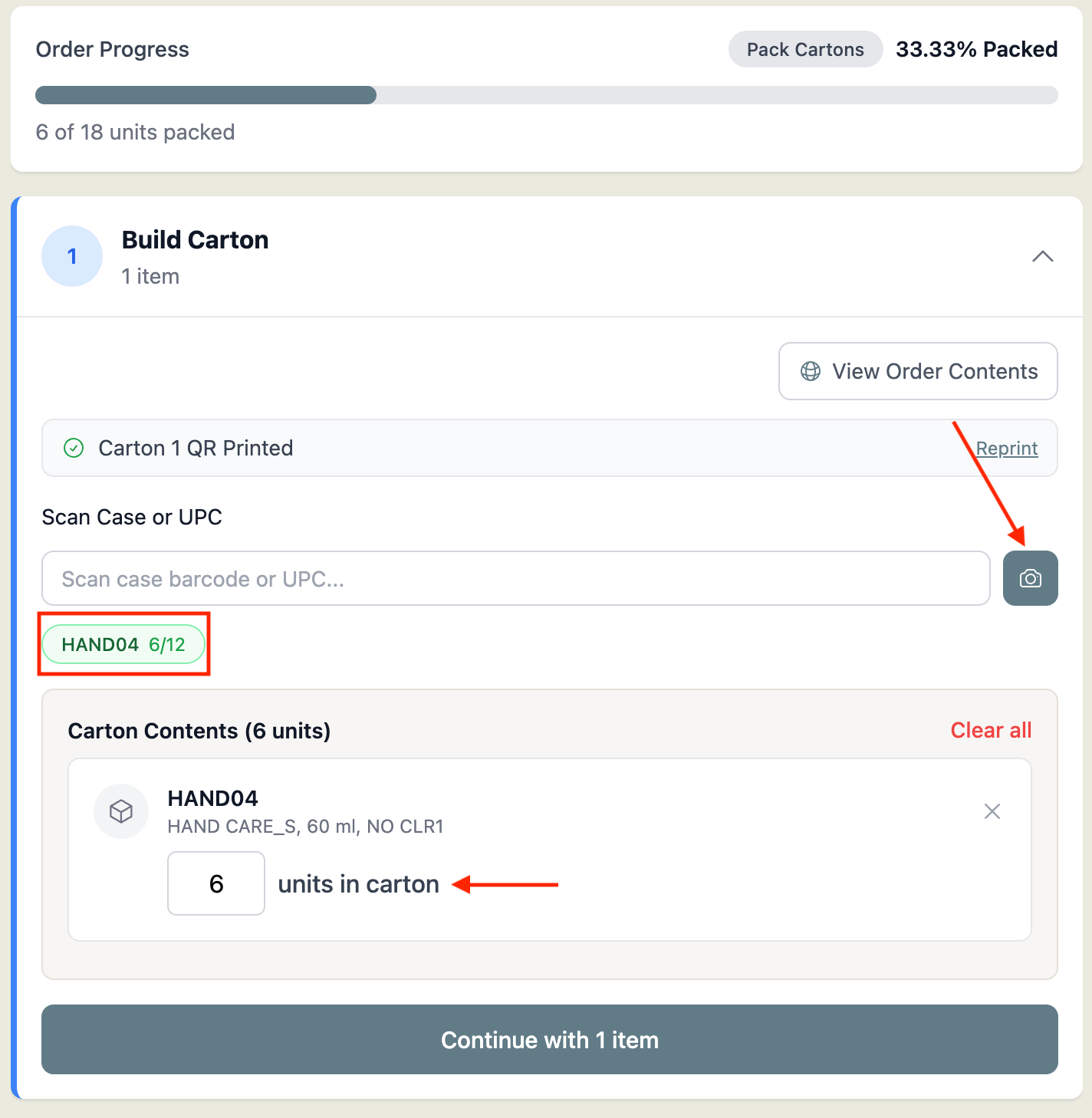
To add another case of the same SKU, scan the case barcode again. Each scan adds one full case quantity.
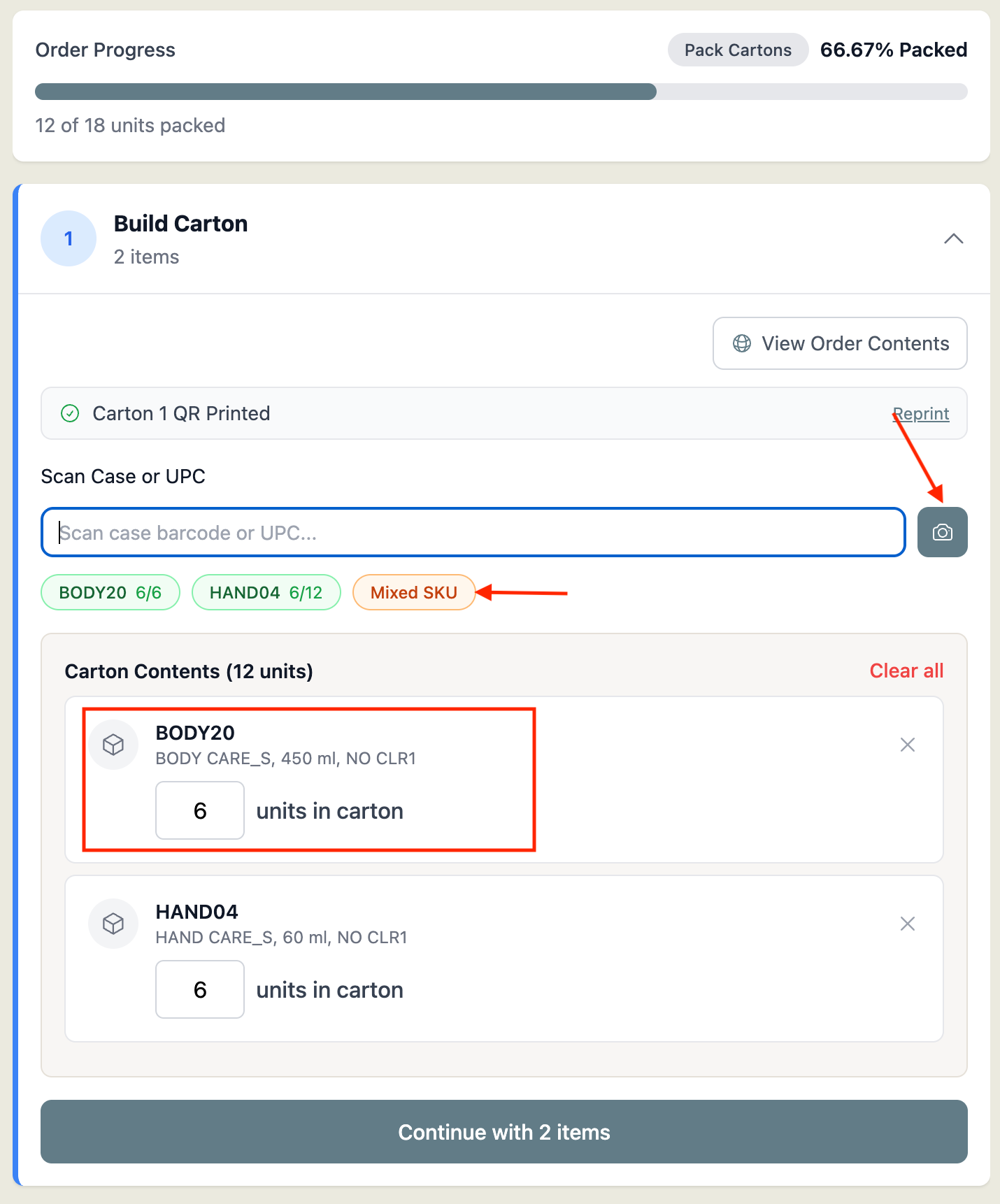
To add a different SKU, simply scan that SKU's case barcode. The carton will remain open and accept additional SKUs.
If you need to add a single unit of any SKU, scan its UPC barcode, this will add 1 unit as usual.
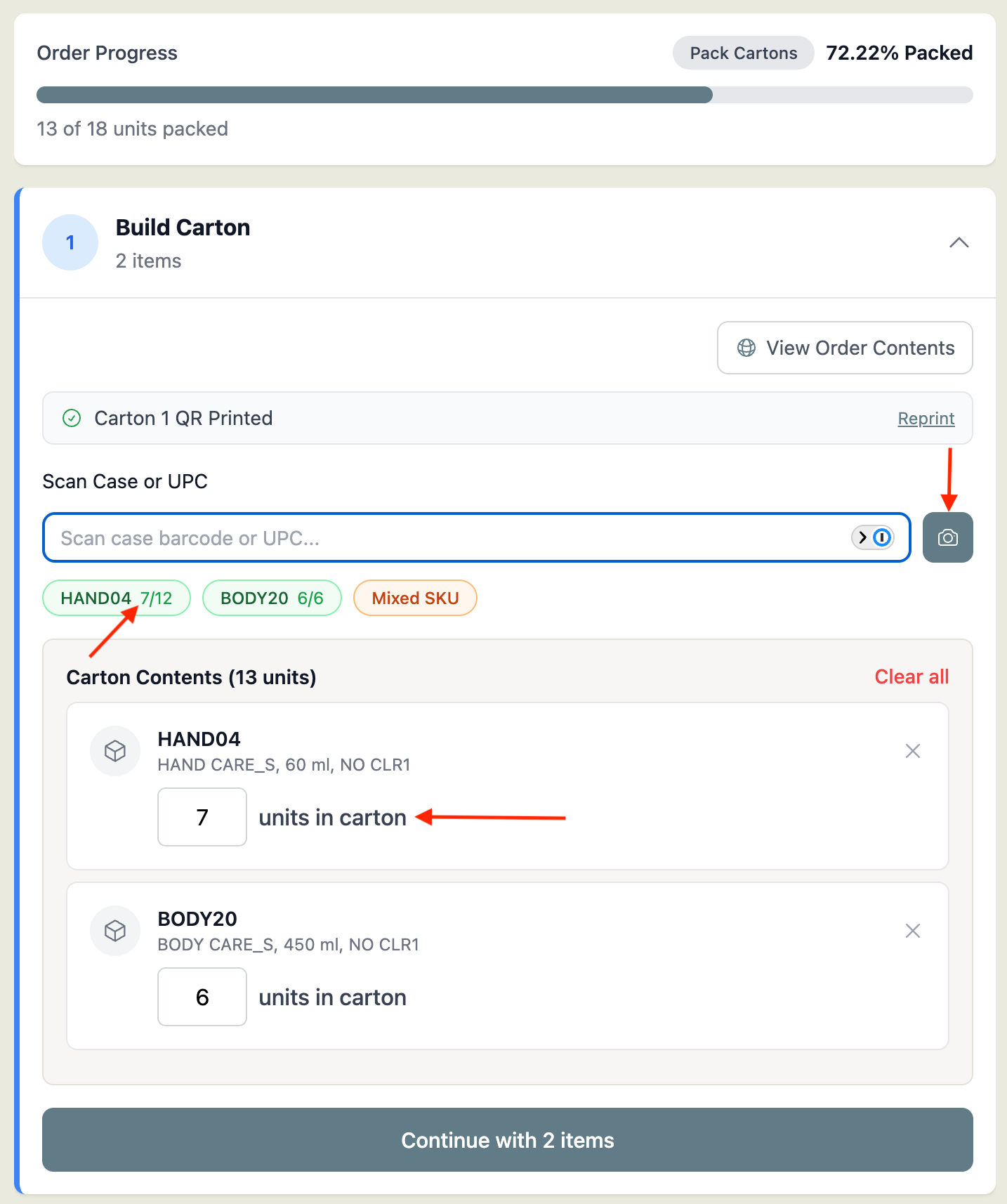
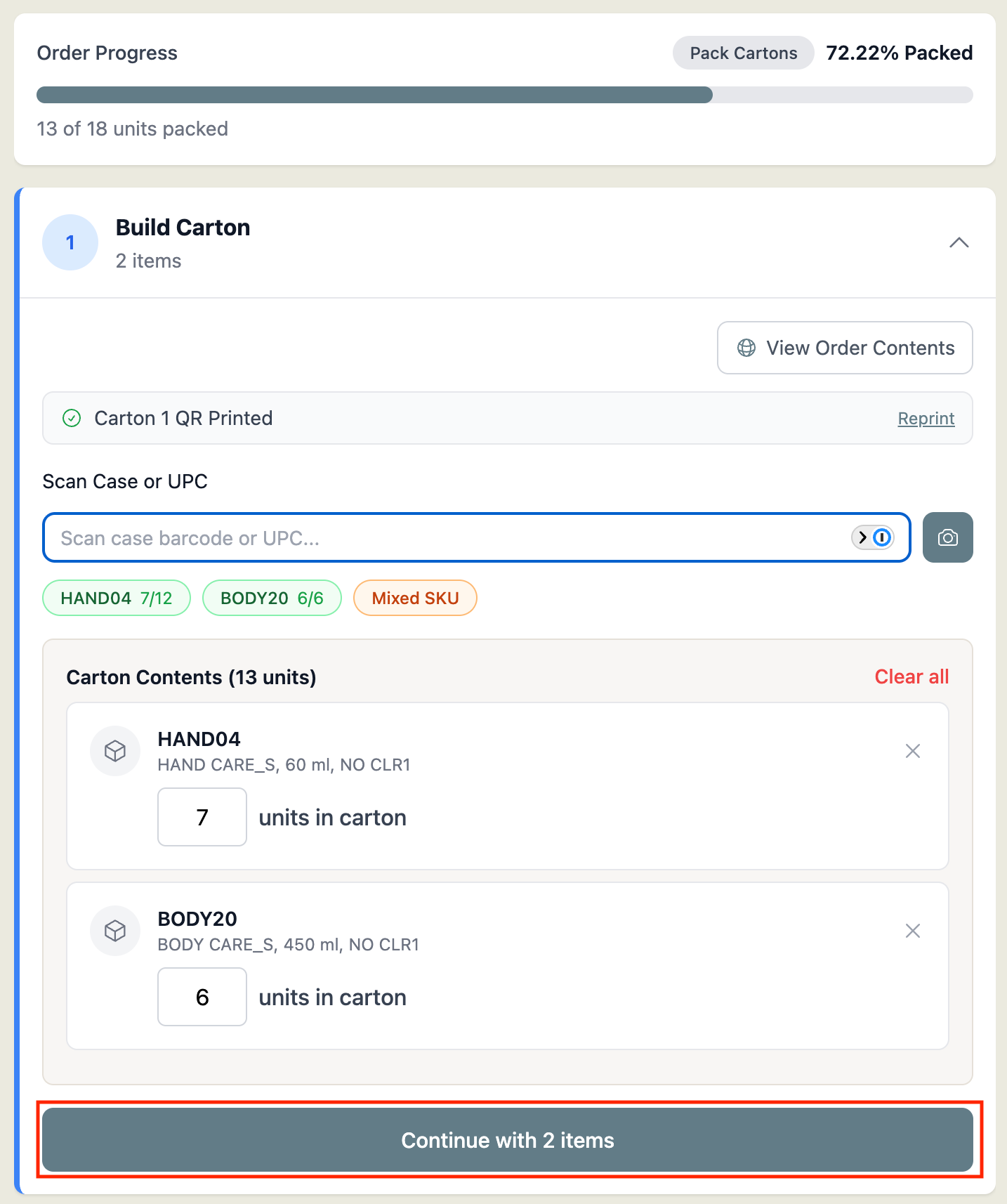
When the carton is complete, press ‘Continue with items’ and continue the rest of packout as usual.
FAQs
How do I get case barcode scanning turned on?
This setting is configured internally by RetailReady on the brand-retailer connection, it is not something you can enable yourself. If you'd like to use this feature for a connection, contact RetailReady support and we'll get it turned on for you.
Can I still pack multiple SKUs in one carton with this setting on?
Yes. The carton stays open for all SKUs. Scanning a case barcode for one SKU does not lock the carton or prevent you from adding other SKUs.
What if I only want to add one unit of a SKU, not a full case?
Scan the UPC barcode for that SKU instead of the case barcode, or select the SKU from the dropdown. Either method adds exactly 1 unit regardless of whether the case scanning setting is enabled.
What happens if I turn on case pack required after this setting was already enabled?
The case barcode scanning setting will be cleared automatically when case pack required is turned on. The two settings cannot be active at the same time.
Does this affect how quantities are reported or sent to the retailer?
No. Units added via case barcode scans are recorded as individual eaches in the system, exactly the same as if you had scanned each unit one at a time. The retailer receives the same quantity data either way.
What happens if a case scan would put more units in the carton than the order calls for?
If the quantity already in the carton plus the new case's quantity would exceed what's expected for that SKU, the scan will be blocked with an over-pack error.
I scanned a case barcode but the wrong quantity was added. What should I do?
The quantity added is based on the case pack size configured for that SKU in RetailReady. If the quantity looks incorrect, contact your facility admin or RetailReady support to verify that the SKU's case pack size is set up correctly.