How to setup a parcel account in RetailReady
Last updated: September 1, 2026
To ship orders to retailers via parcel, you'll need a parcel account. Depending on the retailer, you'll either use a parcel account they provide or one of your own.
RetailReady also requires a base account in the system to keep shipping operations running smoothly and accurately. While the parcel account covers shipping costs, the base account handles any third-party billing requests tied to your orders, such as accessorial fees, address corrections, or additional handling. A base account can be tied to either a 3PL or a brand, depending on the relationship.
This article walks through setting up both accounts so you're ready to ship parcel.
How do I setup my Base Parcel Account?
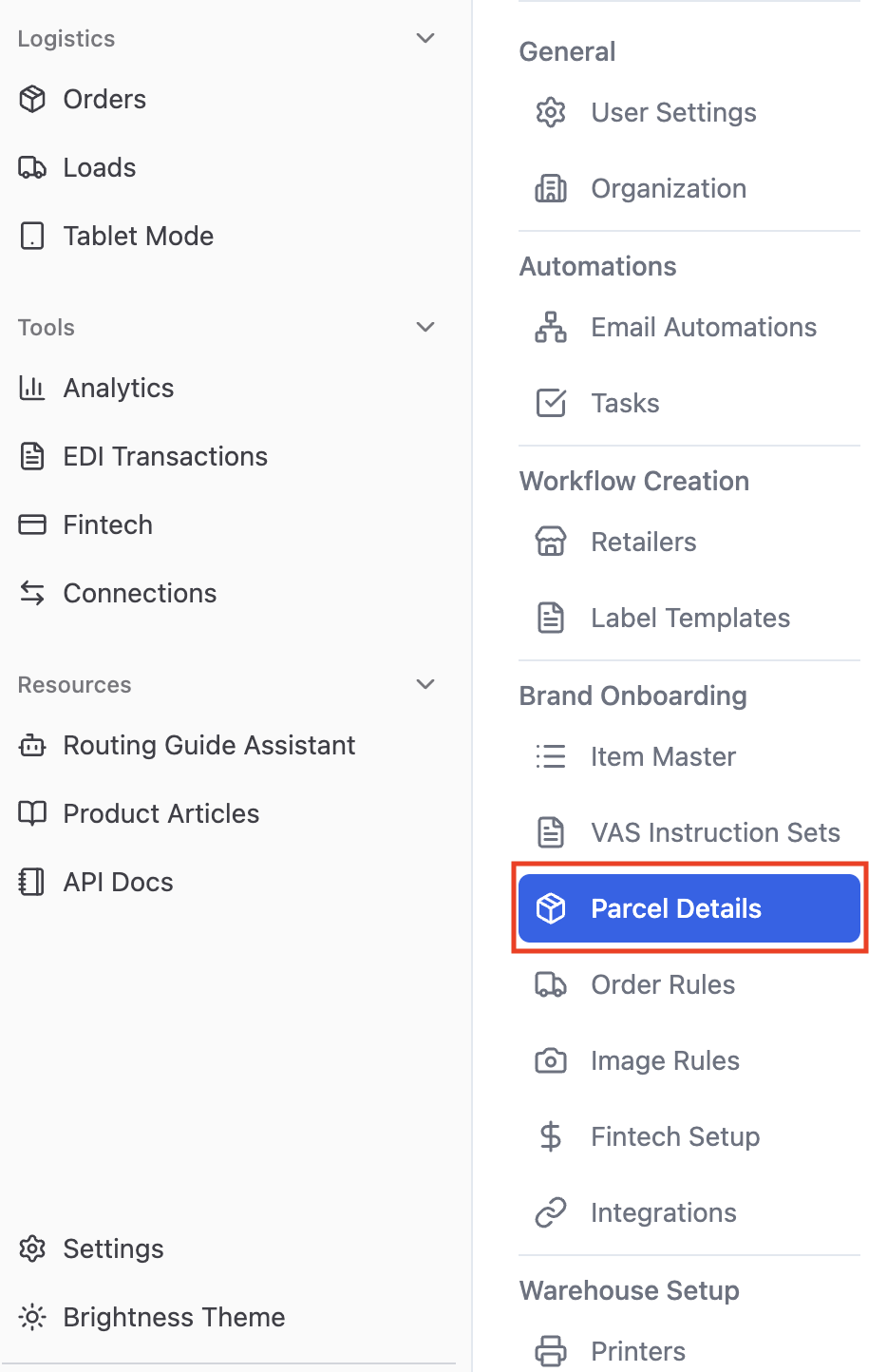
Navigate to Settings -> Brand Onboarding -> Parcel Details in RetailReady.
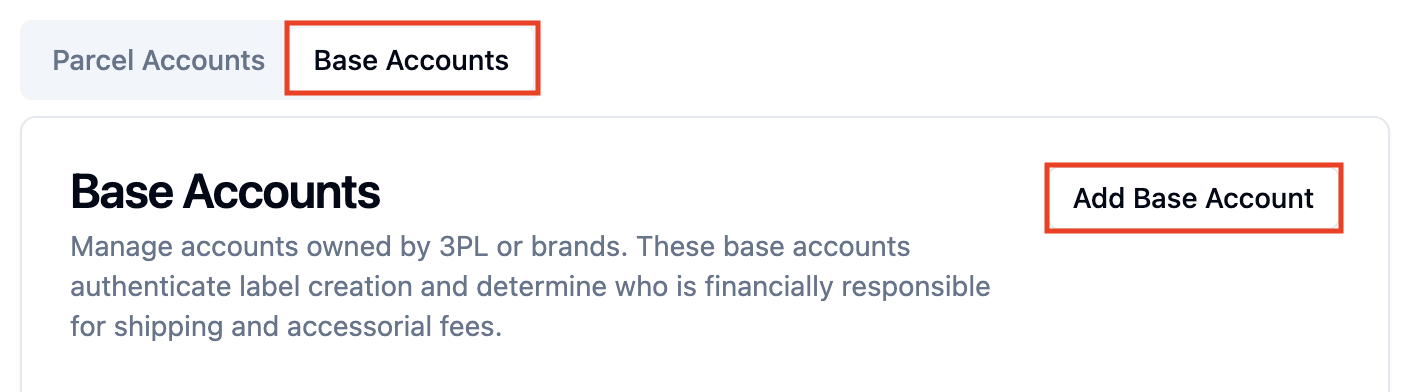
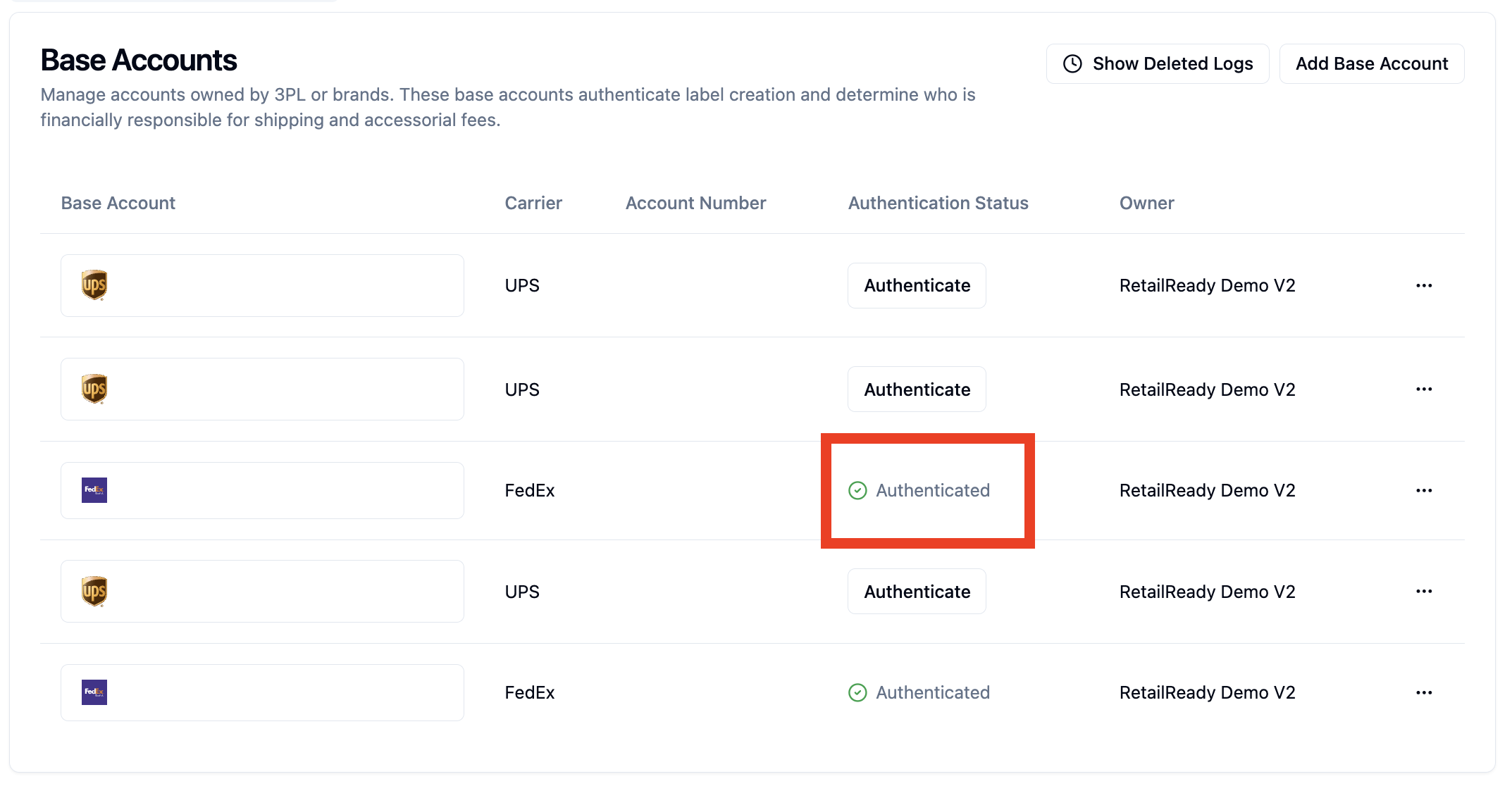
Navigate to the Base Accounts tab, and click 'Add Base Account'.
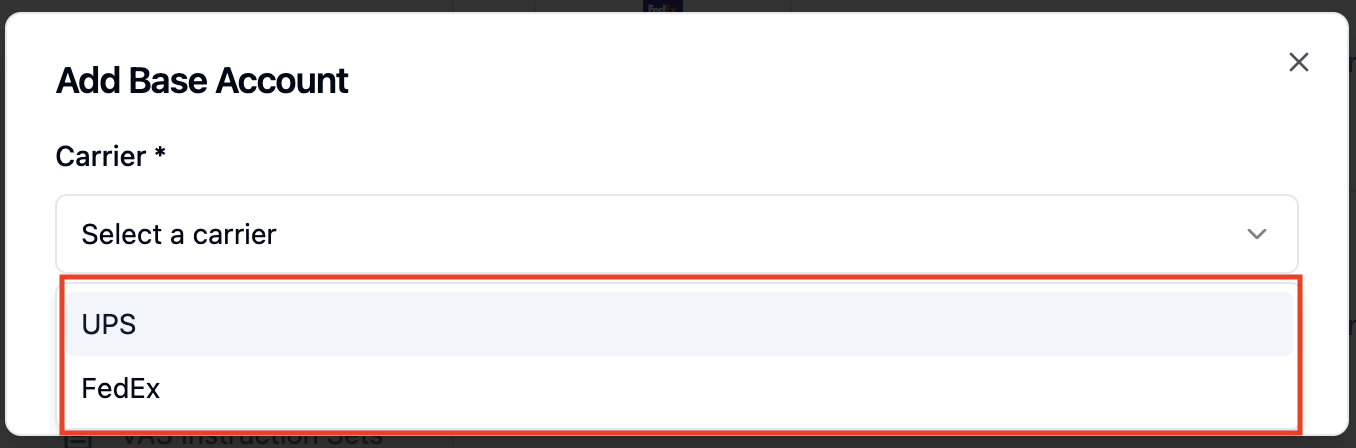
Select either Fedex or UPS as your carrier.
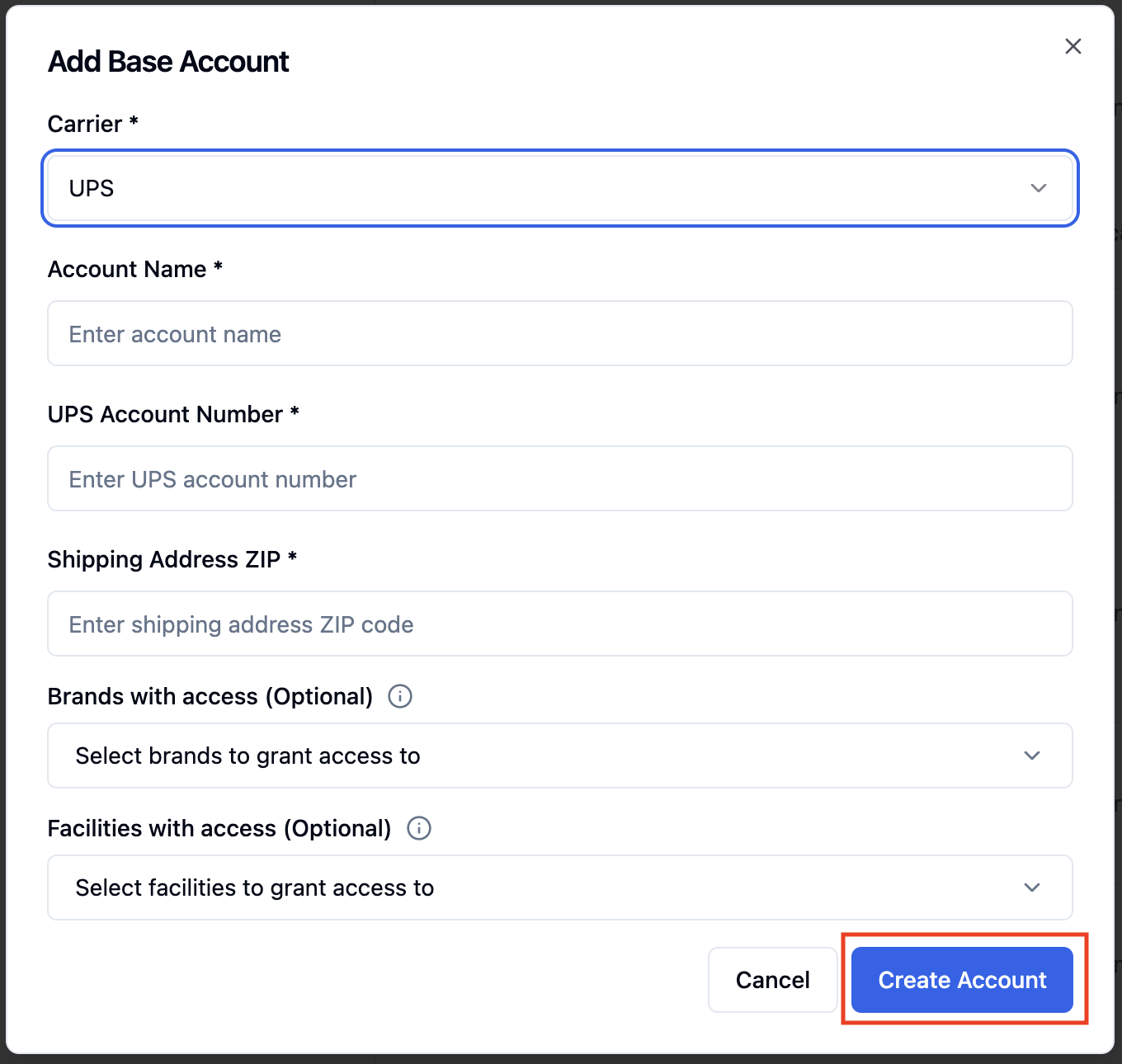
Add in the required carrier information - you should be able to find this information within your Fedex or UPS account online - and then also add the brand(s) and facilit(ies) that you want to use this account for. When complete, click 'Create Account'.
Authorizing your base parcel account:
For UPS accounts, you'll be redirected to log into your UPS account. Once logged in successfully, your account will show as authorized.
For FedEx accounts, dual authorization may be required. If so, your RetailReady onboarding specialist may reach out for your most recent invoice or a verification code sent to the phone number or email on file with your FedEx account. Once authorized, your account will show as such in RetailReady.
How do I connect parcel accounts?
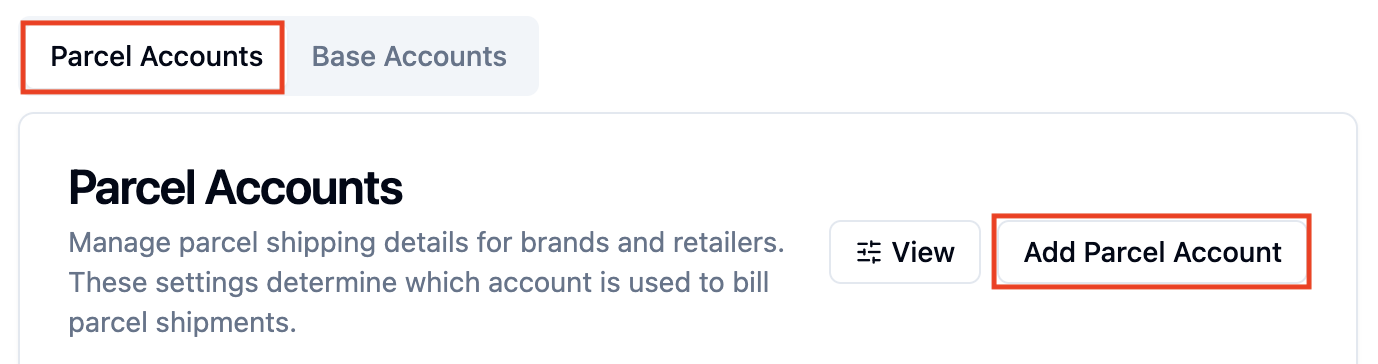
Once a base account is setup, you can add a parcel account for a retailer<>brand connection. Within the Parcel Accounts tab, click 'Add Parcel Account'.
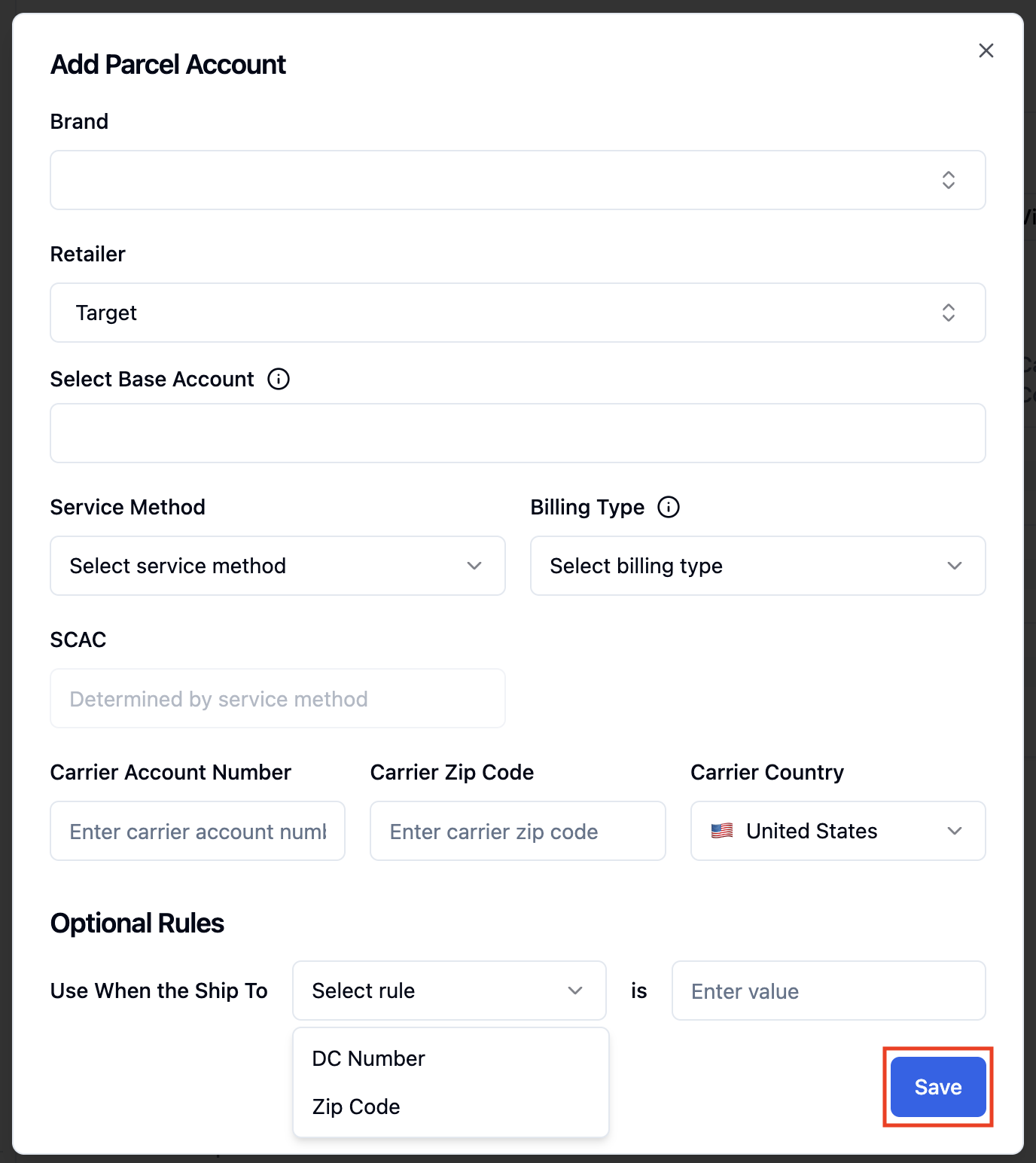
Enter the brand<>retailer connection you want to tie to the parcel account, select the base account that you previously added, and then enter the carrier information for the parcel account for the retailer. You can configure the parcel account to ship for specific DCs or zip codes, and add multiple accounts per brand<>retailer connections. When complete, click 'Create Account'.
Shipping internationally or to Puerto Rico via UPS
If you're shipping internationally or to Puerto Rico via UPS, we recommend enabling Paperless Invoice on your UPS account. This lets commercial invoice data transmit electronically with the shipment, so a printed copy generally isn't required. You can confirm this is turned on in your UPS account under Accounts and Payment > Paperless Commercial Invoice.
How to tell if a shipment was sent paperless
To confirm whether a shipment was sent paperlessly, look for the EDI (Electronic Data Interface) indicator on your UPS label:
If EDI is printed on the label, the commercial invoice data was successfully transmitted electronically.
If you see INV or no EDI marker, the shipment was not eligible for paperless transmission. In that case, print three copies of the commercial invoice and attach them to the package in a clear pouch.
FAQ
Can I add a parcel account without adding a base account?
No. The base account covers any accessorial fees. Without it, you won't be able to generate parcel labels or add a parcel account.
Does the base account have to match the parcel account?
No, it doesn't — and usually it won't. The retailer typically provides the parcel account used to generate labels, but that account isn't the one used for accessorial fees.