Onboarding Task Completion Allowed for Brands and 3PLs
Last updated: July 26, 2026
This article explains how to complete onboarding tasks as a brand or 3PL user. RetailReady now allows warehouse operators and brand users to mark certain onboarding tasks as complete, depending on the permissions granted for each section.
Completing Onboarding Tasks
Navigate to your connection's onboarding progress page from the main dashboard.
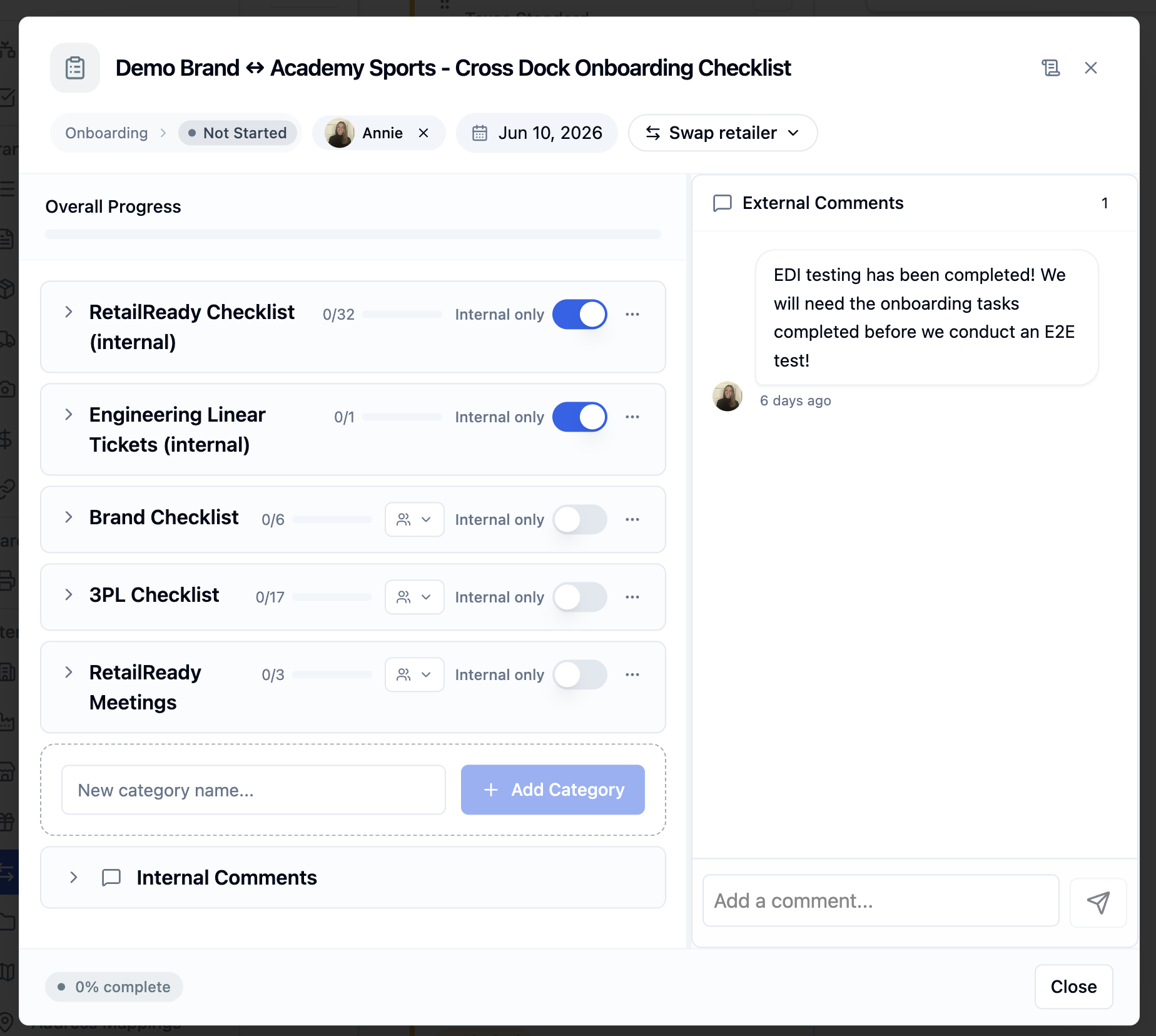
Locate the onboarding section you need to update. You can only complete tasks in sections where you have been granted access.
Click on the task you want to mark as complete. If the task requires a comment, you'll see a text field appear.
If a comment is required, enter your completion notes in the text field before proceeding.
Click the checkbox to finish the task.
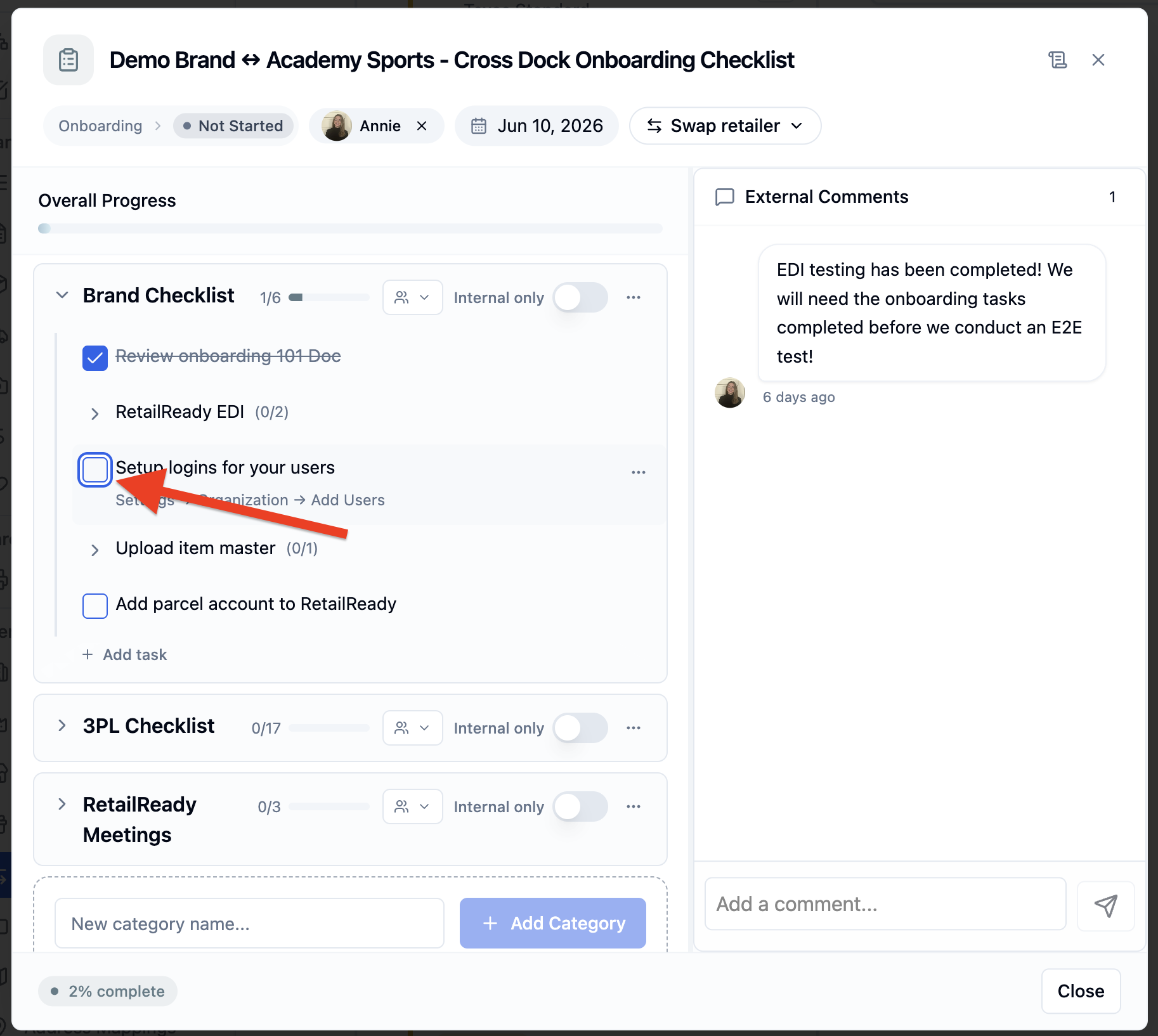
Understanding Access Permissions
Your ability to complete tasks depends on the permissions configured for each onboarding section:
Brand sections: Only brand users can complete these tasks
3PL sections: Only warehouse/3PL users can complete these tasks
Internal sections: Only RetailReady staff can complete these tasks
Tasks you cannot complete will appear grayed out.
FAQs:
Why can't I complete a specific onboarding task?
You can only complete tasks in sections where you've been granted access. If you need to complete a task that appears unavailable, contact your RetailReady representative to discuss access permissions.
What happens if I don't provide a required comment?
Tasks that require comments cannot be marked complete until you enter text in the comment field. The completion button will remain disabled until a comment is provided.
Can I see who else has completed onboarding tasks?
Yes, you can view completion history for all tasks by clicking on any task tile. You'll see completion logs from other brands, 3PLs, and RetailReady staff, along with any comments they provided.
What does it mean when a task is marked as canceled?
Sometimes RetailReady staff may cancel tasks that are no longer needed. Canceled tasks will show the cancellation reason and cannot be completed. This typically happens when requirements change or alternative solutions are implemented.
Can I edit or delete a task after marking it complete?
Once a task is marked complete, you cannot undo this action through the interface. If you need to make changes to a completed task, contact your RetailReady representative for assistance.