Resolving Quick Books Task
Last updated: July 27, 2026
RetailReady now allows brand admins to configure their QuickBooks Online (QBO) retailer name directly from the Connections page. If a QuickBooks invoice fails to send because this mapping is missing, RetailReady will also automatically create a task in your account so you know exactly what to fix and where. This article explains how to set up your QuickBooks retailer name and how to resolve a QBO Customer Assignment task.
Who Can Use This Feature
The QuickBooks retailer name field is available to users with the following:
A Brand Admin role on your RetailReady account
QuickBooks Online integration enabled for your brand (if you're unsure, contact your RetailReady onboarding manager)
Standard brand users will not see this field. If you need your role updated, reach out to your Brand Admin to have your permissions updated.
Setting Your QuickBooks Retailer Name on a Connection
The QuickBooks retailer name tells RetailReady which customer record in your QuickBooks account corresponds to which retailer connection. You need to set this for each retailer you want RetailReady to invoice through QuickBooks.
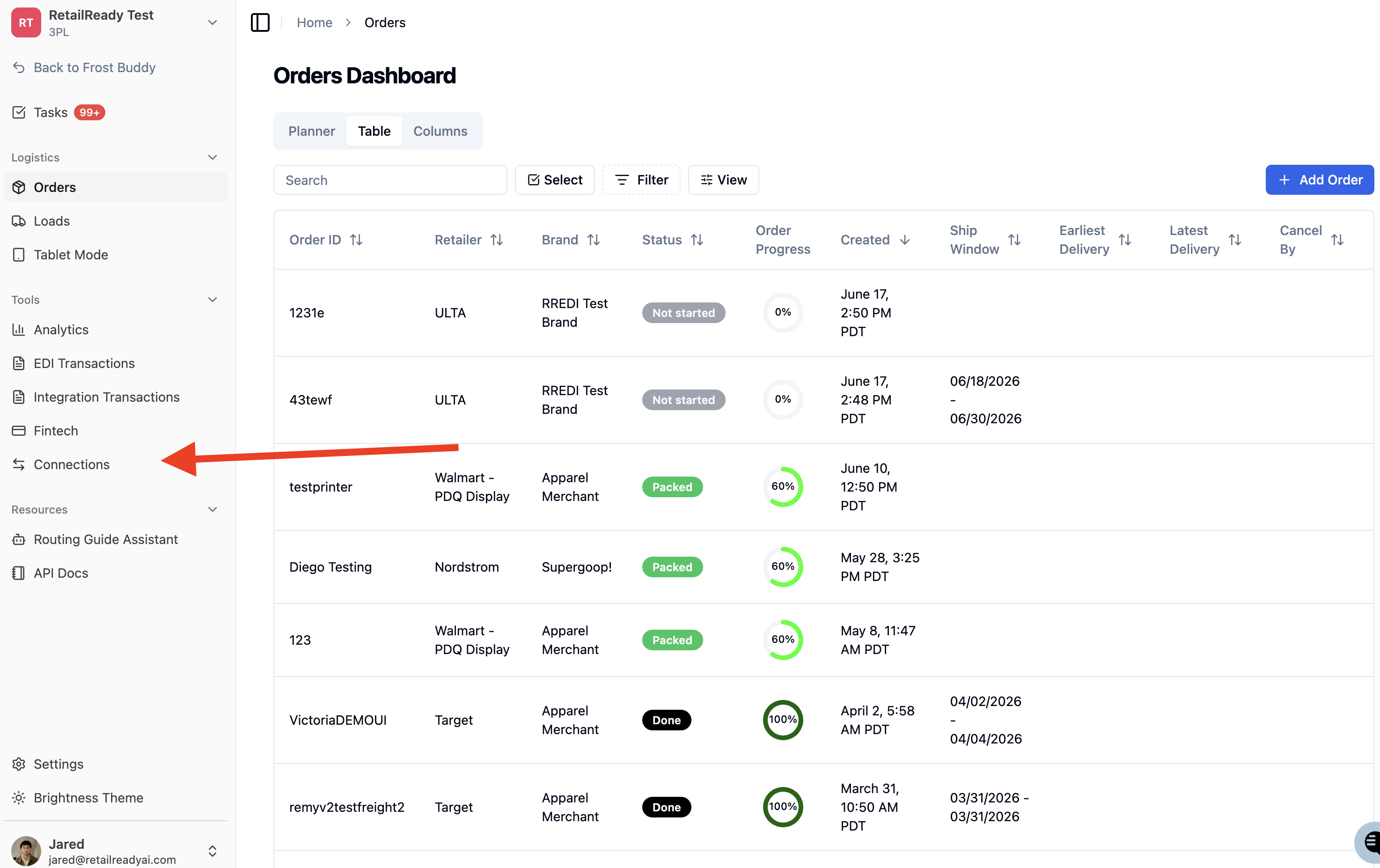
Log in to RetailReady and navigate to the 'Connections' page from the left-hand navigation menu.
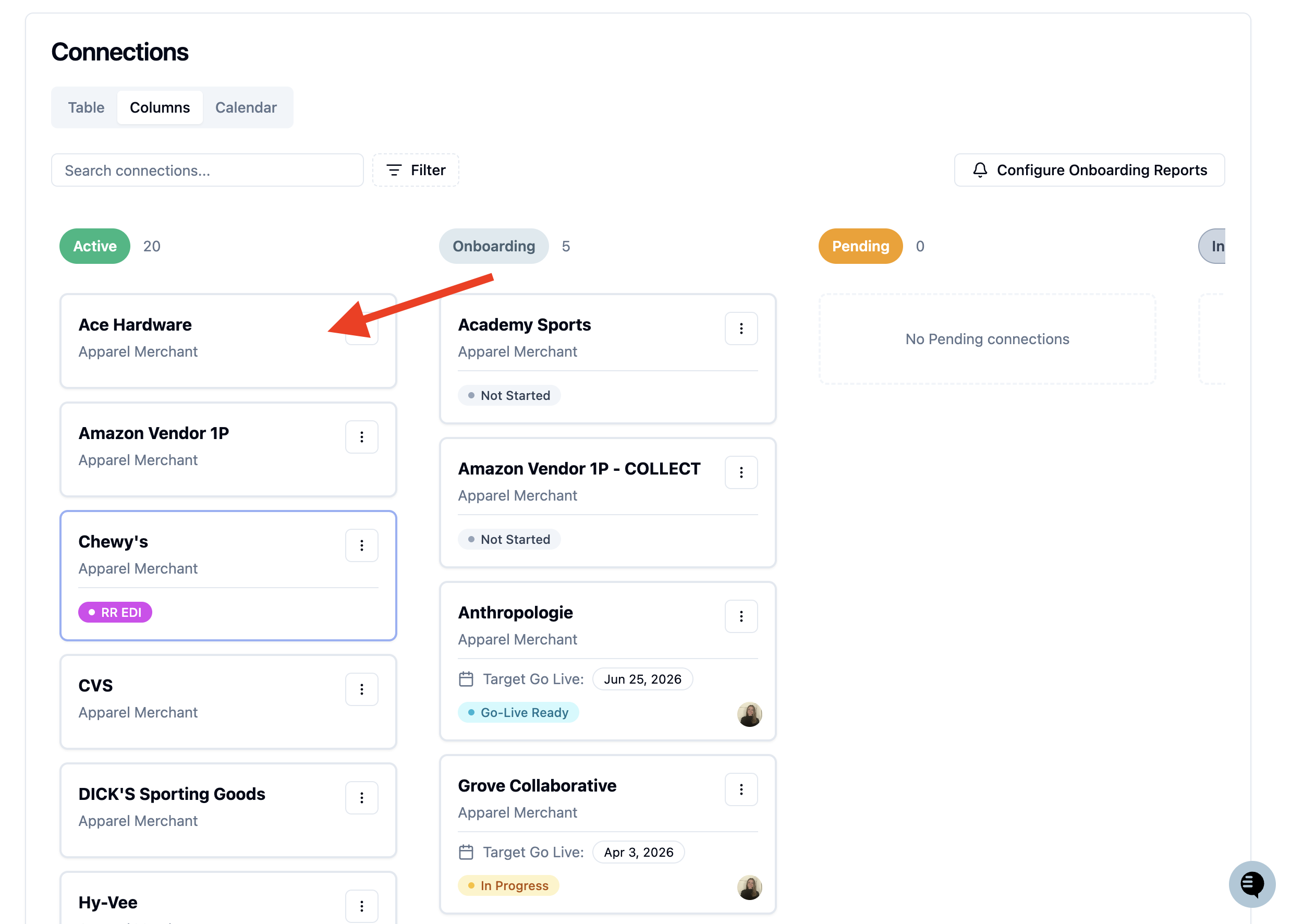
Locate the retailer connection you want to configure. Each connection is displayed as a card.
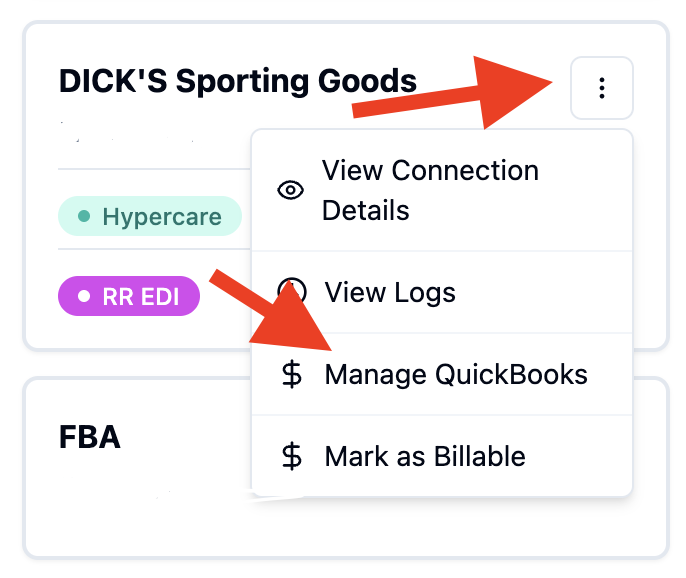
Click the action menu on the connection card (the three-dot button) and select 'Manage QuickBooks'.
The 'Manage QuickBooks' modal will open. In the 'QuickBooks Retailer Name' field, select the exact customer name as it appears in your QuickBooks Online account. You will be able to choose from a drop down of your Quick Books retailers.
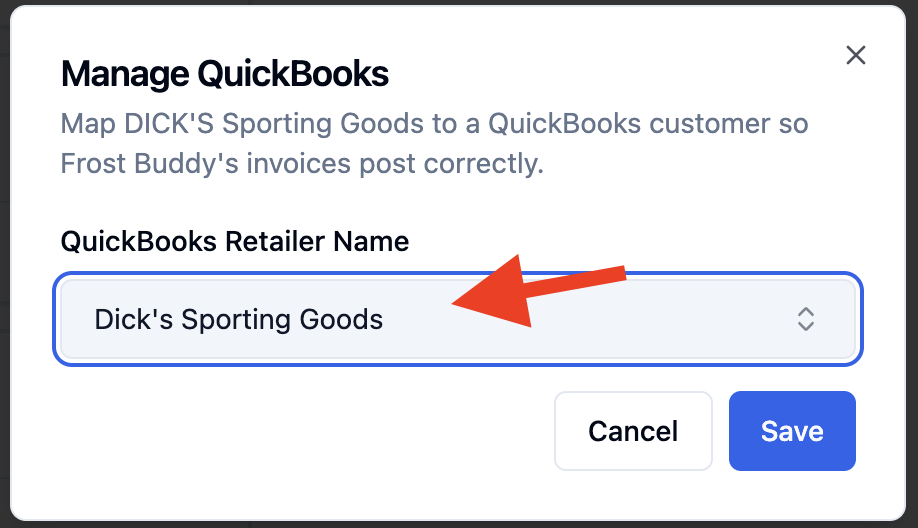
Click 'Save' to apply the change.
Resolving a "QBO Customer Assignment" Task
If RetailReady attempts to send a QuickBooks invoice but the retailer name is missing, it will automatically create a QBO Customer Assignment task and assign it to your brand account. This task will list the affected order numbers so you know which invoices need attention.
Open your 'Tasks' queue from the left-hand navigation menu and locate the QBO Customer Assignment task. Review the task details by clicking the task name.

The task will show the retailer connection that is missing a QuickBooks customer name, along with the order numbers that were affected.
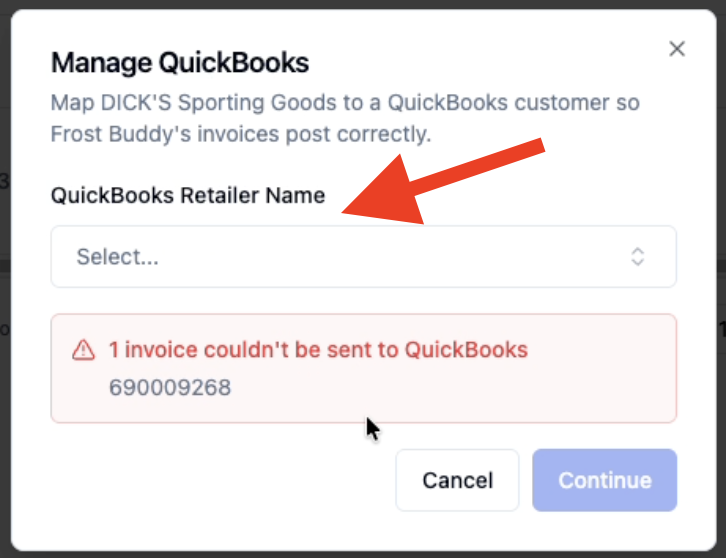
You can resolve this task by assigning a 'QuickBooks Retailer Name' from the dropdown menu or by navigating to your connections page and following the "Setting Your QuickBooks Retailer Name on a Connection" steps from above.
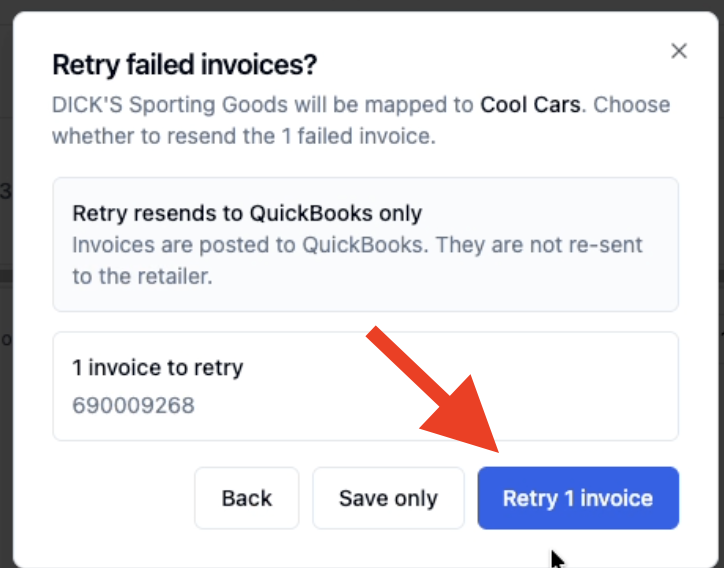
Assigning the QuickBooks retailer name from the task modal and clicking continue, will allow you attempt to resend the previously failed invoices.
FAQs:
I'm a Brand Admin but I don't see the QuickBooks retailer name field on my connection. Why?
This field only appears when QuickBooks Online is enabled for your brand. If you don't see it and believe QBO should be active on your account, contact your RetailReady onboarding manager to confirm your integration is enabled.
Will RetailReady create a separate task for every failed order?
No. RetailReady consolidates all affected orders for the same retailer connection into a single QBO Customer Assignment task. The task will list all relevant order numbers so you have a complete picture in one place.
What happens if I receive a new task for the same connection after I've already set the retailer name?
If a new task appears, it may mean the retailer name was not saved correctly, or that the name doesn't match what's in QuickBooks Online exactly. Re-open the 'Manage QuickBooks' modal on that connection, verify the name, and retry the affected invoices.