How to Edit Items on an Order
Last updated: September 7, 2026
If an order's item quantities change after it's created (for example, an item is removed or backordered), you may need to update it manually or the order may prompt for extra cartons or show incorrect item counts. This article shows you how to edit item quantities on an order and why you'll need to restart the order afterward.
Editing Items on an Order
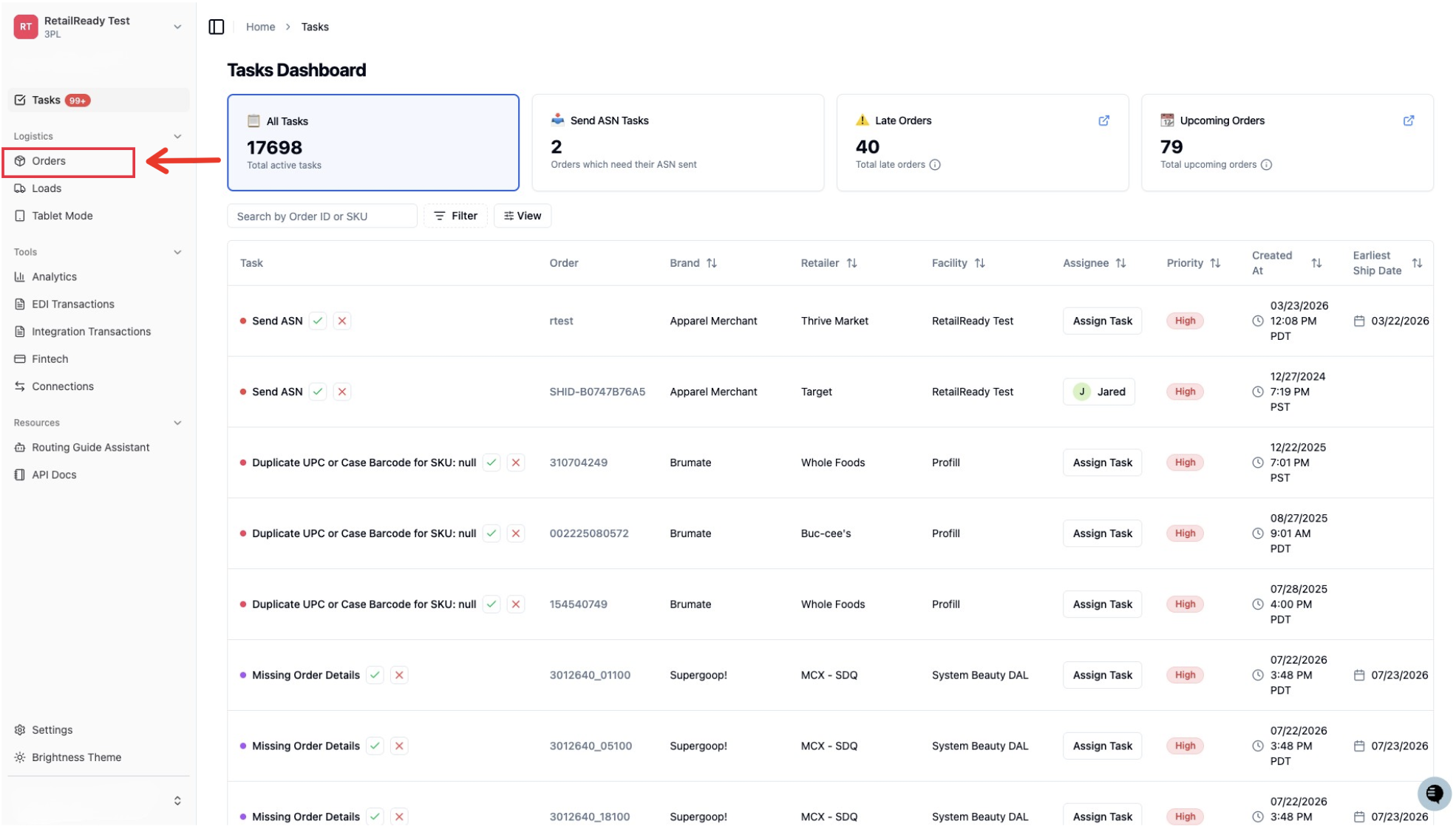
Open up your RetailReady Dashboard, and navigate to 'Orders' tab on the Left Hand Side.
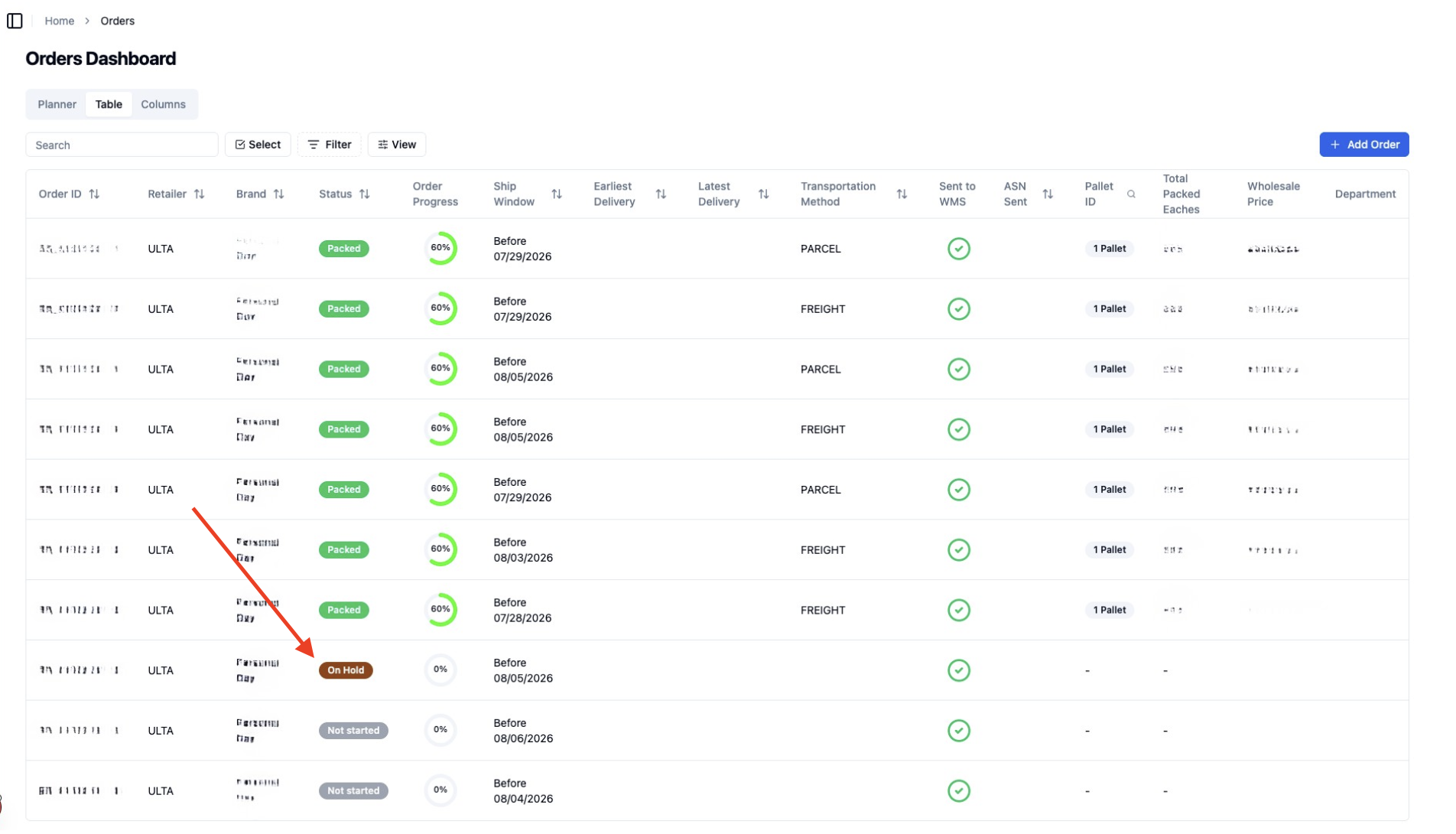
Navigate to the order you would like to edit
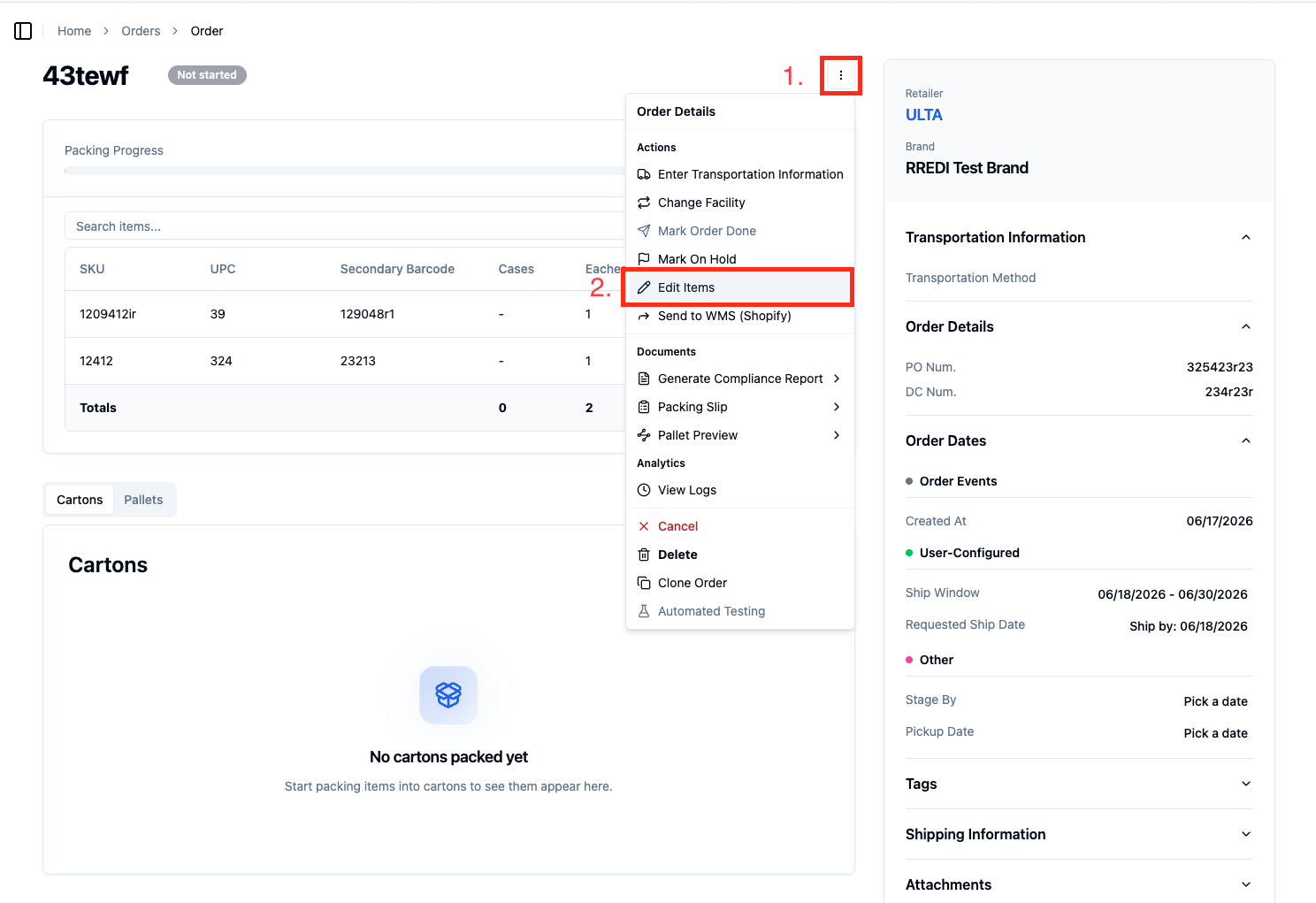
Navigate to and click the three dots in the top right corner. Click 'Edit Items'
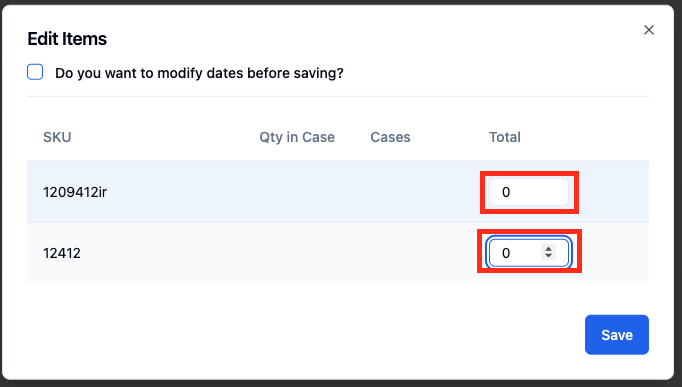
Update the quantity for the affected item (e.g., set to 0 if it was removed from the order).
Restart the order: this is required any time item quantities change, so the system can recalculate cartons and packing correctly.