Locating the Release PO Number on an Order
Last updated: July 26, 2026
RetailReady now displays the Release Number on orders that come from retailers who use a Blanket PO and Release PO structure . This article explains what a release number is, where to find it in RetailReady, and how to search and filter orders by release number.
Understanding Blanket POs and Release Numbers
Some retailers — like Dick's Sporting Goods (DSG) — place orders using a two-part system:
A Blanket PO is the retailer's way of reserving your inventory. It is never packed or shipped against directly.
A Release PO is the actual fulfillment order. The retailer issues multiple release POs under one blanket PO to tell you how to split and ship inventory across their stores or distribution centers.
Each release PO includes a unique Release Number assigned by the retailer. This is the number the retailer expects to see referenced on your shipping documents (ASN) and invoices — not the original blanket PO number.
RetailReady now captures and displays this release number directly on the order so you can easily identify which blanket PO a release order belongs to, without needing to dig through transaction logs or contact your 3PL support team.
Finding the Release Number on an Order
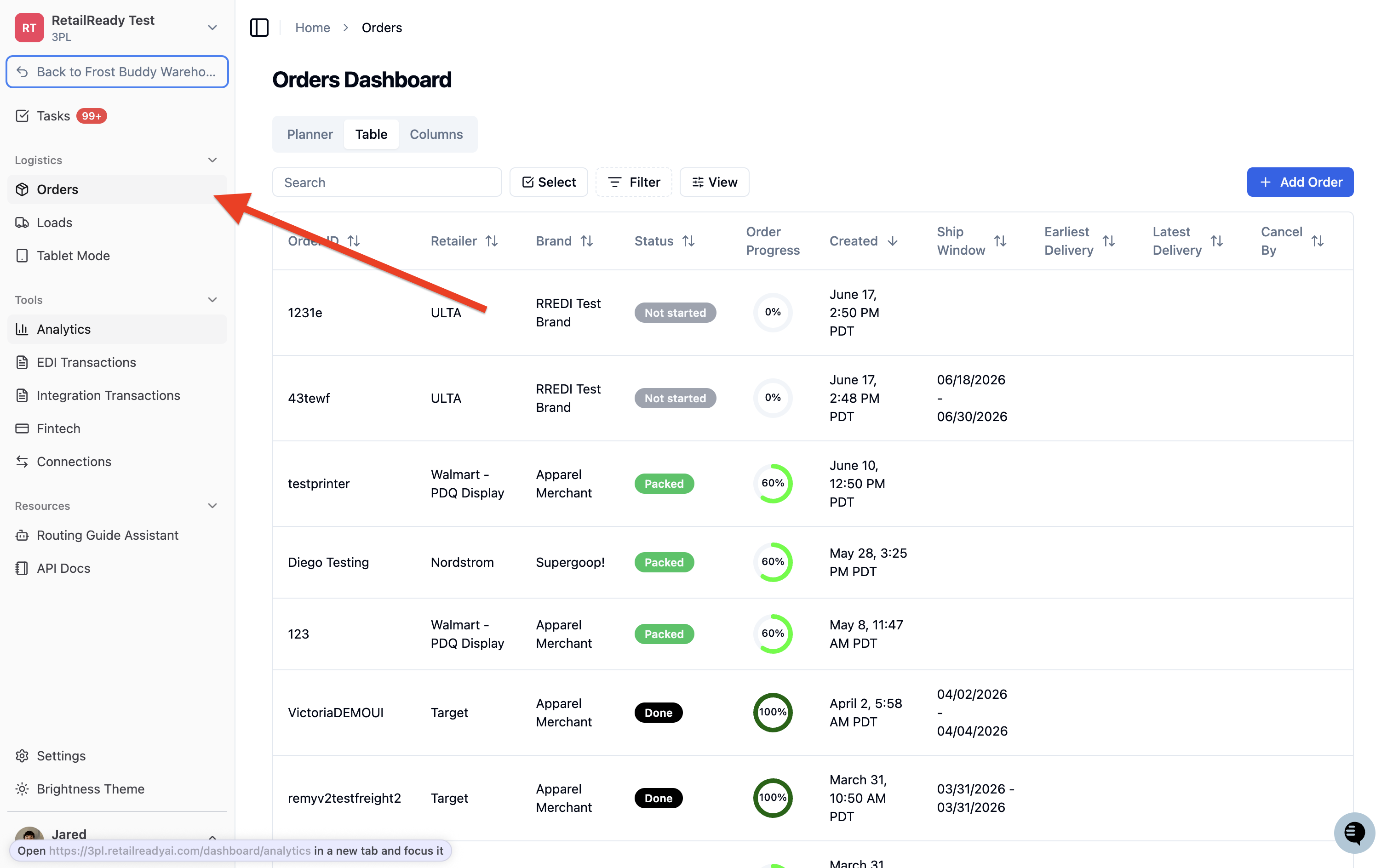
From the left navigation menu, select 'Orders' to open the orders dashboard.
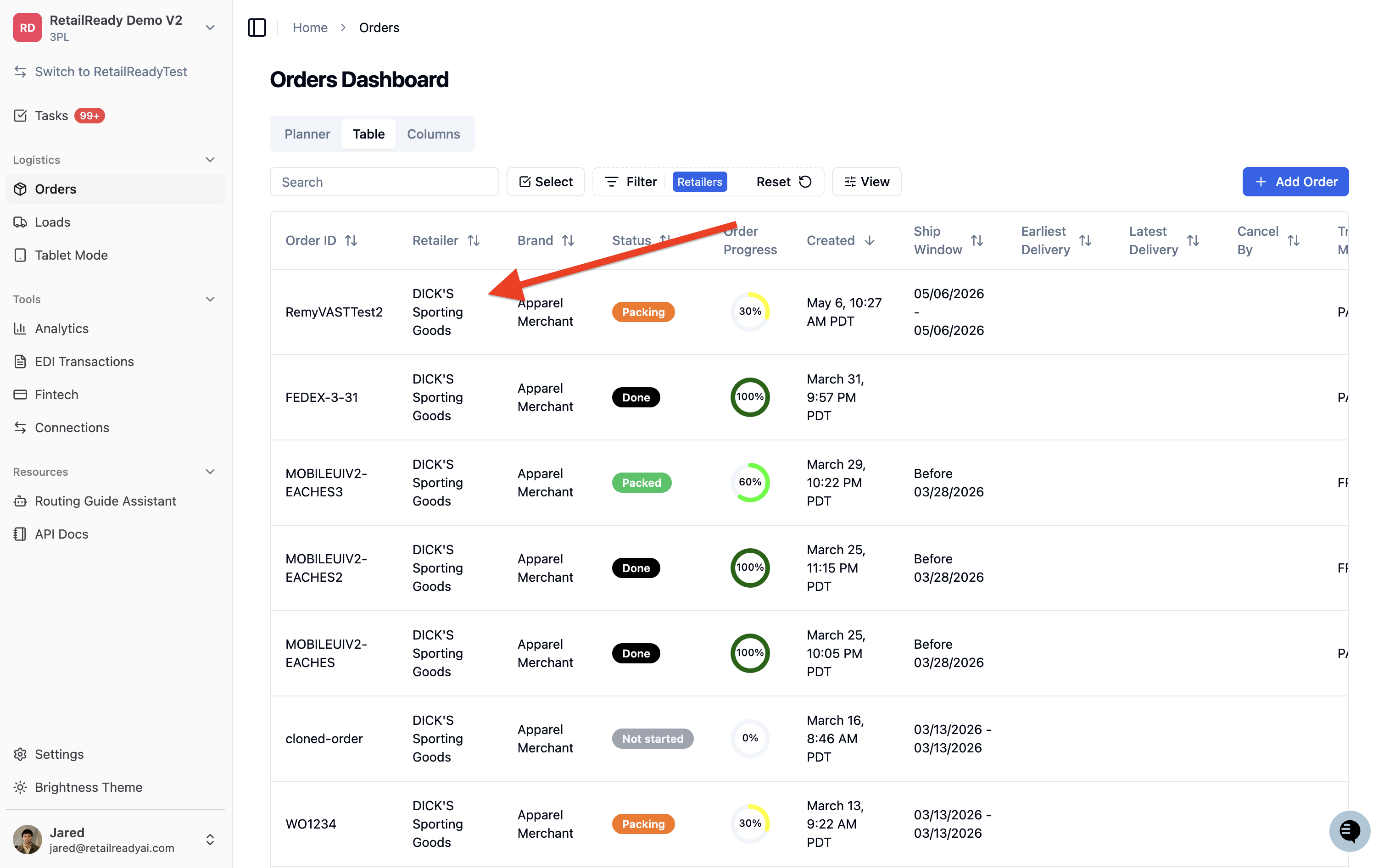
Locate and open the release order you want to review. You can search by PO number or retailer name to find it.
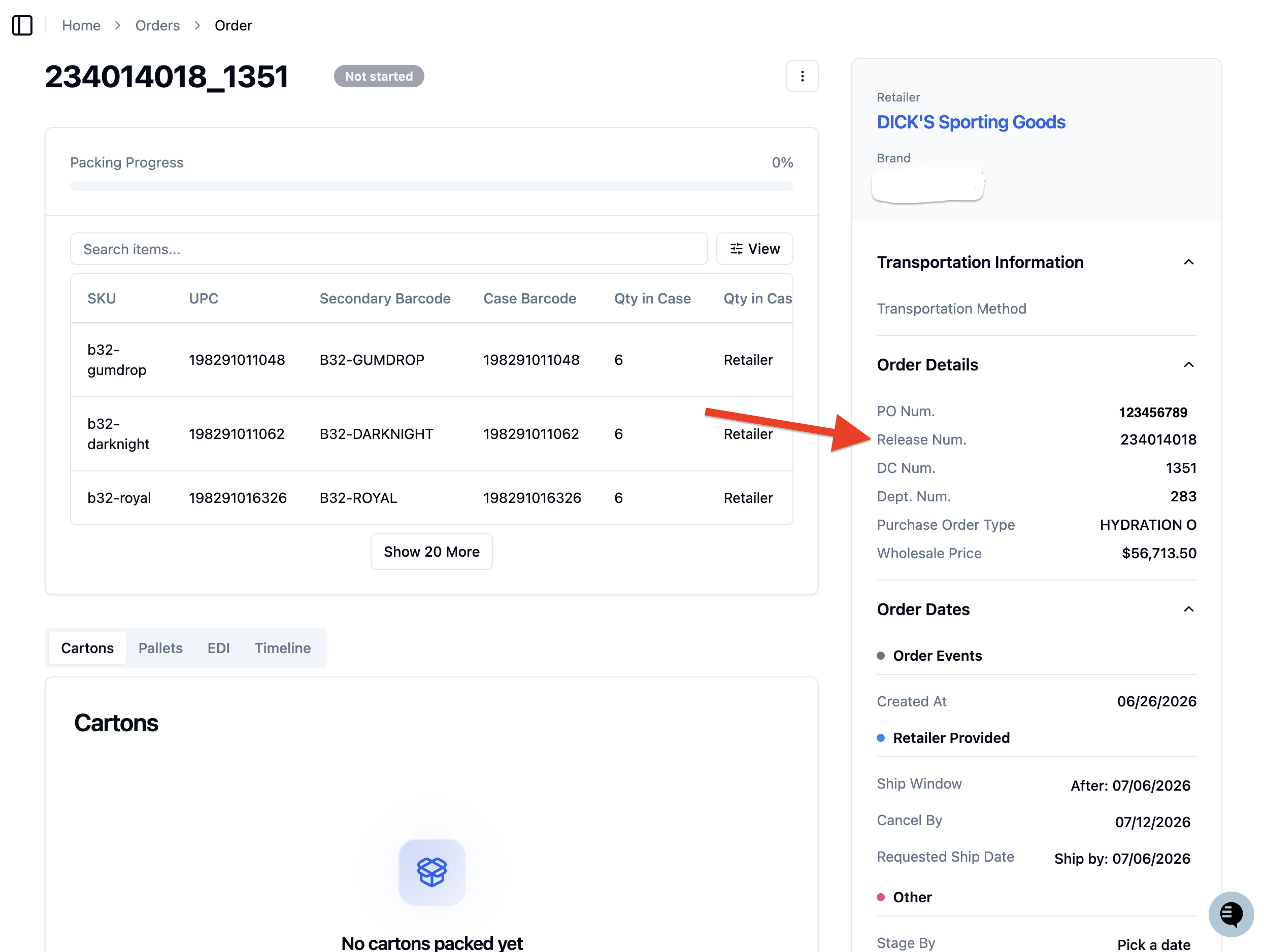
On the order details page, scroll to the card in the right-hand side panel. You will see a 'Release Num.' field displayed here when a release number is present on the order.
If an order does not have a release number — for example, if it came in as a standard PO rather than a release PO — this field will not appear on the order details page.
Viewing the Release Number Column in the Orders Dashboard
The Release Number column is available in the orders dashboard table but is hidden by default. Follow these steps to turn it on:
Go to the 'Orders' dashboard.
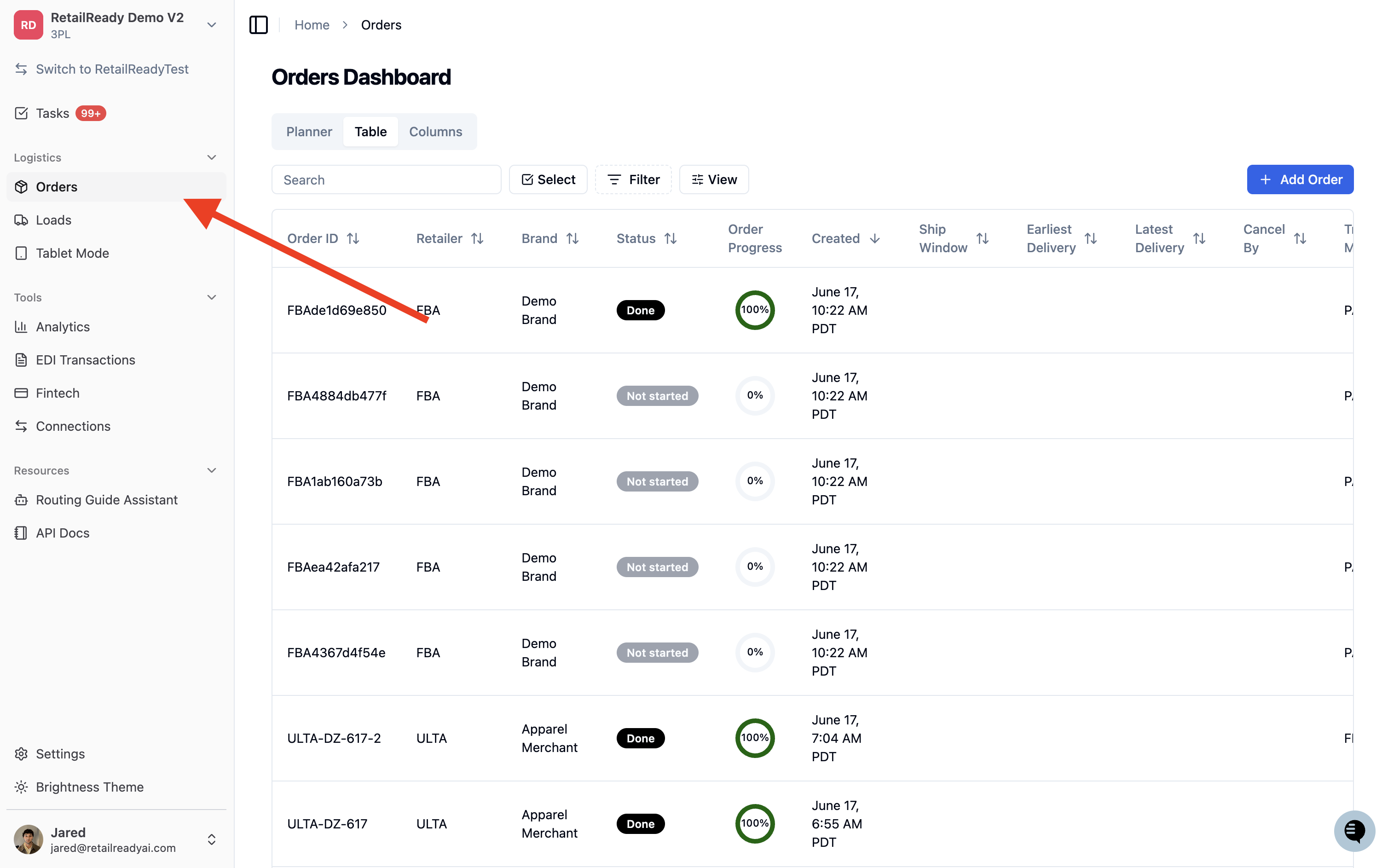
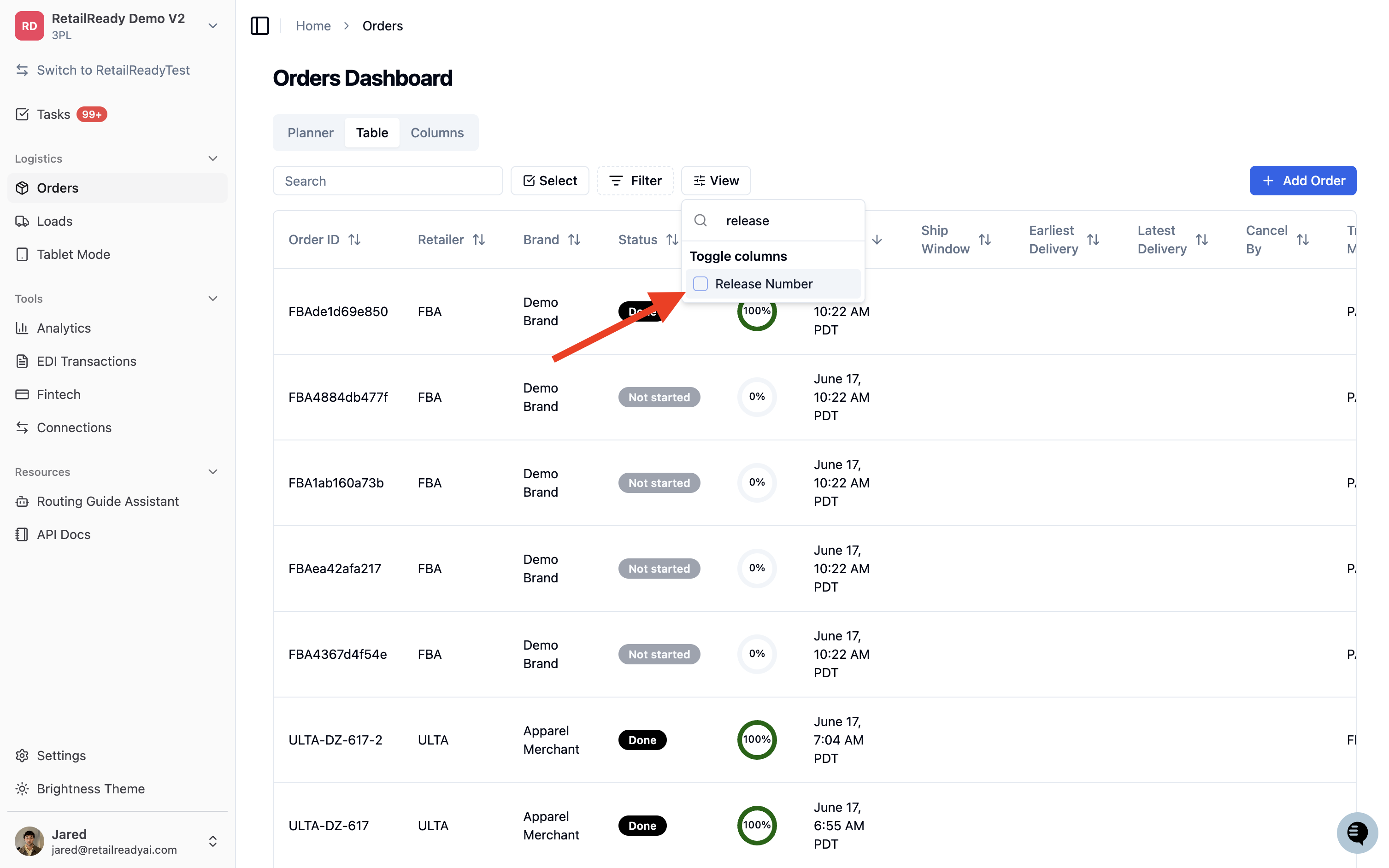
Click the 'View' button near the top right of the orders table to open the column visibility menu.
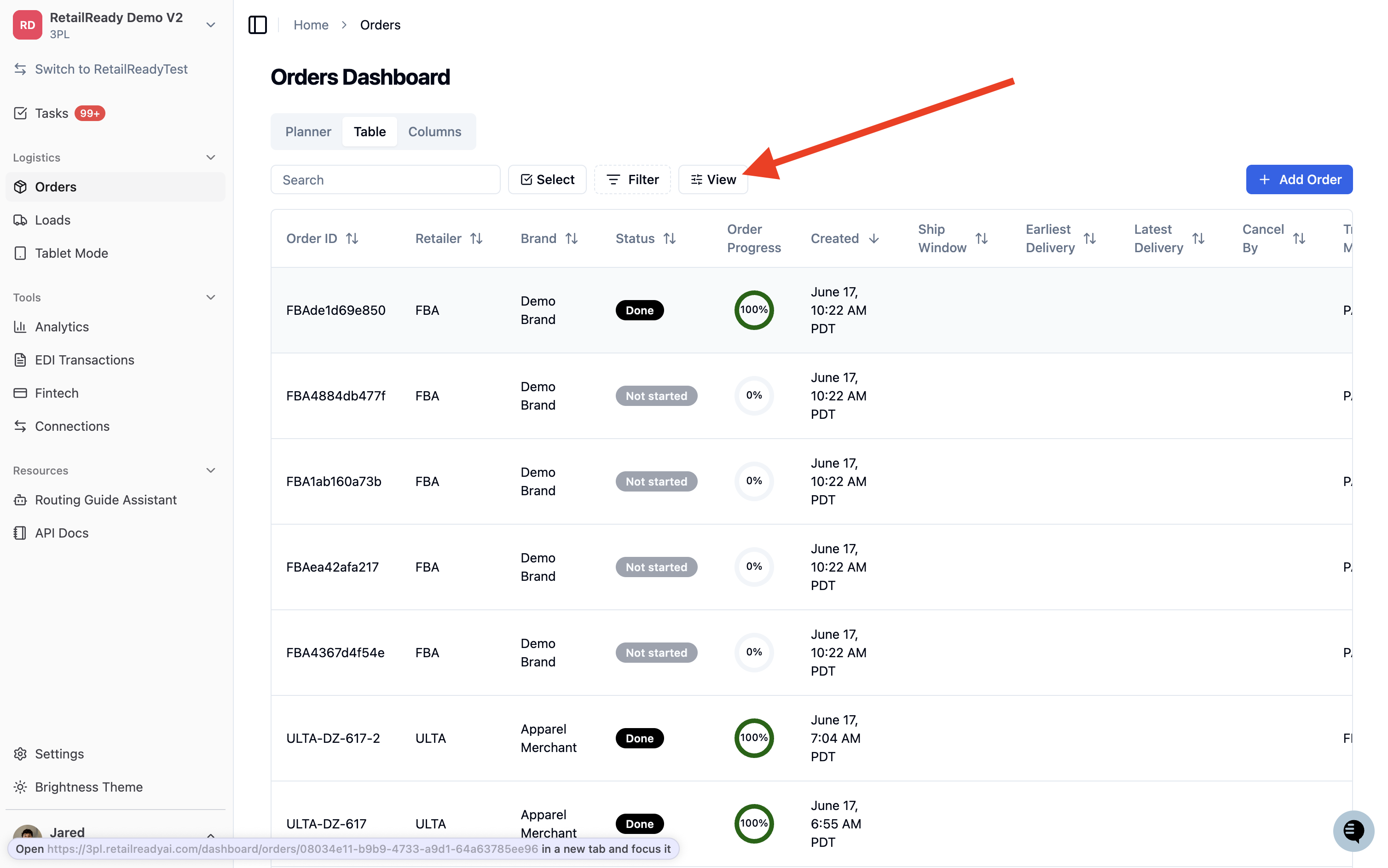
Find 'Release Number' in the list and toggle it on.
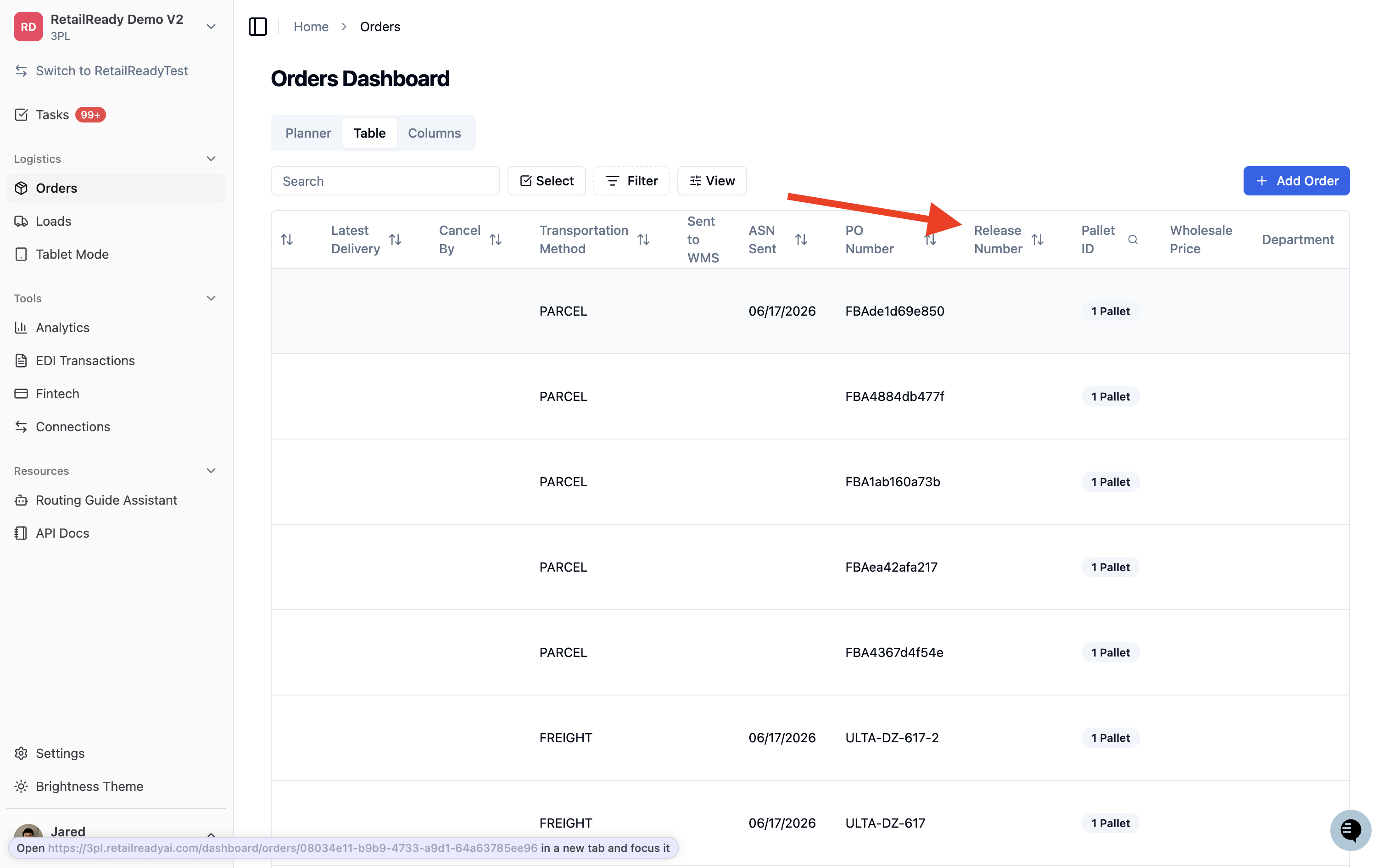
The 'Release Number' column will now appear in your orders table. You can click the column header to sort orders by release number.
Filtering and Searching Orders by Release Number
You can use the orders filter to find all orders associated with a specific release number.
Go to the 'Orders' dashboard.
Click the 'Filters' button to open the filter panel.
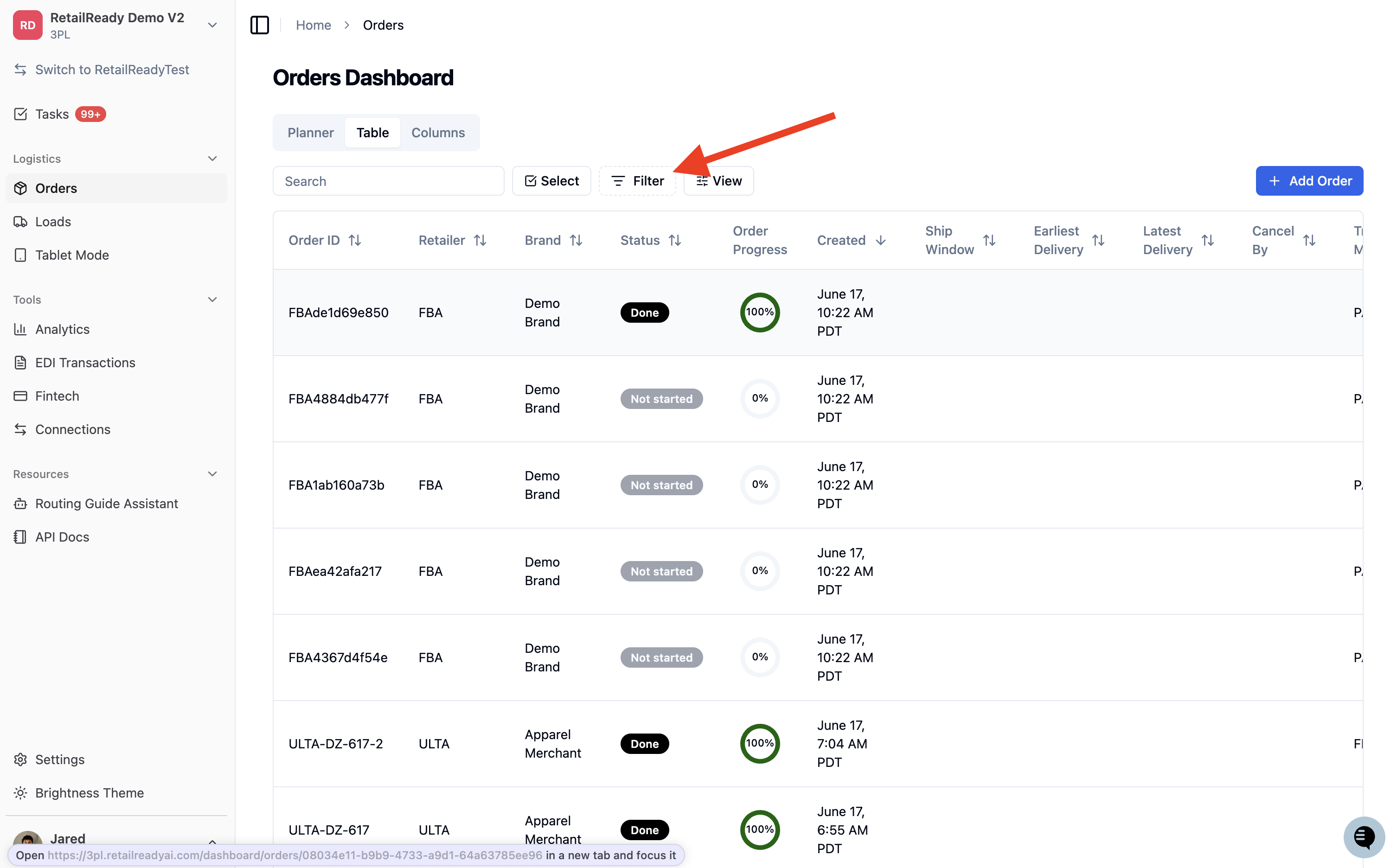
Select 'Release Number' from the list of available filter options.
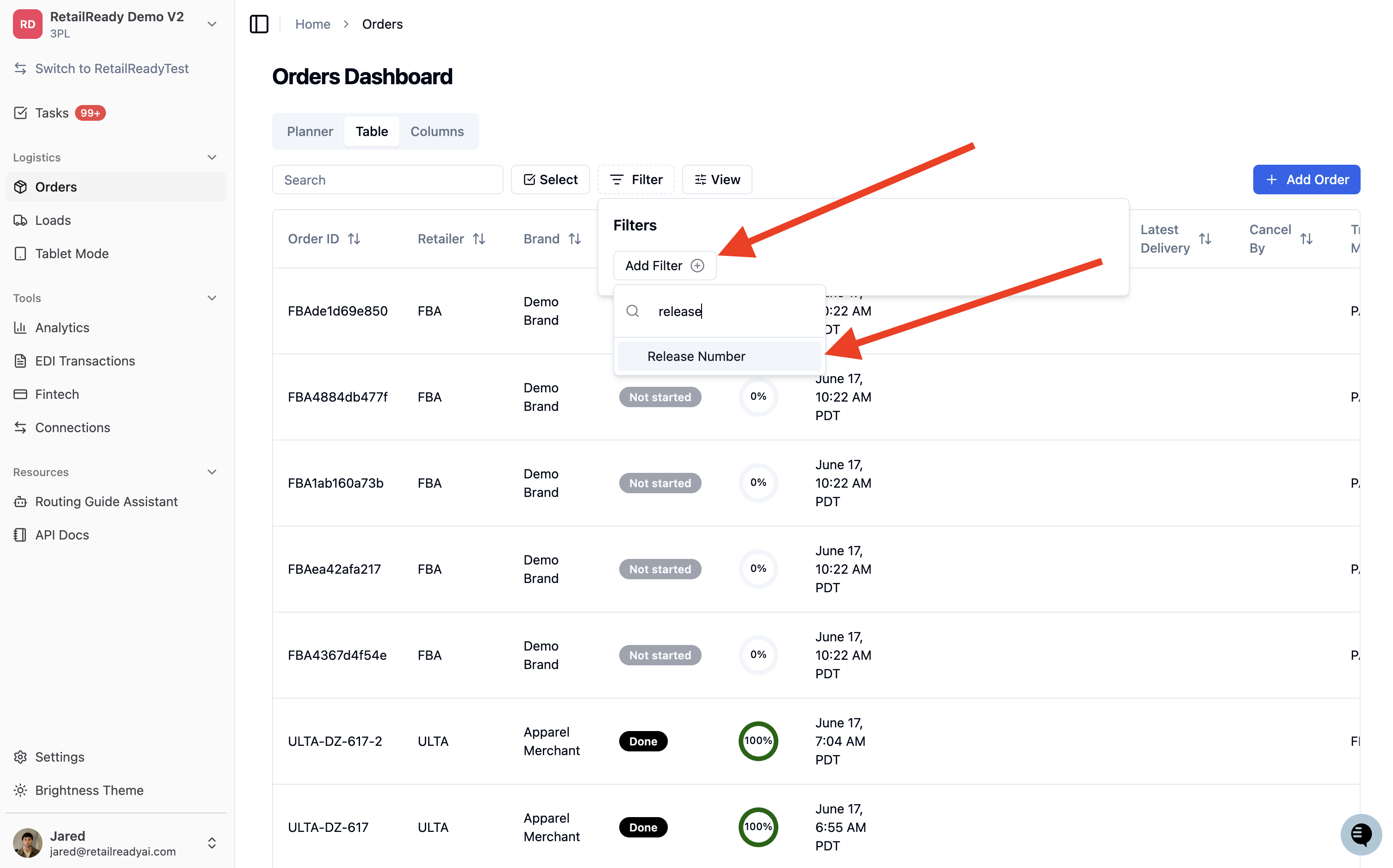
Type in the release number you want to search for.
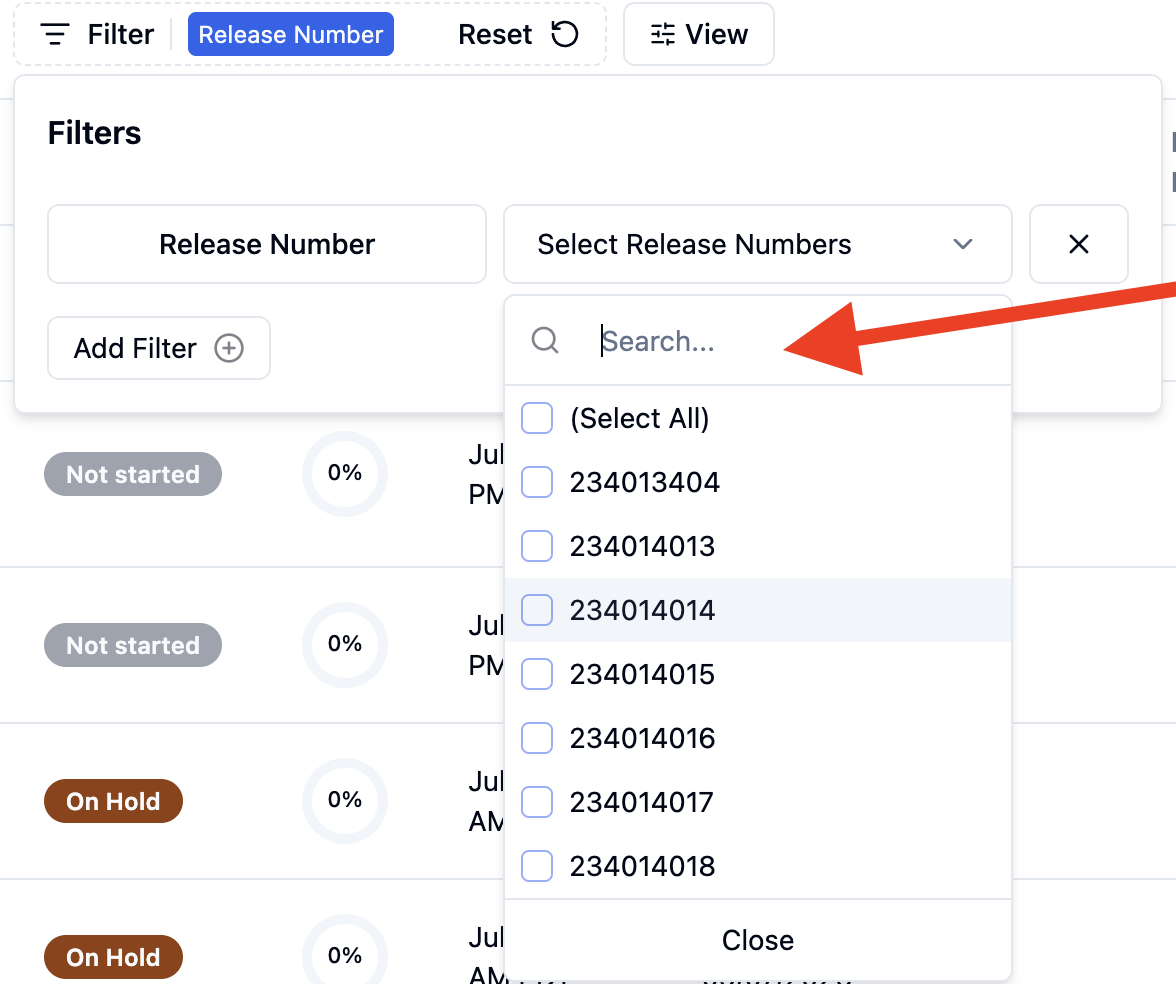
The orders table will update to show only orders matching that release numbers that you have selected.
Release numbers are also included when you use the general order search bar, so you can type a release number directly into the search field to quickly locate a matching order.
FAQs:
Will this change how my orders are shipped or how my ASN and invoices are sent to the retailer?
No. This update only adds visibility into the release number within RetailReady. The way your ASN and invoices are generated and sent to retailers like DSG has not changed.
Why doesn't my release order show a Release Num. field on the order details page?
The Release Num. field only appears when a release number was included in the original order sent by the retailer. If the field is missing, the order may have come in as a standard PO, or the release number may not have been included in that specific transaction. If you believe this is an error, contact your RetailReady support team.
Can I search for all release orders tied to a single blanket PO?
Yes. If you search by the Blanket PO number, you will be able to see the list of each release order associated with that Blanket PO.