Weekly Summary of Chargebacks
Last updated: September 18, 2026
RetailReady lets brand admin users set up a weekly chargeback summary report, delivered to your team via email, Slack, or both. The summary gives you a snapshot of chargeback activity over the past week, so you can stay on top of disputes without digging through the platform manually. This article explains how to connect Slack, configure your delivery preferences, and manage your weekly summary settings.
Connecting a Slack Workspace
Before you can receive your weekly summary in Slack, you'll need to connect your Slack workspace to RetailReady. You only need to do this once.
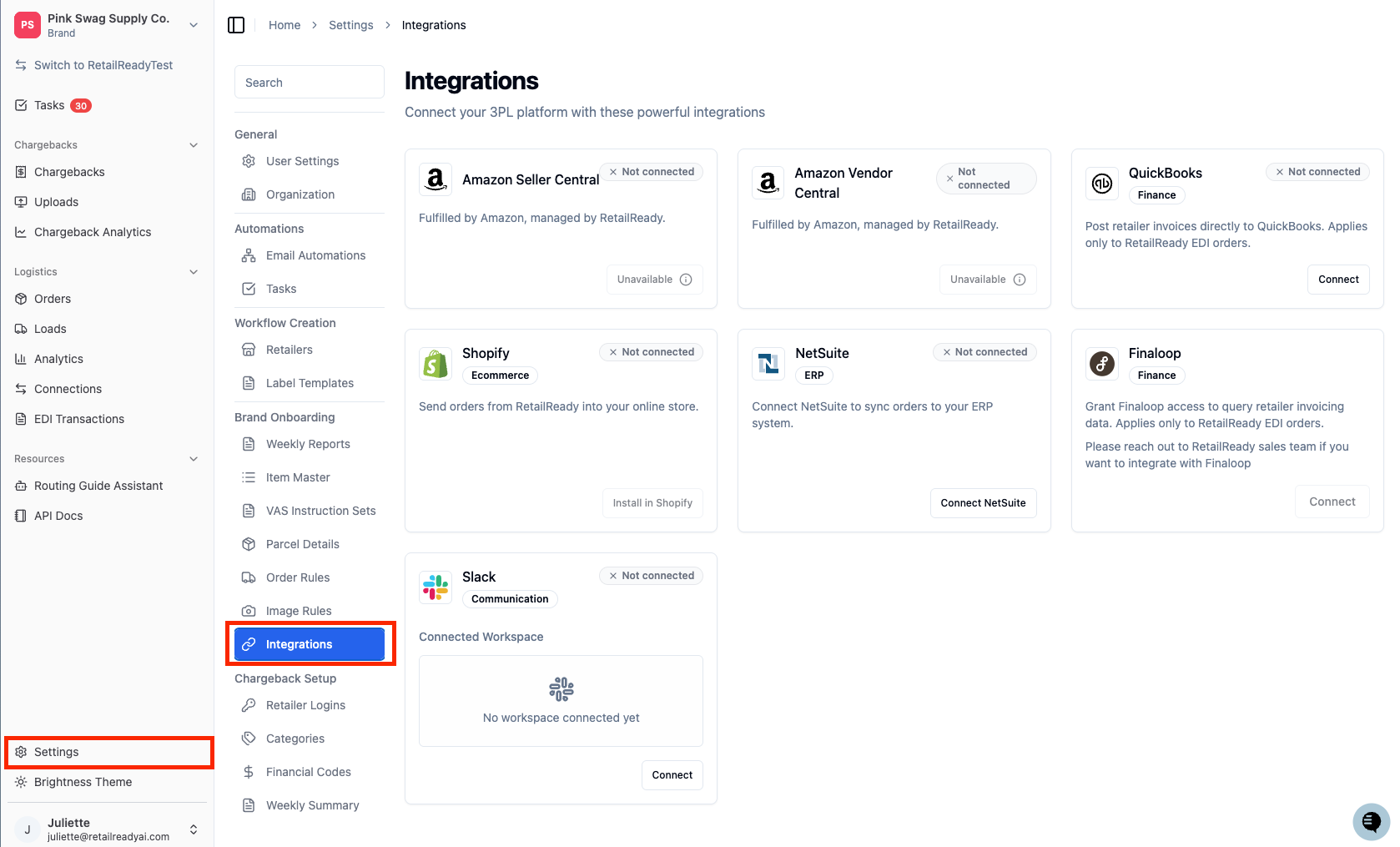
Navigate to ‘Settings’, then ‘Integrations’.
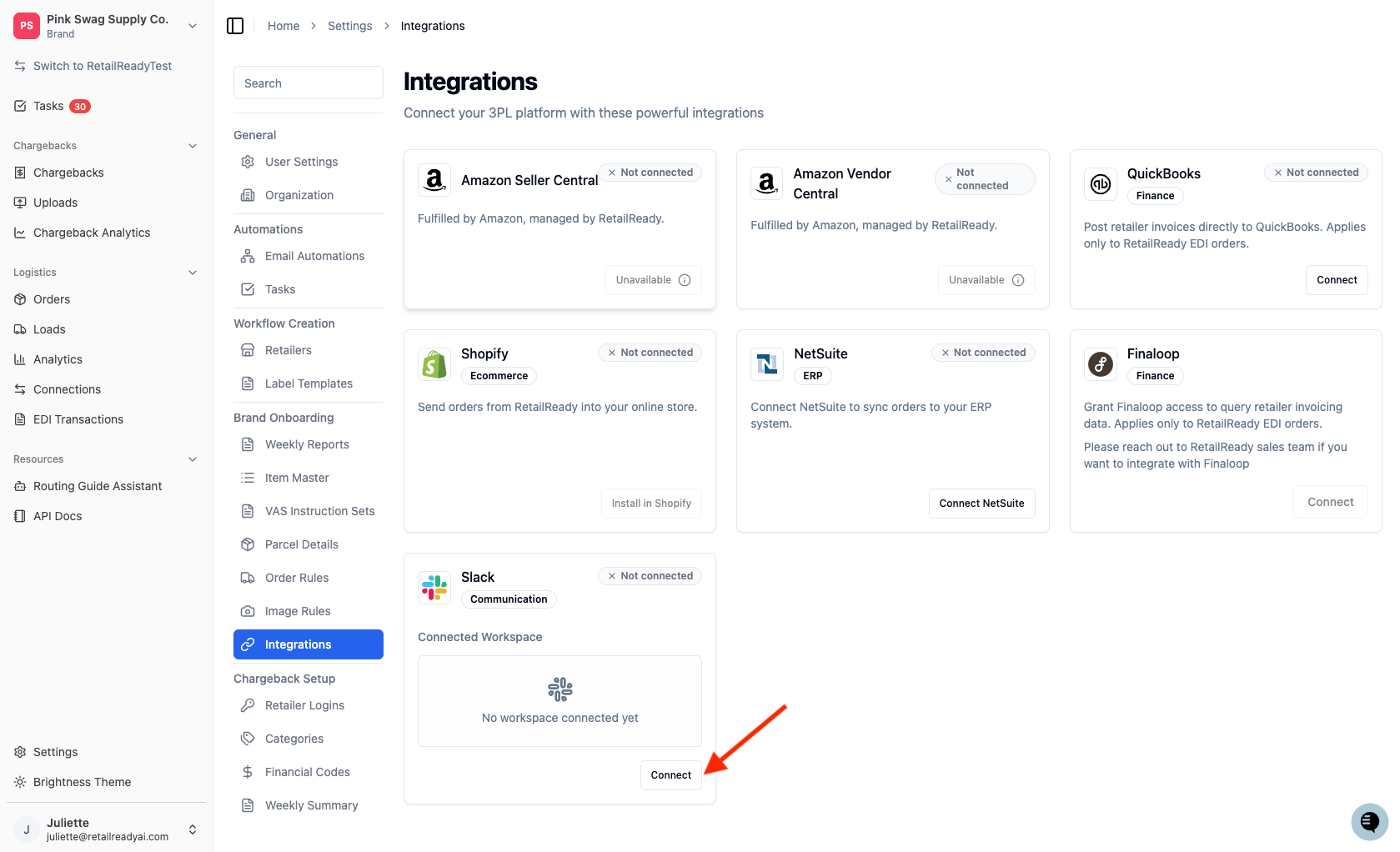
Locate the Slack tile and click ‘Connect’.
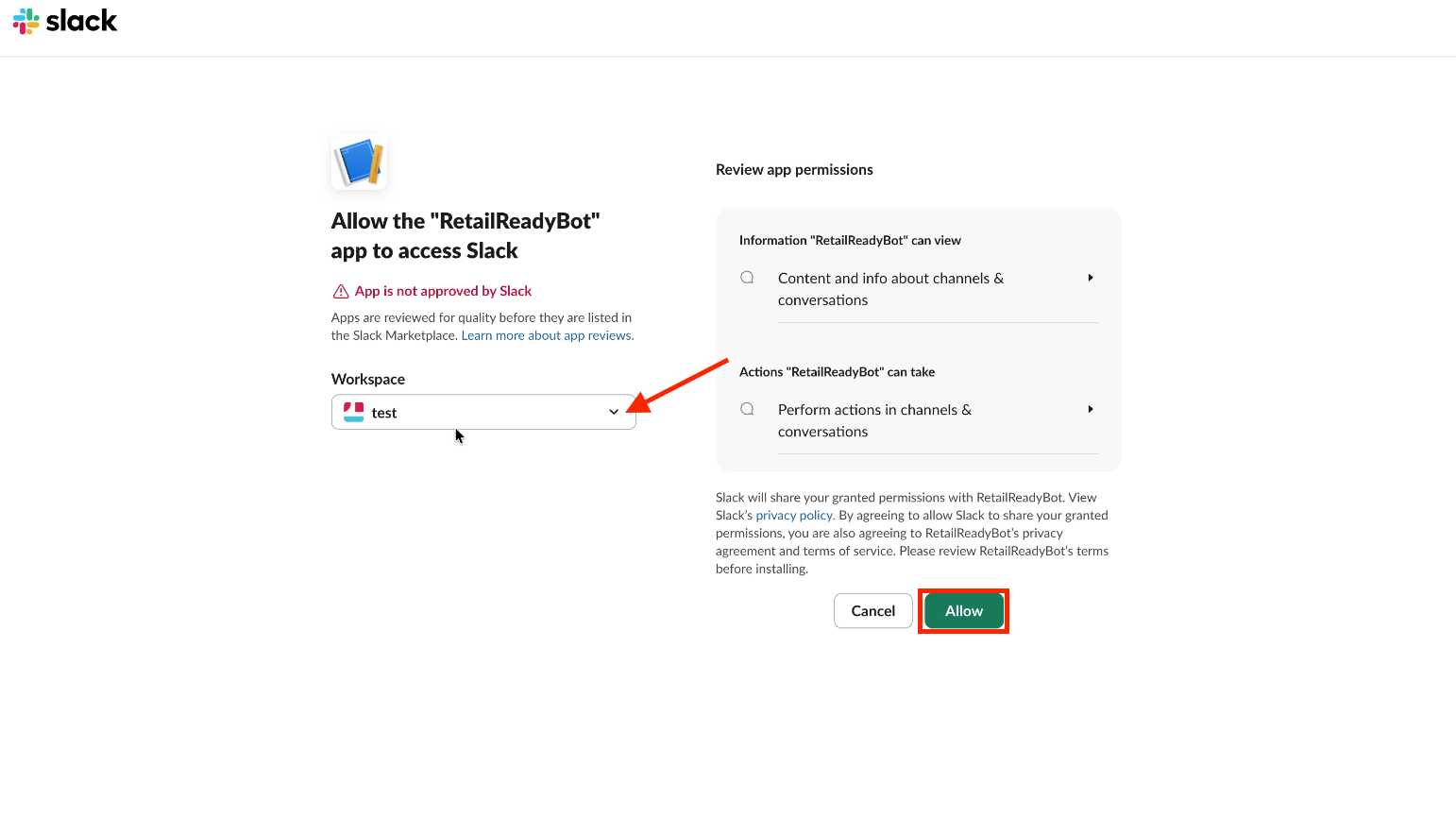
You'll be redirected to Slack to grant RetailReady access to your workspace. Follow the on-screen prompts: select your workspace from the dropdown menu, and click 'Allow' to complete the connection.
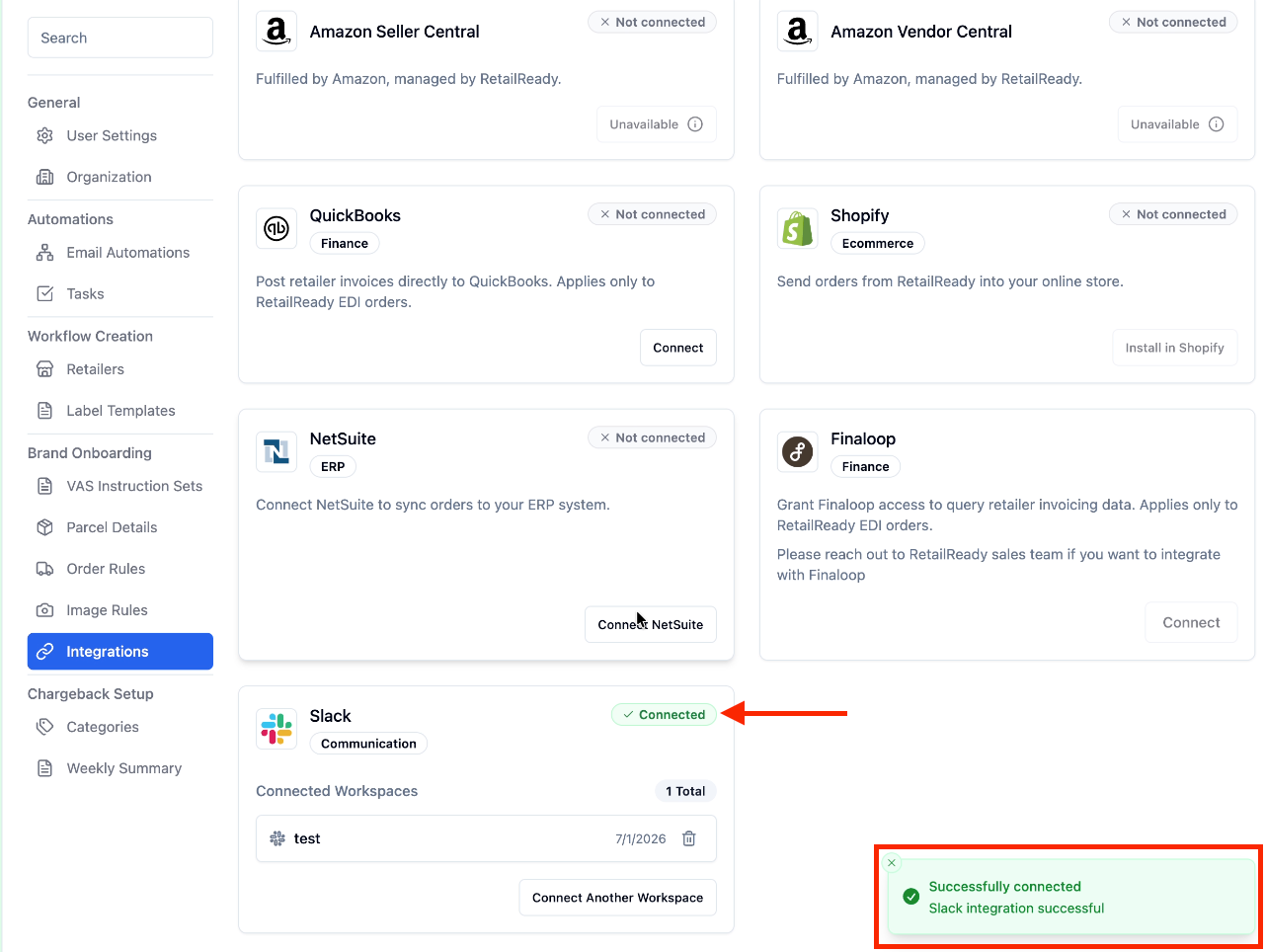
Once connected, your workspace name will appear under the Slack section! Look for the confirmation messages.
Setting Up Your Weekly Chargeback Summary
From 'Settings', open 'Weekly Summary'.
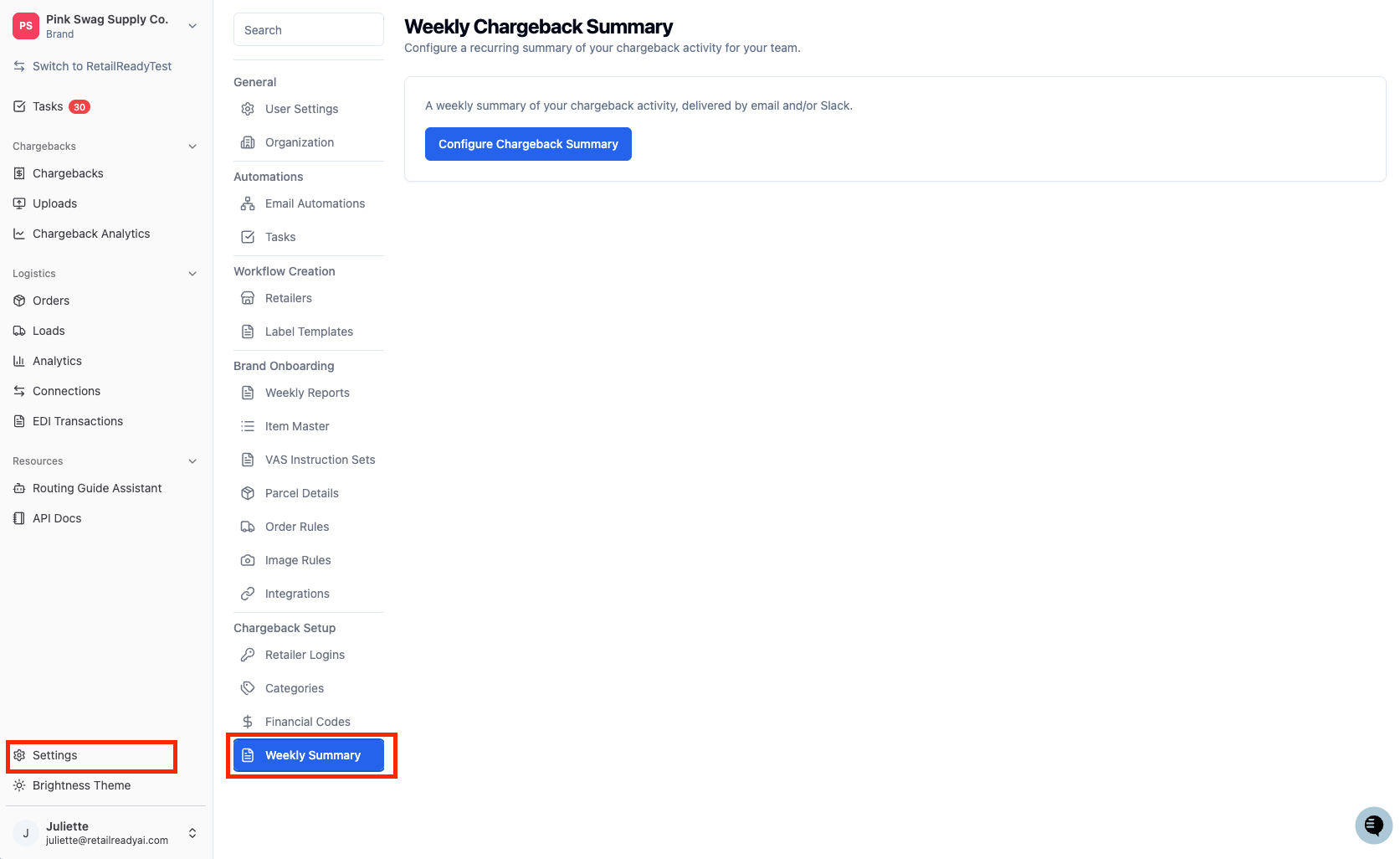
Press 'Configure Chargeback Summary'.
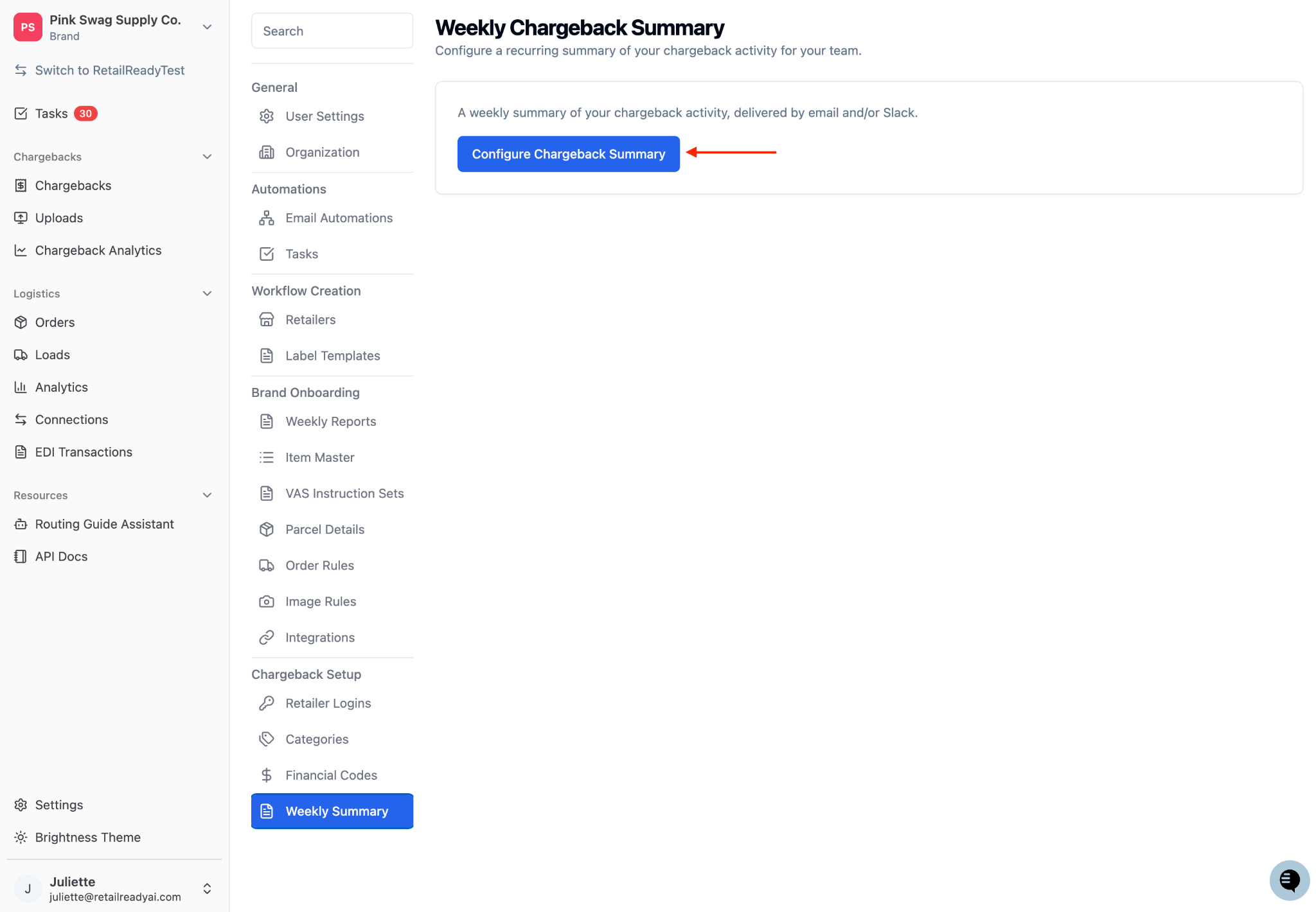
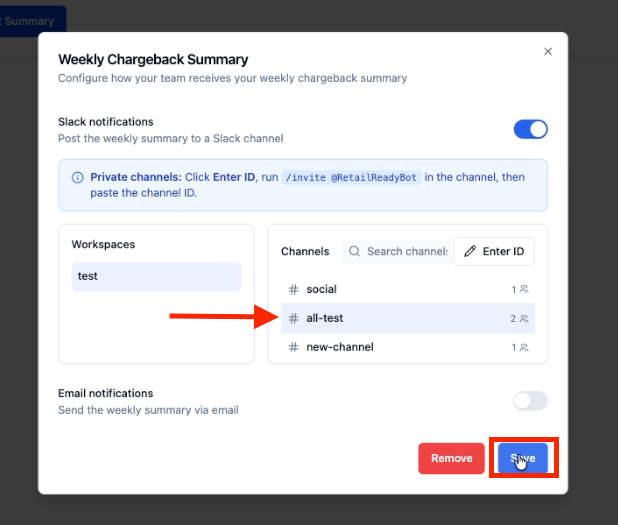
Toggle on 'Email Notifications' and/or 'Slack Notifications' depending on how you'd like to receive the report. You can enable both at the same time.
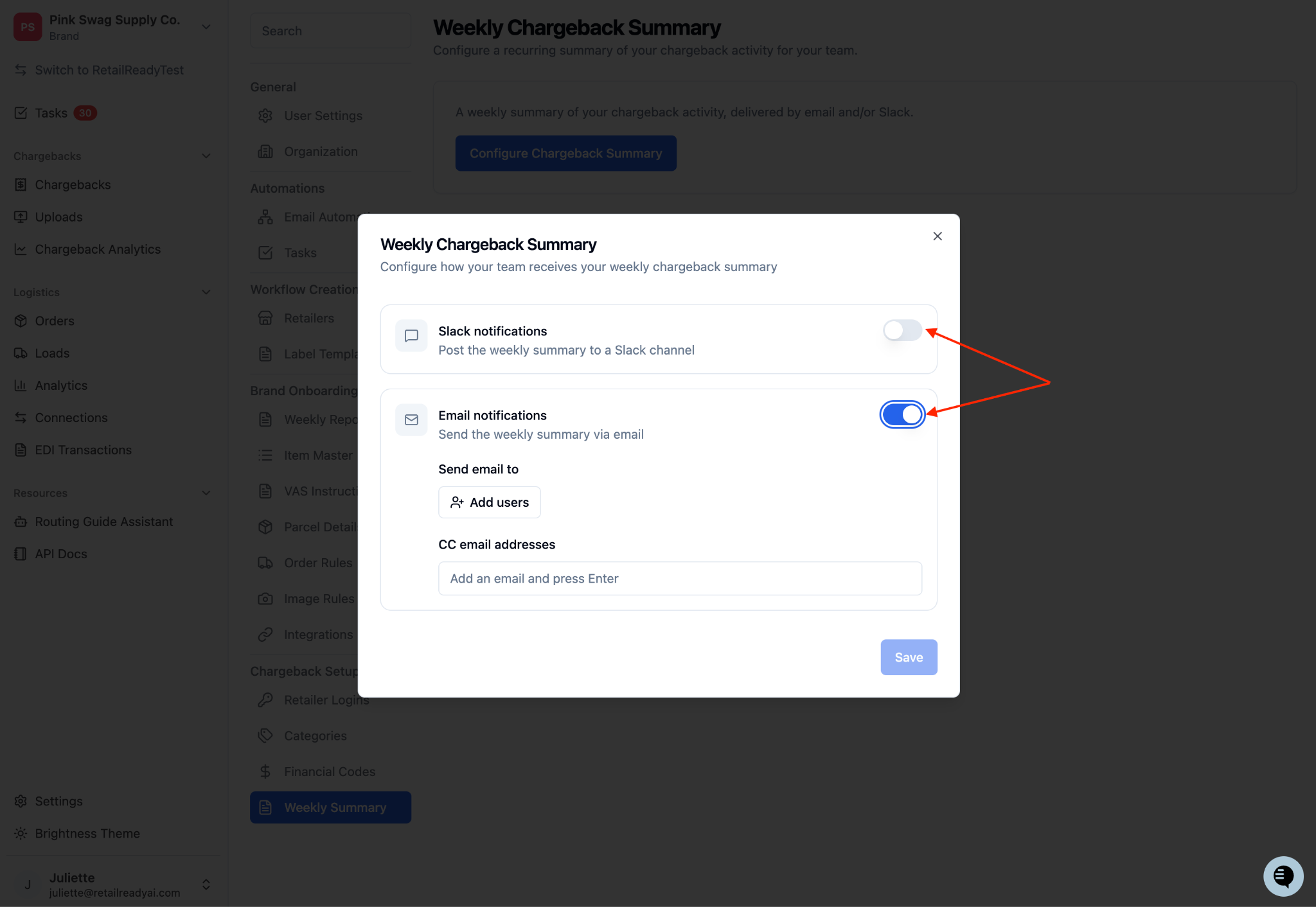
If you enabled slack notifications, continue with the steps below:
In the ‘Workspaces’ section, select the connected workspace you'd like to use.
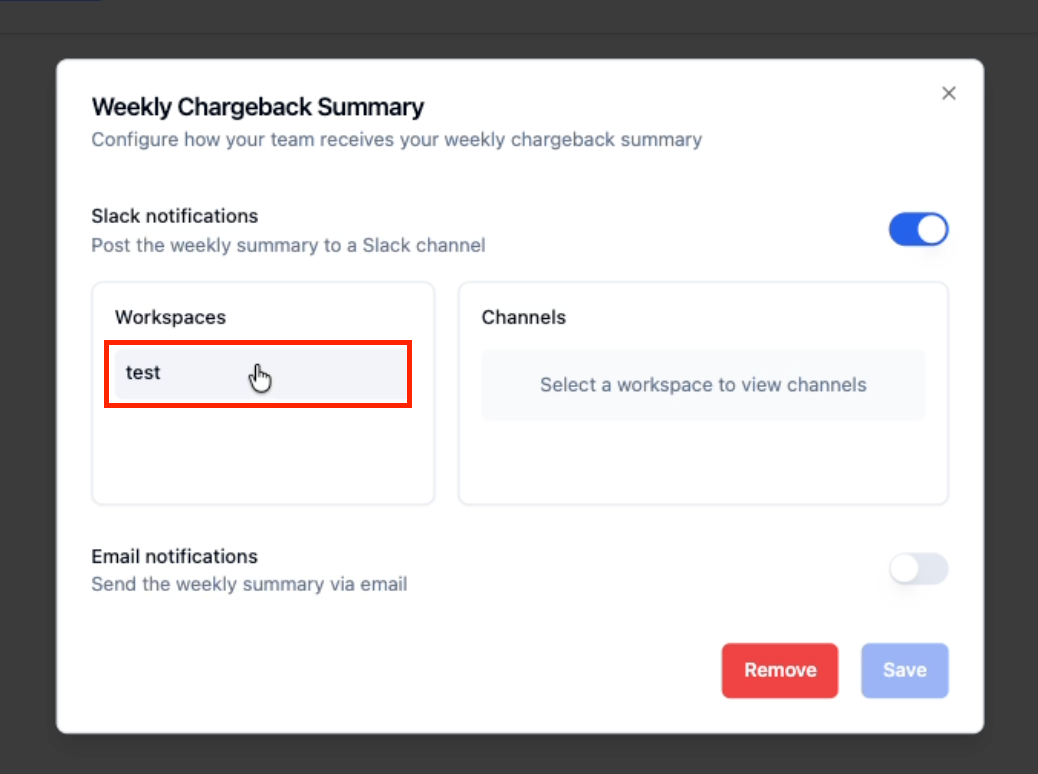
Choose which channel you want the summary to go to by clicking it. Then press ‘Save’ to apply your settings.
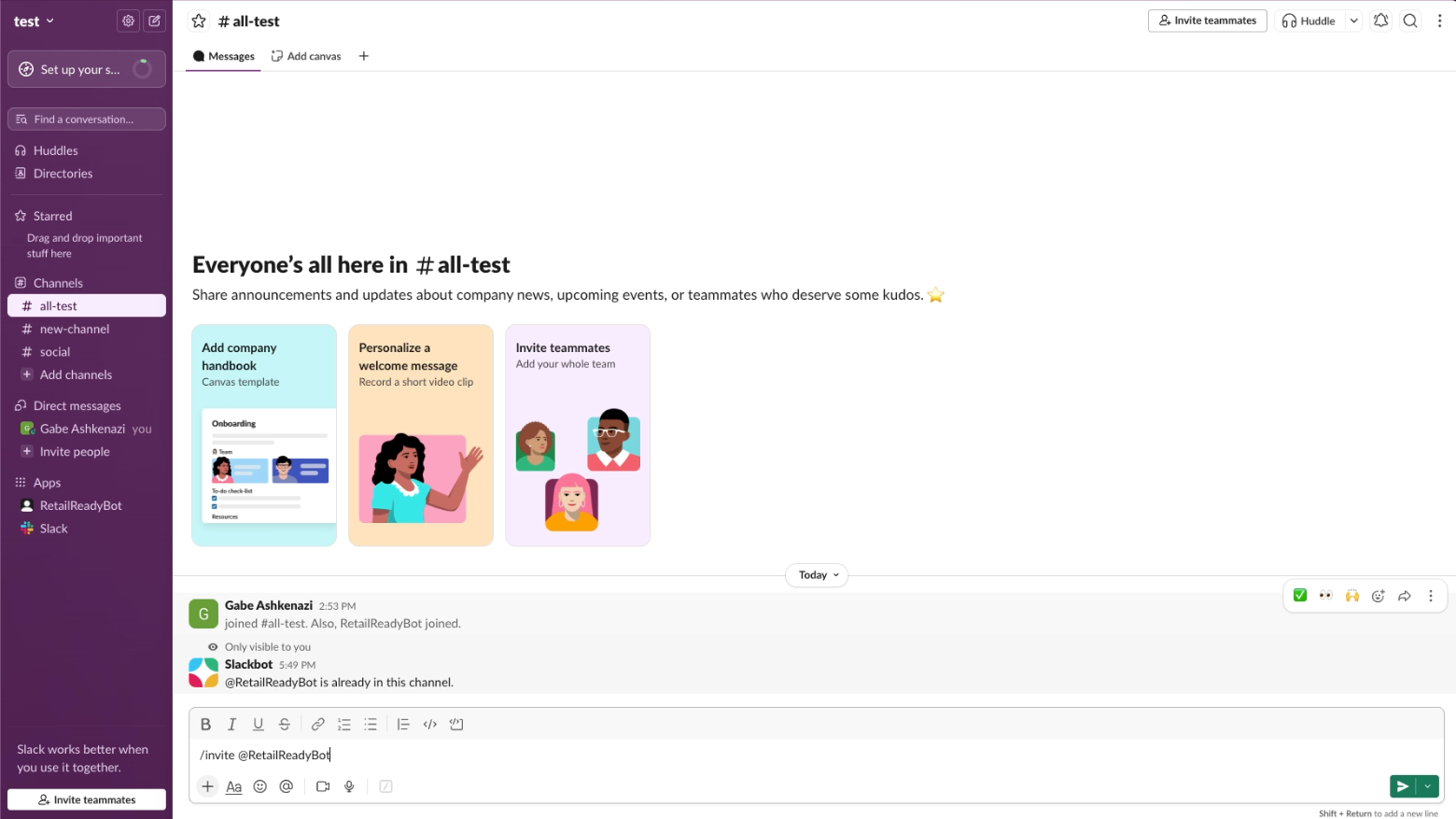
Remember to run /invite @RetailReadyBot in the channel if it is a private channel.
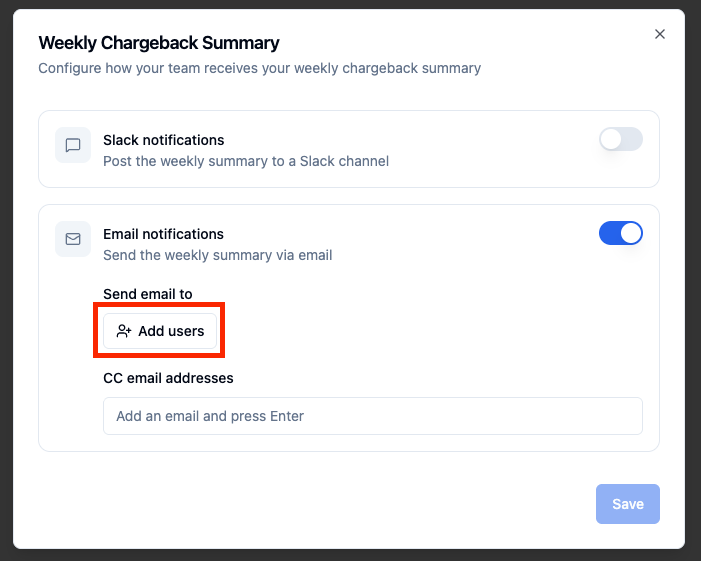
If you enabled email notifications, continue with the steps below to add recipients:
Press ‘Add users’ and select all users you want to receive the weekly summary.
In the 'CC email addresses' field, enter any additional email addresses that should receive the weekly summary in CC. You can add multiple addresses.
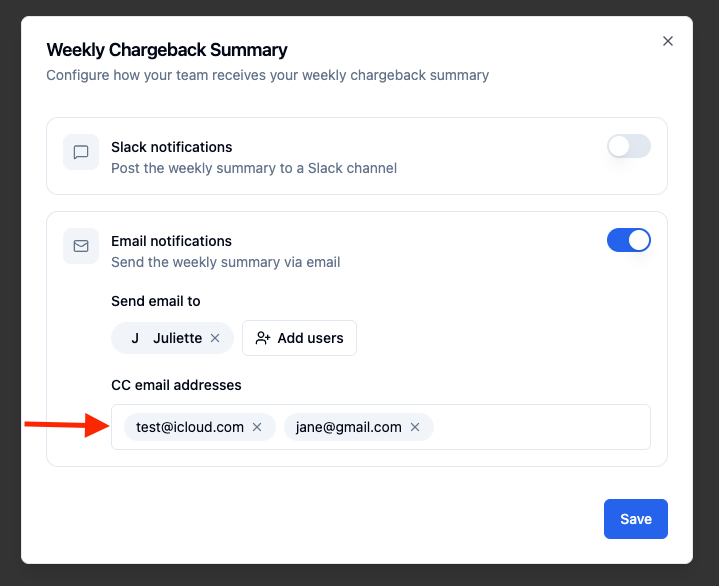
When you're finished, click 'Save' to apply your settings.
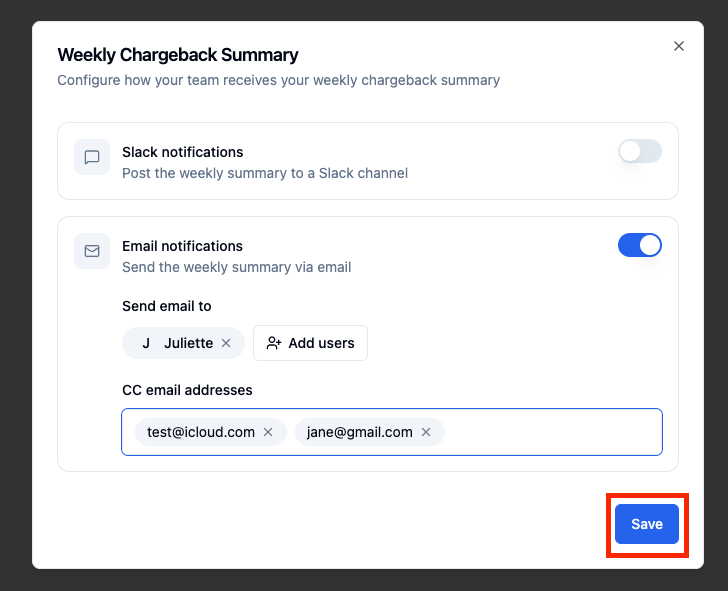
Your weekly summary will now be sent automatically each week. No further action is needed.
What's Included in the Weekly Summary
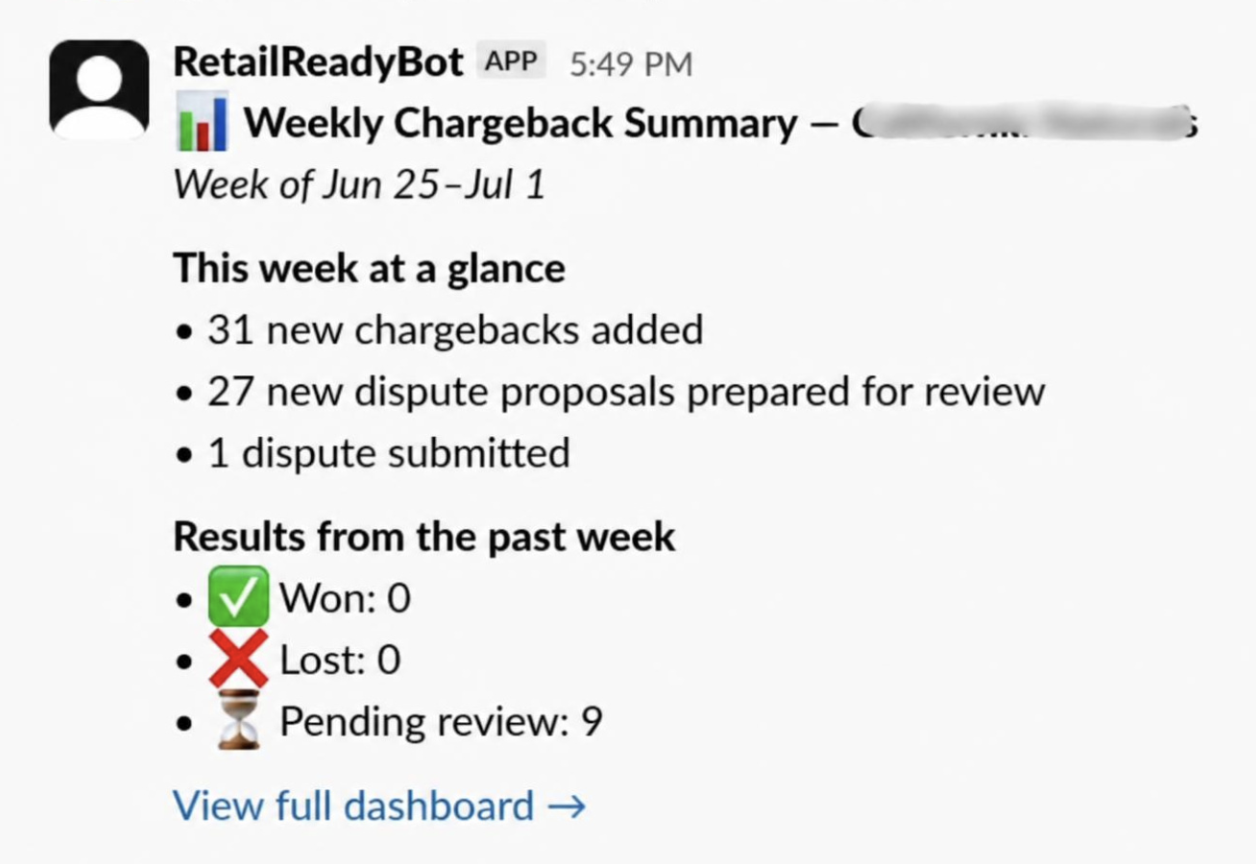
Each weekly chargeback summary covers the past 7 days and includes the following information:
New chargebacks: The number of new chargebacks opened during the week.
Dispute Proposals Prepared: The number of dispute proposals prepared for your review.
Disputes submitted: The number of chargebacks for which a dispute was filed during the week.
Chargebacks won: The number of disputes resolved in your favor from the past week.
Chargebacks lost: The number of disputes resolved against you from the past week.
Pending Review: The number of disputes pending review from the past week.
Disconnecting Slack or Turning Off Notifications
You can update or turn off your weekly summary settings at any time.
To disable a notification channel:
Go to 'Settings' and navigate to 'Weekly Summary'.
Click 'Configure Chargeback Summary', toggle off 'Email Notifications' or 'Slack Notifications' (or both).
Click 'Save' to apply the change.
To disconnect your Slack workspace entirely:
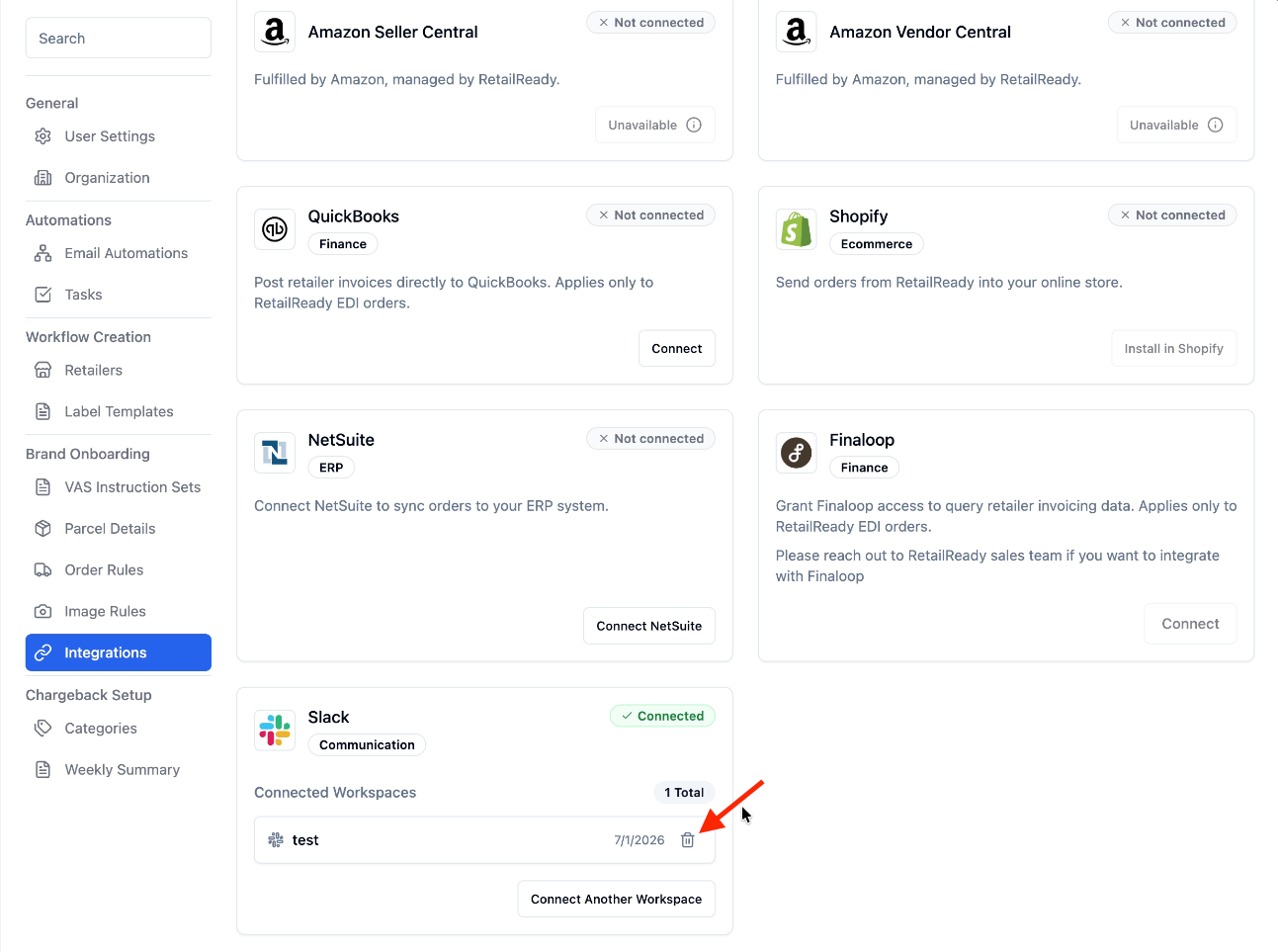
Navigate to ‘Settings’ > ‘Integrations’.
Locate the connected Slack workspace you want to disconnect. Press the trash can icon next to the workspace.
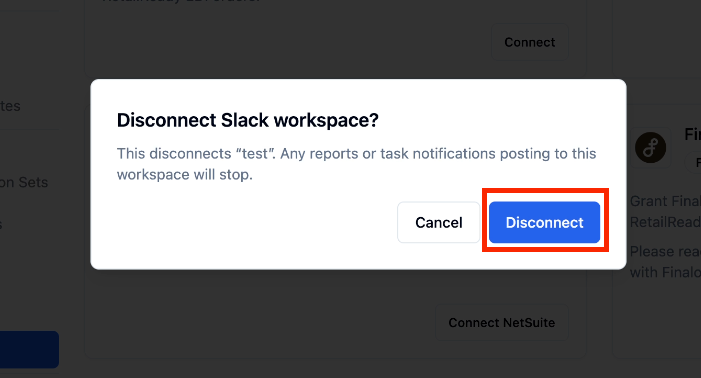
Confirm the disconnection when prompted by pressing ‘Disconnect’. This will disable Slack delivery for your weekly summary and remove the workspace connection from RetailReady.
FAQs:
Who can configure the weekly chargeback summary?
Only brand admin users can turn on and configure the weekly chargeback summary. If you don't see the option in your account, check with your brand admin to have them set it up or add your email address to the CC list.
Can I add people outside my organization to the email list?
Yes. You can add any valid email address to the CC list, including addresses outside your company. Anyone added will receive the full weekly summary each week.
Can I receive the summary in more than one Slack channel?
At this time, the weekly summary can be delivered to one Slack channel per brand. If you need broader distribution within Slack, consider using a shared channel or posting the summary to a high-visibility channel that your team already monitors.
What if my brand had no chargeback activity last week?
The summary will still be sent, showing zero counts across all categories. This can serve as a helpful confirmation that no new chargebacks were opened or resolved during that period.
When is the weekly summary sent?
The summary is sent automatically once per week and covers the previous 7 days of chargeback activity. The exact delivery day is consistent each week. If you have questions about the send schedule, contact RetailReady support.
What should I do if I'm not receiving the summary emails?
First, check your spam or junk folder. If the emails aren't there, confirm with your brand admin that your address has been added to the CC list and that email notifications are toggled on and saved. If the issue persists, reach out to RetailReady support for assistance.
Can I connect Slack without enabling email, or vice versa?
Yes. Email and Slack notifications are configured independently. You can enable one, both, or neither at any time, and toggle them on or off without affecting the other channel's settings.