How to Split an Order
Last updated: April 22, 2026
Order splitting allows you to divide a single order into two separate orders by reassigning selected pallets to a new order. This is useful when pallets within the same order need to ship at different times, go to different destinations, or need to be managed independently.
How and when you can split an order depends on whether the order uses Directed Workflow (DWF) or not. This article explains the difference, how to check which workflow is enabled, and walks through how to split an order in RetailReady.
Directed Workflow vs. Non Directed Workflow: Key Differences
Order splitting works differently depending on the workflow type. Review the comparison below.
Directed Workflow (DWF) Orders | Non Directed Workflow (Non-DWF) Orders |
Can be split at any order status, including "Not Started," as pallets are pre-configured. | Can only be split once the order is in Packing status and at least 2 pallets have been generated. |
How Do I Know What Workflow Is Enabled?
You can check whether Directed Workflow is enabled for a connection by going into the connection settings. Follow these steps:
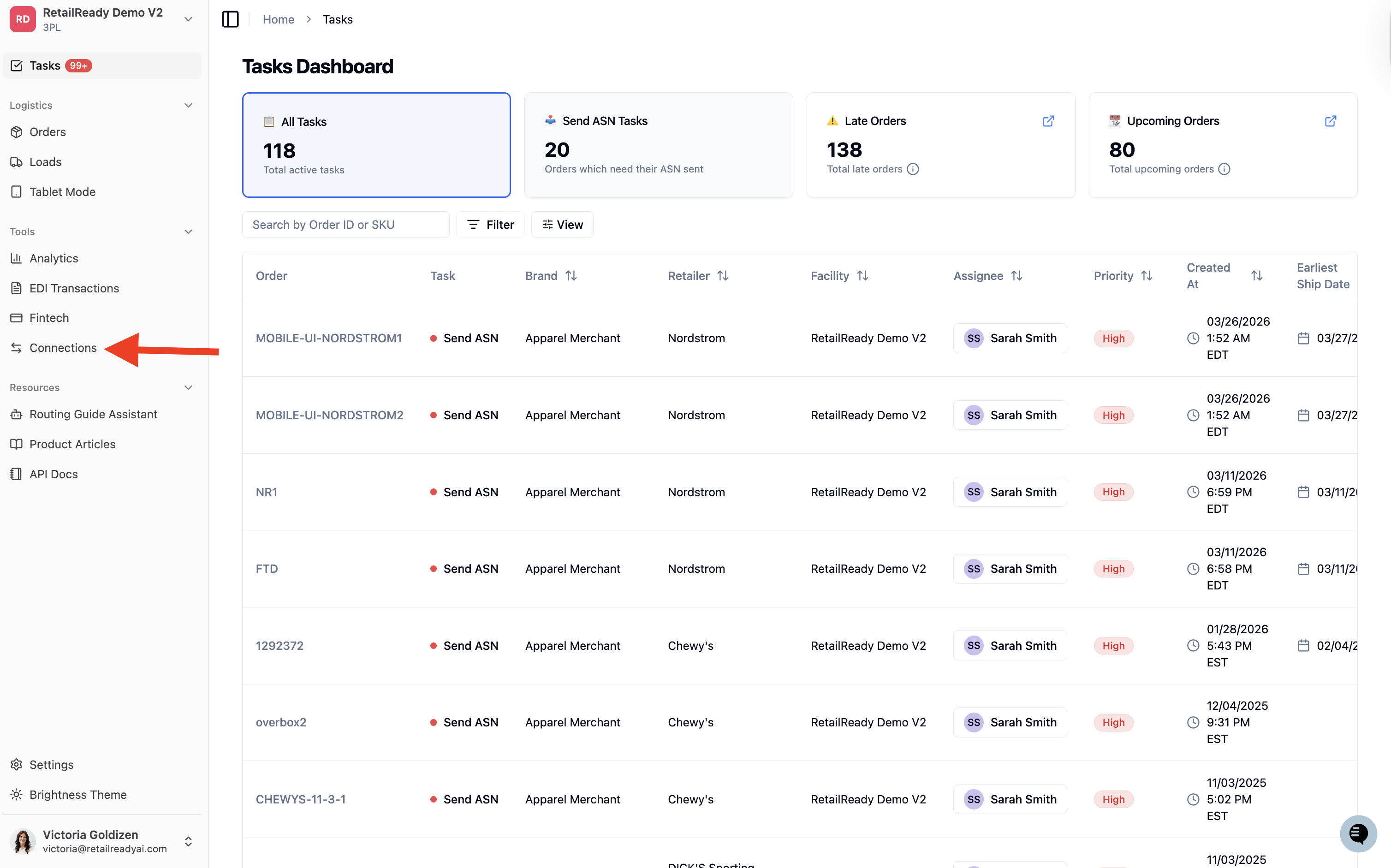
In the left navigation panel, click 'Connections'.
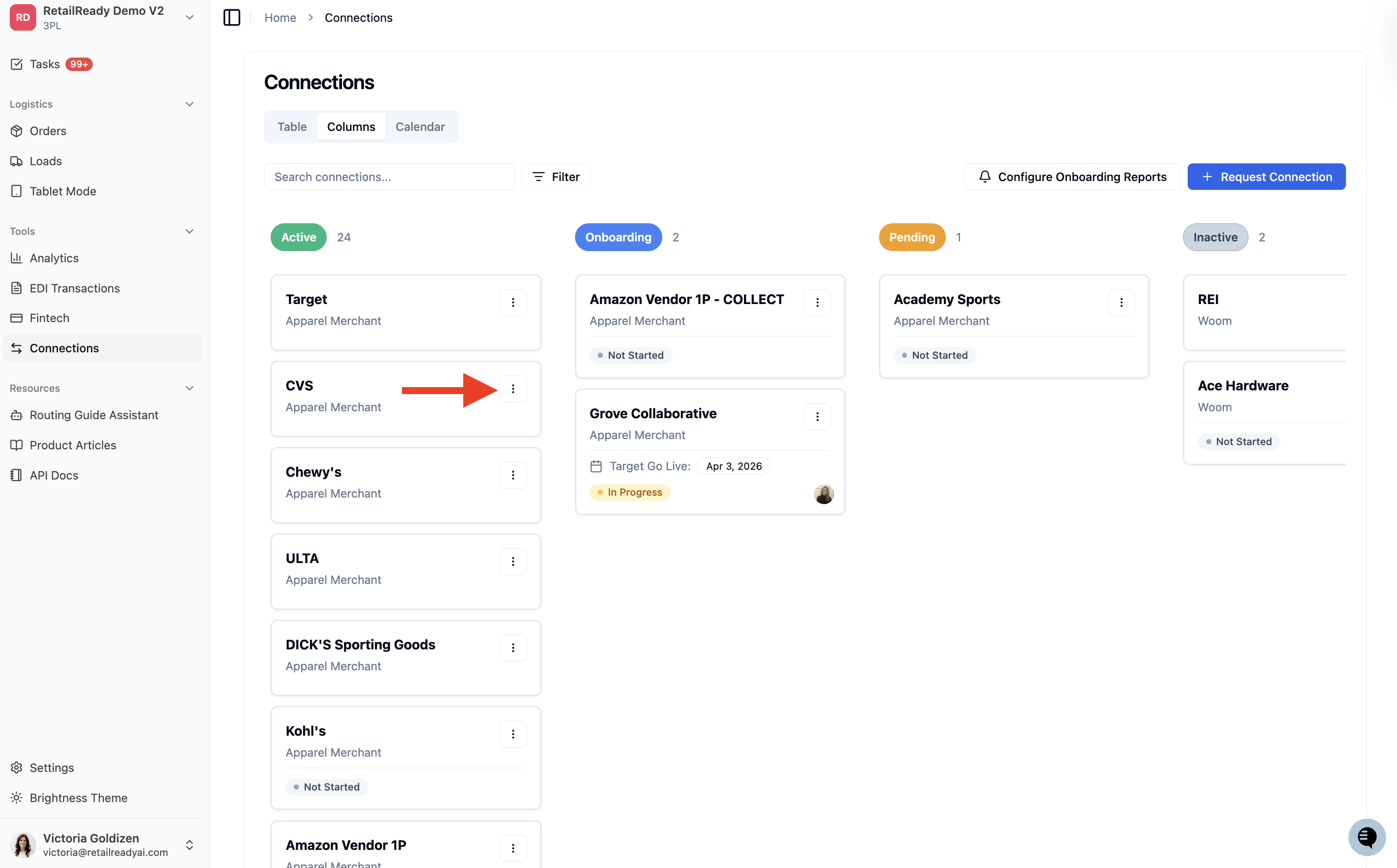
Find the relevant retailer-brand connection and click the 3 dots menu on the connection card.
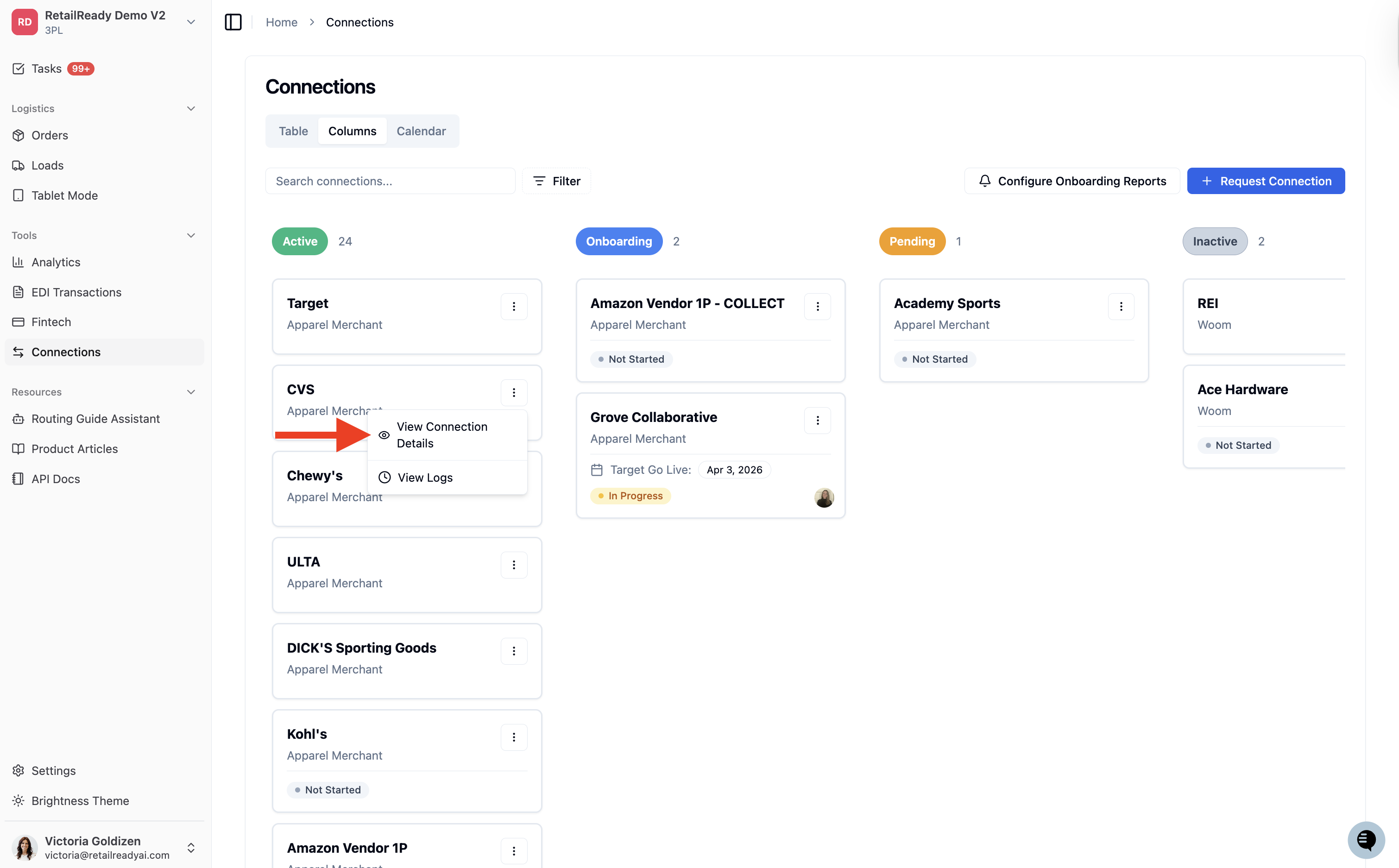
Click 'View Connection Details'.
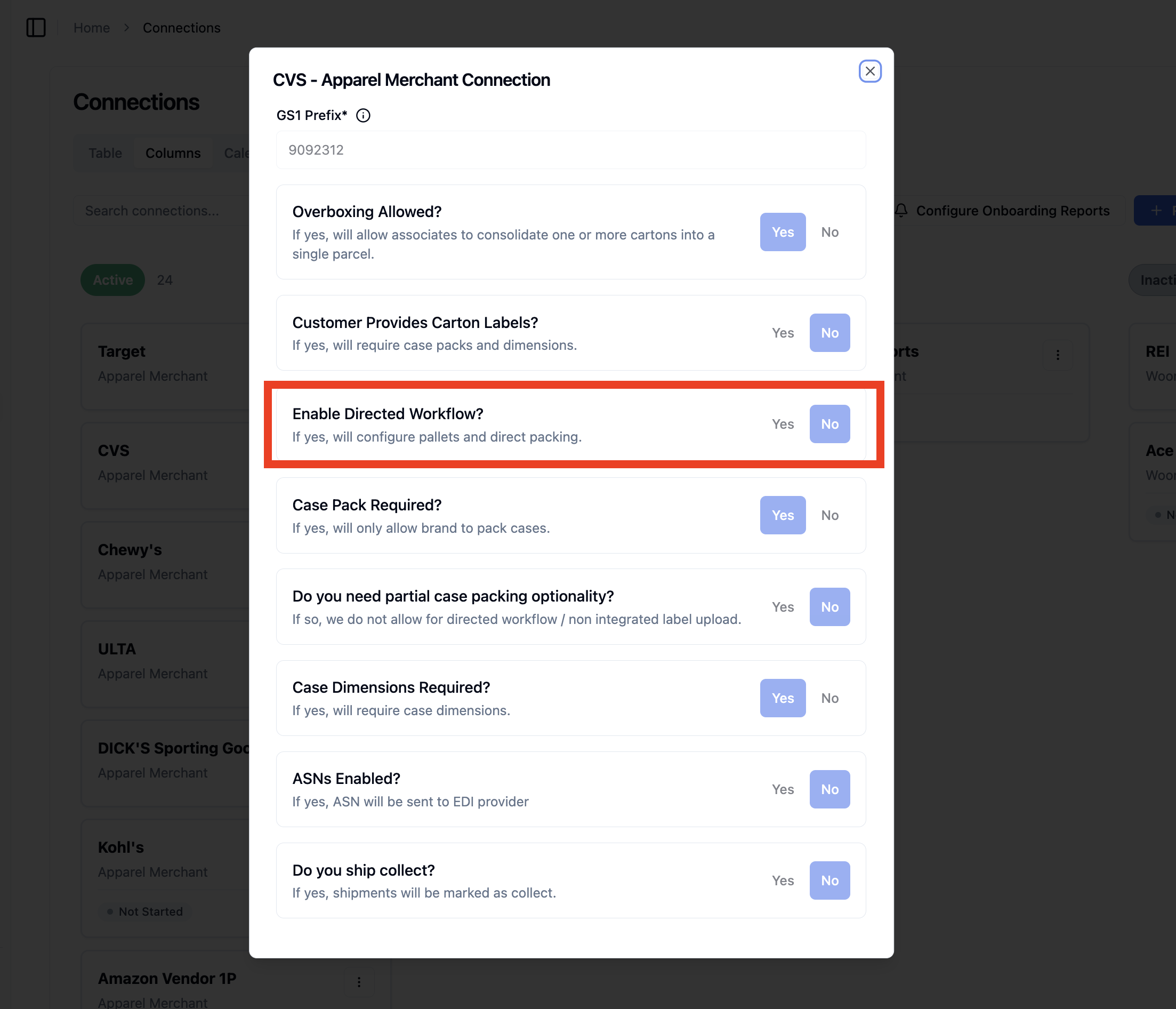
A connection settings modal will open. Scroll down to find the "Enable Directed Workflow?" field.
If the toggle is set to Yes, the connection is using Directed Workflow (DWF). If it is set to No, it is a standard non-DWF connection.
How to Split an Order
Open the order you want to split from Orders.
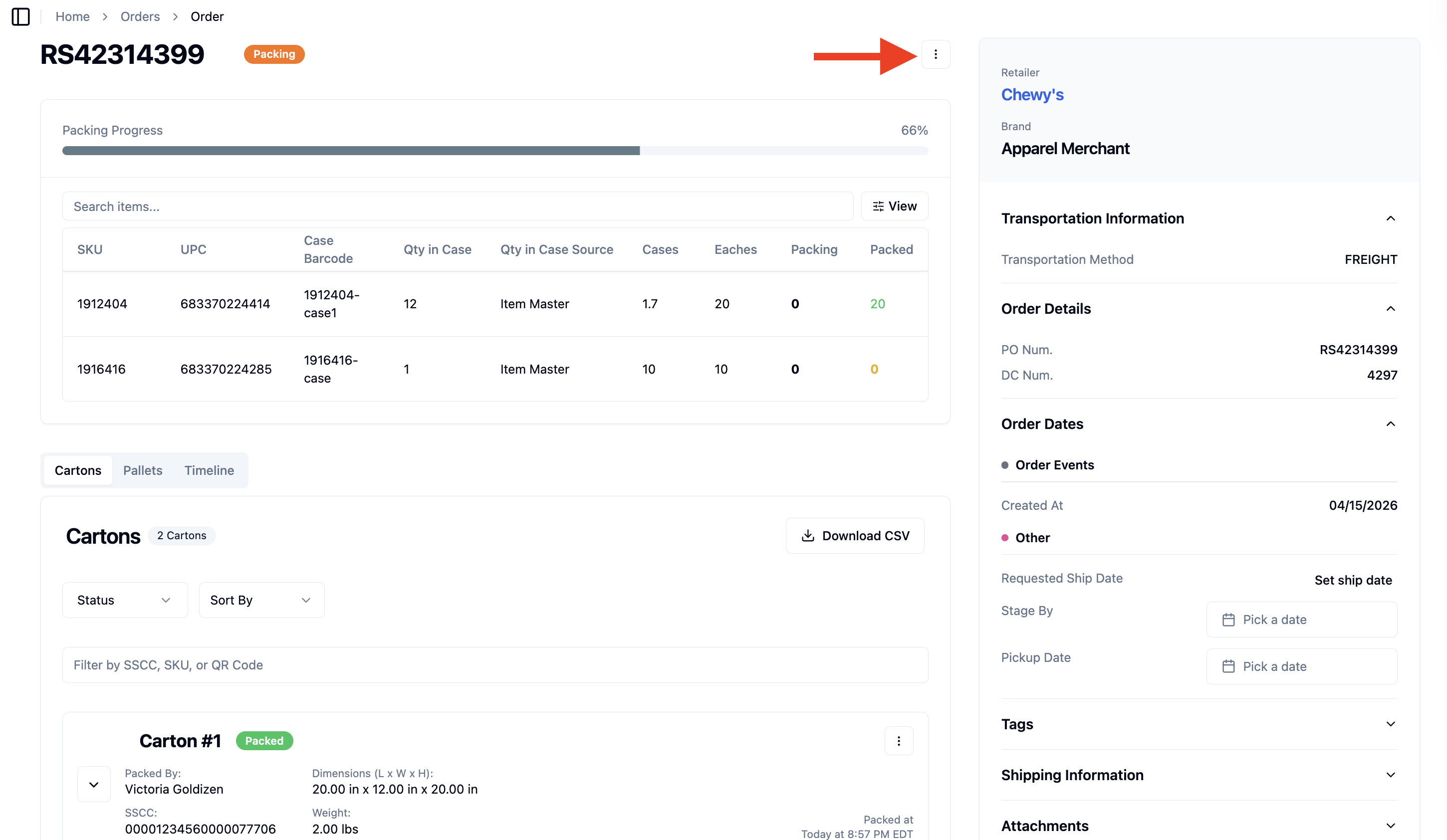
Click the 3 dots menu in the upper right corner of the order.
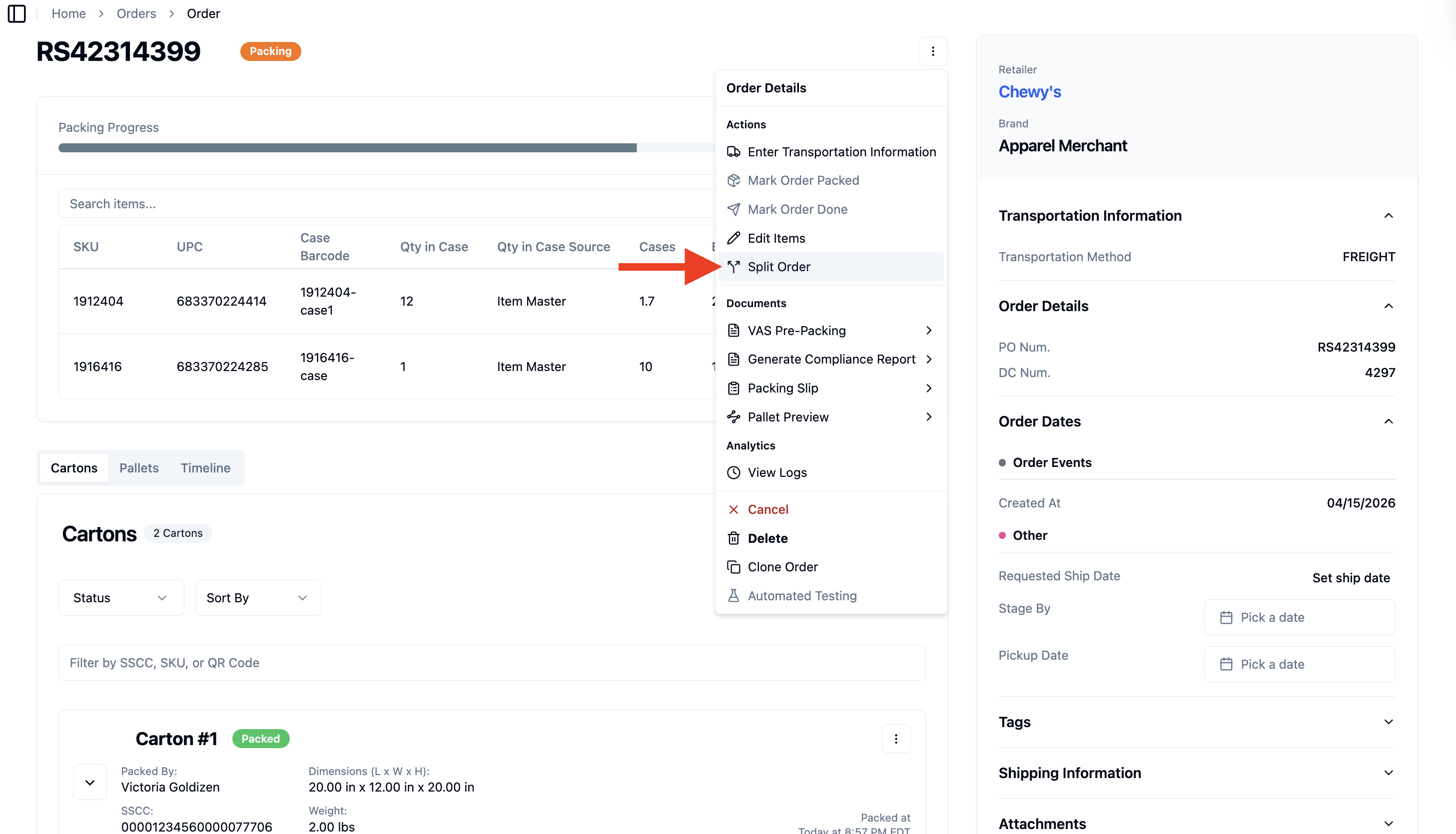
Click Split Order from the dropdown menu.
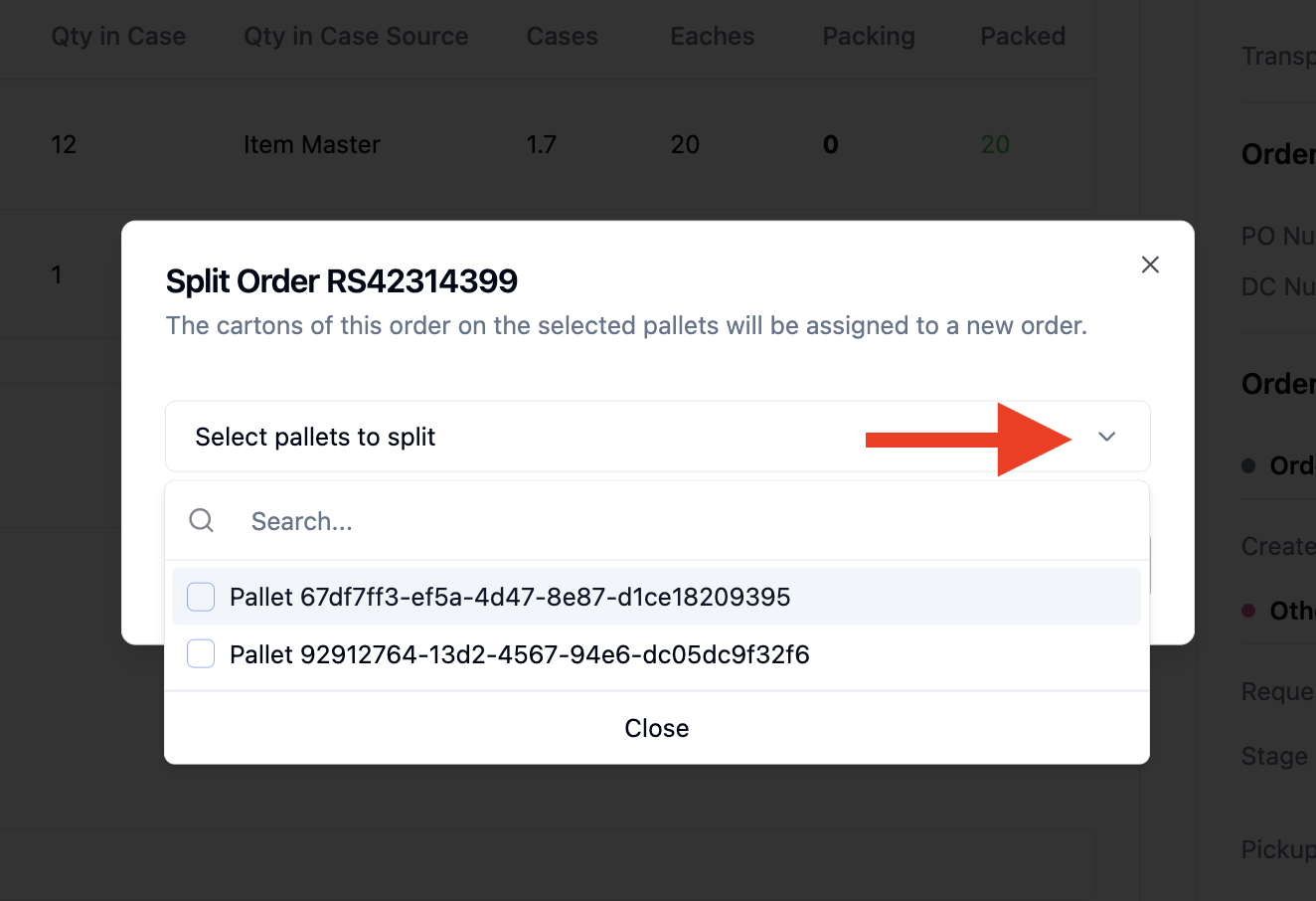
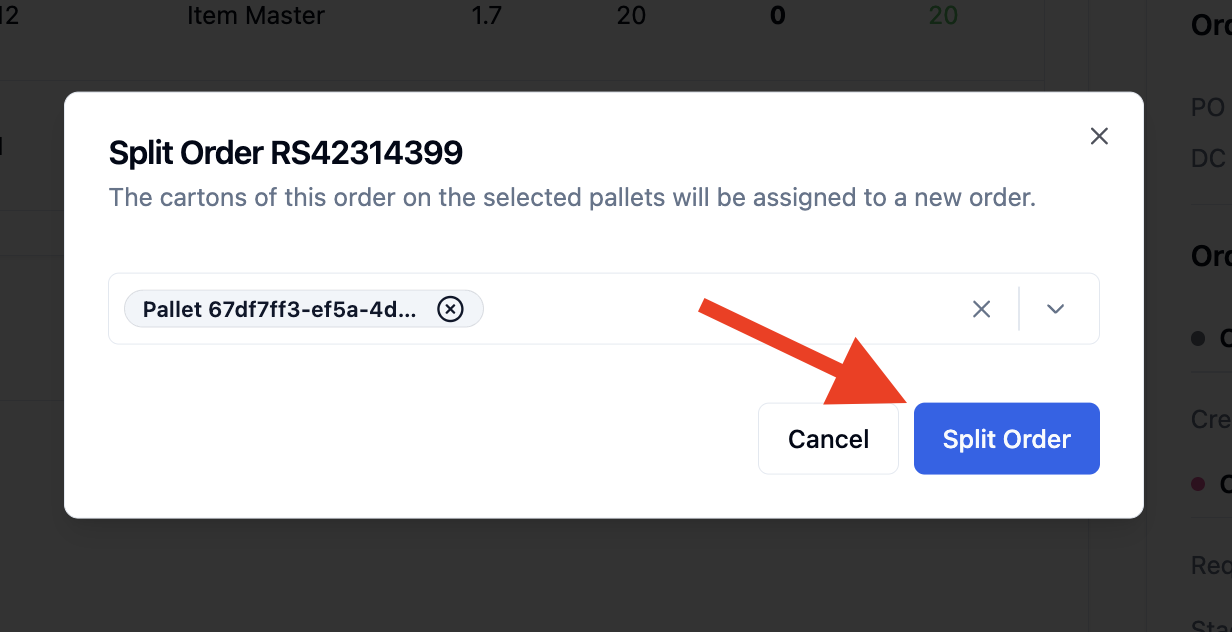
A "Split Order" dialog will appear with the message: "The cartons of this order on the selected pallets will be assigned to a new order."
Click the Select pallets to split dropdown. A searchable list of all pallets on the order will appear, each showing the Pallet ID and SSCC number.
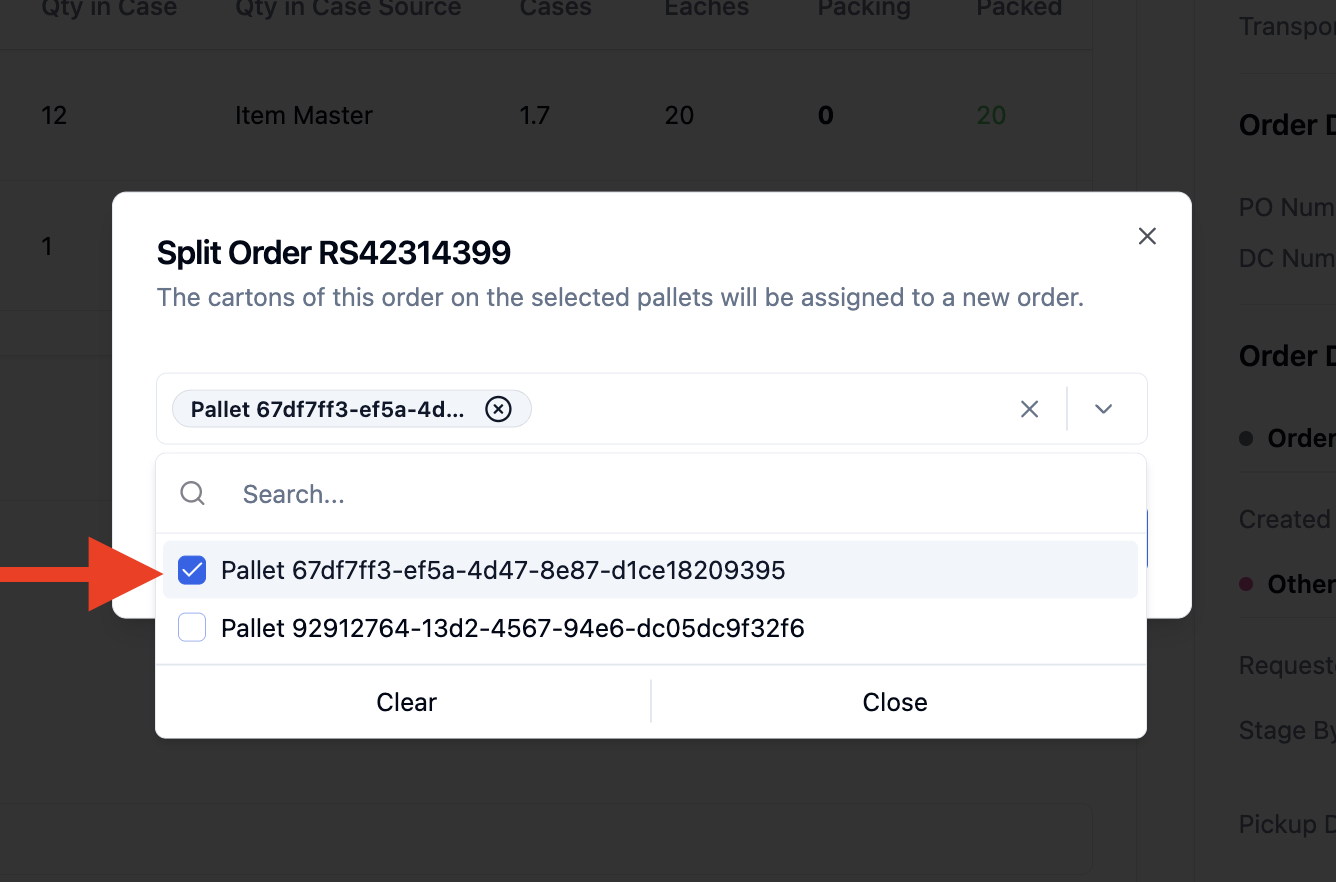
Select the pallets you want to move to the new order by checking the box next to each one. You can search by Pallet ID or SSCC to find specific pallets quickly. Selected pallets will appear as tags at the top of the modal.
Once you have selected all pallets to split out, click Split Order.
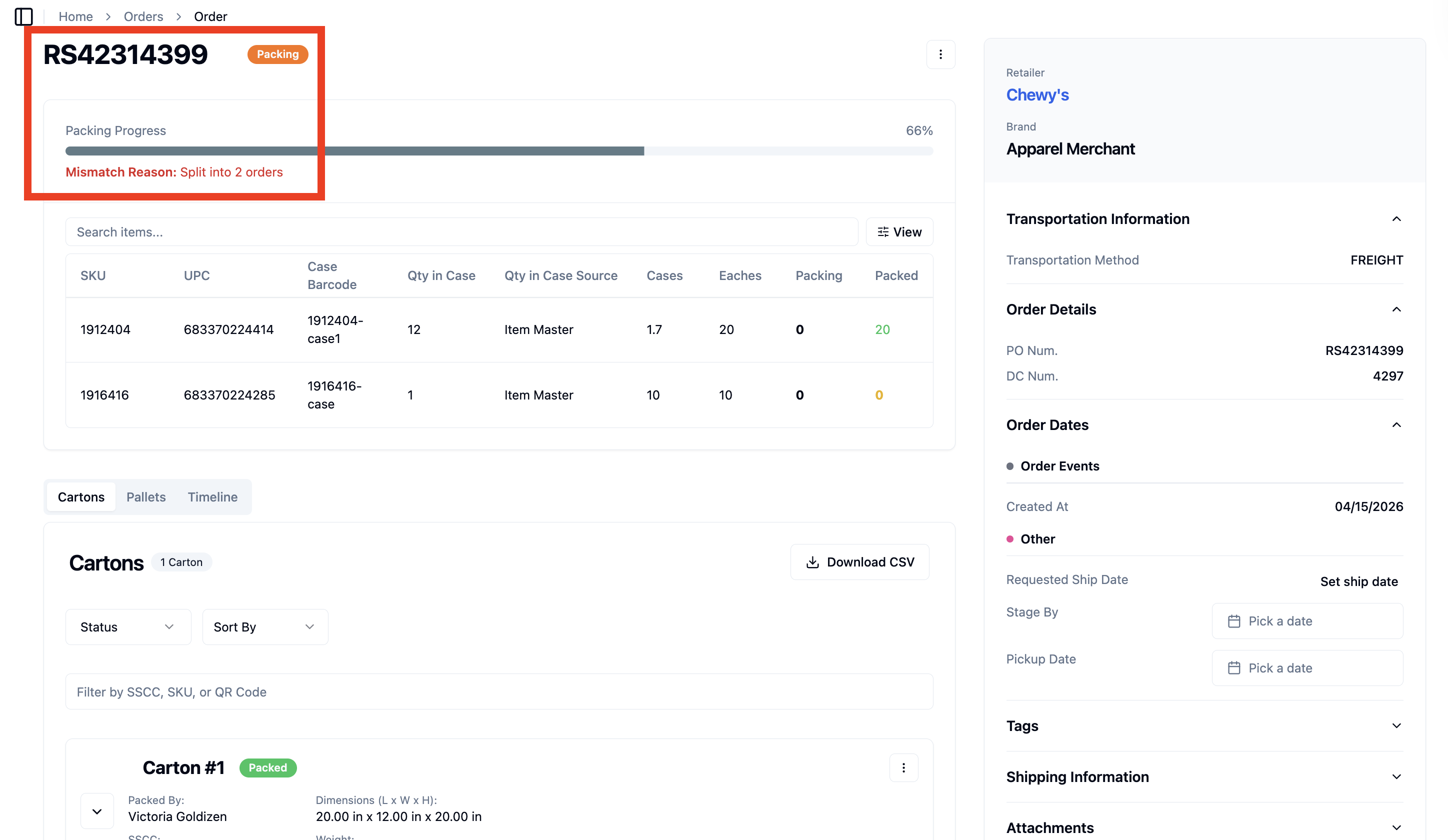
The original order will now show a reduced pallet count and a "Mismatch Reason: Split into 2 orders" note. The selected pallets are now on a new separate order.
Non-DWF orders: if the 'Split Order' option does not appear in the '⋯' menu, the order is either not yet in Packing status or does not have at least 2 pallets generated. Both conditions must be met before splitting is available.
FAQs
Can I split a non-DWF order that hasn't started packing yet?
No. Non-DWF orders must be in Packing status with at least 2 pallets generated before the split option becomes available.
Can I split a DWF order at any point?
Yes. DWF orders can be split at any status, including "Not Started," as pallets are pre-configured.
How do I know which pallets to select?
Each pallet in the selection list is identified by its Pallet ID and SSCC number. Use the search bar in the modal to find a specific pallet quickly.
What happens to the original order after splitting?
The original order retains the pallets that were not selected and will display a "Mismatch Reason: Split into 2 orders" note. The selected pallets are reassigned to a brand new order.
Can I split an order into more than 2 orders?
Yes, run the split process again on either order.