Printer Setup Guide
Last updated: September 7, 2026
The Zebra printer allows RetailReady to print labels on demand while you go through the pack out process in the warehouse.
Hardware Selection
Zebra Printer Selection
We officially support the ZD4A042-D01X01EZ model (must be bluetooth and wifi enabled).
All other models are considered compatible, but we do not provide setup, configuration, or troubleshooting support for those devices.
If you’re using a different model, you’re welcome to connect it, but our team is only able to assist with the ZD4A042-D01X01EZ.
Supported Printer:
ZD421 SKU/Part Number: ZD4A042-D01X01EZ. (This is our recommended printer)
Link to order
Note: Amazon does not have the wifi enabled SKU
Compatible Printers:
Industrial Printers:
ZT200 Series
ZT220, ZT230, ZT410, ZT420, ZT510, ZT610, ZT620, ZT410R, ZT420R, ZT610R, ZT620R
Desktop Printers:
ZD500
ZD420, ZD421, ZD500, ZD620, ZD500R, ZD620R
GK420d, GK420t, GX420d, GX420t, GX430t
Mobile Printers:
QLn Series, iMZ Series, ZQ500 Series
ZQ Series
ZR Series
ZQ310, ZQ320, ZQ510, ZQ520, ZQ600
Label Selection
4x6 Thermal labels will be required for this setup. We recommend purchasing those here.
Tablet Selection
We recommend purchasing a newer generation iPad to ensure that the device stays compatible for the foreseeable future (no older than 2 years).
Printer Setup
Before beginning these steps, please make sure there is no firewall in place on your internet! If a security measure exists, please reach out to your onboarding manager.
App Download
Download the "Zebra Printer Setup Utility" app
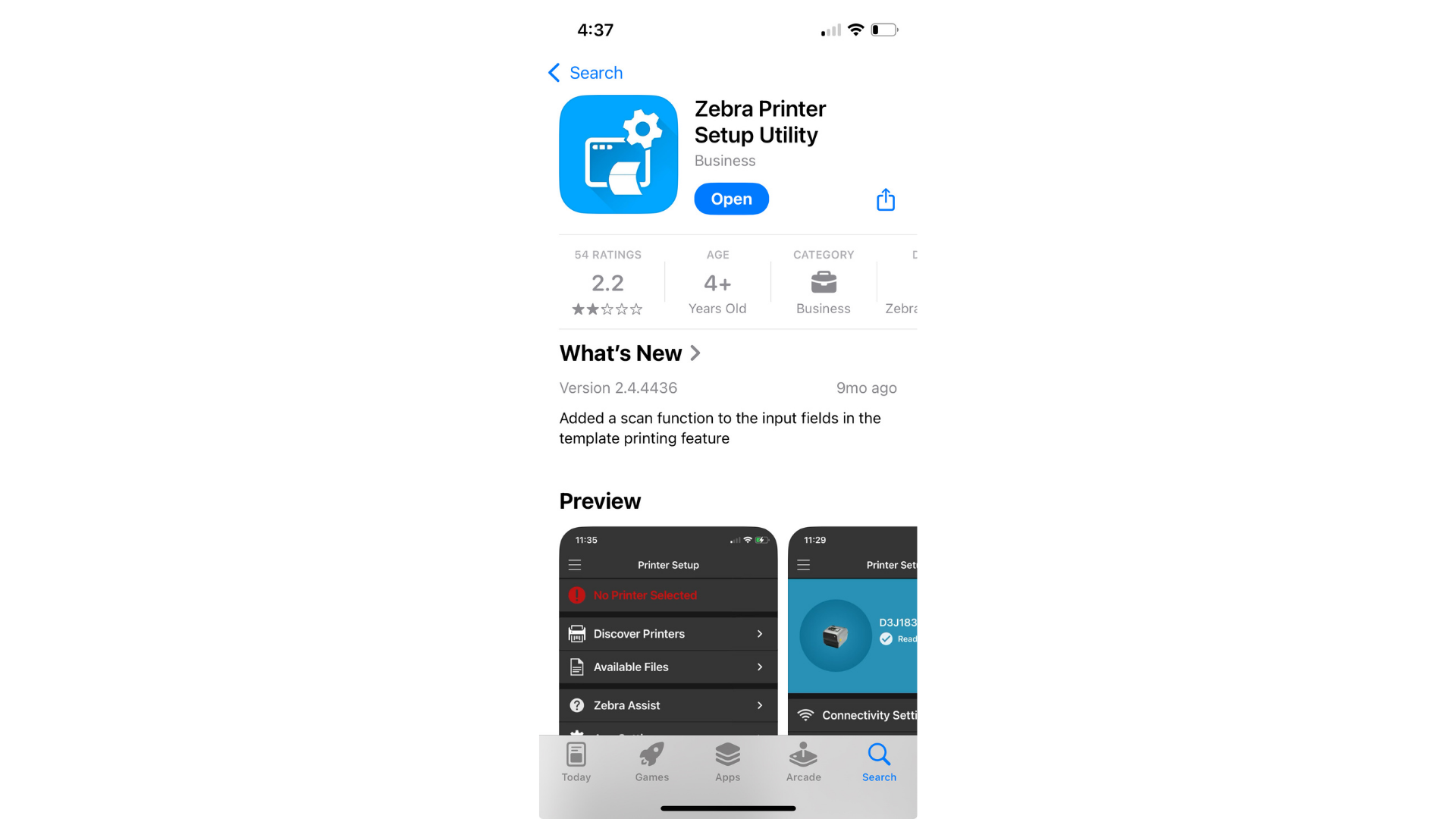
Your printer must have WIFI capability. If it does not, you will need to connect the printer directly to your internet router via ethernet cable
Connect Zebra Printer to the internet
Open the Zebra printer app and click "Discover Printers"
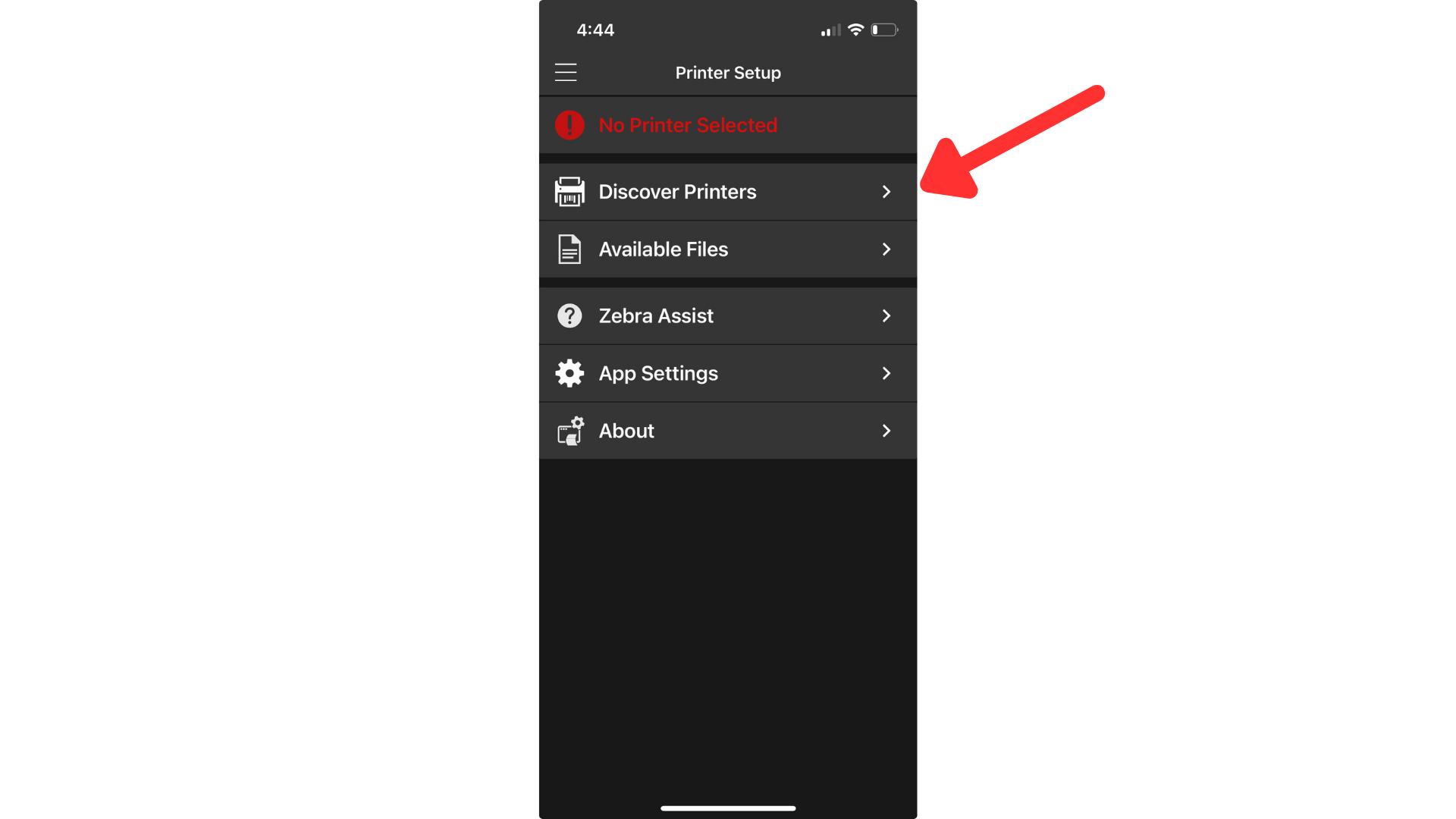
This will open a column on the left side of your screen. Wait a moment while your device searches for nearby printers. Once this finishes searching, the available printers will be shown.
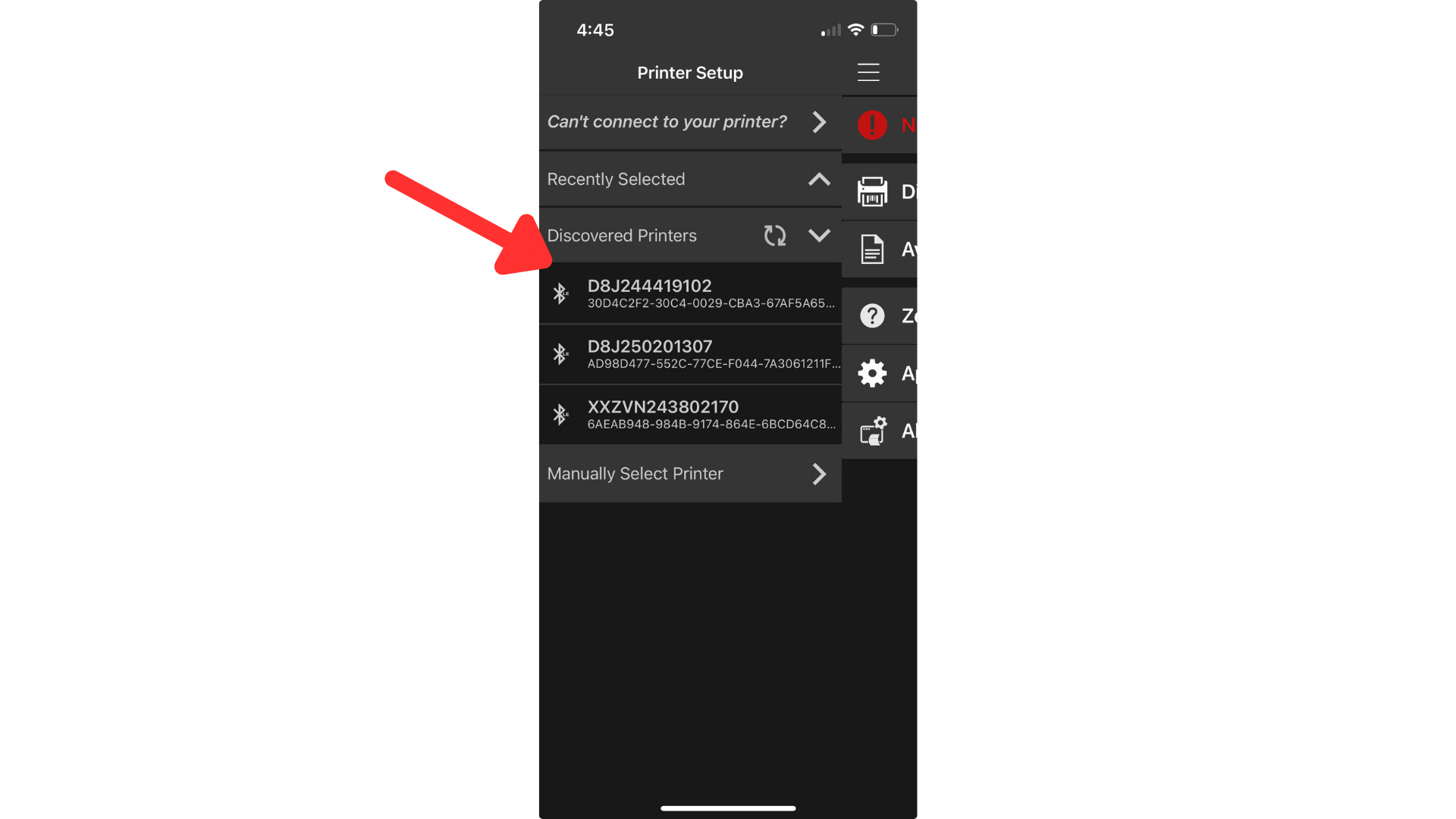
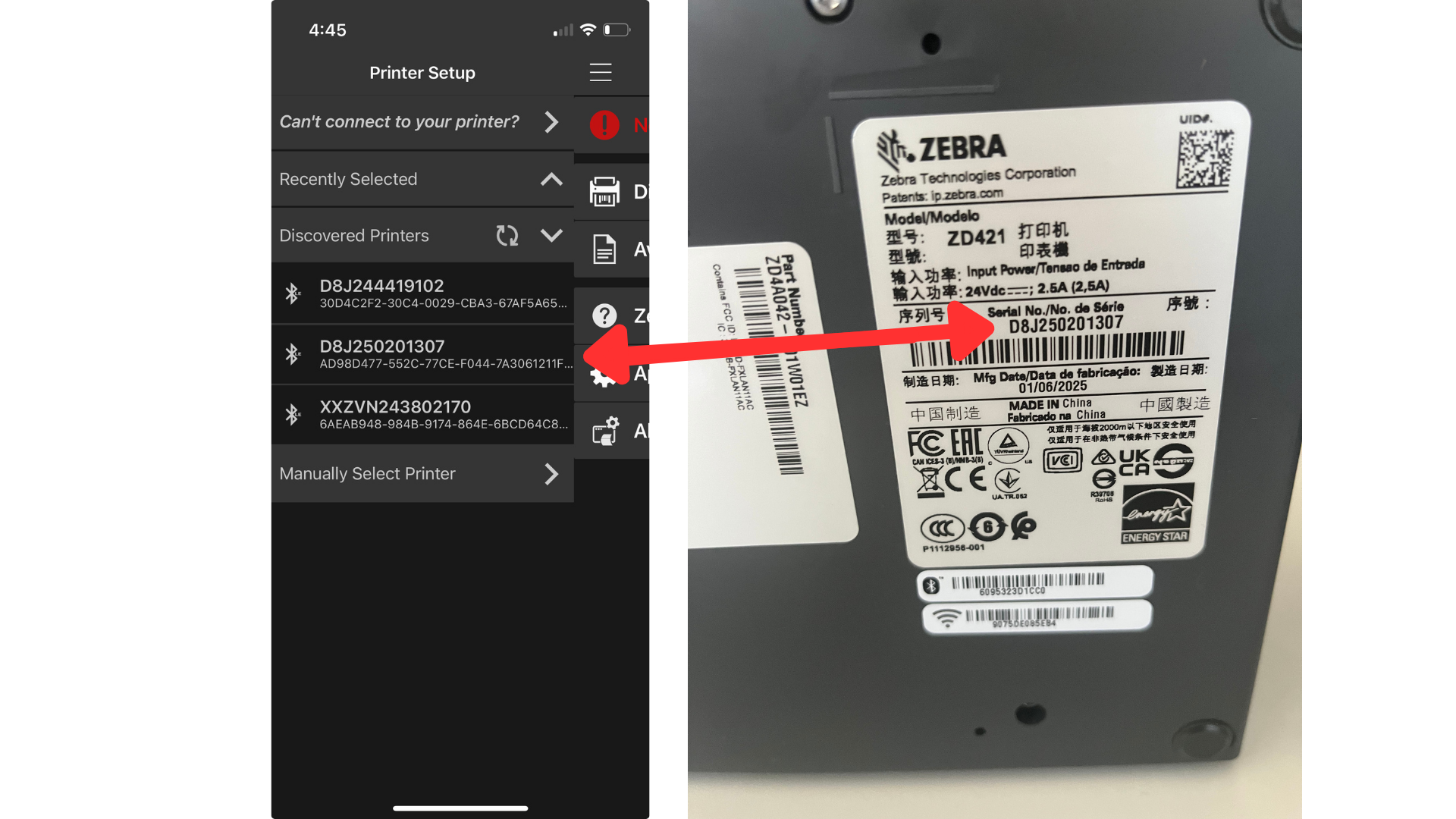
Find the serial number on the bottom of your printer and click on the option with the matching number.
Your serial number may be on the bottom of the printer or in the label compartment depending on the model of your printer
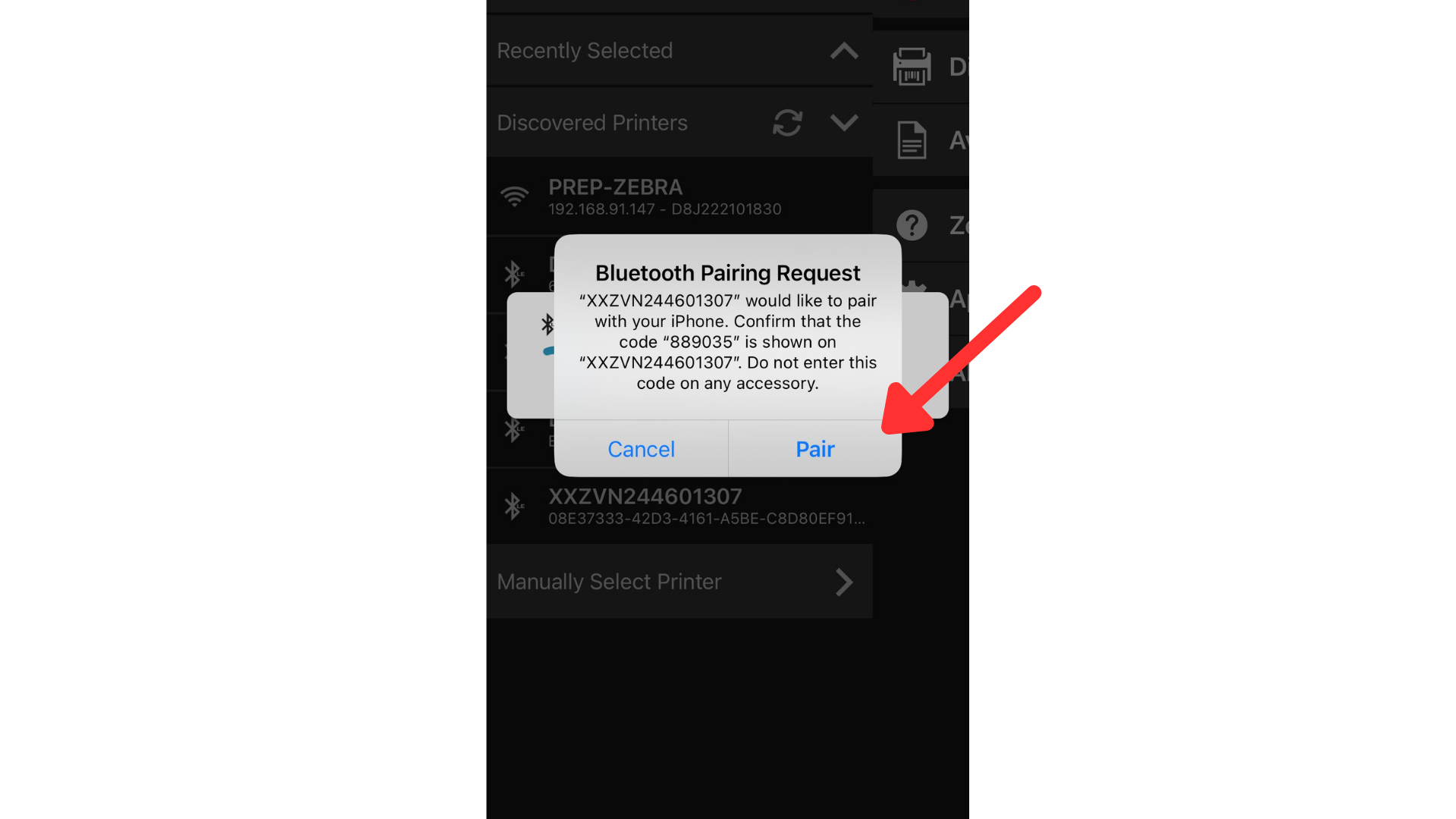
If you are connecting to a mobile printer, you will be asked to pair the mobile printer to your device. Select "Pair" on the bluetooth pairing notification pop up that appears on your device.
Some printers may receive this option on the printer as well, you must click pair on both in order to successfully pair your device with the printer.
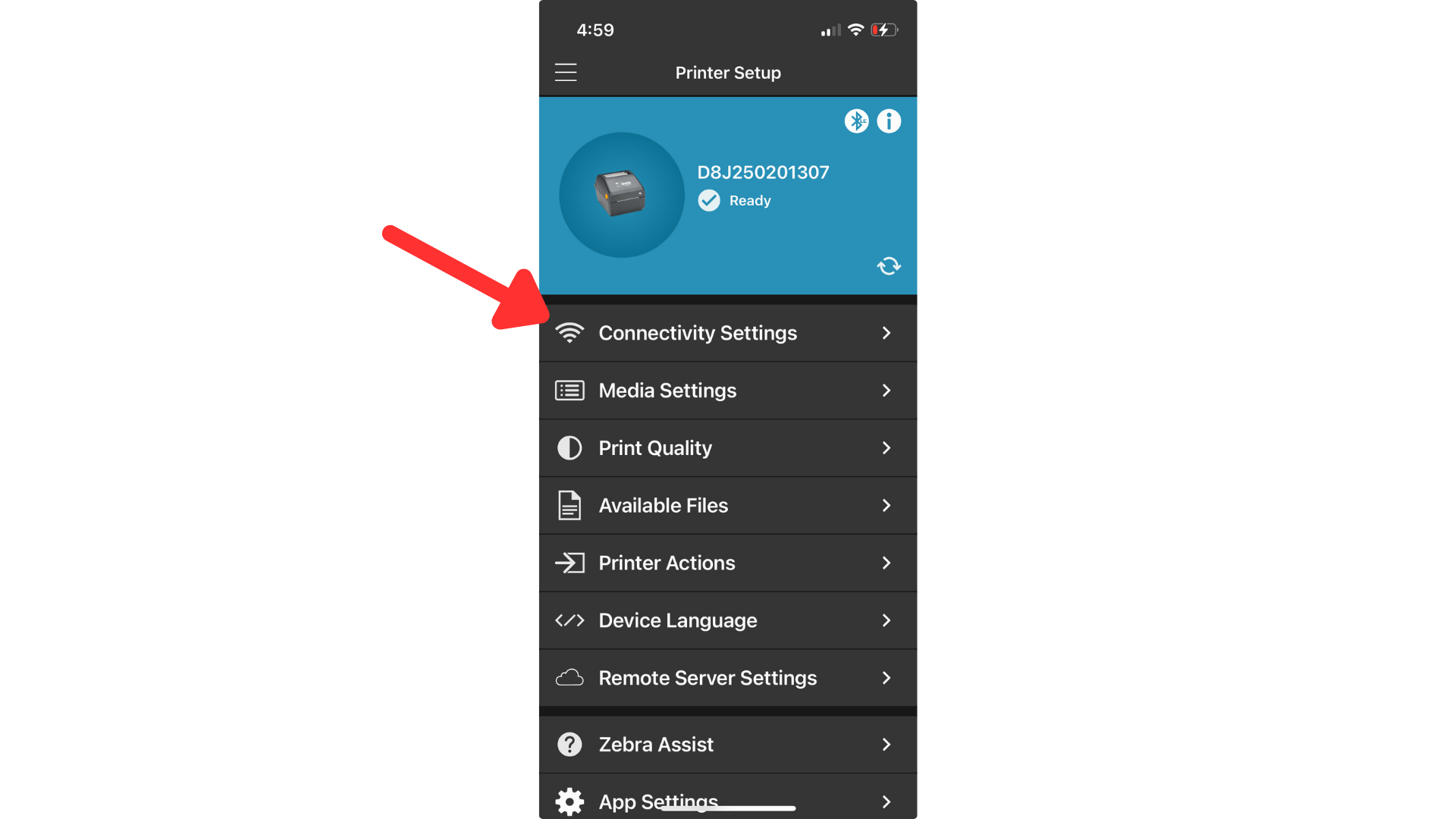
Once you have successfully connected to your printer, you must connect the printer to WIFI. Do this by clicking "Connectivity Settings" on your device.
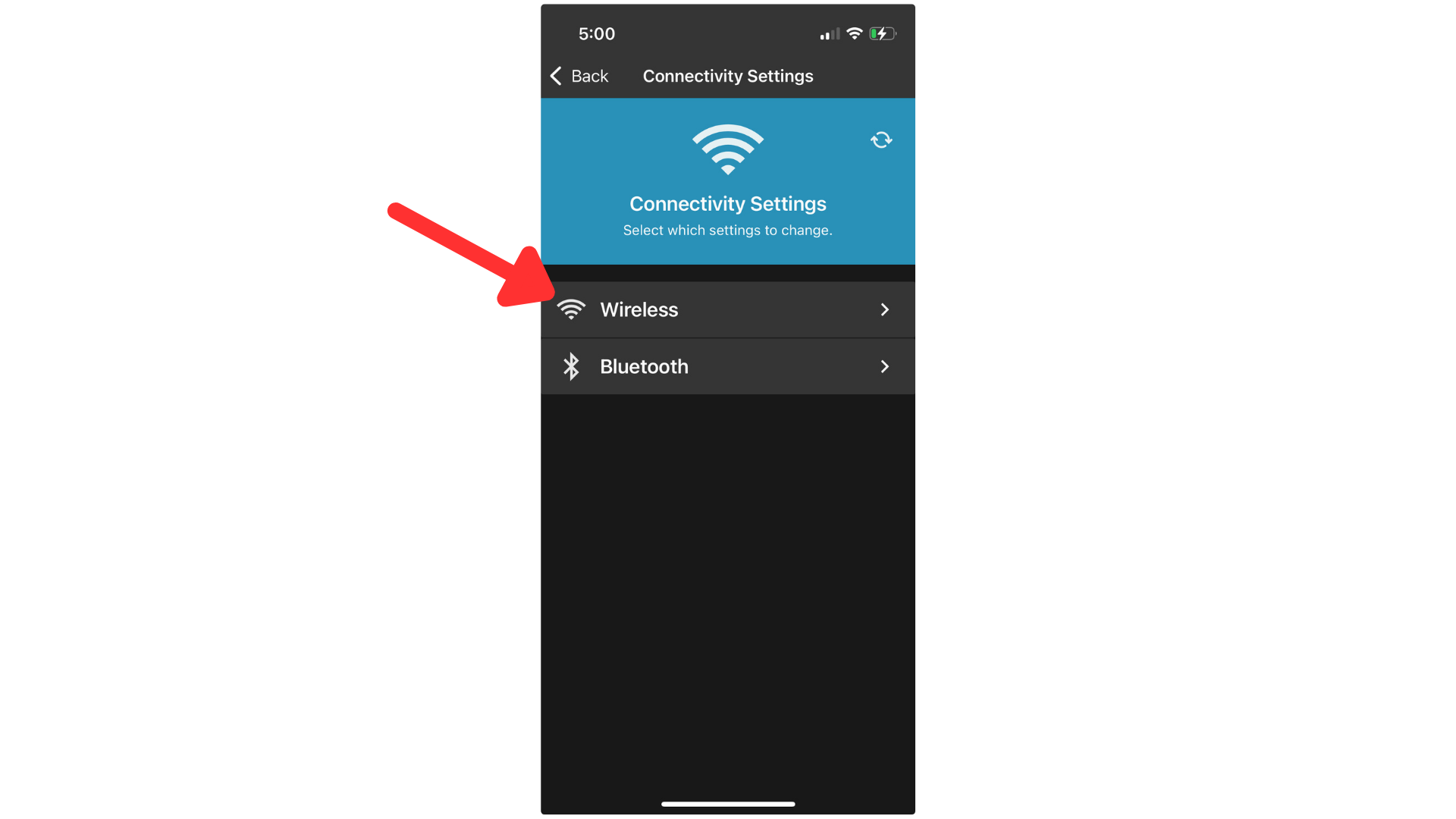
Click "Wireless".
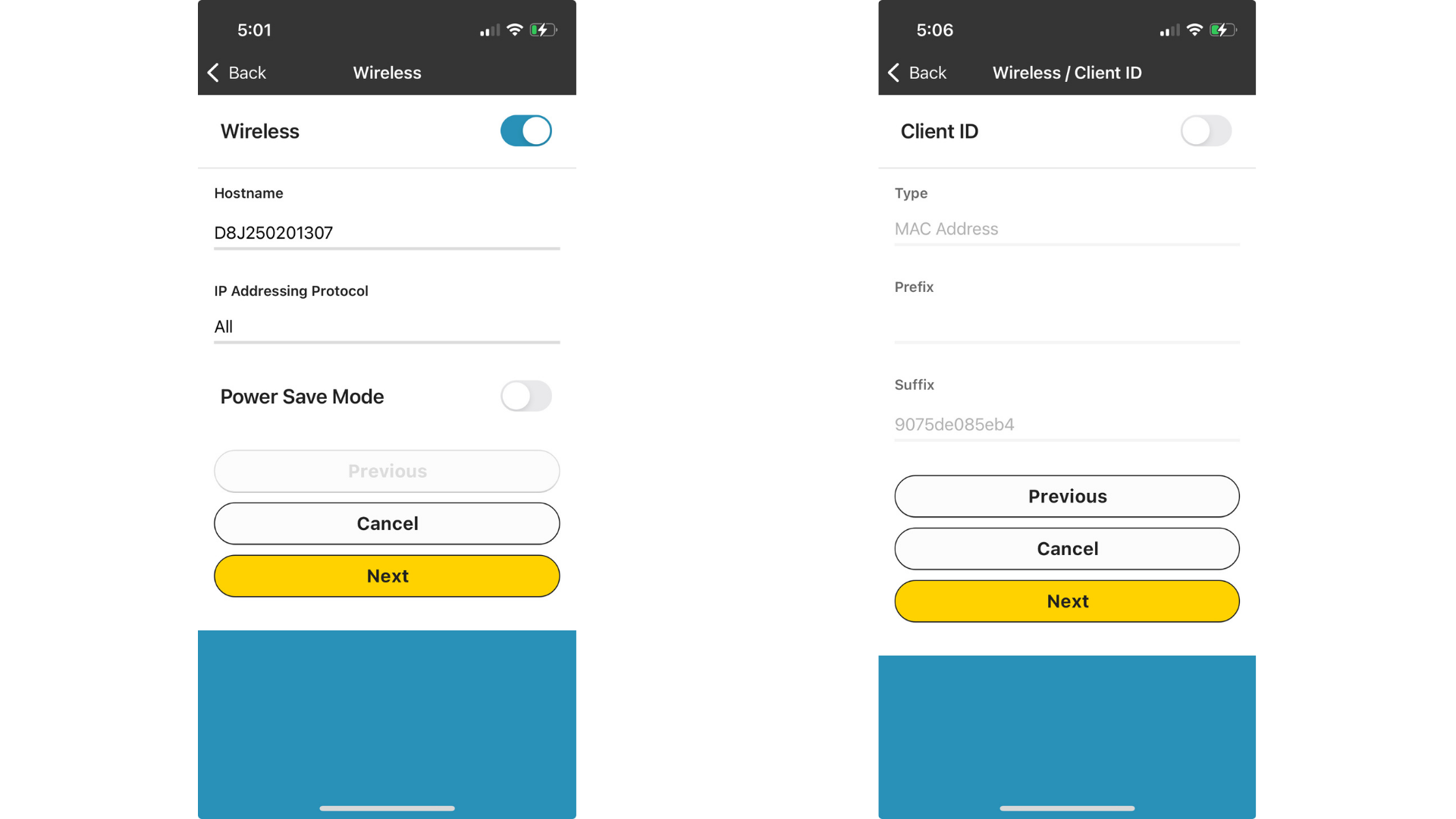
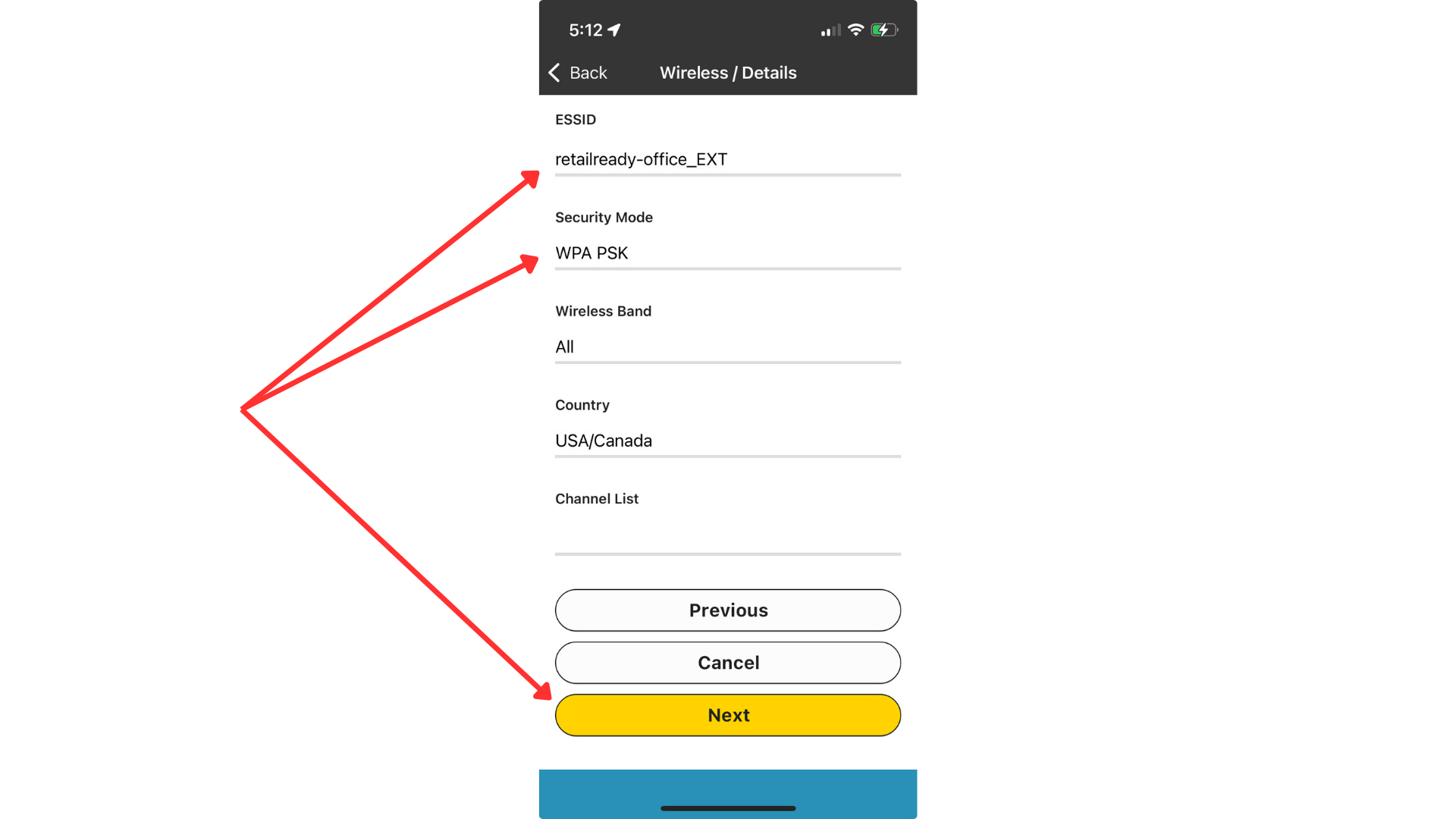
Click next on the following two screens. The required information should be pre-populated.
Enter your WIFI network name under "ESSID", then select WPA PSK under "Security Mode" and click next.
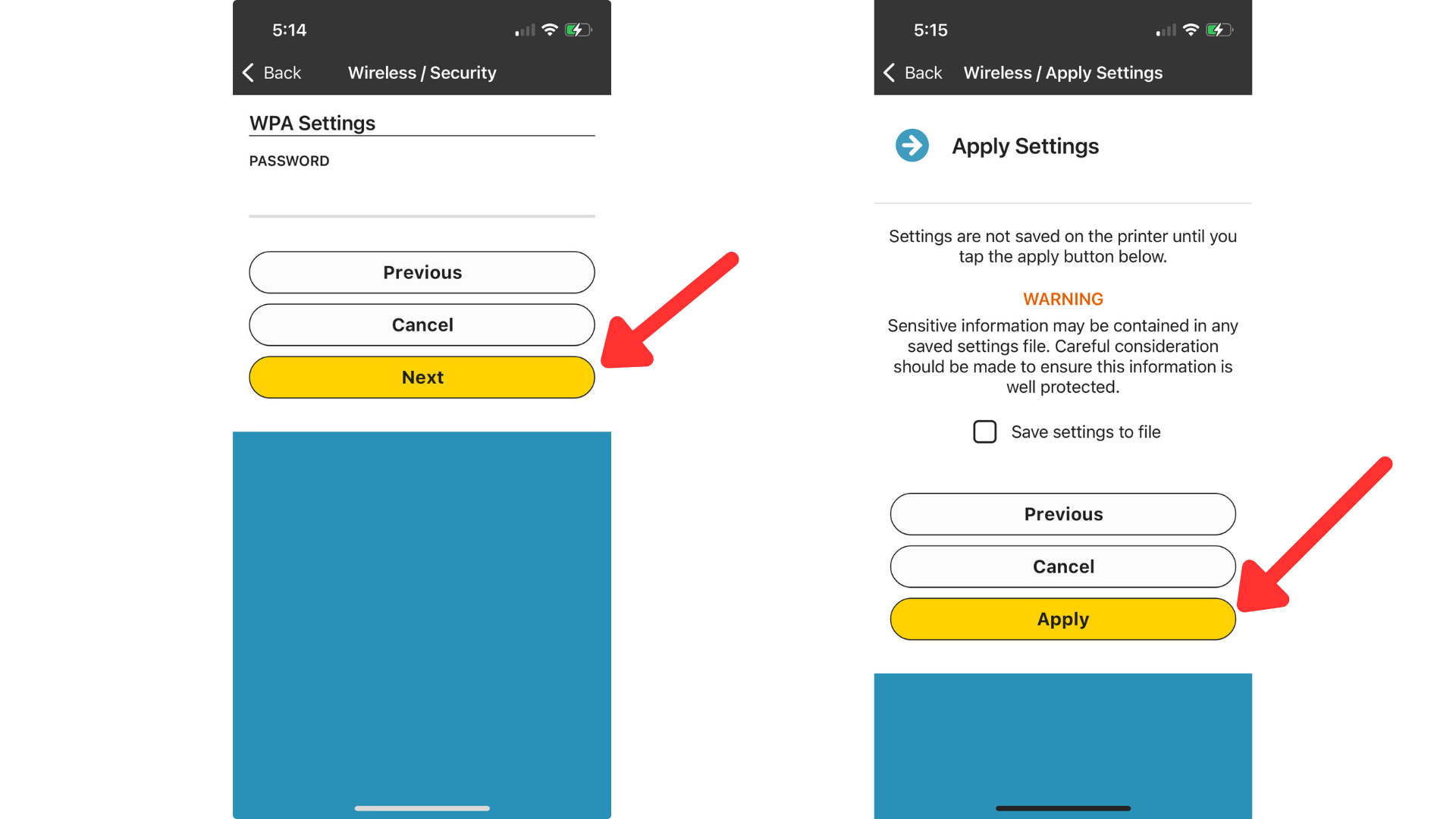
Enter your WIFI network password and click "Next". This will log in the printer into your WIFI network. Then on the next page click "Apply".
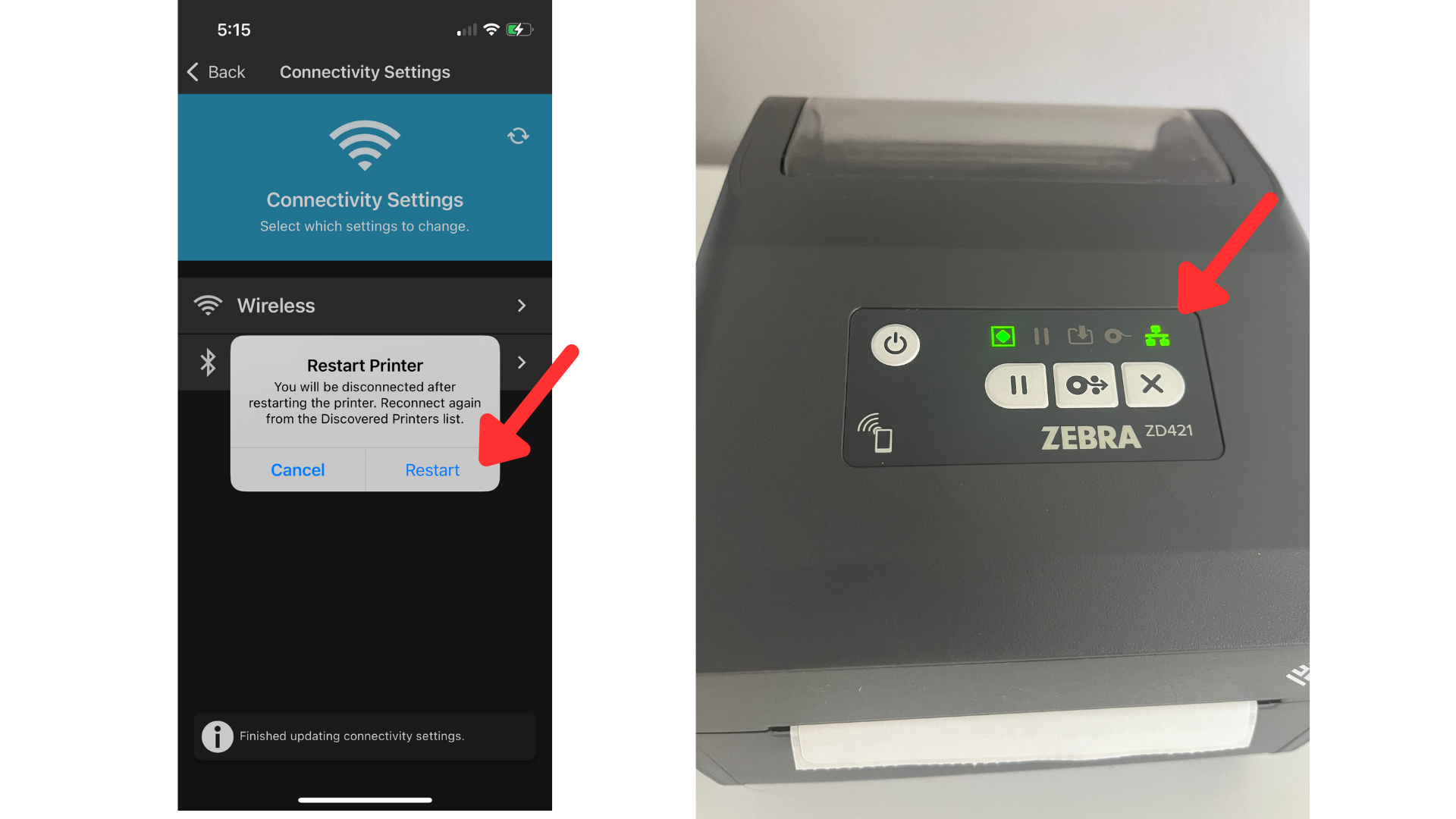
In the pop up titled Restart Printer click "Restart". Once the printer has finished restarting, you will need to connect to the printer again from the Discovered Printers list in steps 3 and 4.
If connection to the internet was successful, the network light on the printer will be green.
The next step is to download the .txt enrollment file. Download this file on the device with the Zebra Printer Setup app.
This is a very important step to download the .txt enrollment file ❗❗❗❗❗
Now we will connect the printer to your RetailReady mobile app. Start by selecting your printer from the discovered printers list.
If you would like to send it from your computer (rather then phone) you can use this link.
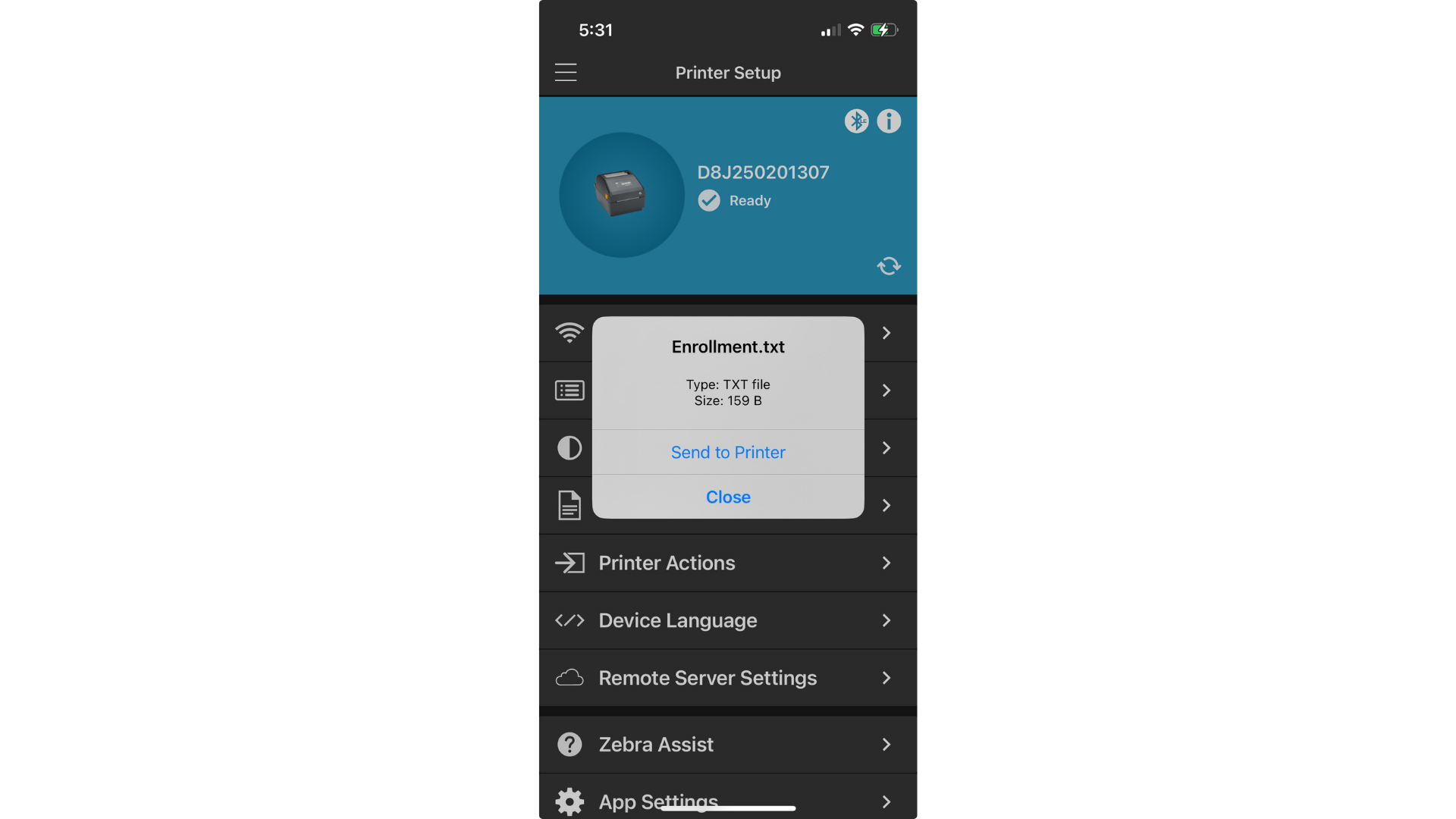
Select "Available Files" and the Enrollment.txt file
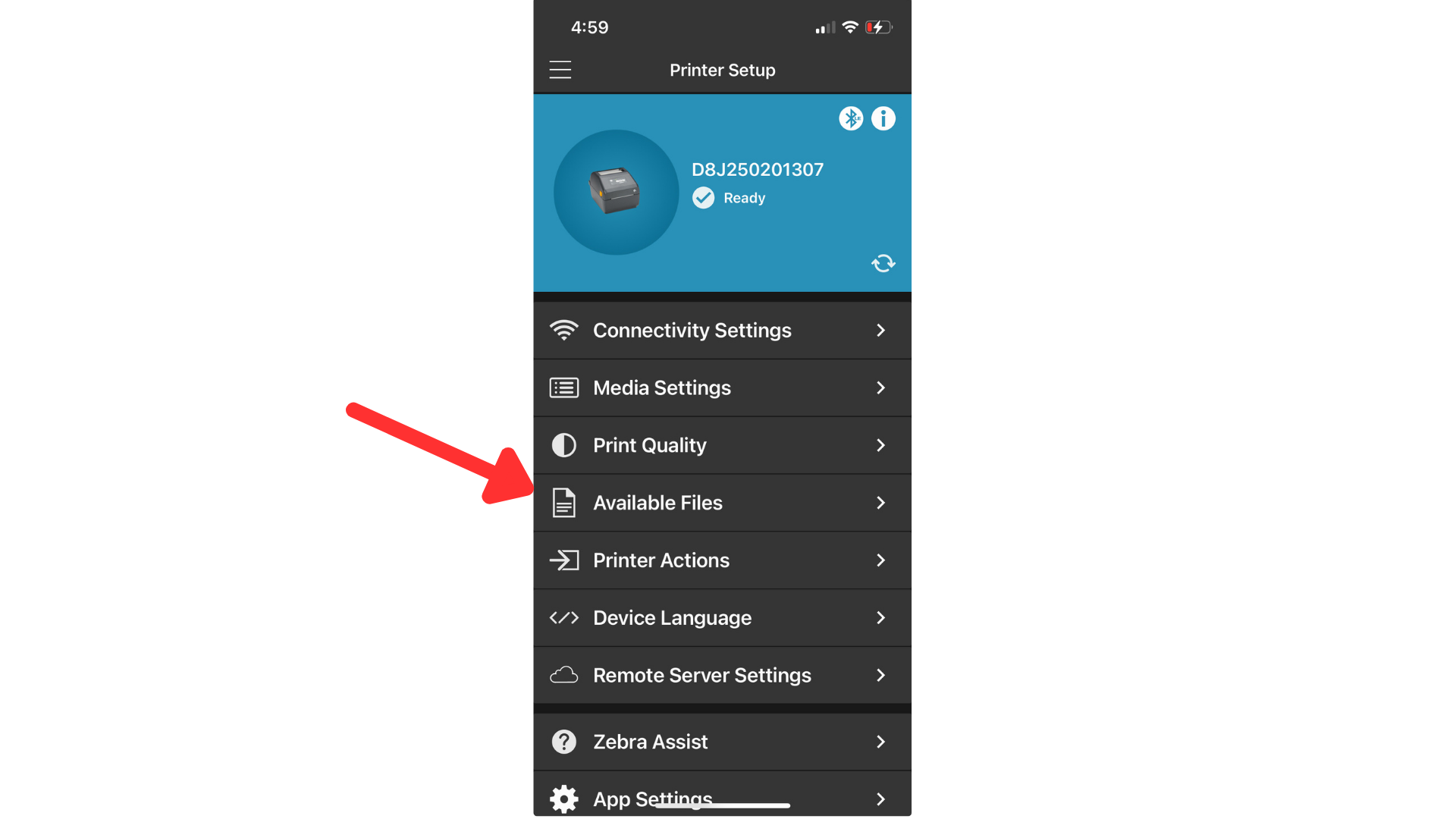
Select “Send to Printer”. The lights on your printer should flash to orange or red and then back to green.
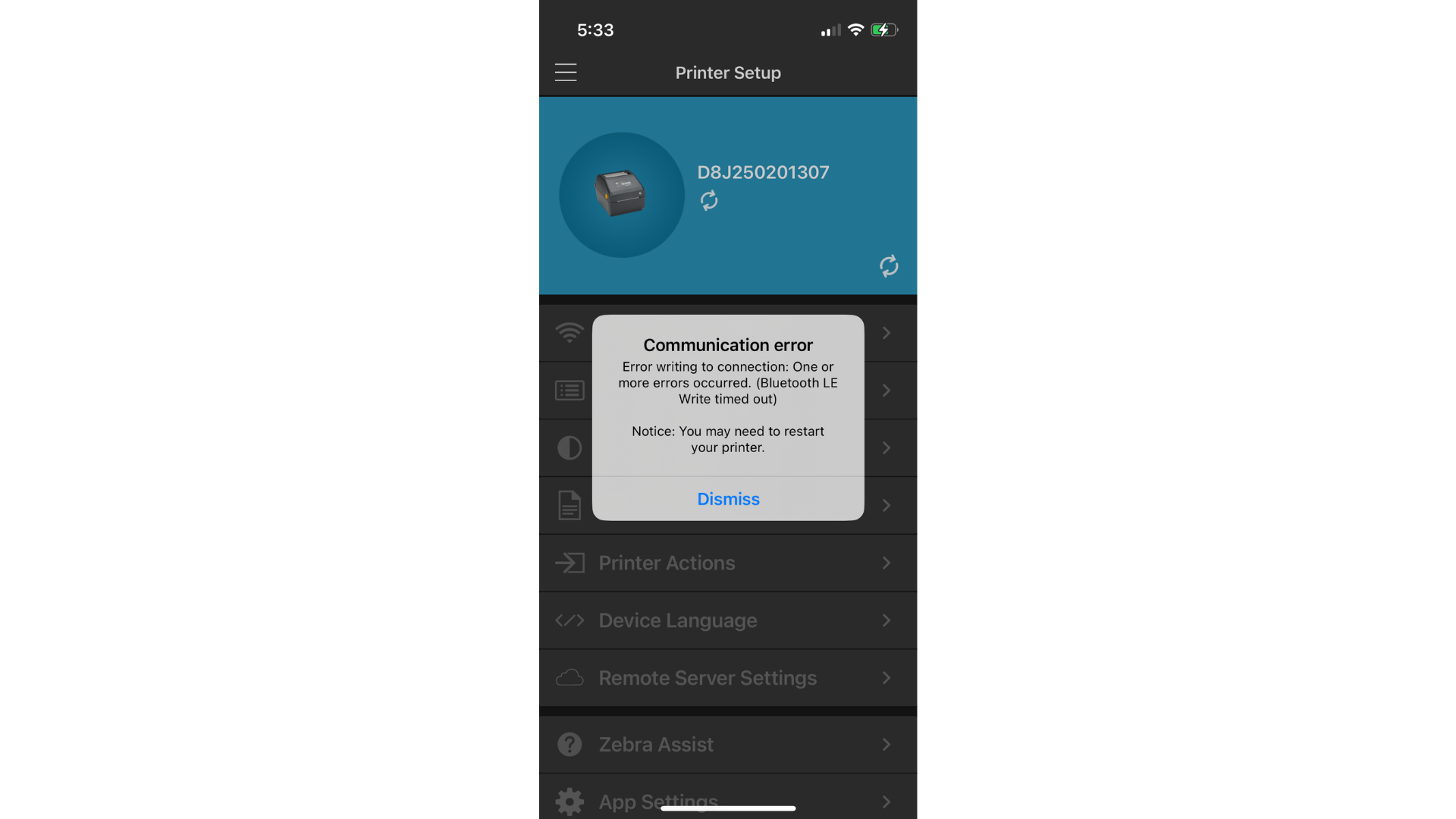
You may get a communication error. If so try to send the Enrollment.txt file again. The pairing may be successful even if you get a communication error.
Connect Printer to your RetailReady dashboard
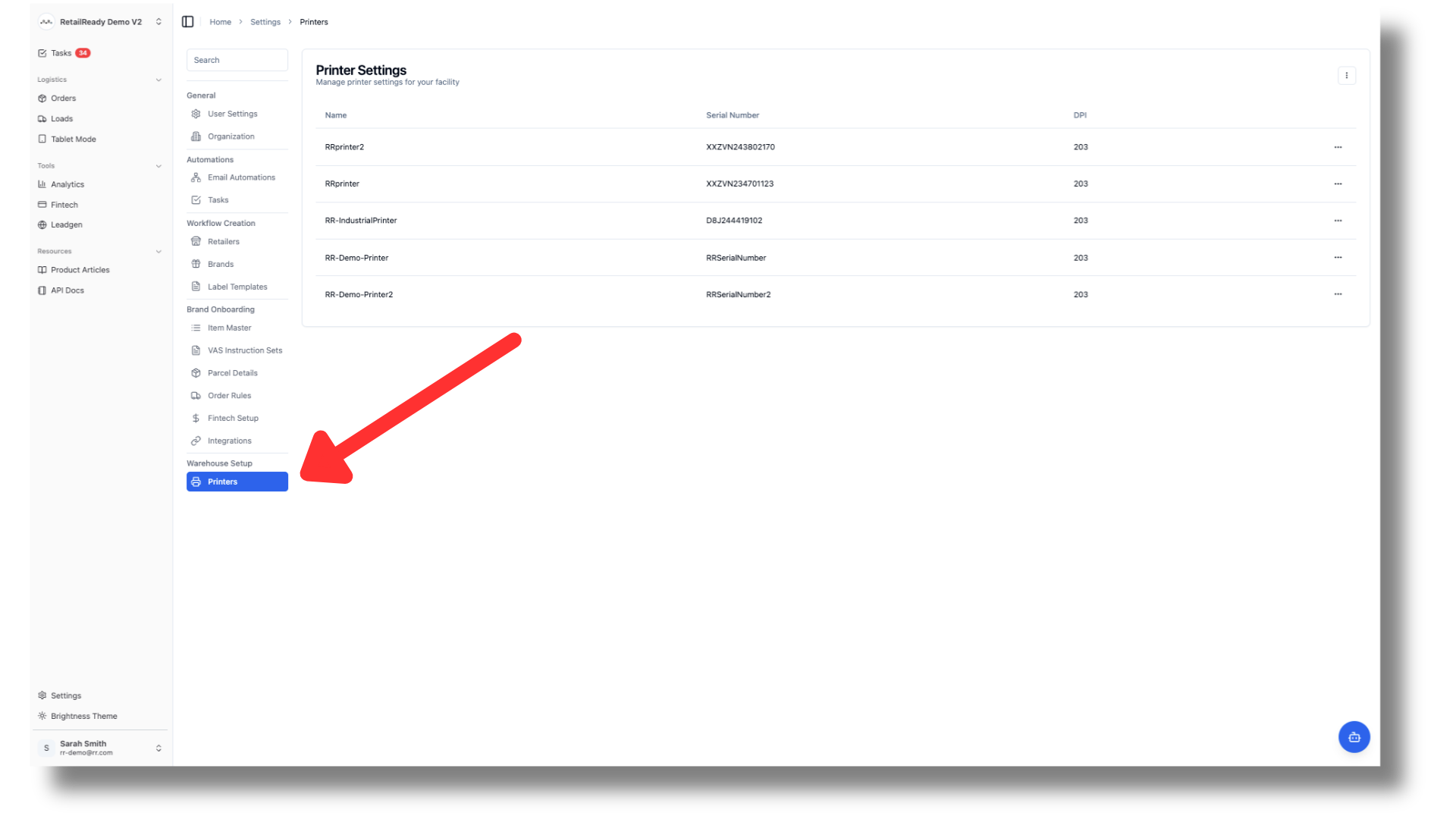
Open your RetailReady web dashboard and navigate to settings. Select "Printers".
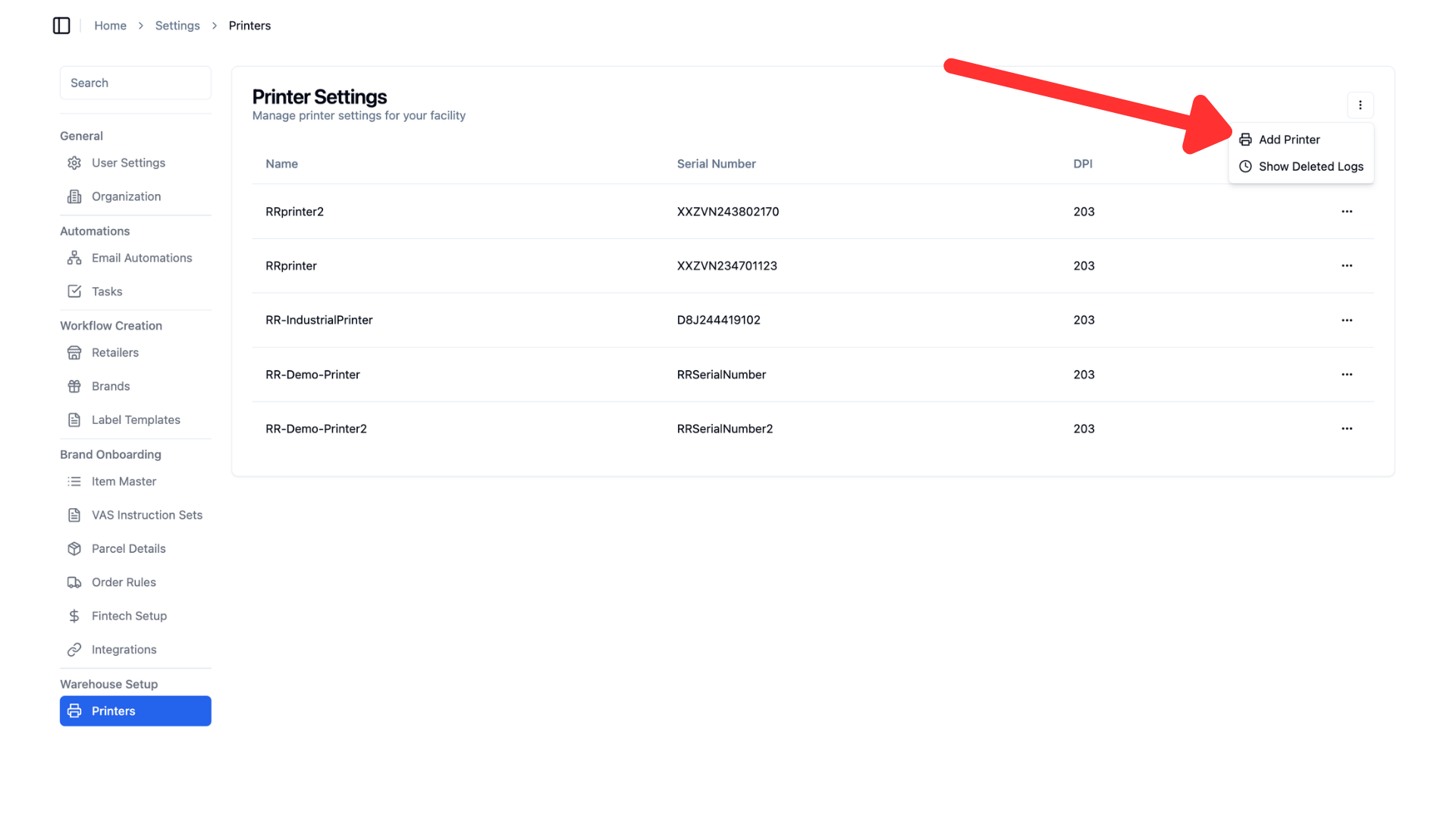
Click the 3 dots in the corner and select "Add Printer".
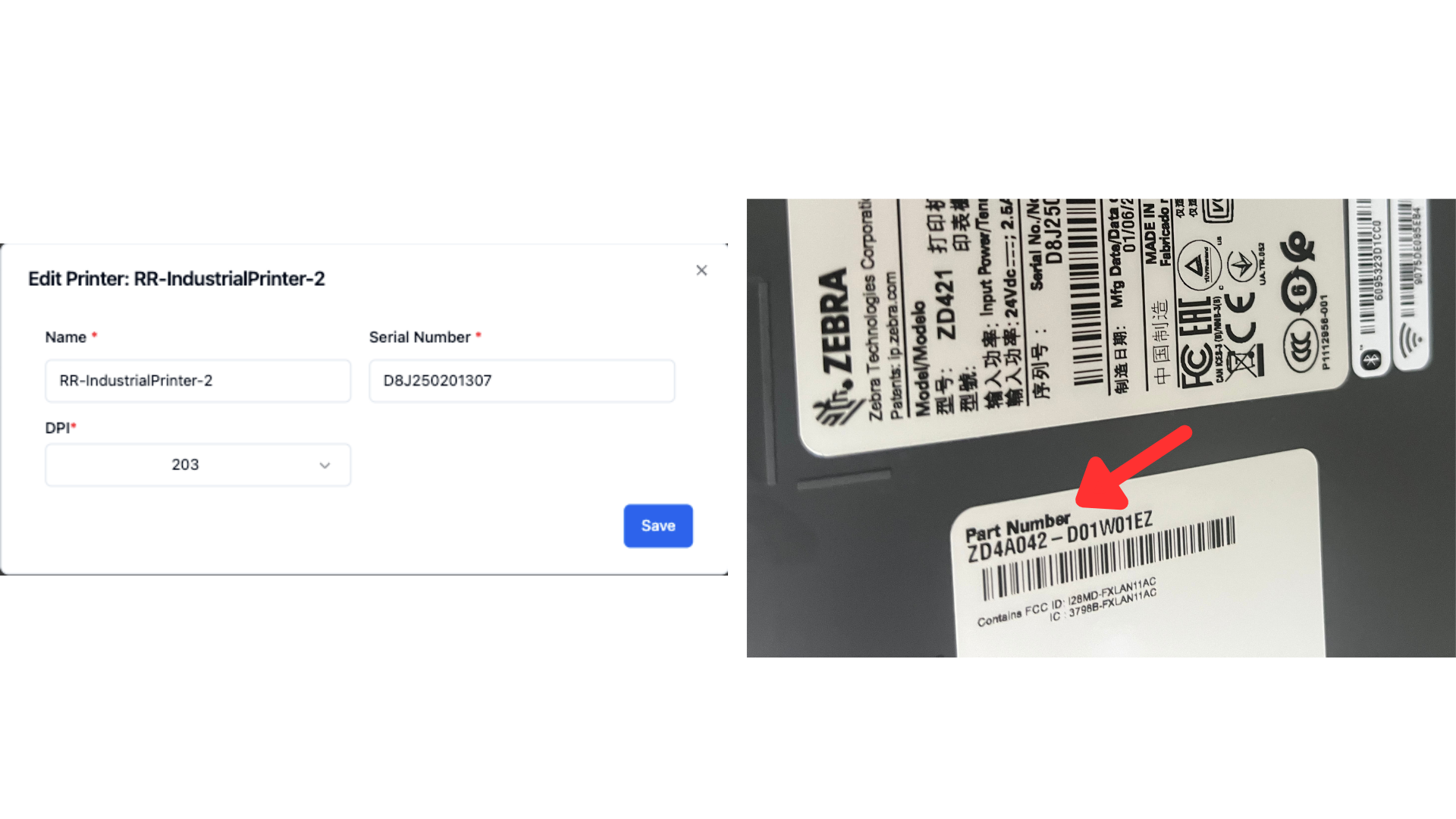
Fill out the form. Name your printer, then add your printers serial number in the Serial Number field. Then locate the part number on your printer. The DPI field is determined by the digit before the dash in the part number.
A digit of 2 = DPI 203
A digit of 3 = DPI 300
A digit of 6 = DPI 600
Click "Save" once this is compete
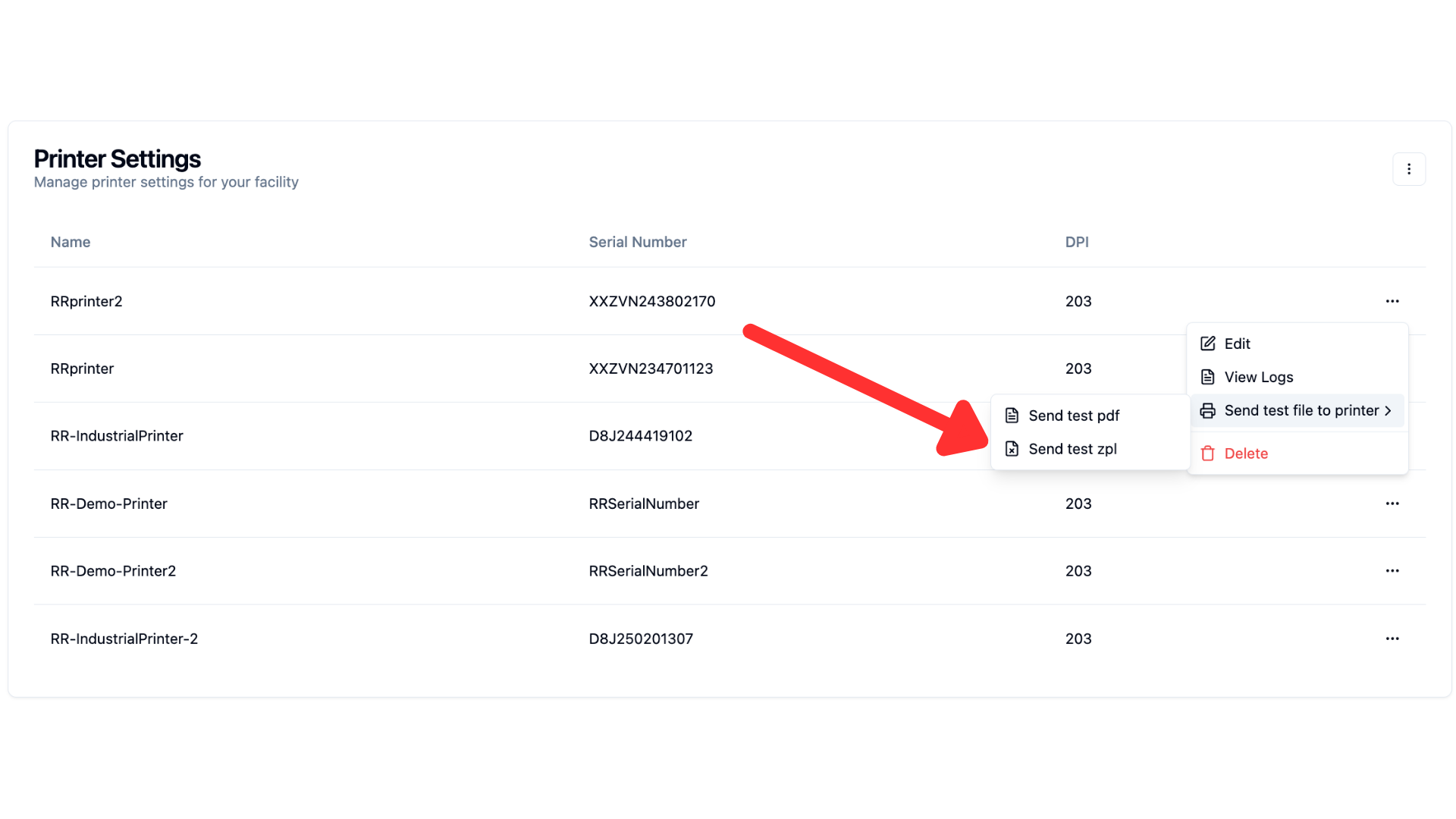
On your printer from the list, select the three dots, then send test file to printer, then click send test zpl.
Note: if the label does not print out reach out to your onboarding manager.
Set Up Pdf Printing
ZQ630
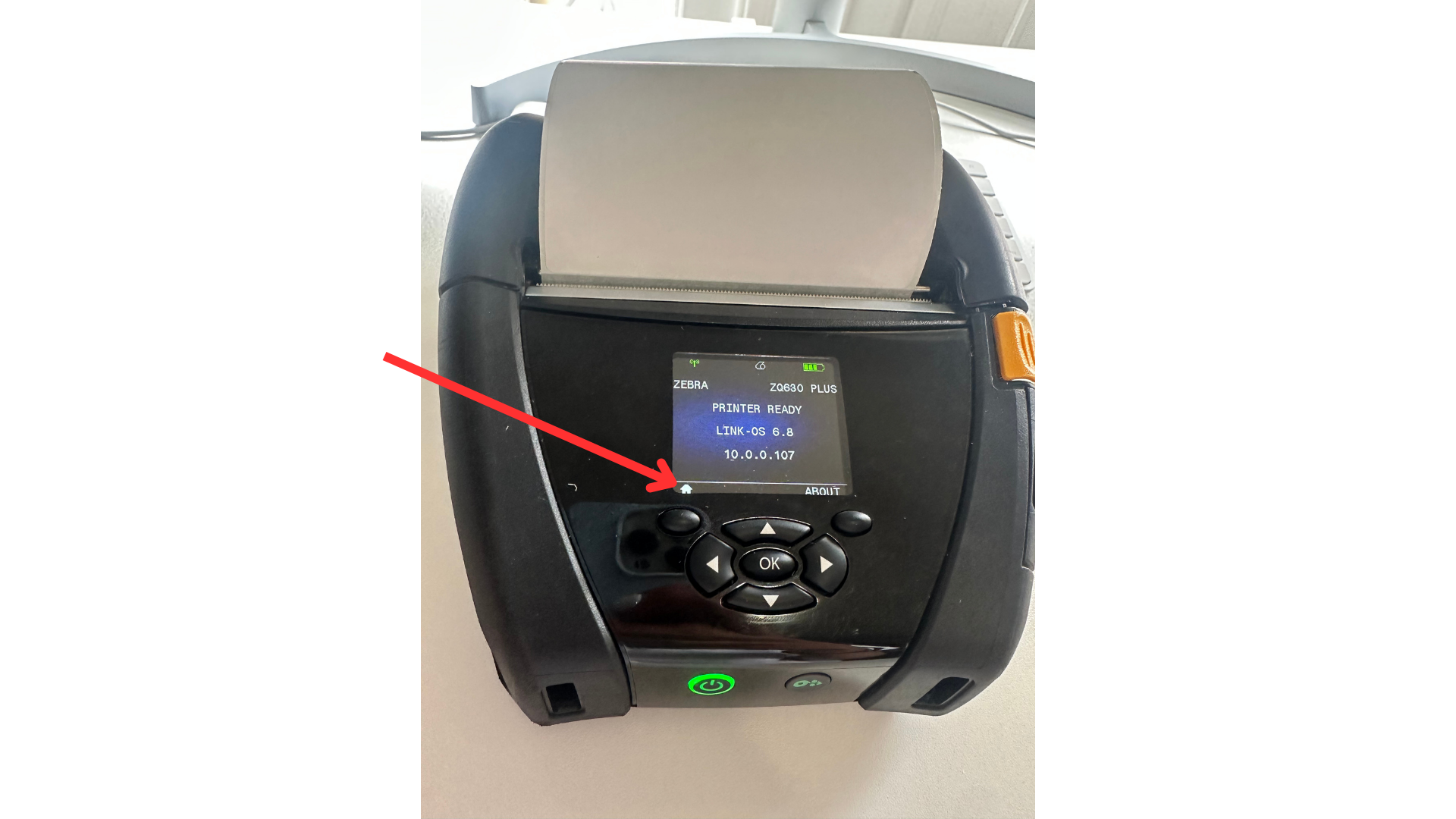
Navigate to home icon
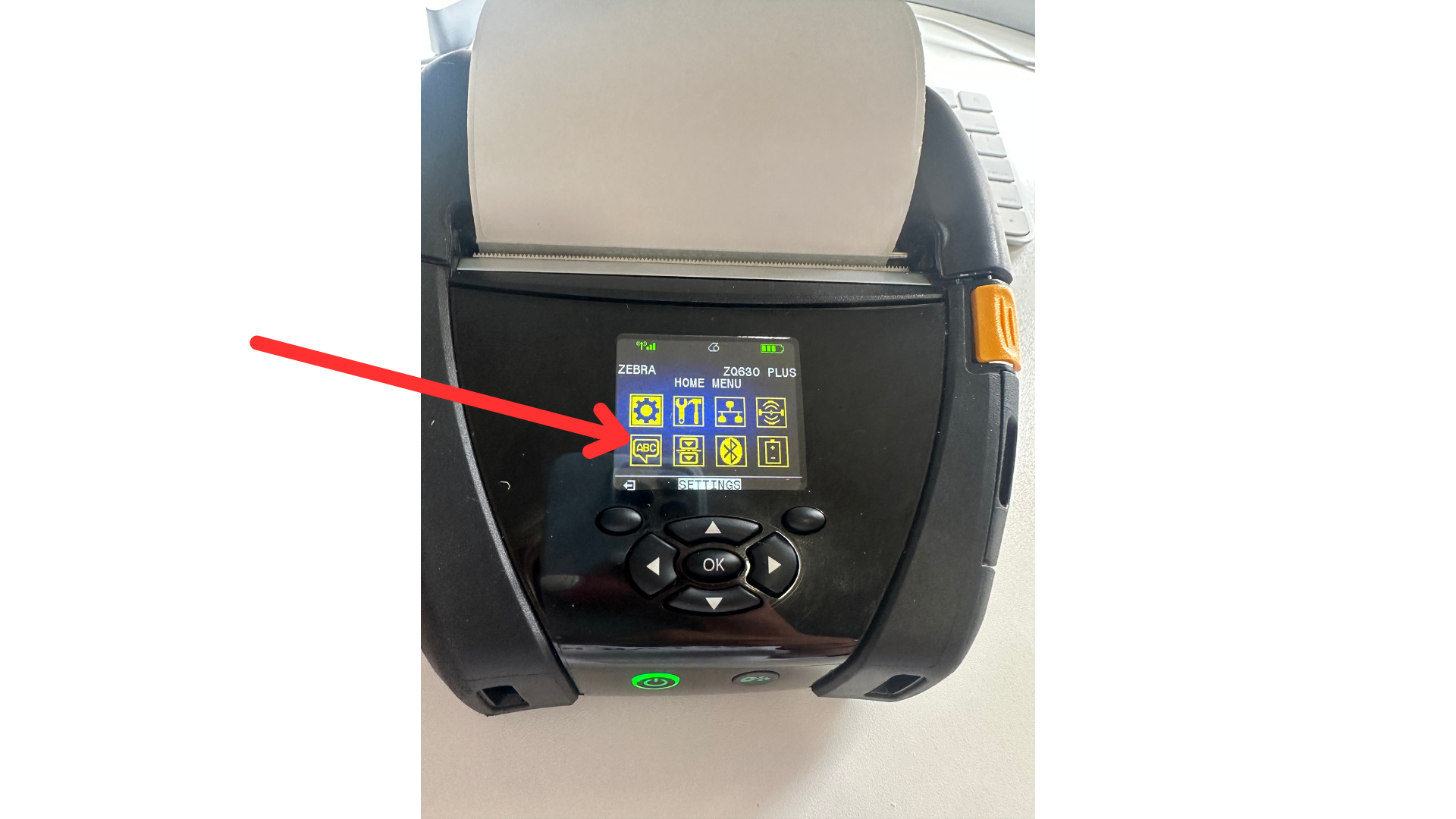
Navigate to languages (the bottom left icon).
Click the right button until you get to "Emulation".
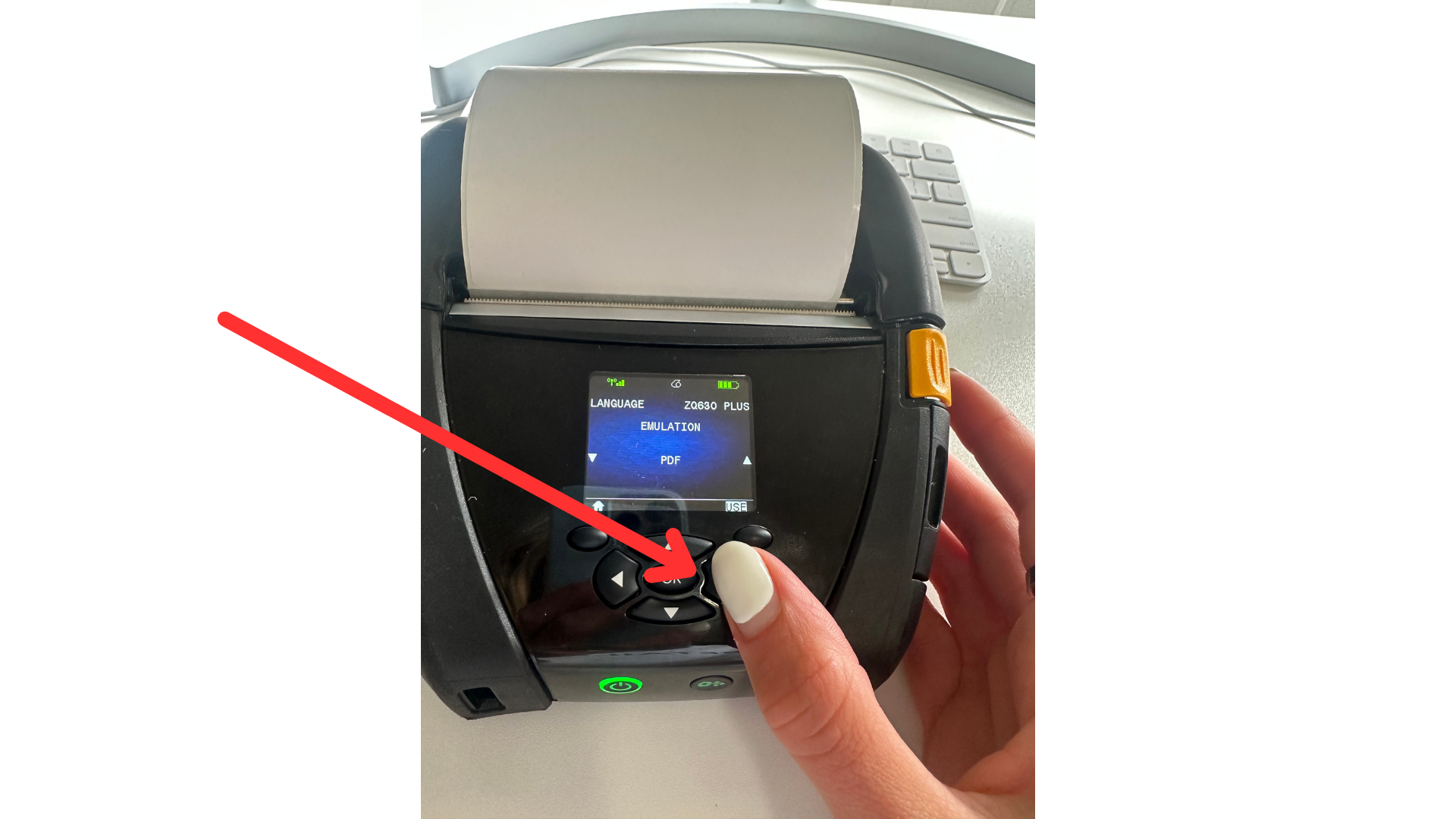
Then use the up and down arrows the find where it says "PDF"
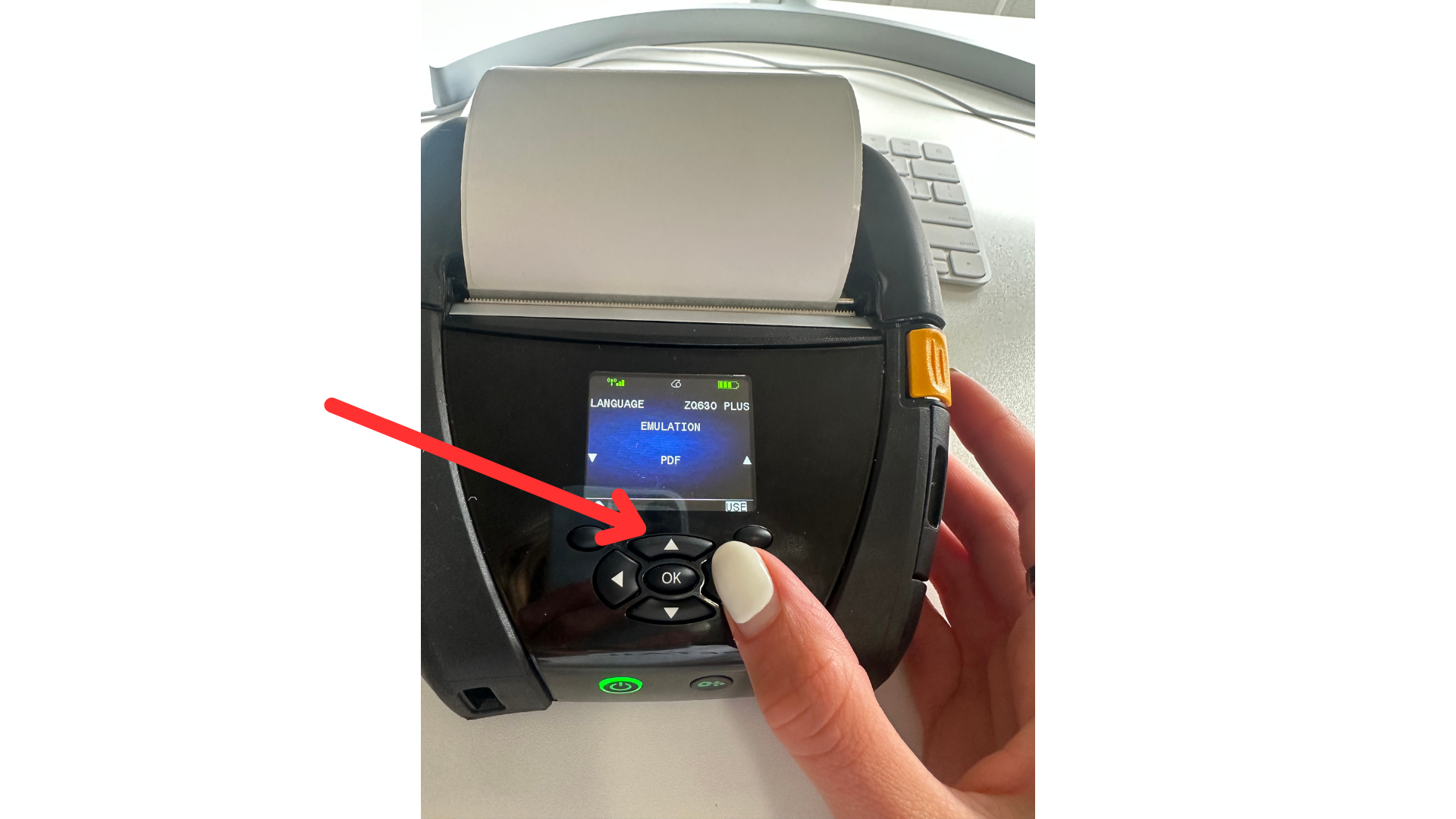
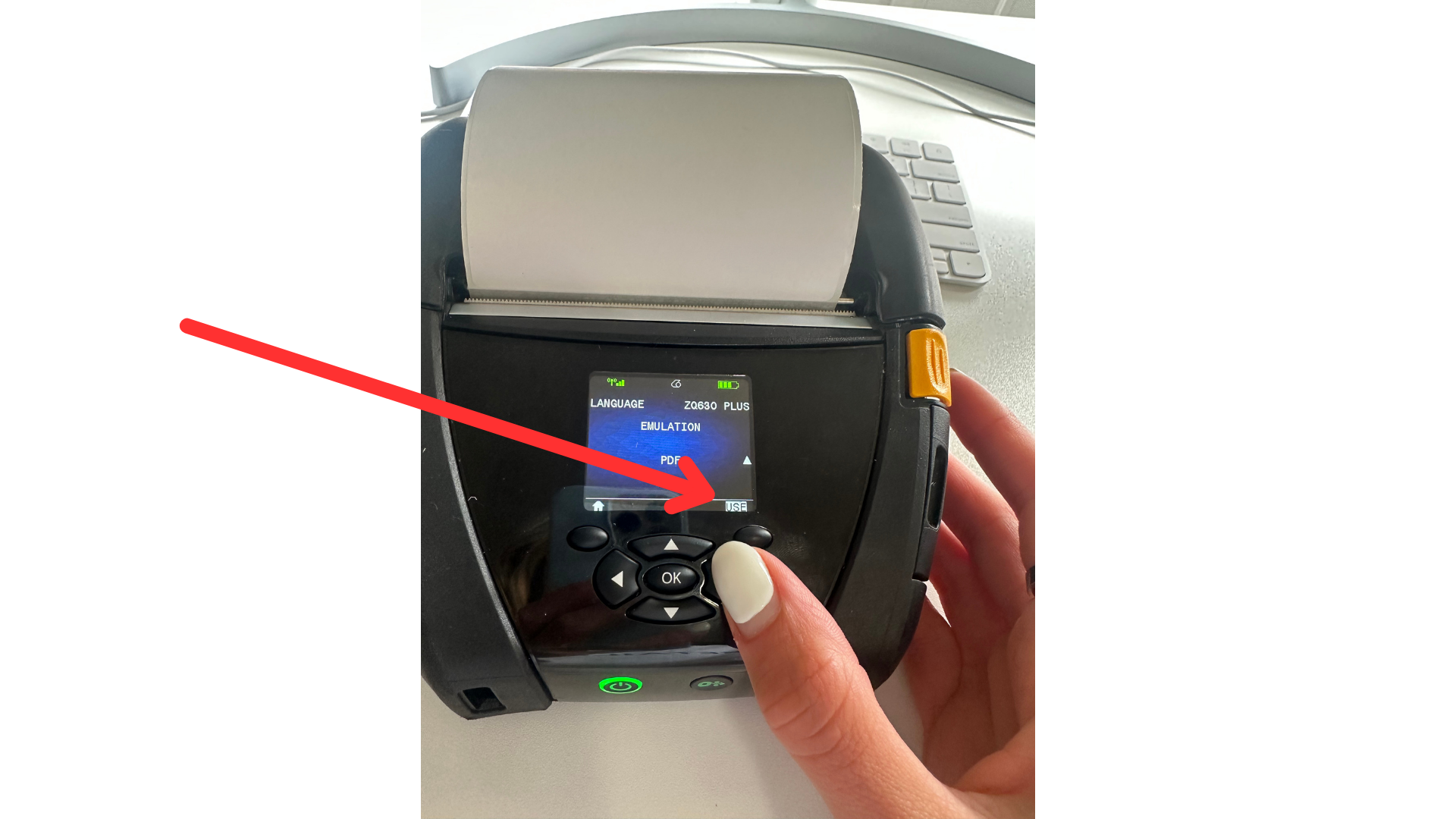
Click "Use"
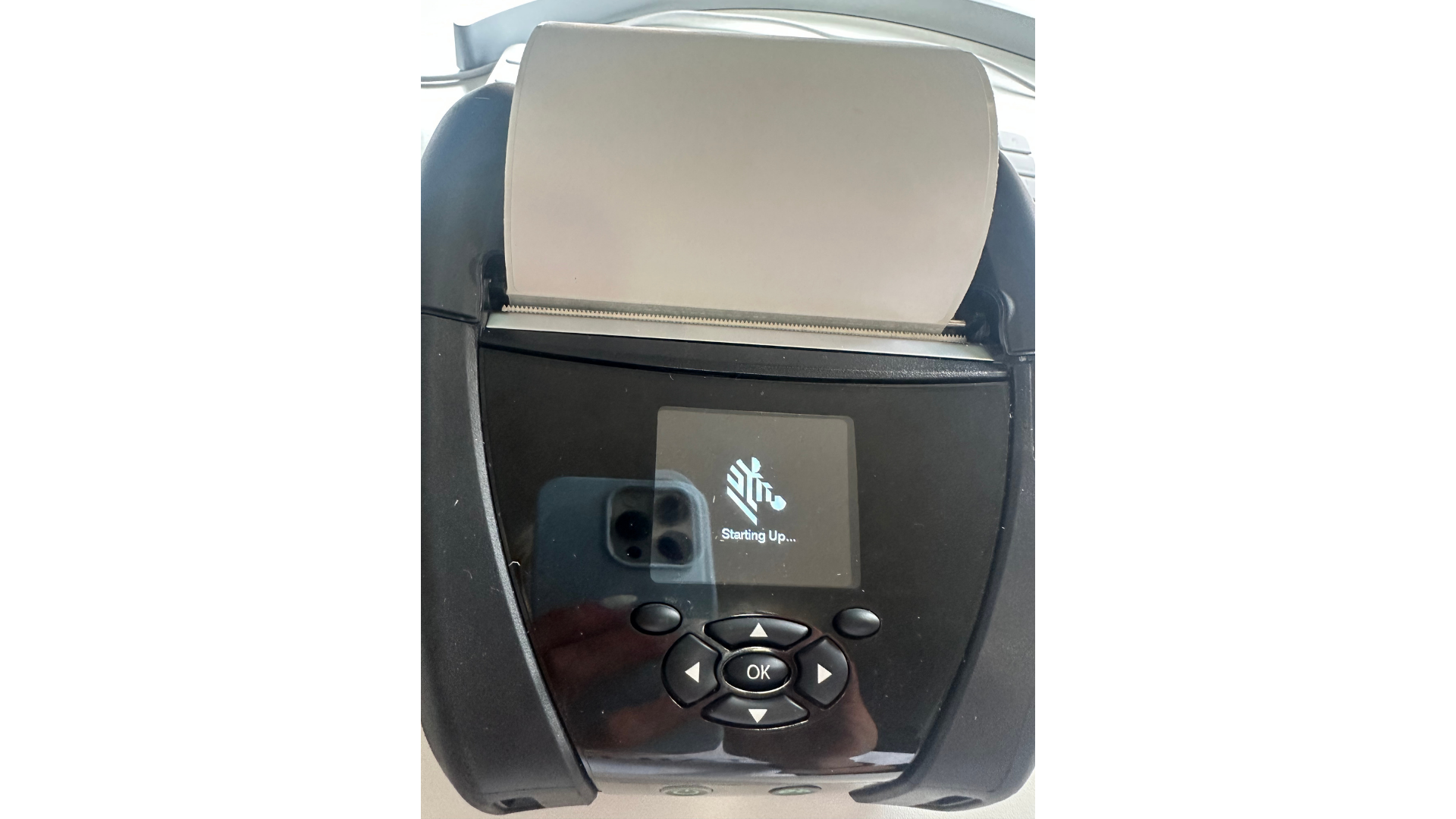
The printer should now restart and you are ready to print using PDF!
ZD421/ZT411
To start setup for these printers, navigate to this site.
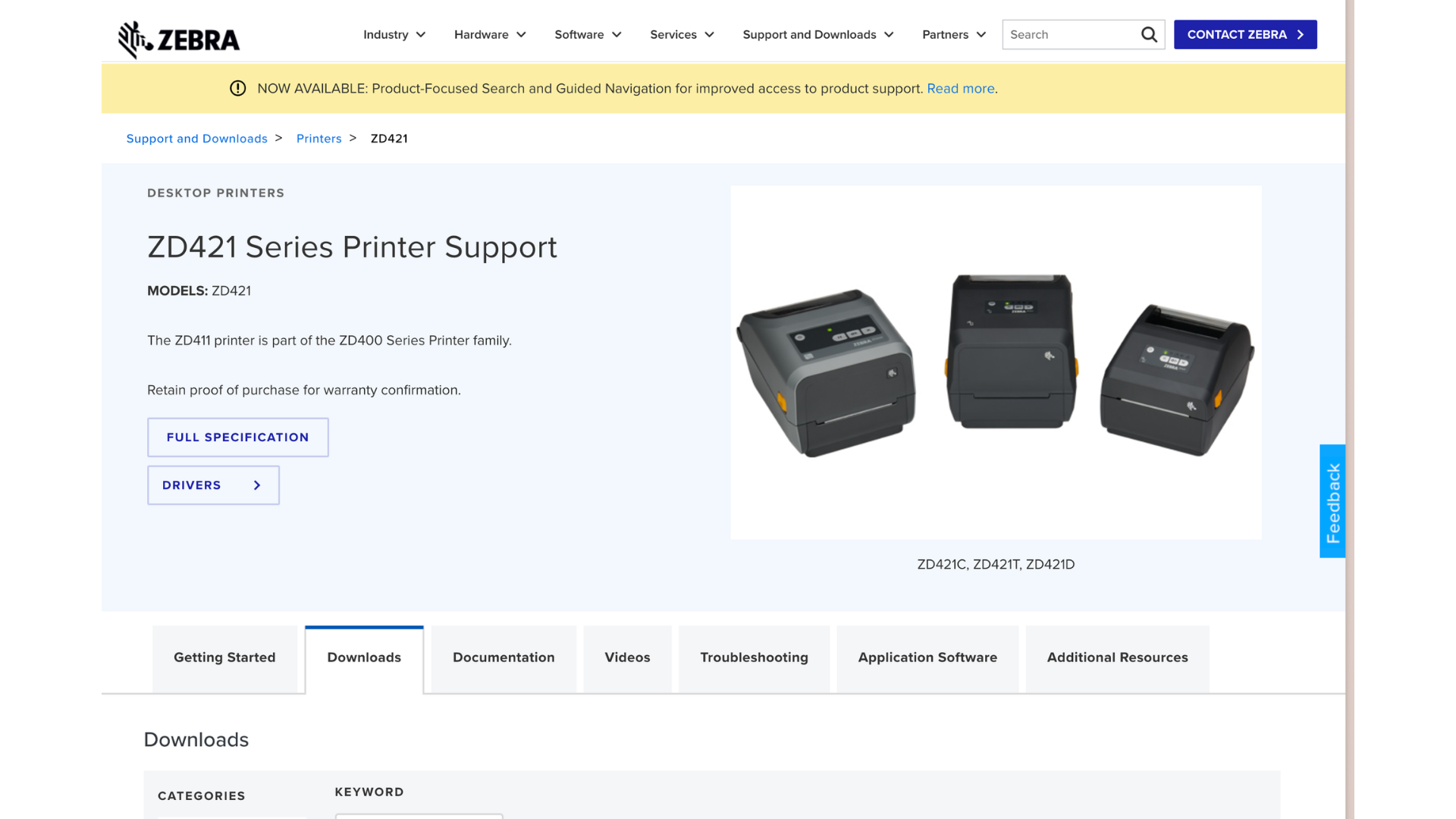
Scroll down to “Factory Installed Printer Emulations”.
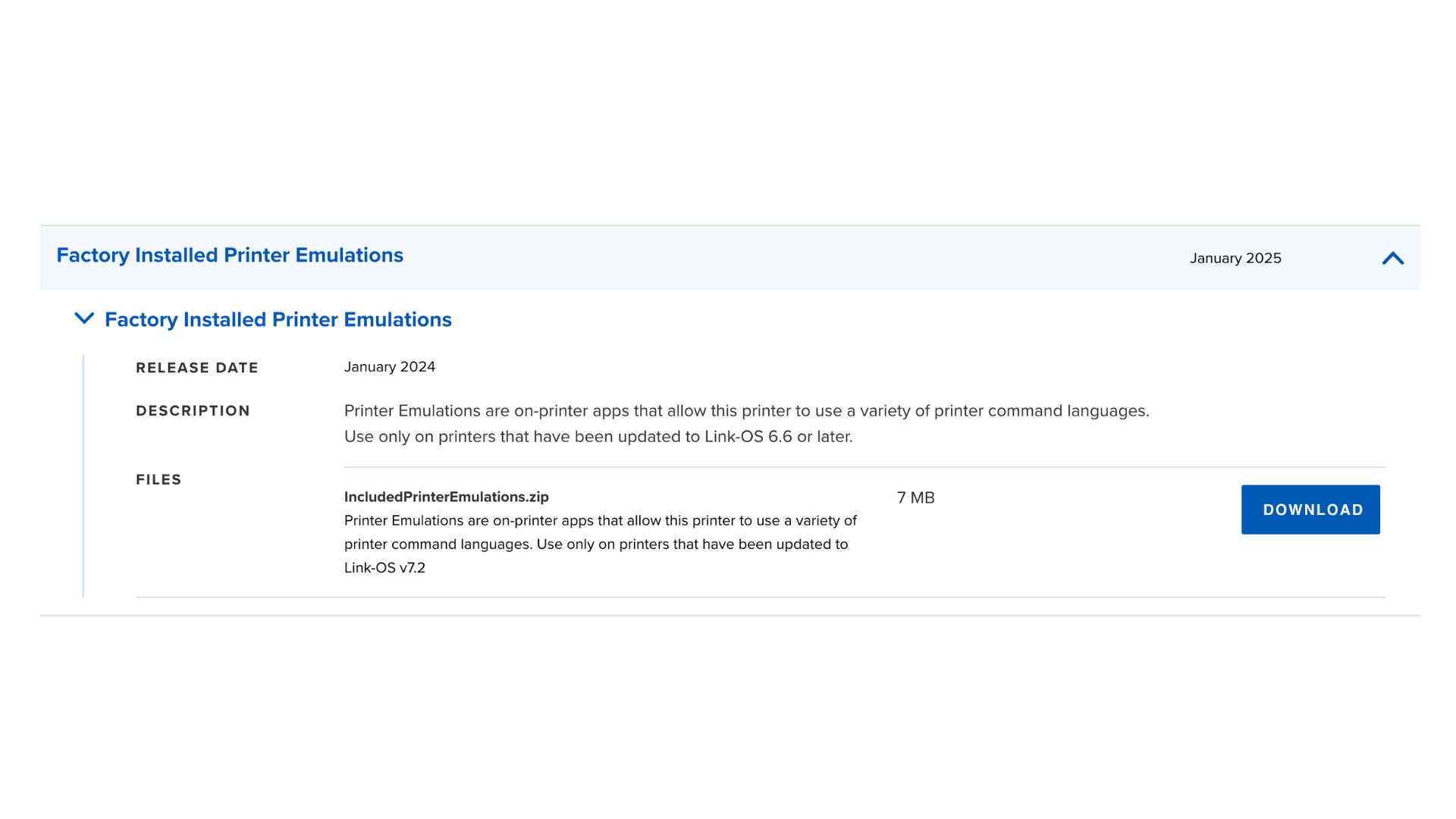
Click "Download".
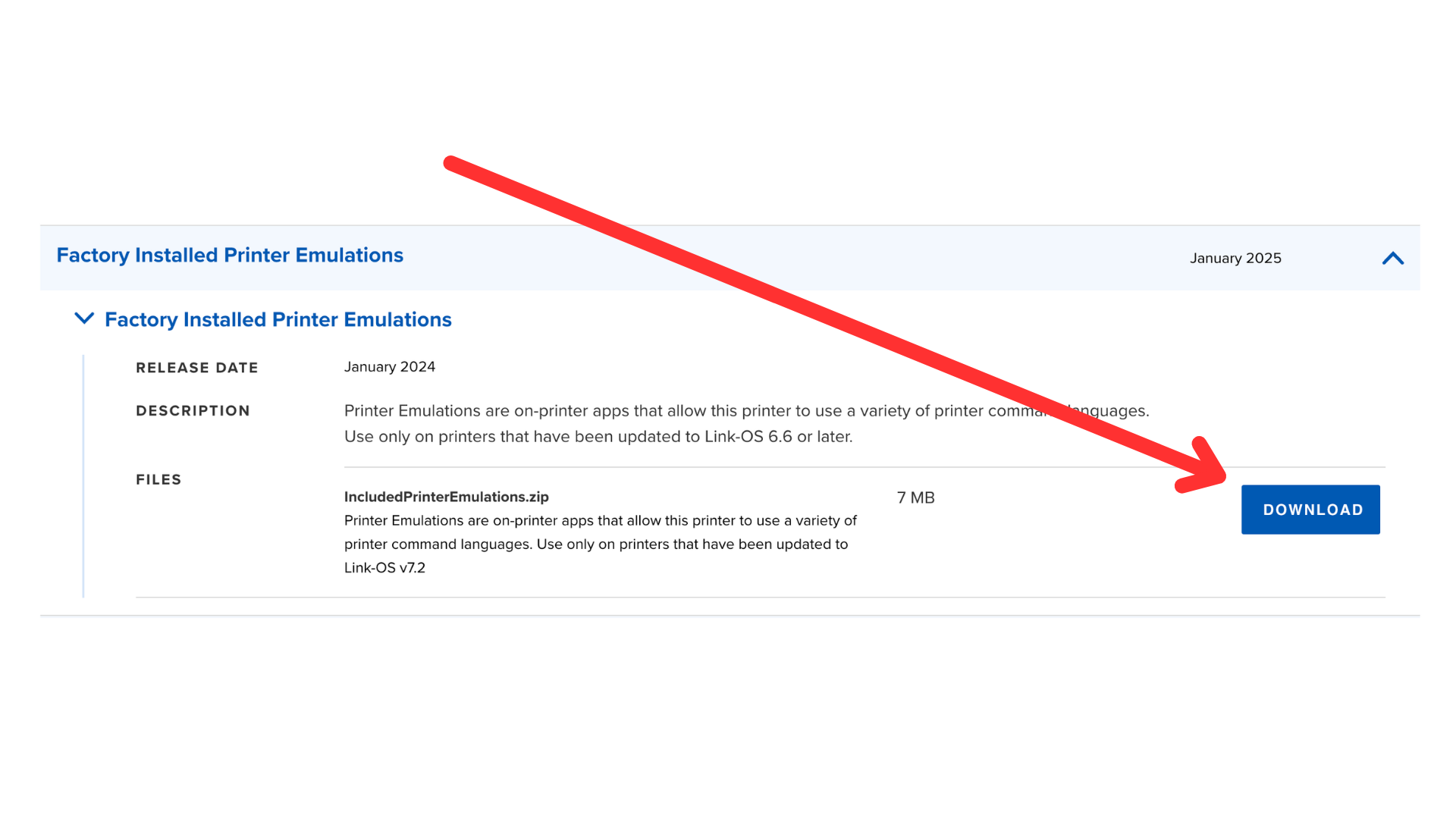
Unzip the file by clicking into it
Send the PDF file to your device with the Zebra app. (You can use airdrop, email etc...)
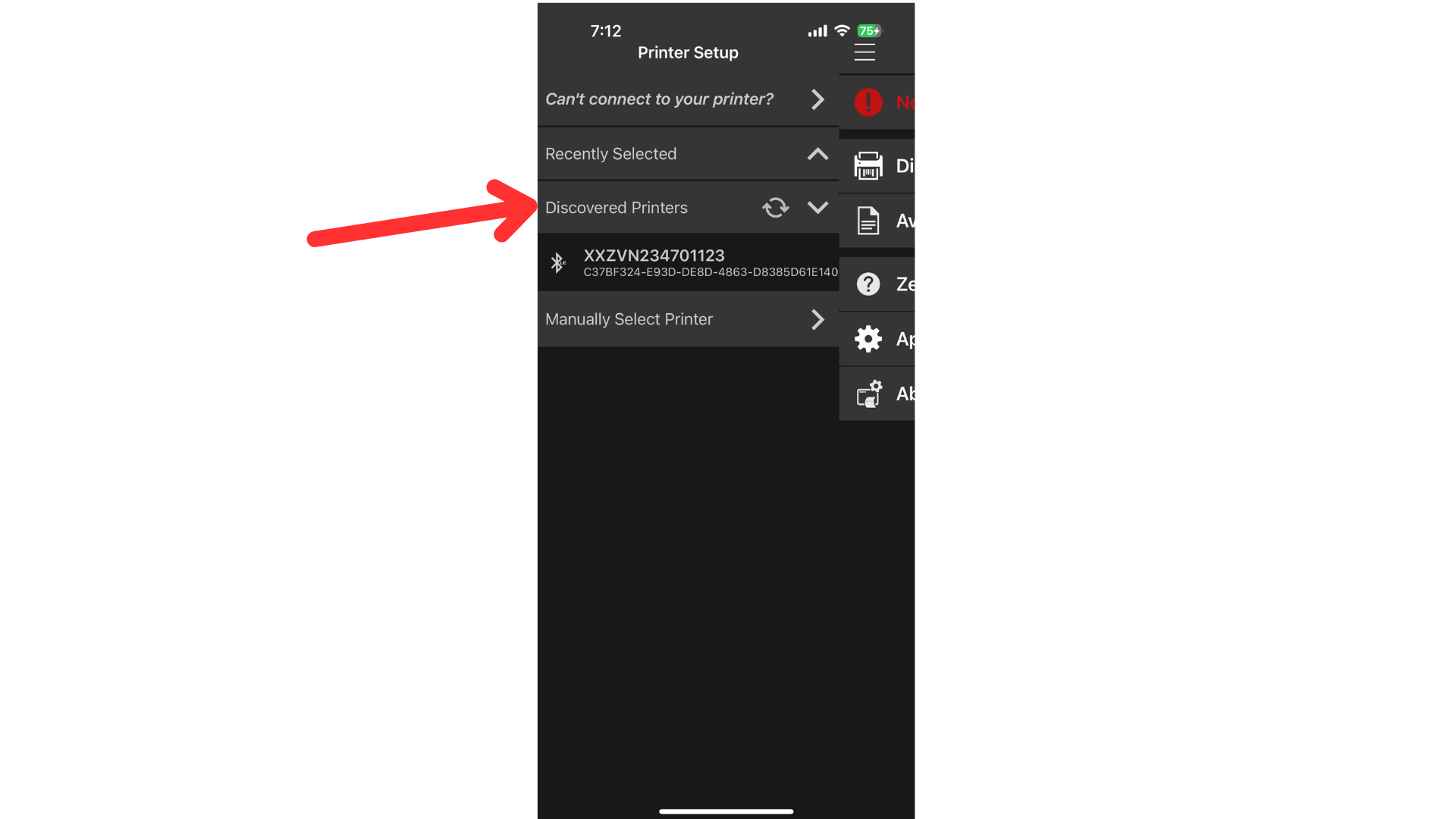
Open the Zebra Printer App on your device and navigate to "Discovered Printers".
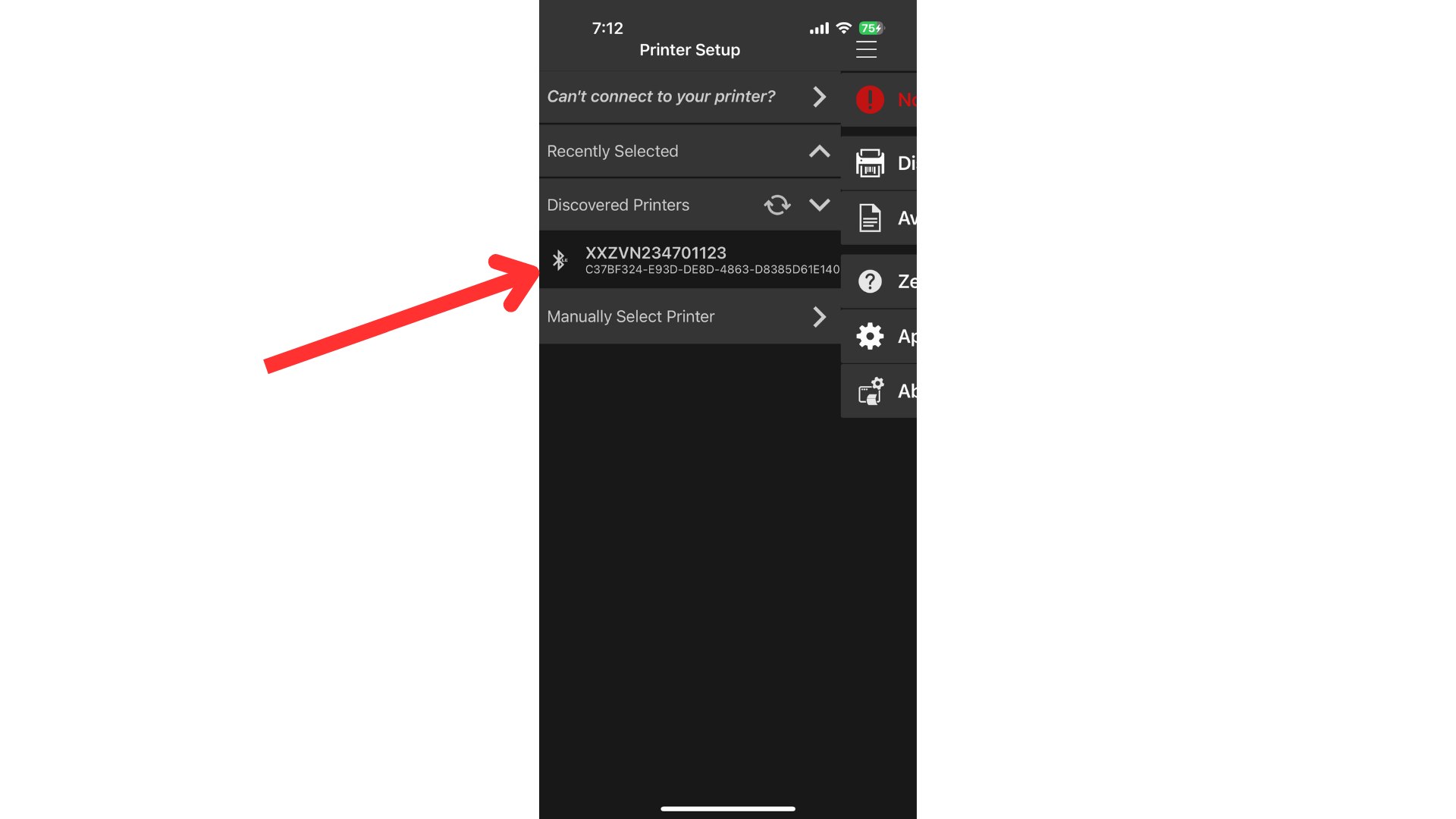
Choose the correct printer based off serial number.
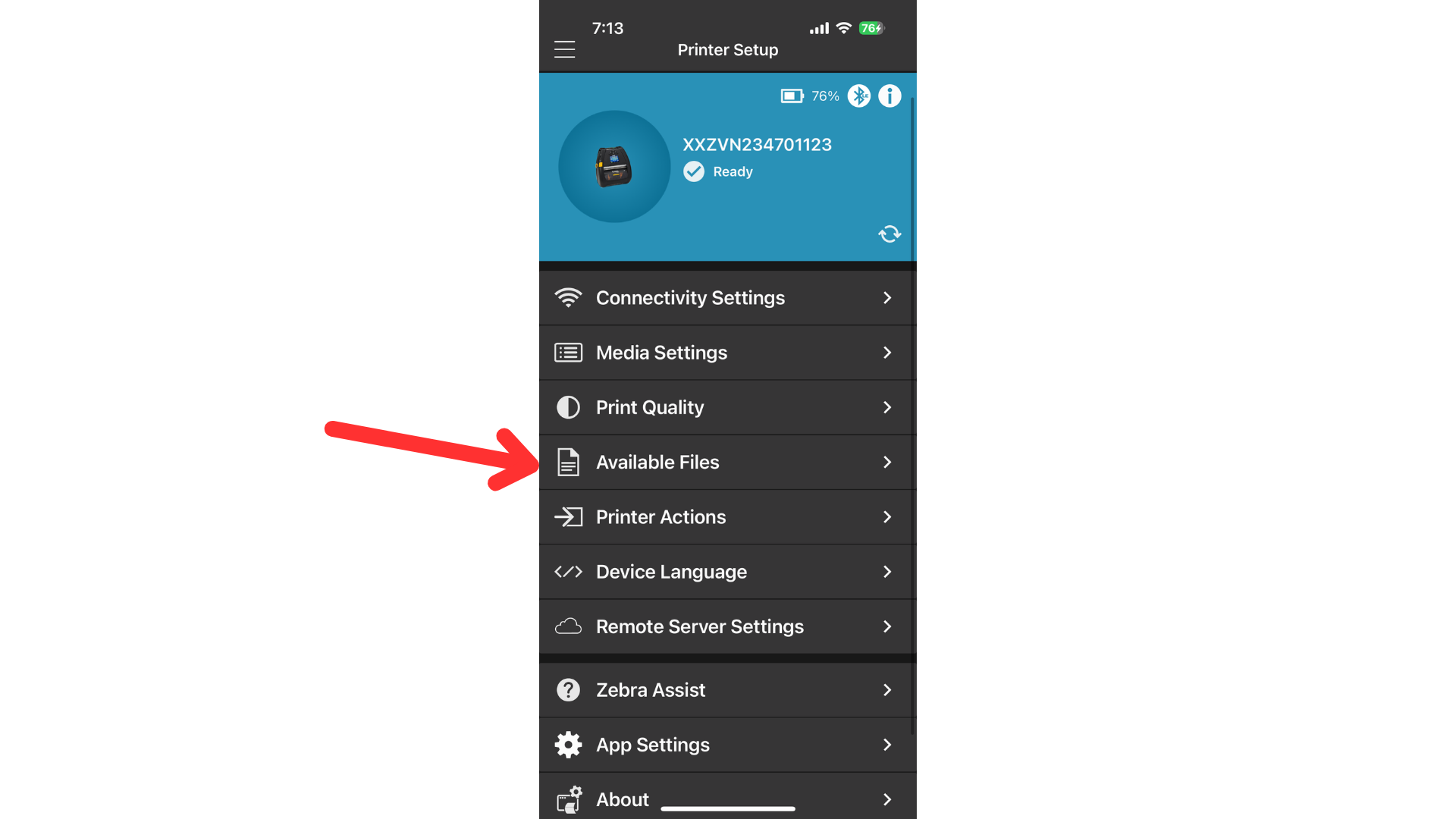
Once the printer connects, click on available files.
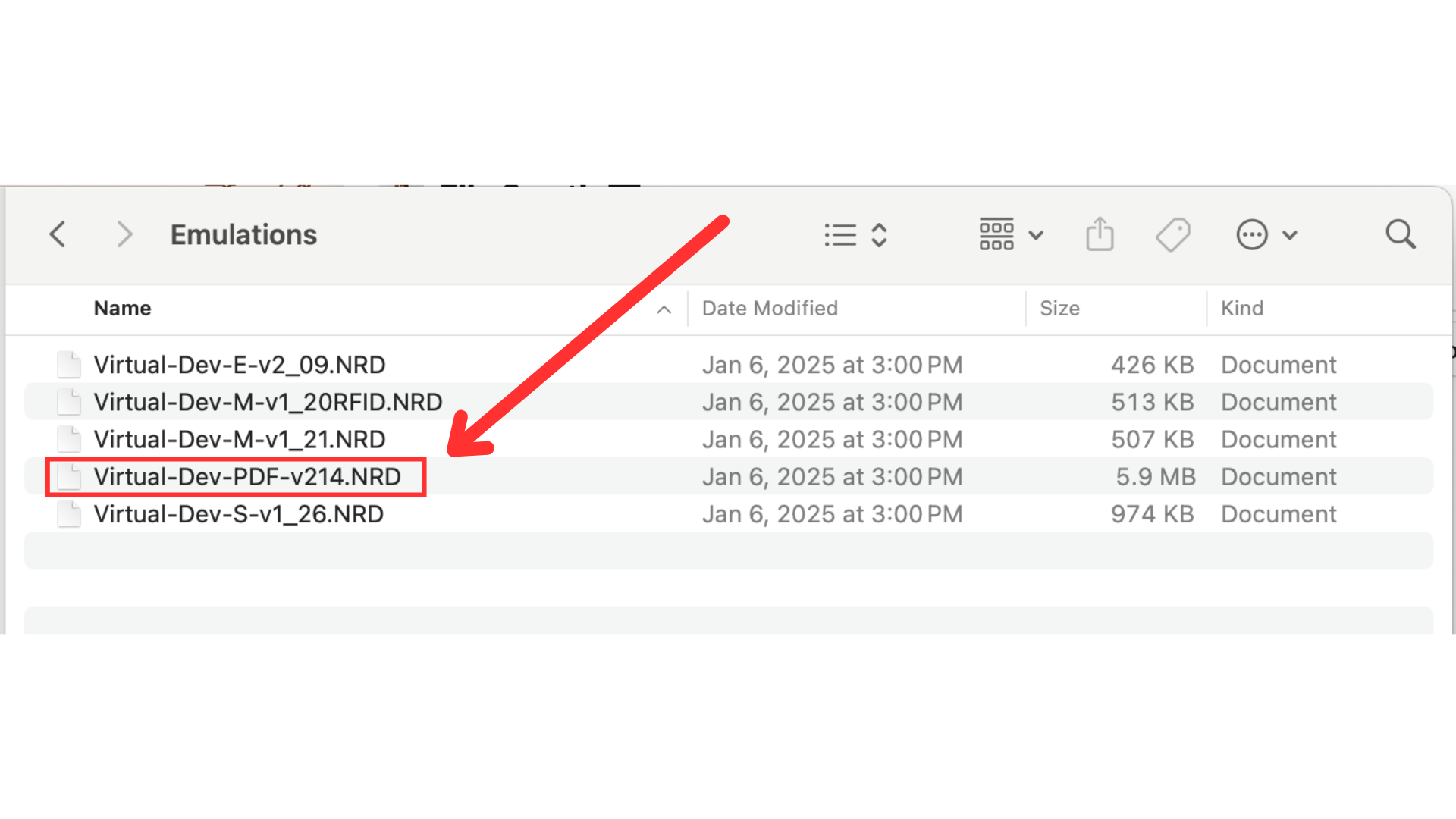
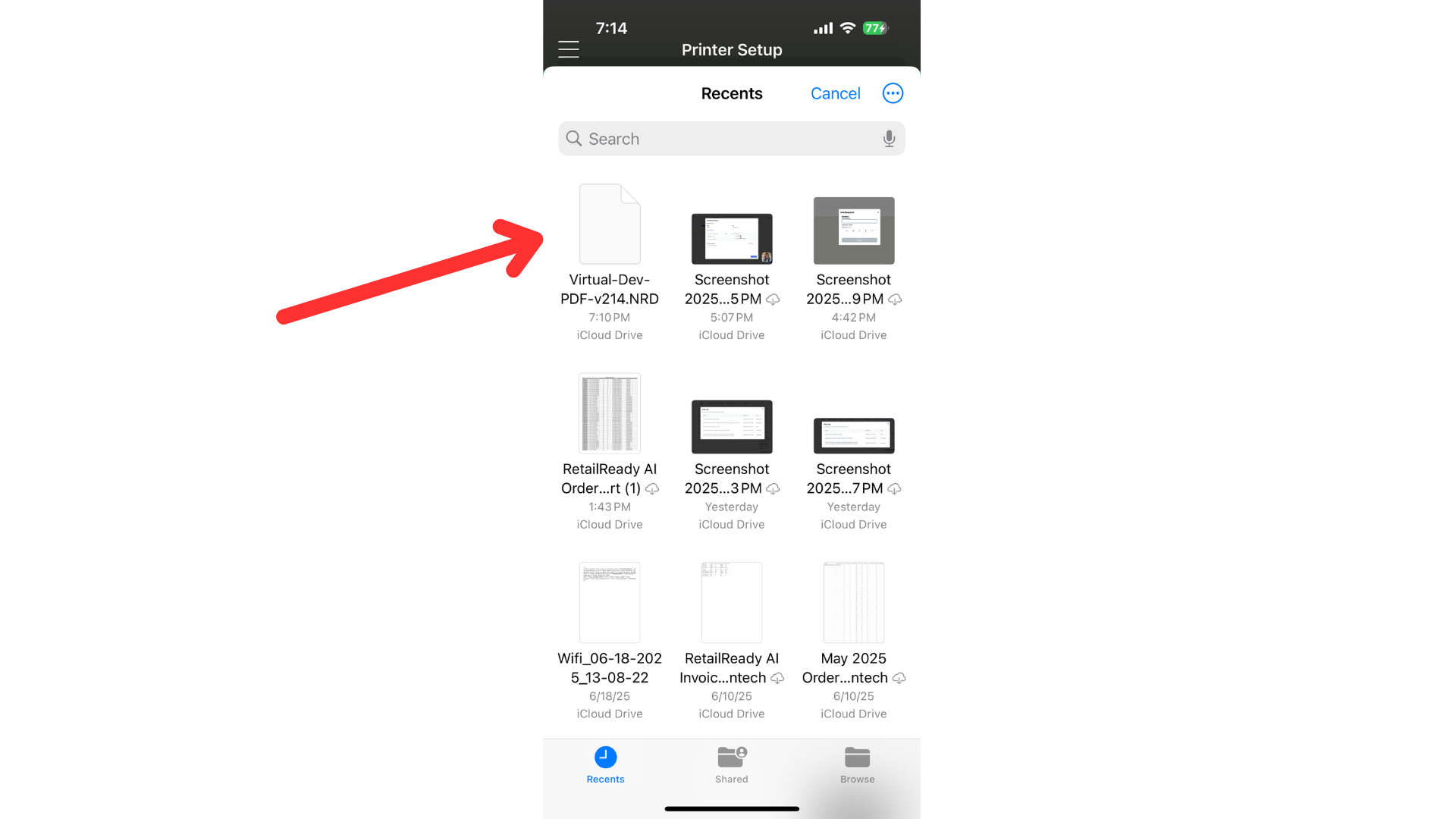
Choose the file that you downloaded to your device “Virtual-Dev-PDF”.
Click "Send to Printer"
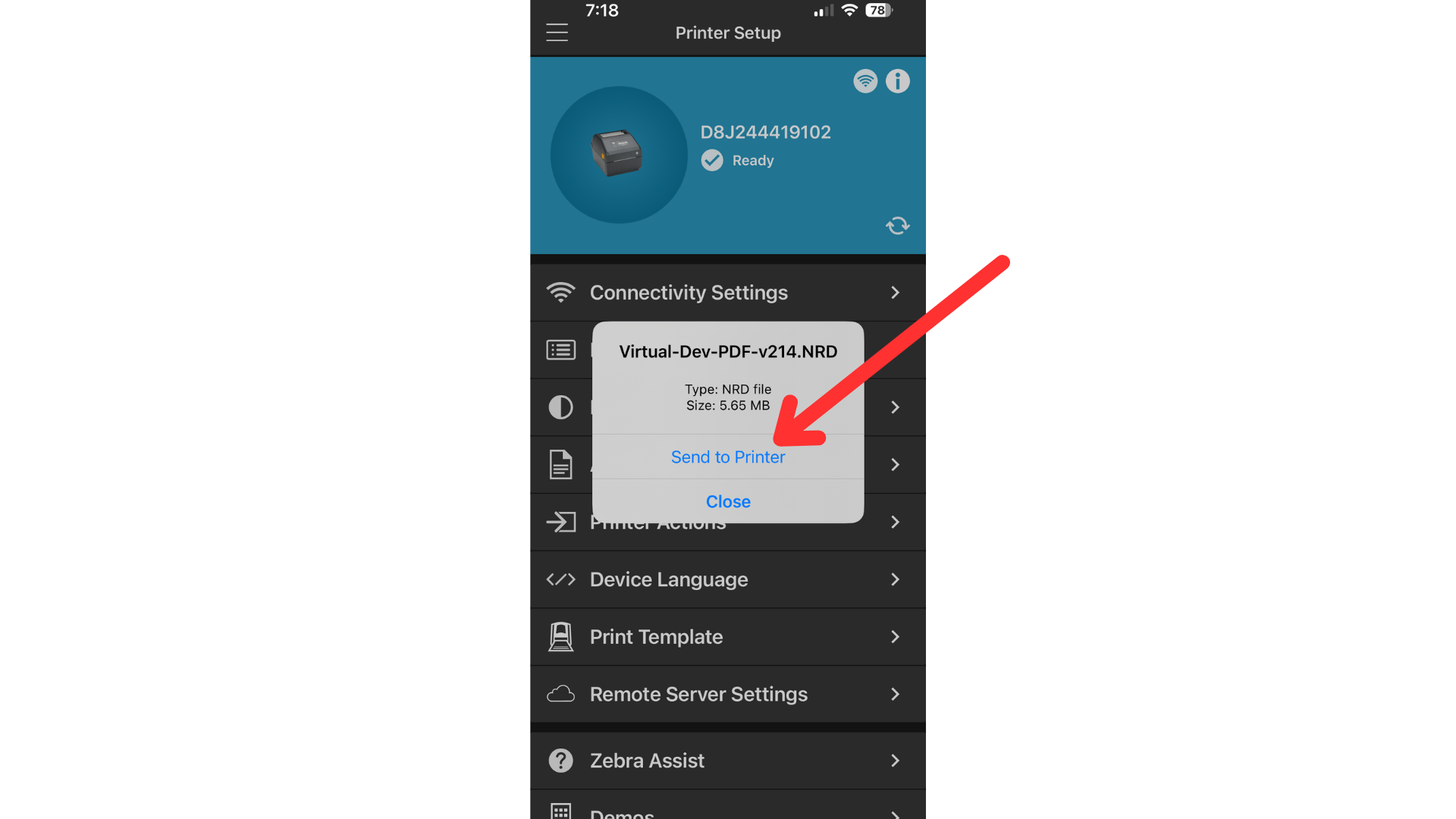
Once this is finished, it will say "Restarting Printer". Your printer is now ready to print via PDF! Test this by navigating to your printer in printer settings on the RetailReady Dashboard. Click the 3 dots next to your printer, then "Send test file to printer" then "Send test pdf".
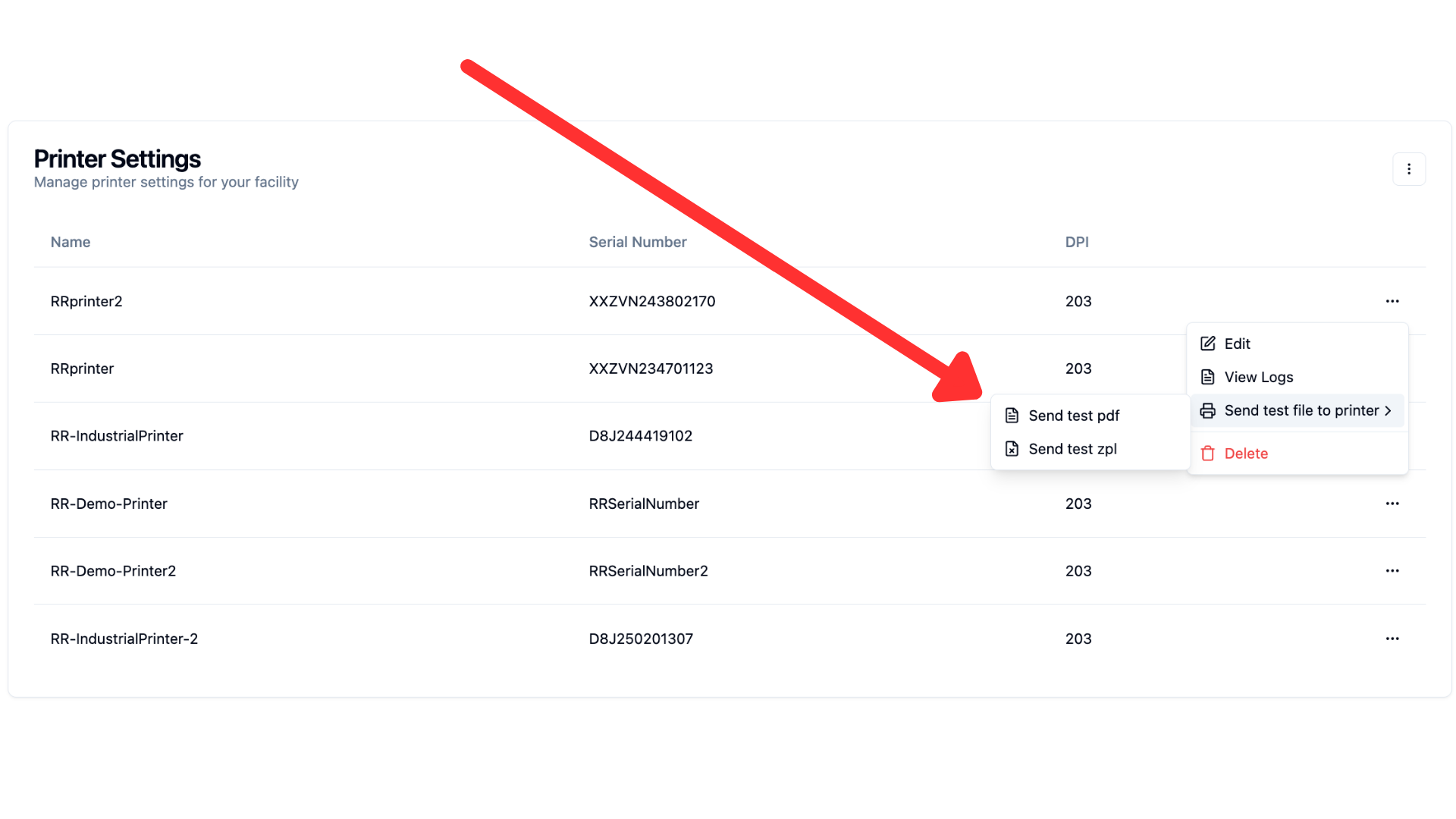
This should print your test label! If nothing prints please contact your onboarding manager for assistance.
Zebra Support
If there are any unaddressed issues or further questions, please contact Zebra support. (877) 275-9327
FAQs
What do I do if my printer is not showing up in the "Discovered Printers" list?
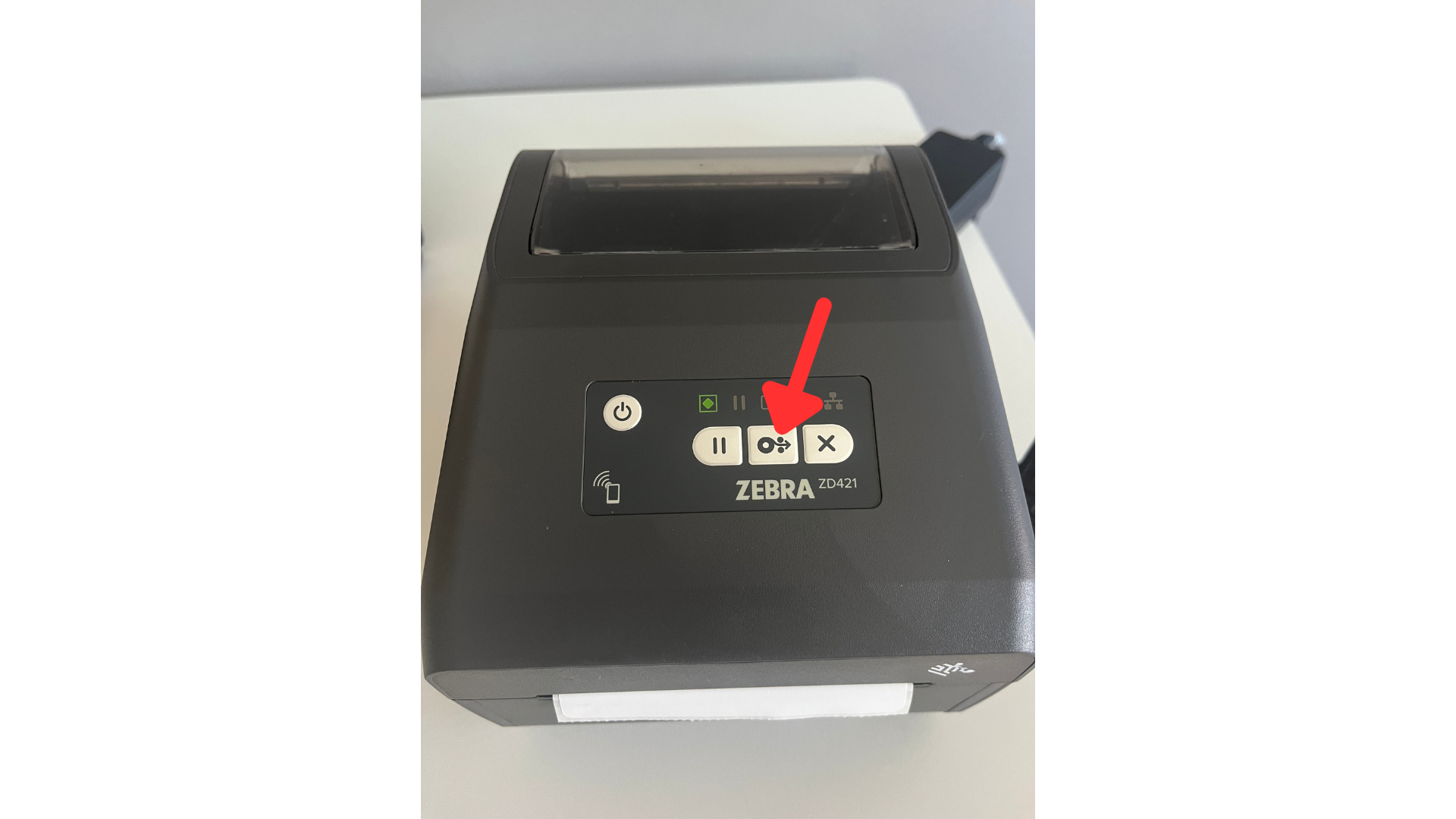
If your printer is not showing in the drop down, hold the feed button on the printer, then click discover again.
What if I am packing out and printing from a desktop?
Printing from a desktop still requires you to follow the steps listed in this guide. Instead of downloading the Zebra app on the device being used for pack out, you may install on any mobile device. This is needed to establish the connection to the printer.
Why does the Virtual-Dev-PDF file say it is too large?
If you are seeing this message, you may need to use an alternate file. Try sending this .txt file directly to your printer from the mobile app. This will enable PDF printing!
FAQs
Any issues with printer set up please refer to 📄 Troubleshooting Zebra Printer Label Printing Issues