Order Timeline
Last updated: March 20, 2026
The Order Timeline on the RetailReady home screen visually tracks the lifecycle of an order from creation to shipment. Each step shows where the order is in the fulfillment process, including packing, staged, and shipped, giving users real-time visibility into order progress.
How Do I Get to the Order Timeline?
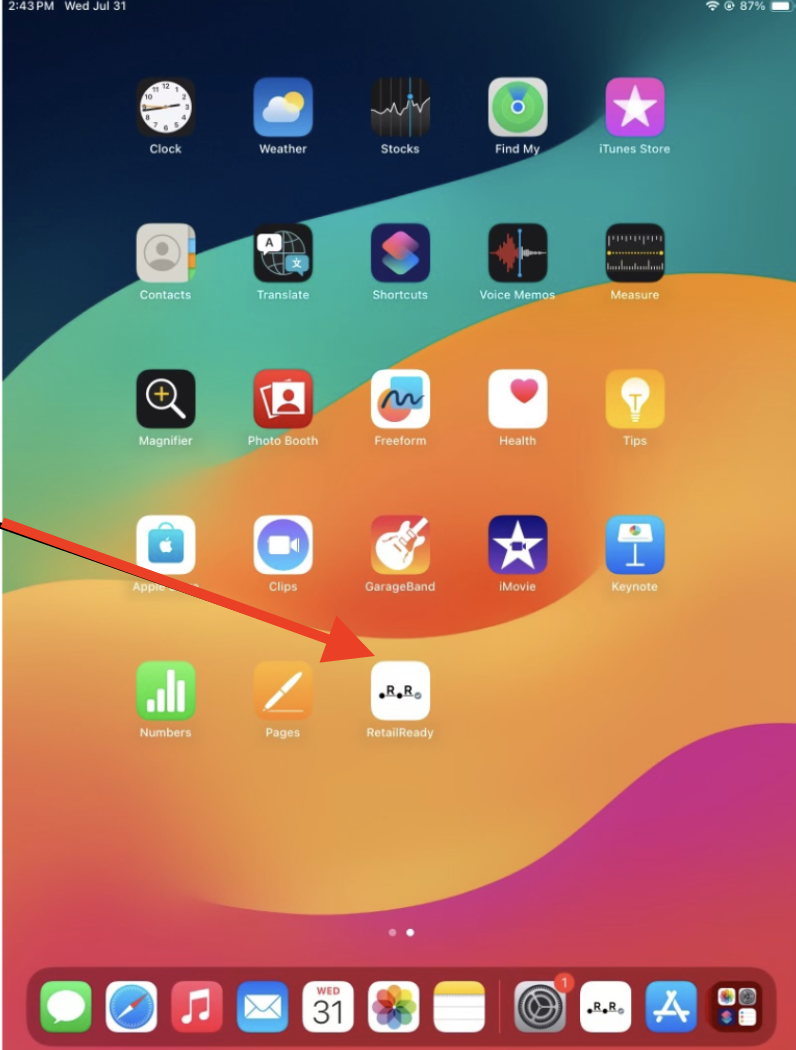
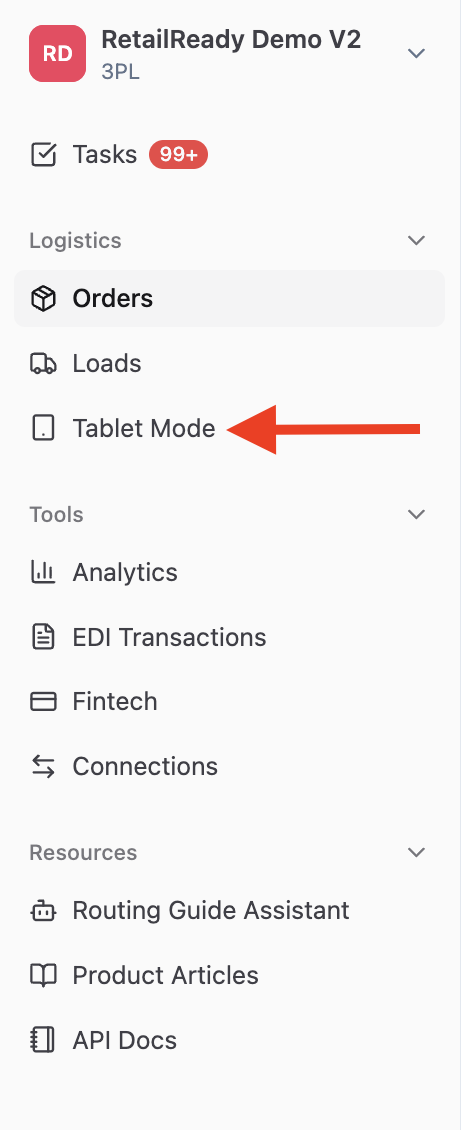
Navigate to the RetailReady App or click 'Tablet Mode' in the RetailReady Dashboard
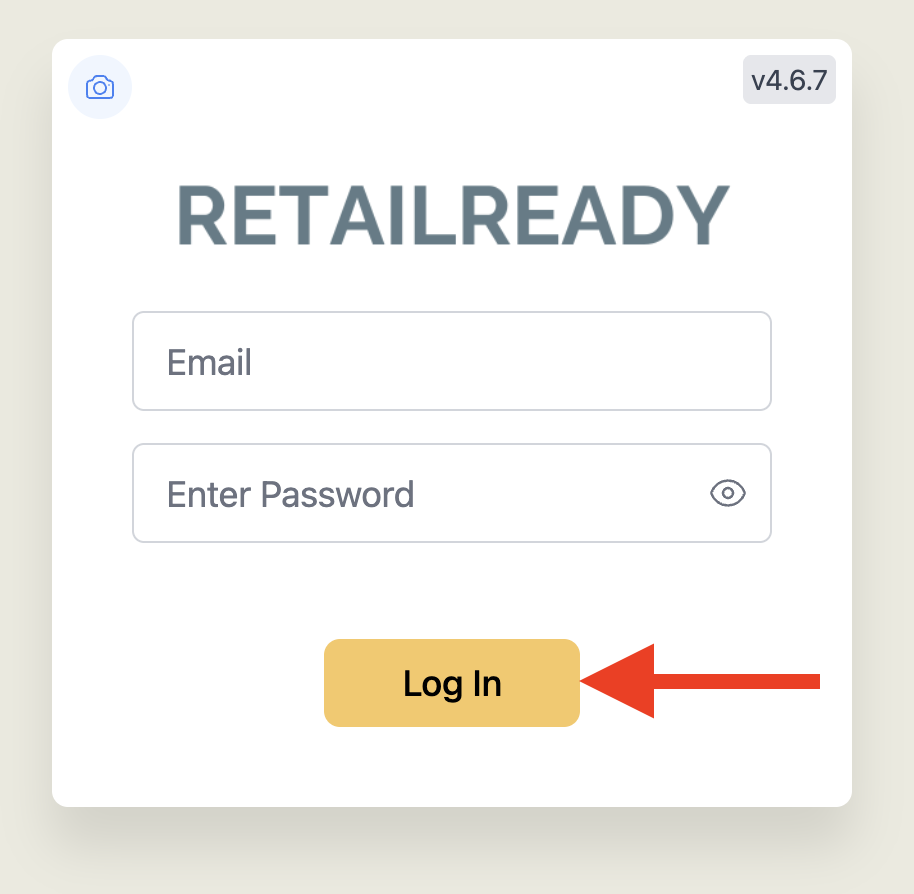
Login with acceptable credentials and click 'Log In'.
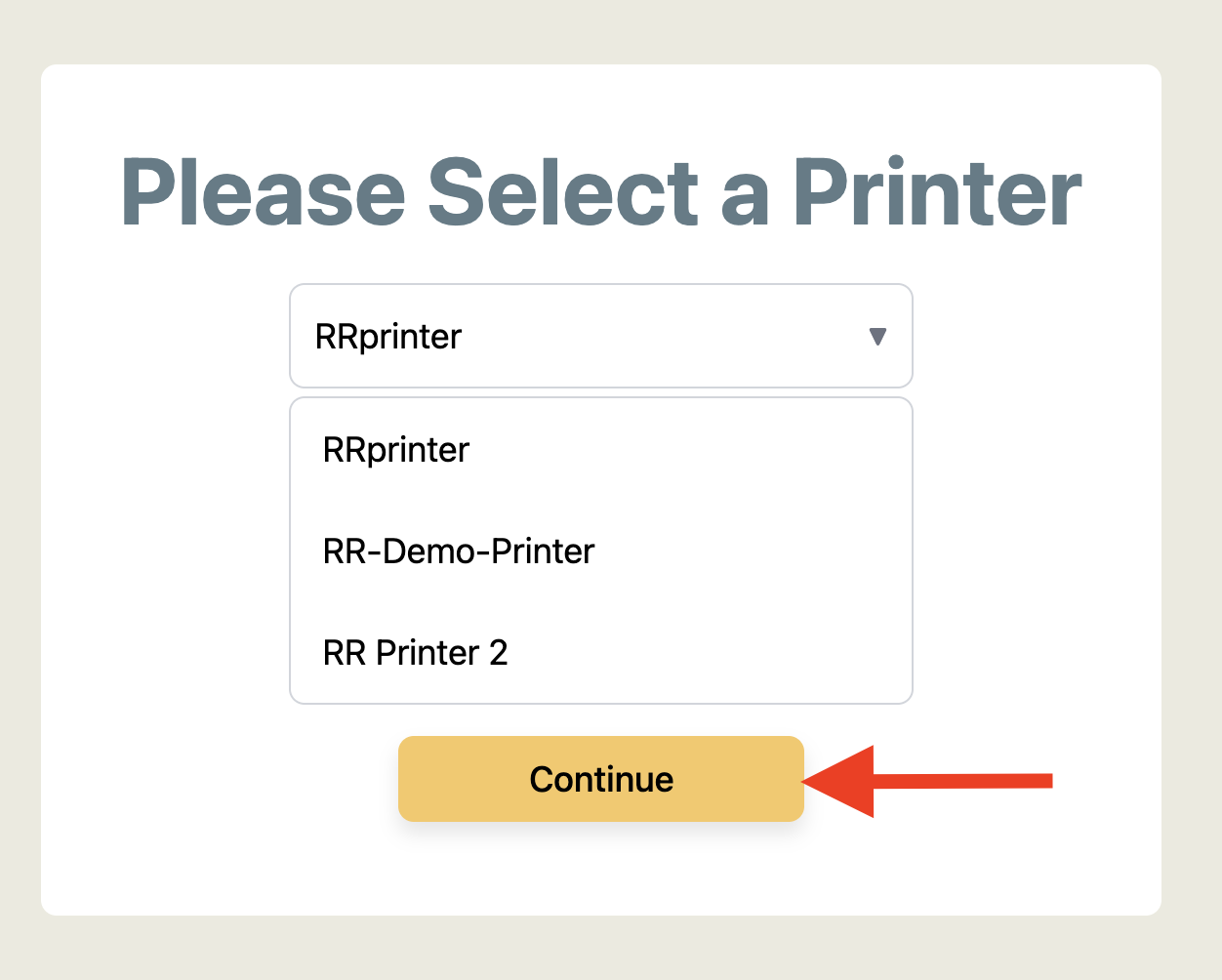
Choose the desired printer and click 'Continue'
Type or scan the desire order
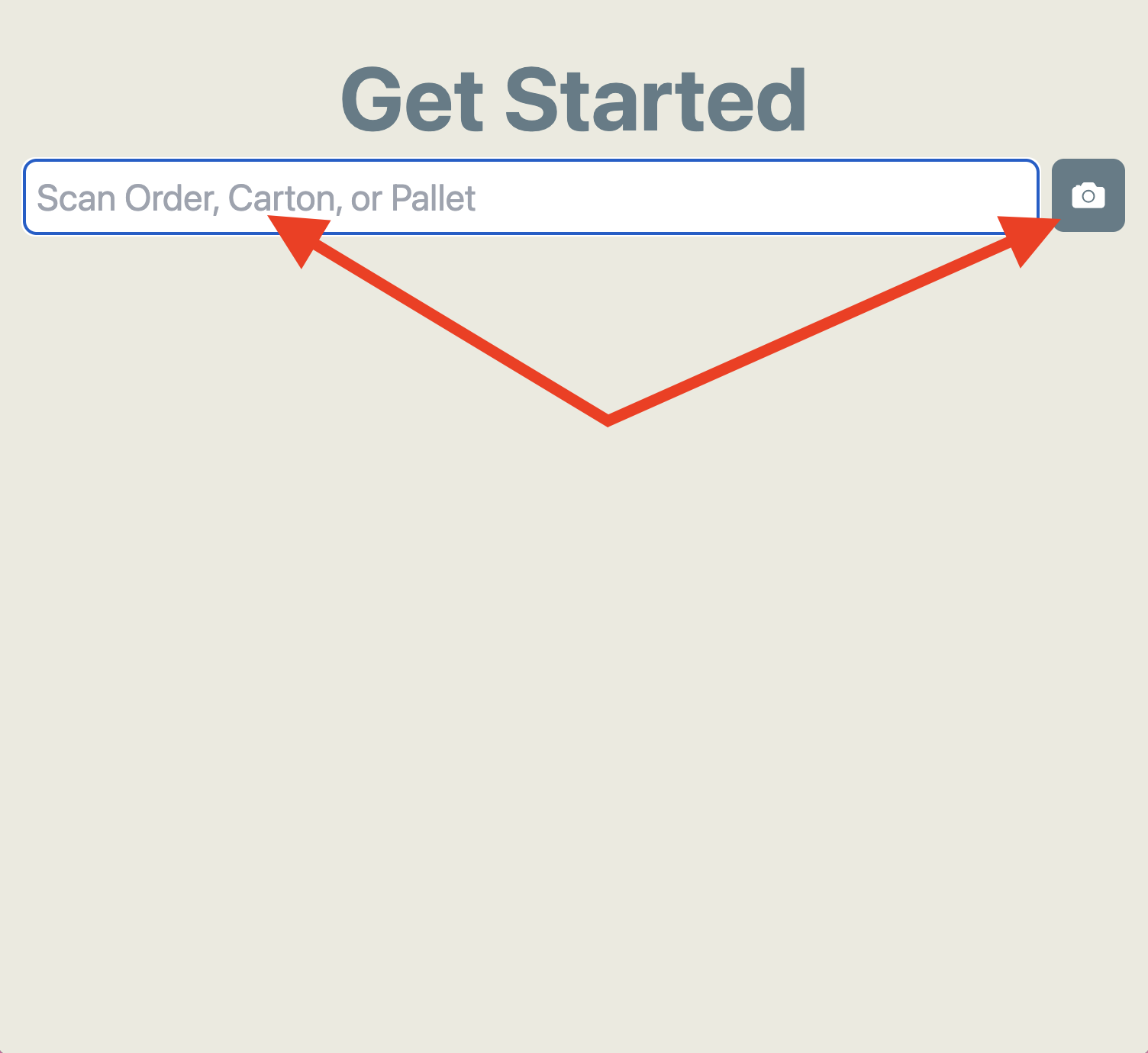
You can also resume an order with a Carton ID or Pallet ID
The order timeline will appear
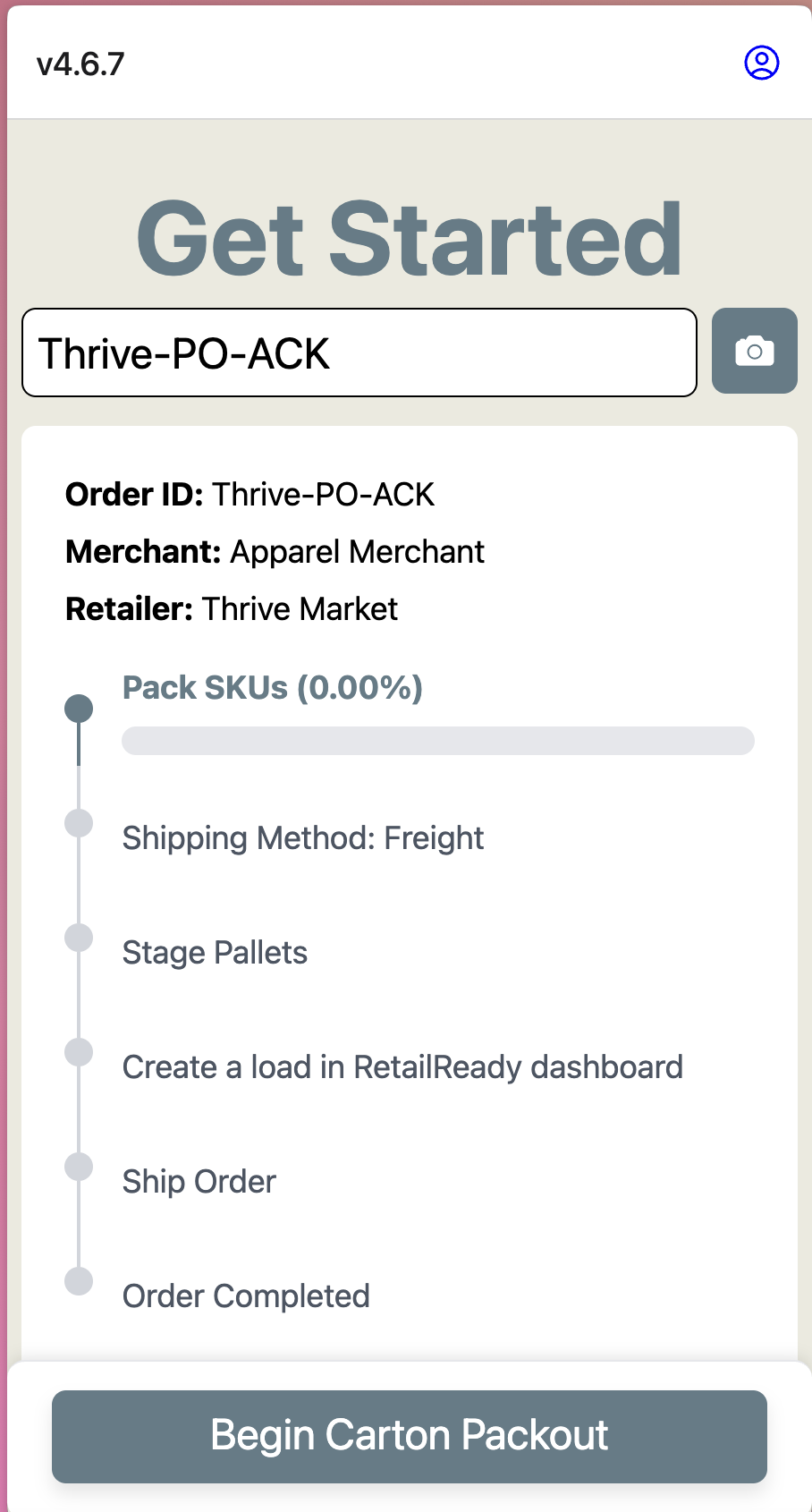
Freight Order Timeline Overview & Actions
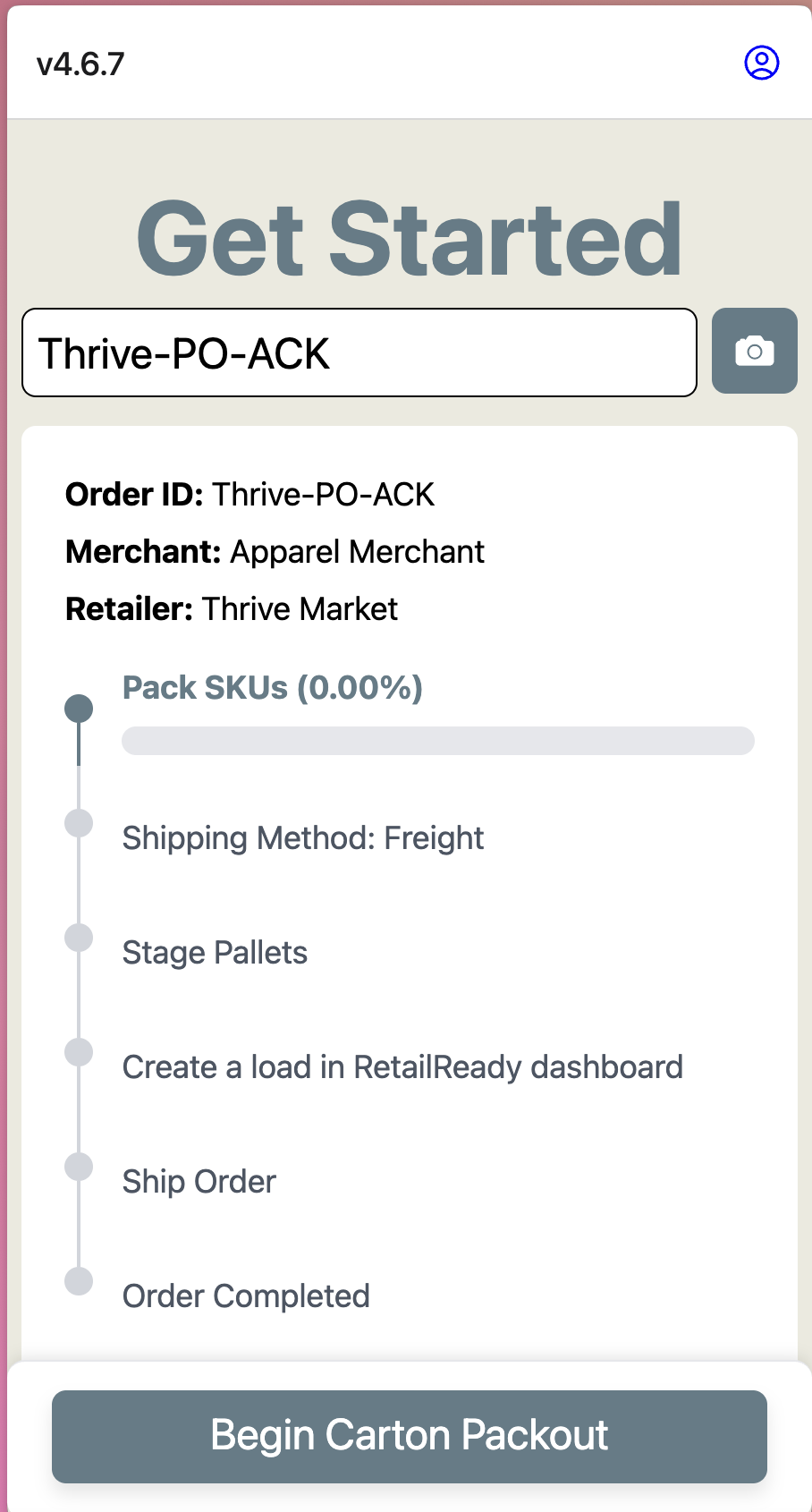
Pack SKUs: To start packing SKUs on a Not Started order, click 'Begin Carton Packout'. You can also resume packing by scanning the order or a carton QR code, then clicking 'Continue Packing Carton'.
Shipping Method: The Shipping Method indicates whether the order will ship Freight or Parcel. This is determined by entering Transportation Information from the three-dot menu on the order.📄 How to Enter Transportation Information (Freight)
Stage Pallets: Scan a pallet QR code and click 'Stage Pallets' to enter palletization details and stage the pallets.
Create a load in RetailReady dashboard: Create a load from the Tasks section in the RetailReady dashboard or from task notification from the order page in the dashboard.
Ship Order: Scan an order, pallet QR code, or carton QR code, then select 'Ship Order' to load the pallet onto the trailer. This step requires a generated BOL, a truck arrival, and a photo of the signed BOL.
Parcel Order Timeline Overview & Actions
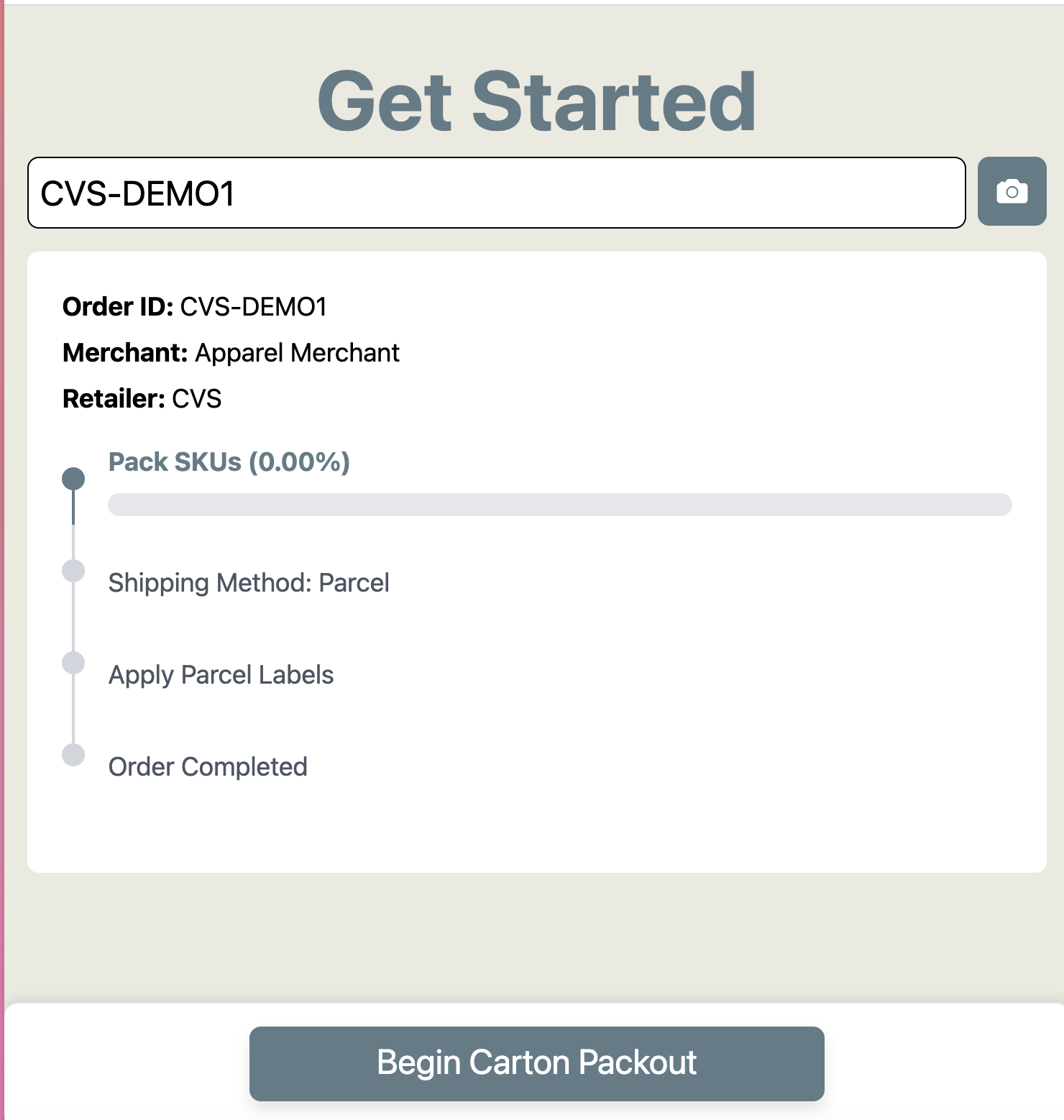
Pack SKUs: To start packing SKUs on a Not Started order, click 'Begin Carton Packout'. You can also resume packing by scanning the order or a carton QR code, then clicking 'Continue Packing Carton'.
Shipping Method: The Shipping Method indicates whether the order will ship Freight or Parcel. This is determined by entering Transportation Information from the three-dot menu on the order.
Apple Parcel Labels: Scan an order or carton QR code, then select 'Generate Parcel Labels' to print and apply parcel labels to each carton.