How To Bulk Upload Secondary Barcodes
Last updated: February 24, 2026
What are secondary barcodes?
A secondary barcode represents an additional barcode associated with the same SKU. It can be used to store retailer-specific UPCs or other alternate barcodes, allowing you to manage multiple product identifiers. When a SKU is uploaded to the item master, it can be assigned a secondary barcode for every necessary retailer.
Where can I add secondary barcodes?
Secondary barcodes can be created during the item master setup or added to already created SKUs. To add secondary barcodes during the item master setup follow the steps in the Item Master Setup Guide. To add secondary barcodes to existing items, follow this article for guidance.
Setting up Secondary Barcodes
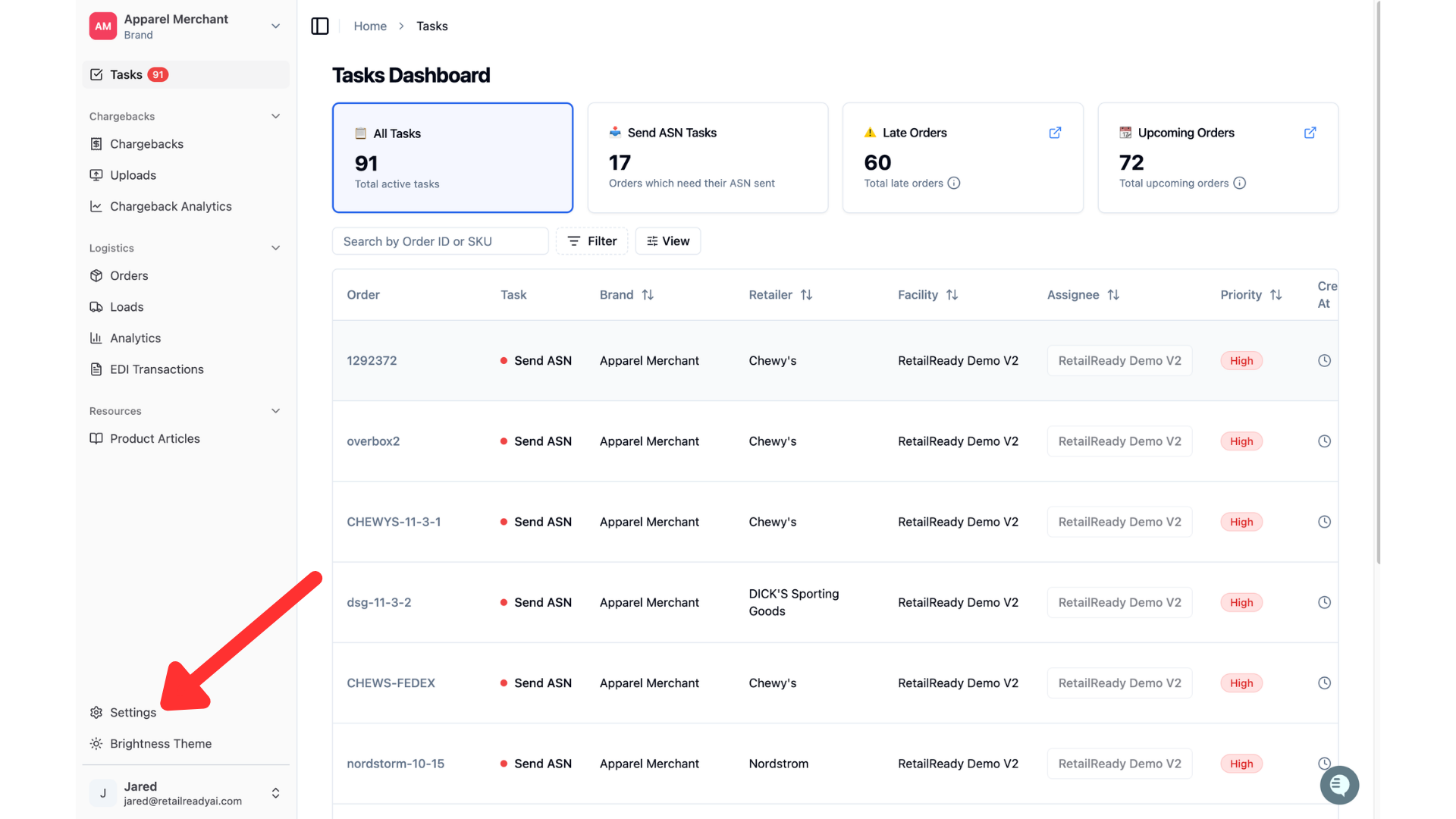
Navigate to the Item Master page by selecting "Settings" in the bottom left of the nav bar.
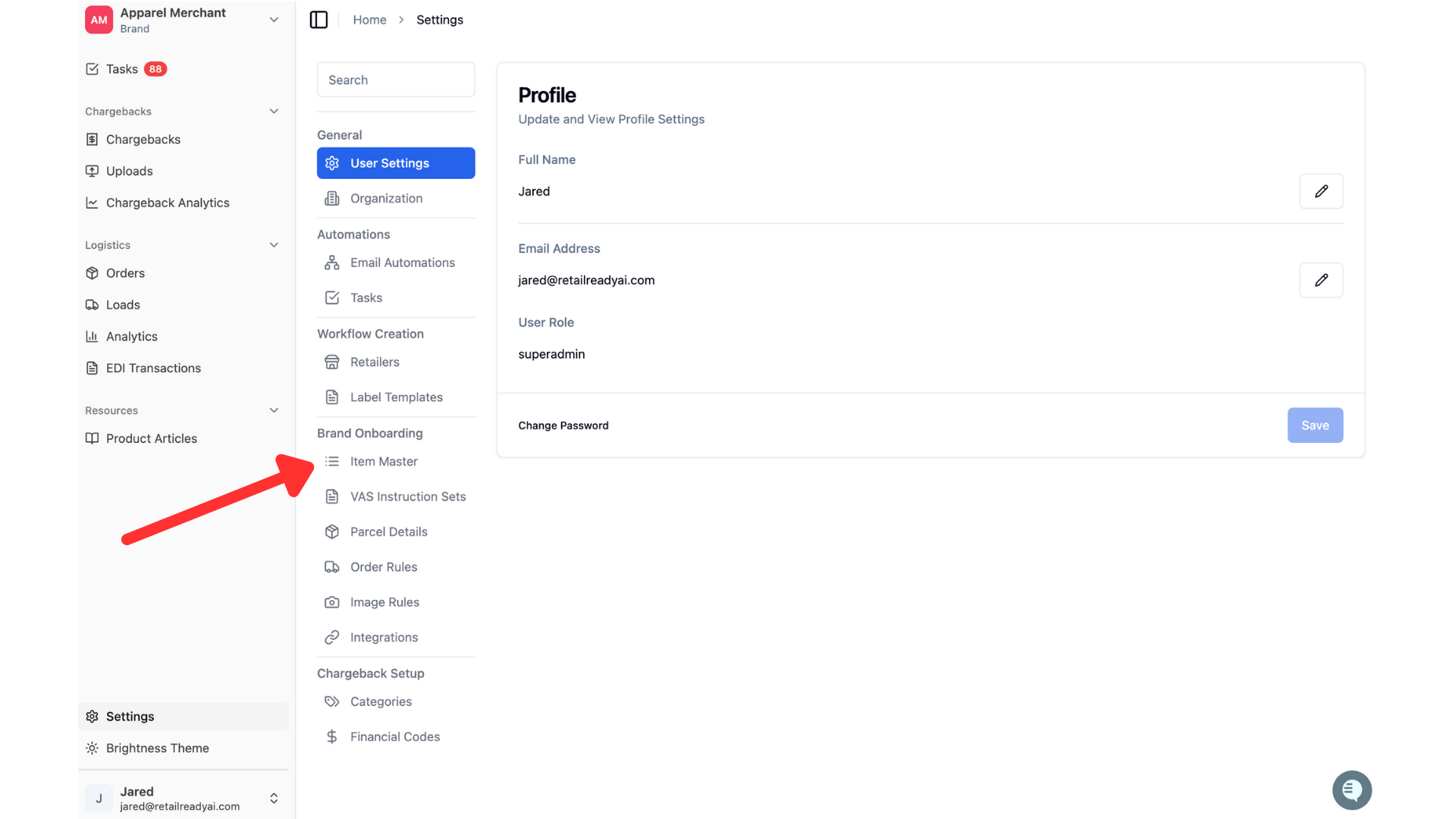
Click "Item Master" in the column that opens.
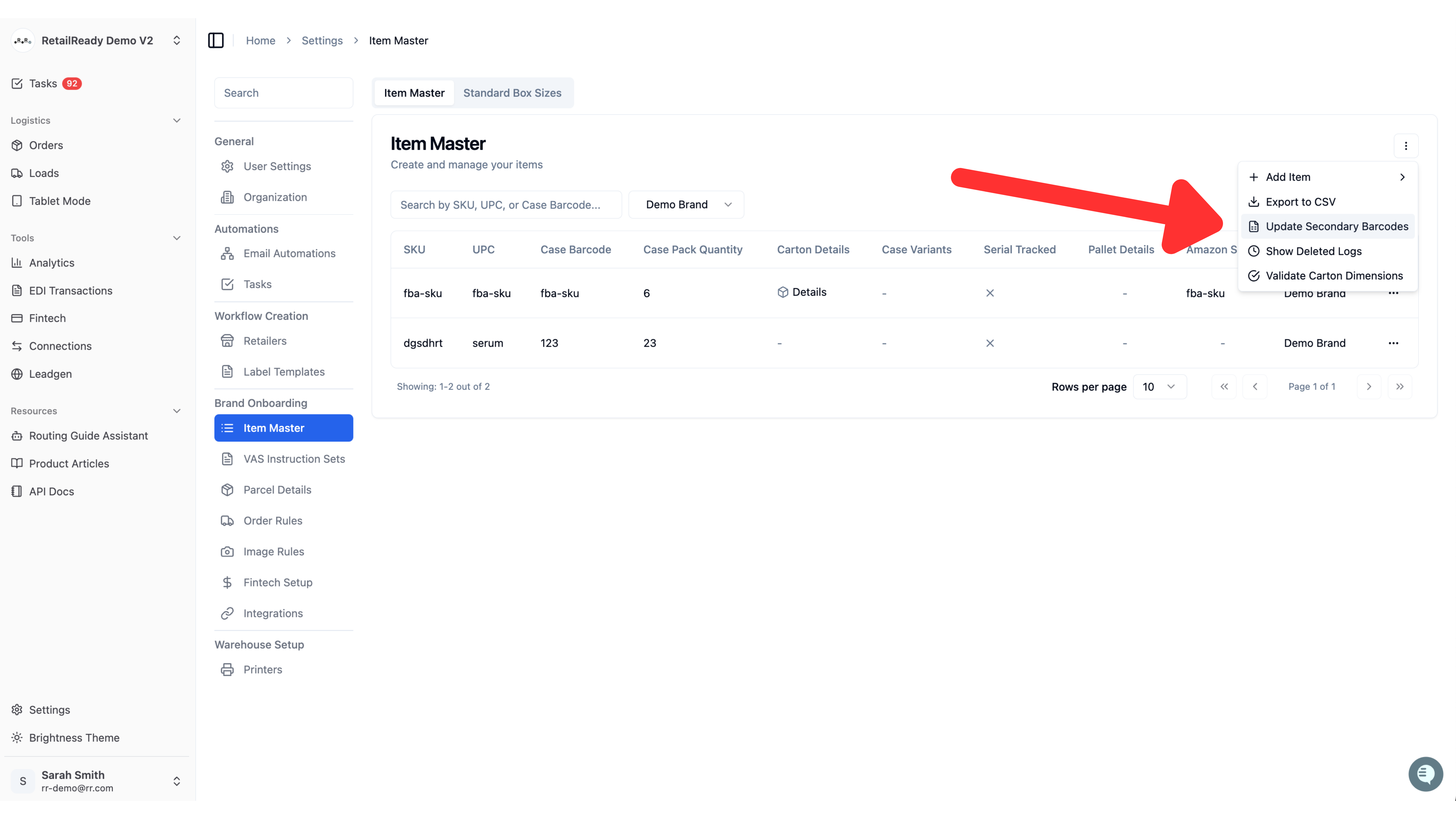
Click the three buttons on the right hand side and select "Update Secondary Barcodes".
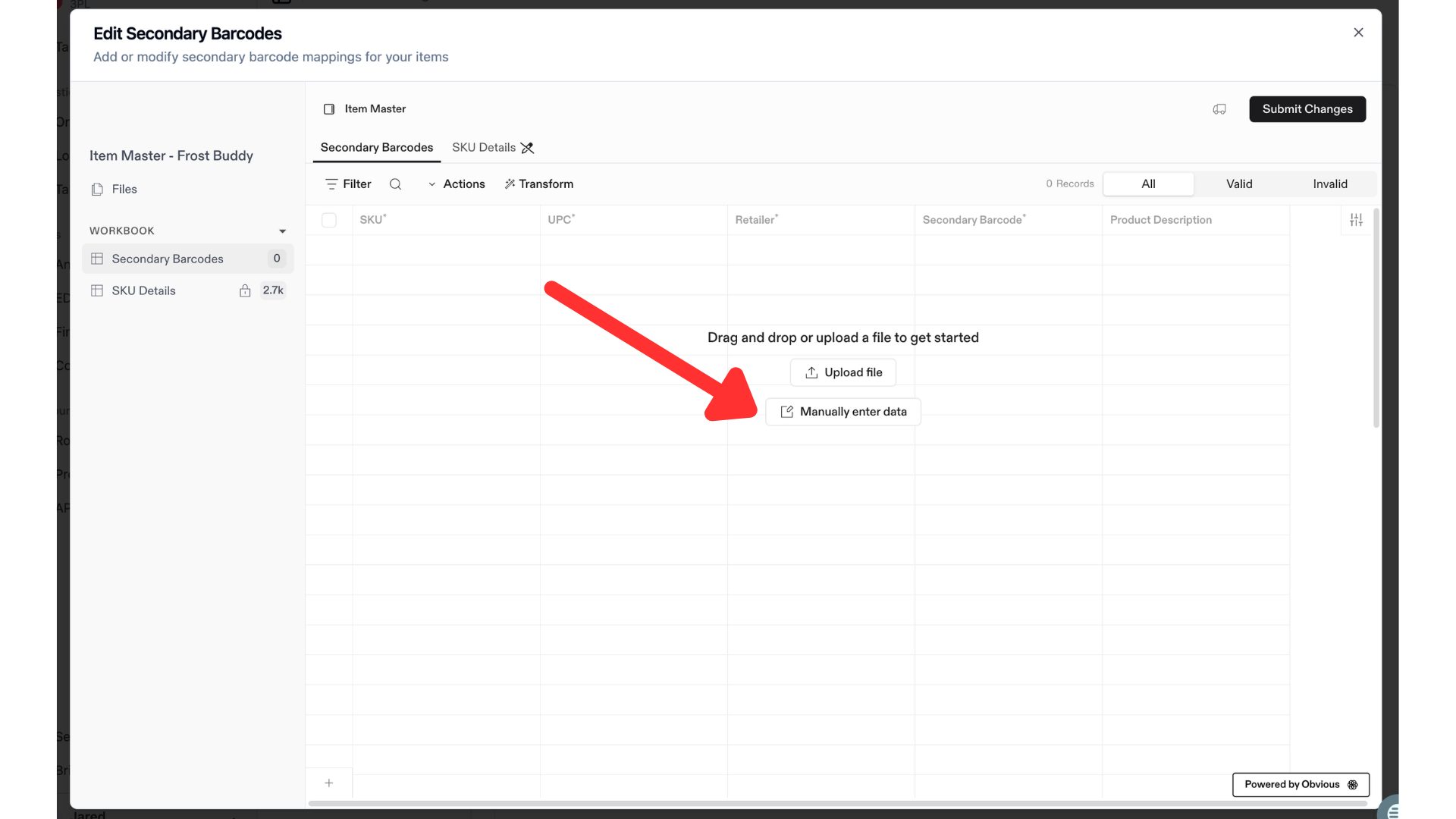
To manually upload secondary barcodes. Click the option for "Manual Upload".
Make sure that the values you enter match exactly what is in your item master. For each item you will be assigning a secondary barcode, enter the SKU and UPC in the appropriate columns. In the retailer column, you will enter which retailer the secondary barcode will be assigned to. In the secondary barcode section, input the barcode that is used by the retailer. This is how you will connect your product identifier (in the SKU and UPC field) to the retailers product identifier (in the secondary barcode field). The product description field is where you will input a brief product description for this item.
Typically, the product description is received on the PO. In the case where we do not receive this field for any reason, we will use the description provided here to populate the necessary fields on labels. This is often required when manual orders are created.
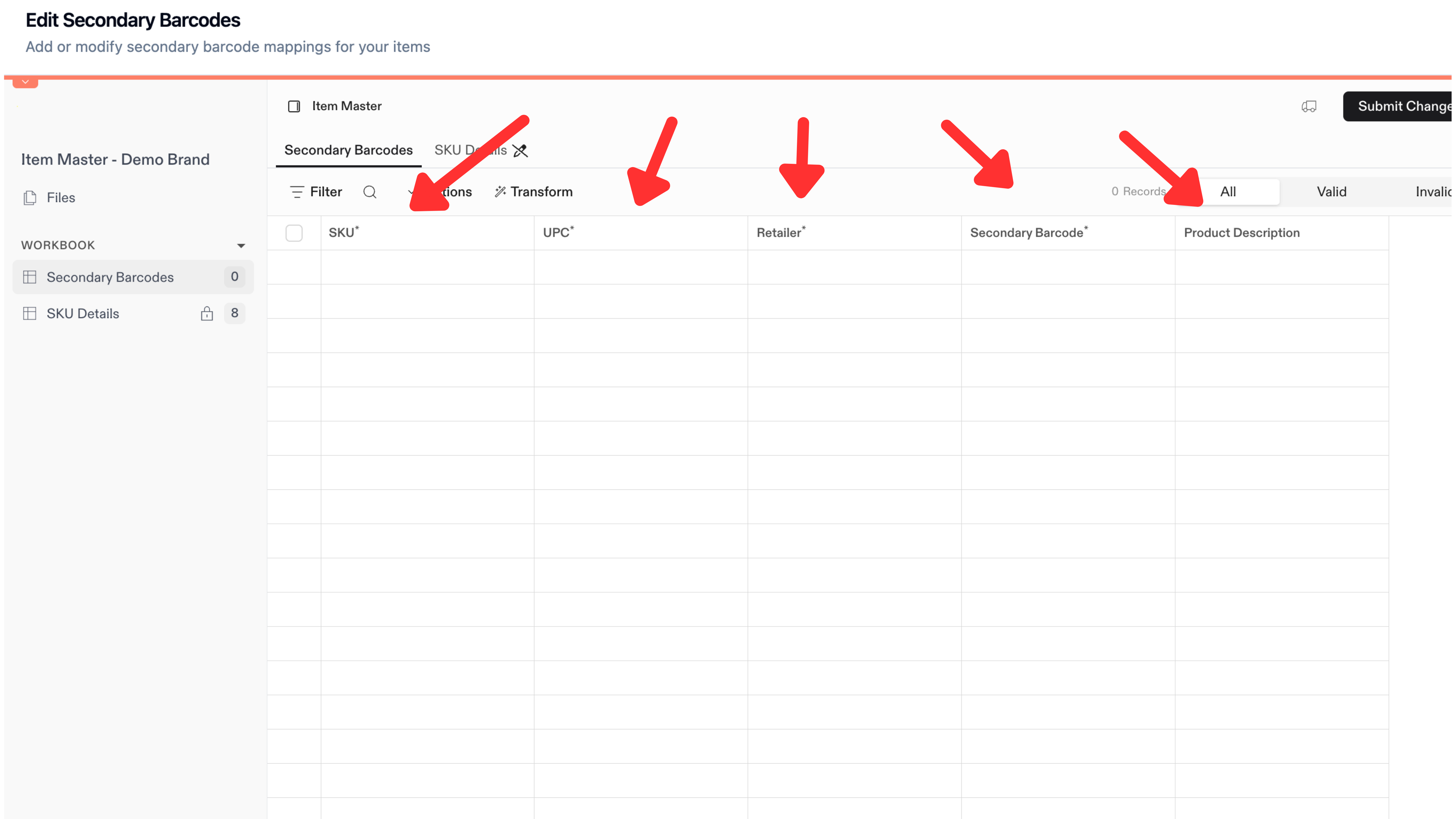
Once you have input this information, you can click submit changes and your secondary barcodes are complete!
Bulk Upload
After navigating to the Update Secondary Barcode page, click "Upload File".
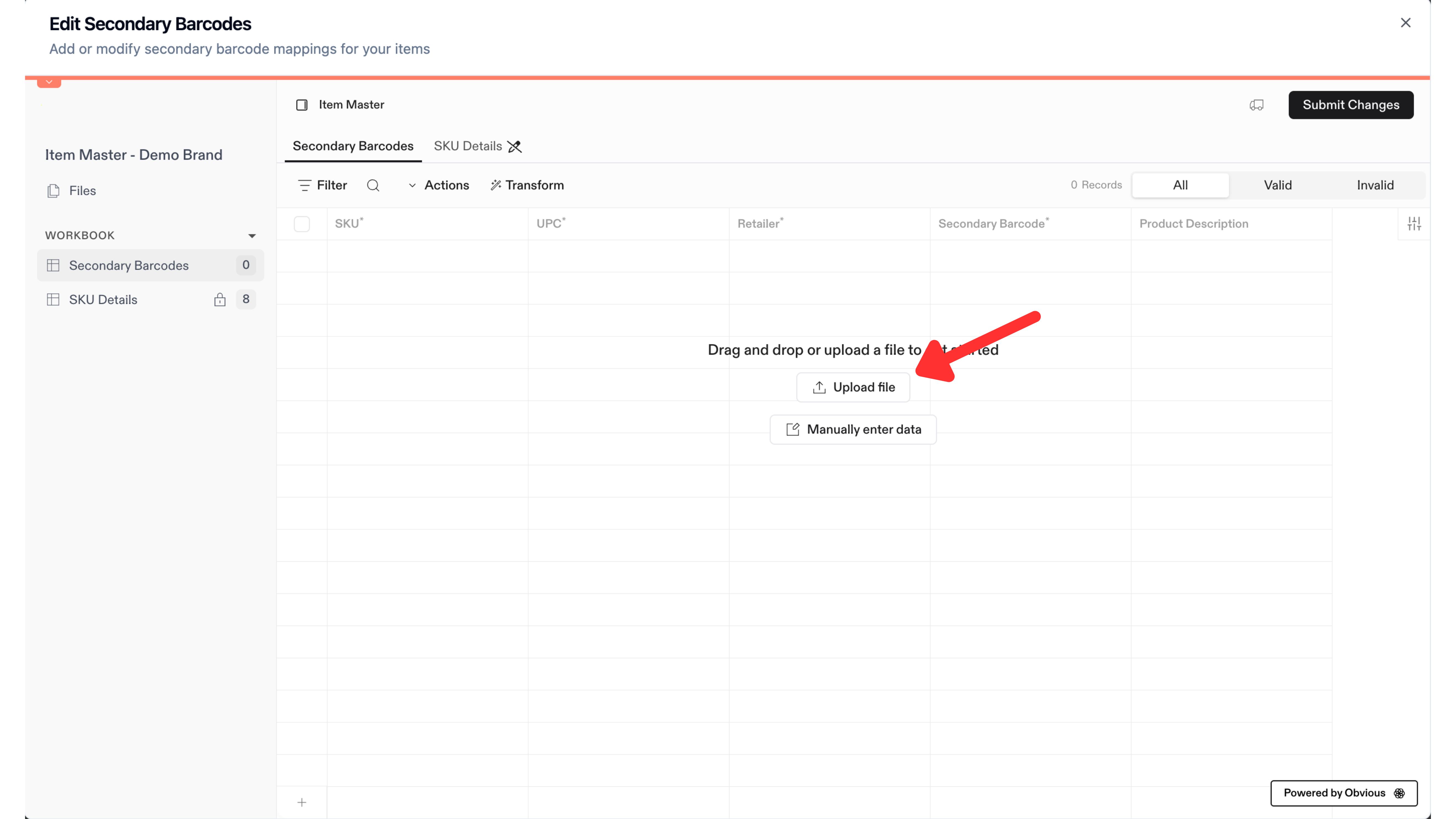
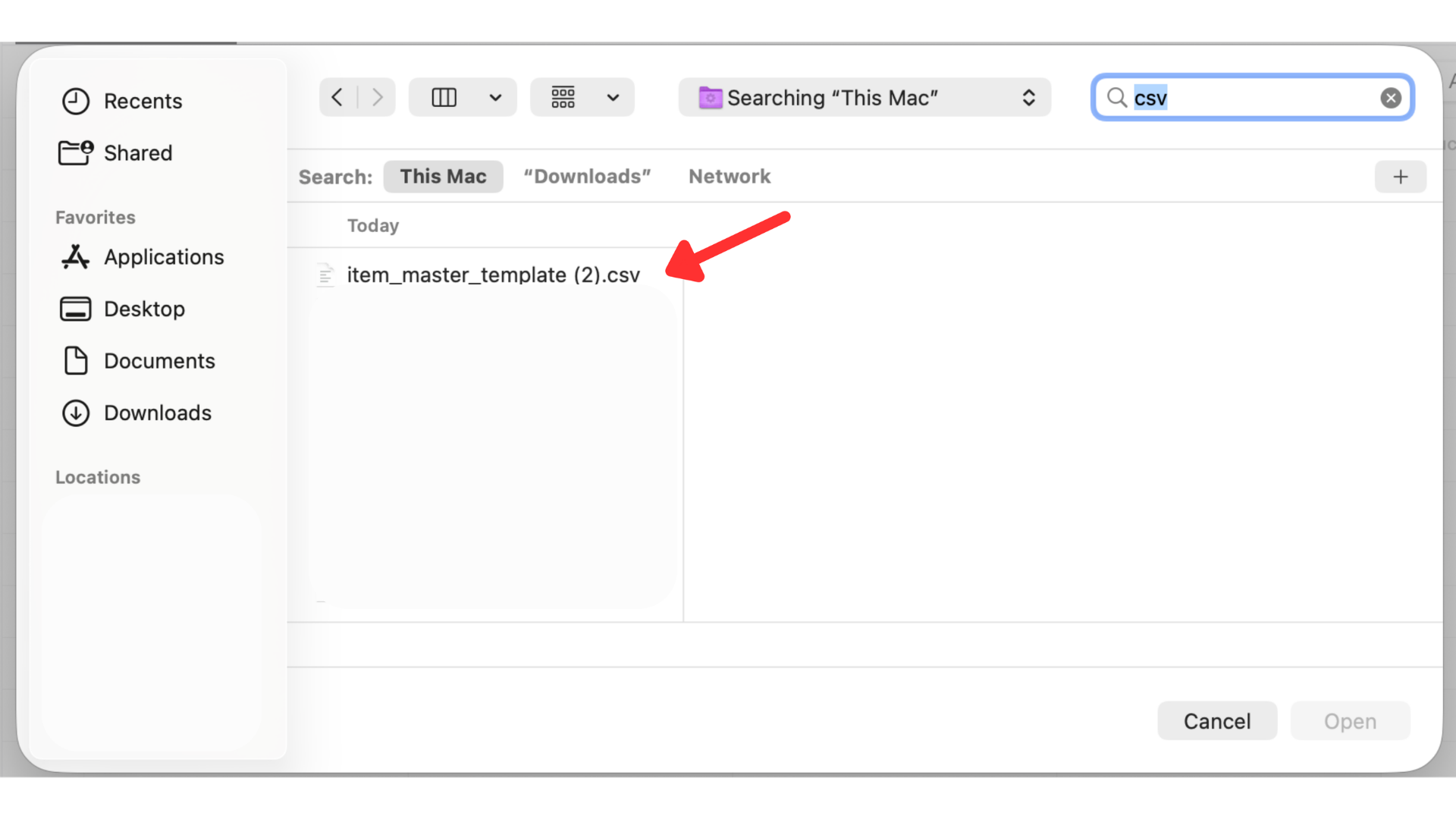
You can then select a .csv file to upload that has your product identifiers and information.
Each column of your template will be recognized as an incoming field and appear on the left side.
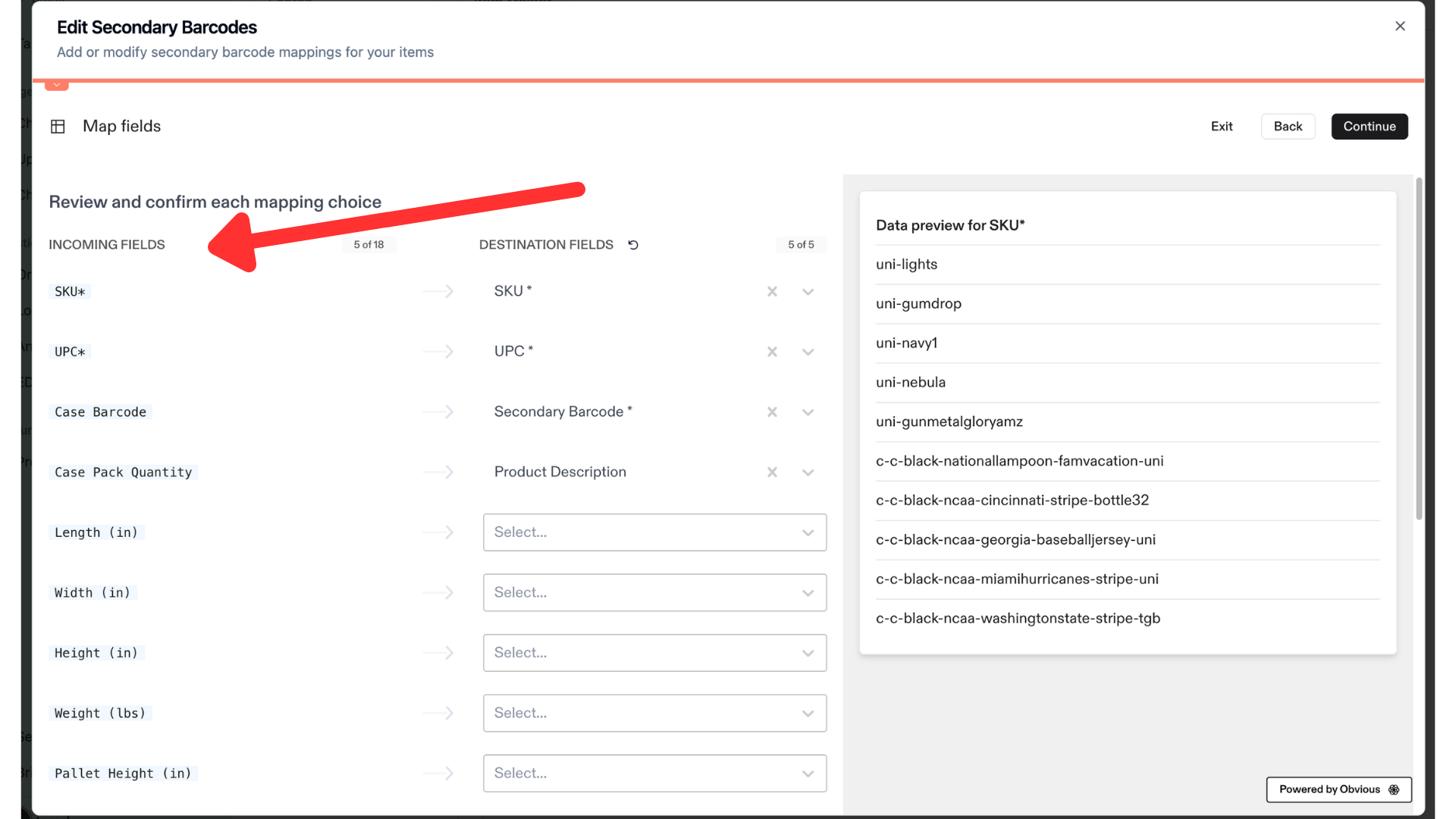
The values that need to be assigned will be shown on the right as "Destination Fields".
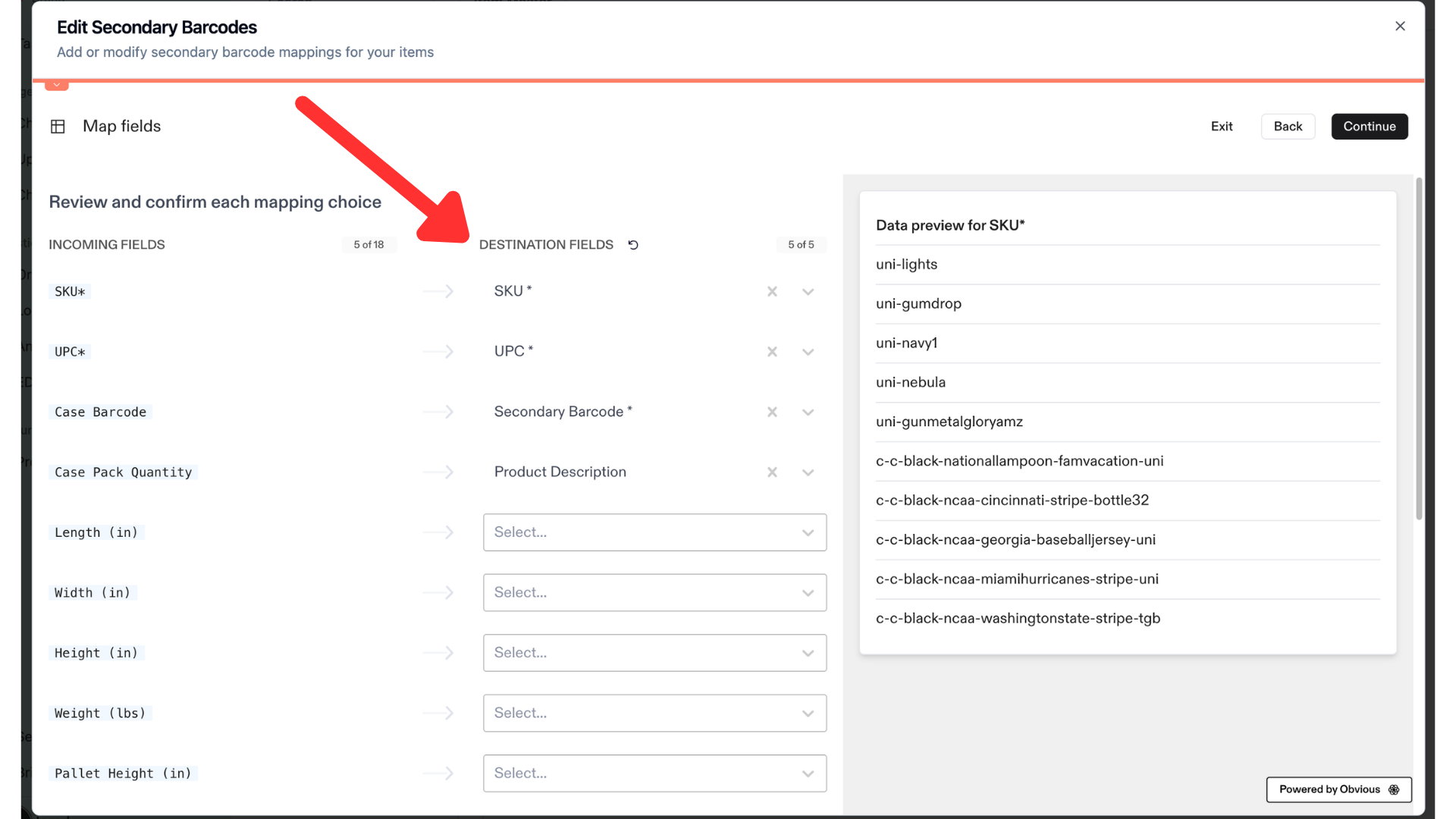
If there are columns that match in name, they will automatically be assigned to each other (as seen above with SKU and UPC). You can then select which fields you would like to map to Secondary Barcode, Retailer and Product Description. the example below shows "Store" being mapped to Retailer and "Product Desc" being mapped to Product Description.
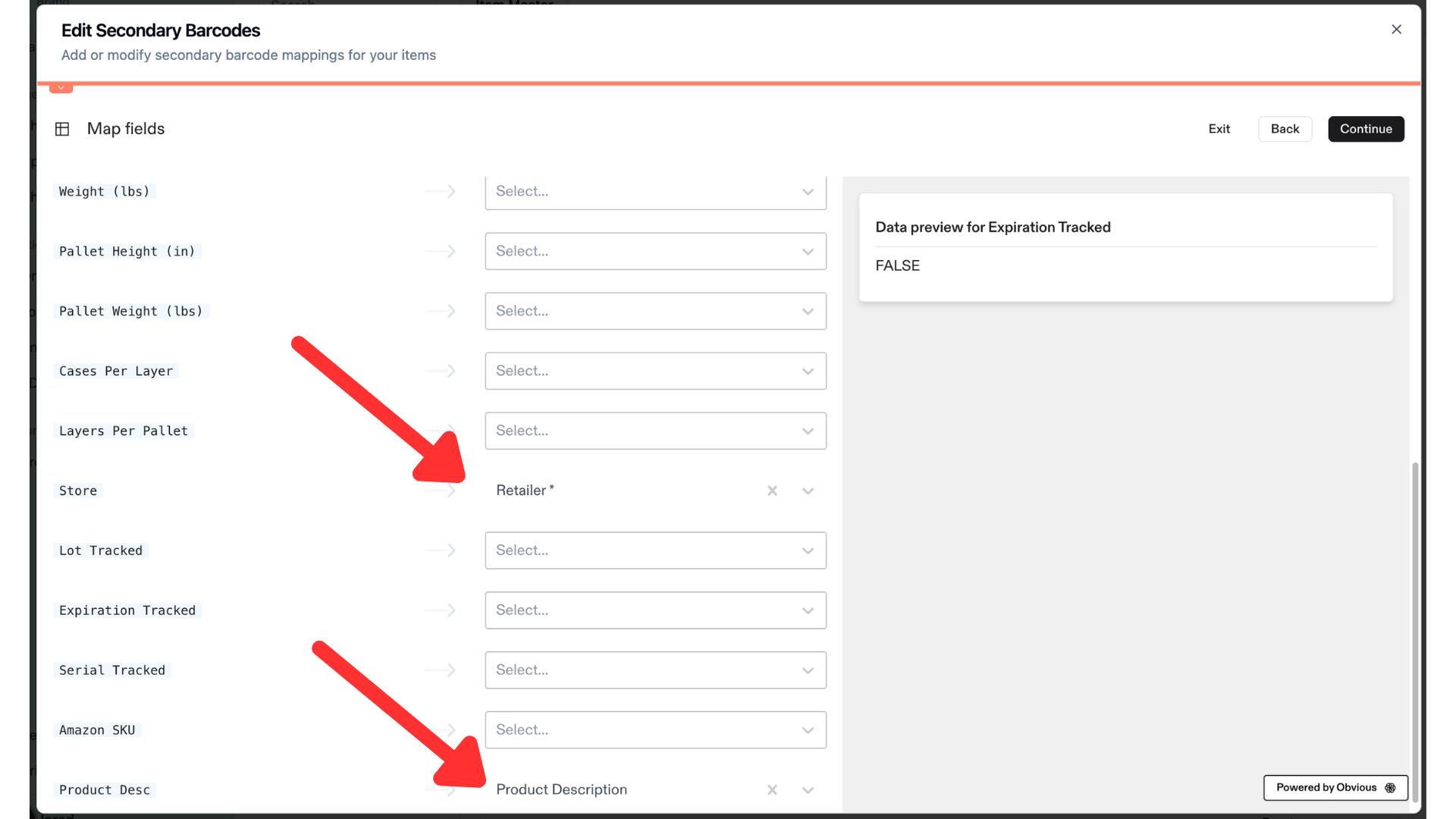
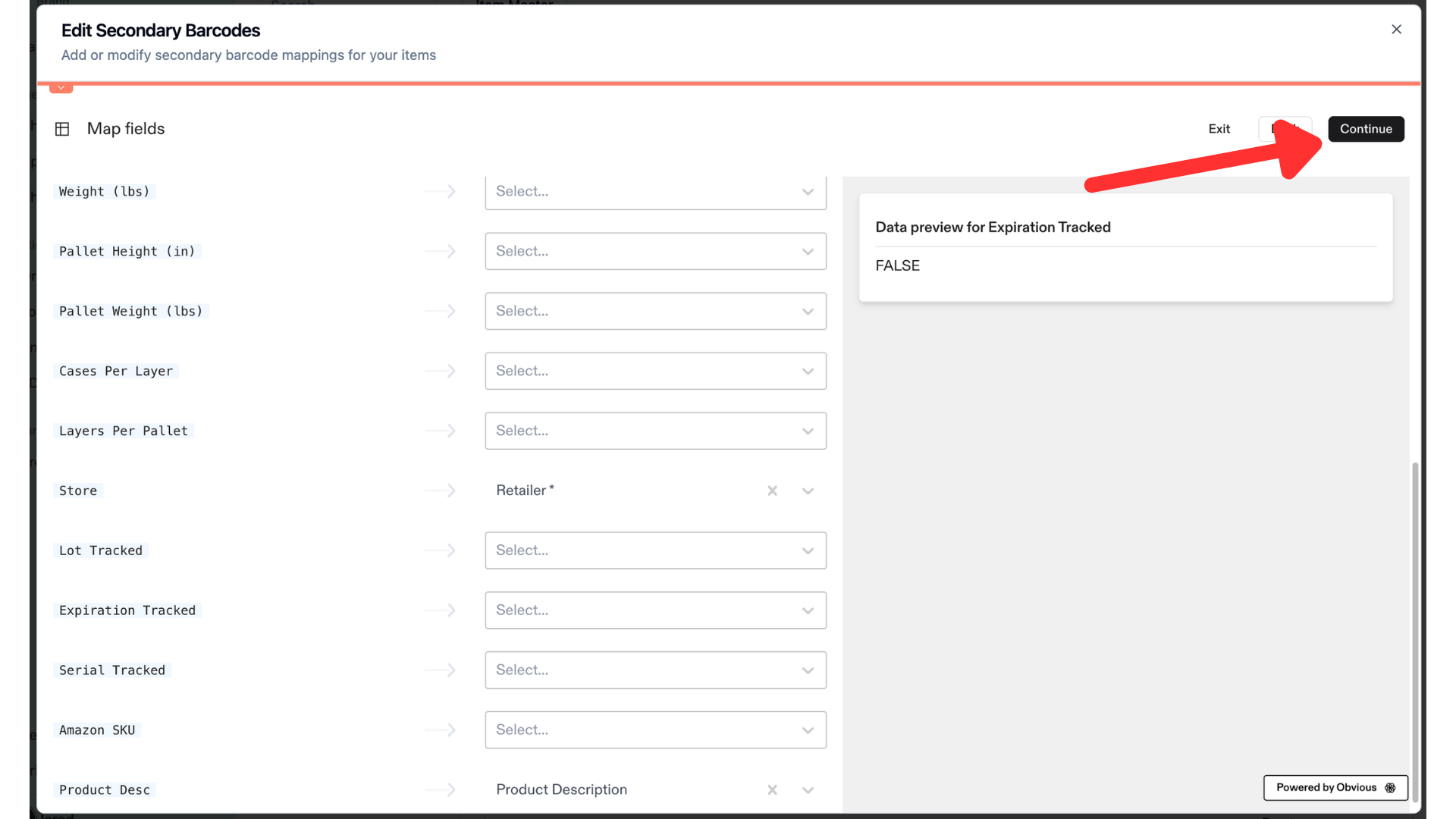
Once the required fields are mapped, click "Continue" in the top right corner.
At this step, you will be required to make any mappings that were missed in the previous step and are required to proceed. This example shows the value in the retailer field as BCs which needs to be properly assigned to Buc-ee's.
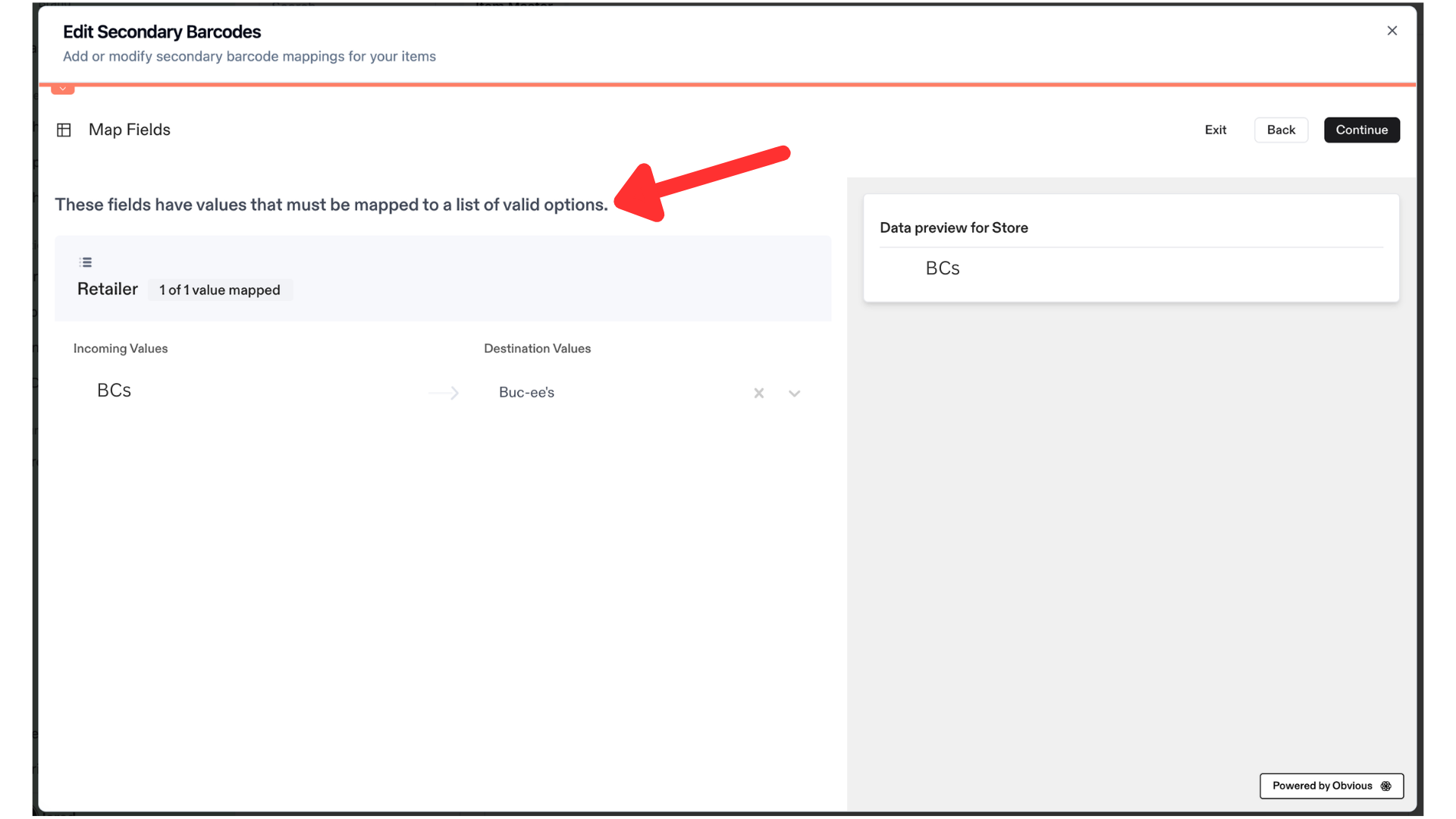
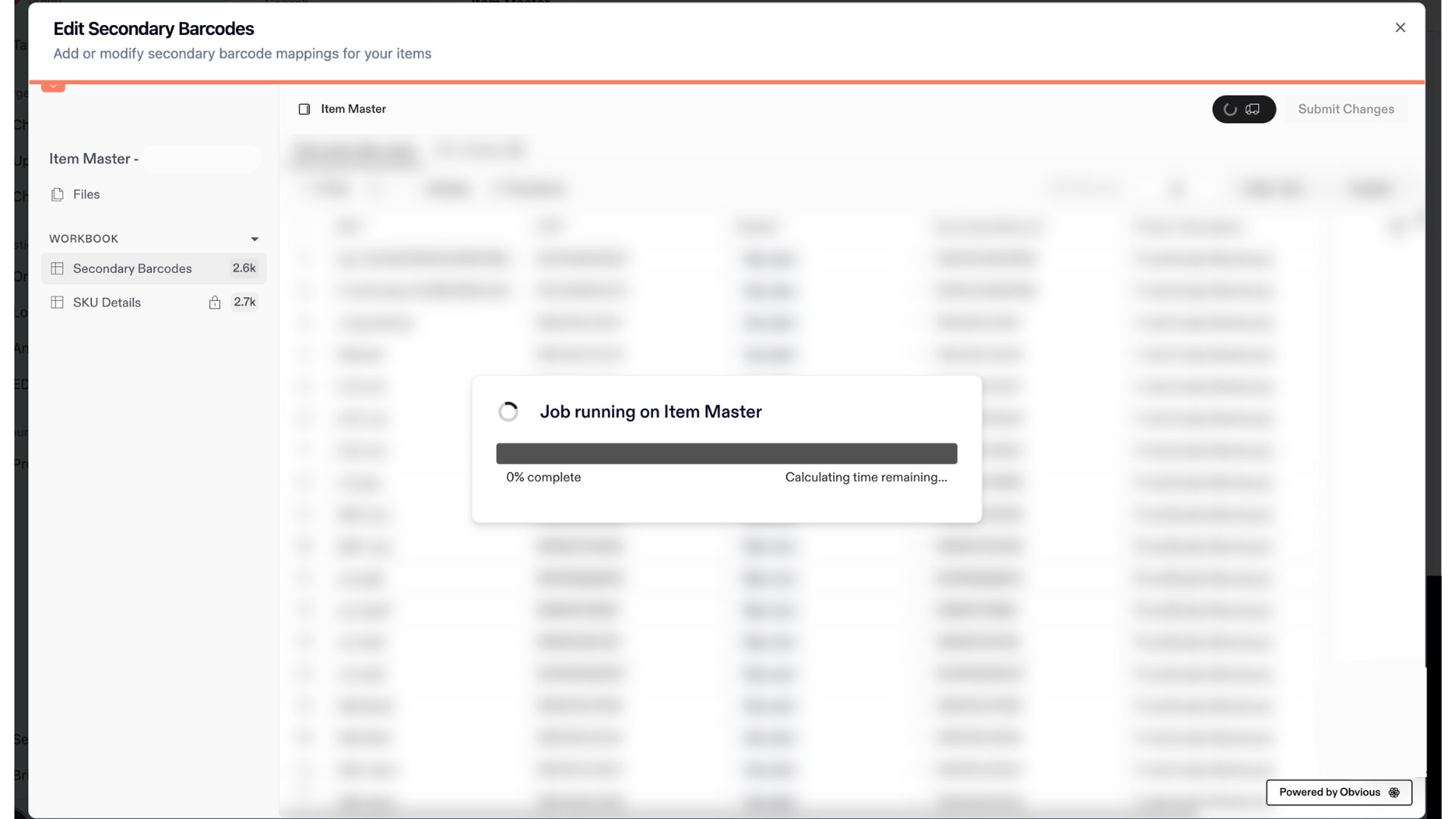
Click Continue, you will see a brief loading screen, then click submit changes.
FAQs
Why am I getting errors when I click submit changes?
The errors can happen for a few different reasons. Hovering over the cell with an error message will show more information about what caused the error. A common error is "SKU/UPC combination not found in item master". If you see this error, check to make sure your .csv file has the same SKU/UPC combination as your item master.