Validating Carton Dimensions and Entering Exemptions
Last updated: March 6, 2026
Validating Carton Dimensions
Carton dimensions are uploaded as part of the item master upload process. Once submitted, RetailReady automatically compares the carton’s length, width, height, and weight against the compliance requirements for each retailer configured for that SKU.
If any dimension falls outside a retailer’s guidelines, it will be flagged in the Validate Carton Dimensions section for review.
If you have retailer exemptions for the non-compliant cartons, you must enter your exemptions into RetailReady. If these are not entered, RetailReady will block you from packing out your orders containing these cartons. Navigate to the Entering Exemptions section of this article to learn about this process.
How to Validate Carton Dimensions
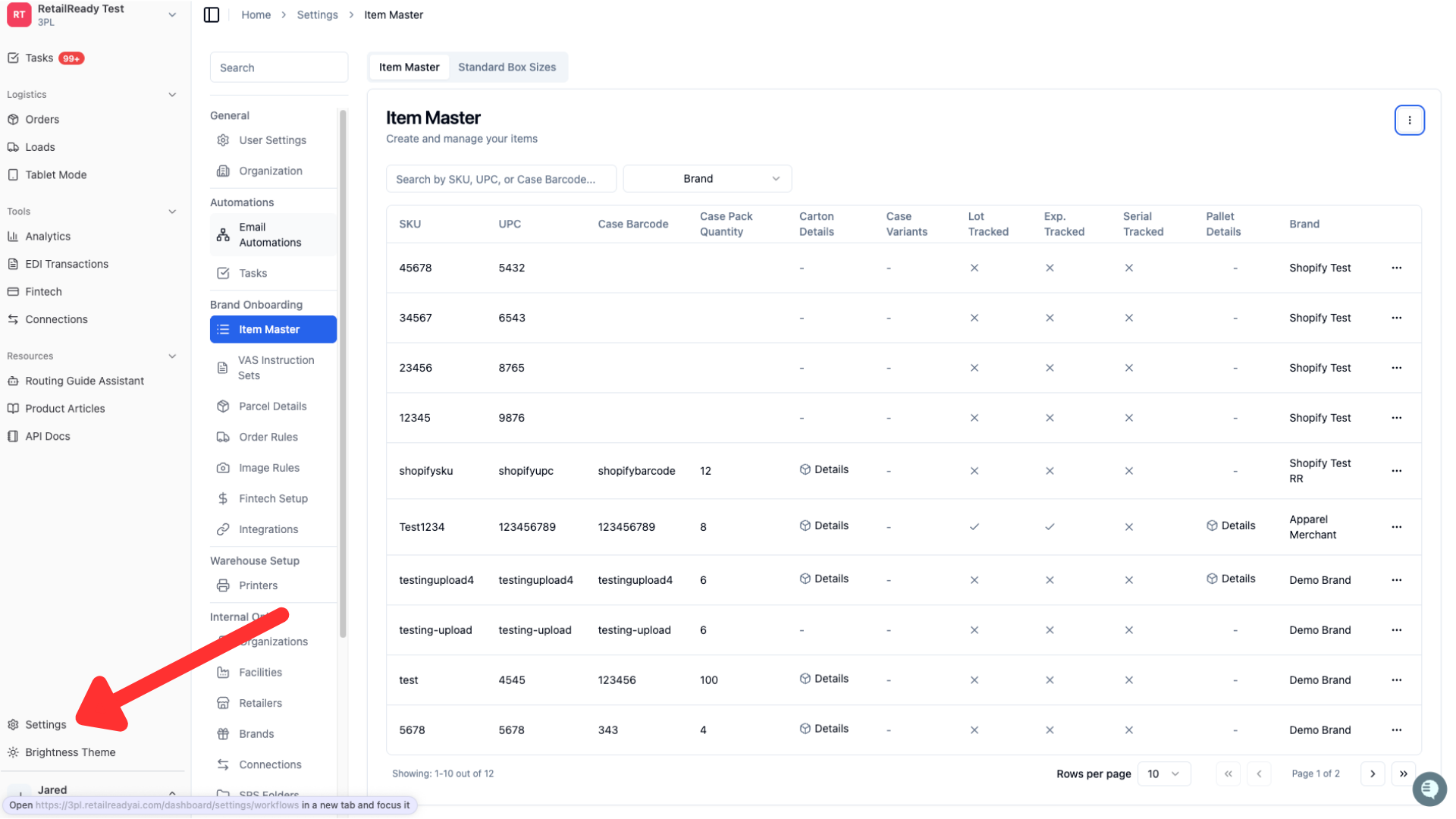
Click on 'Settings' in the bottom left corner
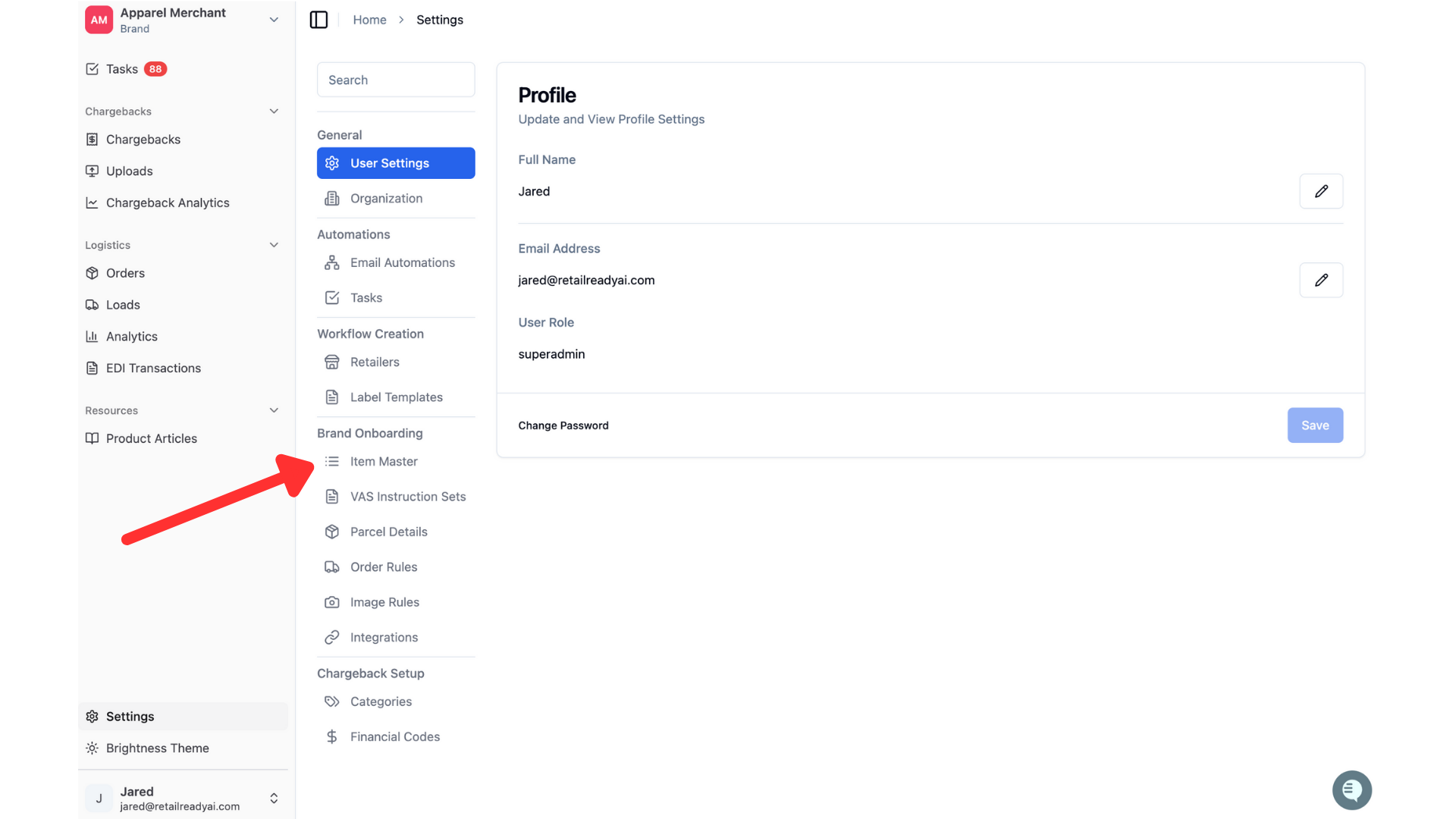
Click 'Item Master' section in the column that opens
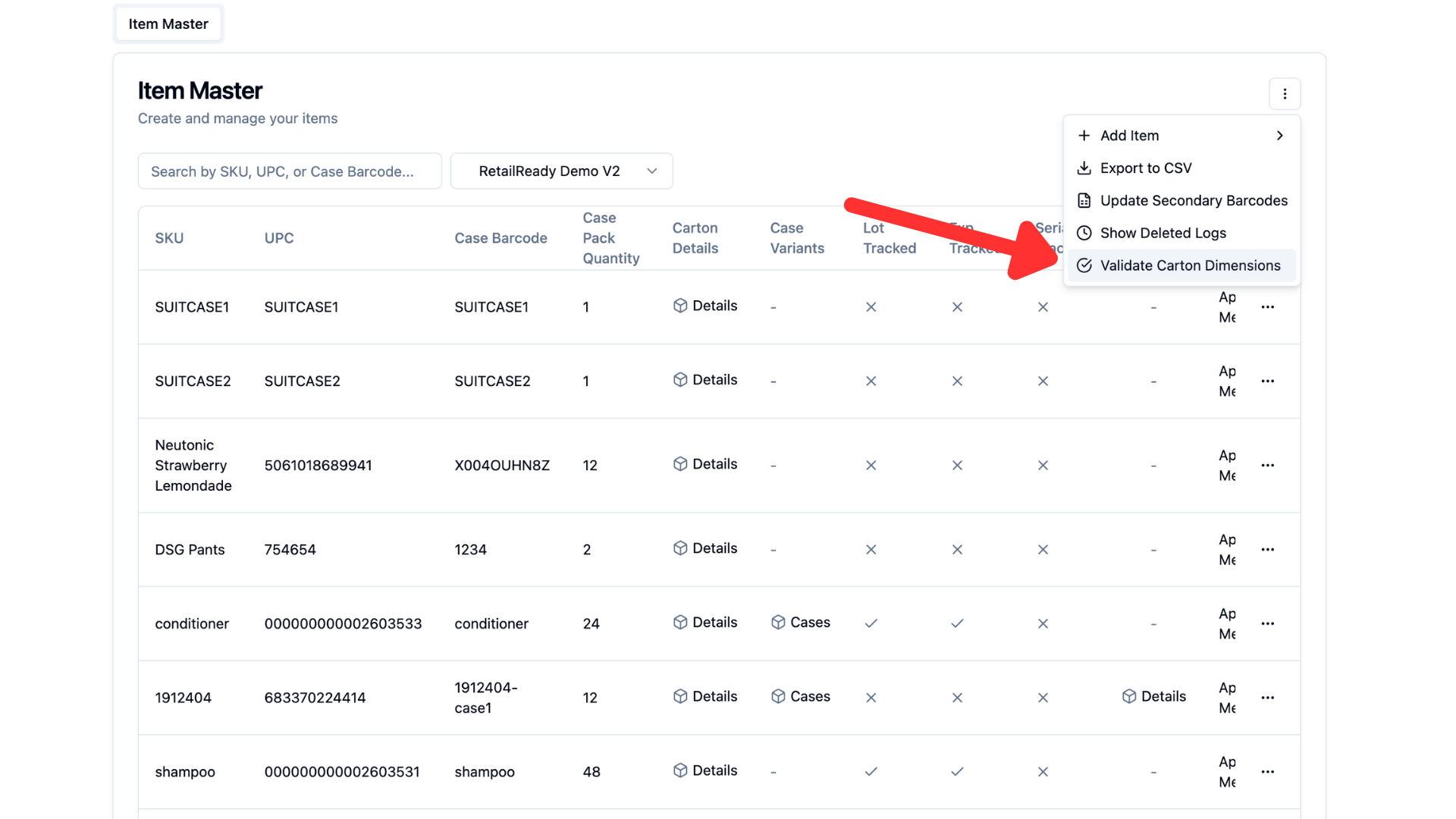
Click the 3 dots int he top right corner then 'Validate Carton Dimensions'
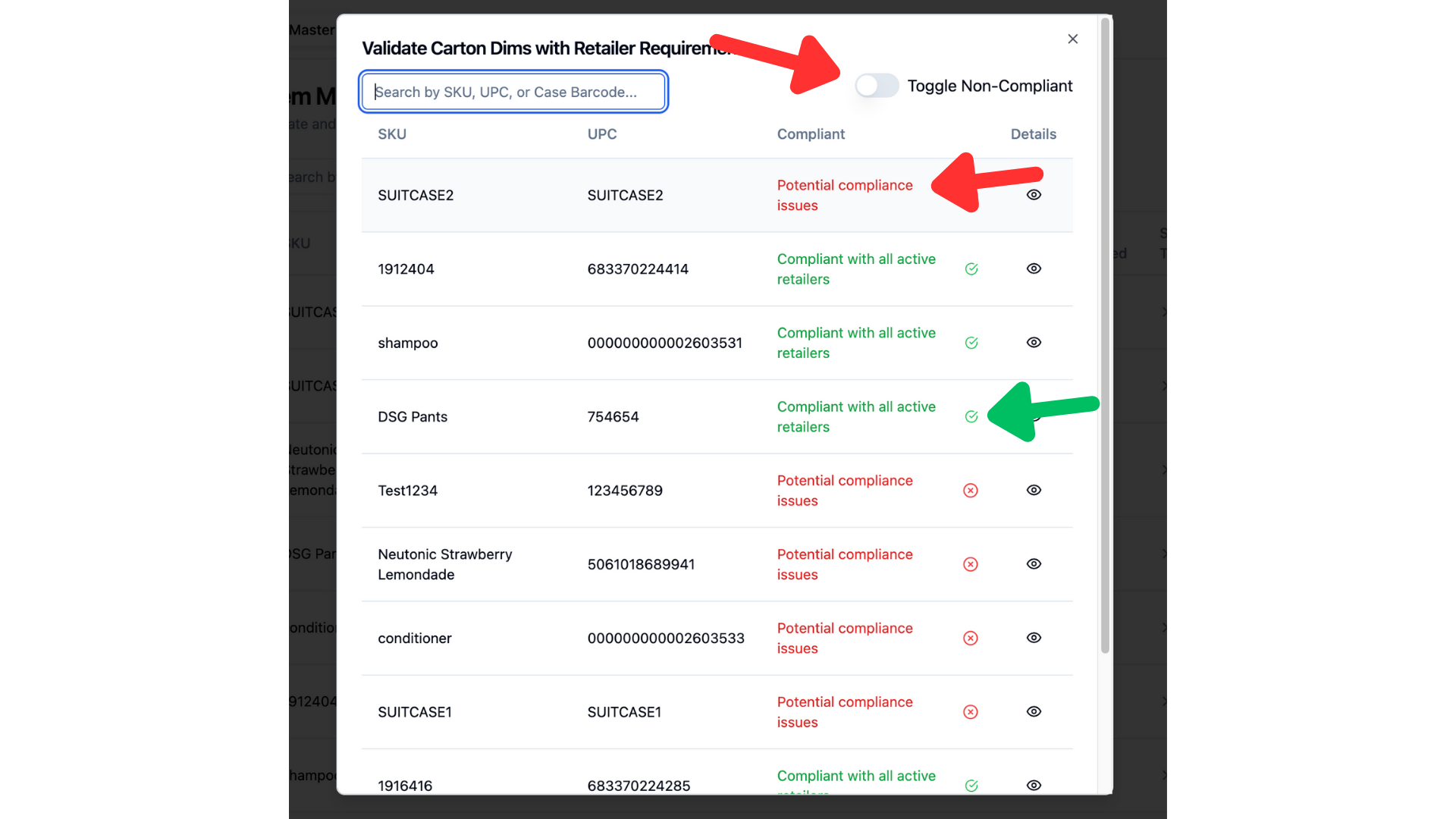
This will show you which SKUs are complaint with your retailers and which ones have been flagged. You can also toggle to see only the non-compliant SKUs!
Select the Eye icon next to one of your SKUs, you can see a more detailed breakdown of the SKU dimensions and which retailers are at risk of non-compliance and which dimensions are out of the required range.
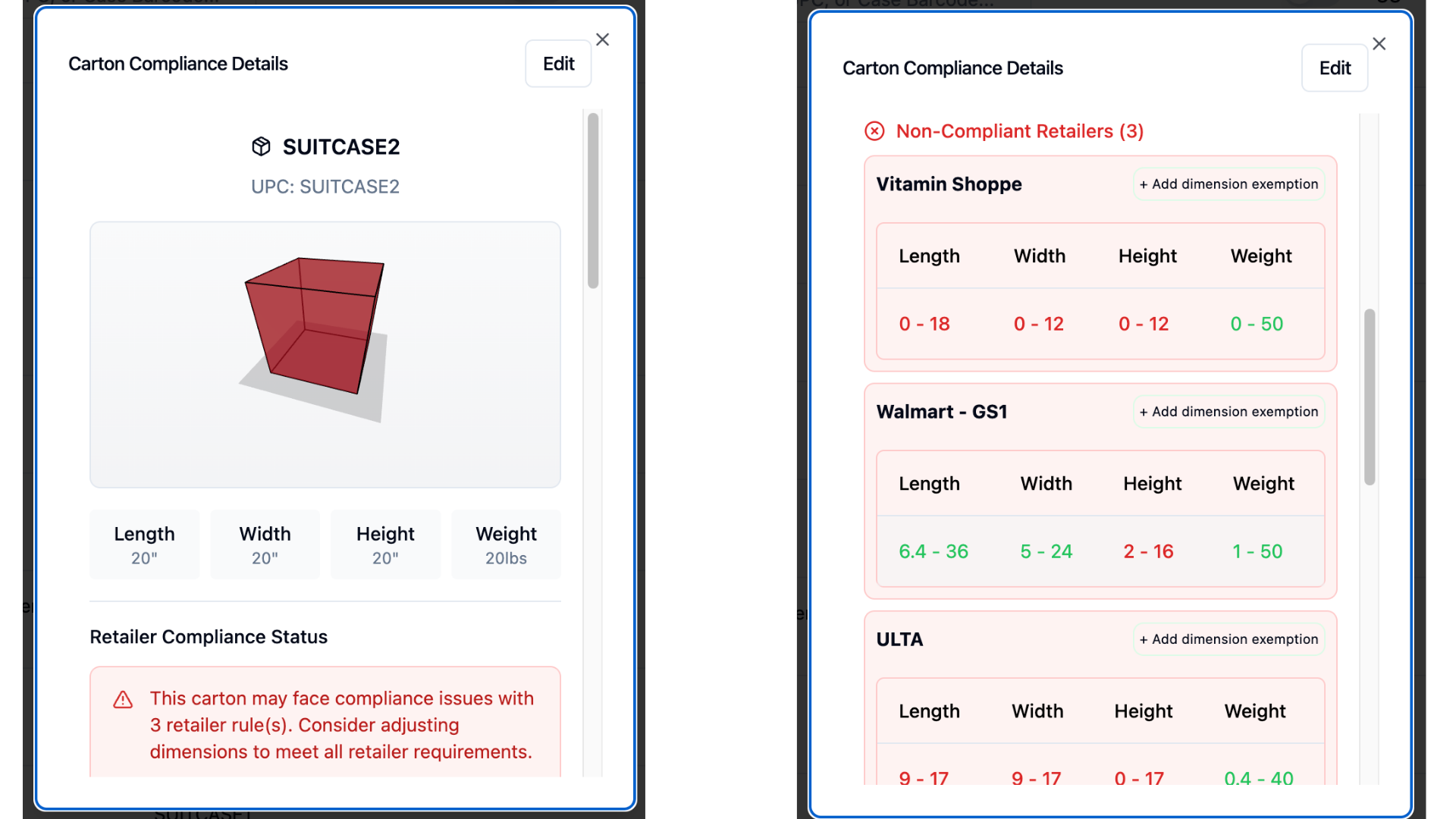
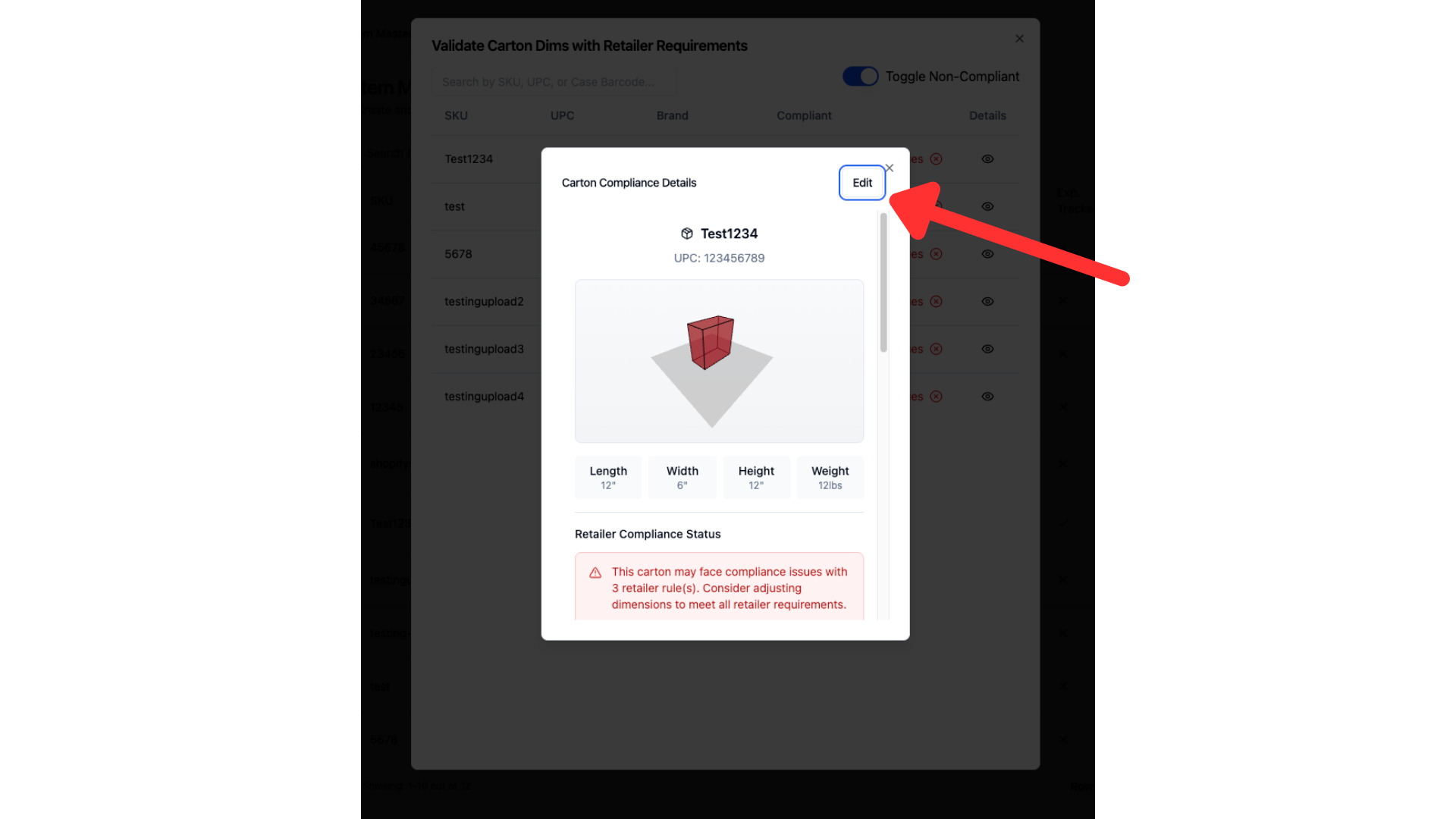
If you do not have an exemption for these items/retailers, you can edit the carton dimensions directly in this view.
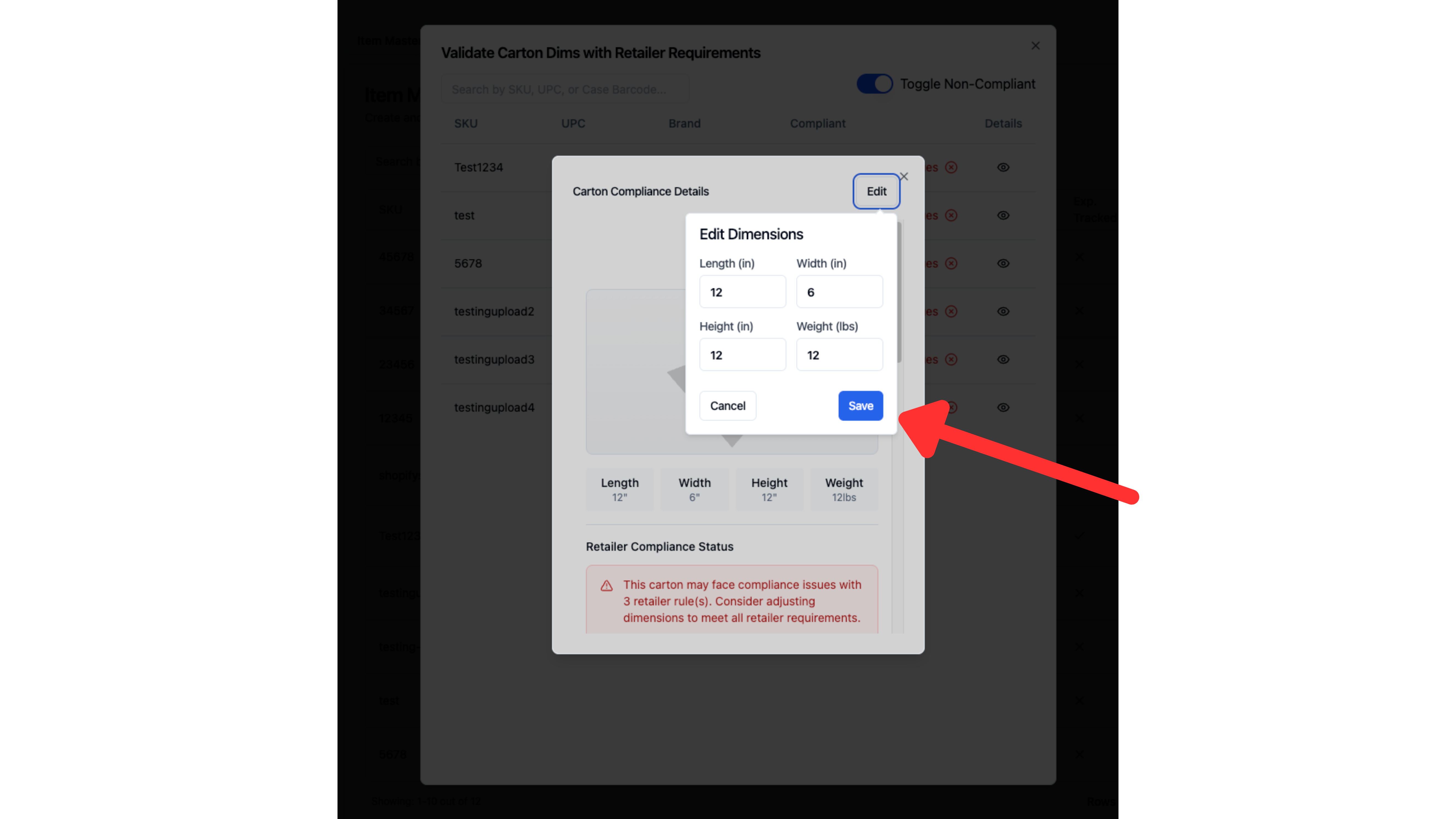
You can make changes to the dimensions and click save. This will update the item master and change this carton to the newly set dimensions.
Retailer Exemptions
Only brand users can input retailer exemptions, if you are a 3PL user trying to input retailer exemptions, you must contact the affected brand and instruct them to input this information.
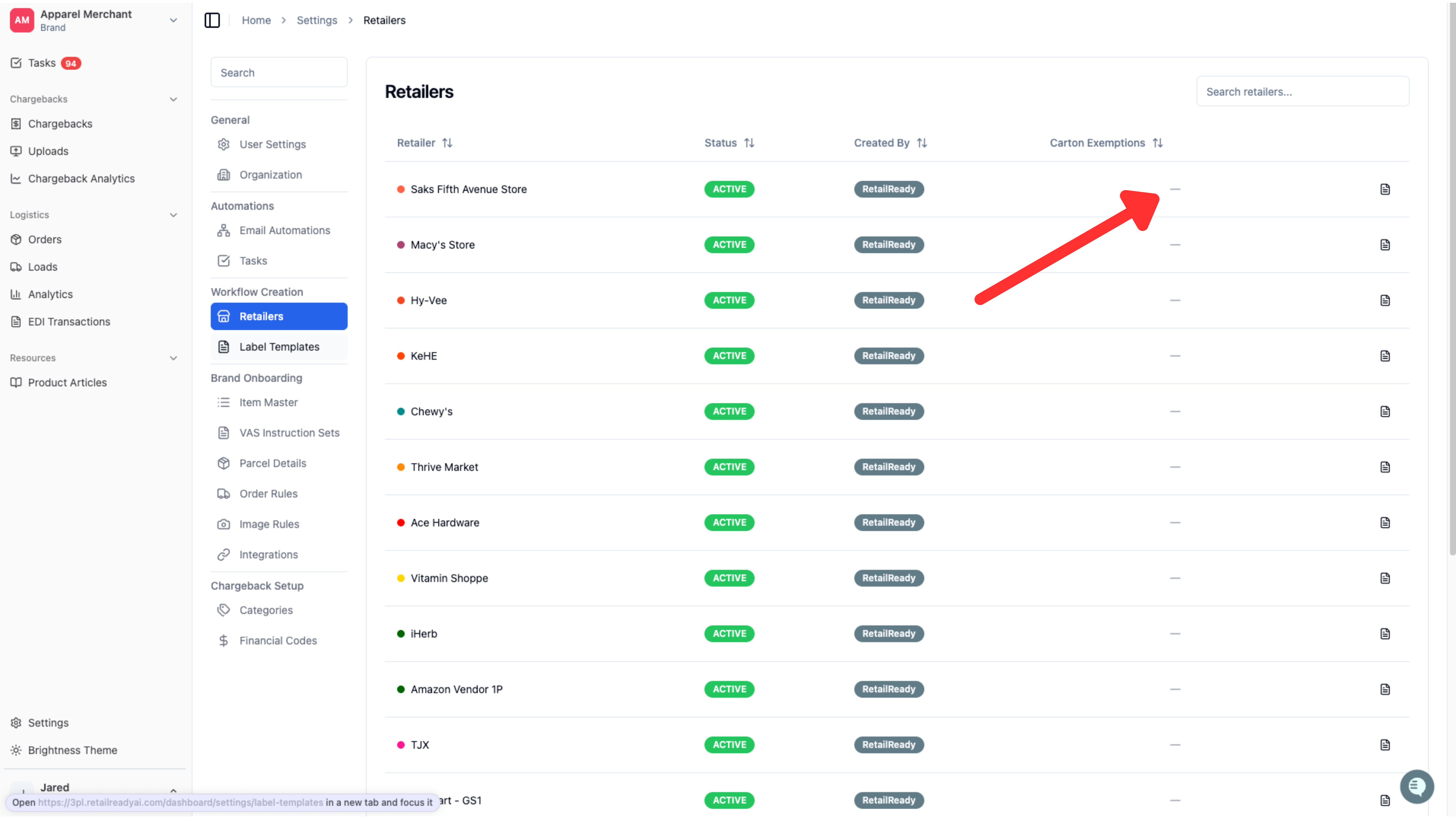
If you have a retailer exemption for the non-complaint cartons, navigate to the retailer tab in RetailReady.
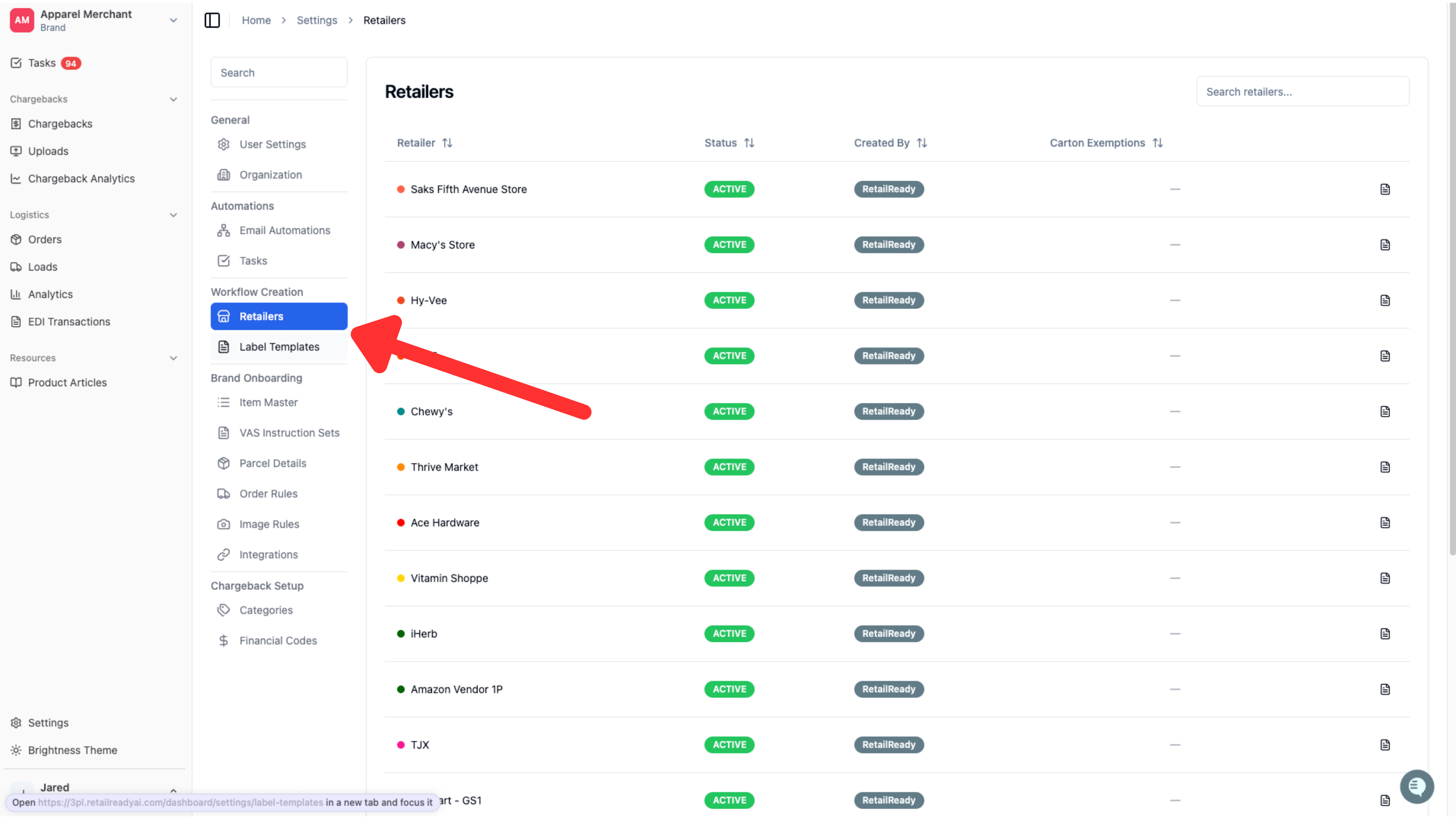
Find the affected retailer and in the Carton Dimensions column click on the dash to open the exemption options.
Check the boxes for the exempt requirements.
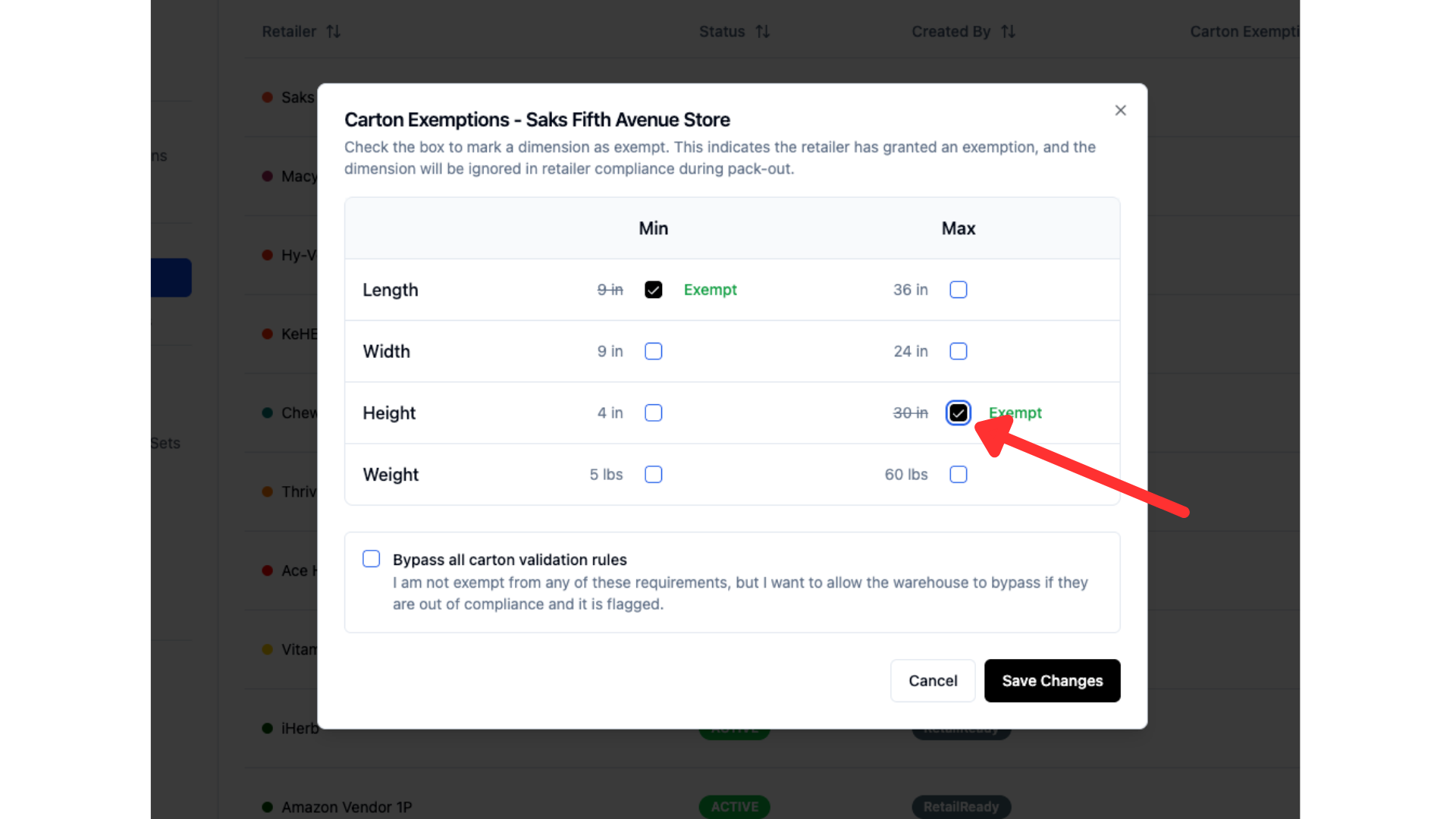
If you would like to allow the warehouse to bypass all carton requirements requirements despite potential chargebacks you may check the "Bypass all carton validation rules" box.
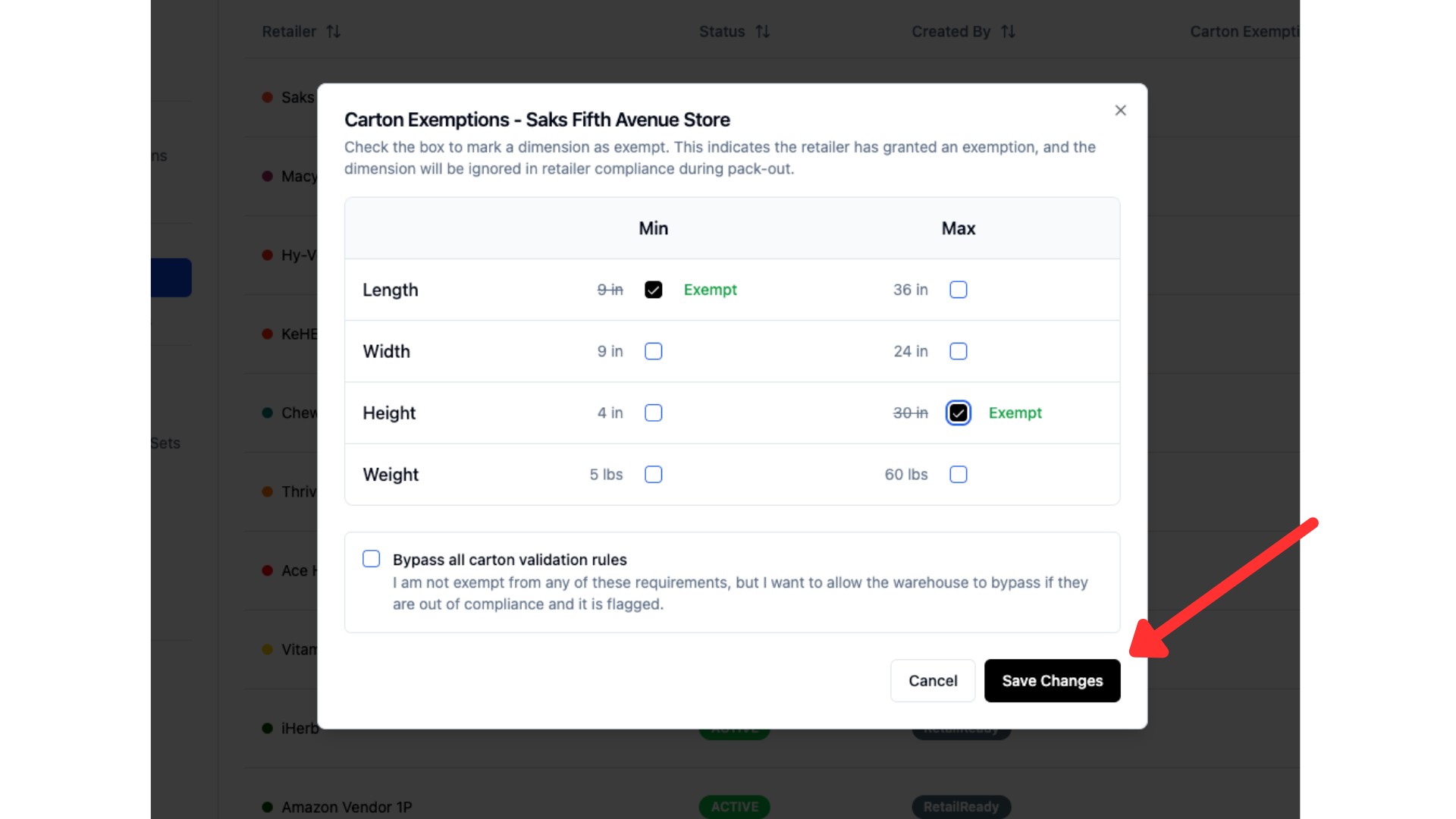
Click save changes and the exemption has been added.
To confirm that your cartons are now considered compliant, navigate back to "Validate Carton Dimensions" and see that your cartons for the edited retailer are now compliant!
FAQs
What if editing the carton dimensions to be compliant with one retailer, makes them non-compliant with another?
In this situation, the best course of action is to create "Case Variants" for this SKU. When creating a case variant, you must make sure to include the retailers to which this variant will ship and exclude the retailers that it will not. Doing this tells RetailReady that the cartons should be different sizes depending on which retailer it's being sent to. For instructions on how to properly set up a case variant, follow the "Create a case variant" section of the item master setup guide here.