Create Label Templates in RetailReady
Last updated: April 13, 2026
Label Templates in RetailReady allow users to create standardized, customizable labels that are applied during the pack-out process within VAS actions. These templates can assist consistency and compliance across different retailers and brands for specific products.
What is a Label Template?
A customizable label format specific to a product, product type, or brand.
Why It Matters in Retail Fulfillment
Retailers and brands often have unique labeling requirements that must be followed for compliance. Proper labeling helps prevent chargebacks, ensures shipments are retail-ready, and reduces manual effort during fulfillment.
How to Create a Label Template
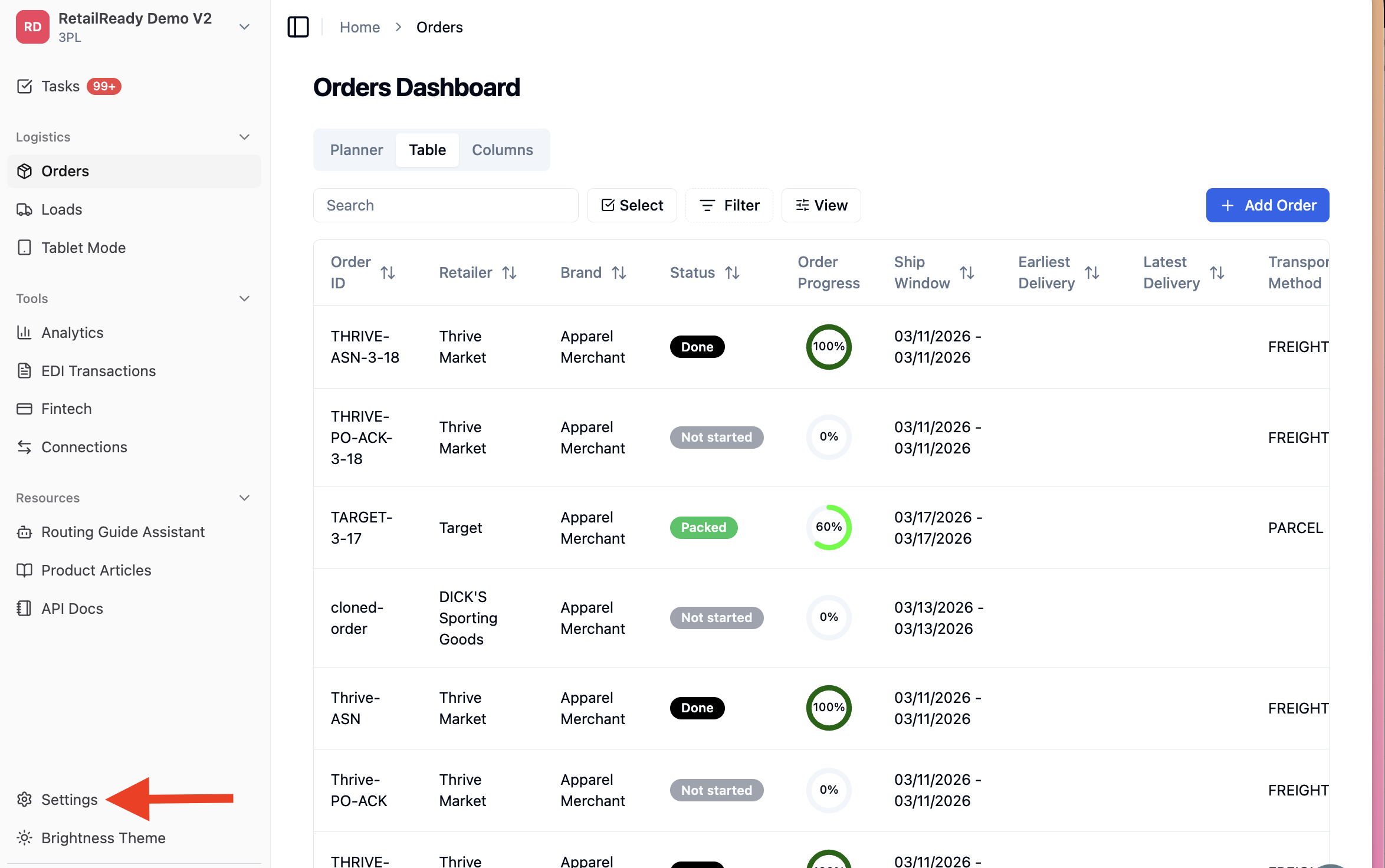
Navigate to 'Settings' on the left-hand navigation panel
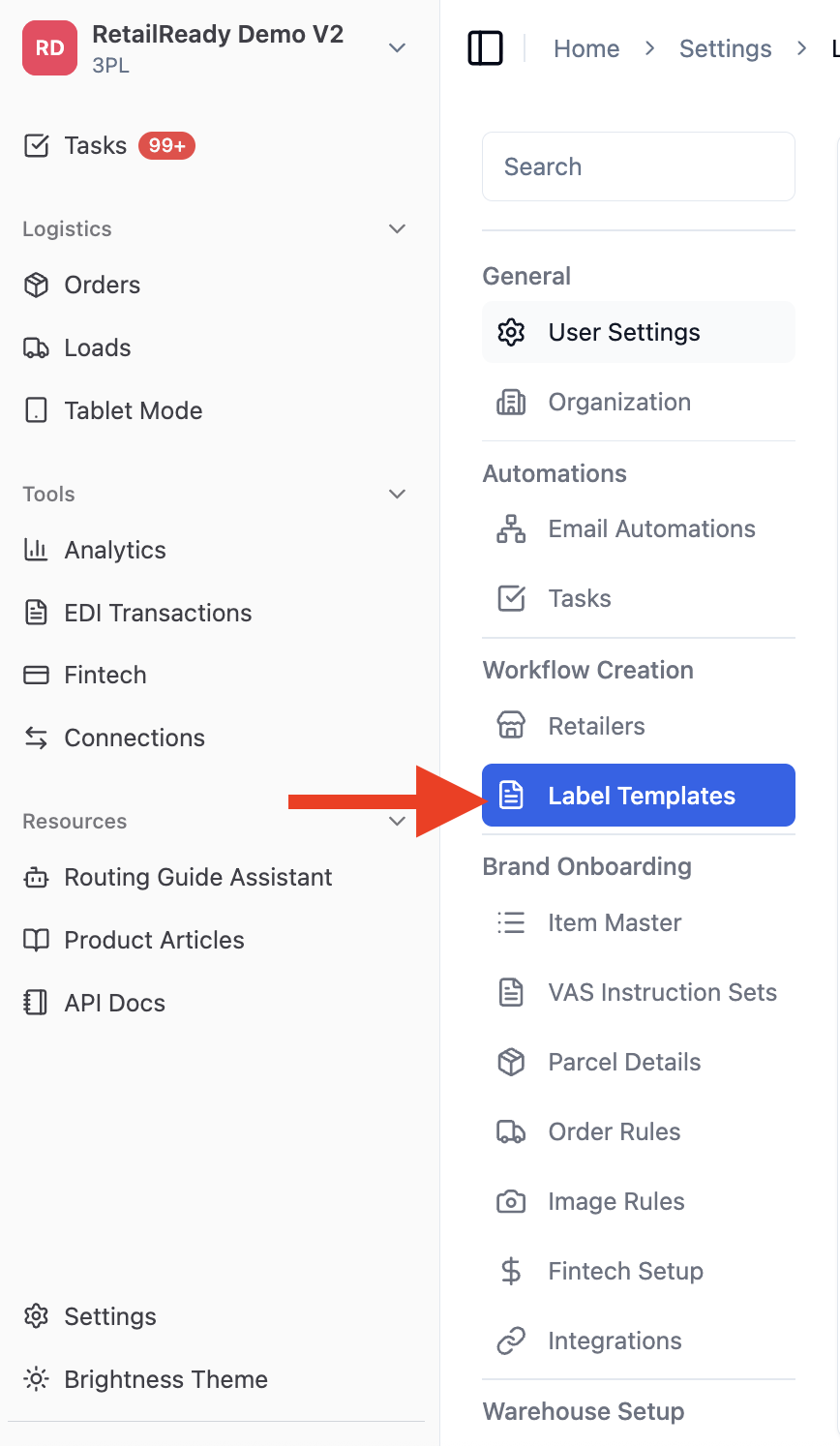
Select 'Label Templates'.
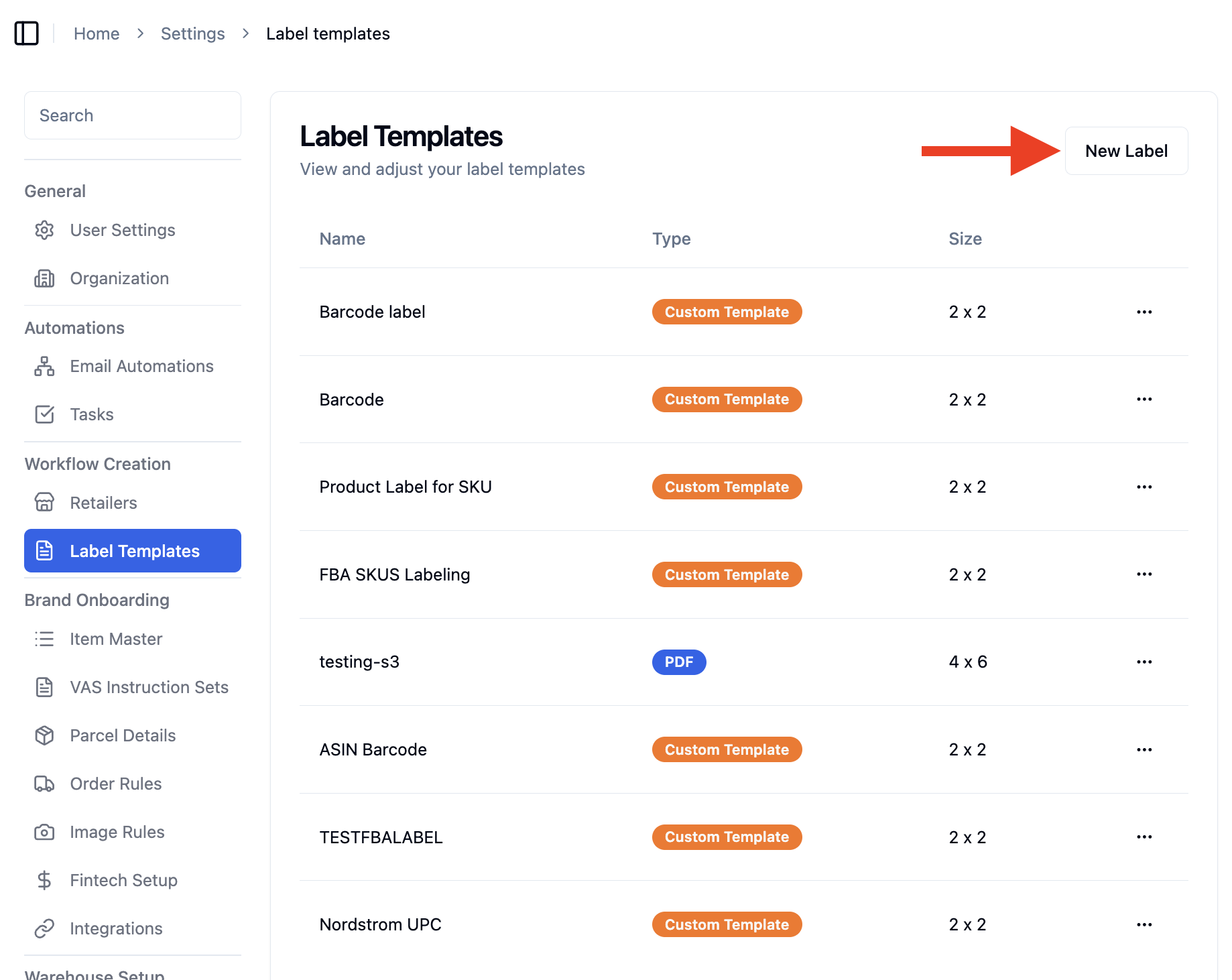
Select 'New Label' in the upper right corner to begin creating a template.
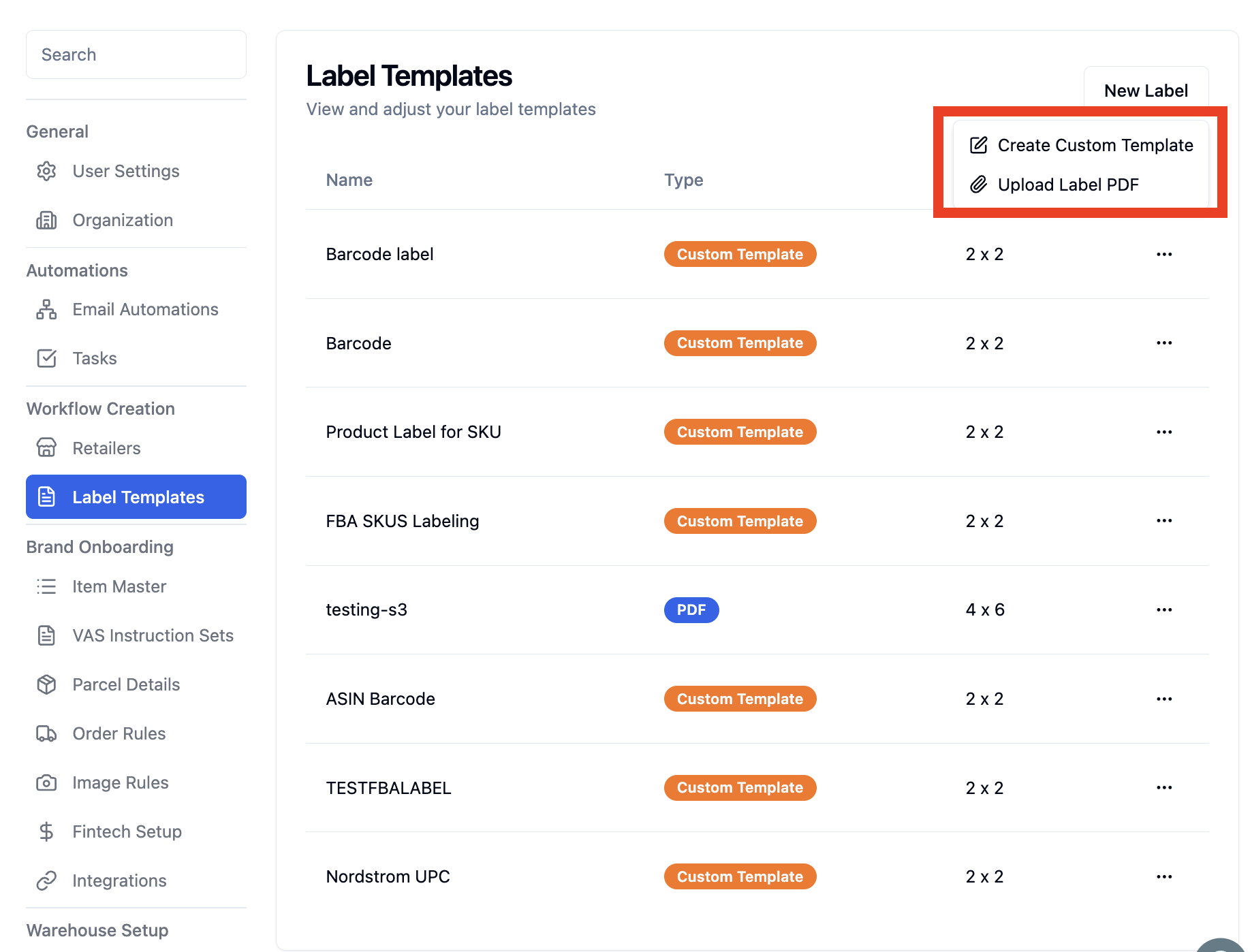
Choose between creating a custom template or uploading a PDF label template.
Custom Label
Select Custom Label
Enter the Label Name, Width and Height details to define the label setup.
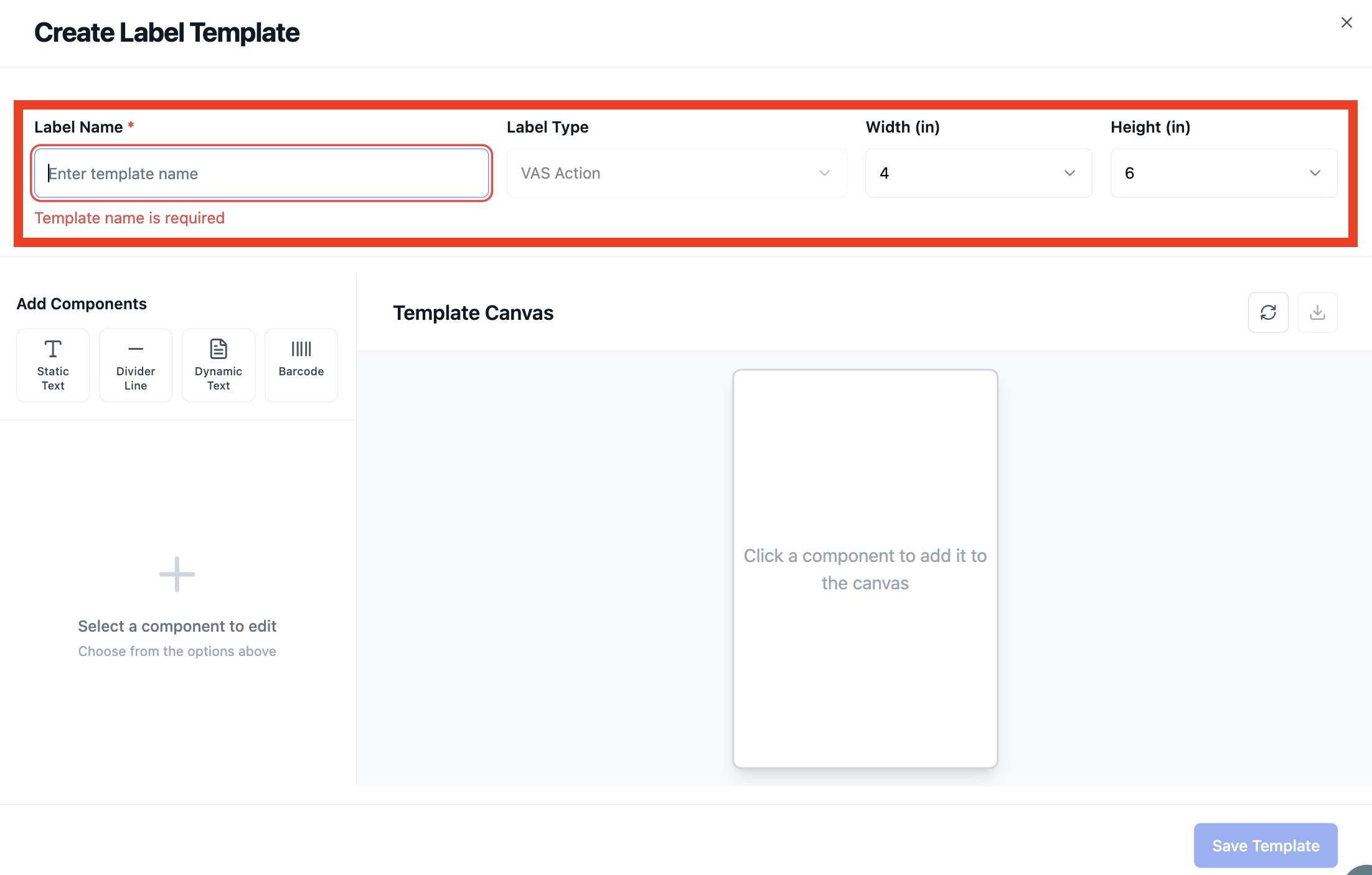
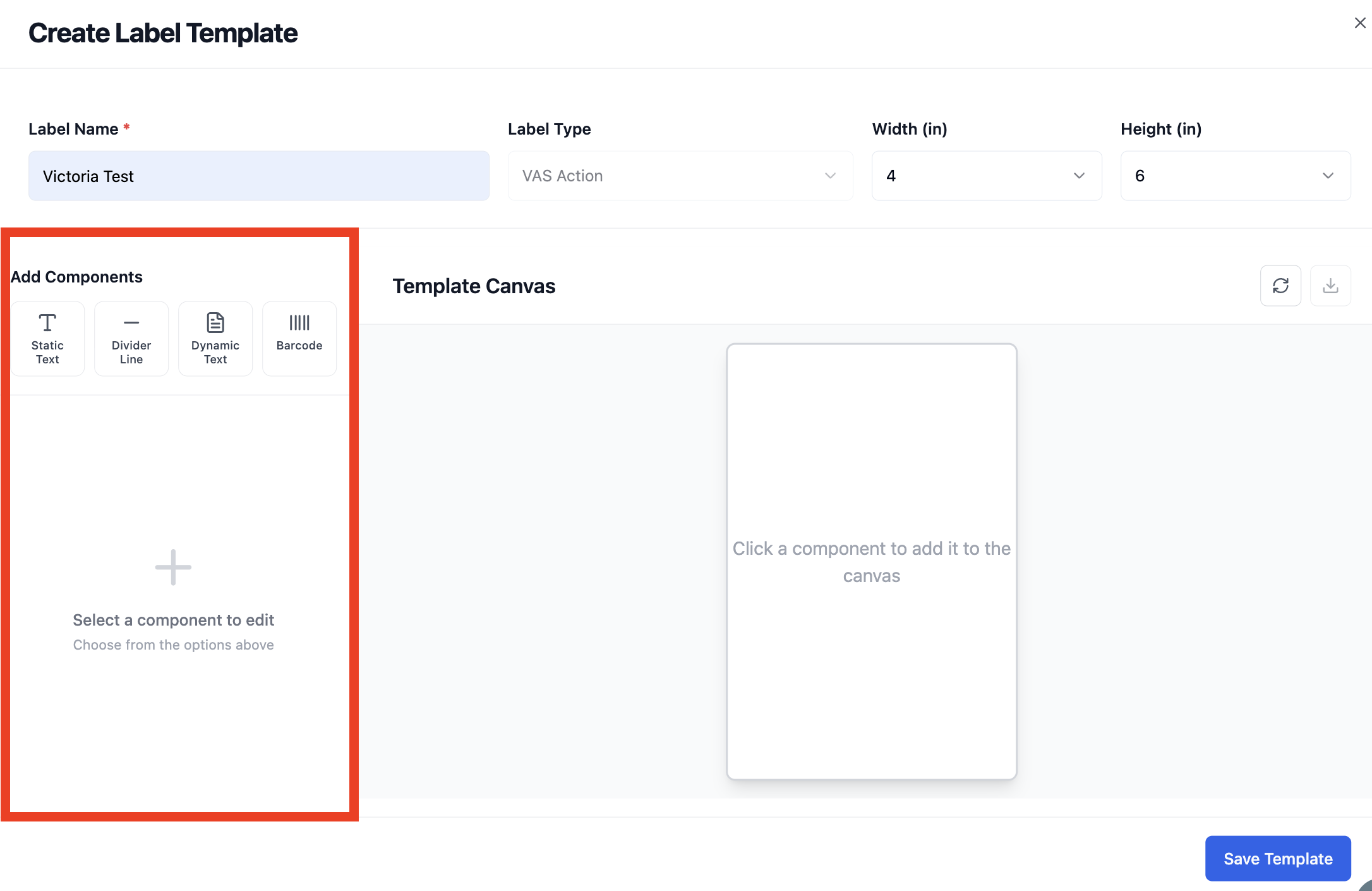
Add a component, select the desired option and it will be placed onto the canvas for configuration and positioning.
Static Text: Used to add fixed text that does not change. This is commonly used for labels such as “PO #”, “SKU”, or retailer-specific wording.
Divider Line: Adds a visual separator to organize sections of the label. This helps improve readability and structure.
Dynamic Text: Used to display system-generated data that updates per order or item.
Barcode: Generates a scannable barcode based on selected data fields.
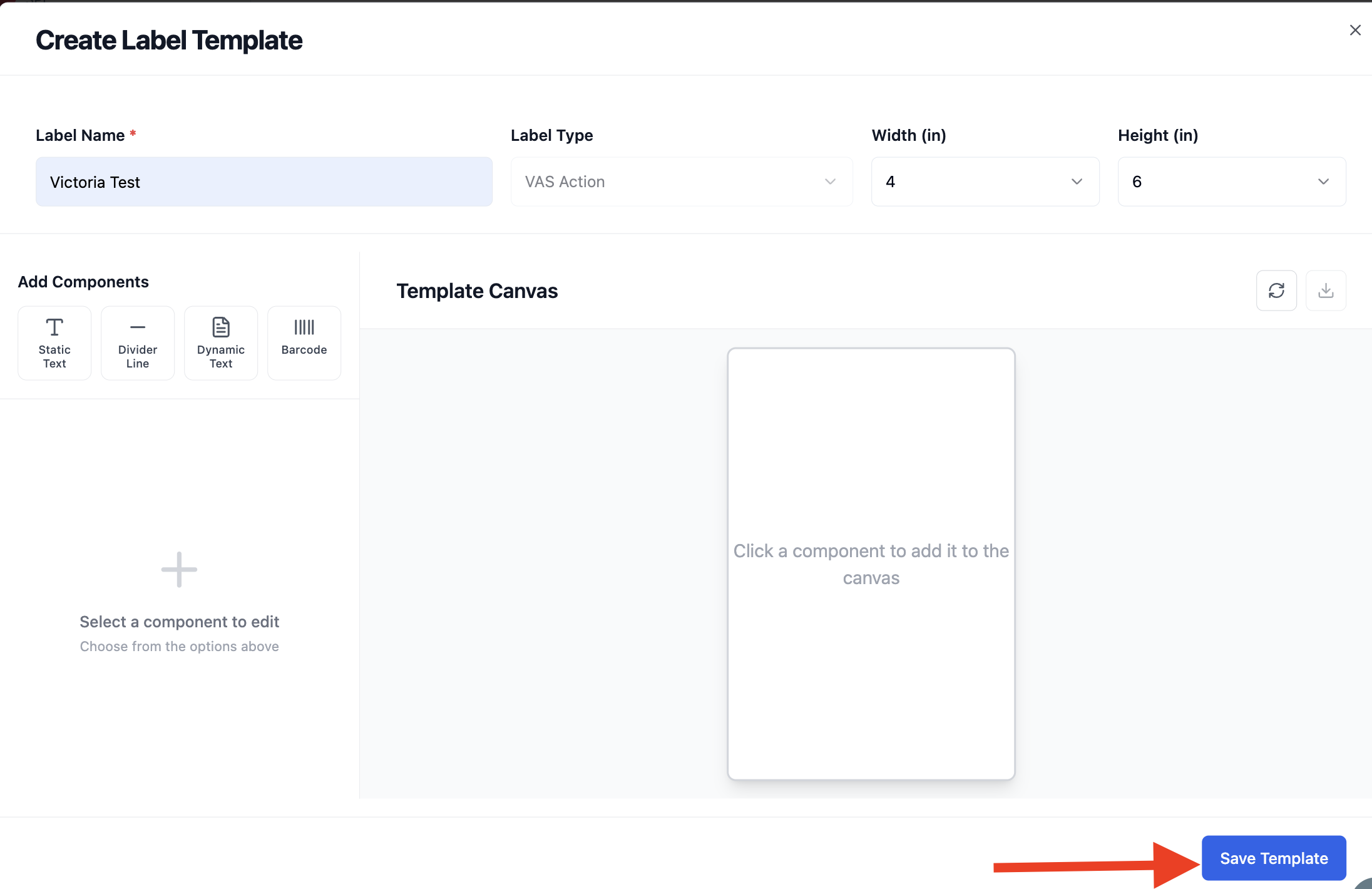
5. Once finishing editing, click 'Save Template to use when setting up VAS Actions.
PDF Label
Select PDF Label
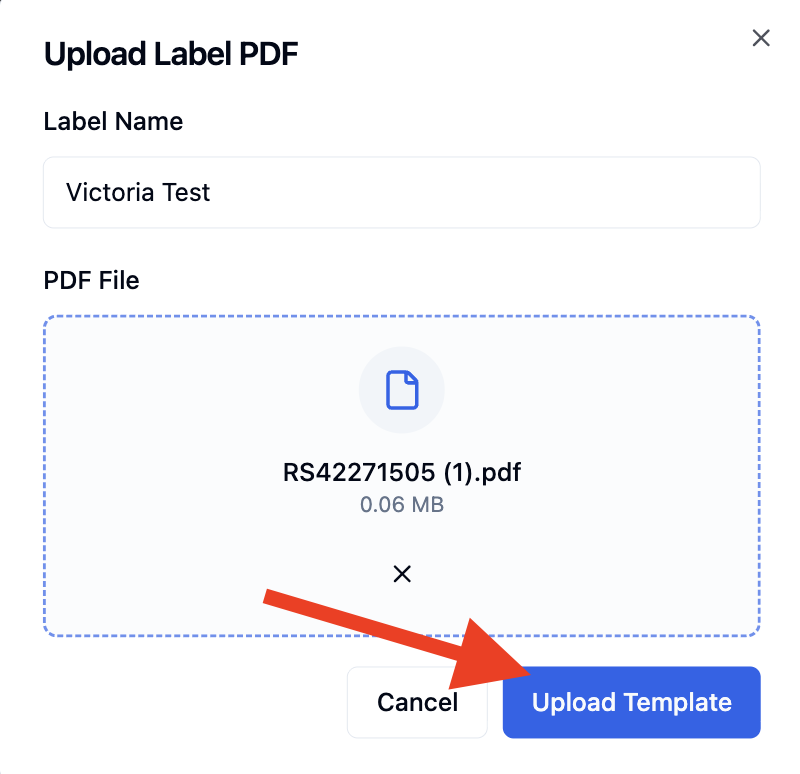
Enter a Label Name upload your PDF file to use an externally created label template.
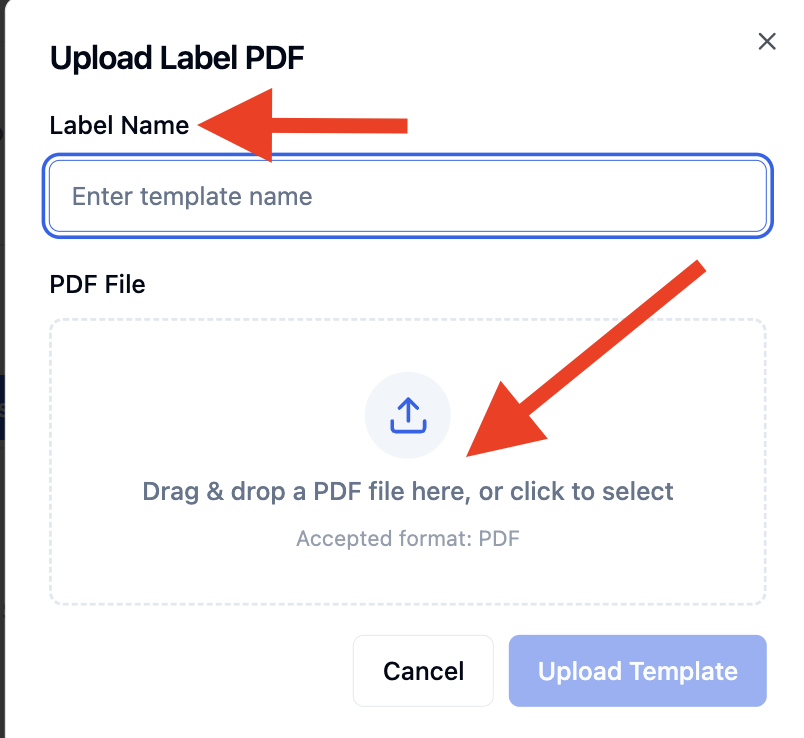
Click 'Upload Template'
Use your label within a VAS Instruction Set to apply it during the pack-out process. Refer to the📄 Create VAS Instruction Sets help article for more information.