Orders Dashboard Overview
Last updated: April 3, 2026
The Orders Dashboard in RetailReady provides a centralized view of all orders across your operation. It enables users to track order status, monitor progress, and take action throughout the fulfillment lifecycle.
The dashboard supports both Parcel and Freight workflows and is designed to give real-time visibility into order activity from creation through shipment.
How to Access the Orders Dashboard
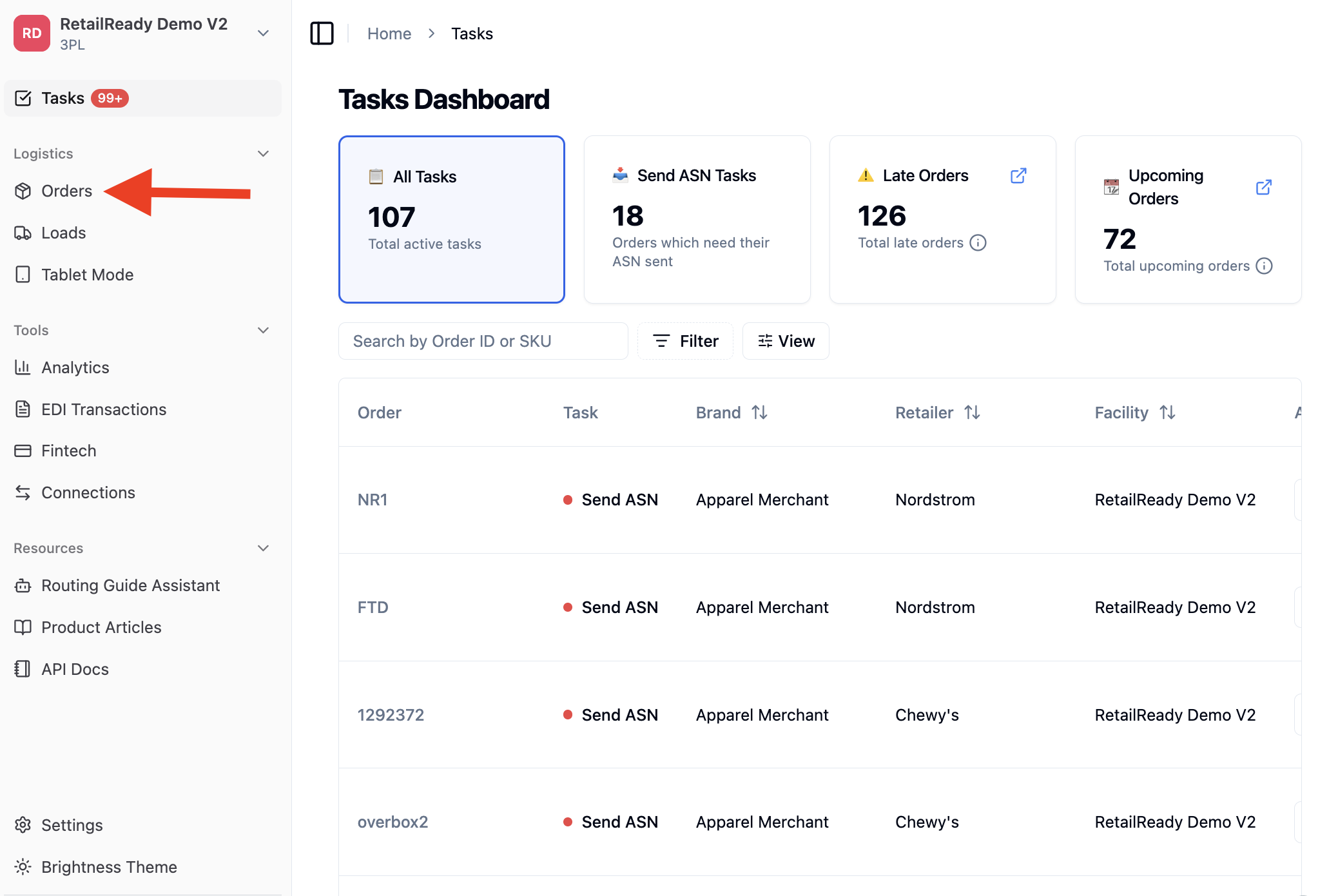
Navigate to 'Orders' from the left-hand navigation panel.
Dashboard Views
RetailReady provides multiple ways to view and manage orders:
Planner View: Displays orders based on key dates such as Requested Ship Date, Stage By date, and Pickup date.
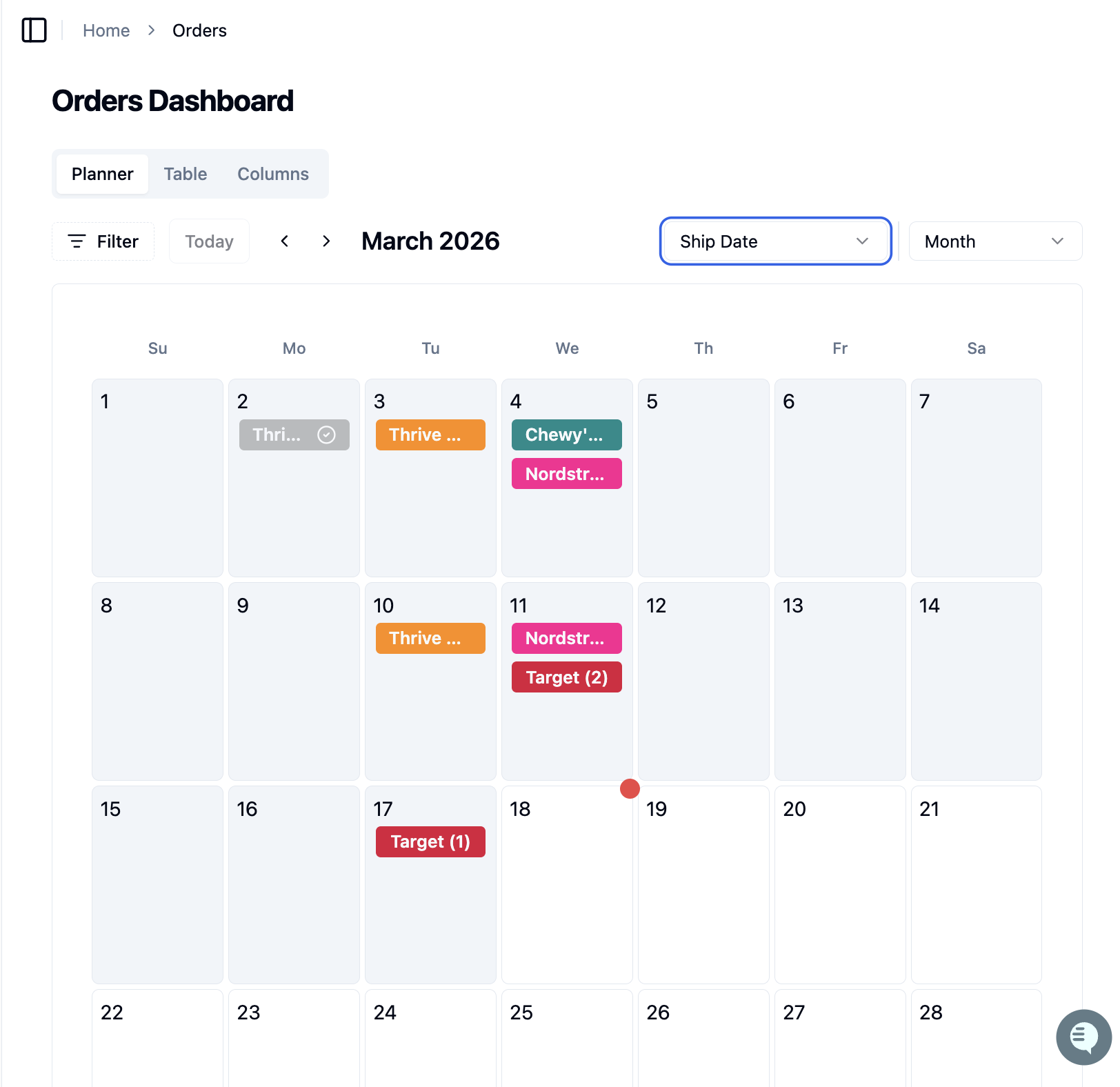
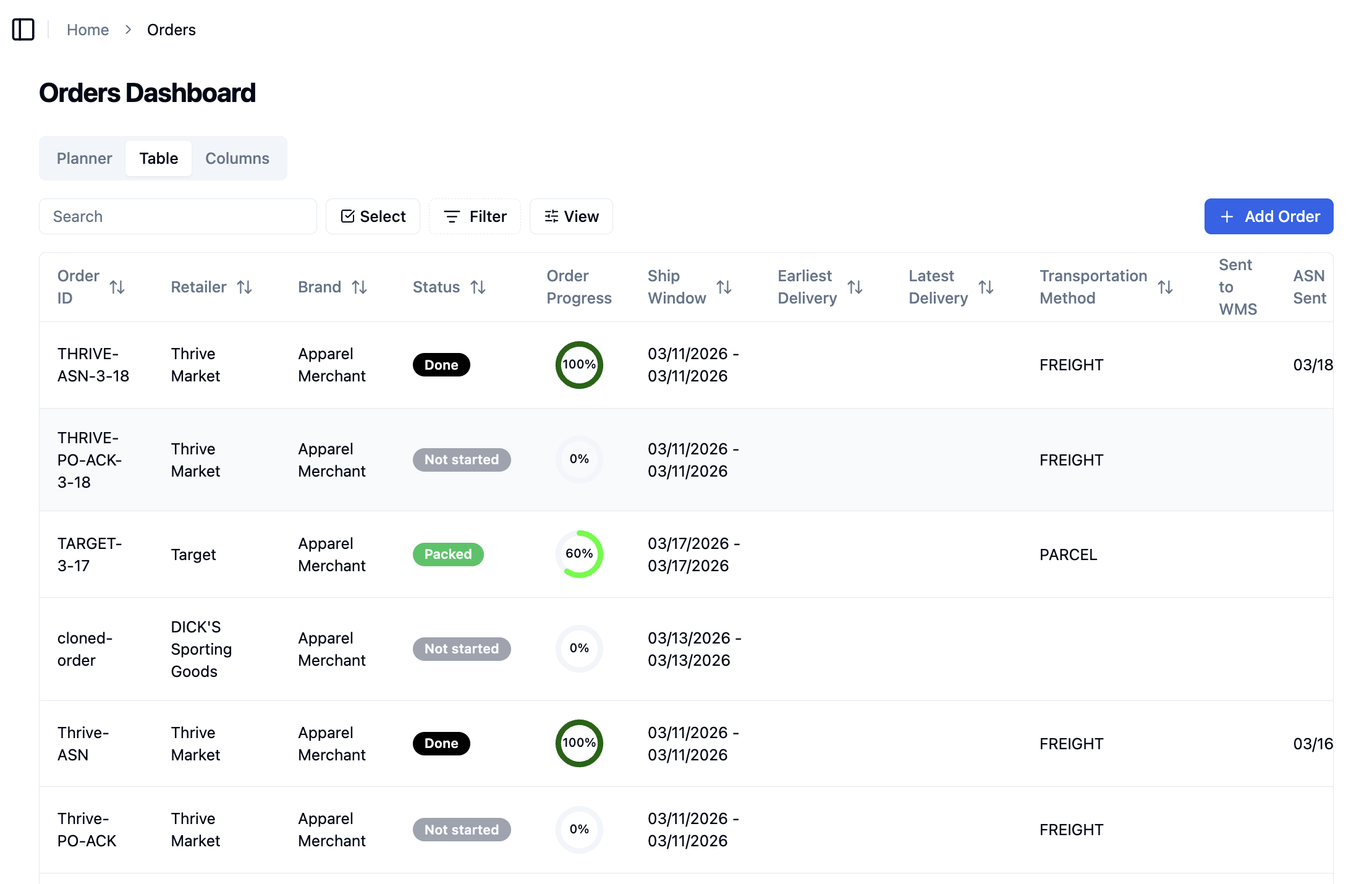
Table View: Displays orders in a structured table format with detailed columns for quick scanning and advance filtering.
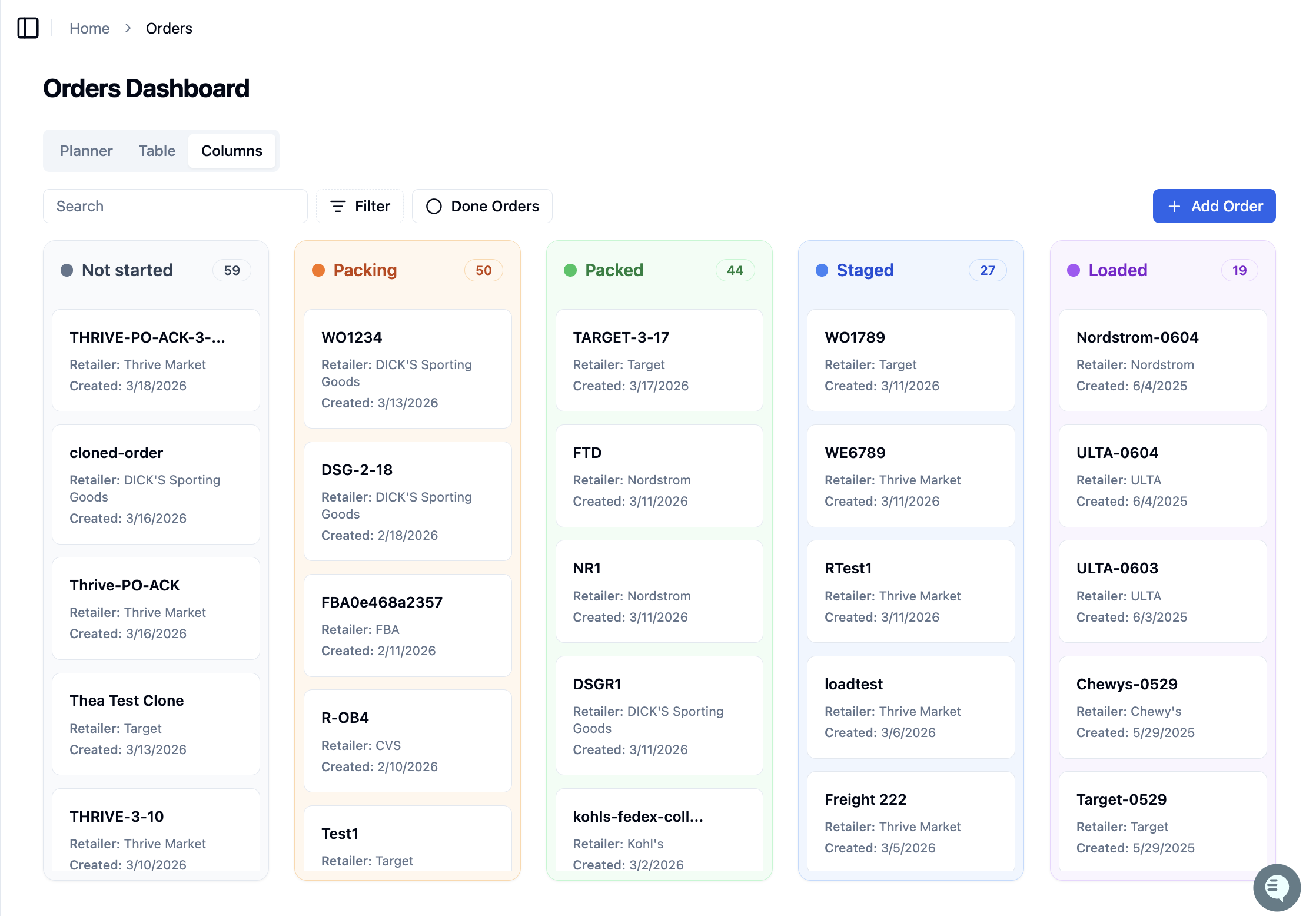
Column View: Groups orders by status, allowing users to easily track where orders are within the fulfillment lifecycle.
Key Features:
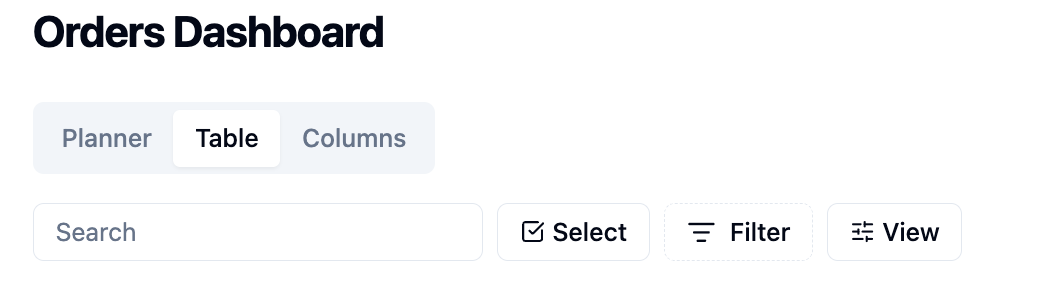
1. Search, Filter, and View Controls
Users can quickly locate and organize orders using:
Search bar to find specific orders
Filter options allow users to narrow results by over 30 available criteria, including retailer, order status, ASN status, PO number, DC, BOL number, and relevant dates.
View settings to customize how data is displayed
2. Order Status Visibility
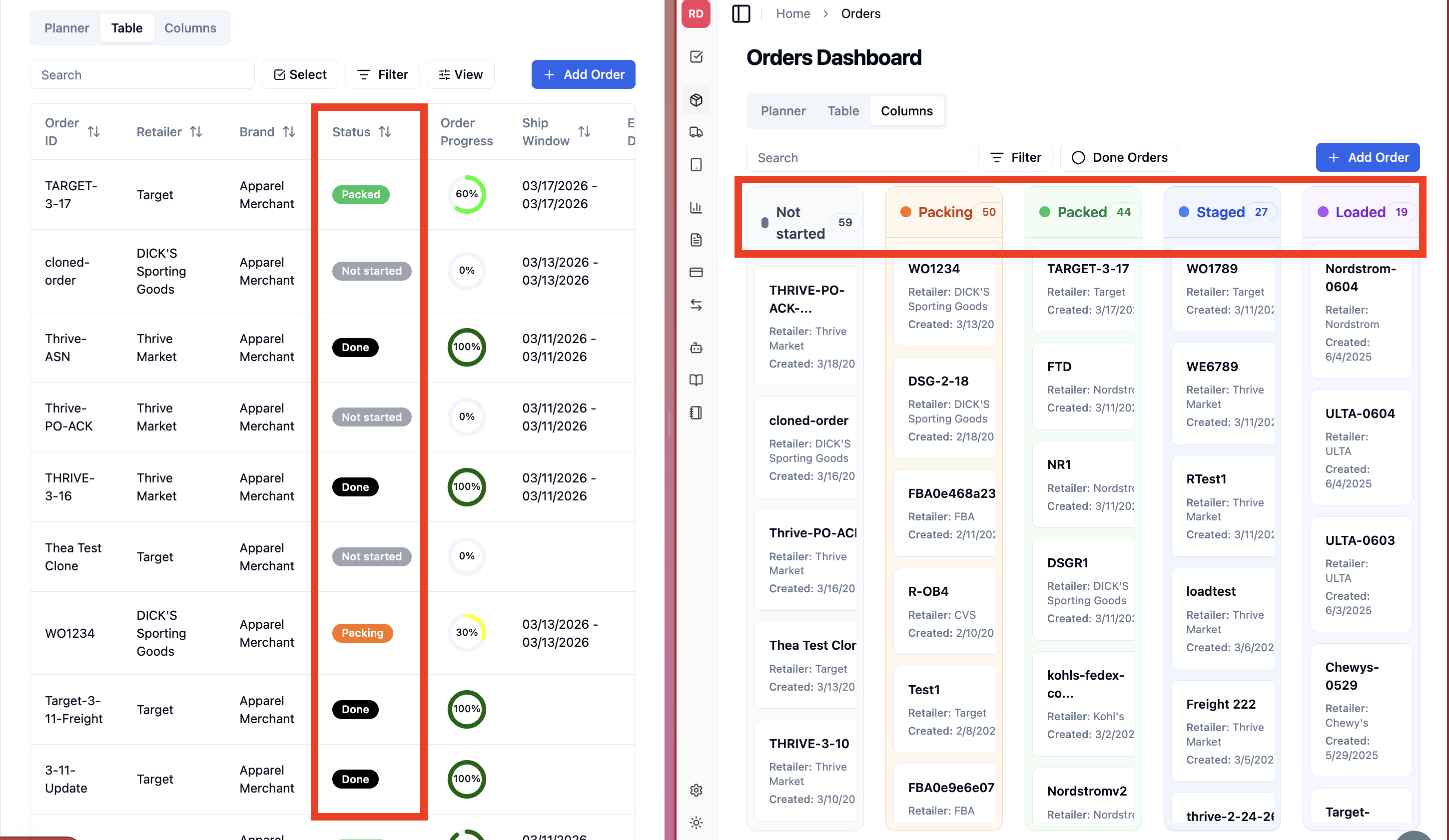
Color-coded order statuses in RetailReady reflect real-time operational progress. For a full breakdown of each status and when it is triggered, refer to the 📄 Order Status Definitionshelp article.
3. Order Progress Indicator
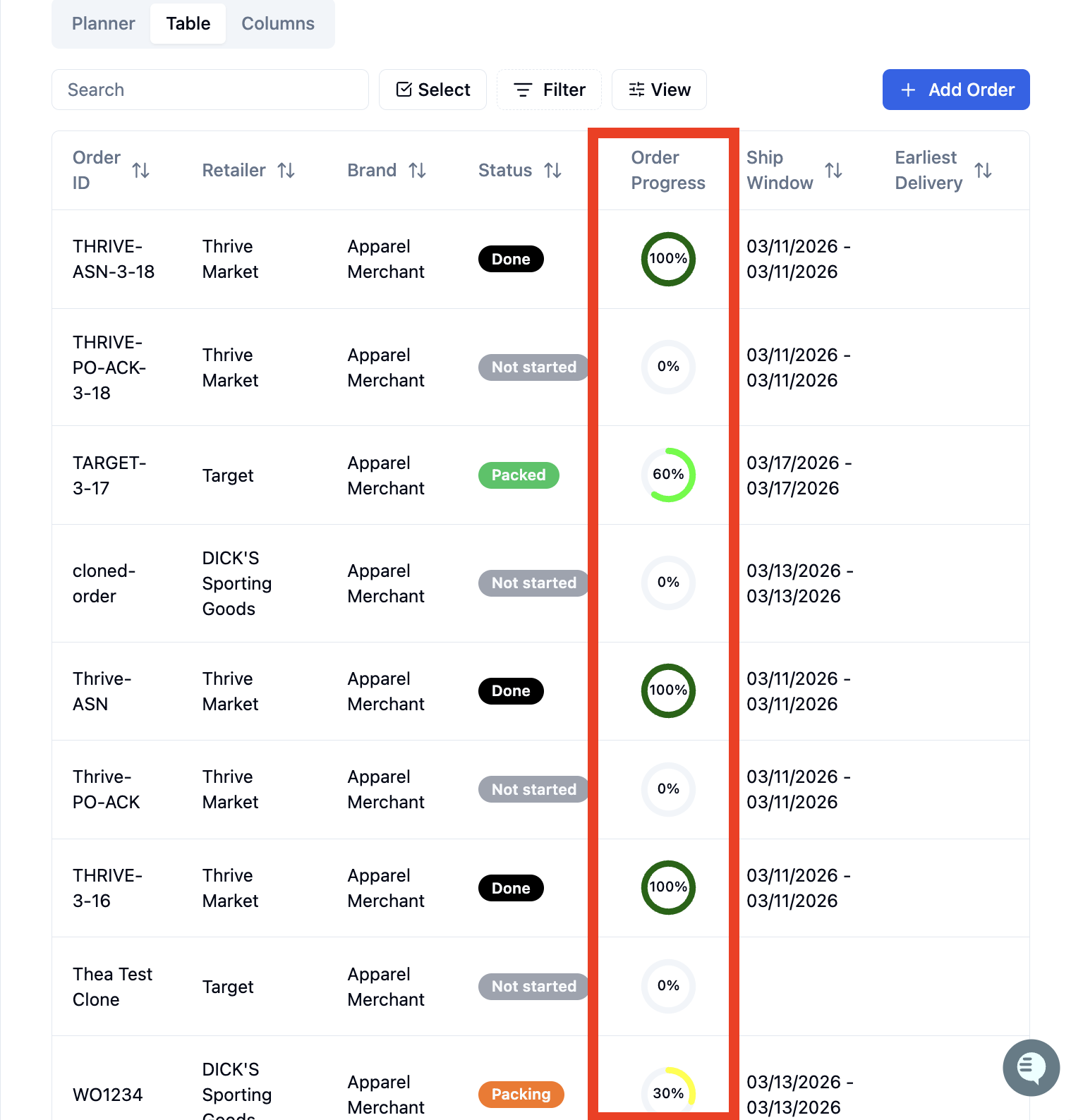
The color-coded Order Progress column provides a visual representation of the order’s completion percentage.
4. Actions
Users can take action directly from the dashboard using:
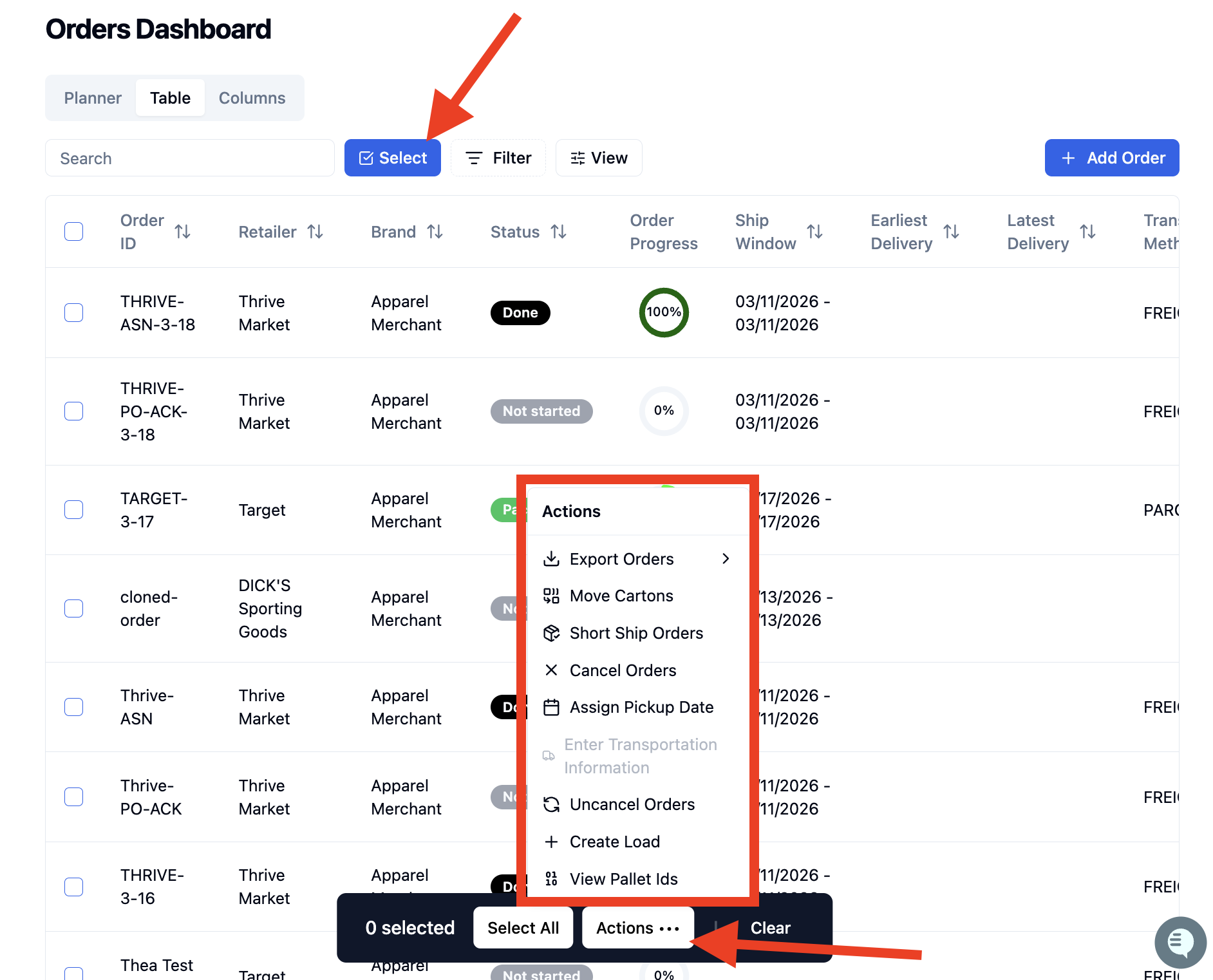
Select to perform multiple bulk actions
'Add Order' to manually create a new order
Row-level interactions to view and manage individual orders
For step-by-step instructions on performing bulk order actions in RetailReady, refer to📄 Bulk Order Actions
Order Columns Information on Table View
Each row represents an order and includes key details:
Column | Description |
Order ID | Unique identifier (number) for the order |
Retailer | Retail partner associated with the order |
Brand | Brand assigned to the order |
Status | Current stage in the fulfillment lifecycle |
Order Progress | Visual indicator of completion percentage |
Ship Window | Required shipping timeframe |
Earliest / Latest Delivery | Delivery expectations |
Transportation Method | Parcel or Freight |
Sent to WMS | Indicates if order has been pushed to WMS |
ASN Sent | Date ASN was transmitted |
Pallet ID | Displays the associated pallet count; hovering over the count reveals the corresponding pallet IDs. |
Wholesale Price | Order value |
Department | Retailer-specific classification |
FAQs:
How often does the Orders Dashboard update?
The dashboard updates in real time based on system activity and user actions across RetailReady modules.
Can I take action on multiple orders at once?
Yes, multiple orders can be selected to perform bulk actions by clicking Select, choosing individual orders or Select All, and then clicking 'Actions'.
Can I get a report of all items required across multiple POs?
Yes, you can bulk export line items across any set of orders directly from the Orders Dashboard at the order, item, or carton level. To do this click 'Select', choosing individual orders or Select All, and then clicking 'Actions'.
What does “ASN Sent” mean?
ASN Sent indicates the date the Advanced Shipment Notice was transmitted to the retailer, confirming shipment.
What does “Sent to WMS” mean?
This indicates whether the order has been successfully pushed from RetailReady to the Warehouse Management System (WMS).
How do I find a specific order quickly?
Use the search bar to locate orders by Order ID, PO number, or other identifiers. Filters can also be applied to narrow results across multiple criteria.